 Connexion


In this post we’ll talk about the Atom editor which is, as they say, A hackable text editor for the 21st Century.
It’s a really nice, open source and modern editor, with a broad community that provides different and new packages and functionalities. Have you tried it yet?
Here, you’ll learn how to install it and how to configure it to write Python code. Let’s start! 
First, download Atom from the official webpage.
Once installed, if you have a Mac or Windows, you’ll have two commands available: atom and apm. The first one is for opening the Atom editor, and the second one for installing Atom packages. We’ll see an example of both in the following.
Let’s start by creating a Python file with:
$ atom myfile.py
This will open the file in Atom, and you’ll see the containing folder with all its contents on the left sidebar.
In the new file, if you type de, you’ll see that it suggests if you want to create a new function. This is because Atom has detected that the file extension is a Python extension.

If you type the Tab key, you’ll see a template for a new function:
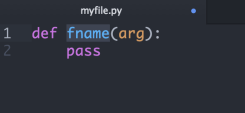
Note that you have the fname highlighted. This is because you can now type the name of your function and it will replace fname. Let’s name our function product.
Next, if you hit the Tab key again, the arguments of the function, arg, will be now selected. Just write x, y, as we need two different arguments for our function.
Finally, hit the Tab key again to select the body of our function, pass, and replace it for our code. The end function should be something like:
def product(x,y):
    return x * y
Also notice the blue circle next to the file name. This means that there are unsaved changes in your current file. You can save it just typing the usual cmd+c (or ctrl+c in windows).
Linter is an Atom package that provides a top level API so that there is a unification among all the linter atom plugins. This means that all the extra packages that you install, that highlight your code (for example to detect errors) will use a unified method.
To install it, just type:
$ apm install linter
Next, we’re going to install a Python Linter package, to help us detect errors in our Python code.
This package is called linter-flake8 and it’s an interface to flake8. To install it, you need to run:
$ pip install flake8
$ pip install flake8-docstrings
$ apm install linter-flake8
You must restart Atom to see the changes. For example, if we add the folling line of code in our file:
y = product(a, b)
without specifying what a or b are, we’ll see the following in our Atom screen:

If you open Atom and you find an error that says
The linter binary flake8 cannot be found
You will need to open the Atom init script (Atom –> Open your Init Script) and write the following:
process.env.PATH = ['/usr/local/bin/', process.env.PATH].join(':')
Restart Atom the apply these changes. It should work now 
Moreover, there are Linters for other languages like HTML, CSS or Javascript. You can find a list here.
Here I’ll show you how you can configure Atom to follow PEP8, the official Python styling guide.
First, open the Atom –> Preferences window.
1. Use spaces instead of tabs.
Scroll down the Settings panel until you see the Soft Tabs option. Make sure it’s checked. This setting will convert tabs into spaces automatically.

2. Set the tab length to 4 spaces
A little below the Soft Tab setting, you”ll see the Tab Length. Set it to 4 spaces.
3. Automatic PEP8 validation.
If you installed the linter-flake8 package discussed in the previous section, you already have automatic PEP8 validation
In the same Preferences panel, you can see the Keybindings menu on the left. There, you’ll find a list of all the default keybindings active in your Atom editor.
However, by default, Atom confirms an autocomplete suggestion with both the Tab and Enter keys. But I only want to use the Tab key.
In order to disable Enter as an autocomplete confirm key, we need to go to the Keybindings menu where you’ll see a link that says your keymap file. Click on that link to open the keymap.cson file.
There, you need to write:
# Disable Enter key for confirming an autocomplete suggestion
'atom-text-editor:not(mini).autocomplete-active':
  'enter': 'editor:newline'
Save the file and you’ll see the changes immediately. No need to restart Atom
Project manager: a package for saving your projects.
Atom Django: Django support for Atom
Minimap: Displays a small map of the current file on the right side of your document (like Sublime Text by default).
Do you use other Packages? Write a comment below about them!
The post Install and Configure the Atom Editor for Python appeared first on Marina Mele's site.

How do I show line numbers in Vim by default on Linux?
The post Vim show line numbers by default on Linux appeared first on nixCraft.
Vim is my favorite text editor and version 8.2 released. The new version includes support for popup windows and text properties. Popup windows can be used for many purposes. For example, a list of choices can be displayed, where the user selects an entry with keys or with the mouse. There is also a new vim game released named as killersheep to show you new capabilities of Vim. Let us see how to install and play killersheep.
The post killersheep – Silly game for Vim version 8.2 appeared first on nixCraft.

 Lateo.net - Flux RSS en pagaille (pour en ajouter : @ moi)