 Connexion


In this tutorial we are going to explore three date/datetime pickers options that you can easily use in a Django project. We are going to explore how to do it manually first, then how to set up a custom widget and finally how to use a third-party Django app with support to datetime pickers.
The implementation of a date picker is mostly done on the front-end.
The key part of the implementation is to assure Django will receive the date input value in the correct format, and also that Django will be able to reproduce the format when rendering a form with initial data.
We can also use custom widgets to provide a deeper integration between the front-end and back-end and also to promote better reuse throughout a project.
In the next sections we are going to explore following date pickers:
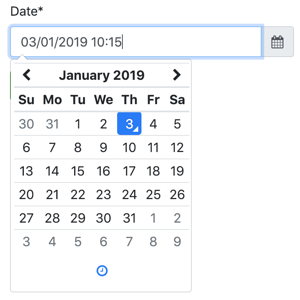
Tempus Dominus Bootstrap 4 Docs Source
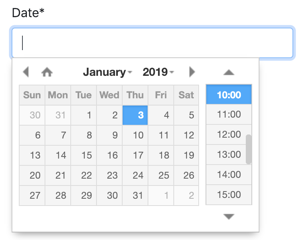
XDSoft DateTimePicker Docs Source
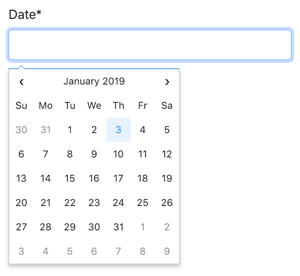
Fengyuan Chen’s Datepicker Docs Source
This is a great JavaScript library and it integrate well with Bootstrap 4. The downside is that it requires moment.js and sort of need Font-Awesome for the icons.
It only make sense to use this library with you are already using Bootstrap 4 + jQuery, otherwise the list of CSS and JS may look a little bit overwhelming.
To install it you can use their CDN or download the latest release from their GitHub Releases page.
If you downloaded the code from the releases page, grab the processed code from the build/ folder.
Below, a static HTML example of the datepicker:
<!doctype html>
<html lang="en">
  <head>
    <meta charset="utf-8">
    <meta name="viewport" content="width=device-width, initial-scale=1, shrink-to-fit=no">
    <title>Static Example</title>

    <!-- Bootstrap 4 -->
    <link rel="stylesheet" href="https://stackpath.bootstrapcdn.com/bootstrap/4.2.1/css/bootstrap.min.css" integrity="sha384-GJzZqFGwb1QTTN6wy59ffF1BuGJpLSa9DkKMp0DgiMDm4iYMj70gZWKYbI706tWS" crossorigin="anonymous">
    <script src="https://code.jquery.com/jquery-3.3.1.slim.min.js" integrity="sha384-q8i/X+965DzO0rT7abK41JStQIAqVgRVzpbzo5smXKp4YfRvH+8abtTE1Pi6jizo" crossorigin="anonymous"></script>
    <script src="https://cdnjs.cloudflare.com/ajax/libs/popper.js/1.14.6/umd/popper.min.js" integrity="sha384-wHAiFfRlMFy6i5SRaxvfOCifBUQy1xHdJ/yoi7FRNXMRBu5WHdZYu1hA6ZOblgut" crossorigin="anonymous"></script>
    <script src="https://stackpath.bootstrapcdn.com/bootstrap/4.2.1/js/bootstrap.min.js" integrity="sha384-B0UglyR+jN6CkvvICOB2joaf5I4l3gm9GU6Hc1og6Ls7i6U/mkkaduKaBhlAXv9k" crossorigin="anonymous"></script>

    <!-- Font Awesome -->
    <link href="https://stackpath.bootstrapcdn.com/font-awesome/4.7.0/css/font-awesome.min.css" rel="stylesheet" integrity="sha384-wvfXpqpZZVQGK6TAh5PVlGOfQNHSoD2xbE+QkPxCAFlNEevoEH3Sl0sibVcOQVnN" crossorigin="anonymous">

    <!-- Moment.js -->
    <script src="https://cdnjs.cloudflare.com/ajax/libs/moment.js/2.23.0/moment.min.js" integrity="sha256-VBLiveTKyUZMEzJd6z2mhfxIqz3ZATCuVMawPZGzIfA=" crossorigin="anonymous"></script>

    <!-- Tempus Dominus Bootstrap 4 -->
    <link rel="stylesheet" href="https://cdnjs.cloudflare.com/ajax/libs/tempusdominus-bootstrap-4/5.1.2/css/tempusdominus-bootstrap-4.min.css" integrity="sha256-XPTBwC3SBoWHSmKasAk01c08M6sIA5gF5+sRxqak2Qs=" crossorigin="anonymous" />
    <script src="https://cdnjs.cloudflare.com/ajax/libs/tempusdominus-bootstrap-4/5.1.2/js/tempusdominus-bootstrap-4.min.js" integrity="sha256-z0oKYg6xiLq3yJGsp/LsY9XykbweQlHl42jHv2XTBz4=" crossorigin="anonymous"></script>

  </head>
  <body>

    <div class="input-group date" id="datetimepicker1" data-target-input="nearest">
      <input type="text" class="form-control datetimepicker-input" data-target="#datetimepicker1"/>
      <div class="input-group-append" data-target="#datetimepicker1" data-toggle="datetimepicker">
        <div class="input-group-text"><i class="fa fa-calendar"></i></div>
      </div>
    </div>

    <script>
      $(function () {
        $("#datetimepicker1").datetimepicker();
      });
    </script>

  </body>
</html>The challenge now is to have this input snippet integrated with a Django form.
forms.py
from django import forms

class DateForm(forms.Form):
    date = forms.DateTimeField(
        input_formats=['%d/%m/%Y %H:%M'],
        widget=forms.DateTimeInput(attrs={
            'class': 'form-control datetimepicker-input',
            'data-target': '#datetimepicker1'
        })
    )
template
<div class="input-group date" id="datetimepicker1" data-target-input="nearest">
  {{ form.date }}
  <div class="input-group-append" data-target="#datetimepicker1" data-toggle="datetimepicker">
    <div class="input-group-text"><i class="fa fa-calendar"></i></div>
  </div>
</div>

<script>
  $(function () {
    $("#datetimepicker1").datetimepicker({
      format: 'DD/MM/YYYY HH:mm',
    });
  });
</script>
The script tag can be placed anywhere because the snippet $(function () { ... }); will run the datetimepicker
initialization when the page is ready. The only requirement is that this script tag is placed after the jQuery script
tag.
You can create the widget in any app you want, here I’m going to consider we have a Django app named core.
core/widgets.py
from django.forms import DateTimeInput

class BootstrapDateTimePickerInput(DateTimeInput):
    template_name = 'widgets/bootstrap_datetimepicker.html'

    def get_context(self, name, value, attrs):
        datetimepicker_id = 'datetimepicker_{name}'.format(name=name)
        if attrs is None:
            attrs = dict()
        attrs['data-target'] = '#{id}'.format(id=datetimepicker_id)
        attrs['class'] = 'form-control datetimepicker-input'
        context = super().get_context(name, value, attrs)
        context['widget']['datetimepicker_id'] = datetimepicker_id
        return context
In the implementation above we generate a unique ID datetimepicker_id and also include it in the widget context.
Then the front-end implementation is done inside the widget HTML snippet.
widgets/bootstrap_datetimepicker.html
<div class="input-group date" id="{{ widget.datetimepicker_id }}" data-target-input="nearest">
  {% include "django/forms/widgets/input.html" %}
  <div class="input-group-append" data-target="#{{ widget.datetimepicker_id }}" data-toggle="datetimepicker">
    <div class="input-group-text"><i class="fa fa-calendar"></i></div>
  </div>
</div>

<script>
  $(function () {
    $("#{{ widget.datetimepicker_id }}").datetimepicker({
      format: 'DD/MM/YYYY HH:mm',
    });
  });
</script>
Note how we make use of the built-in django/forms/widgets/input.html template.
Now the usage:
core/forms.py
from .widgets import BootstrapDateTimePickerInput

class DateForm(forms.Form):
    date = forms.DateTimeField(
        input_formats=['%d/%m/%Y %H:%M'],
        widget=BootstrapDateTimePickerInput()
    )
Now simply render the field:
template
{{ form.date }}The good thing about having the widget is that your form could have several date fields using the widget and you could simply render the whole form like:
<form method="post">
  {% csrf_token %}
  {{ form.as_p }}
  <input type="submit" value="Submit">
</form>The XDSoft DateTimePicker is a very versatile date picker and doesn’t rely on moment.js or Bootstrap, although it looks good in a Bootstrap website.
It is easy to use and it is very straightforward.
You can download the source from GitHub releases page.
Below, a static example so you can see the minimum requirements and how all the pieces come together:
<!doctype html>
<html lang="en">
<head>
  <meta charset="utf-8">
  <meta name="viewport" content="width=device-width, initial-scale=1, shrink-to-fit=no">
  <title>Static Example</title>

  <!-- jQuery -->
  <script src="https://code.jquery.com/jquery-3.3.1.slim.min.js" integrity="sha384-q8i/X+965DzO0rT7abK41JStQIAqVgRVzpbzo5smXKp4YfRvH+8abtTE1Pi6jizo" crossorigin="anonymous"></script>

  <!-- XDSoft DateTimePicker -->
  <link rel="stylesheet" href="https://cdnjs.cloudflare.com/ajax/libs/jquery-datetimepicker/2.5.20/jquery.datetimepicker.min.css" integrity="sha256-DOS9W6NR+NFe1fUhEE0PGKY/fubbUCnOfTje2JMDw3Y=" crossorigin="anonymous" />
  <script src="https://cdnjs.cloudflare.com/ajax/libs/jquery-datetimepicker/2.5.20/jquery.datetimepicker.full.min.js" integrity="sha256-FEqEelWI3WouFOo2VWP/uJfs1y8KJ++FLh2Lbqc8SJk=" crossorigin="anonymous"></script>
</head>
<body>

  <input id="datetimepicker" type="text">

  <script>
    $(function () {
      $("#datetimepicker").datetimepicker();
    });
  </script>

</body>
</html>A basic integration with Django would look like this:
forms.py
from django import forms

class DateForm(forms.Form):
    date = forms.DateTimeField(input_formats=['%d/%m/%Y %H:%M'])
Simple form, default widget, nothing special.
Now using it on the template:
template
{{ form.date }}

<script>
  $(function () {
    $("#id_date").datetimepicker({
      format: 'd/m/Y H:i',
    });
  });
</script>
The id_date is the default ID Django generates for the form fields (id_ + name).
core/widgets.py
from django.forms import DateTimeInput

class XDSoftDateTimePickerInput(DateTimeInput):
    template_name = 'widgets/xdsoft_datetimepicker.html'
widgets/xdsoft_datetimepicker.html
{% include "django/forms/widgets/input.html" %}

<script>
  $(function () {
    $("input[name='{{ widget.name }}']").datetimepicker({
      format: 'd/m/Y H:i',
    });
  });
</script>
To have a more generic implementation, this time we are selecting the field to initialize the component using its name instead of its id, should the user change the id prefix.
Now the usage:
core/forms.py
from django import forms
from .widgets import XDSoftDateTimePickerInput

class DateForm(forms.Form):
    date = forms.DateTimeField(
        input_formats=['%d/%m/%Y %H:%M'],
        widget=XDSoftDateTimePickerInput()
    )
template
{{ form.date }}This is a very beautiful and minimalist date picker. Unfortunately there is no time support. But if you only need dates this is a great choice.
To install this datepicker you can either use their CDN or download the sources from their GitHub releases page. Please note that they do not provide a compiled/processed JavaScript files. But you can download those to your local machine using the CDN.
<!doctype html>
<html lang="en">
<head>
  <meta charset="utf-8">
  <meta name="viewport" content="width=device-width, initial-scale=1, shrink-to-fit=no">
  <title>Static Example</title>
  <style>body {font-family: Arial, sans-serif;}</style>

  <!-- jQuery -->
  <script src="https://code.jquery.com/jquery-3.3.1.slim.min.js" integrity="sha384-q8i/X+965DzO0rT7abK41JStQIAqVgRVzpbzo5smXKp4YfRvH+8abtTE1Pi6jizo" crossorigin="anonymous"></script>

  <!-- Fengyuan Chen's Datepicker -->
  <link rel="stylesheet" href="https://cdnjs.cloudflare.com/ajax/libs/datepicker/0.6.5/datepicker.min.css" integrity="sha256-b88RdwbRJEzRx95nCuuva+hO5ExvXXnpX+78h8DjyOE=" crossorigin="anonymous" />
  <script src="https://cdnjs.cloudflare.com/ajax/libs/datepicker/0.6.5/datepicker.min.js" integrity="sha256-/7FLTdzP6CfC1VBAj/rsp3Rinuuu9leMRGd354hvk0k=" crossorigin="anonymous"></script>
</head>
<body>

  <input id="datepicker">

  <script>
    $(function () {
      $("#datepicker").datepicker();
    });
  </script>

</body>
</html>A basic integration with Django (note that we are now using DateField instead of DateTimeField):
forms.py
from django import forms

class DateForm(forms.Form):
    date = forms.DateTimeField(input_formats=['%d/%m/%Y %H:%M'])
template
{{ form.date }}

<script>
  $(function () {
    $("#id_date").datepicker({
      format:'dd/mm/yyyy',
    });
  });
</script>core/widgets.py
from django.forms import DateInput

class FengyuanChenDatePickerInput(DateInput):
    template_name = 'widgets/fengyuanchen_datepicker.html'
widgets/fengyuanchen_datepicker.html
{% include "django/forms/widgets/input.html" %}

<script>
  $(function () {
    $("input[name='{{ widget.name }}']").datepicker({
      format:'dd/mm/yyyy',
    });
  });
</script>
Usage:
core/forms.py
from django import forms
from .widgets import FengyuanChenDatePickerInput

class DateForm(forms.Form):
    date = forms.DateTimeField(
        input_formats=['%d/%m/%Y %H:%M'],
        widget=FengyuanChenDatePickerInput()
    )
template
{{ form.date }}The implementation is very similar no matter what date/datetime picker you are using. Hopefully this tutorial provided some insights on how to integrate this kind of frontend library to a Django project.
As always, the best source of information about each of those libraries are their official documentation.
I also created an example project to show the usage and implementation of the widgets for each of the libraries presented in this tutorial. Grab the source code at github.com/sibtc/django-datetimepicker-example.
[Django 2.1.3 / Python 3.6.5 / Bootstrap 4.1.3]
In this tutorial we are going to explore some of the Django Crispy Forms features to handle advanced/custom forms rendering. This blog post started as a discussion in our community forum, so I decided to compile the insights and solutions in a blog post to benefit a wider audience.
Table of Contents
Throughout this tutorial we are going to implement the following Bootstrap 4 form using Django APIs:
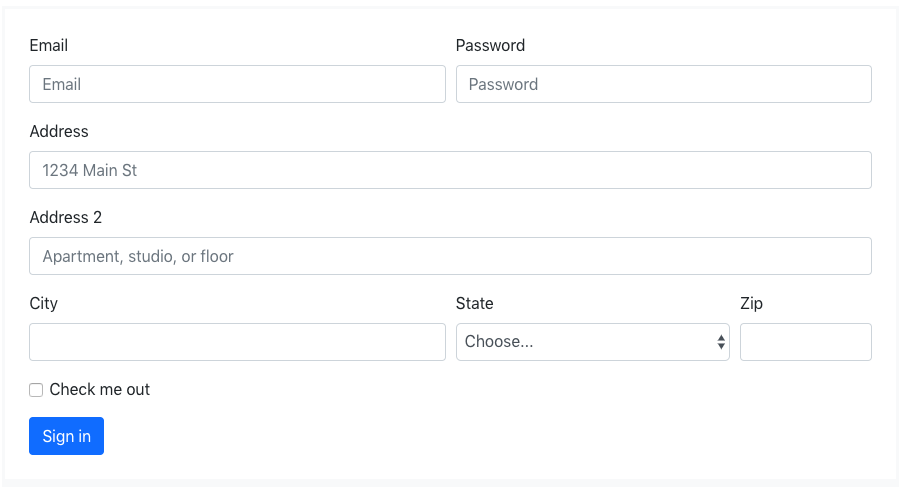
This was taken from Bootstrap 4 official documentation as an example of how to use form rows.
NOTE!
The examples below refer to a base.html template. Consider the code below:
base.html
<!doctype html>
<html lang="en">
<head>
  <meta charset="utf-8">
  <meta name="viewport" content="width=device-width, initial-scale=1, shrink-to-fit=no">
  <link rel="stylesheet" href="https://stackpath.bootstrapcdn.com/bootstrap/4.1.3/css/bootstrap.min.css" integrity="sha384-MCw98/SFnGE8fJT3GXwEOngsV7Zt27NXFoaoApmYm81iuXoPkFOJwJ8ERdknLPMO" crossorigin="anonymous">
</head>
<body>
  <div class="container">
    {% block content %}
    {% endblock %}
  </div>
</body>
</html>Install it using pip:
pip install django-crispy-formsAdd it to your INSTALLED_APPS and select which styles to use:
settings.py
INSTALLED_APPS = [
    ...

    'crispy_forms',
]

CRISPY_TEMPLATE_PACK = 'bootstrap4'
For detailed instructions about how to install django-crispy-forms, please refer to this tutorial:
How to Use Bootstrap 4 Forms With Django
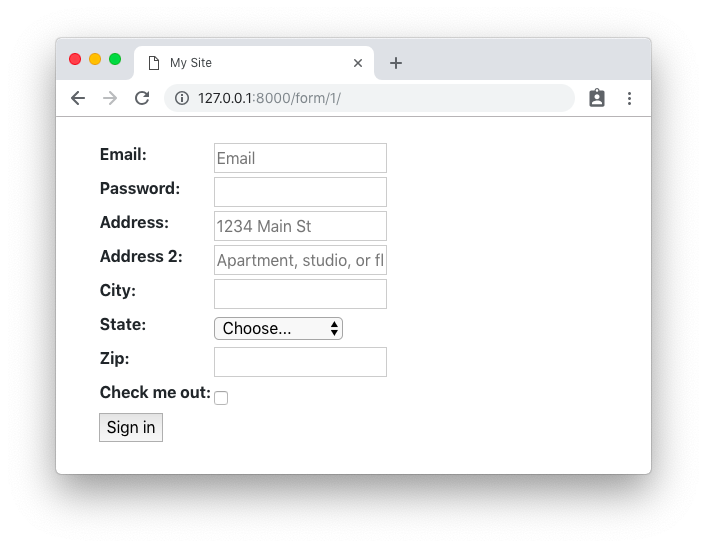
The Python code required to represent the form above is the following:
from django import forms

STATES = (
    ('', 'Choose...'),
    ('MG', 'Minas Gerais'),
    ('SP', 'Sao Paulo'),
    ('RJ', 'Rio de Janeiro')
)

class AddressForm(forms.Form):
    email = forms.CharField(widget=forms.TextInput(attrs={'placeholder': 'Email'}))
    password = forms.CharField(widget=forms.PasswordInput())
    address_1 = forms.CharField(
        label='Address',
        widget=forms.TextInput(attrs={'placeholder': '1234 Main St'})
    )
    address_2 = forms.CharField(
        widget=forms.TextInput(attrs={'placeholder': 'Apartment, studio, or floor'})
    )
    city = forms.CharField()
    state = forms.ChoiceField(choices=STATES)
    zip_code = forms.CharField(label='Zip')
    check_me_out = forms.BooleanField(required=False)
In this case I’m using a regular Form, but it could also be a ModelForm based on a Django model with similar
fields. The state field and the STATES choices could be either a foreign key or anything else. Here I’m just using
a simple static example with three Brazilian states.
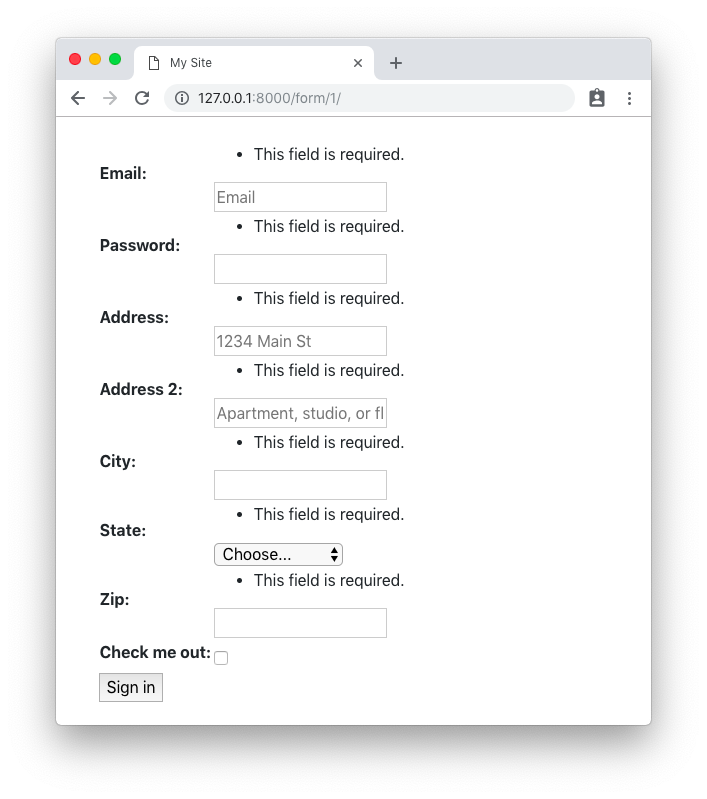
Template:
{% extends 'base.html' %}

{% block content %}
  <form method="post">
    {% csrf_token %}
    <table>{{ form.as_table }}</table>
    <button type="submit">Sign in</button>
  </form>
{% endblock %}
Rendered HTML:
Rendered HTML with validation state:
Same form code as in the example before.
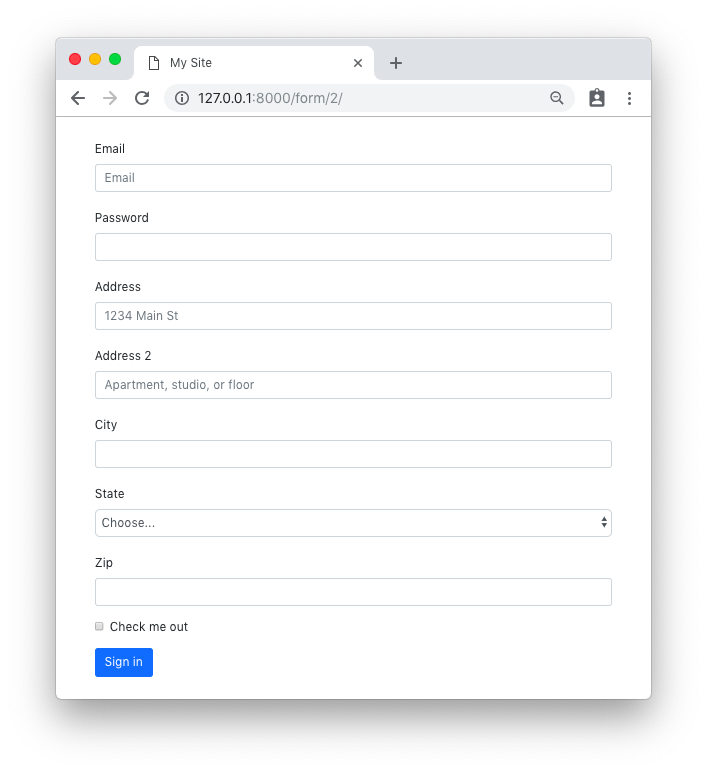
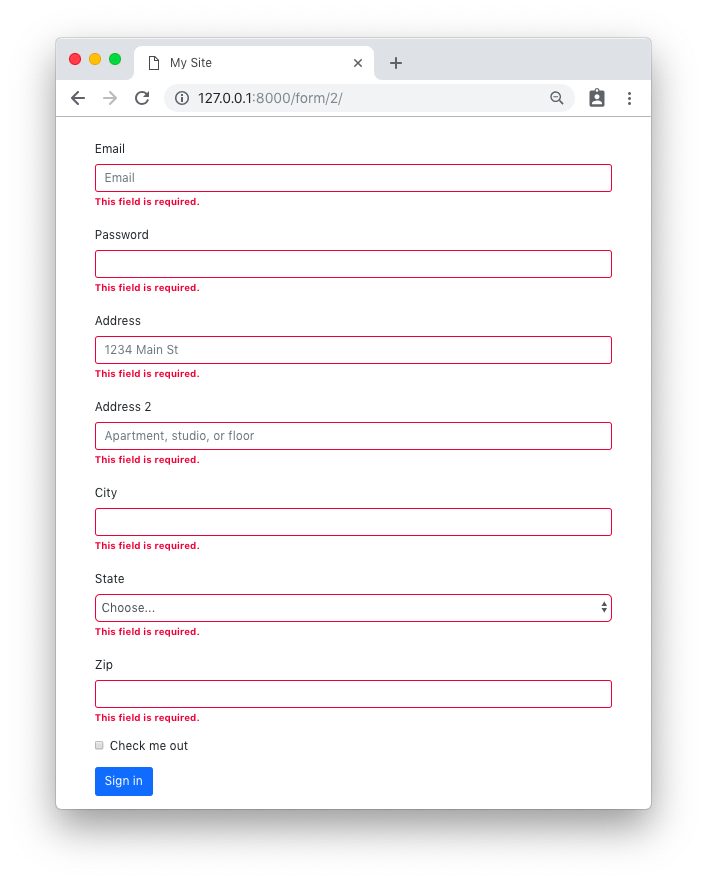
Template:
{% extends 'base.html' %}

{% load crispy_forms_tags %}

{% block content %}
  <form method="post">
    {% csrf_token %}
    {{ form|crispy }}
    <button type="submit" class="btn btn-primary">Sign in</button>
  </form>
{% endblock %}
Rendered HTML:
Rendered HTML with validation state:
Same form code as in the first example.
Template:
{% extends 'base.html' %}

{% load crispy_forms_tags %}

{% block content %}
  <form method="post">
    {% csrf_token %}
    <div class="form-row">
      <div class="form-group col-md-6 mb-0">
        {{ form.email|as_crispy_field }}
      </div>
      <div class="form-group col-md-6 mb-0">
        {{ form.password|as_crispy_field }}
      </div>
    </div>
    {{ form.address_1|as_crispy_field }}
    {{ form.address_2|as_crispy_field }}
    <div class="form-row">
      <div class="form-group col-md-6 mb-0">
        {{ form.city|as_crispy_field }}
      </div>
      <div class="form-group col-md-4 mb-0">
        {{ form.state|as_crispy_field }}
      </div>
      <div class="form-group col-md-2 mb-0">
        {{ form.zip_code|as_crispy_field }}
      </div>
    </div>
    {{ form.check_me_out|as_crispy_field }}
    <button type="submit" class="btn btn-primary">Sign in</button>
  </form>
{% endblock %}
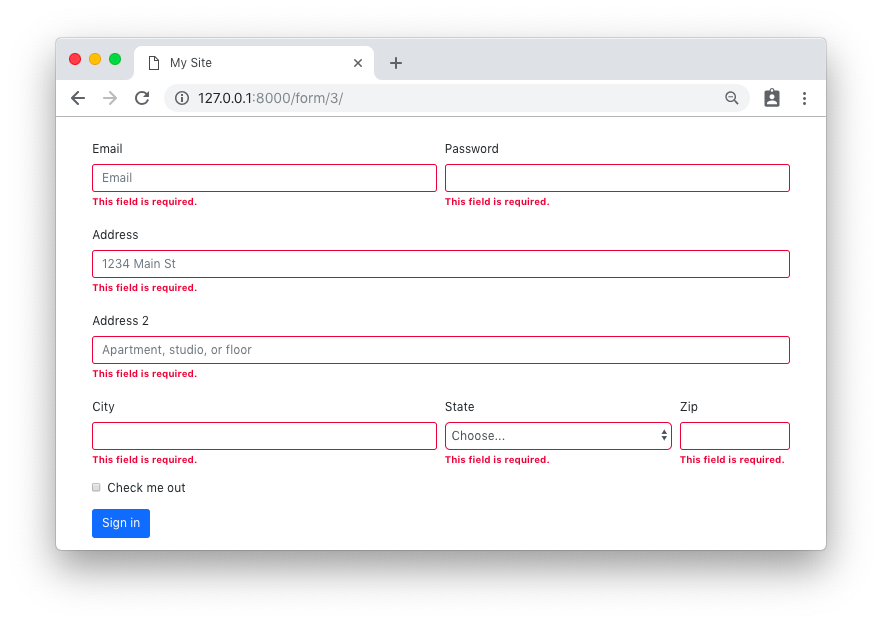
Rendered HTML:
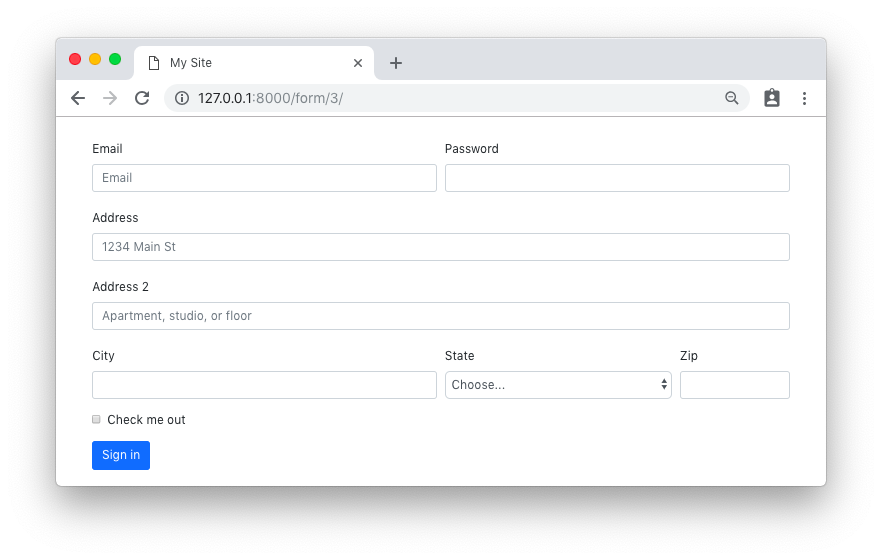
Rendered HTML with validation state:
We could use the crispy forms layout helpers to achieve the same result as above. The implementation is done inside
the form __init__ method:
forms.py
from django import forms
from crispy_forms.helper import FormHelper
from crispy_forms.layout import Layout, Submit, Row, Column

STATES = (
    ('', 'Choose...'),
    ('MG', 'Minas Gerais'),
    ('SP', 'Sao Paulo'),
    ('RJ', 'Rio de Janeiro')
)

class AddressForm(forms.Form):
    email = forms.CharField(widget=forms.TextInput(attrs={'placeholder': 'Email'}))
    password = forms.CharField(widget=forms.PasswordInput())
    address_1 = forms.CharField(
        label='Address',
        widget=forms.TextInput(attrs={'placeholder': '1234 Main St'})
    )
    address_2 = forms.CharField(
        widget=forms.TextInput(attrs={'placeholder': 'Apartment, studio, or floor'})
    )
    city = forms.CharField()
    state = forms.ChoiceField(choices=STATES)
    zip_code = forms.CharField(label='Zip')
    check_me_out = forms.BooleanField(required=False)

    def __init__(self, *args, **kwargs):
        super().__init__(*args, **kwargs)
        self.helper = FormHelper()
        self.helper.layout = Layout(
            Row(
                Column('email', css_class='form-group col-md-6 mb-0'),
                Column('password', css_class='form-group col-md-6 mb-0'),
                css_class='form-row'
            ),
            'address_1',
            'address_2',
            Row(
                Column('city', css_class='form-group col-md-6 mb-0'),
                Column('state', css_class='form-group col-md-4 mb-0'),
                Column('zip_code', css_class='form-group col-md-2 mb-0'),
                css_class='form-row'
            ),
            'check_me_out',
            Submit('submit', 'Sign in')
        )
The template implementation is very minimal:
{% extends 'base.html' %}

{% load crispy_forms_tags %}

{% block content %}
  {% crispy form %}
{% endblock %}
The end result is the same.
Rendered HTML:
Rendered HTML with validation state:
You may also customize the field template and easily reuse throughout your application. Let’s say we want to use the custom Bootstrap 4 checkbox:
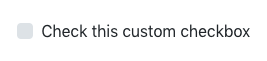
From the official documentation, the necessary HTML to output the input above:
<div class="custom-control custom-checkbox">
  <input type="checkbox" class="custom-control-input" id="customCheck1">
  <label class="custom-control-label" for="customCheck1">Check this custom checkbox</label>
</div>
Using the crispy forms API, we can create a new template for this custom field in our “templates” folder:
custom_checkbox.html
{% load crispy_forms_field %}

<div class="form-group">
  <div class="custom-control custom-checkbox">
    {% crispy_field field 'class' 'custom-control-input' %}
    <label class="custom-control-label" for="{{ field.id_for_label }}">{{ field.label }}</label>
  </div>
</div>
Now we can create a new crispy field, either in our forms.py module or in a new Python module named fields.py or something.
forms.py
from crispy_forms.layout import Field

class CustomCheckbox(Field):
    template = 'custom_checkbox.html'
We can use it now in our form definition:
forms.py
class CustomFieldForm(AddressForm):
    def __init__(self, *args, **kwargs):
        super().__init__(*args, **kwargs)
        self.helper = FormHelper()
        self.helper.layout = Layout(
            Row(
                Column('email', css_class='form-group col-md-6 mb-0'),
                Column('password', css_class='form-group col-md-6 mb-0'),
                css_class='form-row'
            ),
            'address_1',
            'address_2',
            Row(
                Column('city', css_class='form-group col-md-6 mb-0'),
                Column('state', css_class='form-group col-md-4 mb-0'),
                Column('zip_code', css_class='form-group col-md-2 mb-0'),
                css_class='form-row'
            ),
            CustomCheckbox('check_me_out'),  # <-- Here
            Submit('submit', 'Sign in')
        )
(PS: the AddressForm was defined here and is the same as in the previous example.)
The end result:
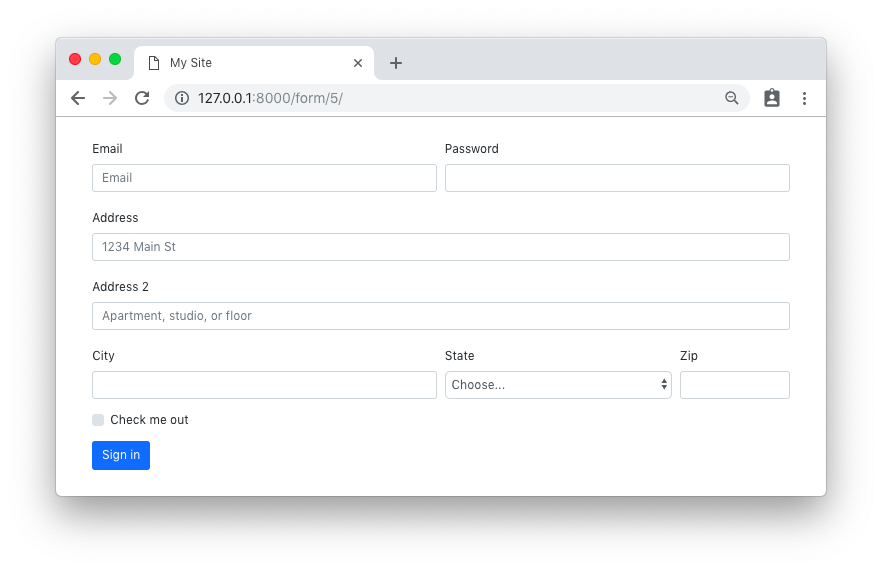
There is much more Django Crispy Forms can do. Hopefully this tutorial gave you some extra insights on how to use the form helpers and layout classes. As always, the official documentation is the best source of information:
Django Crispy Forms layouts docs
Also, the code used in this tutorial is available on GitHub at github.com/sibtc/advanced-crispy-forms-examples.

 Lateo.net - Flux RSS en pagaille (pour en ajouter : @ moi)