 Connexion


Learning Python often starts with the same building blocks: variables, functions, and loops. However, once young people have learnt these essential foundations, they may be eager to grow their skills and start using Python to explore data and create something meaningful to them.
Our free ‘More Python’ project path helps learners move beyond the basics and use data to create impactful projects of their own.
Python is the most widely used programming language in the world, not just because it’s accessible, but because it’s powerful. It is used to analyse data, build models, create data visualisations, and explore important questions.
For young learners, this means learning Python can become more than a coding exercise. It can be a way to investigate topics they care about, analyse and understand information, and tell powerful stories about real-world issues.

Working with data helps learners see how coding connects to the world around them — and builds confidence along the way.
In our day-to-day lives, data is everywhere: in sports results, maps, and scientific research, to name only a few examples. Learning how to work with data helps young people develop skills that go far beyond programming, including:
Data also underpins many of the AI systems people use today. For example, large language models, used to build tools such as ChatGPT, are trained on vast amounts of data. Therefore, understanding how data is collected, organised, and used is an important part of AI literacy.
In Python, structures like lists and dictionaries make it possible to organise, analyse, and explore data in creative ways. Using these tools to build projects can help abstract computing concepts start to feel more concrete and meaningful.
The ‘More Python’ project path supports learners through three stages: Explore, Design, and Invent. Each stage builds skills while giving learners more ownership over what they create.
In the Explore stage, young people learn new concepts and build confidence in using data and core Python structures, such as lists and dictionaries. Projects include:
These projects help learners develop new skills, while exploring how Python can be used to analyse and explain real-world information.
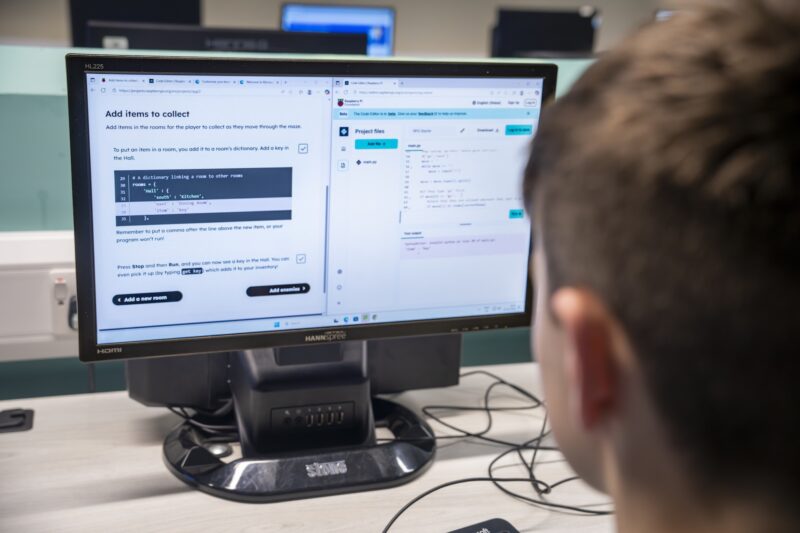
As learners progress to the Design stage, they start making creative choices about how their projects look and behave. In this stage, they:
Here, Python becomes a creative medium. As well as putting their new skills into practice, learners think about audience, interaction, and presentation to make their projects their own.
In the Invent stage, learners bring everything together. Using the skills they have built, they design and create a data visualisation on a topic they are passionate about. This final project gives learners the freedom to choose their data, shape their idea, and tell a story that matters to them.
By this point, learners are planning and creating their own projects, growing in confidence and independence.
If the young people you support have already learned the basics of Python, ‘More Python’ offers a clear and creative next step. The projects are designed to be accessible, and young people can work through them at their own pace, whether they are learning independently, at a Code Club, or in the classroom.
By working with data, getting creative, and making their own original projects, learners can build confidence and start to see what they can achieve with Python.
Alongside the ‘More Python’ project path, you can access hundreds of free coding projects on our Code Club Projects site. Find more projects to suit your learners’ interests, and support them to build their digital skills through creativity and making.
The post Levelling up with Python: Create with data appeared first on Raspberry Pi Foundation.
Thousands of learners worldwide take their first steps into text-based programming using the Python programming language. Python is not only beginner-friendly, but is also used extensively in industry.
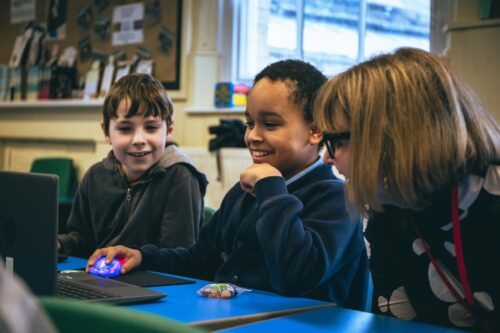
In 2015, Python developer Daniel Pope, who has a keen interest in education, noticed that beginners often have great ideas for creating projects but struggle because the software libraries they need to use are aimed at more confident programmers. To address this, he created Pygame Zero — a simplified version of the popular PyGame software. Since then, various developers have expanded the range of ‘zero’ libraries for Python.
The Raspberry Pi Foundation has a long history of supporting Python zero libraries. GPIO Zero was launched back in 2015, followed by guizero and then picozero. The goal of all ‘zero’ libraries is the same: to help beginner programmers create amazing projects using simple, understandable code, supported by useful documentation.
The Picamera2 library is a powerful tool for advanced users, but beginners — such as Astro Pi: Mission Space Lab programme participants — would benefit from a zero library to allow them to use the Raspberry Pi Camera module.
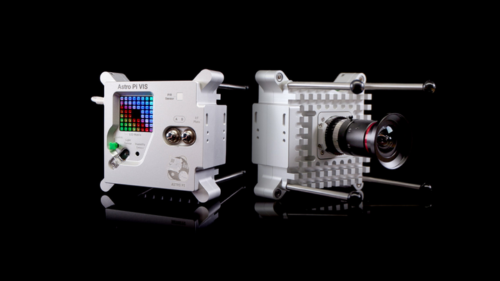
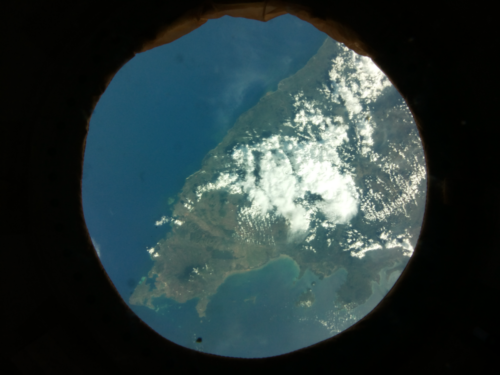
The Code Club Projects and Youth Programmes teams at the Raspberry Pi Foundation have joined forces to create picamzero: a new library that makes it simple for beginners to use the Raspberry Pi Camera board.
As with the other ‘zero’ libraries, it’s straightforward to get started. You can install picamzero by typing two commands in your Raspberry Pi’s terminal:
sudo apt update
sudo apt install python3-picamzero
Once it’s installed, setting up your program to communicate with your camera is easy:
from picamzero import Camera
cam = Camera()
You can ask picamzero to take a time-lapse sequence and make a video of your images using a single line of code.
cam.capture_sequence("mysequence.jpg", make_video=True)
Picamzero also makes it easy to add text and image overlays to your images.
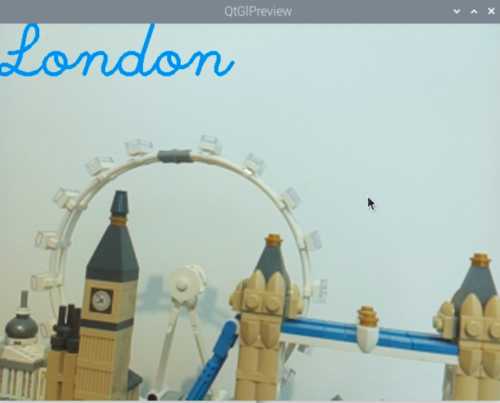
We’ve written beginner-friendly documentation for the new library so that you can explore what you can create using just a few lines of code. We’ve also updated our resources so that you can start making exciting projects using picamzero straight away:
We hope you enjoy using picamzero. Please get in touch if you have any feedback or suggestions. Happy coding!
The post Introducing picamzero: Simplifying Raspberry Pi Camera projects for beginners appeared first on Raspberry Pi Foundation.
We have developed an innovative activity to support young people as they transition from visual programming languages like Scratch to text-based programming languages like Python.

This activity introduces a unique interface that empowers learners to easily interact with Python while they create a customised painting app.
“The kids liked the self-paced learning, it allowed them to work at their own rate. They liked using RGB tables to find their specific colours.” – Code Club mentor
We’ve long been championing Python as an ideal tool for young people who want to start text-based programming. Python has simple syntax and needs very few lines of code to get started, and there is a vibrant community of supportive programmers surrounding it.
However, we know that starting with Python can be challenging for young people who have never done any text-based coding. They can face obstacles such as software installation issues, getting used to a new syntax, and the need for appropriate typing skills.
‘Paint with Python’ is an online educational activity that addresses many of these challenges and helps young people learn to code Python for the first time. It’s entirely web-based, requiring no software installation beyond a web browser. Instructions are displayed in a side panel, allowing learners to read and code without needing to switch tabs.
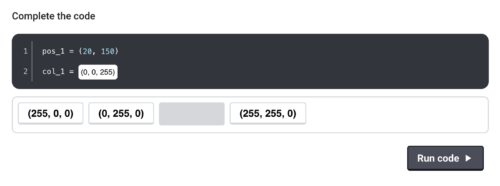
To help young people with creating their painting app, much of the initial code is pre-written behind the scenes, which enables learners to focus on experimenting with Python and observing the outcomes. They engage with the code by clicking on suggested options or, in some cases, by typing small snippets of Python. For example, they can select colours from a range of options or, as they grow more confident, type RGB values to create custom colours.
The activity is fully responsive for mobile and tablet devices and provides a final view of the full program on the last page, together with suggested routes to continue learning text-based programming.
We believe this activity offers an accessible way for young learners to begin their journey with text-based programming and learning to code Python. The code they write is straightforward and the activity is designed to minimise errors. When mistakes do occur, the interface provides clear, constructive feedback, guiding learners to make corrections.
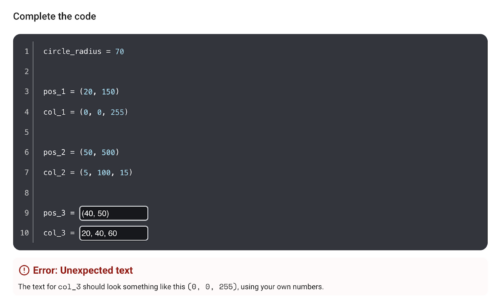
Try out ‘Paint with Python’ at rpf.io/paint-with-python. We’d love to hear your feedback! Please send any thoughts you have to uxresearch@raspberrypi.org.
This activity was developed with support from the Cisco Foundation. Through our funding partnership with them, we’ve been able to provide thousands of young people with the inspiration and opportunity to progress their coding skills anywhere, and on any device.
The post Bridging the gap from Scratch to Python: Introducing ‘Paint with Python’ appeared first on Raspberry Pi Foundation.
Programming is becoming an increasingly useful skill in today’s society. As we continue to rely more and more on software and digital technology, knowing how to code is also more and more valuable. That’s why many parents are looking for ways to introduce their children to programming. You might find it difficult to know where to begin, with so many different kids’ coding languages and platforms available. In this blog post, we explore how children can progress through different programming languages to realise their potential as proficient coders and creators of digital technology.
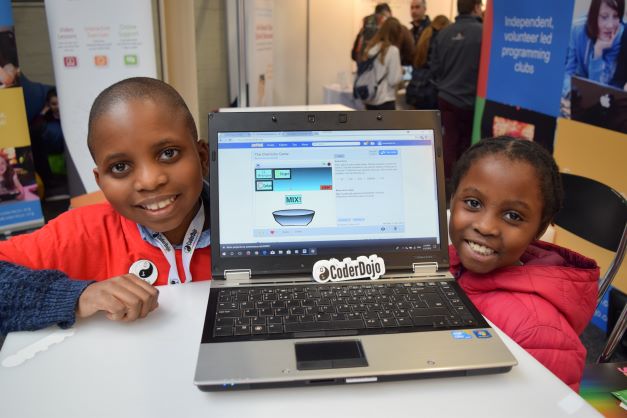
Everyone needs to start somewhere, and one great option for children aged 5–7 is ScratchJr (Scratch Junior), a visual programming language with drag-and-drop blocks for creating simple programs. ScratchJr is available for free on Android and iOS mobile devices. It’s great for introducing young children to the basics of programming, and they can use it to create interactive stories and games.
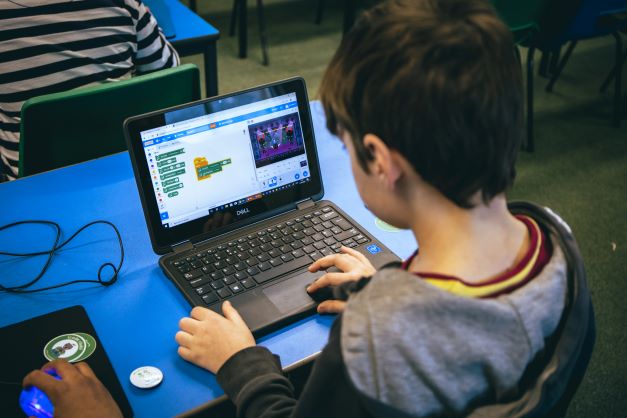
Moving on from ScratchJr, there’s its web-based sibling Scratch. Scratch offers drag-and-drop blocks for creating programs and comes with an assortment of graphics, sounds, and music for your child to bring their programs to life. This visual programming language is designed specifically for children to learn programming fundamentals. Scratch is available in multiple spoken languages and is perfect for beginners. It allows kids to create interactive stories, animations, and games with ease.
The Raspberry Pi Foundation has a wealth of free Scratch resources we have created specifically for young people who are beginners, such as the ‘Introduction to Scratch’ project path. And if your child is interested in physical computing to interact with the real world using code, they can also learn how to use electronic components, such as buzzers and LEDs, with Scratch and a Raspberry Pi computer.
Another fun option for children who want to explore coding and physical computing is the micro:bit. This is a small programmable device with an LED display, buttons, and sensors, and it can be used to create games, animations, interactive projects, and lots more. To control a micro:bit, a visual programming language called MakeCode can be used. The micro:bit can also be programmed using Scratch or text-based languages such as Python, offering an easy transition for children as their coding skills progress. Have a look at our free collection of micro:bit resources to learn more.
Everyone is familiar with websites, but fewer people know how they are coded. HTML is a markup language that is used to create the webpages we use every day. It’s a great language for children to learn because they can see the results of their code in real time, in their web browser. They can use HTML and CSS to create simple webpages that include links, videos, pictures, and interactive elements, all the while learning how websites are structured and designed. We have many free web design resources for your child, including a basic ‘Introduction to web development’ project path.
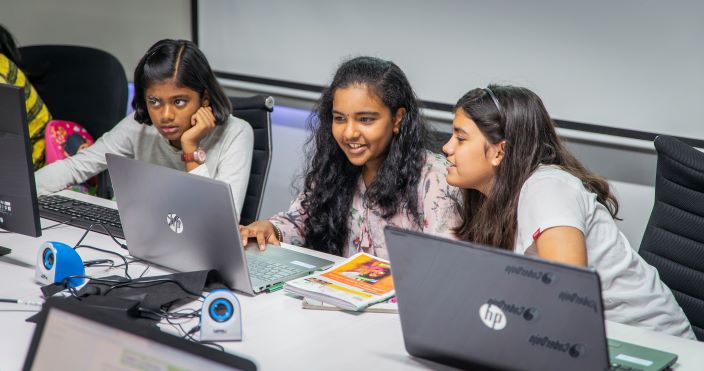
If your child is becoming confident with Scratch and HTML, then using Python is the recommended next stage in their learning. Python is a high-level text-based programming language that is easy to read and learn. It is a popular choice for beginners as it has a simple syntax that often reads like plain English. Many free Python projects for young people are available on our website, including the ‘Introduction to Python’ path.
The Python community is also really welcoming and has produced a myriad of online tutorials and videos to help learners explore this language. Python can be used to do some very powerful things with ease, which is why it is so popular. For example, it is relatively simple to create Python programs to engage in machine learning and data analysis. If you wanted to explore large language models such as GPT, on which the ChatGPT chatbot is based, then Python would be the language of choice.
JavaScript is the language of the web, and if your child has become proficient in HTML, then this is the next language for them. JavaScript is used to create interactive websites and web applications. As young people become more comfortable with programming, JavaScript is a useful language to progress to, given how ubiquitous the web is today. It can be tricky to learn, but like Python, it has a vast number of libraries of functions that people have already created for it to achieve things more quickly. These libraries make JavaScript a very powerful language to use.
There are many different programming languages, and each one has its own strengths and weaknesses. Some are easy to learn and use, some are really fast, and some are very secure.
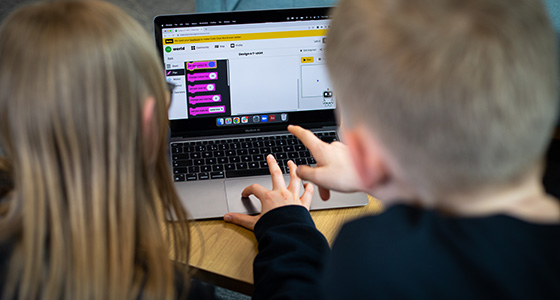
Starting with visual languages such as Scratch or MakeCode allows your child to begin to understand the basic concepts of programming without needing any developed reading and keyboard skills. Once their understanding and skills have improved, they can try out text-based languages, find the one that they are comfortable with, and then continue to learn. It’s fairly common for people who are proficient in one programming language to learn other languages quite quickly, so don’t worry about which programming language your child starts with.
Whether your child is interested in working in software development or just wants to learn a valuable — and creative — skill, helping them learn to code and try out different kids’ coding languages is a great way for you to open up new opportunities for them.
The post Kids’ coding languages appeared first on Raspberry Pi Foundation.
We are building a new online text-based Code Editor to help young people aged 7 and older learn to write code. It’s free and designed for young people who attend Code Clubs and CoderDojos, students in schools, and learners at home.
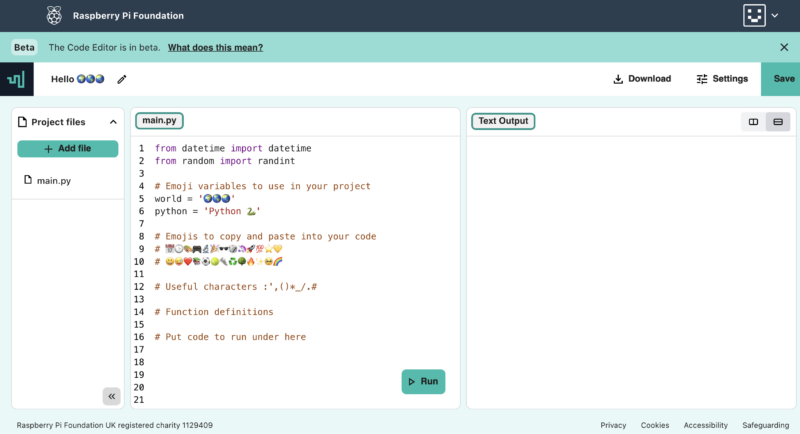
At this stage of development, the Code Editor enables learners to:
We’ve chosen Python as the first programming language our Code Editor supports because it is popular in schools, CoderDojos, and Code Clubs. Many educators and young people like Python because they see it as similar to the English language. It is often the text-based language young people learn when they take their first steps away from a block-based programming environment, such as Scratch.
Python is also widely used by professional programmers and usually tops at least one of the industry-standard indexes that ranks programming languages.
We will be adding support for web development languages (HTML/CSS/JavaScript) to the Editor in the near future.
We’re also planning to add features such as project sharing and collaboration, which we know young people will love. We want the Editor to be safe, accessible, and age-appropriate. As safeguarding is always at the core of what we do, we’ll only make new features available once we’ve ensured they comply with the ICO’s age-appropriate design code and our safeguarding policies.
We are inviting you to test the Code Editor as part of what we call the beta phase of development. As the Editor is still in development, some things might not look or work as well as we’d like — and this is why we need your help.
We’d love you to try the Editor out and let us know what worked well for you, what didn’t work well, and what you’d like to see next.
You can now try out the Code Editor in the first two projects of our ‘Intro to Python’ path. We’ve included a feedback form for you to let us know which project you tried, and what you think of the Editor. We’d love to hear from you.
Your feedback helps us decide what to do next. Based on what learners, educators, volunteers, teachers, and parents tell us, we will make the improvements to the Editor that matter most to the young people we aim to support.
One of our long-term goals is to engage millions of young people in learning about computing and how to create with digital technologies. We’re developing the Code Editor with three main aims in mind.
We aim to build the Code Editor so it:
Our work on the Code Editor will:
We want to offer a Code Editor that:
We’re also planning on making the Editor available as an open source project so that other projects and organisations focussed on helping people learn to code can benefit. More on this soon.
Our work on the Code Editor has been generously funded by the Algorand Foundation and Endless, and we thank them for their generous support. If you are interested in partnering with us to fund this key work, please reach out to us via email.
The post Test our new Code Editor for young people appeared first on Raspberry Pi Foundation.
Launched in 2013, Hour of Code is an initiative to introduce young people to computer science using fun one-hour tutorials. To date, over 100 million young people have completed an hour of code with it.
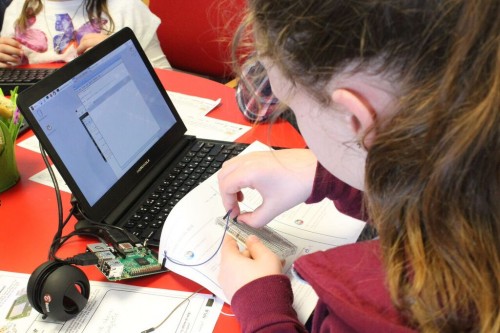
Although the Hour of Code website is accessible all year round, every December for Computer Science Education Week people worldwide run their own Hour of Code events. Each year we love seeing many Code Clubs, CoderDojos, and young people at home across the community complete their Hour of Code. You can register your 2022 Hour of Code event now to run between 5 and 11 December.
To support your event, we have pulled together a bumper set of our free coding projects, which can each be completed in just one hour. You will find these activities on the Hour of Code website.
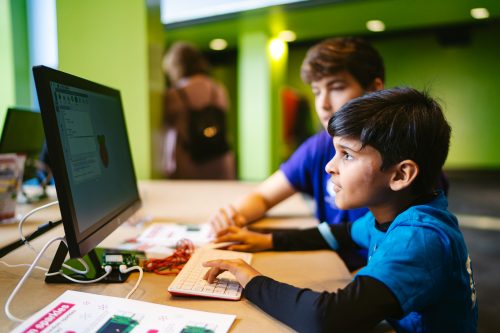
There’s something for all ages and levels of experience, so put an hour aside and help young people make something fabulous with code:
For younger creators new to coding, a Scratch project is a great place to start.
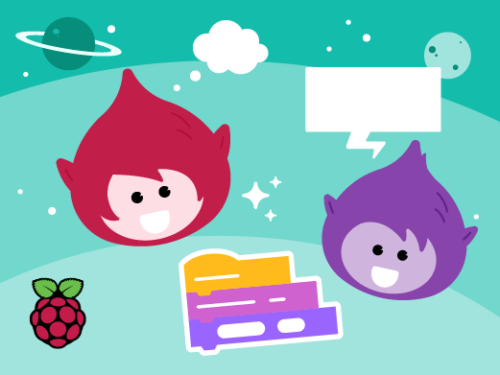
With our Space talk project, they can create a space scene with characters that ‘emote’ to share their thoughts or feelings using sounds, colours, and actions. Creators program the character emotes using Scratch blocks to control graphic effects, costume animation, and sound effects.
Alternatively, our Stress ball project lets them code an onscreen stress ball that reacts to user clicks. Creators use the Paint and Sound editors in Scratch to personalise a clickable stress ball, and they add Scratch blocks to control graphic effects, costume animation, and sound effects.
We love this fun stress ball example sent to us recently by young creator April from the United States:
Another great option is to use Code Club World, which is a free tool to help children who are new to coding.
For 7- to 11-year-olds who are more comfortable with block-based coding, our project Broadcasting spells is ideal to choose. With the project, they connect Scratch blocks to code a wand that casts spells turning sprites into toads, and growing and shrinking them. Creators use broadcast blocks to transform multiple sprites at once, and they create sound effects with the Sound editor in Scratch.
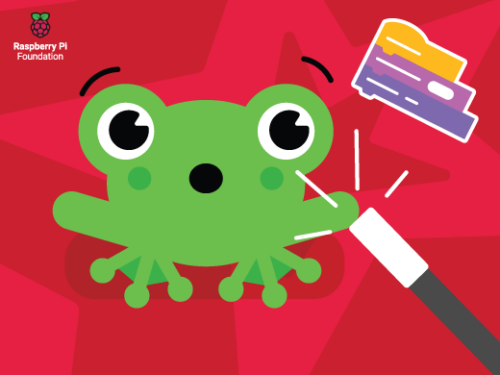
We have three exciting projects for trying text-based coding during Hour of Code in this category. The first, Anime expressions, is one of our brand-new ‘Introduction to web development’ projects. With this project, young people create a responsive webpage with text and images for an anime drawing tutorial. They write HTML to structure the webpage and CSS styles to apply layout, colour palettes, and fonts.
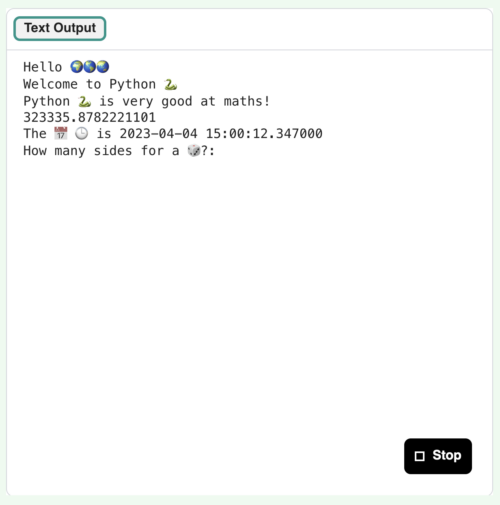
For a great introduction to coding with Python, we have the project Hello world from our ‘Introduction to Python’ path. With this project, creators write Python text-based code to create an interactive program that shows text and emojis based on user input. They learn about variables as they use them to store text and numbers, and they learn about writing functions to organise code and do calculations, retrieve the current date and time, and make a customisable dice.
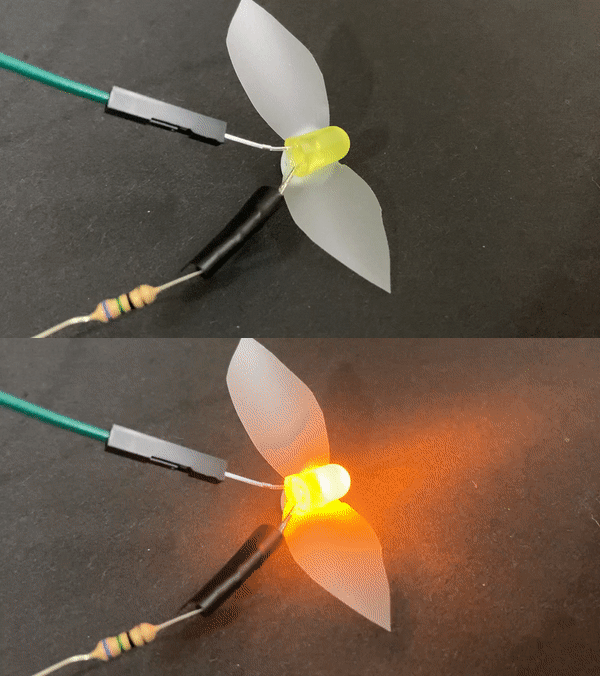
LED firefly is a fantastic physical making project in which young people use a Raspberry Pi Pico microcontroller and basic electronic components to create a blinking LED firefly. They program the LED’s light patterns with MicroPython code and activate it via a switch they make themselves using jumper wires.
For 11- to 14-year-olds who are already comfortable with HTML, the Flip treat webcards project is a fun option. With this, they create a webpage showing a set of cards that flip when a visitor’s mouse pointer hovers over them. Creators use CSS styling and animations to add interactivity, then they customise the cards with fancy fonts and colour gradients.
Young people who have already done some Python coding can try out our project Target practice. With this project they create a game, using the p5 graphics library to draw a colourful target, and writing code so that the player scores points by hitting the target’s rings with arrows. While they create the project, they learn about RGB colours, shape positioning with x and y coordinates, and decisions using if, else-if, and else code statements.
Our project Charting champions is a great introduction to data visualisation and analysis for coders aged 15 and older. With the project, they will discover the power of the Python programming language as they store Olympic medal data in lists and use the pygal library to create an interactive chart.
Teenage coders who feel comfortable with Python programming can use our project Solar system simulator to code an animated, interactive solar system model using the Python p5 graphics library. Their model will be interactive, as they’ll use dictionaries to store planet facts that display when a user clicks on an orbiting planet.
Now is the time to register your Hour of Code event, then decide which project you’d like to support young people to create. You can download certificates for each of the creators from the Hour of Code certificates page.
And make sure to check out our project paths so you know what projects you can help the young people you support to code beyond this one hour of code.
We don’t just create activities so that other people can experience coding and digital making — we also get involved ourselves!
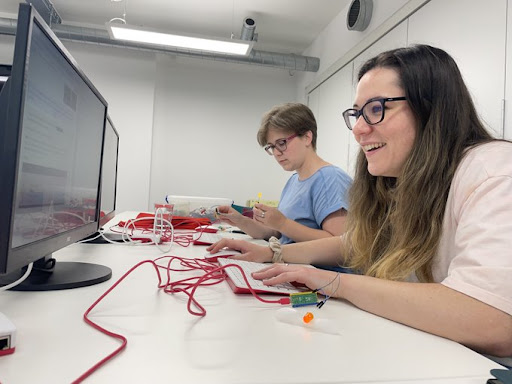
Recently, our teams who support the Code Club and CoderDojo networks got together to make LED fireflies. We are excited to get coding again as part of Hour of Code and Computer Science Education Week.
The post Take part in the Hour of Code appeared first on Raspberry Pi.
If you’re new to teaching programming or looking to build or refresh your programming knowledge, we have a free resource that is perfect for you. Our ‘Learn to program in Python’ online course pathway is for educators who want to develop their understanding of the text-based language Python. Each course is packed with information and activities to help you apply what you learn in your classroom teaching.
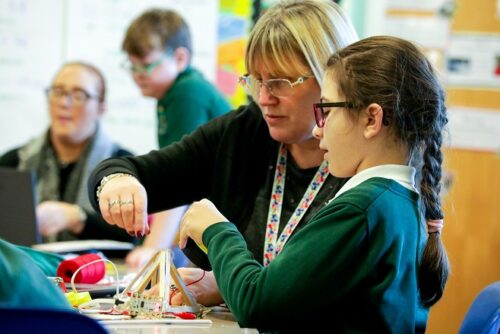
Compared to many other programming languages, writing a program in Python is closer to writing in English, which makes starting to program much easier (if you have some proficieny in English). Python is also a general-purpose programming language, so once you’ve learned the basics, you can use Python for lots of different programming activities.
That’s why Python is a perfect choice for learning to program, and why many of our educational resources involve Python. Our seven online Python courses cover aspects from taking your first steps into programming, to writing a program to control an electronic circuit, to learning about object-oriented programming.
With time and practice, you will be able to use Python programming to create unique solutions to problems, build helpful tools, and make things that are important to you.
The courses in the pathway have been written by our educators and include advice and activities to help you teach programming in your classroom. You can reuse the course activities to explain programming concepts to your learners and get them to write programs themselves. Because you will have first-hand experience of the activities, you’ll be able to anticipate your learners’ difficulties and adapt your lessons to suit them.

All the courses are designed to take three or four weeks to complete, based on you spending two hours a week on participating. You can have free time-limited access to each course for the length of time it’s designed to take to complete. For example, if it’s a four-week course, like ‘Programming 101’, you can sign up for free to get four weeks of access.
The seven courses in the Python path can be completed in any order you like, and you can choose the courses that match your interests and needs.
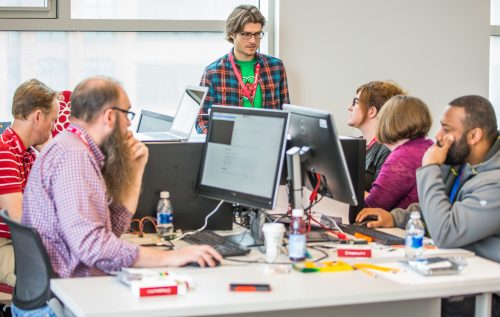
Each course involves activities that help you create a programming project using the concepts that you’re learning about. These activities are designed to be a fun and interactive way to reinforce what you’ve learned and can also be used with your learners in the classroom.
If programming is completely new to you, our ‘Programming 101’ course is the best place to start. In ‘Programming 101’, we use this definition of programming to start with the idea that programming is about you telling a computer what to do:
“Programming is how you get computers to solve problems.”
We see programming as a chance to think creatively about a problem and about all the different ways it could be solved. While you might be unfamiliar with terms like programming, algorithms, or selection, the ‘Programming 101’ course demonstrates how they touch on things that many of us know from other areas of our lives.
On the course, you will:
Through building an understanding of programming, you will see how you can write your own programs to make games, quizzes, physical computing projects, and more. Here’s look at some of the things you could make in three of the seven courses:
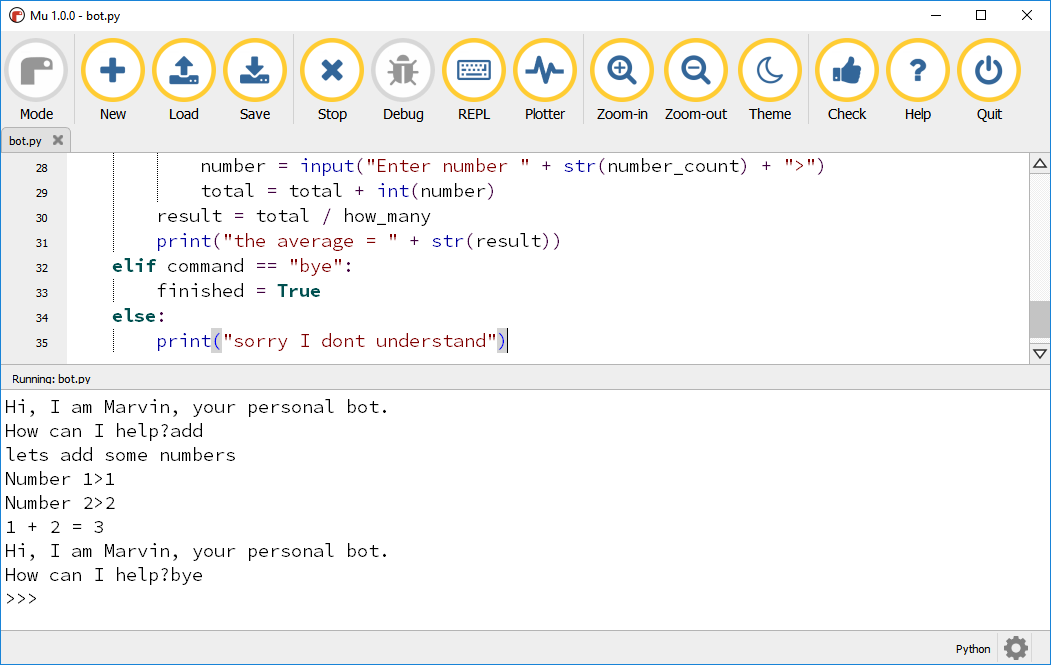
So check out our courses and start gaining Python programming skills today!
If you want to help your learners develop their understanding of programming in Python, you’ll be interested in these free resources we’ve created for young people:
Introduction to Python: Our guided project path for learners who are new to text-based programming. We have created these projects with young people around the age of 9 to 13 in mind. Each project takes one hour to complete, and learners can make their own fun programs while learning about Python.
More Python: Our guided project path for learners who want to move beyond the ‘Intro to Python’ path to write programs that contain charts, artwork, and more. We’ve written these projects for young people around the age of 10 to 13.
Isaac Computer Science: This learning platform we’ve created for GCSE and A level students (age 14 to 18) uses Python and other text-based languages to teach the programming concepts within England’s computer science curriculum.
The post Learn to program in Python with our online courses appeared first on Raspberry Pi.
You may have heard a lot about coding and how important it is for children to start learning about coding as early as possible. Computers have become part of our lives, and we’re not just talking about the laptop or desktop computer you might have in your home or on your desk at work. Your phone, your microwave, and your car are all controlled by computers, and those computers need instructions to tell them what to do. Coding, or computer programming, involves writing those instructions.

If children discover a love for coding, they will have an avenue to make the things they want to make; to write programs and build projects that they find useful, fun, or interesting. So how do you give your child the opportunity to learn about coding? We’ve listed some free resources and suggested activities below.
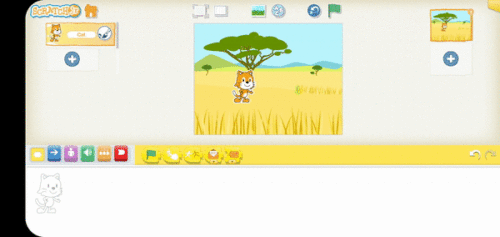
If you have a young child under about 7 years of age, then a great place to begin is with ScratchJr. This is an app available on Android and iOS phones and tablets, that lets children learn the basics of programming, without having to worry about making mistakes.
The Raspberry Pi Foundation has developed a series of activities for young learners, on their journey to developing their computing skills. Code Club World provides a platform for children to play with code to design their own avatar, make it dance, and play music. Plus they can share their creations with other learners.
“You could have a go too and discover Scratch together. The platform is designed for complete beginners and it is great fun to play with.”
Carol Thornhill, Engineering Science MA, Mathematics teacher
For 7- to 11-year-old children, Scratch is a good way to begin their journey in coding, or to progress from ScratchJr. Like ScratchJr, Scratch is a block-based language, allowing children to assemble code to produce games, animations, stories, or even use some of the add-ons to interact with electronic devices and explore physical computing.
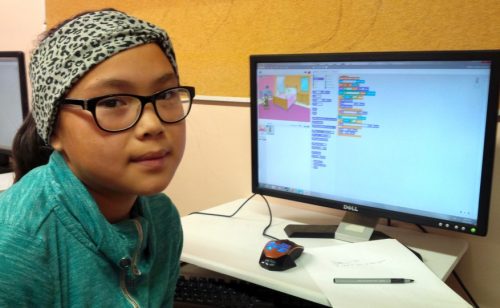
The Raspberry Pi Foundation has hundreds of Scratch projects that your child can try out, but the best place to begin is with our Introduction to Scratch path, which will provide your child with the basic skills they need, and then encourage them to build projects that are relevant to them, culminating in their creation of their own interactive ebook.
Your child may never tire of Scratch, and that is absolutely fine — it is a fully functioning programming language that is surprisingly powerful, when you learn to understand everything it can do. Another advantage of Scratch is that it provides easy access to graphics, sounds, and interactivity that can be trickier to achieve in other programming languages.
If you’re looking for more traditional programming languages for your child to progress on to, especially when they reach 12 years of age or beyond, then we like to direct our young learners to the Python programming language and to the languages that the World Wide Web is built on, particularly HTML, CSS, and JavaScript.

Our Python resources cover the basics of using the language, and then progress from there. Python is one of the most widely used languages when it comes to the fields of artificial intelligence and data science, and we have resources to support your child in learning about these fascinating aspects of technology. Our projects can even introduce your child to the world of electronics and physical computing with activities that use the inexpensive Raspberry Pi Pico, and a handful of electronic components, enabling your kids to create a wide variety of art installations and useful gadgets.
“Trying Python doesn’t mean you can’t go back to Scratch or switch between Scratch and Python for different purposes. I still use Scratch for some projects myself!”
Tracy Gardner, Computer Science PhD, former IBM Software Architect and currently a project writer at the Raspberry Pi Foundation
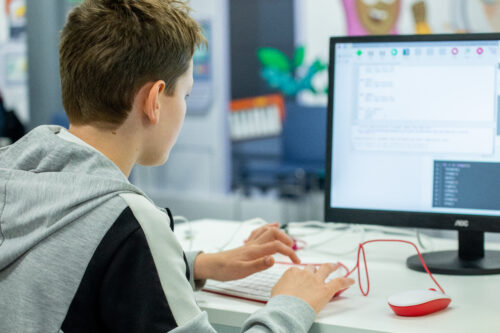
On our coding tutorials website we have many different projects to help your child learn coding and digital making. These range from beginner resources like the Introduction to Scratch path to more advanced activities such as the Introduction to Unity path, where children can learn how to make 3D worlds and games.
“Our new project paths can be tackled by young creators on their own, without adult intervention. Paths are structured so that they build skills and confidence in the early stages, and then provide more open-ended tasks and inspirational ideas that creators can adapt or work from.”
Rik Cross, BSc (Hons), PGCE, former teacher and Director of Informal Learning at the Raspberry Pi Foundation
The Web is integral to many of our lives, and we believe that it is important for children to have an understanding of the technology that drives it. That is why we have an Introduction to the Web path that allows children to develop their own web pages, focusing on the kinds of webpages that they want to build, be that sending a greeting card, telling a story, or creating a showcase of their projects.

Coding clubs are a great place for children to have fun and become more confident with coding, where they can learn through making and share their creations with each other. The Raspberry Pi Foundation operates the world’s largest network of coding clubs — CoderDojo and Code Club.
“I have a new group of creators at my Code Club every year and my favourite part is when they realise they really can let their imagination run wild. You want to make an animation where a talking pineapple chases a snowman — absolutely. You want to make a piece of scalable art out of 1000 pixelated cartoon musical instruments — go right ahead. If you can code it, you can make it ”
Liz Smart, Code Club and CoderDojo mentor, former Solutions Architect and project writer for the Raspberry Pi Foundation
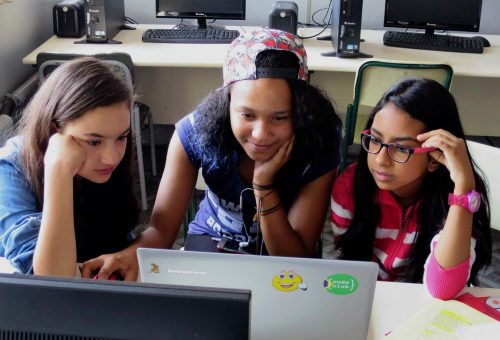
Once your child has learnt some of the basics, they may enjoy entering a coding challenge! The European Astro Pi Challenge programme allows young people to write code and actually have it run on the International Space Station, and Coolest Projects gives children a chance to showcase their projects from across the globe.
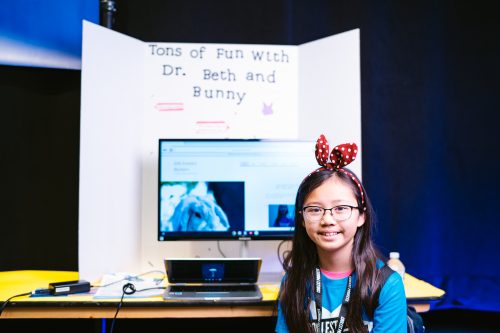
No matter what technology your child wants to engage with, there is a wealth of free resources and materials available from organisations such as the Raspberry Pi Foundation and Scratch Foundation, that prepare young people for 21st century life. Whether they want to become professional software engineers, tinker with some electronics, or just have a play around … encourage them to explore some coding projects, and see what they can learn, make, and do!
Author: Marc Scott, BSc (Hons) is a former Science, Computer Science, and Engineering teacher and the Content Lead for Projects at the Raspberry Pi Foundation.
The post How do I start my child coding? appeared first on Raspberry Pi.
We are excited to announce our second new Python learning path, ‘More Python’, which shows young coders how to add real data to their programs while creating projects from a chart of Olympic medals to an interactive world map. The six guided Python projects in this free learning path are designed to enable young people to independently create their own Python projects about the topics that matter to them.
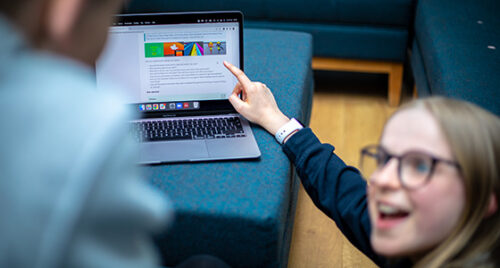
In this post, we’ll show you how kids use the projects in the ‘More Python’ path, what they can make by following the path, and how the path structure helps them become confident and independent digital makers.
Our ‘Introduction to Python’ learning path is the perfect place to start learning how to use Python, a text-based programming language. When we launched the Intro path in February, we explained why Python is such a popular, useful, and accessible programming language for young people.
Because Python has so much to offer, we have created a second Python path for young people who have learned the basics in the first path. In this new set of six projects, learners will discover new concepts and see how to add different types of real data to their programs.

We have written the projects in this path with young people around the age of 10 to 13 in mind. To code in a text-based language, a young person needs to be familiar with using a keyboard, due to the typing involved. Learners should have already completed the ‘Introduction to Python’ project path, as they will build on the learning from that path.
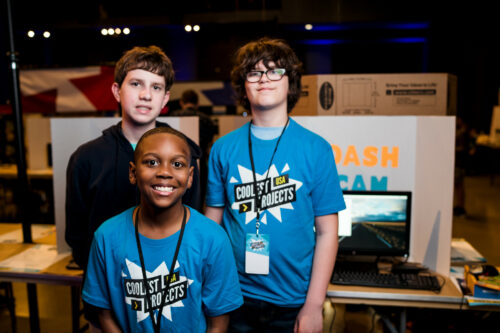
Young people need access to a web browser to complete our project paths. Each project contains step-by-step instructions for learners to follow, and tick boxes to mark when they complete each step. On top of that, the projects have steps for learners to:
Young people also have the option to sign up for an account with us so they can save their progress at any time and collect badges.
While learners follow the project instructions in this project path, they write their code into Trinket, a free web-based coding platform accessible in a browser. Each project contains a link to a starter Trinket, which includes everything to get started writing Python code — no need to install any additional software.
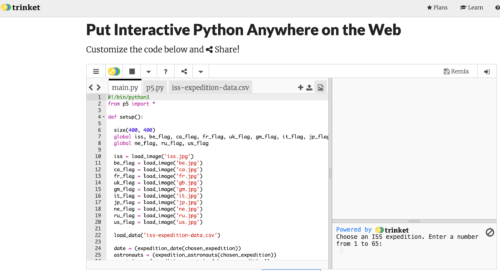
If they prefer, however, young people also have the option of instead writing their code in a desktop-based programming environment, such as Thonny, as they work through the projects.
To use data in their Python programs, the project instructions show learners how to:
The projects support learners as they explore new concepts of digital visual media and:
In each project, learners reflect and answer questions about their work, which is important for connecting the project’s content to their pre-existing knowledge.

As they work through the projects, learners see different ways to present data and then decide how they want to present their data in the final project in the path. You’ll find out what the projects are on the path page, or at the bottom of this blog post.
The project path helps learners become independent coders and digital makers, as each project contains slightly less support than the one before. You can read about how our project paths are designed to increase young people’s independence, and explore our other free learning paths for young coders
We’ve designed the path to be completed in around six one-hour sessions, with one hour per project, at home, in school, or at a coding club. The project instructions encourage learners to add code to upgrade their projects and go further if they wish. This means that young people might want to spend a little more time getting their projects exactly as they imagine them.
Unity is a free development environment for creating 3D virtual environments, including games, visual novels, and animations, all with the text-based programming language C#. Our ‘Introduction to Unity’ project path for keen coders shows how to make 3D worlds and games with collectibles, timers, and non-player characters.
At the end of the ‘More Python’ path, learners are encouraged to register a project they’ve made using their new coding skills for Coolest Projects Global, our free and world-leading online technology showcase for young tech creators. The project they register will become part of the online gallery, where members of the Coolest Projects community can celebrate each other’s creations.
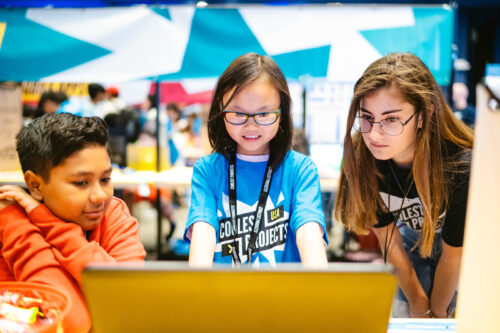
We welcome projects from all young people, whether they are beginners or experienced coders and digital makers. Coolest Projects Global is a unique opportunity for young people to share their ingenuity with the world and with other young people who love coding and creating with digital technology.


The post Python coding for kids: Moving beyond the basics appeared first on Raspberry Pi.
Python is a programming language that’s popular with learners and educators in clubs and schools. It also is widely used by professional programmers, particularly in the data science field. Many educators and young people like how similar the Python syntax is to the English language.
That’s why Python is often the first text-based language that young people learn to program in. The familiar syntax can lower the barrier to taking the first steps away from a block-based programming environment, such as Scratch.
In 2021, Python ranked in first place in an industry-standard popularity index of a major software quality assessment company, confirming its favoured position in software engineering. Python is, for example, championed by Google and used in many of its applications.
Python’s popularity means there are many excellent resources for learning this language. These resources often focus on creating programs that produce text outputs. We wanted to do something different.
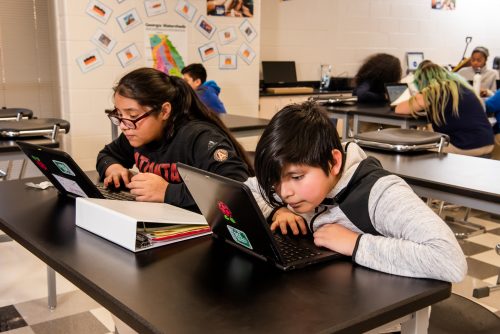
Our new ‘Introduction to Python’ project path focuses on creating digital visuals using the Python p5 library. This library is like a set of tools that allows you to get creative by using Python code to draw shapes, edit images, and create frame-by-frame animations. That makes it the perfect choice for young learners: they can develop their knowledge and skills in Python programming while creating cool visuals that they’ll be proud of.
The ‘Introduction to Python’ project path is a set of written coding instructions, designed according to our Digital Making Framework.
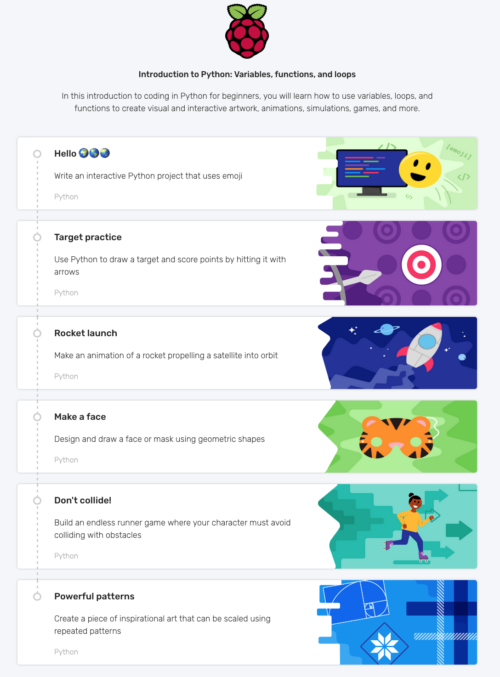
Through the Framework, we encourage learners to become independent coders and digital makers by gently removing scaffolding as they progress along the projects in a path. Paths begin with three Explore projects, in which learners are guided through tasks that introduce them to new coding skills. Next, learners complete two Design projects. Here, they are encouraged to practise their skills and bring in their own interests to personalise their coding creations. Finally, learners complete one Invent project. This is where they put everything that they have learned together and create something unique that matters to them.

The structure of our Digital Making Framework means that learners experience the structured development process of a coding project and learn how to turn their ideas into reality. The Framework also supports with finding errors in their code (debugging), showing them that errors are a part of computer programming and just temporary setbacks that you can overcome.
The Explore projects are where the initial learning takes place. The key programming concepts covered in this path are:
Learners also explore aspects of digital visual media concepts:
Learners then develop these skills and knowledge by putting them into practice in the Design and Invent projects, where they add in their own ideas and creativity.
In the first Explore project of this path, learners create an interactive program that uses emoji characters as the visual element.
This is the first step into Python and gets learners used to the syntax for printing text, using variables, and defining functions.
In this Explore project, learners create an archery game. They are introduced to the p5 library, which they use to draw an archery board and create the arrows.

The new programming concept covered in this project is selection, where learners use if, elif and else to allocate points for the game.
The final Explore project gets learners to animate a rocket launching into space. They create an interactive animation where the user is asked to enter an amount of fuel for the rocket launch. The animation then shows if the fuel is enough to get the rocket into orbit.

The new programming concept covered here is repetition. Learners use for loops to animate smoke coming from the exhaust of the rocket.
The first Design project allows learners to unleash their creativity by drawing a face using the Python coding skills that they have built in the Explore projects. They have full control of the design for their face and can explore three examples for inspiration.

Learners are also encouraged to share their drawings in the community library, where there are lots of fun projects to discover already. In this project, learners apply all of the coding skills and knowledge covered in the Explore projects, including selection, repetition, and variables.
In the second Design project, learners code a scrolling game called ‘Don’t collide’, where a character or vehicle moves down the screen while having to avoid obstacles.

Learners can choose their own theme for the game, and decide what will move down the screen and what the obstacles will look like. In this project, they also get to practice everything they learned in the Explore projects.
This project is the ultimate chance for learners to put all of their skills and knowledge into practice and get creative. They design their own unique patterns and create frame-by-frame animations.

The Invent project offers ingredients, which are short reminders of all the key skills that learners have gained while completing the previous projects in the path. The ingredients encourage them to be independent whilst also supporting them with code snippets to help them along.
We have written the projects in the path with young people around the age of 9 to 13 in mind. To code in a text-based language, a young person needs to be familiar with using a keyboard, due to the typing involved. A learner may have completed one of our Scratch paths prior to this one, but this isn’t essential. and we encourage beginner coders to take this path first if that is their choice.
A web browser. In every project, starter code is provided in a free web-based development environment called Trinket, where learners add their own code. The starter Trinkets include everything that learners need to use Python and access the p5 library.
If preferred, the projects also include instructions for using a desktop-based programming environment, such as Thonny.
We’ve designed the path to be completed in around six one-hour sessions, with one hour per project. However, the project instructions encourage learners to upgrade their projects and go further if they wish. This means that young people might want to spend a little more time getting their projects exactly as they imagine them.
Yes, if you or your young person sign up for an account, progress will be saved. The account will also show what other projects on our website the young person has completed.
At the end of the path, learners are encouraged to register a project they’re making with their new coding skills for Coolest Projects Global, our world-leading online technology showcase for young people.
Taking part is free, all online, and beginners as well as more experienced young tech creators are welcome and invited. This is their unique opportunity to share their ingenuity in an online gallery for the world and the Coolest Projects community to celebrate.
Coming very soon is our ‘More Python’ path. In this path, learners will move beyond the basics they learned in Introduction to Python. They will learn how to use lists, dictionaries, and files to create charts, models, and artwork. Keep your eye on our blog and social media for the release of ‘More Python’.
The post Coding for kids: Art, games, and animations with our new beginners’ Python path appeared first on Raspberry Pi.
Today we are introducing you to Code Club World — a free online platform where young people aged 9 to 13 can learn to make stuff with code.
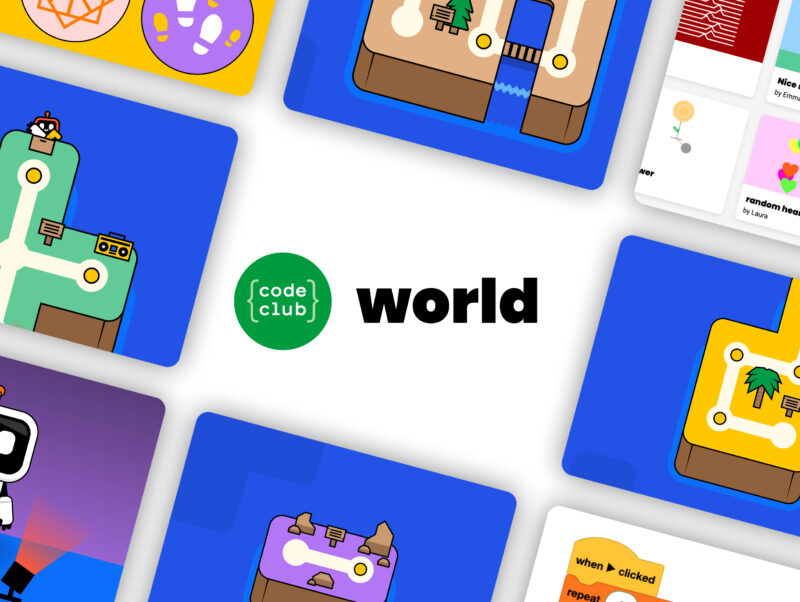
In Code Club World, young people can:
When we spoke to parents and children about learning at home during the pandemic, it became clear to us that they were looking for educational tools that the children can enjoy and master independently, and that are as fun and social as the computer games and other apps the children love.
What’s more, a free tool for learning to code at home is particularly important for young people who are unable to attend coding clubs in person. We believe every child should have access to a high-quality coding and digital making education. And with this in mind, we set out to create Code Club World, an online environment as rich and engaging as a face-to-face extracurricular learning experience, where all young people can learn to code.
The Code Club World activities are mapped to our research-informed Digital Making Framework — a coding and digital making curriculum for non-formal settings. That means when children are in the Code Club World environment, they are learning to code and use digital making to independently create their ideas and address challenges that matter to them.
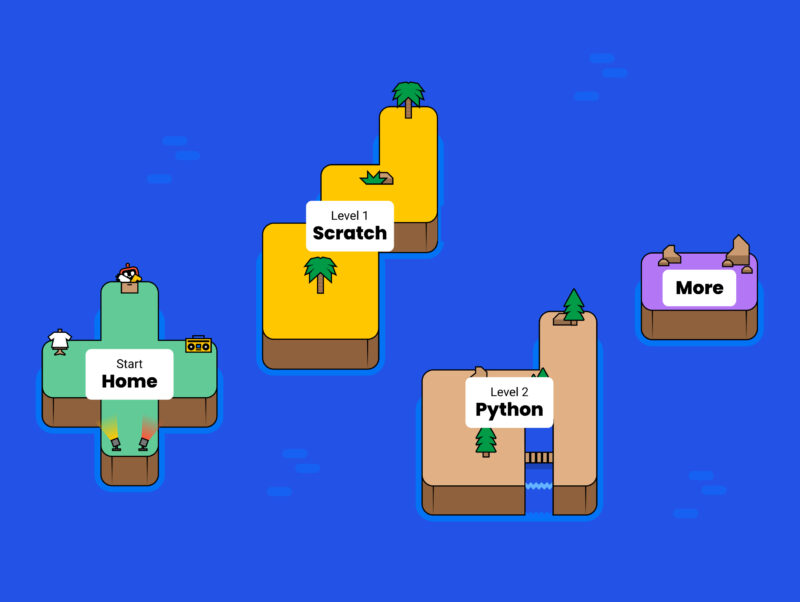
By providing a structured pathway through the coding activities, a reward system of badges to engage and motivate learners, and a broad range of projects covering different topics, Code Club World supports learners at every stage, while making the activities meaningful, fun, and flexible.
We’ve also designed Code Club World to be mobile-friendly, so if a young person uses a phone or tablet to visit the platform, they can still code cool things they will be proud of.
Since we started developing Code Club World, we have been working with a community of more than 1000 parents, educators, and children who are giving us valuable input to shape the direction of the platform. We’ve had some fantastic feedback from them:
“I’ve not coded before, but found this really fun! … I LOVED making the dance. It was so much fun and made me laugh!”
Learner, aged 11
“I love the concept of having islands to explore in making the journey through learning coding, it is fabulous and eye-catching.”
Parent
The platform is still in beta status — this means we’d love you to share it with young people in your family, school, or community so they can give their feedback and help make Code Club World even better.
Together, we will ensure every child has an equal opportunity to learn to code and make things that change their world.
The post Introducing Code Club World: a new way for young people to learn to code at home appeared first on Raspberry Pi.
Putt the ball around irrational obstacles in our retro take on golf. Mark Vanstone has the code
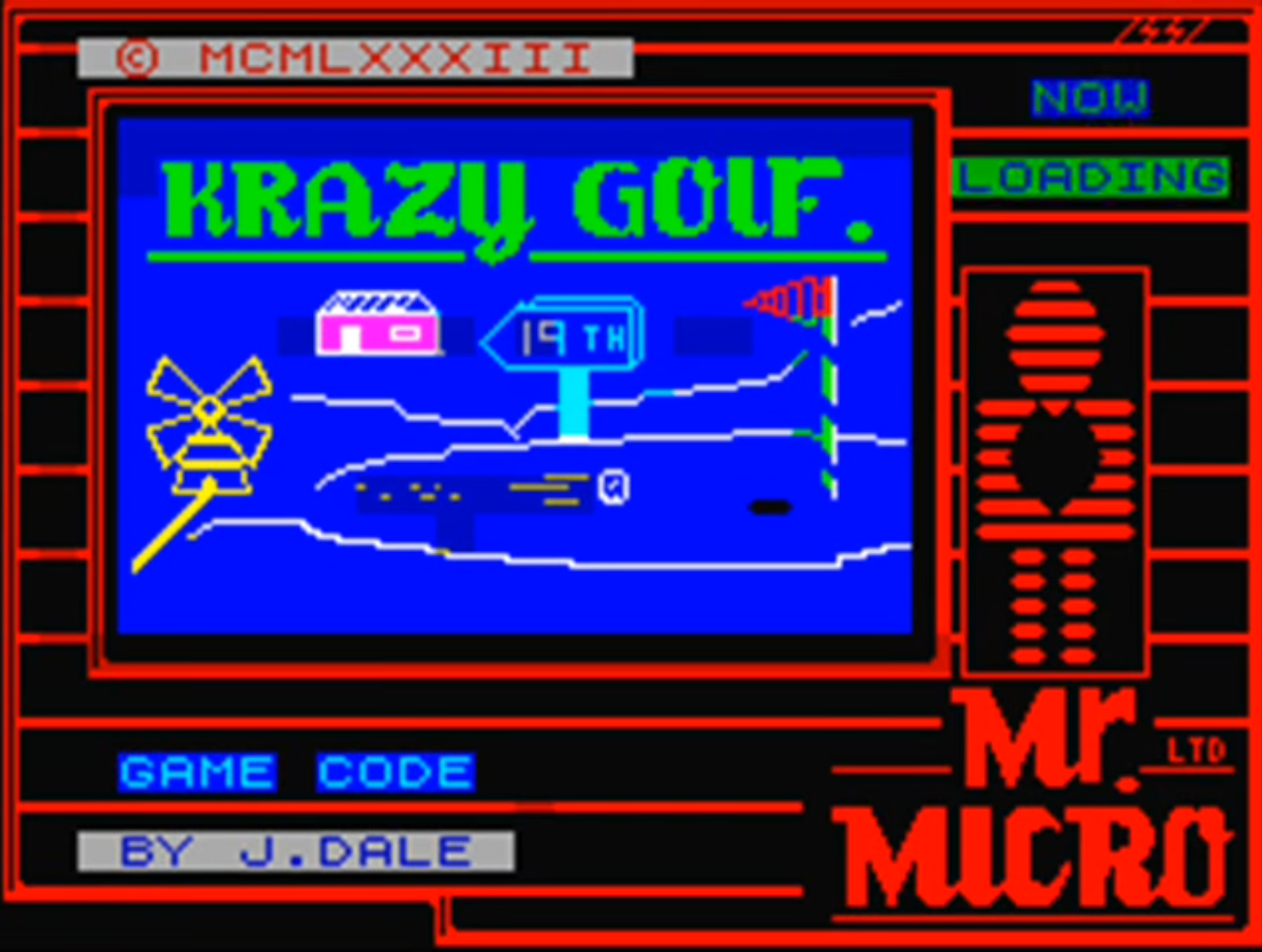
First released by Mr. Micro in 1983 – then under the banner of Sinclair Research – Krazy Golf was, confusingly, also called Crazy Golf. The loading screen featured the Krazy spelling, but on the cover, it was plain old Crazy Golf.
Designed for the ZX Spectrum, the game provided nine holes and a variety of obstacles to putt the ball around. Crazy Golf was released at a time when dozens of other games were hitting the Spectrum market, and although it was released under the Sinclair name and reviewed in magazines such as Crash, it didn’t make much impact. The game itself employed a fairly rudimentary control system, whereby the player selects the angle of the shot at the top left of the screen, sets the range via a bar along the top, and then presses the RETURN key to take the shot.
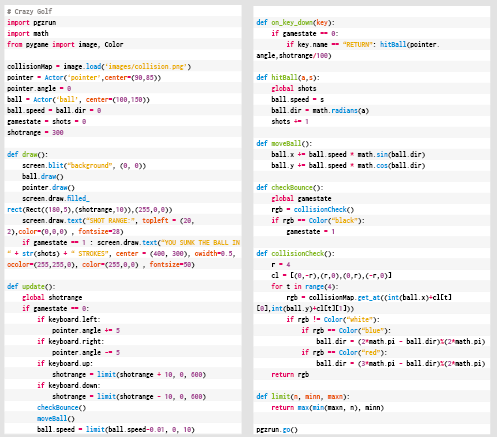
If you’ve been following our Source Code articles each month, you will have seen the pinball game where a ball bounces off various surfaces. In that example, we used a few shortcuts to approximate the bounce angles. Here, we’re only going to have horizontal and vertical walls, so we can use some fairly straightforward maths to calculate more precisely the new angle as the ball bounces off a surface. In the original game, the ball was limited to only 16 angles, and the ball moved at the same speed regardless of the strength of the shot. We’re going to improve on this a bit so that there’s more flexibility around the shot angle; we’ll also get the ball to start moving fast and then reduce its speed until it stops.
To make this work, we need to have a way of defining whether an obstruction is horizontal or vertical, as the calculation is different for each. We’ll have a background graphic showing the course and obstacles, but we’ll also need another map to check our collisions. We need to make a collision map that just has the obstacles on it, so we need a white background; mark all the horizontal surfaces red and all the vertical surfaces blue.
As we move the ball around the screen (in much the same way as our pinball game) we check to see if it has collided with a surface by sampling the colours of the pixels from the collision map. If the pixel’s blue, we know that the ball has hit a vertical wall; if it’s red, the wall’s horizontal. We then calculate the new angle for the ball. If we mark the hole as black, then we can also test for collision with that – if the ball’s in the hole, the game ends.
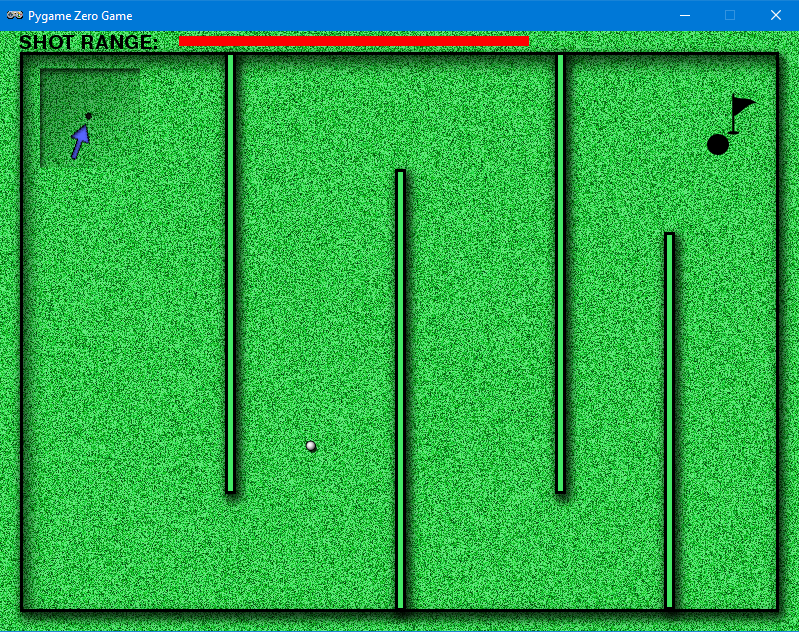
We have our ball bouncing mechanism, so now we need our user interaction system. We’ll use the left and right arrow keys to rotate our pointer, which designates the direction of the next shot. We also need a range-setting gizmo, which will be shown as a bar at the top of the screen. We can make that grow and shrink with the up and down arrows.
Then when we press the RETURN key, we transfer the pointer angle and the range to the ball and watch it go. We ought to count each shot so that we can display a tally to the player once they’ve putted the ball into the hole. From this point, it’s a simple task to create another eight holes – and then you’ll have a full crazy golf game!
You can read more features like this one in Wireframe issue 54, available directly from Raspberry Pi Press — we deliver worldwide.
And if you’d like a handy digital version of the magazine, you can also download issue 54 for free in PDF format.
The post Code a Spectrum-style Crazy Golf game | Wireframe #54 appeared first on Raspberry Pi.
Get flappers flapping and balls bouncing off bumpers. Mark Vanstone has the code in the new issue of Wireframe magazine, available now.
There are so many pinball video games that it’s become a genre in its own right. For the few of you who haven’t encountered pinball for some reason, it originated as an analogue arcade machine where a metal ball would be fired onto a sloping play area and bounce between obstacles. The player operates a pair of flippers by pressing buttons on each side of the machine, which will in turn ping the ball back up the play area to hit obstacles and earn points. The game ends when the ball falls through the exit at the bottom of the play area.
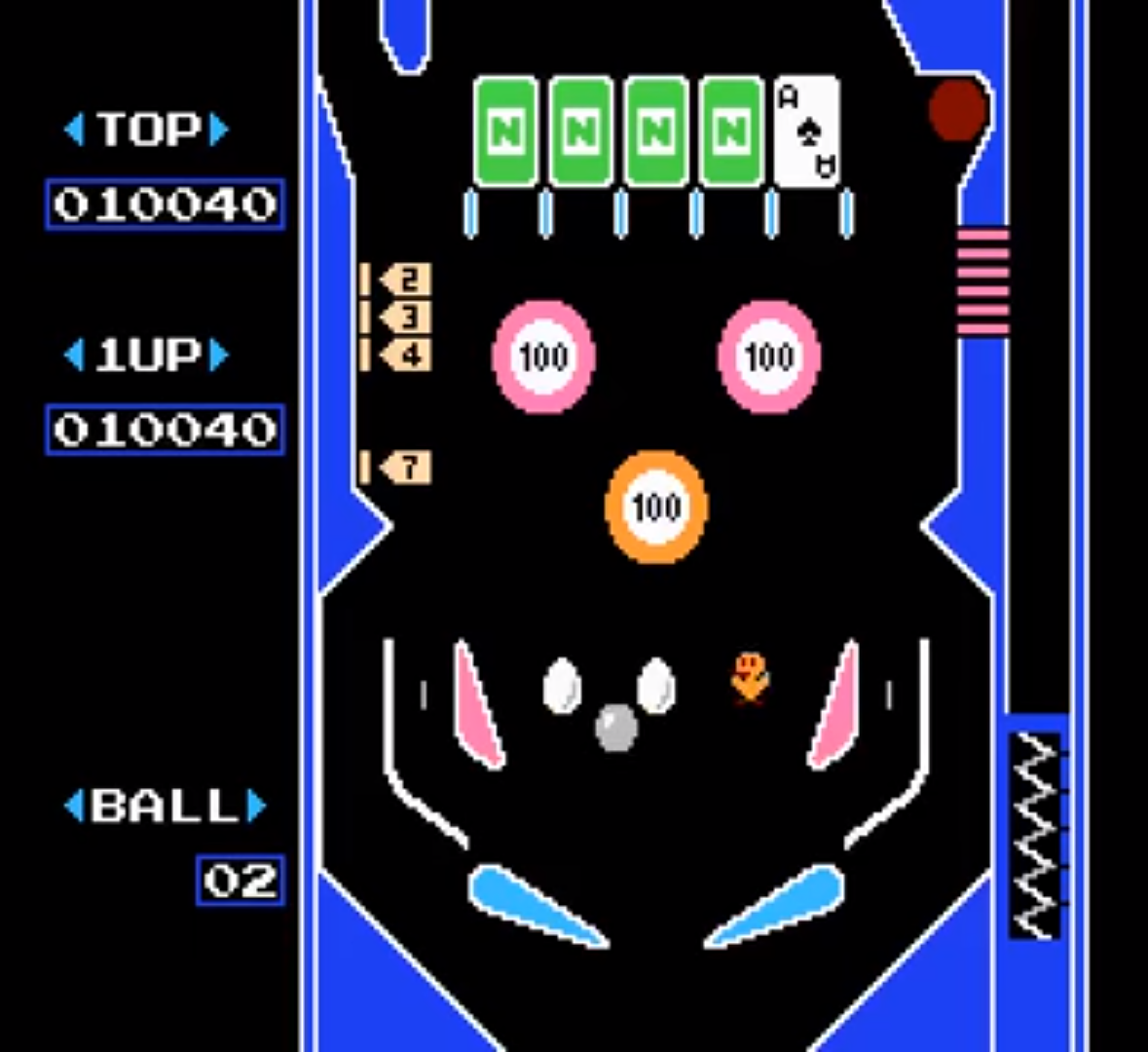
Video game developers soon started trying to recreate pinball, first with fairly rudimentary graphics and physics, but with increasingly greater realism over time – if you look at Nintendo’s Pinball from 1984, then, say, Devil’s Crush on the Sega Mega Drive in 1990, and then 1992’s Pinball Dreams on PC, you can see how radically the genre evolved in just a few years. In this month’s Source Code, we’re going to put together a very simple rendition of pinball in Pygame Zero. We’re not going to use any complicated maths or physics systems, just a little algebra and trigonometry.
Let’s start with our background. We need an image which has barriers around the outside for the ball to bounce off, and a gap at the bottom for the ball to fall through. We also want some obstacles in the play area and an entrance at the side for the ball to enter when it’s first fired. In this case, we’re going to use our background as a collision map, too, so we need to design it so that all the areas that the ball can move in are black.
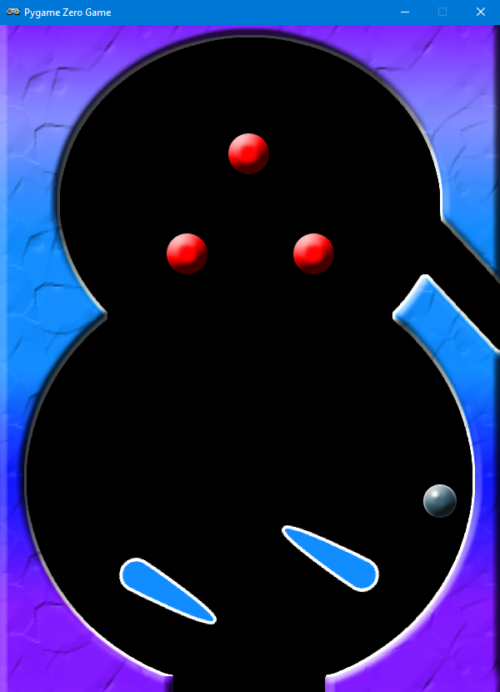
Next, we need some flippers. These are defined as Actors with a pivot anchor position set near the larger end, and are positioned near the bottom of the play area. We detect left and right key presses and rotate the angle of the flippers by 20 degrees within a range of -30 to +30 degrees. If no key is pressed, then the flipper drops back down. With these elements in place, we have our play area and an ability for the player to defend the exit.
All we need now is a ball to go bouncing around the obstacles we’ve made. Defining the ball as an Actor, we can add a direction and a speed parameter to it. With these values set, the ball can be moved using a bit of trigonometry. Our new x-coordinate will move by the sin of the ball direction multiplied by the speed, and the new y-coordinate will move by the cos of the ball direction multiplied by speed. We need to detect collisions with objects and obstacles, so we sample four pixels around the ball to see if it’s hit anything solid. If it has, we need to make the ball bounce.
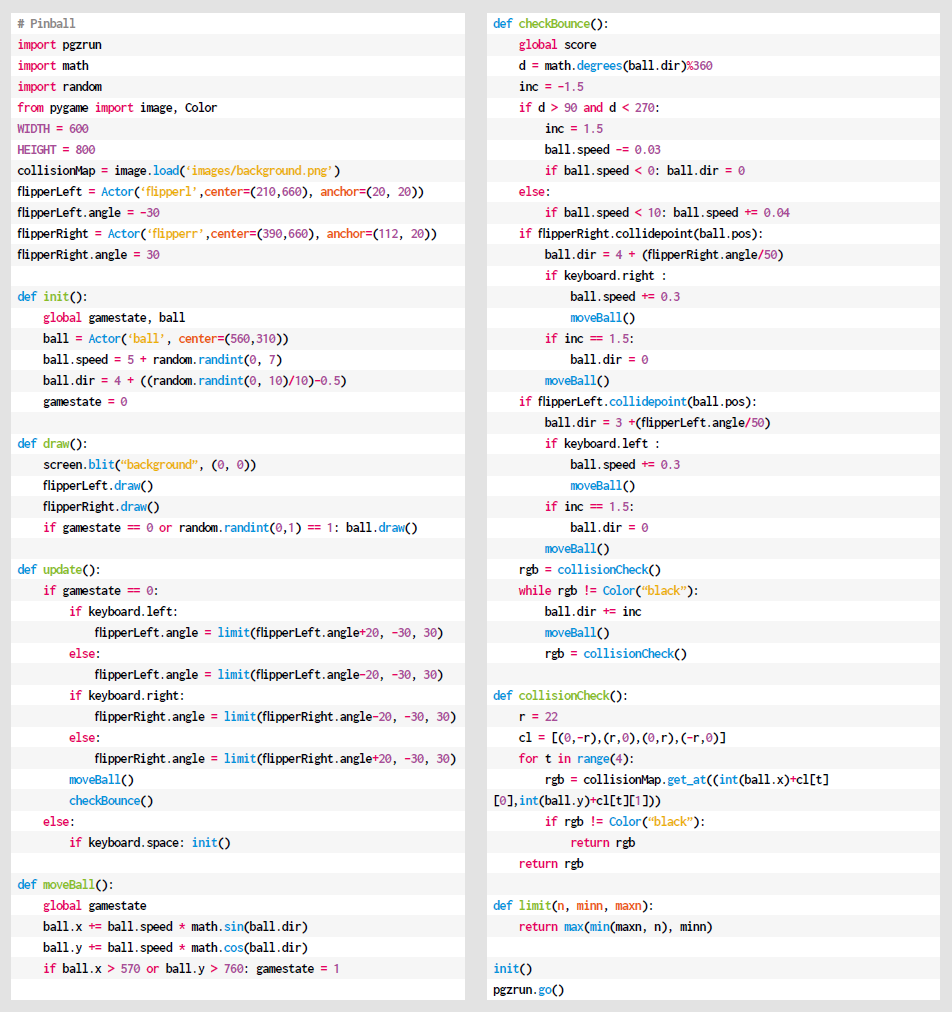
If you wanted more realistic physics, you’d calculate the reflection angle from the surface which has been hit, but in this case, we’re going to use a shortcut which will produce a rough approximation. We work out what direction the ball is travelling in and then rotate either left or right by a quarter of a turn until the ball no longer collides with a wall. We could finesse this calculation further to create a more accurate effect, but we’ll keep it simple for this sample. Finally, we need to add some gravity. As the play area is tilted downwards, we need to increase the ball speed as it travels down and decrease it as it travels up.
All of this should give you the bare bones of a pinball game. There’s lots more you could add to increase the realism, but we’ll leave you to discover the joys of normal vectors and dot products…
You can read more features like this one in Wireframe issue 53, available directly from Raspberry Pi Press — we deliver worldwide.
And if you’d like a handy digital version of the magazine, you can also download issue 53 for free in PDF format.
The post Code your own pinball game | Wireframe #53 appeared first on Raspberry Pi.
Code an homage to Konami’s classic shoot-’em-up, Gradius. Mark Vanstone has the code in the new edition of Wireframe magazine, available now.
Released by Konami in 1985, Gradius – also known as Nemesis outside Japan – brought a new breed of power-up system to arcades. One of the keys to its success was the way the player could customise their Vic Viper fighter craft by gathering capsules, which could then be ‘spent’ on weapons, speed-ups, and shields from a bar at the bottom of the screen.
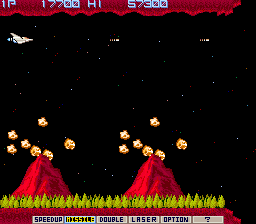
A seminal side-scrolling shooter, Gradius was particularly striking thanks to the variety of its levels: a wide range of hazards were thrown at the player, including waves of aliens, natural phenomena, and boss ships with engine cores that had to be destroyed in order to progress. One of the first stage’s biggest obstacles was a pair of volcanoes that spewed deadly rocks into the air: the rocks could be shot for extra points or just avoided to get through to the next section. In this month’s Source Code, we’re going to have a look at how to recreate the volcano-style flying rock obstacle from the game.
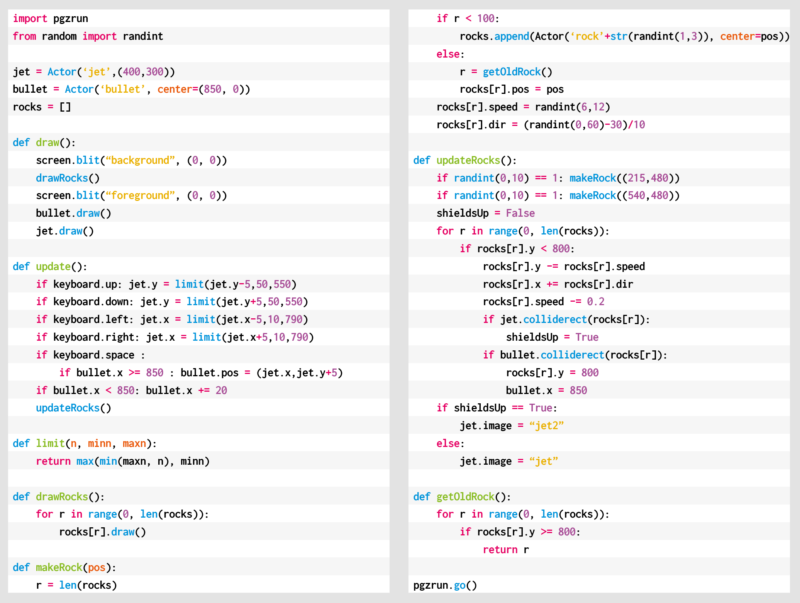
Our sample uses Pygame Zero and the randint function from the random module to provide the variations of trajectory that we need our rocks to have. We’ll need an actor created for our spaceship and a list to hold our rock Actors. We can also make a bullet Actor so we can make the ship fire lasers and shoot the rocks. We build up the scene in layers in our draw() function with a star-speckled background, then our rocks, followed by the foreground of volcanoes, and finally the spaceship and bullets.
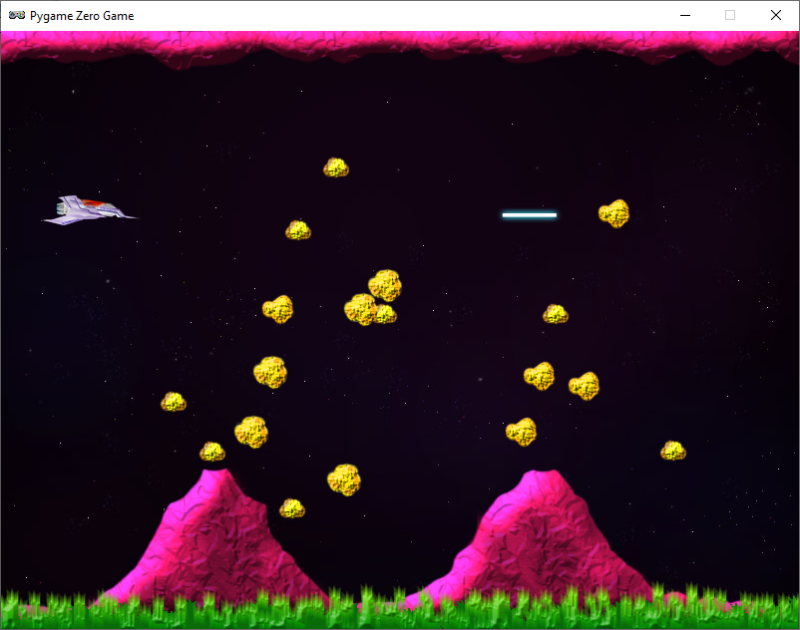
In the update() function, we need to handle moving the ship around with the cursor keys. We can use a limit() function to make sure it doesn’t go off the screen, and the SPACE bar to trigger the bullet to be fired. After that, we need to update our rocks. At the start of the game our list of rocks will be empty, so we’ll get a random number generated, and if the number is 1, we make a new rock and add it to the list. If we have more than 100 rocks in our list, some of them will have moved off the screen, so we may as well reuse them instead of making more new rocks. During each update cycle, we’ll need to run through our list of rocks and update their position. When we make a rock, we give it a speed and direction, then when it’s updated, we move the rock upwards by its speed and then reduce the speed by 0.2. This will make it fly into the air, slow down, and then fall to the ground.
From this code, we can make rocks appear just behind both of the volcanoes, and they’ll fly in a random direction upwards at a random speed. We can increase or decrease the number of rocks flying about by changing the random numbers that spawn them. We should be able to fly in and out of the rocks, but we could add some collision detection to check whether the rocks hit the ship – we may also want to destroy the ship if it’s hit by a rock. In our sample, we have an alternative, ‘shielded’ state to indicate that a collision has occurred. We can also check for collisions with the bullets: if a collision’s detected, we can make the rock and the bullet disappear by moving them off-screen, at which point they’re ready to be reused.
That’s about it for this month’s sample, but there are many more elements from the original game that you could add yourself: extra weapons, more enemies, or even an area boss.
You can read more features like this one in Wireframe issue 52, available directly from Raspberry Pi Press — we deliver worldwide.
And if you’d like a handy digital version of the magazine, you can also download issue 52 for free in PDF format.
The post Recreate Gradius’ rock-spewing volcanoes | Wireframe #52 appeared first on Raspberry Pi.
Swoop over mountains in our homage to Jaleco’s shooter. Mark Vanstone has the code in the latest issue of Wireframe magazine, out now.
Taking the shooting action of Galaxian from a few years earlier, Japanese developer Jaleco released Exerion in 1983. What helped Exerion stand out from other shoot-’em-ups of the period, though, was its pseudo-3D background, which used both a scrolling landscape and moving background elements to create the illusion of depth. This was quite an achievement considering the hardware of the day, and it’s still an eye-catching effect even now.
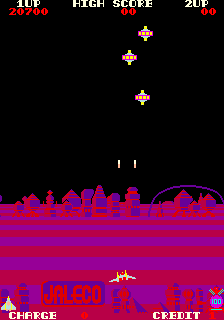
To recreate Exerion’s scrolling in Pygame Zero, we need to break the effect down into three main elements. The first is the scrolling stripes that form the landscape’s base layer. These are followed by the elements that roll over the landscape as it scrolls down the screen. Then thirdly, there’s the player’s movement, which affects both the other two elements. Let’s start with the scrolling landscape, which is made of alternating coloured stripes. To give the sense of perspective, they start very thin on the horizon and, as they move down the screen, they grow in thickness. We can create this with a list that contains the heights of each stripe, increasing as we go through the list. Then in our draw() function, we run through the list, drawing the stripes downwards from the horizon using the heights in our list. Then we increase the height of each stripe. When the first stripe reaches a certain height, we take the last one off the end of the list and add it to the beginning, resetting its height to the smallest.
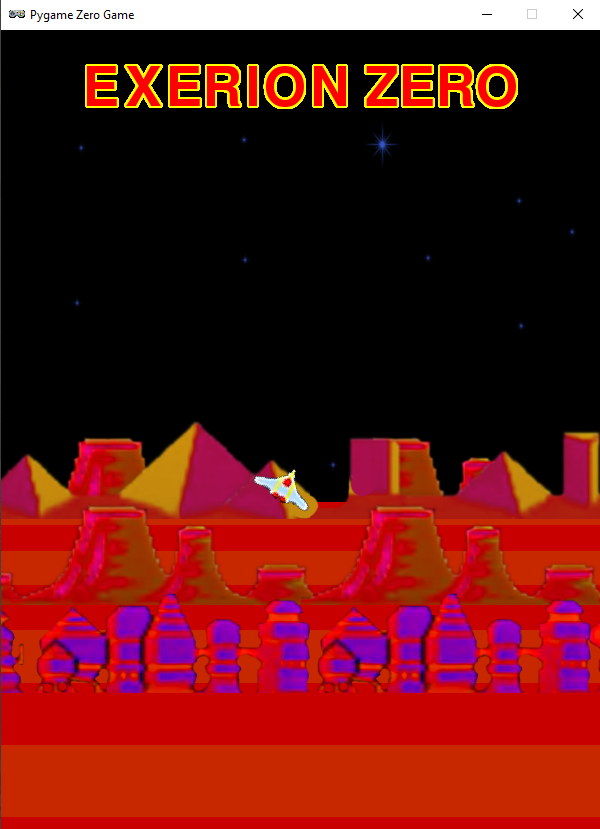
The next items to code are the landscape details. These are buildings and hills that we want to move with the stripes so that it looks as though the player’s flying over them as they scroll by. We need to do this in two sections as some will be drawn behind the stripes as they’re over the horizon, while others will be in front of the stripes. We’ll give each landscape item an index which ties it to a stripe, but we’ll give items that are beyond the horizon negative indexes, and those in front, positive.
All the landscape items will start with a negative index to indicate that they all start beyond the horizon. So in the draw() function, we have an initial loop to draw all the items behind the horizon, and then while we’re drawing the stripes, we also draw the items which have the same index as the stripes, so they appear in front. Once we have these two parts, we’ll have a continuous carousel of stripes and landscape items.
Now we need the player aircraft. We can move it around using the arrow keys, but we want to have the background graphics moving to give the impression of a 3D landscape: if the player moves upwards, we move the horizon down, and do the opposite if the player moves downwards. We then apply a parallax effect to the landscape items. The way we do this is by moving the items at the back a small amount in the opposite direction from the player’s movement, and as we work down through the items, they move more and more. This enhances the impression of depth.
Once we’ve added a tilt to the aircraft as it turns, we have the makings of an Exerion clone. All that needs to be added are the aliens to shoot at – if you want to add these, then you could take the Galaxian routine from last month’s Source Code.
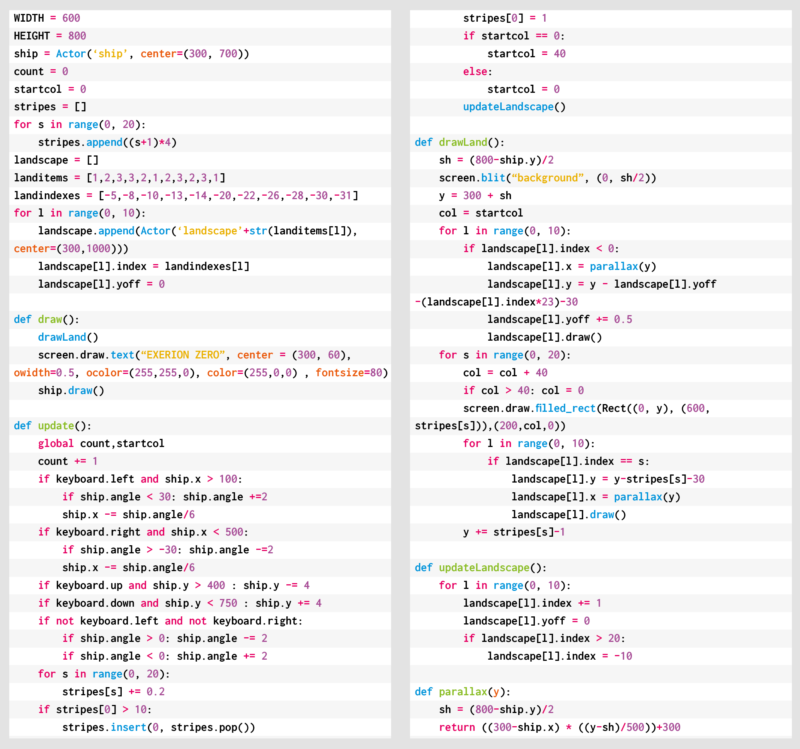
You can read more features like this one in Wireframe issue 51, available directly from Raspberry Pi Press — we deliver worldwide.
And if you’d like a handy digital version of the magazine, you can also download issue 51 for free in PDF format.
The post Recreate Exerion’s pseudo-3D landscape | Wireframe #51 appeared first on Raspberry Pi.
Blast dive-bombing aliens in our salute to Namco’s classic. Mark Vanstone has the code
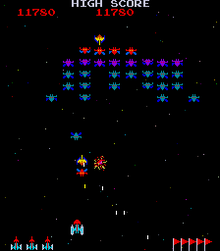
Hot on the heels of the original Space Invaders, Galaxian emerged as a rival space shooter in 1979. Released by Namco, Galaxian brought new colour and unpredictable motion to the alien enemy, who would swoop down on the defending player. Galaxian was so popular in arcades that Namco released a sequel, Galaga, two years later – that game complicated the attack patterns even more. It’s difficult to say how many ports and clones have been made of Galaxian, as there are several versions of similar games for almost every home platform.
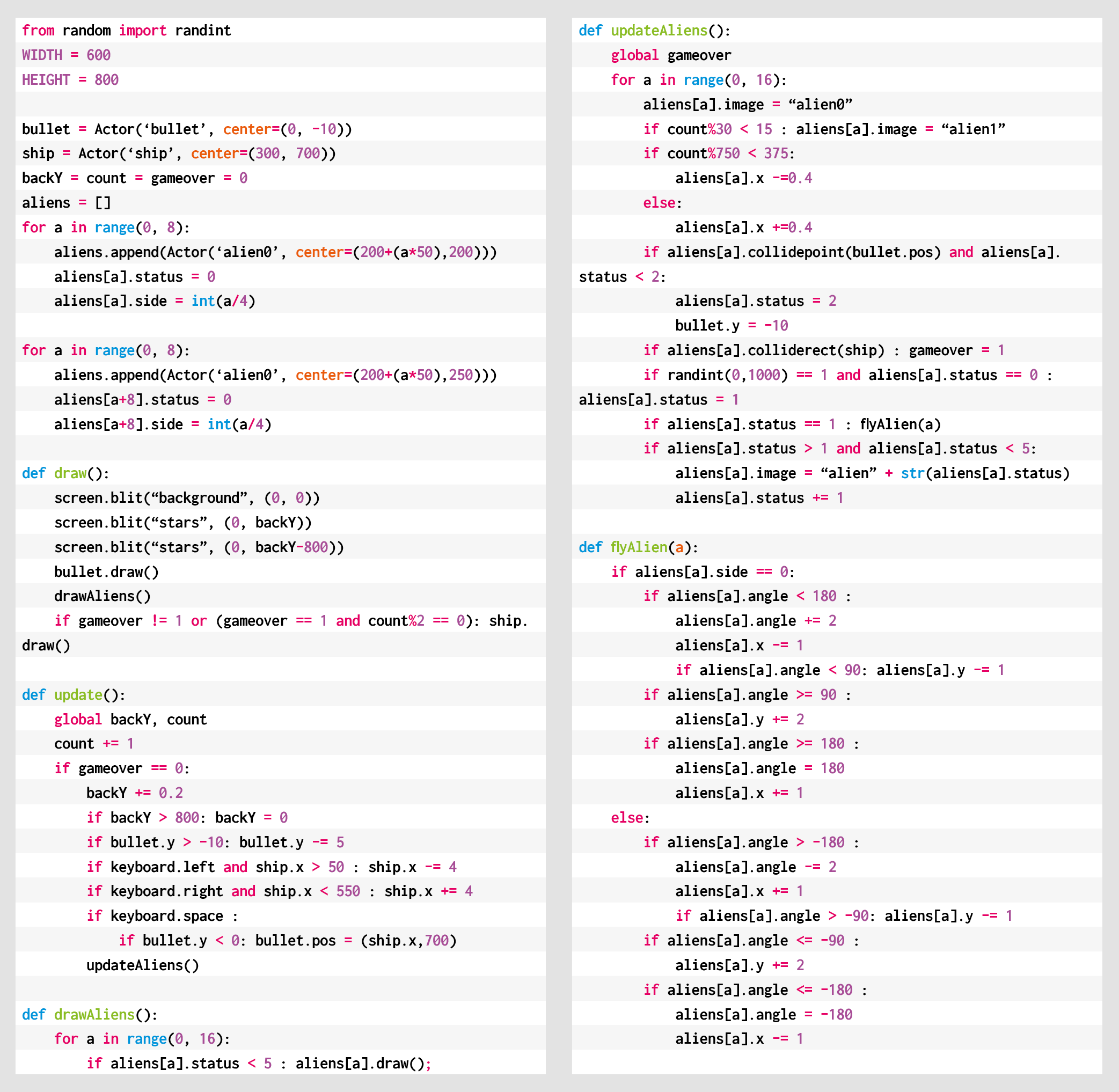
The player’s role in Galaxian is similar to Space Invaders, in that they pilot a ship and need to destroy a fleet of aliens. With Galaxian, however, the aliens have a habit of breaking formation and swooping down towards the player’s ship, and dive-bombing it. The aim is to destroy all the enemy ships and move on to the next wave. The subsequent waves of enemies get more difficult as the player progresses. For this sample, we’re going to look at that swooping mechanic, and make the bare nuts and bolts of a Galaxian game with Pygame Zero.
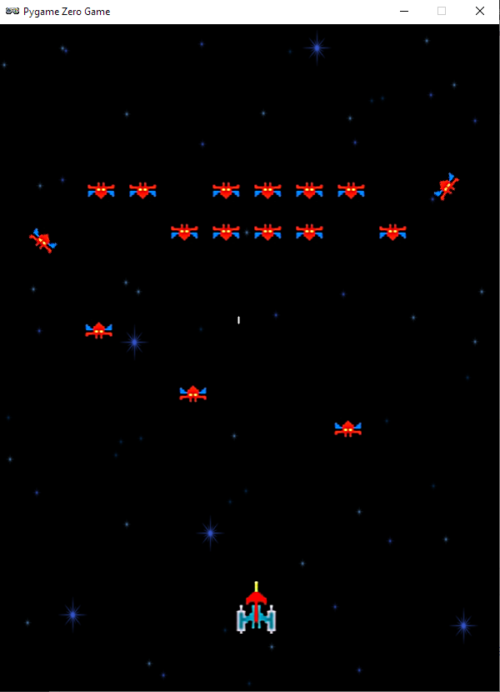
First, Galaxian has a portrait display, so we can set the play area’s width and height to be 600 and 800 respectively. Next, we can create a scrolling backdrop of stars using a bitmap that we blit to the screen and move downwards every update. We need a second blit of the stars to fill in the space that the first one leaves as it scrolls down, and we could also have another static background image behind them, which will provide a sense of depth.
Next, we set up the player ship as an Actor, and we’ll capture the left and right arrow keys in the update() function to move the ship left and right on the screen. We can also fire off a bullet with the SPACE bar, which will travel up the screen until it hits an alien or goes off the top of the screen. As in the original Galaxian, you can only shoot one bullet at a time, so we only need one Actor for this.
The aliens are arranged in rows and move left and right across the screen together. We’ll stick to just one type of alien for this sample, but draw two rows of them. You could add extra types and any number of rows. When we create the alien Actors, we can also add a status flag, and we need to determine which side of the row they’re on as when they break formation, the two sides fly in opposite directions. In this case, there’ll be four aliens on the left of each row and four on the right. Once they’re set up in a list, we can iterate through the list on each update and move them backwards and forwards. While we’re moving our aliens, we can also check to see if they’ve collided with a bullet or the player ship. If the collision is with a bullet, the alien cycles through a few frames of an explosion using the status flag, and then, when their status reaches five, they’re no longer drawn. If the collision is with the player, then the player dies and the game’s over. We can also check a random number to see if the alien will start a bombing run; if so, we set the status to one, which will start calls to the flyAlien() function. This function checks which side the alien’s on and starts changing the alien’s angle, depending on the side. It also alters the x and y coordinates, depending on the angle. We’ve written this section in longhand for clarity, but this could be collapsed down a bit with the use of some multiplier variables for the x coordinates and the angles.
There we have it: the basics of Galaxian. Can you flesh it out into a full game?
You can read more features like this one in Wireframe issue 50, available directly from Raspberry Pi Press — we deliver worldwide.

And if you’d like a handy digital version of the magazine, you can also download issue 50 for free in PDF format.
The post Recreate Galaxian’s iconic attack patterns | Wireframe #50 appeared first on Raspberry Pi.
Traverse a crumbly cavern in our homage to a Spectrum classic. Mark Vanstone has the code
One of the most iconic games on the Sinclair ZX Spectrum featured a little man called Miner Willy, who spent his days walking and jumping from platform to platform collecting the items needed to unlock the door on each screen. Manic Miner’s underground world featured caverns, processing plants, killer telephones, and even a forest featuring little critters that looked suspiciously like Ewoks.
Written by programmer Matthew Smith and released by Bug-Byte in 1983, the game became one of the most successful titles on the Spectrum. Smith was only 16 when he wrote Manic Miner and even constructed his own hardware to speed up the development process, assembling the code on a TRS-80 and then downloading it to the Spectrum with his own hand-built interface. The success of Manic Miner was then closely followed by Jet Set Willy, featuring the same character, and although they were originally written for the Spectrum, the games very soon made it onto just about every home computer of the time.
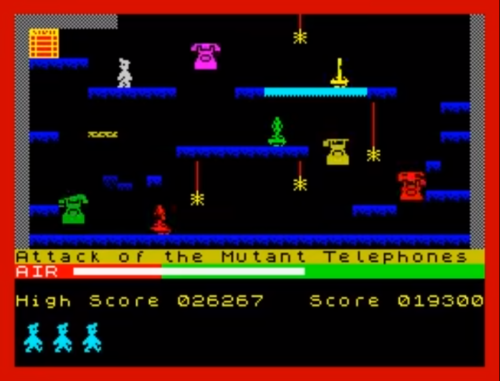
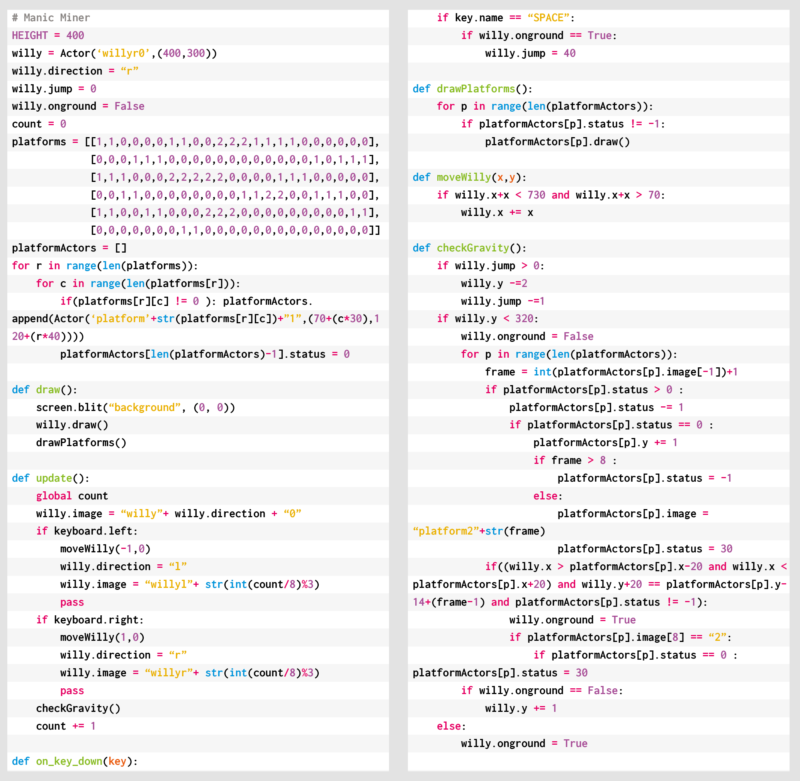
Both Manic Miner and Jet Set Willy featured unstable platforms which crumbled in Willy’s wake, and it’s these we’re going to try to recreate this month. In this Pygame Zero example, we need three frames of animation for each of the two directions of movement. As we press the arrow keys we can move the Actor left and right, and in this case, we’ll decide which frame to display based on a count variable, which is incremented each time our update() function runs. We can create platforms from a two-dimensional data list representing positions on the screen with 0 meaning a blank space, 1 being a solid platform, and 2 a collapsible platform. To set these up, we run through the list and make Actor objects for each platform segment.
For our draw() function, we can blit a background graphic, then Miner Willy, and then our platform blocks. During our update() function, apart from checking key presses, we also need to do some gravity calculations. This will mean that if Willy isn’t standing on a platform or jumping, he’ll start to fall towards the bottom of the screen. Instead of checking to see if Willy has collided with the whole platform, we only check to see if his feet are in contact with the top. This means he can jump up through the platforms but will then land on the top and stop. We set a variable to indicate that Willy’s standing on the ground so that when the SPACE bar is pressed, we know if he can jump or not. While we’re checking if Willy’s on a platform, we also check to see if it’s a collapsible one, and if so, we start a timer so that the platform moves downwards and eventually disappears. Once it’s gone, Willy will fall through. The reason we have a delayed timer rather than just starting the platform heading straight down is so that Willy can run across many tiles before they collapse, but his way back will quickly disappear. The disappearing platforms are achieved by changing the image of the platform block as it moves downward.
As we’ve seen, there were several other elements to each Manic Miner screen, such as roaming bears that definitely weren’t from Star Wars, and those dastardly killer telephones. We’ll leave you to add those.
You can read more features like this one in Wireframe issue 49, available directly from Raspberry Pi Press — we deliver worldwide.
And if you’d like a handy digital version of the magazine, you can also download issue 49 for free in PDF format.
The post Remake Manic Miner’s collapsing platforms | Wireframe #49 appeared first on Raspberry Pi.
Grab onto ropes and swing across chasms in our Python rendition of an Atari 2600 classic. Mark Vanstone has the code
Whether it was because of the design brilliance of the game itself or because Raiders of the Lost Ark had just hit the box office, Pitfall Harry became a popular character on the Atari 2600 in 1982.
His hazardous attempts to collect treasure struck a chord with eighties gamers, and saw Pitfall!, released by Activision, sell over four million copies. A sequel, Pitfall II: The Lost Caverns quickly followed the next year, and the game was ported to several other systems, even making its way to smartphones and tablets in the 21st century.
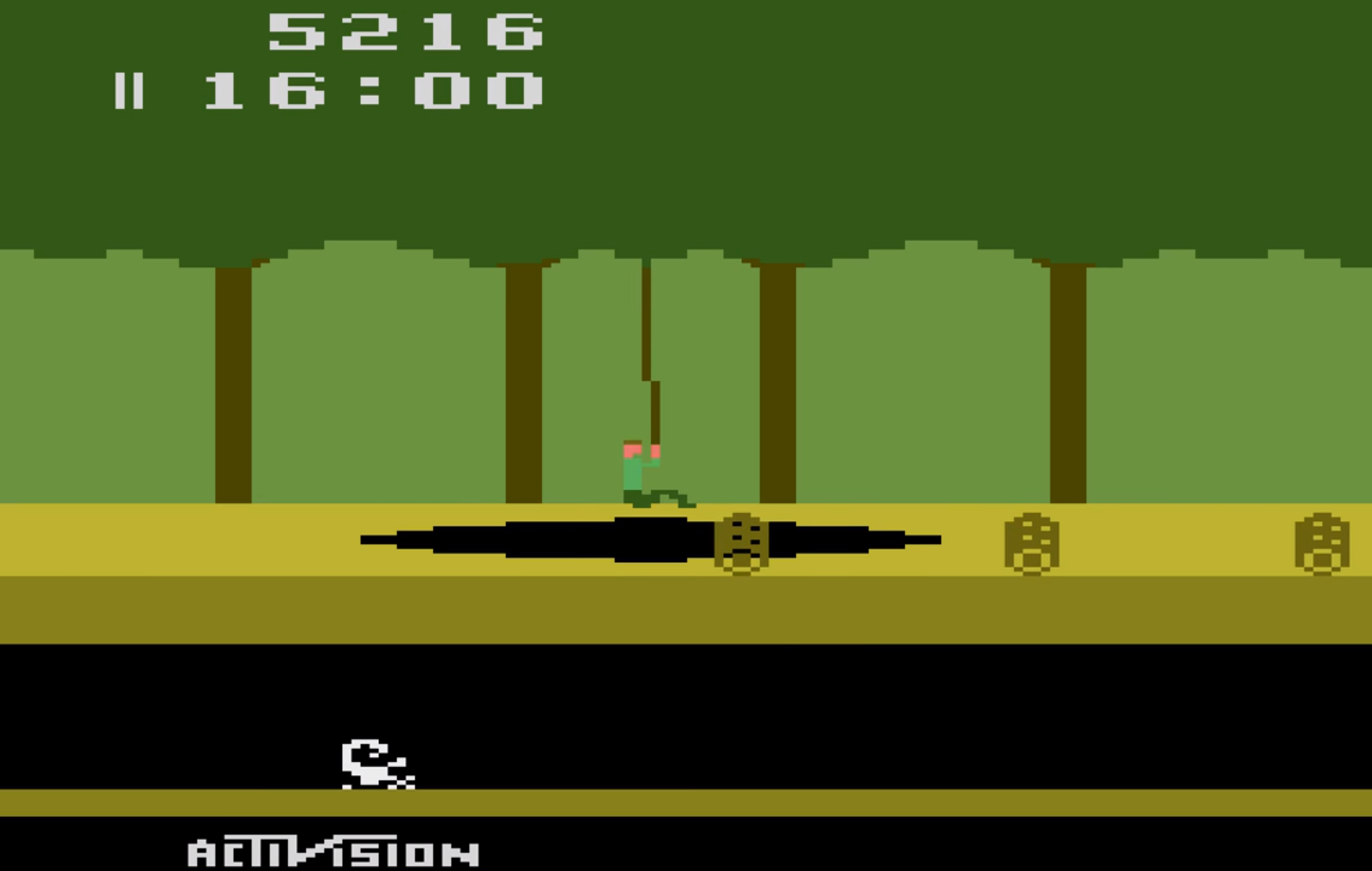
Designed by David Crane, Pitfall! was released for the Atari 2600 and published by Activision in 1982
The game itself is a quest to find 32 items of treasure within a 20-minute time limit. There are a variety of hazards for Pitfall Harry to navigate around and over, including rolling logs, animals, and holes in the ground. Some of these holes can be jumped over, but some are too wide and have a convenient rope swinging from a tree to aid our explorer in getting to the other side of the screen. Harry must jump towards the rope as it moves towards him and then hang on as it swings him over the pit, releasing his grip at the other end to land safely back on firm ground.
For this code sample, we’ll concentrate on the rope swinging (and catching) mechanic. Using Pygame Zero, we can get our basic display set up quickly. In this case, we can split the background into three layers: the background, including the back of the pathway and the tree trunks, the treetops, and the front of the pathway. With these layers we can have a rope swinging with its pivot point behind the leaves of the trees, and, if Harry gets a jump wrong, it will look like he falls down the hole in the ground. The order in which we draw these to the screen is background, rope, tree-tops, Harry, and finally the front of the pathway.
Now, let’s get our rope swinging. We can create an Actor and anchor it to the centre and top of its bounding box. If we rotate it by changing the angle property of the Actor, then it will rotate at the top of the Actor rather than the mid-point. We can make the rope swing between -45 degrees and 45 degrees by increments of 1, but if we do this, we get a rather robotic sort of movement. To fix this, we add an ‘easing’ value which we can calculate using a square root to make the rope slow down as it reaches the extremes of the swing.
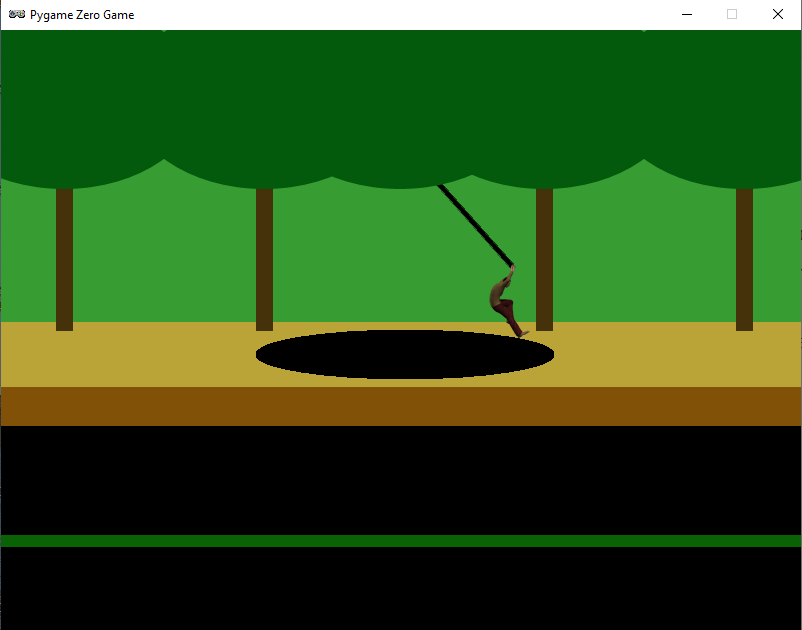
Our homage to the classic Pitfall! Atari game. Can you add some rolling logs and other hazards?
Our Harry character will need to be able to run backwards and forwards, so we’ll need a few frames of animation. There are several ways of coding this, but for now, we can take the x coordinate and work out which frame to display as the x value changes. If we have four frames of running animation, then we would use the %4 operator and value on the x coordinate to give us animation frames of 0, 1, 2, and 3. We use these frames for running to the right, and if he’s running to the left, we just mirror the images. We can check to see if Harry is on the ground or over the pit, and if he needs to be falling downward, we add to his y coordinate. If he’s jumping (by pressing the SPACE bar), we reduce his y coordinate.
We now need to check if Harry has reached the rope, so after a collision, we check to see if he’s connected with it, and if he has, we mark him as attached and then move him with the end of the rope until the player presses the SPACE bar and he can jump off at the other side. If he’s swung far enough, he should land safely and not fall down the pit. If he falls, then the player can have another go by pressing the SPACE bar to reset Harry back to the start.
That should get Pitfall Harry over one particular obstacle, but the original game had several other challenges to tackle – we’ll leave you to add those for yourselves.
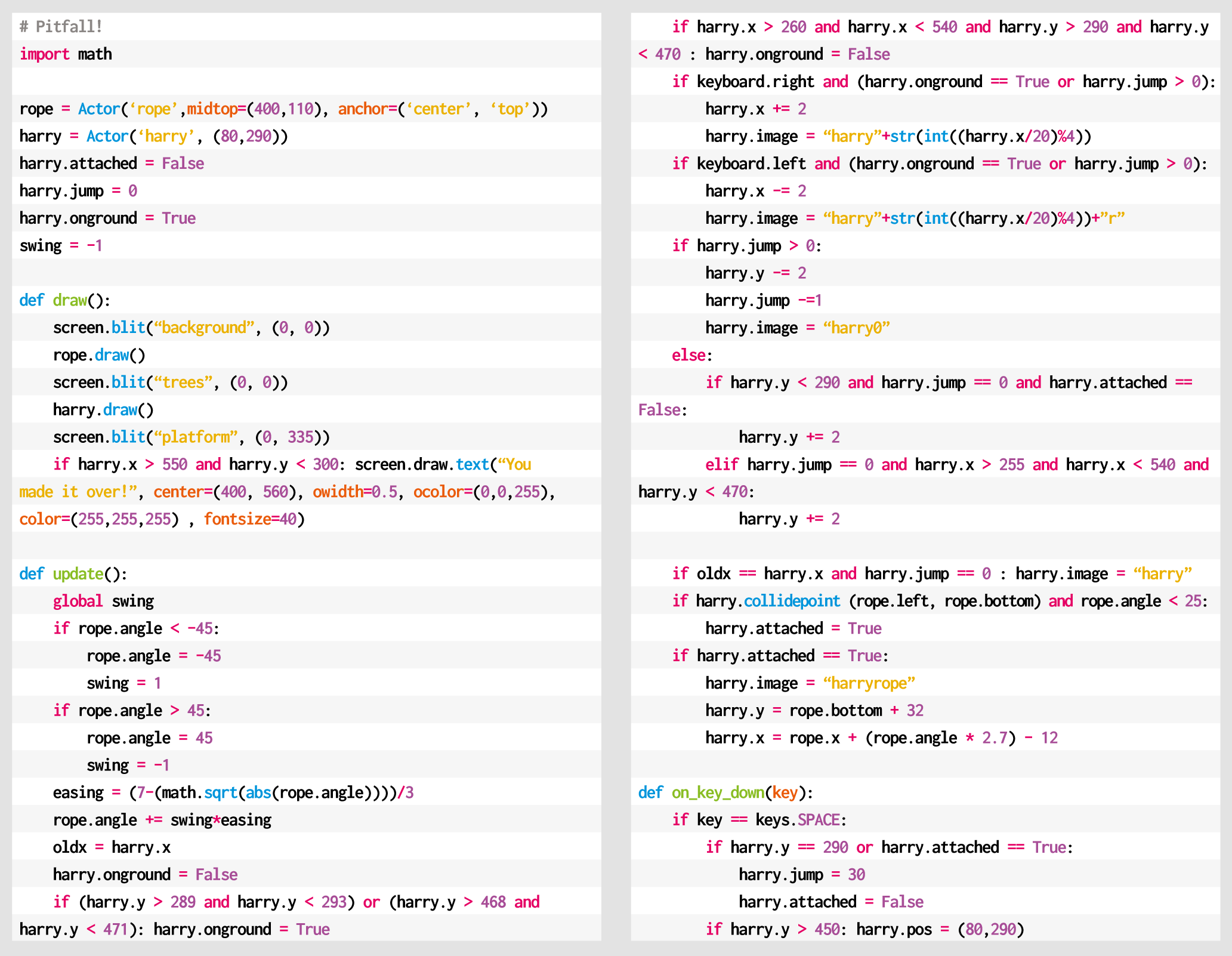
Here’s Mark’s code for a Pitfall!-style platformer. To get it working on your system, you’ll need to install Pygame Zero. And to download the full code and assets, head here.

The post Swing into action with an homage to Pitfall! | Wireframe #48 appeared first on Raspberry Pi.
Jim Bennett from Microsoft, who showed you all how to get Visual Studio Code up and running on Raspberry Pi last week, is back to explain how to use VS Code for remote development on a headless Raspberry Pi.
Like a lot of Raspberry Pi users, I like to run my Raspberry Pi as a ‘headless’ device to control various electronics – such as a busy light to let my family know I’m in meetings, or my IoT powered ugly sweater.
The upside of headless is that my Raspberry Pi can be anywhere, not tied to a monitor, keyboard and mouse. The downside is programming and debugging it – do you plug your Raspberry Pi into a monitor and run the full Raspberry Pi OS desktop, or do you use Raspberry Pi OS Lite and try to program and debug over SSH using the command line? Or is there a better way?
There is a better way – using Visual Studio Code remote development! Visual Studio Code, or VS Code, is a free, open source, developer’s text editor with a whole swathe of extensions to support you coding in multiple languages, and provide tools to support your development. I practically live day to day in VS Code: whether I’m writing blog posts, documentation or Python code, or programming microcontrollers, it’s my work ‘home’. You can run VS Code on Windows, macOS, and of course on a Raspberry Pi.
One of the extensions that helps here is the Remote SSH extension, part of a pack of remote development extensions. This extension allows you to connect to a remote device over SSH, and run VS Code as if you were running on that remote device. You see the remote file system, the VS Code terminal runs on the remote device, and you access the remote device’s hardware. When you are debugging, the debug session runs on the remote device, but VS Code runs on the host machine.
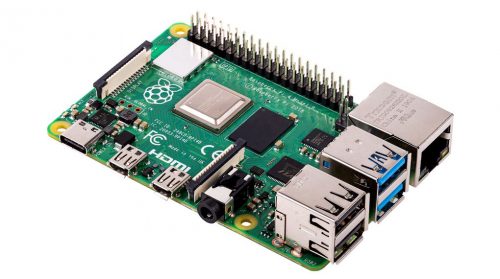
For example – I can run VS Code on my MacBook Pro, and connect remotely to a Raspberry Pi 4 that is running headless. I can access the Raspberry Pi file system, run commands on a terminal connected to it, access whatever hardware my Raspberry Pi has, and debug on it.
Remote SSH needs a Raspberry Pi 3 or 4. It is not supported on older Raspberry Pis, or on Raspberry Pi Zero.
For remote development, your Raspberry Pi needs to be connected to your network either by ethernet or WiFi, and have SSH enabled. The Raspberry Pi documentation has a great article on setting up a headless Raspberry Pi if you don’t already know how to do this.
You also need to know either the IP address of the Raspberry Pi, or its hostname. If you don’t know how to do this, it is also covered in the Raspberry Pi documentation.
Once the Raspberry Pi is set up, you can connect from VS Code on your Mac or PC.
First make sure you have VS Code installed. If not, you can install it from the VS Code downloads page.
From inside VS Code, you will need to install the Remote SSH extension. Select the Extensions tab from the sidebar menu, then search for Remote development. Select the Remote Development extension, and select the Install button.

Next you can connect to your Raspberry Pi. Launch the VS Code command palette using Ctrl+Shift+P on Linux or Windows, or Cmd+Shift+P on macOS. Search for and select Remote SSH: Connect current window to host (there’s also a connect to host option that will create a new window).

Enter the SSH connection details, using user@host. For the user, enter the Raspberry Pi username (the default is pi). For the host, enter the IP address of the Raspberry Pi, or the hostname. The hostname needs to end with .local, so if you are using the default hostname of raspberrypi, enter raspberrypi.local.
The .local syntax is supported on macOS and the latest versions of Windows or Linux. If it doesn’t work for you then you can install additional software locally to add support. On Linux, install Avahi using the command sudo apt-get install avahi-daemon. On Windows, install either Bonjour Print Services for Windows, or iTunes for Windows.
For example, to connect to my Raspberry Pi 400 with a hostname of pi-400 using the default pi user, I enter pi@pi-400.local.

The first time you connect, it will validate the fingerprint to ensure you are connecting to the correct host. Select Continue from this dialog.

Enter your Raspberry Pi’s password when promoted. The default is raspberry, but you should have changed this (really, you should!).

VS Code will then install the relevant tools on the Raspberry Pi and configure the remote SSH connection.
You will now be all set up and ready to code on your Raspberry Pi. Start by opening a folder or cloning a git repository and away you go coding, debugging and deploying your applications.
In the remote session, not all extensions you have installed locally will be available remotely. Any extensions that change the behavior of VS Code as an application, such as themes or tools for managing cloud resources, will be available.
Things like language packs and other programming tools are not installed in the remote session, so you’ll need to re-install them. When you install these extensions, you’ll see the Install button has changed to Install in SSH:< hostname > to show it’s being installed remotely.

VS Code may seem daunting at first – it’s a powerful tool with a huge range of extensions. The good news is Microsoft has you covered with lots of hands-on, self-guided learning guides on how to use it with different languages and development tools, from using Git version control, to developing web applications. There’s even a guide to learning Python basics with Wonder Woman!
You remember Jim – his blog Expecting Someone Geekier is well good. You can find him on Twitter @jimbobbennett and on github.
The post Coding on Raspberry Pi remotely with Visual Studio Code appeared first on Raspberry Pi.
Microsoft’s Visual Studio Code is an excellent C development environment, and now it’s an easy install on Raspberry Pi. Here’s Jim Bennett from Microsoft to show you all how to get VS Code up and running on our tiny computer. Take it away, Jim…
There are a few products in the tech sphere that get me really excited. One of them is Raspberry Pi (obviously), and the other is Visual Studio Code or VS Code. I always hoped that the two would come together one day — and now, to my great pleasure, they have!

VS Code is a free, open source developer text editor originally released for Windows, macOS and x64 Linux. Out of the box it supports generic text editing and git source code control, as well as full web development with JavaScript, TypeScript and Node.js, with debugging, intellisense and all the goodness you’d expect from a full-featured IDE. What makes it super powerful is extensions — bringing a huge range of programming languages, developer tools and other capabilities.
For example my VS Code setup includes a Python extension so I can code and debug in Python, a set of Microsoft Azure extensions so I can manage my cloud services, PlatformIO to allow me to program micro-controllers like Arduino boards coupled with a C++ extension to support coding in C and C++, and even some Docker support. Not a bad setup for a completely free developer tool.

I’ve been hoping for years VS Code would come to Raspberry Pi, and finally it’s here. As well as supporting Debian Linux on x64, there are now builds for ARM and ARM64 – both of which can run on Raspberry Pi OS (the ARM build on Raspberry Pi OS, the ARM64 on the beta of the 64-bit Raspberry Pi OS). And yes — I am writing this right now on a Raspberry Pi 400 running VS Code!
Well, there are a couple of reasons.
Firstly, it brings an exceptional developer tool to Raspberry Pi. There are already some great editors, but nothing of the calibre of VS Code. I can take my $35 computer, plug it into a keyboard and mouse, connect a monitor and a TV and code in a wide range of languages from the same place.
I see kids learning Python at school using one tool, then learning web development in an after-school coding club with a different tool. They can now do both in the same application, reducing the cognitive load – they only have to learn one tool, one debugger, one setup. Combine this with the new Raspberry Pi 400 and you have an all-in-one solution to learning to code, reminiscent of my ZX Spectrum of decades ago, but so much more powerful.
The second reason is to me the most important — it allows kids to share the same development environment as their grown-ups. Imagine the joy of a 10-year-old coding Python using VS Code on their Raspberry Pi plugged into the family TV, then seeing their Mum working from home coding Python in exactly the same tool on her work laptop as part of her job as an AI engineer or data scientist. It also makes it easier when Mum has to inevitably help with unblocking the issues that always come up with learners.
As a young child it was mind-blowing when my Dad brought home a work PC so he could write reports and I could use it to write up my school work – I was using what Dad used at work, making me feel important. I see this with my seven-year-old daughter, seeing her excitement that I use Microsoft Teams for work, the same as she uses for her virtual schooling (she’s even offered to teach me how to use it if I get stuck). To be able to bring that unadulterated joy of using ‘grown-up tools’ to our young learners is priceless.

The great news is VS Code is now available as part of the Raspberry Pi OS apt packages. Launch the Raspberry Pi Terminal and run the following commands:
sudo apt update
sudo apt install code -y
This will download and install VS Code. If you’ve got your hands on a Pico, then you may not even need to do this – VS Code is installed as part of the Pico setup from the Getting Started guide.
After installing VS Code, you can run it from the Programming folder in the Raspberry Pi menu.

VS Code may seem daunting at first – it’s a powerful tool with a huge range of extensions. The good news is Microsoft has you covered with lots of hands-on, self-guided learning guides on how to use it with different languages and development tools, from using Git version control, to developing web applications — there’s even a guide to learning Python basics with Wonder Woman.
Go grab it and happy coding!
Brilliant Jim Bennett shares loads of Raspberry Pi builds and tutorials over on Expecting Someone Geekier and tweets @jimbobbennett. He also works in Developer Relations at Microsoft. You can learn pretty much everything there is to know about him on github.
The post Visual Studio Code comes to Raspberry Pi appeared first on Raspberry Pi.
Speed around an arena, avoiding walls and deadly trails in this Light Cycle minigame. Mark Vanstone has the code.
At the beginning of the 1980s, Disney made plans for an entirely new kind of animated movie that used cutting-edge computer graphics. The resulting film was 1982’s TRON, and it inevitably sparked one of the earliest tie-in arcade machines.
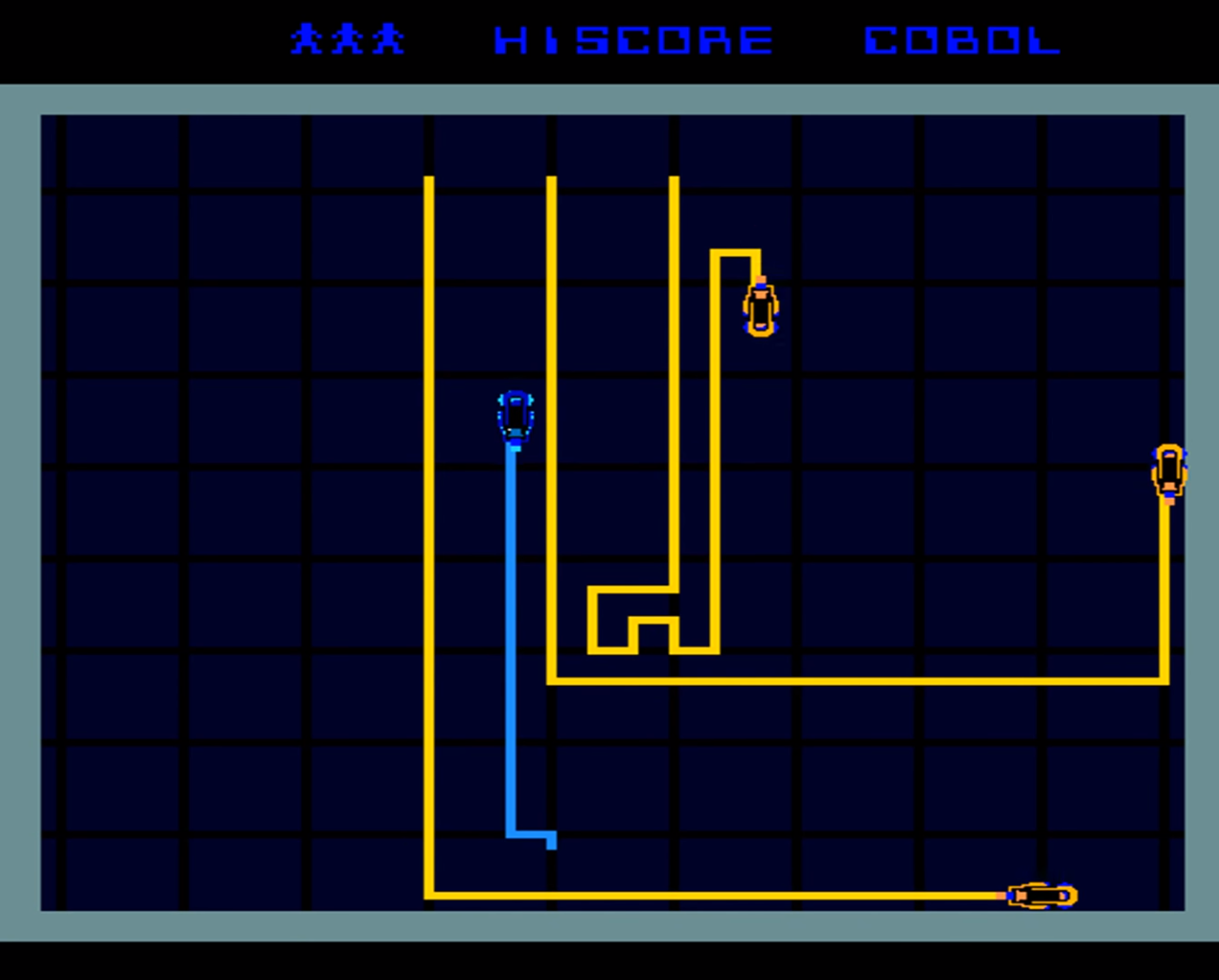
Battle against AI enemies in the original arcade classic.
The game featured several minigames, including one based on the Light Cycle section of the movie, where players speed around an arena on high-tech motorbikes, which leave a deadly trail of light in their wake. If competitors hit any walls or cross the path of any trails, then it’s game over.
Players progress through the twelve levels which were all named after programming languages. In the Light Cycle game, the players compete against AI players who drive yellow Light Cycles around the arena. As the levels progress, more AI Players are added.
The TRON game, distributed by Bally Midway, was well-received in arcades, and even won Electronic Games Magazine’s (presumably) coveted Coin-operated Game of the Year gong.
Although the arcade game wasn’t ported to home computers at the time, several similar games – and outright clones – emerged, such as the unsubtly named Light Cycle for the BBC Micro, Oric, and ZX Spectrum.
The Light Cycle minigame is essentially a variation on Snake, with the player leaving a trail behind them as they move around the screen. There are various ways to code this with Pygame Zero.
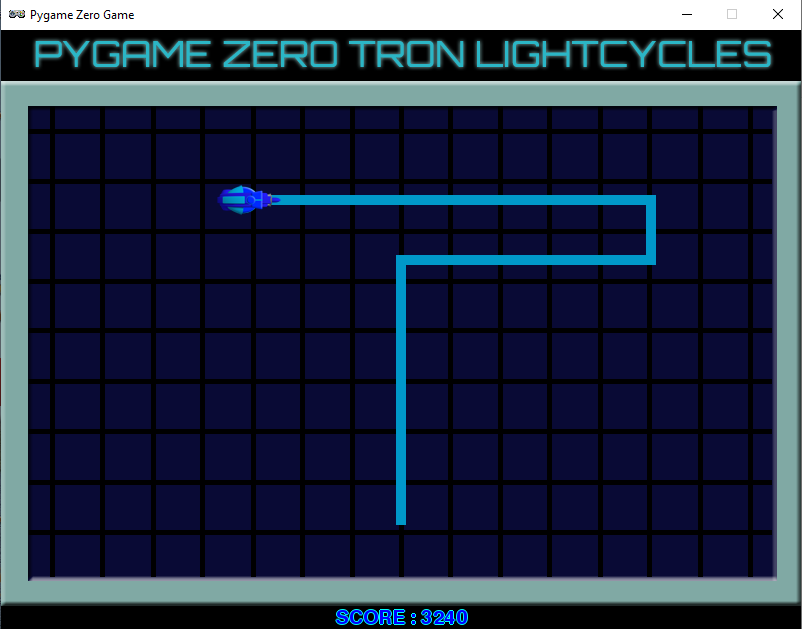
Our homage to the TRON Light Cycle classic arcade game.
In this sample, we’ll focus on the movement of the player Light Cycle and creating the trails that are left behind as it moves around the screen. We could use line drawing functions for the trail behind the bike, or go for a system like Snake, where blocks are added to the trail as the player moves.
In this example, though, we’re going to use a two-dimensional list as a matrix of positions on the screen. This means that wherever the player moves on the screen, we can set the position as visited or check to see if it’s been visited before and, if so, trigger an end-game event.
For the main draw() function, we first blit our background image which is the cross-hatched arena, then we iterate through our two-dimensional list of screen positions (each 10 pixels square) displaying a square anywhere the Cycle has been. The Cycle is then drawn and we can add a display of the score.
The update() function contains code to move the Cycle and check for collisions. We use a list of directions in degrees to control the angle the player is pointing, and another list of x and y increments for each direction. Each update we add x and y coordinates to the Cycle actor to move it in the direction that it’s pointing multiplied by our speed variable.
We have an on_key_down() function defined to handle changing the direction of the Cycle actor with the arrow keys. We need to wait a while before checking for collisions on the current position, as the Cycle won’t have moved away for several updates, so each screen position in the matrix is actually a counter of how many updates it’s been there for.
We can then test to see if 15 updates have happened before testing the square for collisions, which gives our Cycle enough time to clear the area. If we do detect a collision, then we can start the game-end sequence.
We set the gamestate variable to 1, which then means the update() function uses that variable as a counter to run through the frames of animation for the Cycle’s explosion. Once it reaches the end of the sequence, the game stops.
We have a key press defined (the SPACE bar) in the on_key_down() function to call our init() function, which will not only set up variables when the game starts but sets things back to their starting state.
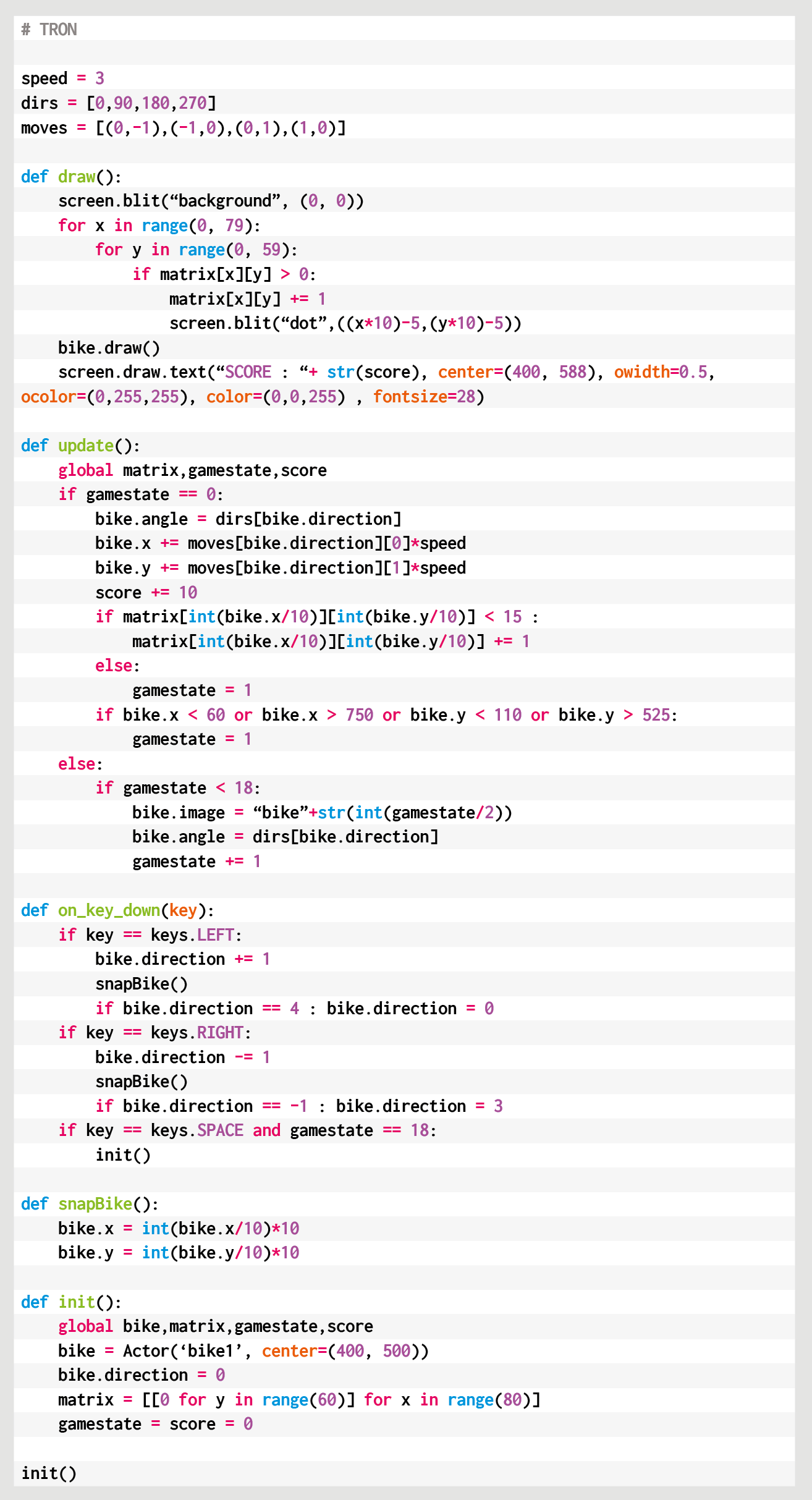
Here’s Mark’s code for a TRON-style Light Cycle minigame. To get it working on your system, you’ll need to install Pygame Zero. And to download the full code and assets, head here.
So that’s the fundamentals of the player Light Cycle movement and collision checking. To make it more like the original arcade game, why not try experimenting with the code and adding a few computer-controlled rivals?
You can read more features like this one in Wireframe issue 47, available directly from Raspberry Pi Press — we deliver worldwide.
And if you’d like a handy digital version of the magazine, you can also download issue 47 for free in PDF format.
The post Code a Light Cycle arcade minigame | Wireframe #47 appeared first on Raspberry Pi.
Create a network of pipes before the water starts to flow in our re-creation of a classic puzzler. Jordi Santonja shows you how.
Pipe Mania, also called Pipe Dream in the US, is a puzzle game developed by The Assembly Line in 1989 for Amiga, Atari ST, and PC, and later ported to other platforms, including arcades. The player must place randomly generated sections of pipe onto a grid. When a counter reaches zero, water starts to flow and must reach the longest possible distance through the connected pipes.
Let’s look at how to recreate Pipe Dream in Python and Pygame Zero. The variable start is decremented at each frame. It begins with a value of 60*30, so it reaches zero after 30 seconds if our monitor runs at 60 frames per second. In that time, the player can place tiles on the grid to build a path. Every time the user clicks on the grid, the last tile from nextTiles is placed on the play area and a new random tile appears at the top of the next tiles. randint(2,8) computes a random value between 2 and 8.
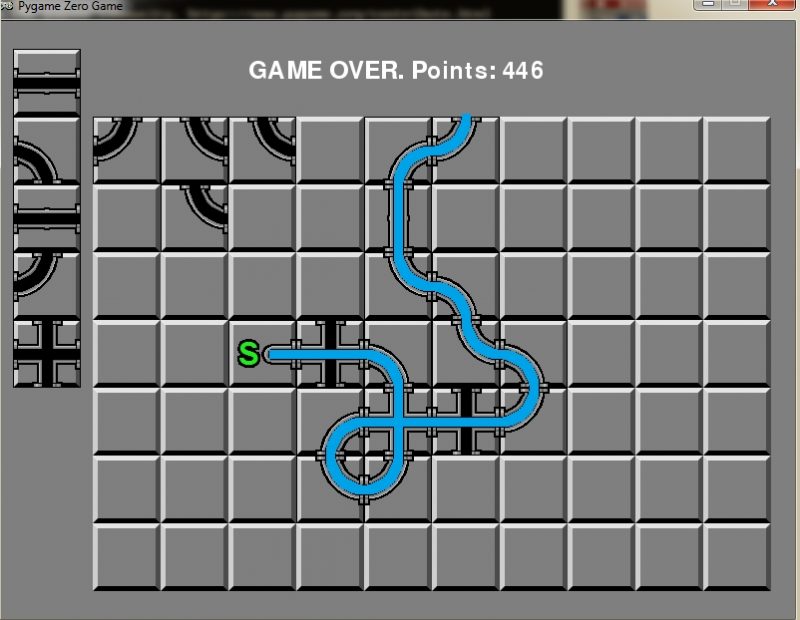
grid and nextTiles are lists of tile values, from 0 to 8, and are copied to the screen in the draw function with the screen.blit operation. grid is a two-dimensional list, with sizes gridWidth=10 and gridHeight=7. Every pipe piece is placed in grid with a mouse click. This is managed with the Pygame functions on_mouse_move and on_mouse_down, where the variable pos contains the mouse position in the window. panelPosition defines the position of the top-left corner of the grid in the window. To get the grid cell, panelPosition is subtracted from pos, and the result is divided by tileSize with the integer division //. tileMouse stores the resulting cell element, but it is set to (-1,-1) when the mouse lies outside the grid.
The images folder contains the PNGs with the tile images, two for every tile: the graphical image and the path image. The tiles list contains the name of every tile, and adding to it _block or _path obtains the name of the file. The values stored in nextTiles and grid are the indexes of the elements in tiles.
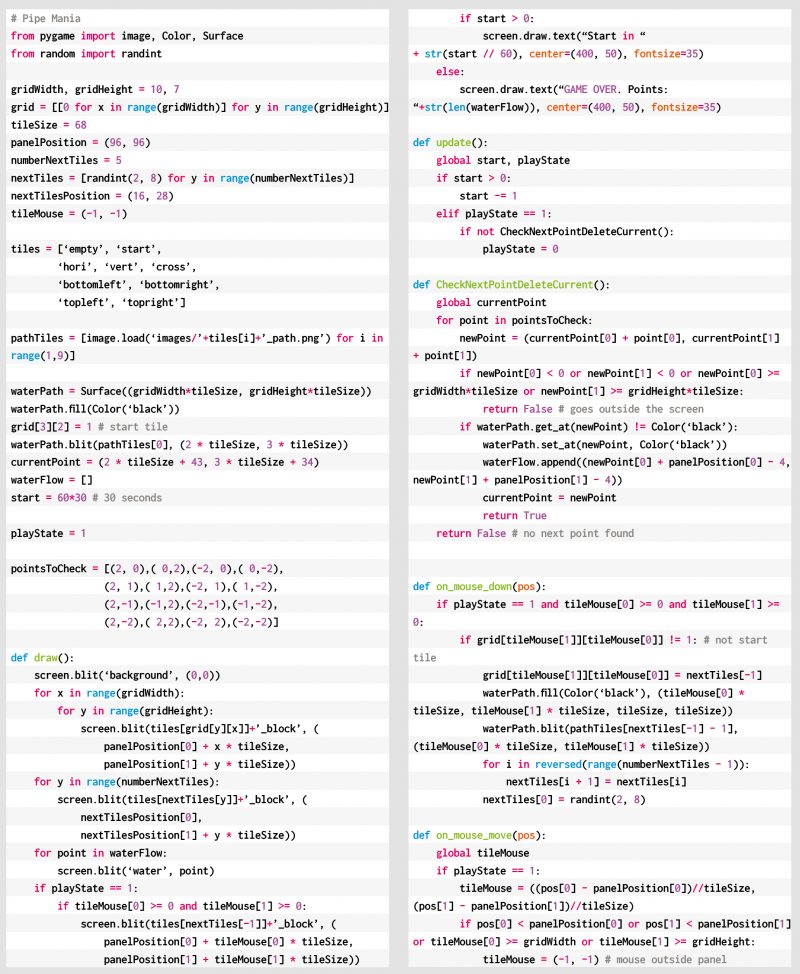
The image waterPath isn’t shown to the user, but it stores the paths that the water is going to follow. The first point of the water path is located in the starting tile, and it’s stored in currentPoint. update calls the function CheckNextPointDeleteCurrent, when the water starts flowing. That function finds the next point in the water path, erases it, and adds a new point to the waterFlow list. waterFlow is shown to the user in the draw function.
pointsToCheck contains a list of relative positions, offsets, that define a step of two pixels from currentPoint in every direction to find the next point. Why two pixels? To be able to define the ‘cross’ tile, where two lines cross each other. In a ‘cross’ tile the water flow must follow a straight line, and this is how the only points found are the next points in the same direction. When no next point is found, the game ends and the score is shown: the number of points in the water path, playState is set to 0, and no more updates are done.
You can read more features like this one in Wireframe issue 46, available directly from Raspberry Pi Press — we deliver worldwide.
And if you’d like a handy digital version of the magazine, you can also download issue 46 for free in PDF format.
The post Code your own Pipe Mania puzzler | Wireframe #46 appeared first on Raspberry Pi.
Code an explosive homage to Toaplan’s classic blaster. Mark Vanstone has the details
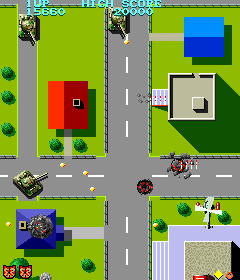
Tiger-Heli was developed by Toaplan and published in Japan by Taito and by Romstar in North America.
Released in 1985, Tiger-Heli was one of the earliest games from Japanese developer Toaplan: a top-down shoot-’em-up that pitted a lone helicopter against relentless waves of enemy tanks and military installations. Toaplan would go on to refine and evolve the genre through the eighties and nineties with such titles as Truxton and Fire Shark, so Tiger-Heli served as a kind of blueprint for the studio’s legendary blasters.
Tiger-Heli featured a powerful secondary weapon, too: as well as a regular shot, the game’s attack helicopter could also drop a deadly bomb capable of destroying everything within its blast radius. The mechanic was one that first appeared as far back as Atari’s Defender in 1981, but Toaplan quickly made it its own, with variations on the bomb becoming one of the signatures in the studio’s later games.
For our Tiger-Heli-style Pygame Zero code, we’ll concentrate on the unique bomb aspect, but first, we need to get the basic scrolling background and helicopter on the screen. In a game like this, we’d normally make the background out of tiles that can be used to create a varied but continuous scrolling image. For this example, though, we’ll keep things simple and have one long image that we scroll down the screen and then display a copy above it. When the first image goes off the screen, we just reset the co-ordinates to display it above the second image copy. In this way, we can have an infinitely scrolling background.
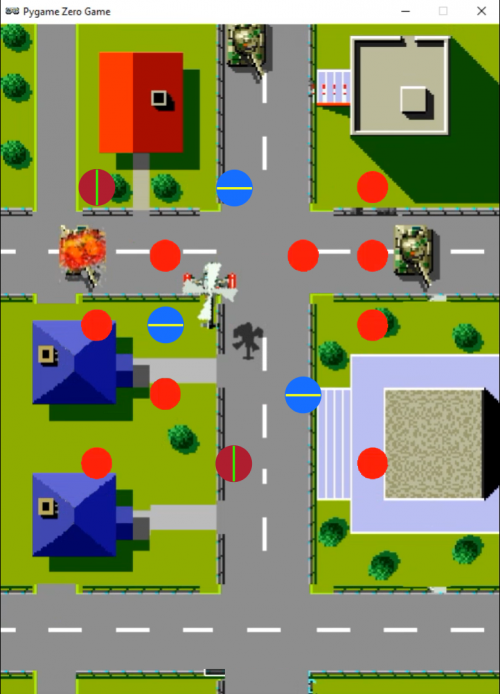
Our Tiger-Heli homage in Python. Fly over the military targets, firing missiles and dropping bombs.
The helicopter can be set up as an Actor with just two frames for the movement of the rotors. This should look like it’s hovering above the ground, so we blit a shadow bitmap to the bottom right of the helicopter. We can set up keyboard events to move the Actor left, right, up, and down, making sure we don’t allow it to go off the screen.
Now we can go ahead and set up the bombs. We can predefine a list of bomb Actors but only display them while the bombs are active. We’ll trigger a bomb drop with the SPACE bar and set all the bombs to the co-ordinates of the helicopter. Then, frame by frame, we move each bomb outwards in different directions so that they spread out in a pattern. You could try adjusting the number of bombs or their pattern to see what effects can be achieved. When the bombs get to frame 30, we start changing the image so that we get a flashing, expanding circle for each bomb.
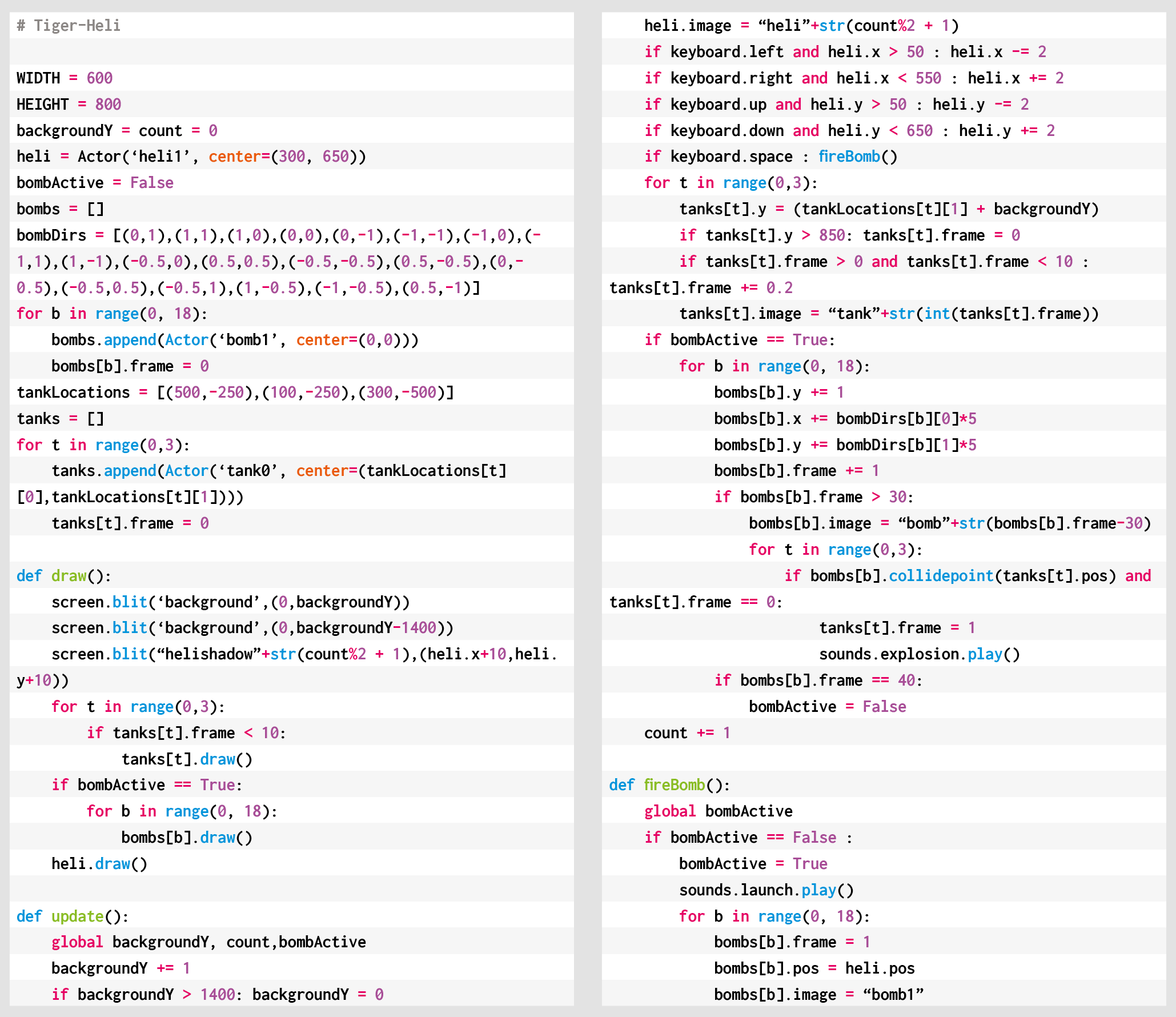
Here’s Mark’s code for a Tiger-Heli-style shooter. To get it working on your system, you’ll need to install Pygame Zero. And to download the full code and assets, head here.
It’s all very well having bombs to fire, but we could really do with something to drop them on, so let’s make some tank Actors waiting on the ground for us to destroy. We can move them with the scrolling background so that they look like they’re static on the ground. Then if one of our bombs has a collision detected with one of the tanks, we can set an animation going by cycling through a set of explosion frames, ending with the tank disappearing.
We can also add in some sound effects as the bombs are dropped, and explosion sounds if the tanks are hit. And with that, there you have it: the beginnings of a Tiger-Heli-style blaster.
You can read more features like this one in Wireframe issue 45, available directly from Raspberry Pi Press — we deliver worldwide.
And if you’d like a handy digital version of the magazine, you can also download issue 45 for free in PDF format.
Baldur’s Gate III: our cover star for Wireframe #45.
Make sure to follow Wireframe on Twitter and Facebook for updates and exclusive offers and giveaways. Subscribe on the Wireframe website to save up to 72% compared to newsstand pricing!
The post Recreate Tiger-Heli’s bomb mechanic | Wireframe #45 appeared first on Raspberry Pi.
Fire artillery shells to blow up the enemy with Mark Vanstone’s take on a classic two-player artillery game
Artillery Duel was an early example of the genre, and appeared on such systems as the Bally Astrocade and Commodore 64 (pictured).
To pick just one artillery game is difficult since it’s a genre in its own right. Artillery simulations and games have been around for almost as long as computers, and most commonly see two players take turns to adjust the trajectory of their tank’s turret and fire a projectile at their opponent. The earliest versions for microcomputers appeared in the mid-seventies, and the genre continued to develop; increasingly complex scenarios appeared involving historical settings or, as we saw from the mid-90s on, even offbeat ideas like battles between factions of worms.
To code the basics of an artillery game, we’ll need two tanks with turrets, a landscape, and some code to work out who shot what, in which direction, and where said shot landed. Let’s start with the landscape. If we create a landscape in two parts – a backdrop and foreground – we can make the foreground destructible so that when a missile explodes it damages part of the landscape. This is a common effect used in artillery games, and sometimes makes the gameplay more complicated as the battle progresses. In our example, we have a grass foreground overlaid on a mountain scene. We then need a cannon for each player. In this case, we’ve used a two-part image, one for the base and one for the turret, which means the latter can be rotated using the up and down keys.
Our homage to the artillery game genre. Fire away at your opponent, and hope they don’t hit back first.
For this code example, we can use the Python dictionary to store several bits of data about the game objects, including the Actor objects. This makes the data handling tidy and is quite similar to the way that JSON is used in JavaScript. We can use this method for the two cannons, the projectile, and an explosion object. As this is a two-player game, we’ll alternate between the two guns, allowing the arrow keys to change the angle of the cannon. When the SPACE bar is pressed, we call the firing sequence, which places the projectile at the same position as the gun firing it. We then move the missile through the air, reducing the speed as it goes and allowing the effects of gravity to pull it towards the ground.
We can work out whether the bullet has hit anything with two checks. The first is to do a pixel check with the foreground. If this comes back as not transparent, then it has hit the ground, and we can start an explosion. To create a hole in the foreground, we can write transparent pixels randomly around the point of contact and then set off an explosion animation. If we test for a collision with a gun, we may find that the bullet has hit the other player and after blowing up the tank, the game ends. If the impact only hit the landscape, though, we can switch control over to the other player and let them have a go.
So that’s your basic artillery game. But rest assured there are plenty of things to add – for example, wind direction, power of the shot, variable damage depending on proximity, or making the tanks fall into holes left by the explosions. You could even change the guns into little wiggly creatures and make your own homage to Worms.
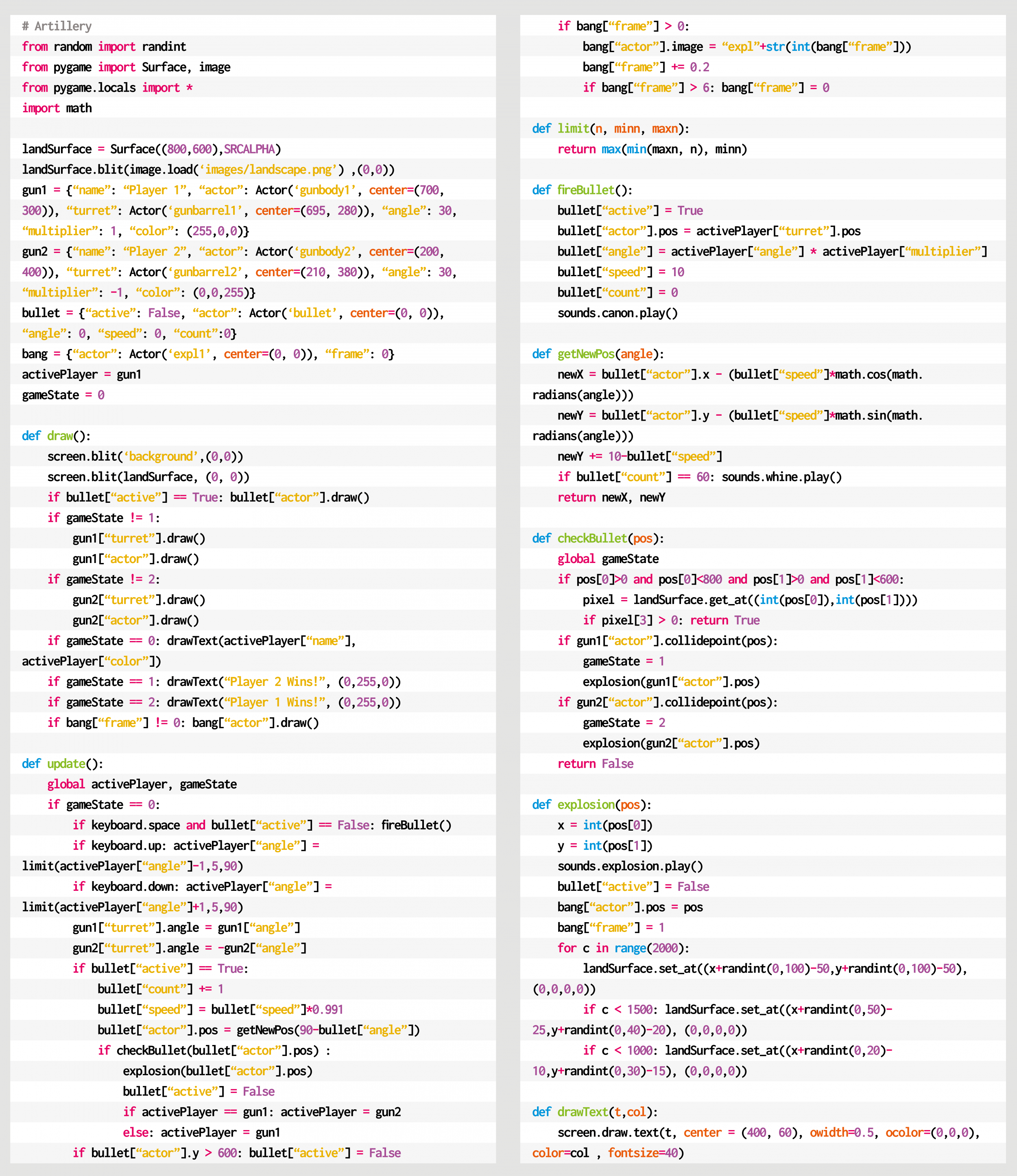
Here’s Mark’s code for an artillery-style tank game. To get it working on your system, you’ll need to install Pygame Zero. And to download the full code and assets, head here.
You can read more features like this one in Wireframe issue 44, available directly from Raspberry Pi Press — we deliver worldwide.
And if you’d like a handy digital version of the magazine, you can also download issue 44 for free in PDF format.
Wireframe #44, bringing the past and future of Worms to the fore.
Make sure to follow Wireframe on Twitter and Facebook for updates and exclusive offers and giveaways. Subscribe on the Wireframe website to save up to 72% compared to newsstand pricing!
The post Code your own Artillery-style tank game | Wireframe #44 appeared first on Raspberry Pi.
Laura Sach and Martin O’Hanlon, who are both Learning Managers at the Raspberry Pi Foundation, have written a brand-new book to help you to get more out of your Python projects.
In Create Graphical User Interfaces with Python, Laura and Martin show you how to add buttons, boxes, pictures, colours, and more to your Python programs using the guizero library, which is easy to use and accessible for all, no matter your Python skills.
This new 156-page book is suitable for everyone — from beginners to experienced Python programmers — who wants to explore graphical user interfaces (GUIs).
You might have met Martin recently on one of our weekly Digital Making at Home live streams for young people, were he was a guest for an ‘ooey-GUI’ code-along session. He talked about his background and what it’s like creating projects and learning resources on a day-to-day basis.
Laura is also pretty cool! Here she is showing you how to solder your Raspberry Pi header pins:
Martin and Laura are also tonnes of fun on Twitter. You can find Martin as @martinohanlon, and Laura goes by @codeboom.
In Create Graphical User Interfaces with Python, you’ll find ten fun Python projects to create with guizero, including a painting program, an emoji match game, and a stop-motion animation creator.
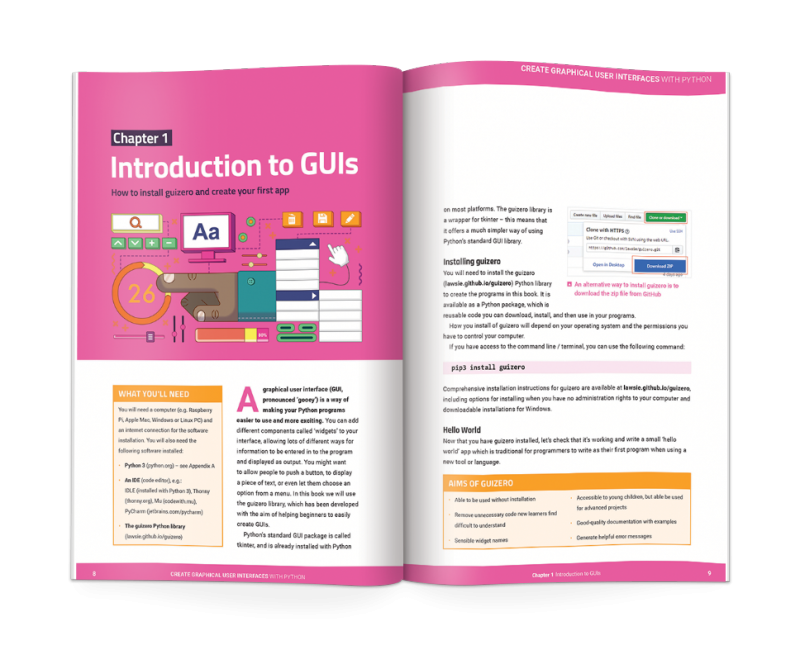
You will also learn:
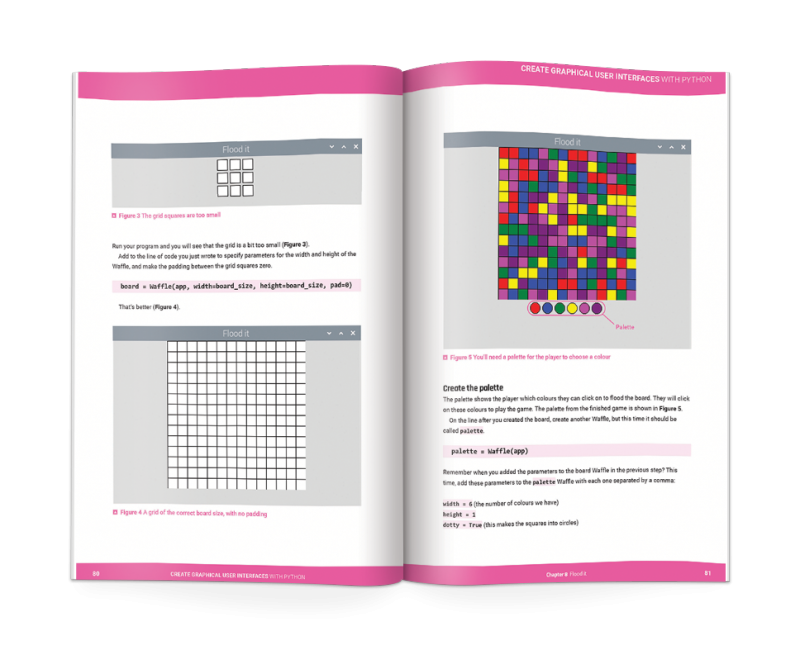
You can buy Create Graphical User Interfaces with Python now from the Raspberry Pi Press online store, or the Raspberry Pi store in Cambridge, UK.
And if you don’t need the lovely new book, with its new-book smell, in your hands in real life, you can download a PDF version for free, courtesy of The MagPi magazine.
The post New book: Create Graphical User Interfaces with Python appeared first on Raspberry Pi.
Race around using a mini-map for navigation, just like the arcade classic, Rally-X. Mark Vanstone has the code
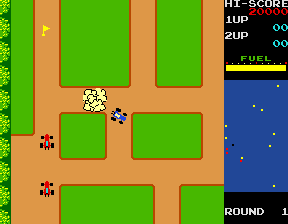
In Namco’s original arcade game, the red cars chased the player relentlessly around each level. Note the handy mini-map on the right.
The original Rally-X arcade game blasted onto the market in 1980, at the same time as Pac‑Man and Defender. This was the first year that developer Namco had exported its games outside Japan thanks to the deal it struck with Midway, an American game distributor. The aim of Rally-X is to race a car around a maze, avoiding enemy cars while collecting yellow flags – all before your fuel runs out.
The aspect of Rally-X that we’ll cover here is the mini-map. As the car moves around the maze, its position can be seen relative to the flags on the right of the screen. The main view of the maze only shows a section of the whole map, and scrolls as the car moves, whereas the mini-map shows the whole size of the map but without any of the maze walls – just dots where the car and flags are (and in the original, the enemy cars). In our example, the mini-map is five times smaller than the main map, so it’s easy to work out the calculation to translate large map co‑ordinates to mini-map co-ordinates.
To set up our Rally-X homage in Pygame Zero, we can stick with the default screen size of 800×600. If we use 200 pixels for the side panel, that leaves us with a 600×600 play area. Our player’s car will be drawn in the centre of this area at the co-ordinates 300,300. We can use the in-built rotation of the Actor object by setting the angle property of the car. The maze scrolls depending on which direction the car is pointing, and this can be done by having a lookup table in the form of a dictionary list (directionMap) where we define x and y increments for each angle the car can travel. When the cursor keys are pressed, the car stays central and the map moves.
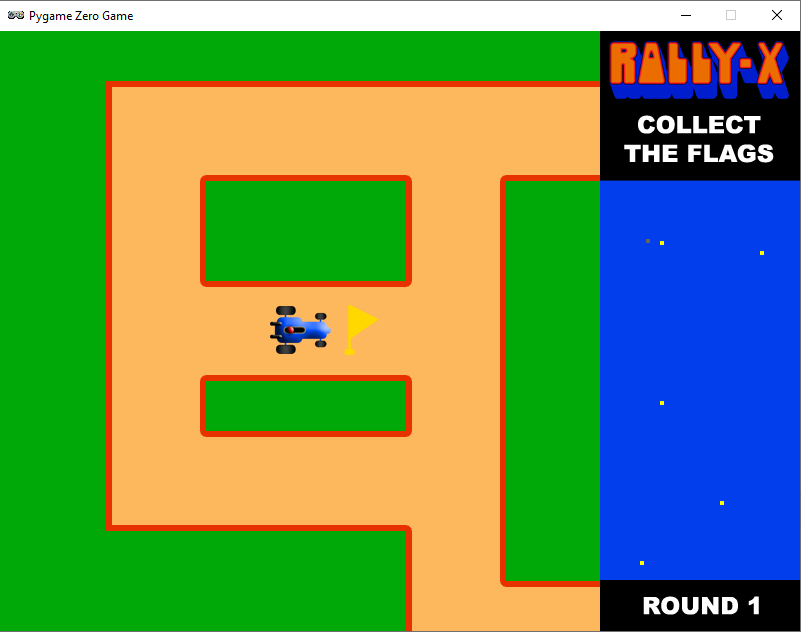
Roam the maze and collect those flags in our Python homage to Rally-X.
To detect the car hitting a wall, we can use a collision map. This isn’t a particularly memory-efficient way of doing it, but it’s easy to code. We just use a bitmap the same size as the main map which has all the roads as black and all the walls as white. With this map, we can detect if there’s a wall in the direction in which the car’s moving by testing the pixels directly in front of it. If a wall is detected, we rotate the car rather than moving it. If we draw the side panel after the main map, we’ll then be able to see the full layout of the screen with the map scrolling as the car navigates through the maze.
We can add flags as a list of Actor objects. We could make these random, but for the sake of simplicity, our sample code has them defined in a list of x and y co-ordinates. We need to move the flags with the map, so in each update(), we loop through the list and add the same increments to the x and y co‑ordinates as the main map. If the car collides with any flags, we just take them off the list of items to draw by adding a collected variable. Having put all of this in place, we can draw the mini-map, which will show the car and the flags. All we need to do is divide the object co-ordinates by five and add an x and y offset so that the objects appear in the right place on the mini-map.
And those are the basics of Rally-X! All it needs now is a fuel gauge, some enemy cars, and obstacles – but we’ll leave those for you to sort out…
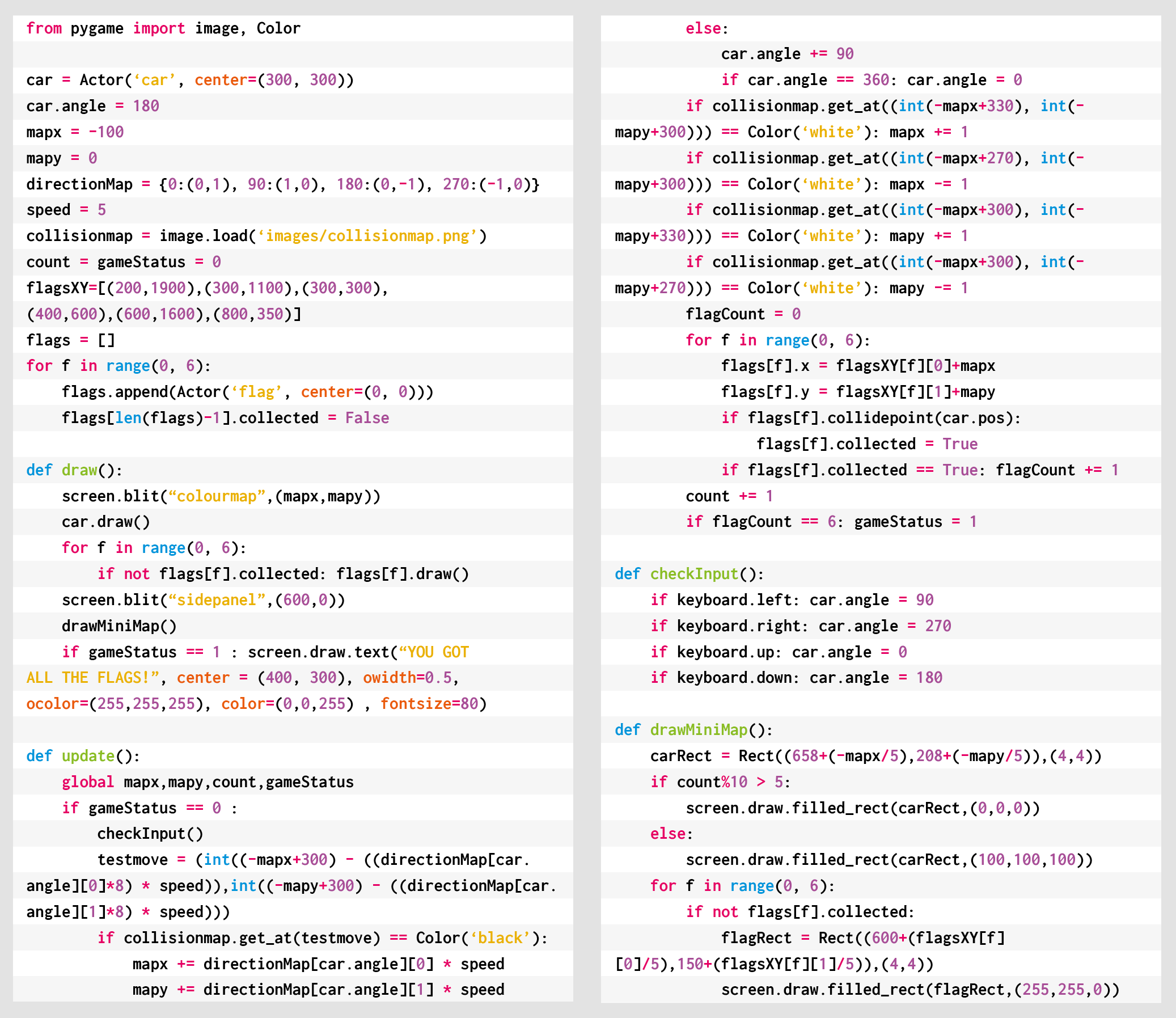
Here’s Mark’s code for a Rally-X-style driving game with mini-map. To get it running on your system, you’ll need to install Pygame Zero. And to download the full code and assets, head here.
You can read more features like this one in Wireframe issue 43, available directly from Raspberry Pi Press — we deliver worldwide.
And if you’d like a handy digital version of the magazine, you can also download issue 43 for free in PDF format.
Wireframe #43, with the gorgeous Sea of Stars on the cover.
Make sure to follow Wireframe on Twitter and Facebook for updates and exclusive offers and giveaways. Subscribe on the Wireframe website to save up to 49% compared to newsstand pricing!
The post Code a Rally-X-style mini-map | Wireframe #43 appeared first on Raspberry Pi.
24h Sunrise/Sunset is a digital art installation that displays a live sunset and sunrise happening somewhere in the world with the use of CCTV.
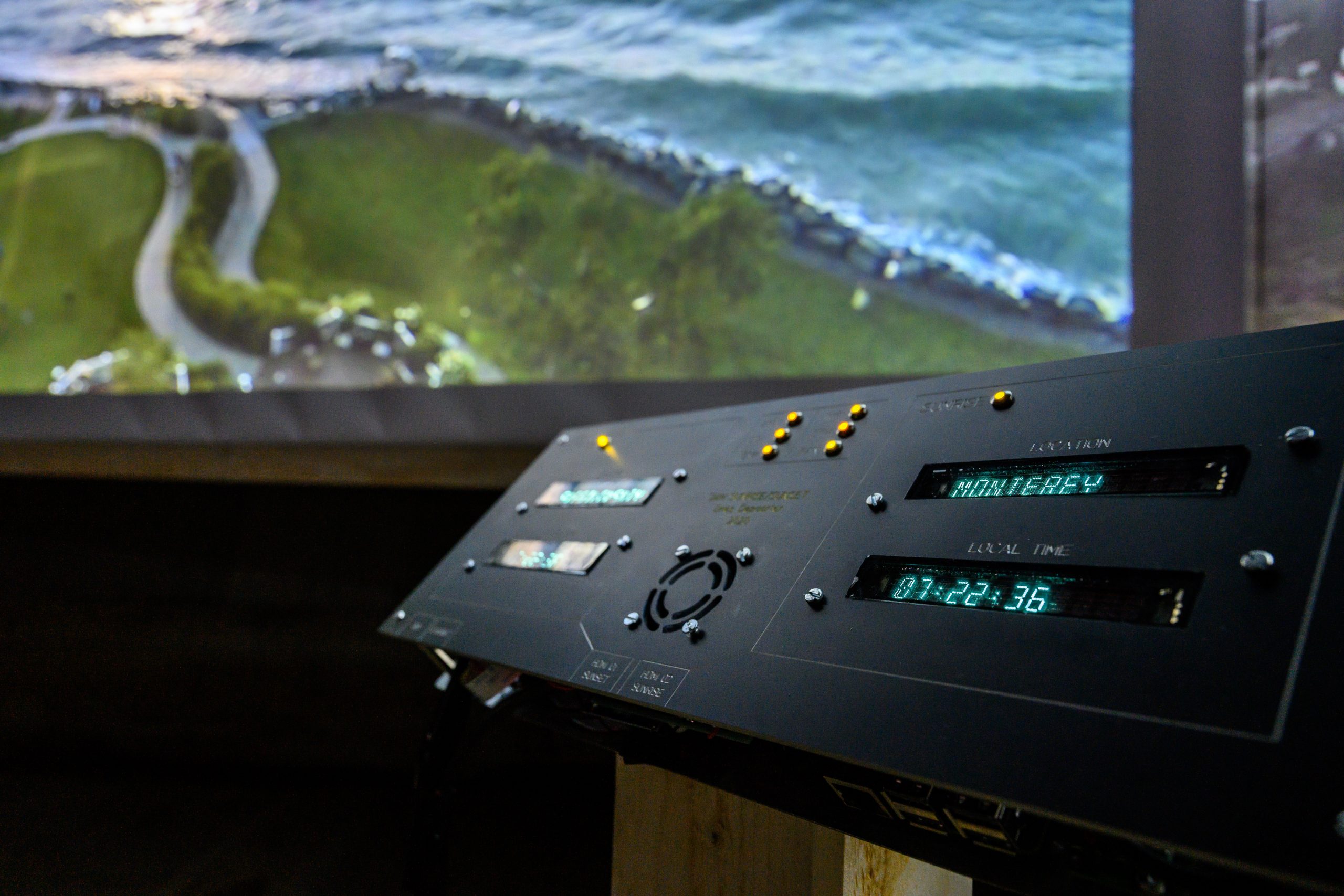
Artist Dries Depoorter wanted to prove that “CCTV cameras can show something beautiful”, and turned to Raspberry Pi to power this global project.
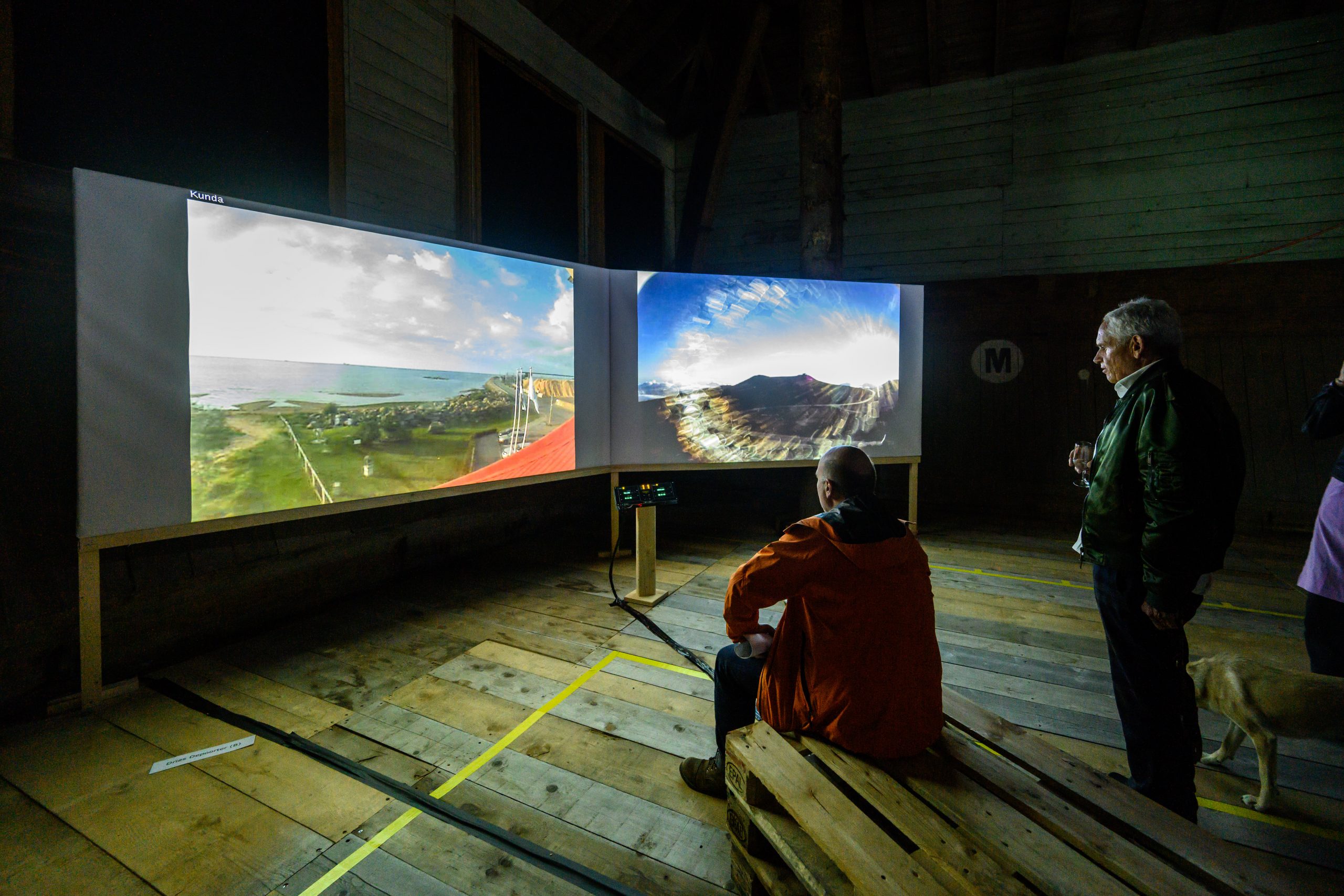
The arresting visuals are beamed to viewers using two Raspberry Pi 3B+ computers and an Arduino Nano Every that stream internet protocol (IP) cameras with the use of command line media player OMXPlayer.
The two Raspberry Pis communicate with each other using the MQTT protocol — a standard messaging protocol for the Internet of Things (IoT) that’s ideal for connecting remote devices with a small code footprint and minimal network bandwidth.
One of the Raspberry Pis checks at which location in the world a sunrise or sunset is happening and streams the closest CCTV camera.
The big screens are connected with the I2C protocol to the Arduino, and the Arduino is connected serial with the second Raspberry Pi. Dries also made a custom printed circuit board (PCB) so the build looks cleaner.
All that hardware is powered by an industrial power supply, just because Dries liked the style of it.
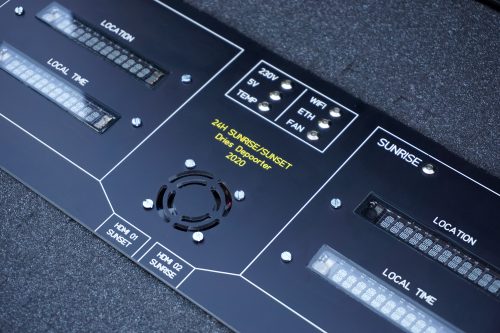
Everything is written in Python 3, and Dries harnessed the Python 3 libraries BeautifulSoup, Sun, Geopy, and Pytz to calculate sunrise and sunset times at specific locations. Google Firebase databases in the cloud help with admin by way of saving timestamps and the IP addresses of the cameras.
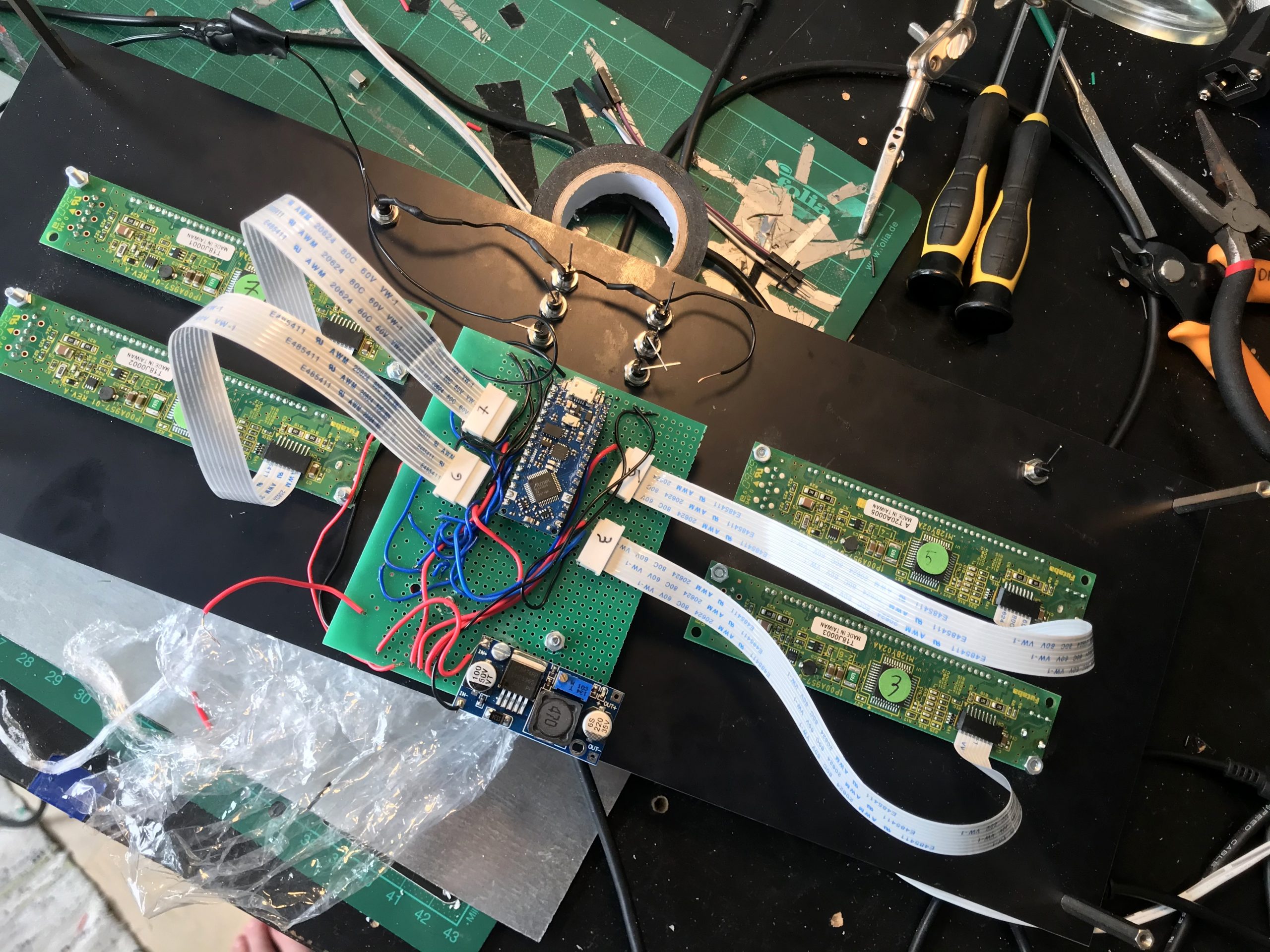
And, lastly, Dries requested a shoutout for his favourite local Raspberry Pi shop Gotron in Ghent.
If you’d like to check out more of Dries’ work, you can find him online here or on Instagram.
The post Global sunrise/sunset Raspberry Pi art installation appeared first on Raspberry Pi.
Picture the scene: you have a Raspberry Pi configured to run on your network, you power it up headless (without a monitor), and now you need to know which IP address it was assigned.
Matthias came up with this solution, which makes your Raspberry Pi blink its IP address, because he used a Raspberry Pi Zero W headless for most of his projects and got bored with having to look it up with his DHCP server or hunt for it by pinging different IP addresses.
A script runs when you start your Raspberry Pi and indicates which IP address is assigned to it by blinking it out on the device’s LED. The script comprises about 100 lines of Python, and you can get it on GitHub.
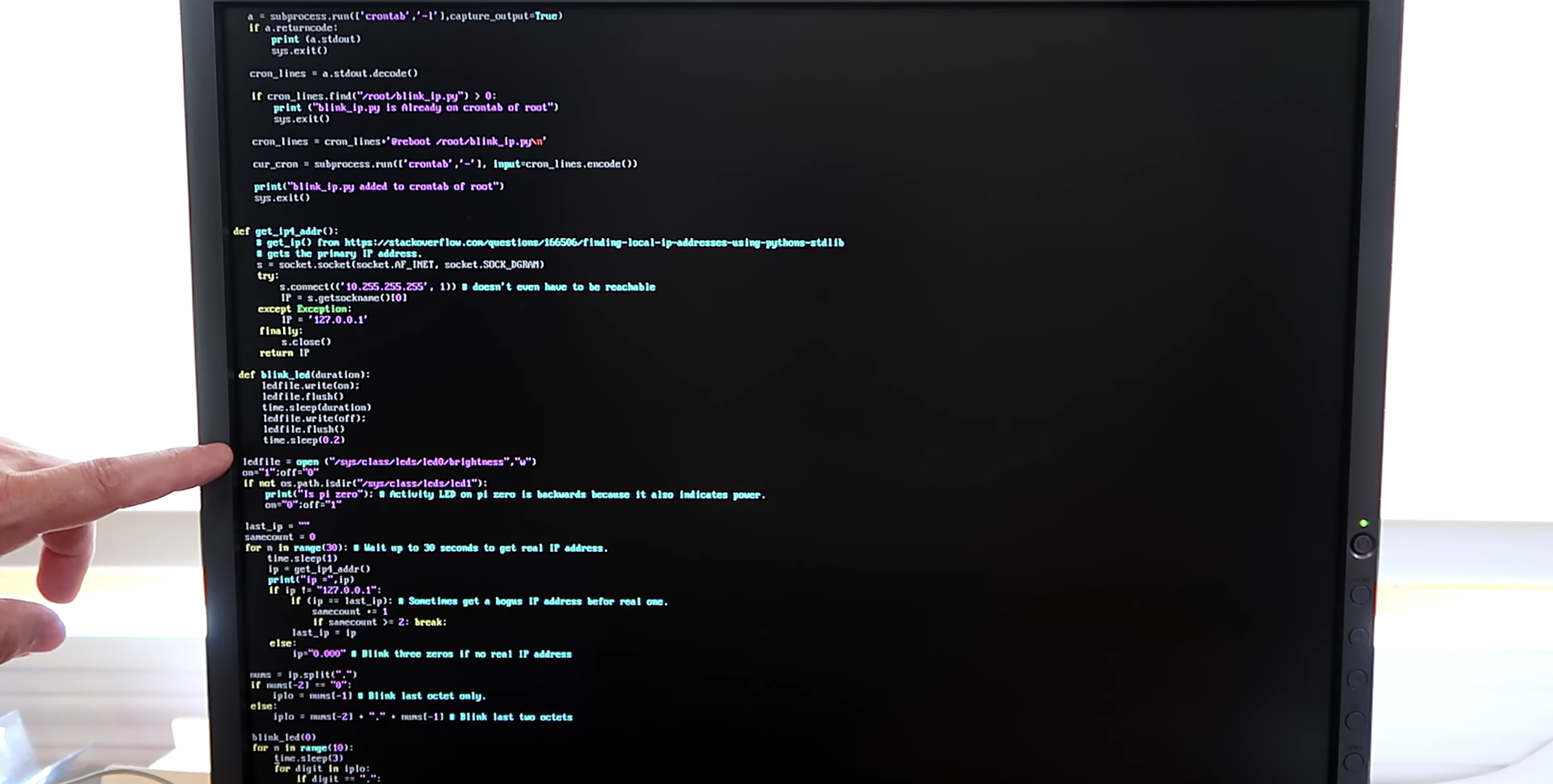
The power/status LED on the edge of the Raspberry Pi blinks numbers in a Roman numeral-like scheme. You can tell which number it’s blinking based on the length of the blink and the gaps between each blink, rather than, for example, having to count nine blinks for a number nine.
Short, fast blinks represent the numbers one to four, depending on how many short, fast blinks you see. A gap between short, fast blinks means the LED is about to blink the next digit of the IP address, and a longer blink represents the number five. So reading the combination of short and long blinks will give you your device’s IP address.
You can see this in action at this exact point in the video. You’ll see the LED blink fast once, then leave a gap, blink fast once again, then leave a gap, then blink fast twice. That means the device’s IP address ends in 112.
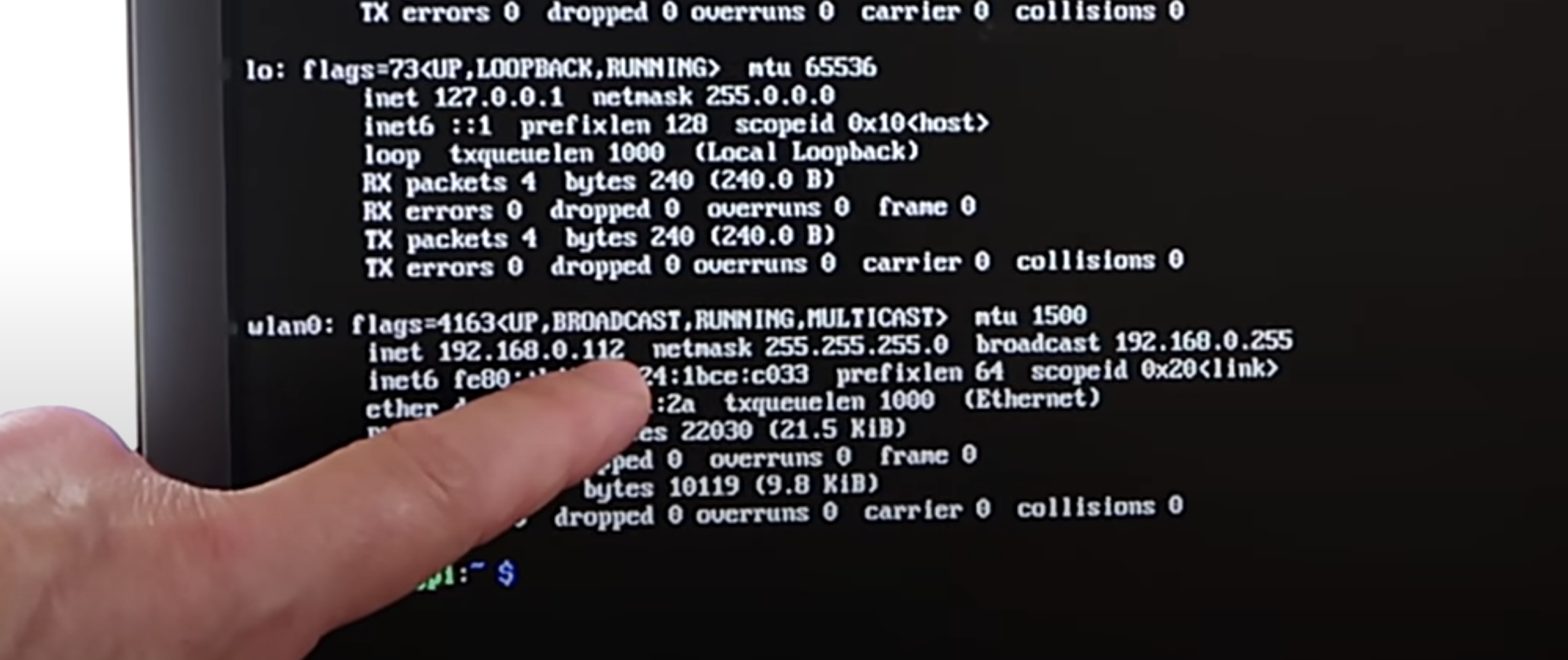
Luckily, you usually only need to know the last three numbers of the IP address (the last octet), as the previous octets will almost always be the same for all other computers on the LAN.
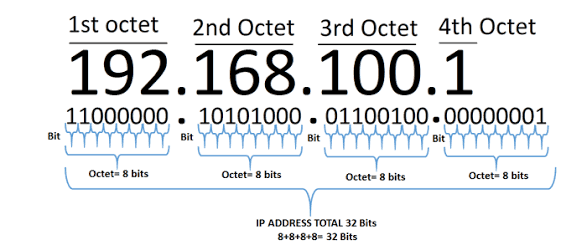
The script blinks out the last octet ten times, to give you plenty of chances to read it. Then it returns the LED to its default functionality.
On a Raspberry Pi Zero W, the script uses the green status/power LED, and on other Raspberry Pis it uses the green LED next to the red power LED.
Once you get the hang of the Morse code-like blinking style, this is a really nice quick solution to find your device’s IP address and get on with your project.
The post What the blink is my IP address? appeared first on Raspberry Pi.
Code the mechanics of an eighties arcade hit in Python and Pygame Zero. Mark Vanstone shows you how
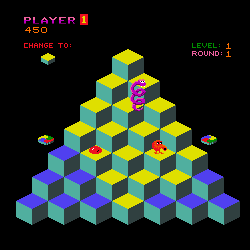
Players must change the colour of every cube to complete the level.
Late in 1982, a funny little orange character with a big nose landed in arcades. The titular Q*bert’s task was to jump around a network of cubes arranged in a pyramid formation, changing the colours of each as they went. Once the cubes were all the same colour, it was on to the next level; to make things more interesting, there were enemies like Coily the snake, and objects which helped Q*bert: some froze enemies in their tracks, while floating discs provided a lift back to the top of the stage.
Q*bert was designed by Warren Davis and Jeff Lee at the American company Gottlieb, and soon became such a smash hit that, the following year, it was already being ported to most of the home computer platforms available at the time. New versions and remakes continued to appear for years afterwards, with a mobile phone version appearing in 2003. Q*bert was by far Gottlieb’s most popular game, and after several changes in company ownership, the firm is now part of Sony’s catalogue – Q*bert’s main character even made its way into the 2015 film, Pixels.
Q*bert uses isometric-style graphics to draw a pseudo-3D display – something we can easily replicate in Pygame Zero by using a single cube graphic with which we make a pyramid of Actor objects. Starting with seven cubes on the bottom row, we can create a simple double loop to create the pile of cubes. Our Q*bert character will be another Actor object which we’ll position at the top of the pile to start. The game screen can then be displayed in the draw() function by looping through our 28 cube Actors and then drawing Q*bert.
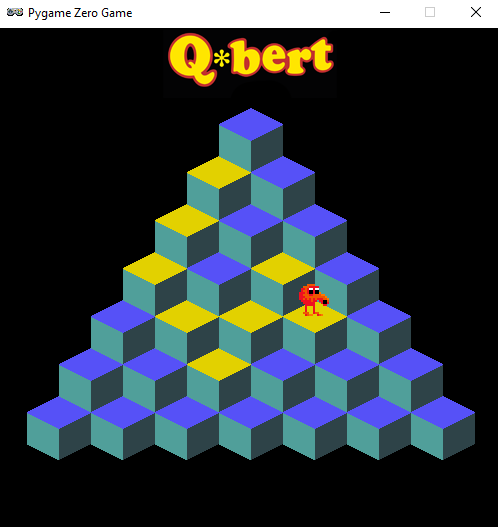
Our homage to Q*bert. Try not to fall into the terrifying void.
We need to detect player input, and for this we use the built-in keyboard object and check the cursor keys in our update() function. We need to make Q*bert move from cube to cube so we can move the Actor 32 pixels on the x-axis and 48 pixels on the y-axis. If we do this in steps of 2 for x and 3 for y, we will have Q*bert on the next cube in 16 steps. We can also change his image to point in the right direction depending on the key pressed in our jump() function. If we use this linear movement in our move() function, we’ll see the Actor go in a straight line to the next block. To add a bit of bounce to Q*bert’s movement, we add or subtract (depending on the direction) the values in the bounce[] list. This will make a bit more of a curved movement to the animation.
Now that we have our long-nosed friend jumping around, we need to check where he’s landing. We can loop through the cube positions and check whether Q*bert is over each one. If he is, then we change the image of the cube to one with a yellow top. If we don’t detect a cube under Q*bert, then the critter’s jumped off the pyramid, and the game’s over. We can then do a quick loop through all the cube Actors, and if they’ve all been changed, then the player has completed the level. So those are the basic mechanics of jumping around on a pyramid of cubes. We just need some snakes and other baddies to annoy Q*bert – but we’ll leave those for you to add. Good luck!
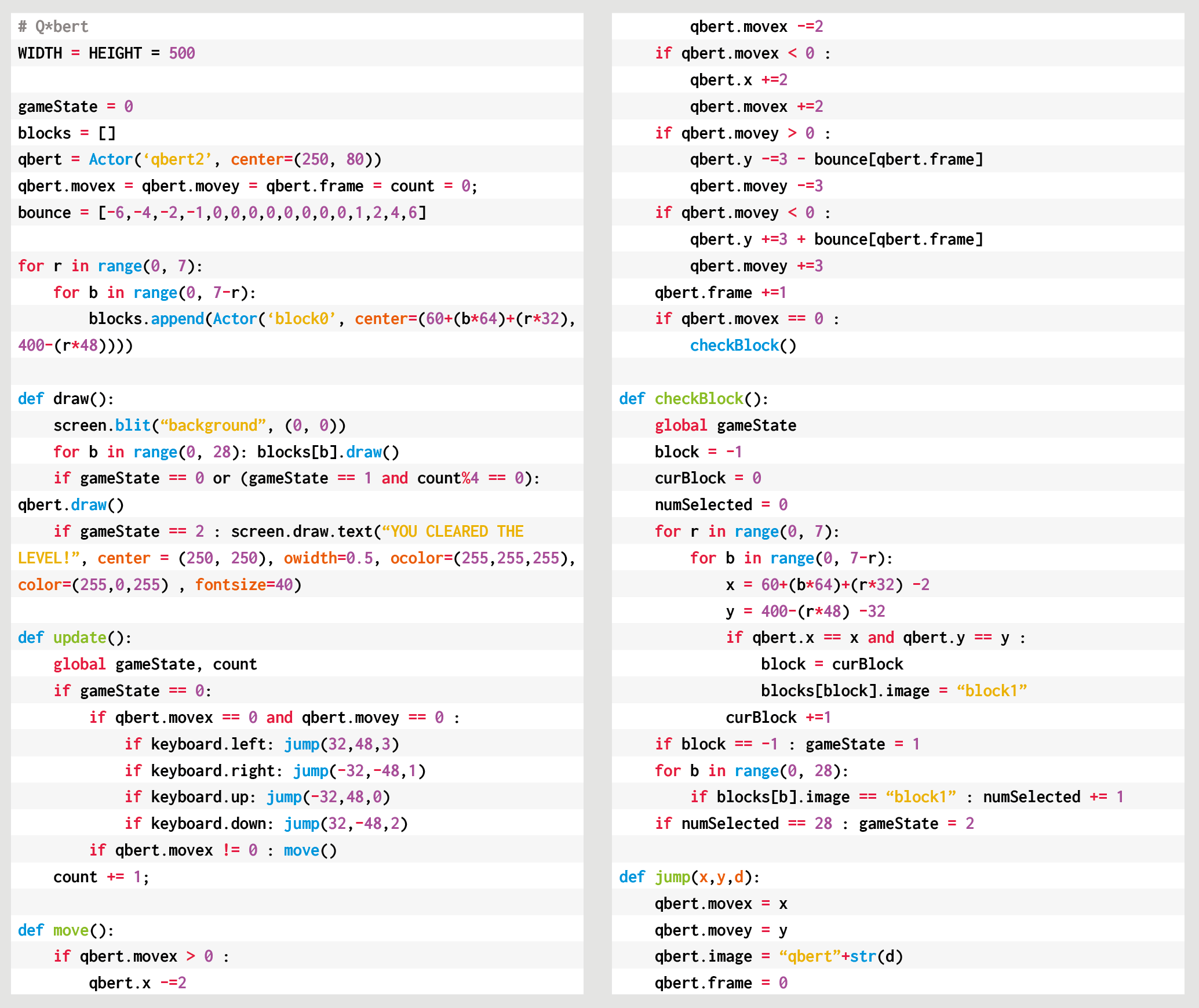
Here’s Mark’s code for a Q*bert-style, cube-hopping platform game. To get it running on your system, you’ll need to install Pygame Zero. And to download the full code and assets, head here.
You can read more features like this one in Wireframe issue 42, available directly from Raspberry Pi Press — we deliver worldwide.
And if you’d like a handy digital version of the magazine, you can also download issue 42 for free in PDF format.
Make sure to follow Wireframe on Twitter and Facebook for updates and exclusive offers and giveaways. Subscribe on the Wireframe website to save up to 49% compared to newsstand pricing!
The post Recreate Q*bert’s cube-hopping action | Wireframe #42 appeared first on Raspberry Pi.
We found this project at TeCoEd and we loved the combination of an OLED display housed inside a retro Argus slide viewer. It uses a Raspberry Pi 3 with Python and OpenCV to pull out single frames from a video and write them to the display in real time.
TeCoEd names this creation the Raspberry Pi Retro Player, or RPRP, or – rather neatly – RP squared. The Argus viewer, he tells us, was a charity-shop find that cost just 50p. It sat collecting dust for a few years until he came across an OLED setup guide on hackster.io, which inspired the birth of the RPRP.
At the heart of the project is a Raspberry Pi 3 which is running a Python program that uses the OpenCV computer vision library. The code takes a video clip and breaks it down into individual frames. Then it resizes each frame and converts it to black and white, before writing it to the OLED display. The viewer sees the video play in pleasingly retro monochrome on the slide viewer.
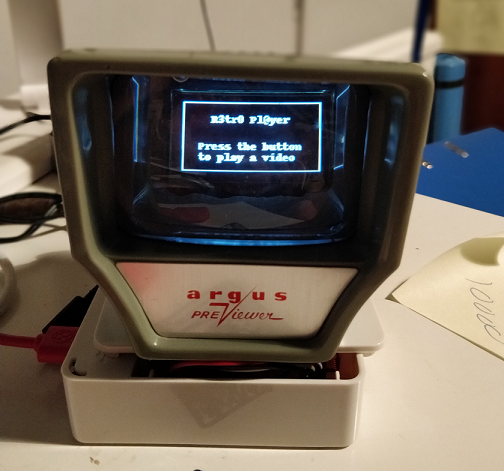
TeCoEd ran into some frustrating problems with the OLED display, which, he discovered, uses the SH1106 driver, rather than the standard SH1306 driver that the Adafruit CircuitPython library expects. Many OLED displays use the SH1306 driver, but it turns out that cheaper displays like the one in this project use the SH1106. He has made a video to spare other makers this particular throw-it-all-in-the-bin moment.
If you’d like to try this build for yourself, here’s all the code and setup advice on GitHub.
TeCoEd is, as ever, our favourite kind of maker – the sharing kind! He has collated everything you’ll need to get to grips with OpenCV, connecting the SH1106 OLED screen over I2C, and more. He’s even told us where we can buy the OLED board.
The post Raspberry Pi retro player appeared first on Raspberry Pi.
Fly through the clouds in our re-creation of Konami’s classic 1980s shooter. Mark Vanstone has the code
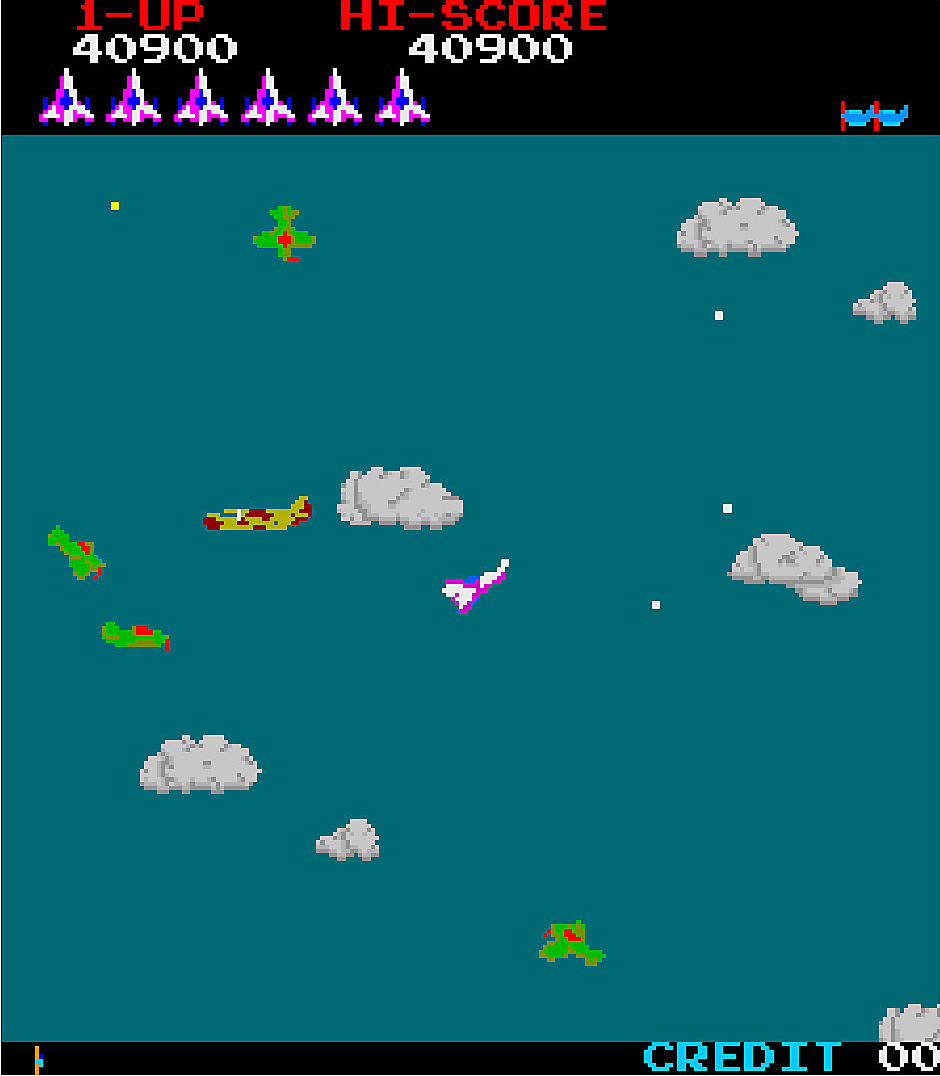
Designed by Yoshiki Okamoto, Konami’s Time Pilot saw an arcade release in 1982.
Arguably one of Konami’s most successful titles, Time Pilot burst into arcades in 1982. Yoshiki Okamoto worked on it secretly, and it proved so successful that a sequel soon followed. In the original, the player flew through five eras, from 1910, 1940, 1970, 1982, and then to the far future: 2001. Aircraft start as biplanes and progress to become UFOs, naturally, by the last level.
Players also rescue other pilots by picking them up as they parachute from their aircraft. The player’s plane stays in the centre of the screen while other game objects move around it. The clouds that give the impression of movement have a parallax style to them, some moving faster than others, offering an illusion of depth.
To make our own version with Pygame Zero, we need eight frames of player aircraft images – one for each direction it can fly. After we create a player Actor object, we can get input from the cursor keys and change the direction the aircraft is pointing with a variable which will be set from zero to 7, zero being the up direction. Before we draw the player to the screen, we set the image of the Actor to the stem image name, plus whatever that direction variable is at the time. That will give us a rotating aircraft.
To provide a sense of movement, we add clouds. We can make a set of random clouds on the screen and move them in the opposite direction to the player aircraft. As we only have eight directions, we can use a lookup table to change the x and y coordinates rather than calculating movement values. When they go off the screen, we can make them reappear on the other side so that we end up with an ‘infinite’ playing area. Add a level variable to the clouds, and we can move them at different speeds on each update() call, producing the parallax effect. Then we need enemies. They will need the same eight frames to move in all directions. For this sample, we will just make one biplane, but more could be made and added.
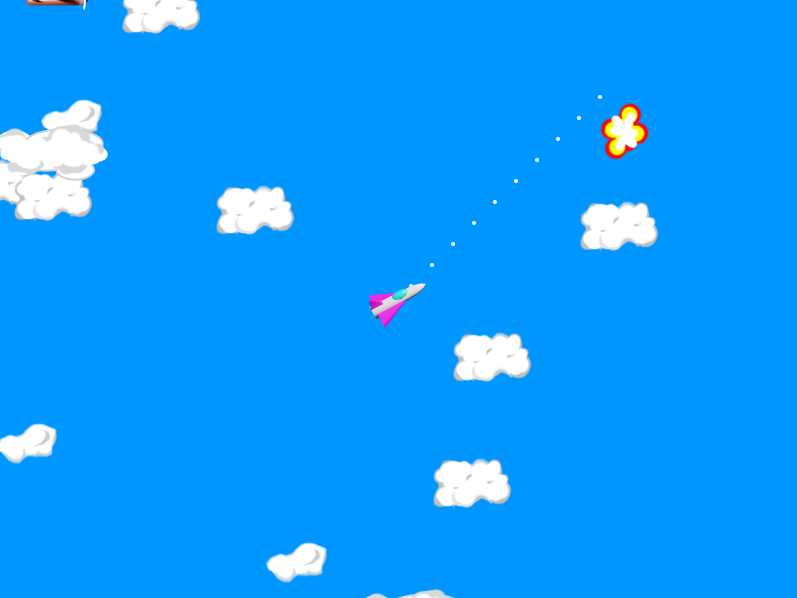
Our Python homage to Konami’s arcade classic.
To get the enemy plane to fly towards the player, we need a little maths. We use the math.atan2() function to work out the angle between the enemy and the player. We convert that to a direction which we set in the enemy Actor object, and set its image and movement according to that direction variable. We should now have the enemy swooping around the player, but we will also need some bullets. When we create bullets, we need to put them in a list so that we can update each one individually in our update(). When the player hits the fire button, we just need to make a new bullet Actor and append it to the bullets list. We give it a direction (the same as the player Actor) and send it on its way, updating its position in the same way as we have done with the other game objects.
The last thing is to detect bullet hits. We do a quick point collision check and if there’s a match, we create an explosion Actor and respawn the enemy somewhere else. For this sample, we haven’t got any housekeeping code to remove old bullet Actors, which ought to be done if you don’t want the list to get really long, but that’s about all you need: you have yourself a Time Pilot clone!
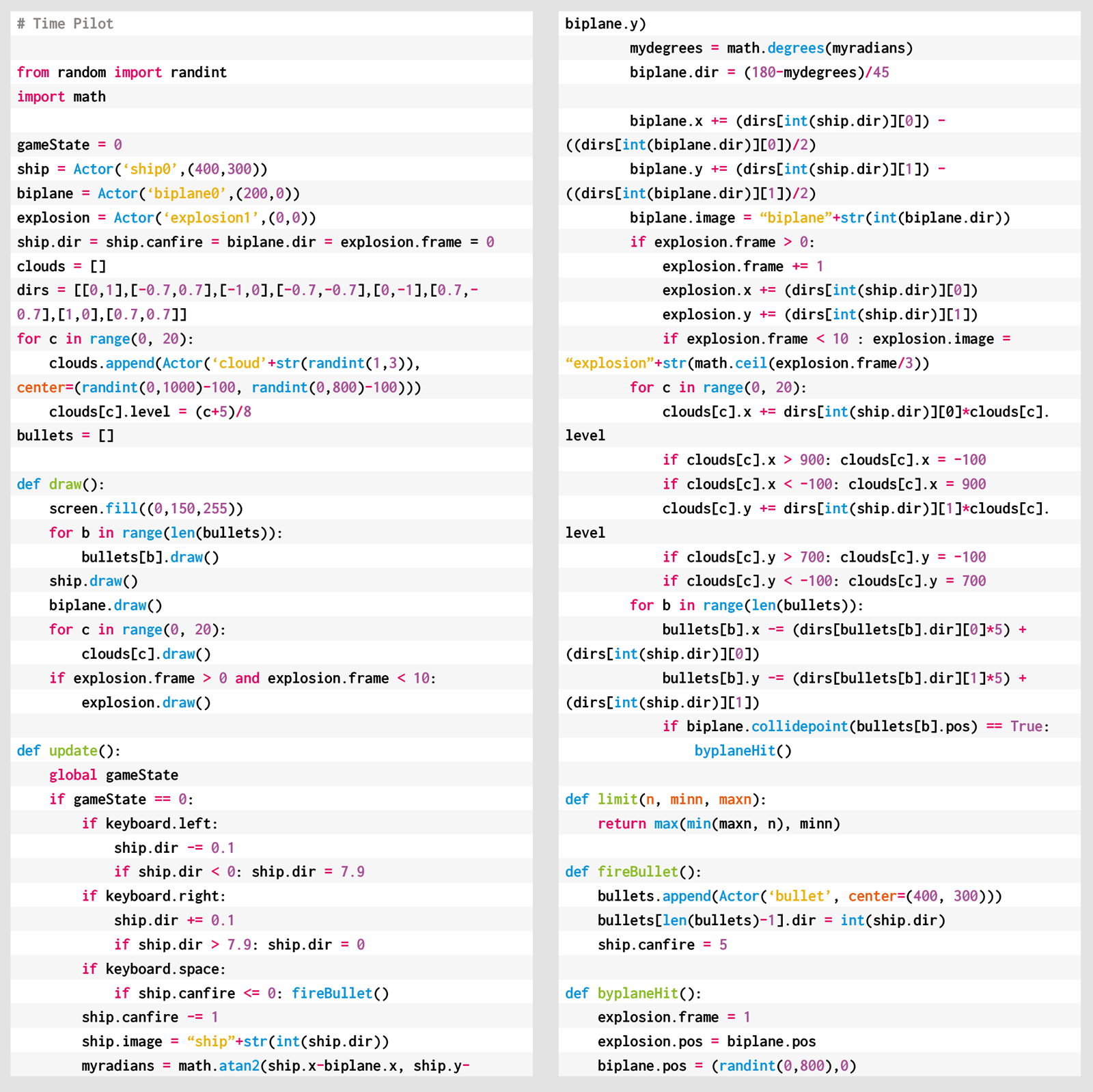
Here’s Mark’s code for a Time Pilot-style free-scrolling shooter. To get it running on your system, you’ll need to install Pygame Zero. And to download the full code and assets, head here.
You can read more features like this one in Wireframe issue 41, available directly from Raspberry Pi Press — we deliver worldwide.
And if you’d like a handy digital version of the magazine, you can also download issue 41 for free in PDF format.
Make sure to follow Wireframe on Twitter and Facebook for updates and exclusive offers and giveaways. Subscribe on the Wireframe website to save up to 49% compared to newsstand pricing!
The post Recreate Time Pilot’s free-scrolling action | Wireframe #41 appeared first on Raspberry Pi.
We spied New Orleans–based Raspberry Pi–powered home brewing analysis and were interested in how this project could help other at-home brewers perfect their craft.
When you’re making beer, you want the yeast to eat up the sugars and leave alcohol behind. To check whether this is happening, you need to be able to track changes in gravity, known as ‘gravity curves’. You also have to do yeast cell counts, and you need to be able to tell when your beer has finished fermenting.
“We wanted a way to skip the paper and pencil and instead input the data directly into the software. Enter the Raspberry Pi!”
Patrick Murphy
Patrick Murphy and co. created a piece of software called Aleproof which allows you to monitor all of this stuff remotely. But before rolling it out, they needed somewhere to test that it works. Enter the ‘Danger Shed’, where they ran Aleproof on Raspberry Pi.
A Raspberry Pi 3 Model B+ spins their Python-based program on Raspberry Pi OS and shares its intel via a mounted monitor.
Here’s what Patrick had to say about what they’re up to in the Danger Shed and why they needed a Raspberry Pi:
“I am the founder and owner of Arithmech, a small software company that develops Python applications for brewers. Myself and a few buddies (all of us former Army combat medics) started our own brewing project called Danger Shed Ales & Mead to brew and test out the software on real-world data. We brew in the shed and record data on paper as we go, then enter the data into our software at a later time.”
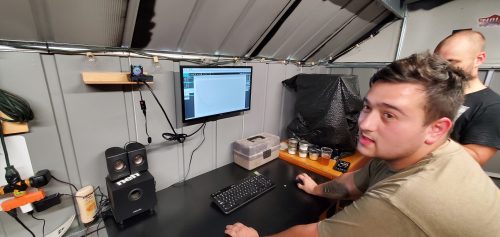
“We wanted a way to skip the paper and pencil and instead input the data directly into the software. Enter the Raspberry Pi! The shed is small, hot, has leaks, and is generally a hostile place for a full-size desktop computer. Raspberry Pi solves our problem in multiple ways: it’s small, portable, durable (in a case), and easily cooled. But on top of that, we are able to run the code using PyCharm, enter data throughout the brewing process, and fix bugs all from the shed!”
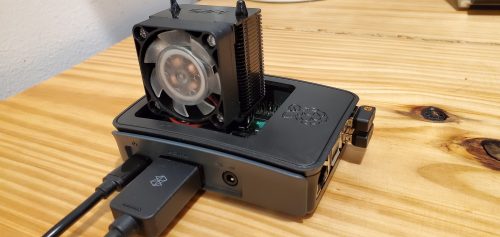
“The Raspberry Pi made it easy for us to set up our software and run it as a stand-alone brewing software station.”
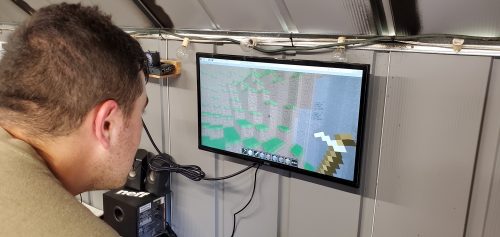
The post This Raspberry Pi–powered setup improves home brewing appeared first on Raspberry Pi.
Pick up parts of a spaceship, fuel it up, and take off in Mark Vanstone’s Python and Pygame Zero rendition of a ZX Spectrum classic
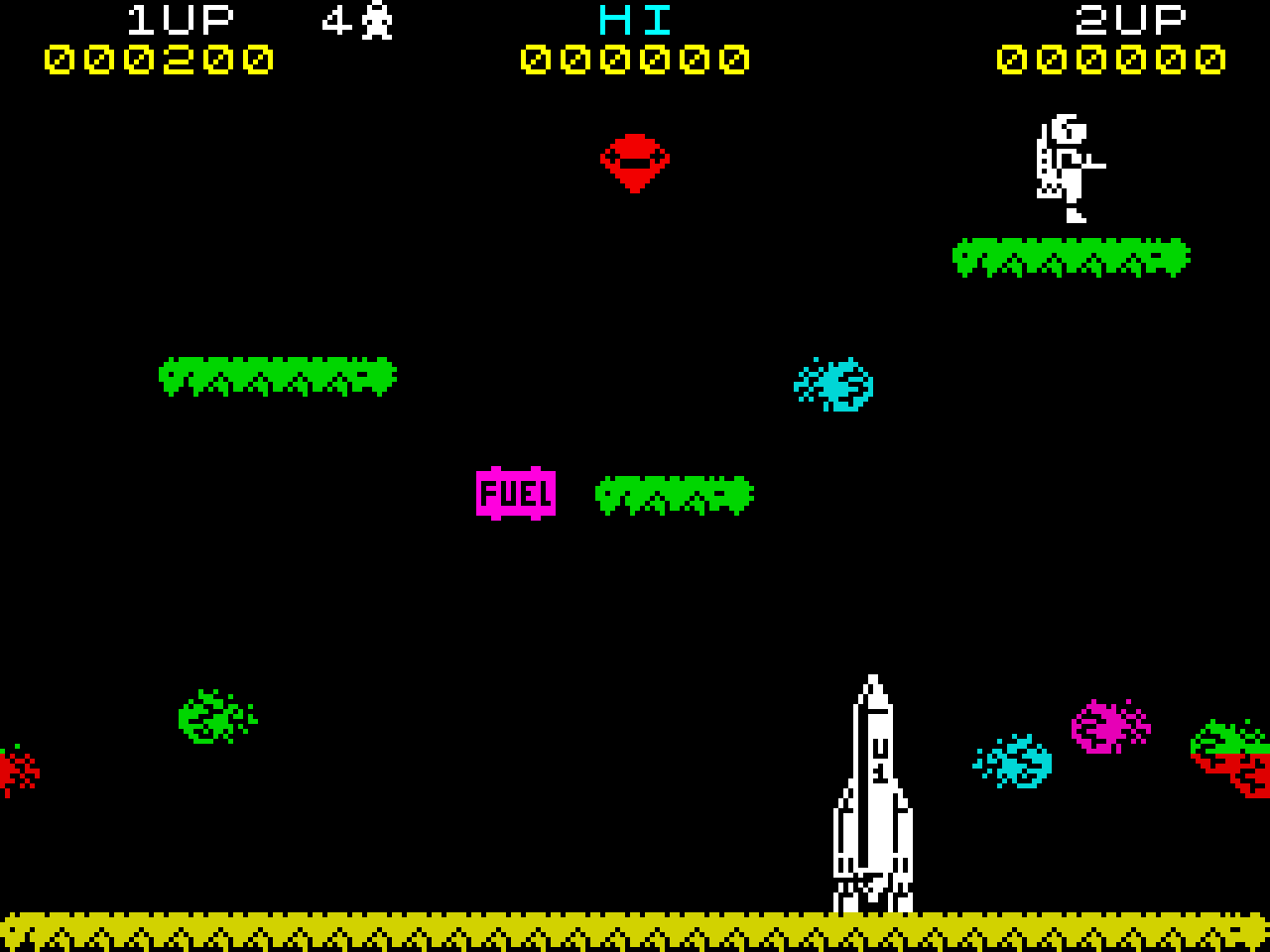
The original Jetpac, in all its 8-bit ZX Spectrum glory
For ZX Spectrum owners, there was something special about waiting for a game to load, with the sound of zeros and ones screeching from the cassette tape player next to the computer. When the loading screen – an image of an astronaut and Ultimate Play the Game’s logo – appeared, you knew the wait was going to be worthwhile. Created by brothers Chris and Tim Stamper in 1983, Jetpac was one of the first hits for their studio, Ultimate Play the Game. The game features the hapless astronaut Jetman, who must build and fuel a rocket from the parts dotted around the screen, all the while avoiding or shooting swarms of deadly aliens.
This month’s code snippet will provide the mechanics of collecting the ship parts and fuel to get Jetman’s spaceship to take off. We can use the in-built Pygame Zero Actor objects for all the screen elements and the Actor collision routines to deal with gravity and picking up items. To start, we need to initialise our Actors. We’ll need our Jetman, the ground, some platforms, the three parts of the rocket, some fire for the rocket engines, and a fuel container. The way each Actor behaves will be determined by a set of lists. We have a list for objects with gravity, objects that are drawn each frame, a list of platforms, a list of collision objects, and the list of items that can be picked up.
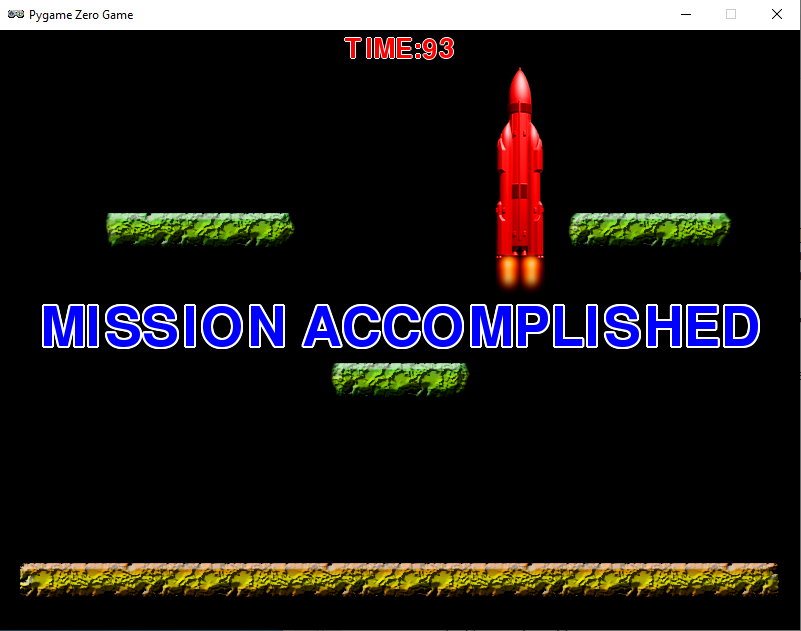
Jetman jumps inside the rocket and is away. Hurrah!
Our draw() function is straightforward as it loops through the list of items in the draw list and then has a couple of conditional elements being drawn after. The update() function is where all the action happens: we check for keyboard input to move Jetman around, apply gravity to all the items on the gravity list, check for collisions with the platform list, pick up the next item if Jetman is touching it, apply any thrust to Jetman, and move any items that Jetman is holding to move with him. When that’s all done, we can check if refuelling levels have reached the point where Jetman can enter the rocket and blast off.
If you look at the helper functions checkCollisions() and checkTouching(), you’ll see that they use different methods of collision detection, the first being checking for a collision with a specified point so we can detect collisions with the top or bottom of an actor, and the touching collision is a rectangle or bounding box collision, so that if the bounding box of two Actors intersect, a collision is registered. The other helper function applyGravity() makes everything on the gravity list fall downward until the base of the Actor hits something on the collide list.
So that’s about it: assemble a rocket, fill it with fuel, and lift off. The only thing that needs adding is a load of pesky aliens and a way to zap them with a laser gun.
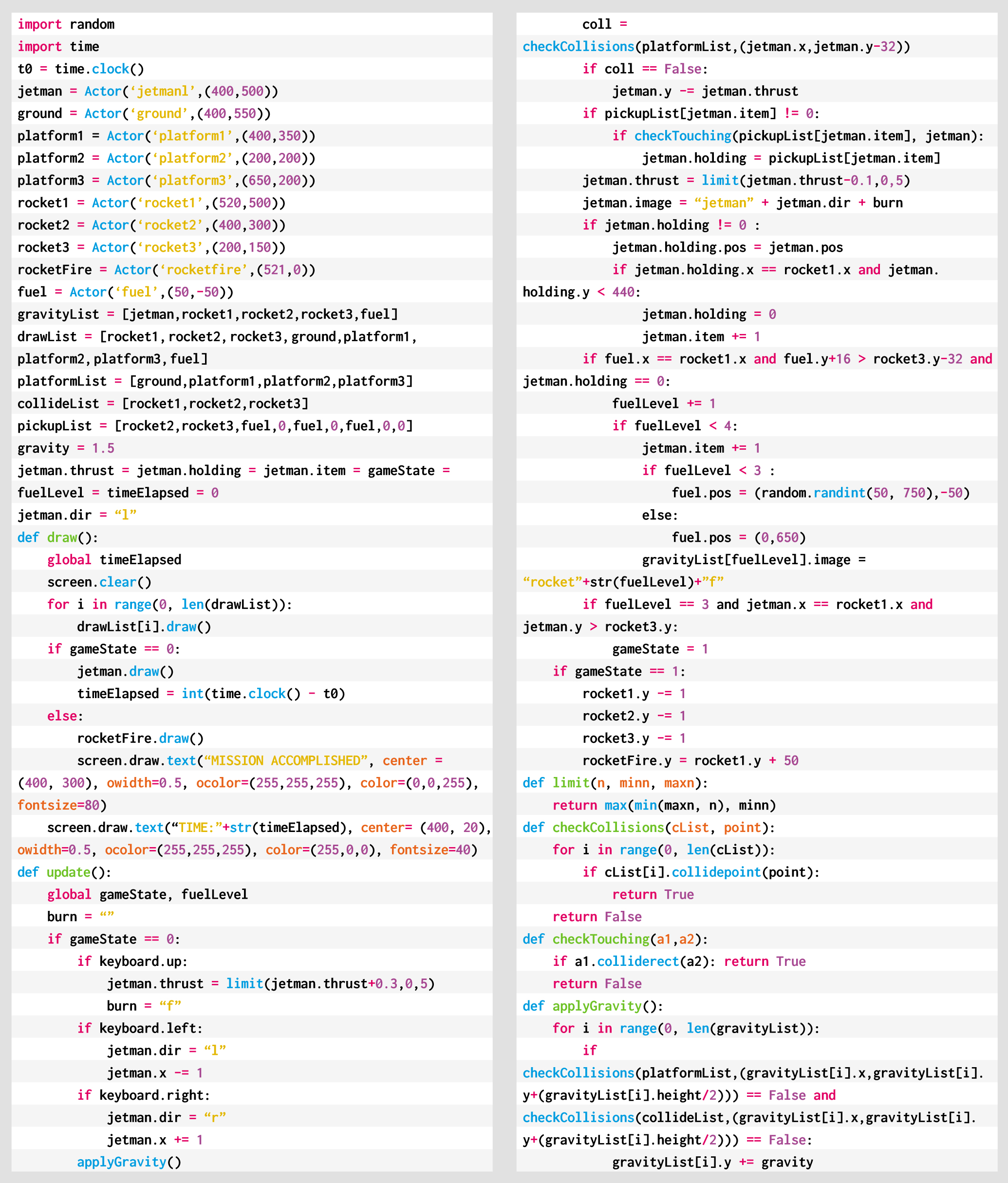
Here’s Mark’s Jetpac code. To get it running on your system, you’ll need to install Pygame Zero. And to download the full code and assets, head here.
You can read more features like this one in Wireframe issue 40, available directly from Raspberry Pi Press — we deliver worldwide.
And if you’d like a handy digital version of the magazine, you can also download issue 40 for free in PDF format.
Make sure to follow Wireframe on Twitter and Facebook for updates and exclusive offers and giveaways. Subscribe on the Wireframe website to save up to 49% compared to newsstand pricing!
The post Code Jetpac’s rocket building action | Wireframe #40 appeared first on Raspberry Pi.
One of our fave makers, Wayne from Devscover, got a bit sick of losing at Scrabble (and his girlfriend was likely raging at being stuck in lockdown with a lesser opponent). So he came up with a Raspberry Pi–powered solution!
Using a Raspberry Pi High Quality Camera and a bit of Python, you can quickly figure out the highest-scoring word your available Scrabble tiles allow you to play.
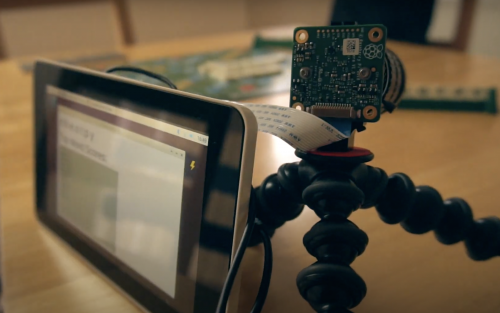
You don’t have to use a Raspberry Pi 3B, but you do need a model that has both display and camera ports. Wayne also chose to use an official Raspberry Pi Touch Display because it can power the computer, but any screen that can talk to your Raspberry Pi should be fine.
Firstly, the build takes a photo of your Scrabble tiles using raspistill.
Next, a Python script processes the image of your tiles and then relays the highest-scoring word you can play to your touchscreen.
The key bit of code here is twl, a Python script that contains every possible word you can play in Scrabble.
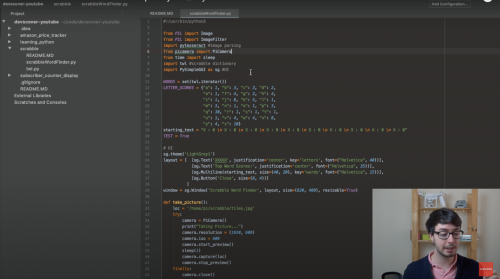
From 4.00 minutes into his build video, Wayne walks you through what each bit of code does and how he made it work for this project, including how he installed and used the Scrabble dictionary.
Fellow Scrabble-strugglers have suggested sneaky upgrades in the comments of Wayne’s YouTube video, such having the build relay answers to a more discreet smart watch.
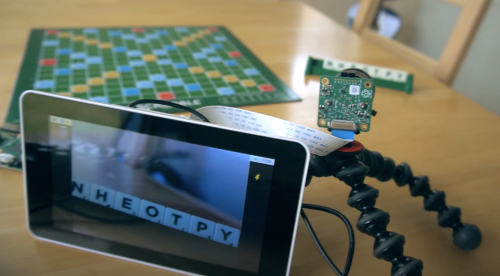
No word yet on how the setup deals with the blank Scrabble tiles; those things are like gold dust.
In case you haven’t met the Raspberry Pi High Quality Camera yet, Wayne also did this brilliant unboxing and tutorial video for our newest piece of hardware.
And for more projects from Devscover, check out this great Amazon price tracker using a Raspberry Pi Zero W, and make sure to subscribe to the channel for more content.
The post Be a better Scrabble player with a Raspberry Pi High Quality Camera appeared first on Raspberry Pi.
Meet Callum Fawcett, who shares his journey from tinkering with the first Raspberry Pi while he was at school, to a Master’s degree in computer science and a real-life job in programming. We also get to see some of the awesome projects he’s made along the way.
Most of my learning was done through two sources. I learnt Linux and how the terminal worked using online resources such as Stack Overflow. I would have a problem that I needed to solve, look up solutions online, and try out commands that I found. This was perhaps the hardest part of learning how to use a Raspberry Pi, as it was something I had never done before, but it really helped me in later years when I would use Linux more than Windows. For learning programming, I preferred to use books. I had a book for C++ and a book for Python that I would work through. These were game-based books, so many of the fun projects that I did were simple text-based games where you typed in responses to questions.
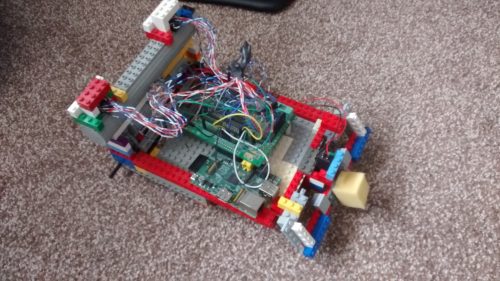
The first robot Callum made using a Raspberry Pi
By far the coolest project I did with the Raspberry Pi was to build a small robot (shown above). This was a joint project between myself and my dad. He sorted out the electronics and I programmed the robot. It was a great opportunity to learn about robotics and refine my programming skills. By the end, the robot was capable of moving around by itself, driving into objects, and then reversing and trying a new direction. It was almost like an unintelligent Roomba that couldn’t hoover, but I spent many hours improving small bits and pieces to make it as easy to use as possible. My one wish that I never managed to achieve with my robot was allowing it to map out its surroundings. This was a very ambitious project at the time, since I was still quite inexperienced in programming. The biggest problem with this was calibrating the robot’s turning circle, which was never consistent so it was very hard to have the robot know where in the room it was.
Another fun project that I worked on used the Sense HAT developed for the Astro Pi computers for use on the International Space Station. Using this, I was able to make a memory maze game (shown below), in which a player is shown a maze for several seconds and then has to navigate that maze from memory by shaking the device. This was my first introduction to using more interactive types of input, and this eventually led to my final-year project, which used these interesting interactions to develop another way of teaching.
I have now just finished my Master’s degree in computer science at the University of Bristol. Before going to university, I had no experience of being taught programming in a formal environment. It was not a taught subject at my secondary school or sixth form. I wanted to get more people at my school interested in this area of study though, which I did by running a coding club for people. I would help others debug their code and discuss interesting problems with them. The reason that I chose to study computer science is largely because of my experiences with Raspberry Pi and other programming I did in my own time during my teenage years. I likely would have studied history if it weren’t for the programming I had done by myself making robots and other games.
Raspberry Pi has continued to play a part in my degree and extra-curricular activities; I used them in two large projects during my time at university and used a similar device in my final project. My robot experience also helped me to enter my university’s ‘Robot Wars’ competition which, though we never won, was a lot of fun.
Having a Raspberry Pi is always useful during a hackathon, because it’s such a versatile component. Tech like Raspberry Pi will always be useful for beginners to learn the basics of programming and electronics, but these computers are also becoming more and more useful for people with more experience to make fun and useful projects. I could see tech like Raspberry Pi being used in the future to help quickly prototype many types of electronic devices and, as they become more powerful, even being used as an affordable way of controlling many types of robots, which will become more common in the future.

Our guest blogger Callum
Now I am going on to work on programming robot control systems at Ocado Technology. My experiences of robot building during my years before university played a large part in this decision. Already, robots are becoming a huge part of society, and I think they are only going to become more prominent in the future. Automation through robots and artificial intelligence will become one of the most important tools for humanity during the 21st century, and I look forward to being a part of that process. If it weren’t for learning through Raspberry Pi, I certainly wouldn’t be in this position.
Cheers for your story, Callum! Has tinkering with our tiny computer inspired your educational or professional choices? Let us know in the comments below.
The post Learning with Raspberry Pi — robotics, a Master’s degree, and beyond appeared first on Raspberry Pi.
Four players dungeon crawling at once? Mark Vanstone shows you how to recreate Gauntlet’s co-op mode in Python and Pygame Zero.
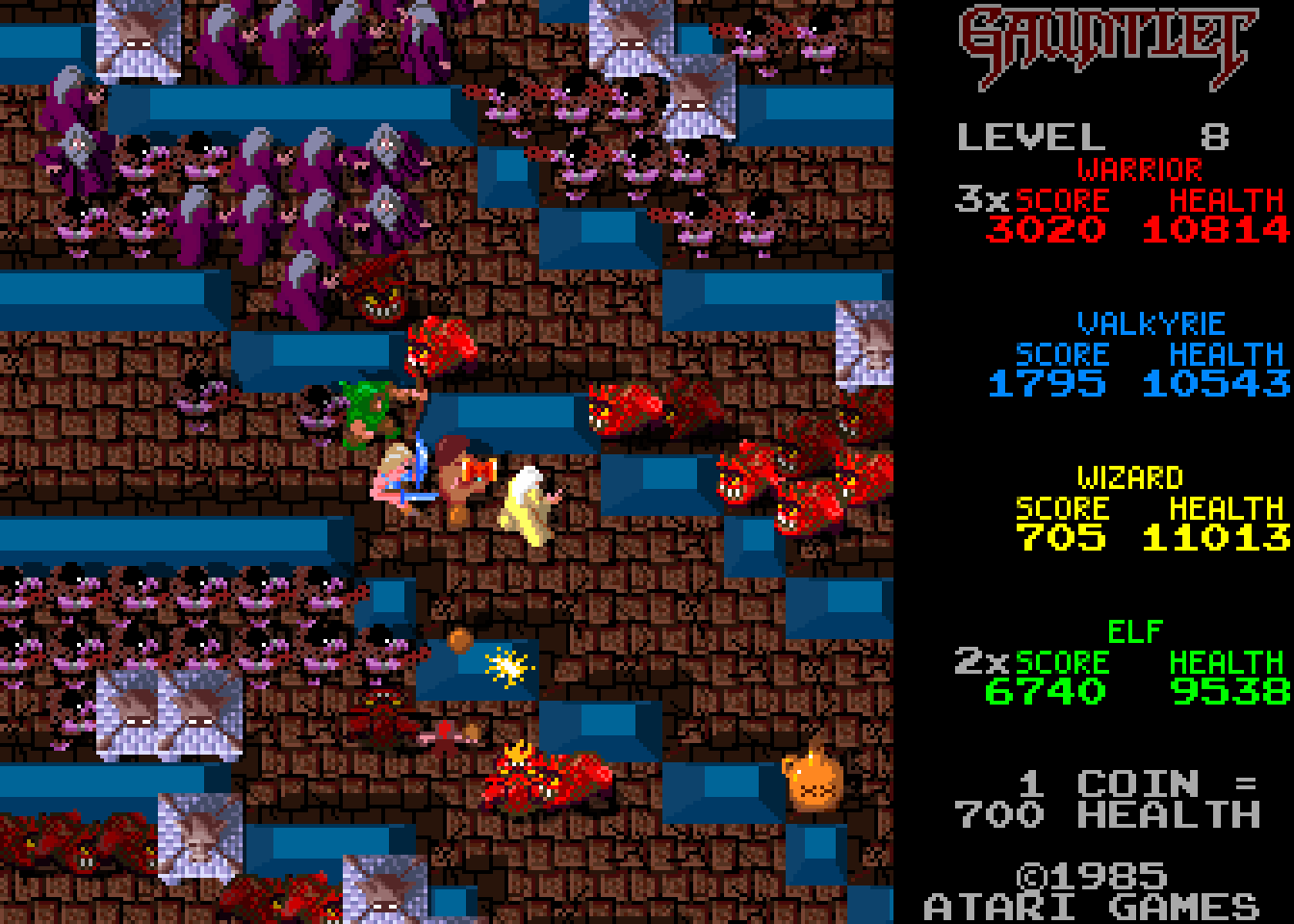
Players collected items while battling their way through dungeons. Shooting food was a definite faux pas.
Atari’s Gauntlet was an eye-catching game, not least because it allowed four people to explore its dungeons together. Each player could choose one of four characters, each with its own abilities – there was a warrior, a Valkyrie, a wizard, and an elf – and surviving each dungeon required slaughtering enemies and the constant gathering of food, potions, and keys that unlocked doors and exits.
Designed by Ed Logg, and loosely based on the tabletop RPG Dungeons & Dragons, as well as John Palevich’s 1983 dungeon crawler, Dandy, Gauntlet was a big success. It was ported to most of the popular home systems at the time, and Atari released a sequel arcade machine, Gauntlet II, in 1986.
Atari’s original arcade machine featured four joysticks, but our example will mix keyboard controls and gamepad inputs. Before we deal with the movement, we’ll need some characters and dungeon graphics. For this example, we can make our dungeon from a large bitmap image and use a collision map to prevent our characters from clipping through walls. We’ll also need graphics for the characters moving in eight different directions. Each direction has three frames of walking animation, which makes a total of 24 frames per character. We can use a Pygame Zero Actor object for each character and add a few extra properties to keep track of direction and the current animation frame. If we put the character Actors in a list, we can loop through the list to check for collisions, move the player, or draw them to the screen.
We now test input devices for movement controls using the built-in Pygame keyboard object to test if keys are pressed. For example, keyboard.left will return True if the left arrow key is being held down. We can use the arrow keys for one player and the WASD keys for the other keyboard player. If we register x and y movements separately, then if two keys are pressed – for example, up and left – we can read that as a diagonal movement. In this way, we can get all eight directions of movement from just four keys.
For joystick or gamepad movement, we need to import the joystick module from Pygame. This provides us with methods to count the number of joystick or gamepad devices that are attached to the computer, and then initialise them for input. When we check for input from these devices, we just need to get the x-axis value and the y- axis value and then make it into an integer. Joysticks and gamepads should return a number between -1 and 1 on each axis, so if we round that number, we will get the movement value we need.
We can work out the direction (and the image we need to use) of the character with a small lookup table of x and y values and translate that to a frame number cycling through those three frames of animation as the character walks. Then all we need to do before we move the character is check they aren’t going to collide with a wall or another character. And that’s it – we now have a four-player control system. As for adding enemy spawners, loot, and keys – well, that’s a subject for another time.
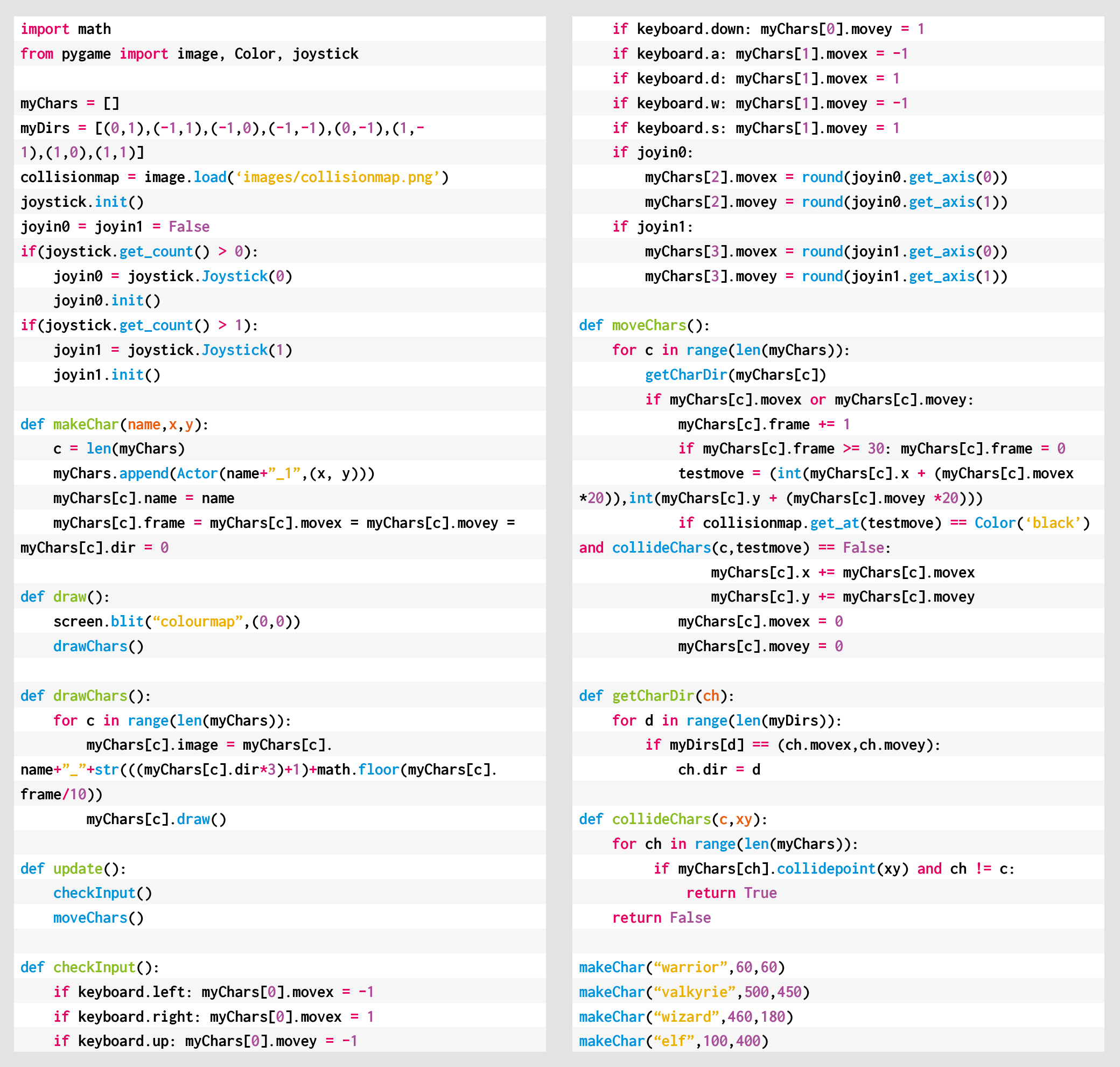
Here’s Mark’s code snippet. To get it working on your system, you’ll need to install Pygame Zero. And to download the full code and assets, go here.
You can read more features like this one in Wireframe issue 39, available directly from Raspberry Pi Press — we deliver worldwide.
And if you’d like a handy digital version of the magazine, you can also download issue 39 for free in PDF format.

Make sure to follow Wireframe on Twitter and Facebook for updates and exclusive offers and giveaways. Subscribe on the Wireframe website to save up to 49% compared to newsstand pricing!
The post Code Gauntlet’s four-player co-op mode | Wireframe #39 appeared first on Raspberry Pi.
News flash! Before we get into our Robotron: 2084 code, we have some important news to share about Wireframe: as of issue 39, the magazine will be going monthly.
The new 116-page issue will be packed with more in-depth features, more previews and reviews, and more of the guides to game development that make the magazine what it is. The change means we’ll be able to bring you new subscription offers, and generally make the magazine more sustainable in a challenging global climate.
As for existing subscribers, we’ll be emailing you all to let you know how your subscription is changing, and we’ll have some special free issues on offer as a thank you for your support.
The first monthly issue will be out on 4 June, and subsequent editions will be published on the first Thursday of every month after that. You’ll be able to order a copy online, or you’ll find it in selected supermarkets and newsagents if you’re out shopping for essentials.
We now return you to our usual programming…
Move in one direction and fire in another with this Python and Pygame re-creation of an arcade classic. Raspberry Pi’s own Mac Bowley has the code.
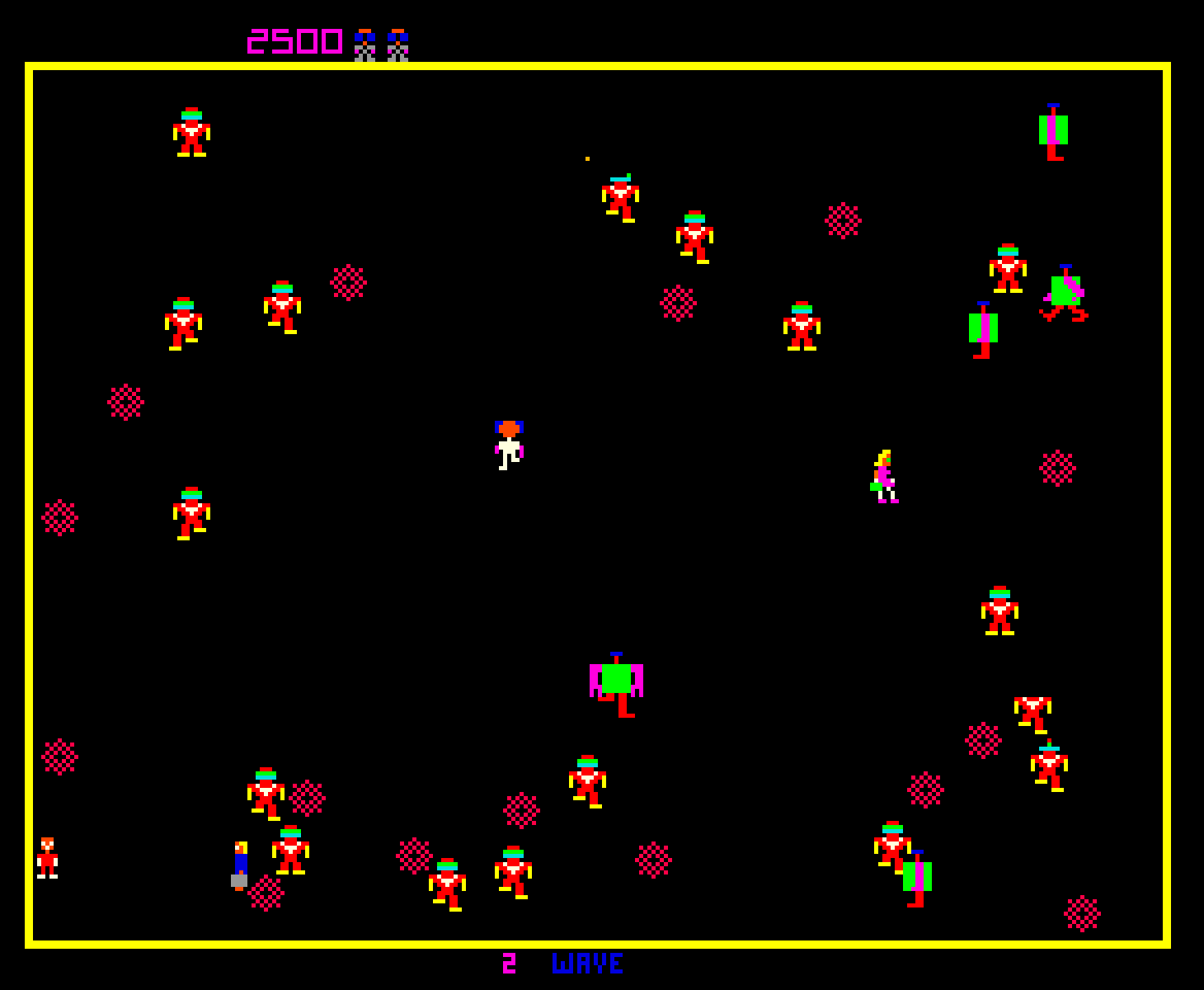
Robotron: 2084 is often listed on ‘best game of all time’ lists, and has been remade and re-released for numerous systems over the years.
Released back in 1982, Robotron: 2084 popularised the concept of the twin-stick shooter. It gave players two joysticks which allowed them to move in one direction while also shooting at enemies in another. Here, I’ll show you how to recreate those controls using Python and Pygame. We don’t have access to any sticks, only a keyboard, so we’ll be using the arrow keys for movement and WASD to control the direction of fire.
The movement controls use a global variable, a few if statements, and two built-in Pygame functions: on_key_down and on_key_up. The on_key_down function is called when a key on the keyboard is pressed, so when the player presses the right arrow key, for example, I set the x direction of the player to be a positive 1. Instead of setting the movement to 1, instead, I’ll add 1 to the direction. The on_key_down function is called when a button’s released. A key being released means the player doesn’t want to travel in that direction anymore and so we should do the opposite of what we did earlier – we take away the 1 or -1 we applied in the on_key_up function.
We repeat this process for each arrow key. Moving the player in the update() function is the last part of my movement; I apply a move speed and then use a playArea rect to clamp the player’s position.
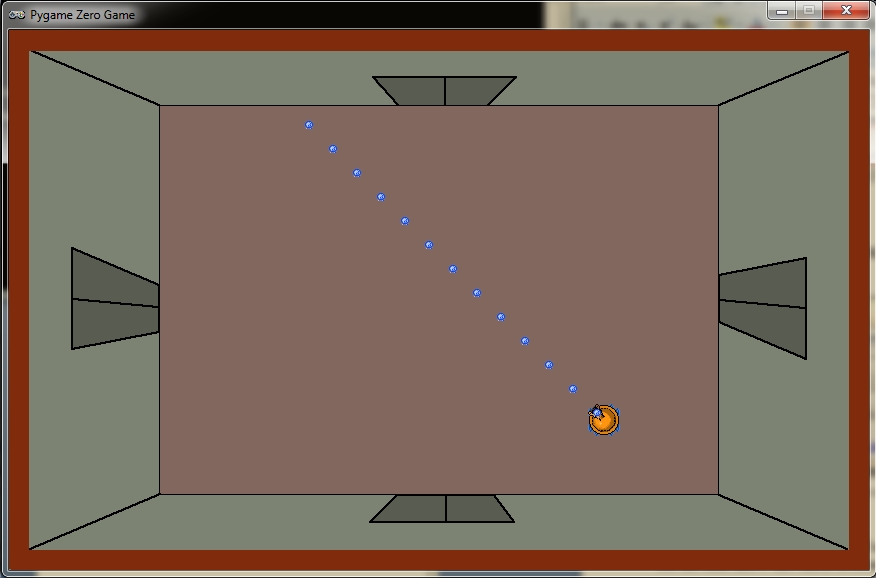
The arena background and tank sprites were created in Piskel. Separate sprites for the tank allow the turret to rotate separately from the tracks.
Now for the aiming and rotating. When my player aims, I want them to set the direction the bullets will fire, which functions like the movement. The difference this time is that when a player hits an aiming key, I set the direction directly rather than adjusting the values. If my player aims up, and then releases that key, the shooting will stop. Our next challenge is changing this direction into a rotation for the turret.
Actors in Pygame can be rotated in degrees, so I have to find a way of turning a pair of x and y directions into a rotation. To do this, I use the math module’s atan2 function to find the arc tangent of two points. The function returns a result in radians, so it needs to be converted. (You’ll also notice I had to adjust mine by 90 degrees. If you want to avoid having to do this, create a sprite that faces right by default.)
To fire bullets, I’m using a flag called ‘shooting’ which, when set to True, causes my turret to turn and fire. My bullets are dictionaries; I could have used a class, but the only thing I need to keep track of is an actor and the bullet’s direction.
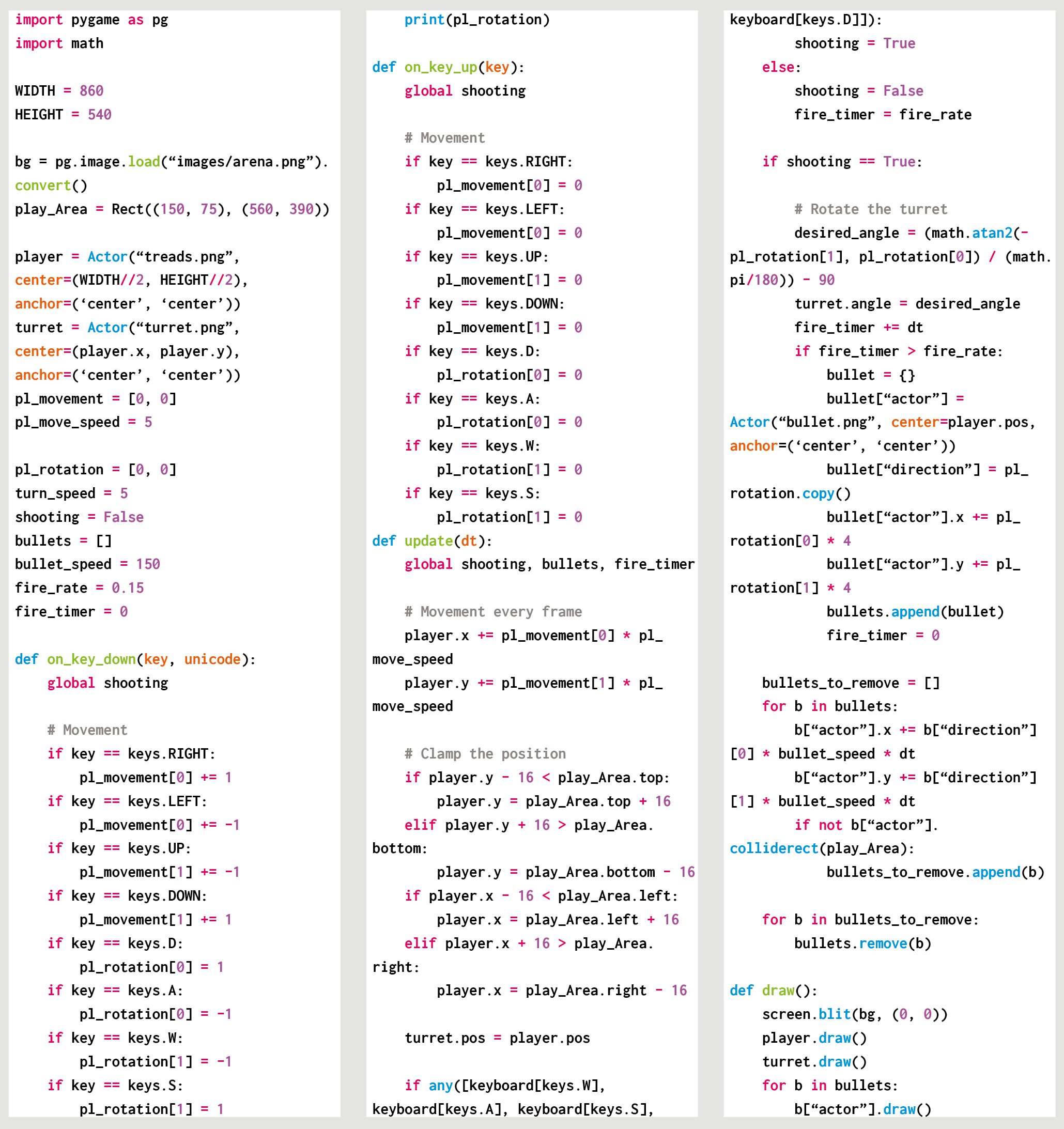
Here’s Mac’s code snippet, which creates a simple twin-stick shooting mechanic in Python. To get it working on your system, you’ll need to install Pygame Zero. And to download the full code and assets, go here.
You can look at the update function and see how I’ve implemented a fire rate for the turret as well. You can edit the update function to take a single parameter, dt, which stores the time since the last frame. By adding these up, you can trigger a bullet at precise intervals and then reset the timer.
This code is just a start – you could add enemies and maybe other player weapons to make a complete shooting experience.
You can read more features like this one in Wireframe issue 38, available directly from Raspberry Pi Press — we deliver worldwide.
And if you’d like a handy digital version of the magazine, you can also download issue 38 for free in PDF format.
Make sure to follow Wireframe on Twitter and Facebook for updates and exclusive offers and giveaways. Subscribe on the Wireframe website to save up to 49% compared to newsstand pricing!
The post Code Robotron: 2084’s twin-stick action | Wireframe #38 appeared first on Raspberry Pi.
With millions of schools still in lockdown, parents have been telling us that they need help to support their children with learning computing at home. As well as providing loads of great content for young people, we’ve been working on support tutorials specifically for parents who want to understand and learn about the programmes used in schools and our resources.
If you don’t know your Scratch from your Trinket and your Python, we’ve got you!
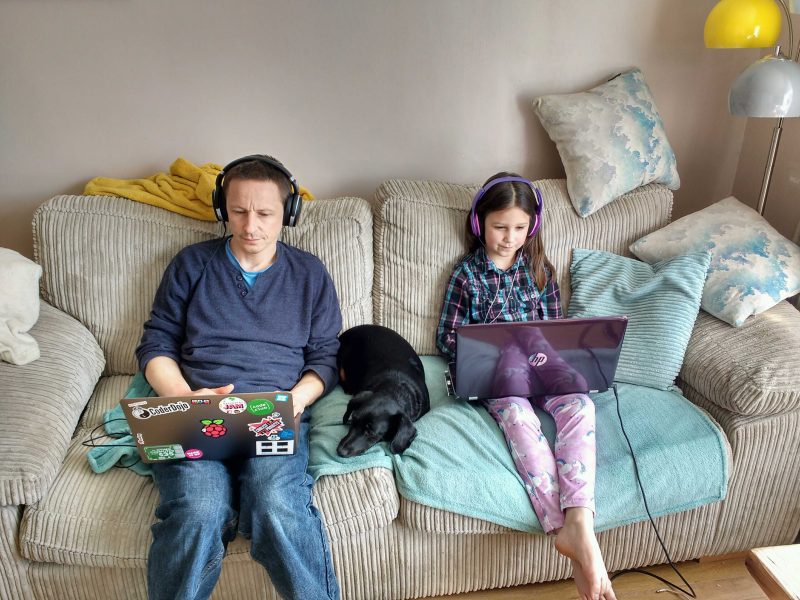
Glen, Web Developer at the Raspberry Pi Foundation, and Maddie, aged 8
In our last blog post for parents, we talked to you about Scratch, the programming language used in most primary schools. This time Mark, Youth Programmes Manager at the Raspberry Pi Foundation, takes you through how to use Trinket. Trinket is a free online platform that lets you write and run your code in any web browser. This is super useful because it means you don’t have to install any new software.
A parents’ introduction to Trinket
Sign up to our regular parents’ newsletter to receive regular, FREE tutorials, tips & fun projects for young people of all levels of experience: http://rpf.i…
Trinket also lets you create public web pages and projects that can be viewed by anyone with the link to them. That means your child can easily share their coding creation with others, and for you that’s a good opportunity to talk to them about staying safe online and not sharing any personal information.
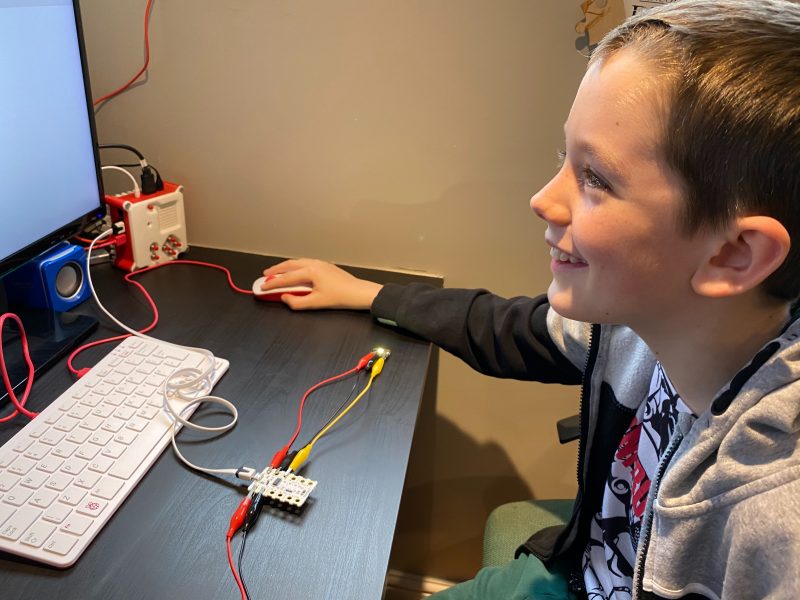
Lincoln, aged 10
We’ve also got an introduction to Python for you, from Mac, a Learning Manager on our team. He’ll guide you through what to expect from Python, which is a widely used text-based programming language. For many learners, Python is their first text-based language, because it’s very readable, and you can get things done with fewer lines of code than in many other programming languages. In addition, Python has support for ‘Turtle’ graphics and other features that make coding more fun and colourful for learners. Turtle is simply a Python feature that works like a drawing board, letting you control a turtle to draw anything you like using code.
A parents’ introduction to Python
Sign up to our regular parents’ newsletter to receive regular, FREE tutorials, tips & fun projects for young people of all levels of experience: http://rpf.i…
Why not try out Mac’s suggestions of Hello world, Countdown timer, and Outfit recommender for yourself?
Python is used in lots of real-world software applications in industries such as aerospace, retail banking, insurance and healthcare, so it’s very useful for your children to learn it!
Olympia is Head of Youth Programmes at the Raspberry Pi Foundation and also a mum to two girls aged 9 and 11. She is currently homeschooling them as well as working (and hopefully having the odd evening to herself!). Olympia shares her own experience of learning during lockdown and how her family are adapting to their new routine.
Parent diary: Juggling homeschooling and work
Olympia Brown, Head of Youth Partnerships at the Raspberry Pi Foundation shares her experience of homeschooling during the lockdown, and how her family are a…
To keep young people entertained and learning, we launched our Digital Making at Home series, which is free and accessible to everyone. New code-along videos are released every Monday, with different themes and projects for all levels of experience.
Code along live with the team on Wednesday 6 May at 14:00 BST / 9:00 EDT for a special session of Digital Making at Home.
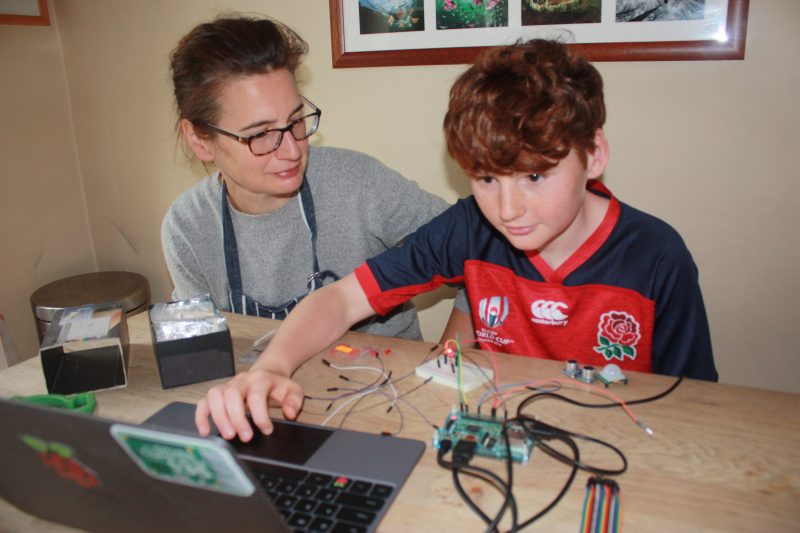
Sarah and Ozzy, aged 13
We’ve been asking parents what they’d like to see as part of our initiative to support young people and parents. We’ve had some great suggestions so far! If you’d like to share your thoughts, you can email us at parents@raspberrypi.org.
Sign up now to start receiving free activities suitable to your child’s age and experience level, straight to your inbox. And let us know what you as a parent or guardian need help with, and what you’d like more or less of from us.
PS: All of our resources are completely free. This is made possible thanks to the generous donations of individuals and organisations. Learn how you can help too!
The post Learn at home: a guide for parents #2 appeared first on Raspberry Pi.
Shoot for the moon in our Python version of the Atari hit, Lunar Lander. Mark Vanstone has the code.
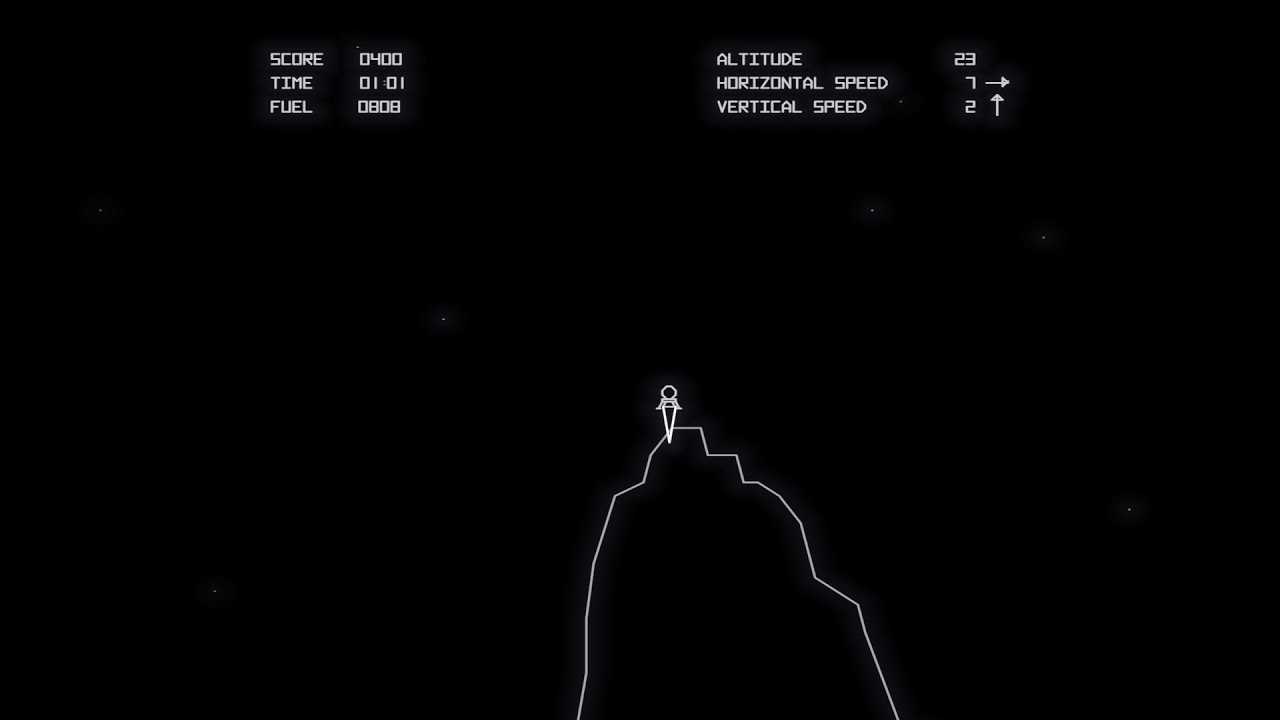
Atari’s cabinet featured a thrust control, two buttons for rotating, and an abort button in case it all went horribly wrong.
First released in 1979 by Atari, Lunar Lander was based on a concept created a decade earlier. The original 1969 game (actually called Lunar) was a text-based affair that involved controlling a landing module’s thrust to guide it safely down to the lunar surface; a later iteration, Moonlander, created a more visual iteration of the same idea on the DEC VT50 graphics terminal.
Given that it appeared at the height of the late-seventies arcade boom, though, it was Atari’s coin-op that became the most recognisable version of Lunar Lander, arriving just after the tenth anniversary of the Apollo 11 moon landing. Again, the aim of the game was to use rotation and thrust controls to guide your craft, and gently set it down on a suitably flat platform. The game required efficient control of the lander, and extra points were awarded for parking successfully on more challenging areas of the landscape.
The arcade cabinet was originally going to feature a normal joystick, but this was changed to a double stalked up-down lever providing variable levels of thrust. The player had to land the craft against the clock with a finite amount of fuel with the Altitude, Horizontal Speed, and Vertical Speed readouts at the top of the screen as a guide. Four levels of difficulty were built into the game, with adjustments to landing controls and landing areas.
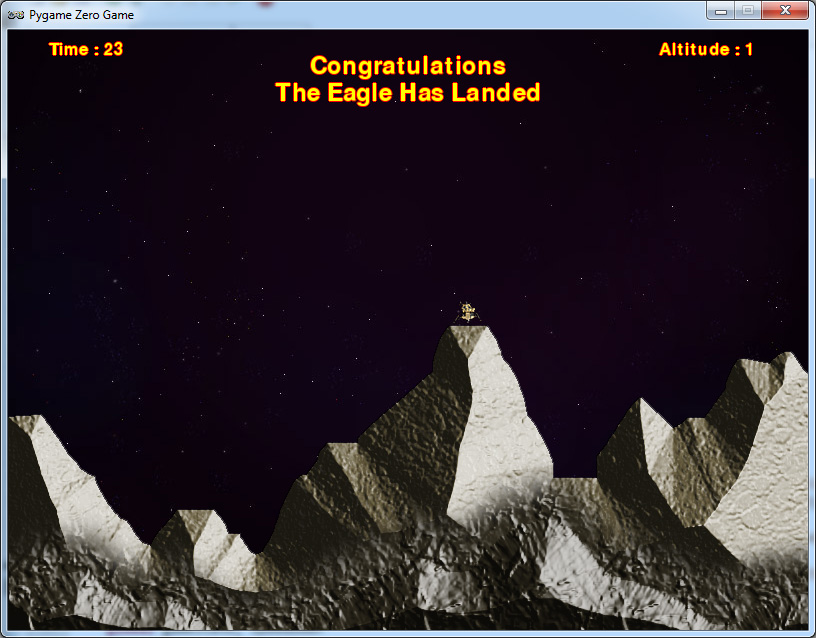
Our homage to the classic Lunar Lander. Can you land without causing millions of dollars’ worth of damage?
To write a game like Lunar Lander with Pygame Zero, we can replace the vector graphics with a nice pre-drawn static background and use that as a collision detection mechanism and altitude meter. If our background is just black where the Lander can fly and a different colour anywhere the landscape is, then we can test pixels using the Pygame function image.get_at() to see if the lander has landed. We can also test a line of pixels from the Lander down the Y-axis until we hit the landscape, which will give us the lander’s altitude.
The rotation controls of the lander are quite simple, as we can capture the left and right arrow keys and increase or decrease the rotation of the lander; however, when thrust is applied (by pressing the up arrow) things get a little more complicated. We need to remember which direction the thrust came from so that the craft will continue to move in that direction even if it is rotated, so we have a direction property attached to our lander object. A little gravity is applied to the position of the lander, and then we just need a little bit of trigonometry to work out the movement of the lander based on its speed and direction of travel.
To judge if the lander has been landed safely or rammed into the lunar surface, we look at the downward speed and angle of the craft as it reaches an altitude of 1. If the speed is sufficiently slow and the angle is near vertical, then we trigger the landed message, and the game ends. If the lander reaches zero altitude without these conditions met, then we register a crash. Other elements that can be added to this sample are things like a limited fuel gauge and variable difficulty levels. You might even try adding the sounds of the rocket booster noise featured on the original arcade game.
The direction of thrust could be done in several ways. In this case, we’ve kept it simple, with one directional value which gradually moves in a new direction when an alternative thrust is applied. You may want to try making an X- and Y-axis direction calculation for thrust so that values are a combination of the two dimensions. You could also add joystick control to provide variable thrust input.
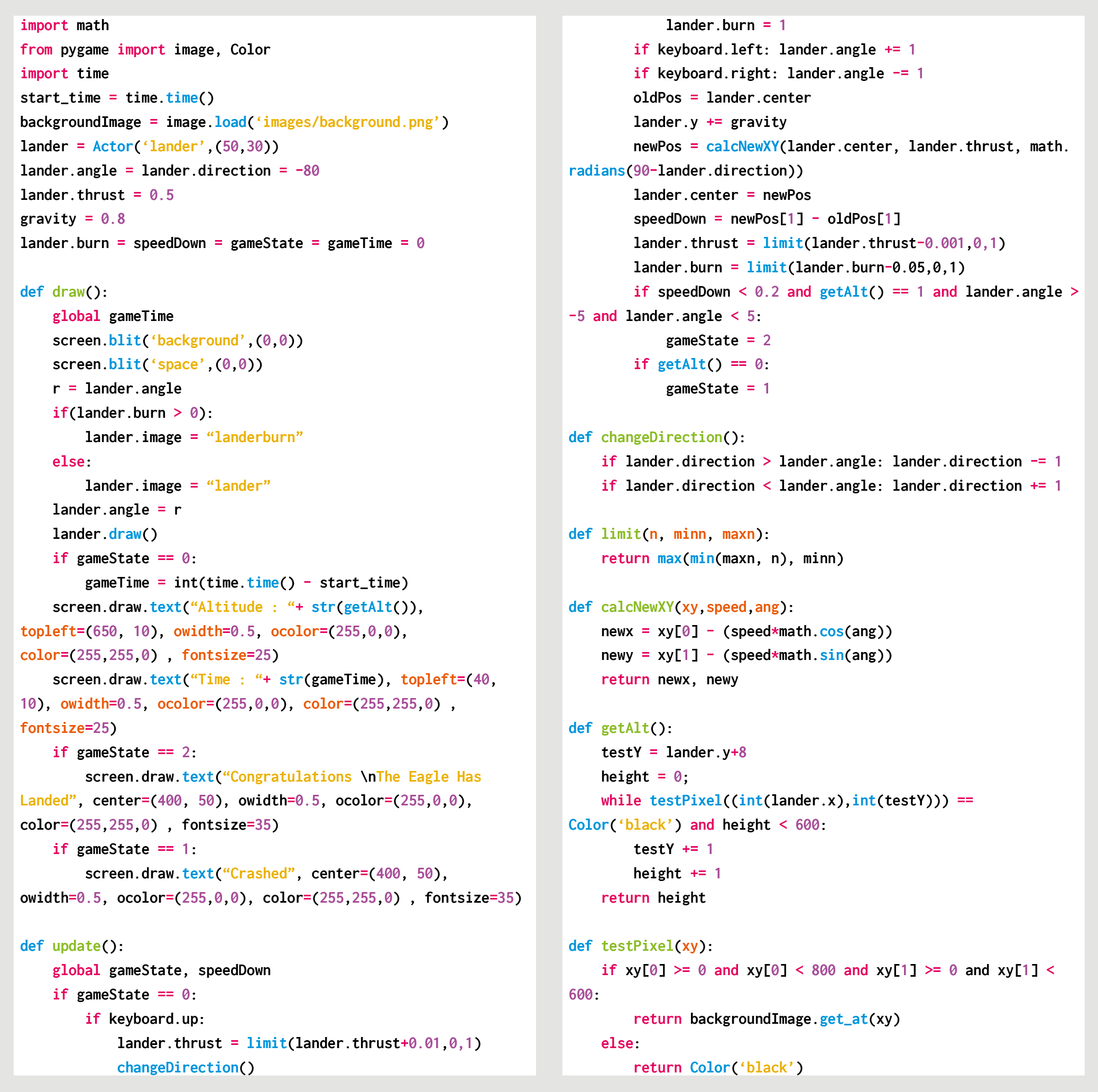
Here’s Mark’s code snippet, which creates a simple shooting game in Python. To get it working on your system, you’ll need to install Pygame Zero. And to download the full code and assets, go here.
You can read more features like this one in Wireframe issue 37, available directly from Raspberry Pi Press — we deliver worldwide.
And if you’d like a handy digital version of the magazine, you can also download issue 37 for free in PDF format.
Make sure to follow Wireframe on Twitter and Facebook for updates and exclusive offers and giveaways. Subscribe on the Wireframe website to save up to 49% compared to newsstand pricing!
The post Code a homage to Lunar Lander | Wireframe #37 appeared first on Raspberry Pi.
Firstly, hamster wheels for cats are (still) a thing. Secondly, Bengal cats run far. And Shawn Nunley on reddit is the latest to hit on this solution for kitty exercise and bonus cat stats.
Here is the wheel itself. That part was shop-bought. (Apparently it’s a ZiggyDoo Ferris Cat Wheel.)
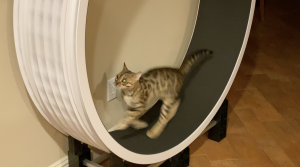
Smol kitty in big wheel
Shawn has created a speedometer that tracks distance and speed. Every time a magnet mounted on the wheel passes a fixed sensor, a Raspberry Pi Zero writes to a log file so he can see how far and fast his felines have travelled. The wheel has six sensors, which each record 2.095 ft of travel. This project revealed the cats do about 4-6 miles per night on their wheel, and they reach speeds of 14 miles an hour.
Here’s your shopping list:
The tiny white box sticking out at the base of the wheel is the sensor
Shawn soldered a 40-pin header to his Raspberry Pi Zero and used jumper wires to connect to the sensor. He mounted the sensor to the cat wheel using hot glue and a pill box cut in half, which provided the perfect offset so it could accurately detect the magnets passing by. The code is written in Python.
Upcoming improvements include adding RFID so the wheel can distinguish between the cats in this two-kitty household.
Shawn also plans to calculate how much energy the Bengals are expending, and he’ll soon be connecting the Raspberry Pi to their Google Cloud Platform account so you can all keep up with the cats’ stats.
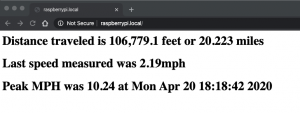
The stats are currently available only locally
And, get this – this was Shawn’s first ever time doing anything with Raspberry Pi or Python. OK, so as an ex-programmer he had a bit of a head start, but he assures us he hasn’t touched the stuff since the 1990s. He explains: “I was totally shocked at how easy it was once I figured out how to get the Raspberry Pi to read a sensor.” Start to finish, the project took him just one week.
The post Track your cat’s activity with a homemade speedometer appeared first on Raspberry Pi.
Is it still the Easter holidays? Can anyone tell? Does it matter, when we have nostalgic tech bunny pets to share with you?
These little bunnies can now do much more than when they first appeared. But they’re still incredibly cute – just look at that little lopsided-ear thing they do.
The original Nabaztag bunnies were to us in the mid-noughties what Tamagotchis were to eleven-year-olds everywhere in the 1990s. They communicated through colour, light, and sound. But now (and here’s the best bit), with a simple bit of surgery and the help of a new Raspberry Pi heart, your digital desk pet will be smarter than ever. It will be able to tell you what the weather is like, and offer local speech recognition as well as “ear-based Tai Chi”. No, we’re not sure either, but we are sure that it sounds cool. And very calming.
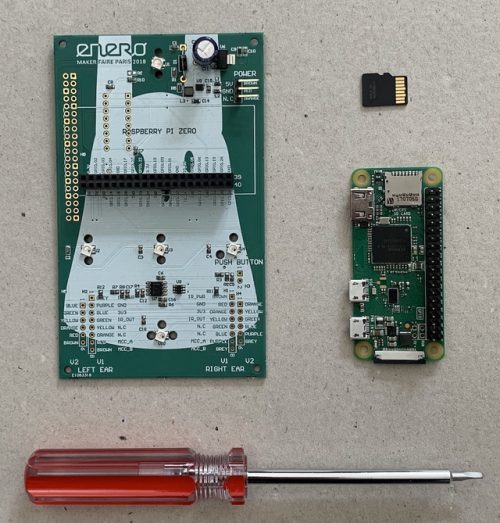
Part of the custom kit that will breathe new life into your bunny
The design team have created what they call the TagTagTag kit. Here are the main components of said kit:
This new venture had its first outing at the Paris Maker Faire in 2018, and it looks like we’re already too late to buy one of the limited number of ready-made upgraded bunnies. However, those of you who kept hold of your original bunny might be able to source one of Nabaztag’s custom boards to upgrade it yourself if you’re prepared to be patient – head over to the project’s funding page. You’ll also need a Raspberry Pi Zero W and a microSD card. The video below is in French, but it’s captioned.
Nabaztag’s funding page also shares all of the tech specs, schematics, and open source Python code you’re going to need.
We know this might be a tricky project for which to source all the parts, but it’s just. So. Cute. Follow the rabbit on Twitter to find out when you might be able to get your hands on a custom board.
The post Raspberry Pi puts the heart back in mid-noughties nostalgia tech appeared first on Raspberry Pi.
Recreate the arcade pool action of Data East’s Side Pocket. Raspberry Pi’s own Mac Bowley has the code.
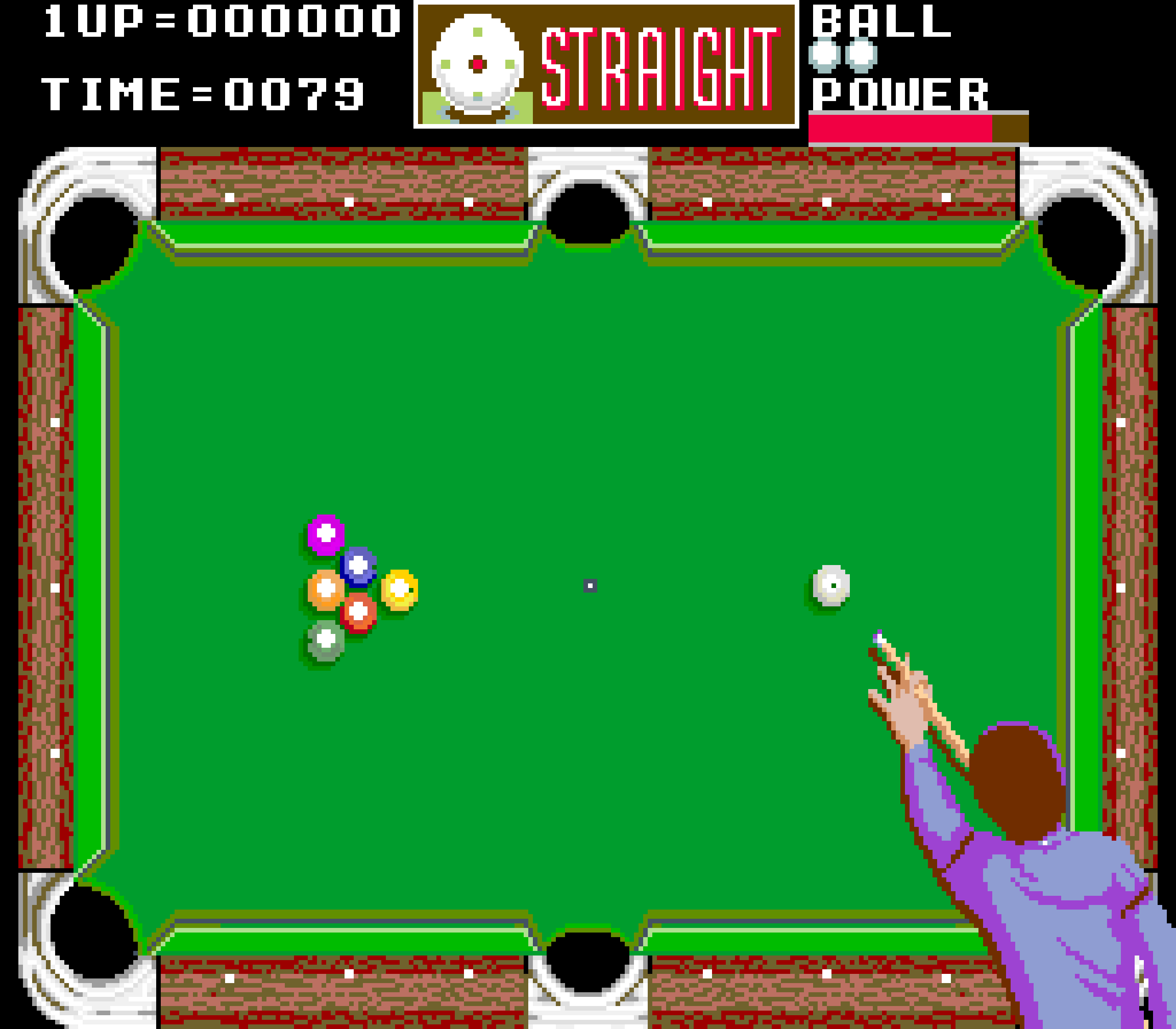
In the original Side Pocket, the dotted line helped the player line up shots, while additional functions on the UI showed where and how hard you were striking the cue ball.
Created by Data East in 1986, Side Pocket was an arcade pool game that challenged players to sink all the balls on the table and achieve a minimum score to progress. As the levels went on, players faced more balls in increasingly difficult locations on the table.
Here, I’ll focus on three key aspects from Side Pocket: aiming a shot, moving the balls, and handling collisions for balls and pockets. This project is great for anyone who wants to dip their toe into 2D game physics. I’m going to use the Pygame’s built-in collision system as much as possible, to keep the code readable and short wherever I can.
Before thinking about aiming and moving balls, I need a table to play on. I created both a border and a play area sprite using piskelapp.com; originally, this was one sprite, and I used a rect to represent the play area (see Figure 1). Changing to two sprites and making the play area an actor made all the collisions easier to handle and made everything much easier to place.
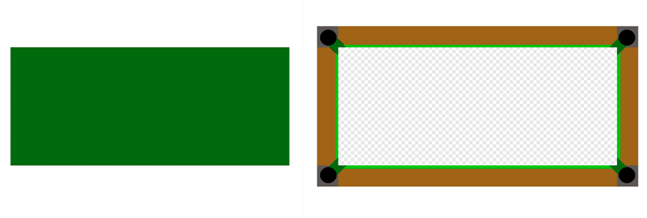
Figure 1: Our table with separate border. You could add some detail to your own table, or even adapt a photograph to make it look even more realistic.
For the balls, I made simple 32×32 sprites in varying colours. I need to be able to keep track of some information about each ball on the table, such as its position, a sprite, movement, and whether it’s been pocketed or not – once a ball’s pocketed, it’s removed from play. Each ball will have similar functionality as well – moving and colliding with each other. The best way to do this is with a class: a blueprint for each ball that I will make copies of when I need a new ball on the table.
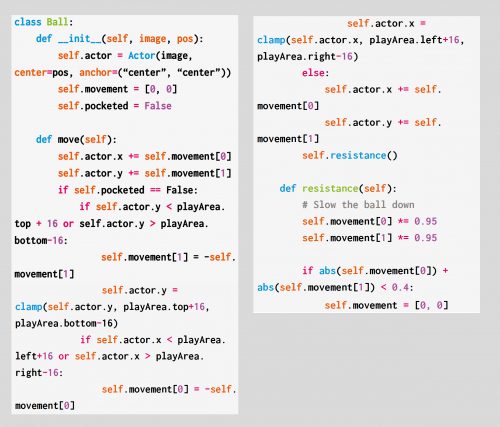
The best part about using a class is that I only need to make one piece of code to move a ball, and I can reuse it for every ball on the table. I’m using an array to keep track of the ball’s movement – how much it will move each frame. I also need to make sure it bounces off the sides of the play area if it hits them. I’ll use an array to hold all the balls on the table.
To start with, I need a cue ball:
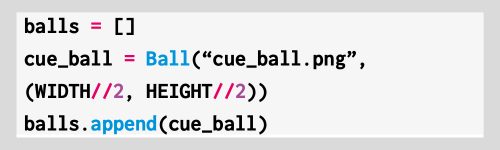
In Side Pocket, players control a dotted line that shows where the cue ball will go when they take a shot. Using the joystick or arrow buttons rotated the shot and moved the line, so players could aim to get the balls in the pockets (see Figure 2). To achieve this, we have to dive into our first bit of maths, converting a rotation in degrees to a pair of x and y movements. I decided my rotation would be at 0 degrees when pointing straight up; the player can then press the right and left arrow to increase or decrease this value.
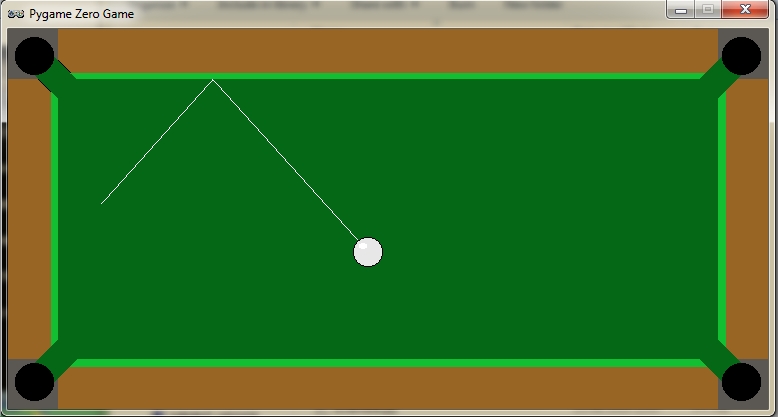
Figure 2: The dotted line shows the trajectory of the ball. Pressing the left or right arrows rotates the aim.
Pygame Zero has some built-in attributes for checking the keyboard, which I’m taking full advantage of.
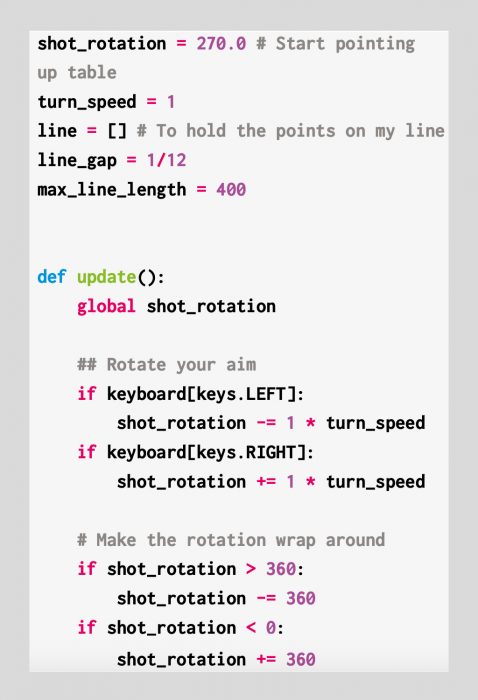
At 0 degrees, my cue ball’s movement should be 0 in the x direction and -1 in y. When the rotation is 90 degrees, my x movement would be 1 and y would be zero; anything in between should be a fraction between the two numbers. I could use a lot of ‘if-elses’ to set this, but an easier way is to use sin and cos on my angle – I sin the rotation to get my x value and cos the rotation to get the y movement.
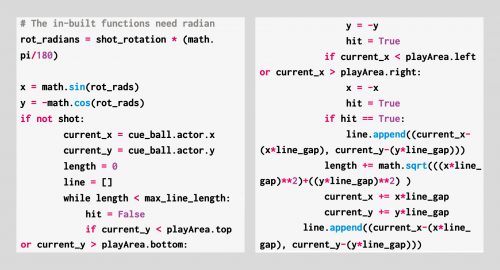
I can then use those x and y co-ordinates to create a series of points for my aiming line.
To keep things simple, I’m only going to have a single shot speed – you could improve this design by allowing players to load up a more powerful shot over time, but I won’t do that here.
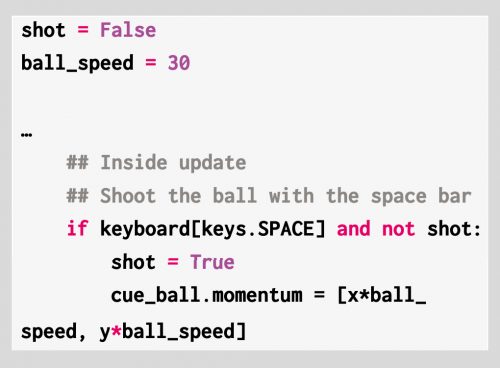
When the shot variable is True, I’m going to move all the balls on my table – at the beginning, this is just the cue ball – but this code will also move the other balls as well when I add them.
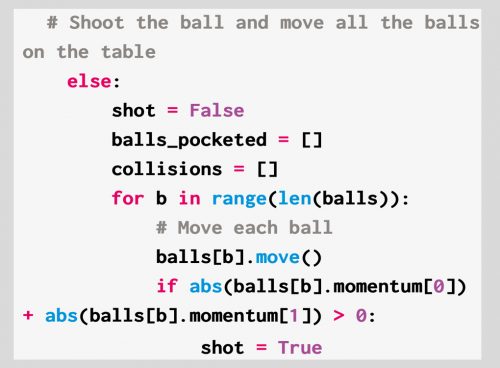
Each time I move the balls, I check whether they still have some movement left. I made a resistance function inside the ball class that will slow them down.
Now for the final problem: getting the balls to collide with each other and the pockets. I need to add more balls and some pocket actors to my game in order to test the collisions.
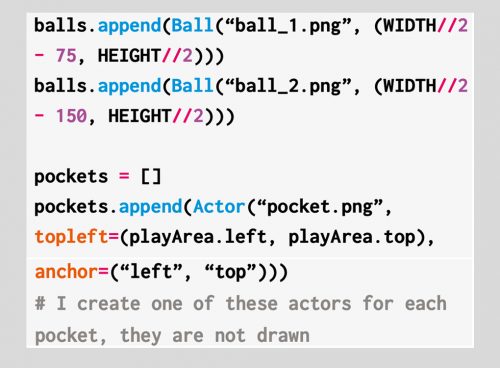
Each ball needs to be able to collide with the others, and when that happens, the direction and speed of the balls will change. Each ball will be responsible for changing the direction of the ball it has collided with, and I add a new function to my ball class:
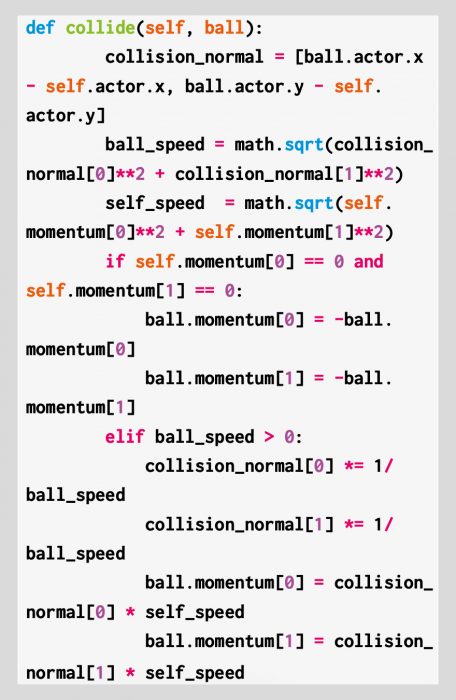
When a collision happens, the other ball should move in the opposite direction to the collision. This is what allows you to line-up slices and knock balls diagonally into the pockets. Unlike the collisions with the edges, I can’t just reverse the x and y movement. I need to change its direction, and then give it a part of the current ball’s speed. Above, I’m using a normal to find the direction of the collision. You can think of this as the direction to the other ball as they collide.
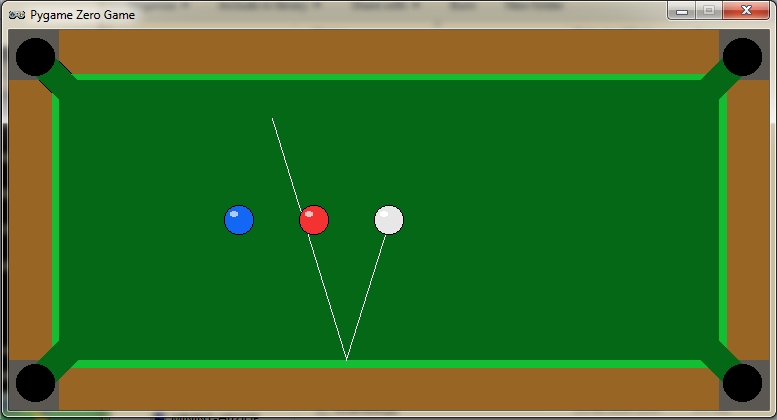
Our finished pool game. See if you can expand it with extra balls and maybe a scoring system.
I need to add to my update loop to detect and store the collisions to be handled after each set of movement.
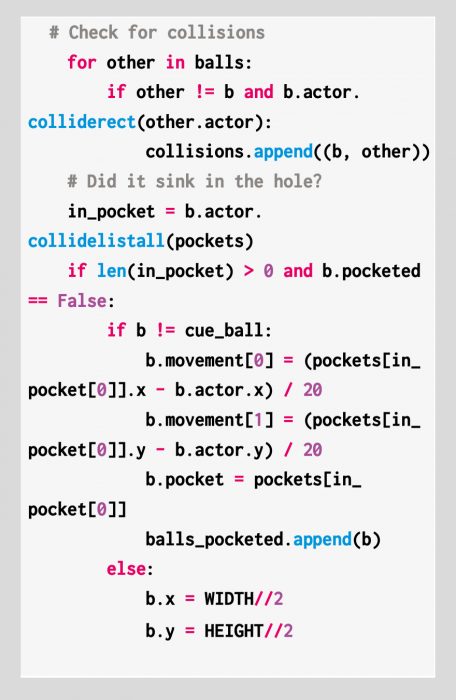
First, I use the colliderect() function to check if any of the balls collide this frame – if they do, I add them to a list. This is so I handle all the movement first and then the collisions. Otherwise, I’m changing the momentum of balls that haven’t moved yet. I detect whether a pocket was hit as well; if so, I change the momentum so that the ball heads towards the pocket and doesn’t bounce off the walls anymore.
When all my balls have been moved, I can handle the collisions with both the other balls and the pockets:
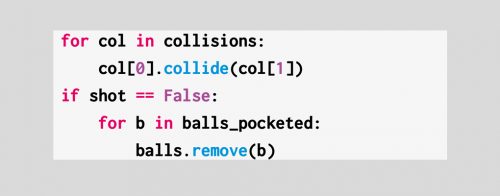
And there you have it: the beginnings of an arcade pool game in the Side Pocket tradition. You can get the full code and assets right here.
You can read more features like this one in Wireframe issue 36, available directly from Raspberry Pi Press — we deliver worldwide. And if you’d like a handy digital version of the magazine, you can also download issue 36 for free in PDF format.
Make sure to follow Wireframe on Twitter and Facebook for updates and exclusive offers and giveaways. Subscribe on the Wireframe website to save up to 49% compared to newsstand pricing!
The post Make a Side Pocket-esque pool game | Wireframe #36 appeared first on Raspberry Pi.
Gun down the clay pigeons in our re-creation of a classic minigame from Konami’s Hyper Sports. Take it away, Mark Vanstone…
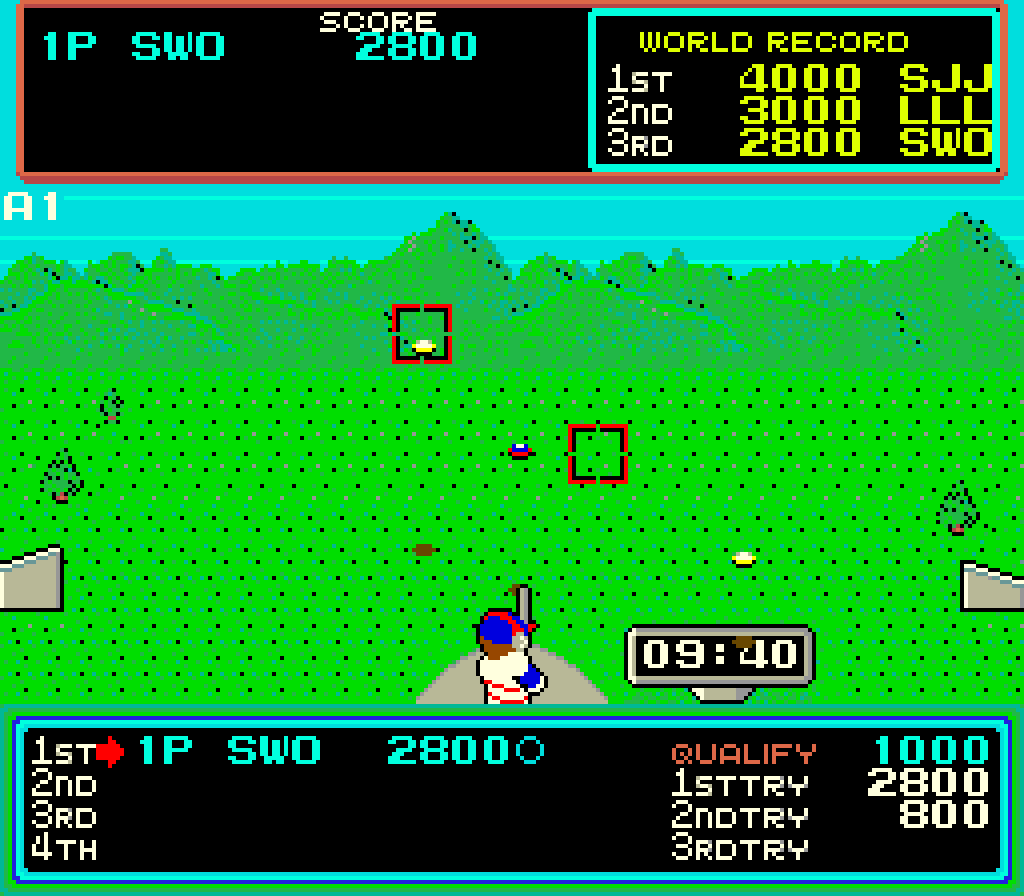
Hyper Sports’ Japanese release was tied in with the 1984 Summer Olympics.
Konami’s sequel to its 1983 arcade hit, Track & Field, Hyper Sports offered seven games – or events – in which up to four players could participate. Skeet shooting was perhaps the most memorable game in the collection, and required just two buttons: fire left and fire right.
The display showed two target sights, and each moved up and down to come into line with the next clay disc’s trajectory. When the disc was inside the red target square, the player pressed the fire button, and if their timing was correct, the clay disc exploded. Points were awarded for being on target, and every now and then, a parrot flew across the screen, which could be gunned down for a bonus.
To make a skeet shooting game with Pygame Zero, we need a few graphical elements. First, a static background of hills and grass, with two clay disc throwers each side of the screen, and a semicircle where our shooter stands – this can be displayed first, every time our draw() function is called.
We can then draw our shooter (created as an Actor) in the centre near the bottom of the screen. The shooter has three images: one central while no keys are pressed, and two for the directions left and right when the player presses the left or right keys. We also need to have two square target sights to the left and right above the shooter, which we can create as Actors.
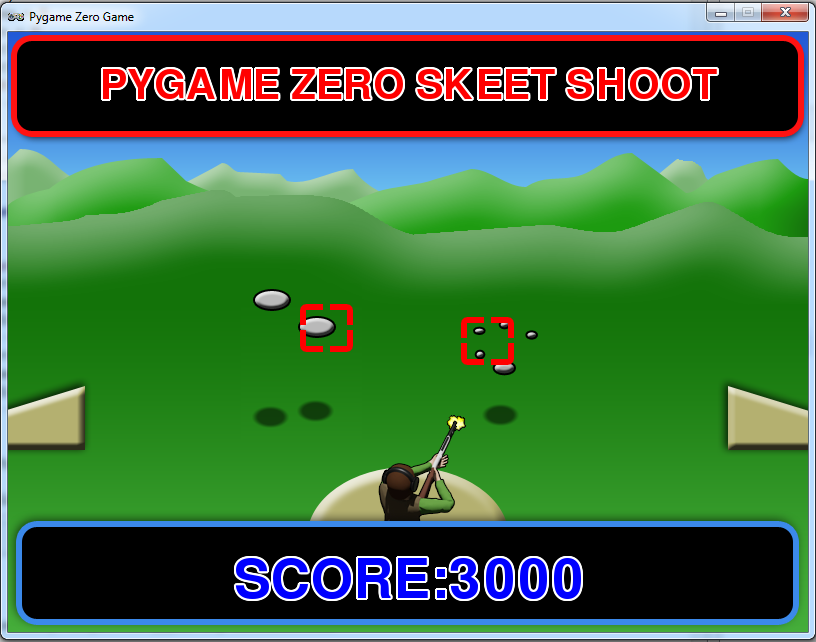
When the clay targets appear, the player uses the left and right buttons to shoot either the left or right target respectively.
To make the clay targets, we create an array to hold disc Actor objects. In our update() function we can trigger the creation of a new disc based on a random number, and once created, start an animation to move it across the screen in front of the shooter. We can add a shadow to the discs by tracking a path diagonally across the screen so that the shadow appears at the correct Y coordinate regardless of the disc’s height – this is a simple way of giving our game the illusion of depth. While we’re in the update() function, looping around our disc object list, we can calculate the distance of the disc to the nearest target sight frame, and from that, work out which is the closest.
When we’ve calculated which disc is closest to the right-hand sight, we want to move the sight towards the disc so that their paths intersect. All we need to do is take the difference of the Y coordinates, divide by two, and apply that offset to the target sight. We also do the same for the left-hand sight. If the correct key (left or right arrows) is pressed at the moment a disc crosses the path of the sight frame, we register a hit and cycle the disc through a sequence of exploding frames. We can keep a score and display this with an overlay graphic so that the player knows how well they’ve done.
And that’s it! You may want to add multiple players and perhaps a parrot bonus, but we’ll leave that up to you.
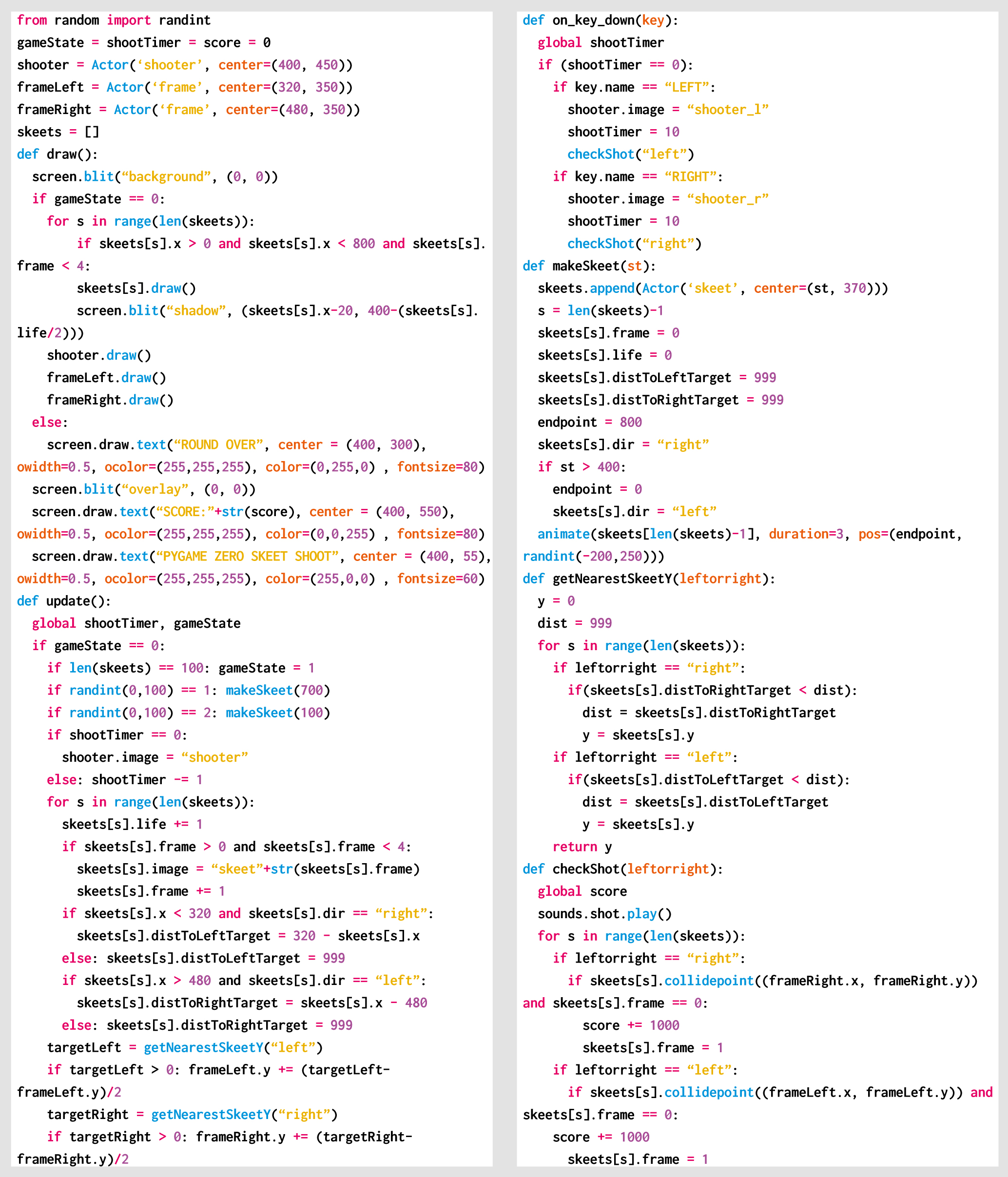
Here’s Mark’s code snippet, which creates a simple shooting game in Python. To get it working on your system, you’ll need to install Pygame Zero. And to download the full code and assets, go here.
You can read more features like this one in Wireframe issue 35, available now at Tesco, WHSmith, and all good independent UK newsagents.
Or you can buy Wireframe directly from Raspberry Pi Press — delivery is available worldwide. And if you’d like a handy digital version of the magazine, you can also download issue 35 for free in PDF format.
Make sure to follow Wireframe on Twitter and Facebook for updates and exclusive offers and giveaways. Subscribe on the Wireframe website to save up to 49% compared to newsstand pricing!
The post Code Hyper Sports’ shooting minigame | Wireframe #35 appeared first on Raspberry Pi.
From last year’s issue 29 of Wireframe magazine: learn how to create your own version of the simple yet addictive side-scroller Flappy Bird. Raspberry Pi’s Rik Cross shows you how.
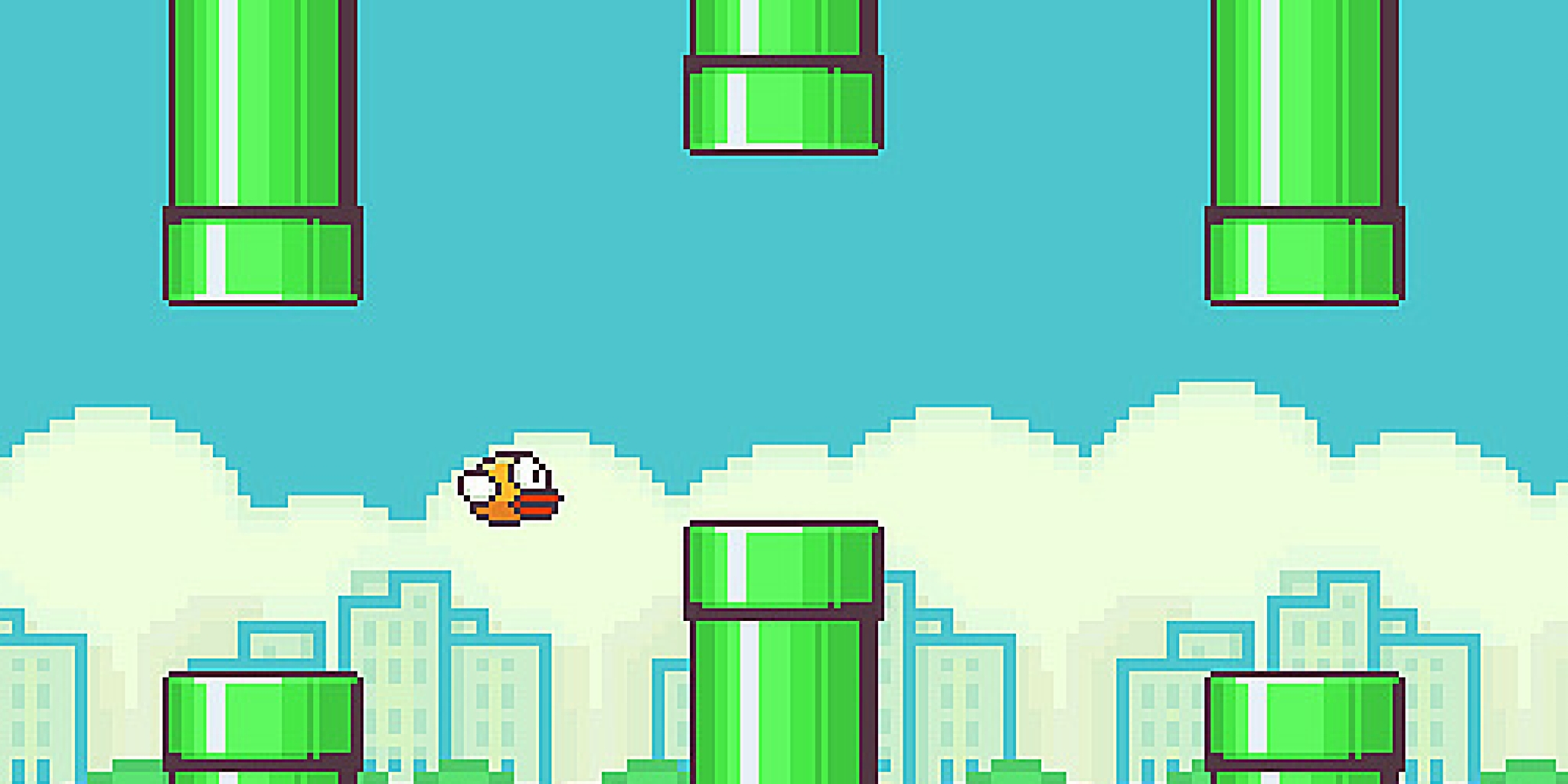
Flappy Bird: ridiculously big in 2014, at least for a while.
Flappy Bird was released by programmer Dong Nguyen in 2013, and made use of a straightforward game mechanic to create an addictive hit. Tapping the screen provided ‘lift’ to the main character, which is used strategically to navigate through a series of moving pipes. A point is scored for each pipe successfully passed. The idea proved so addictive that Nguyen eventually regretted his creation and removed it from the Google and Apple app stores. In this article, I’ll show you how to recreate this simple yet time-consuming game, using Python and Pygame Zero.
The player’s motion is very similar to that employed in a standard platformer: falling down towards the bottom of the screen under gravity. See the article, Super Mario-style jumping physics in Wireframe #7 for more on creating this type of movement. Pressing a button (in our case, the SPACE bar) gives the player some upward thrust by setting its velocity to a negative value (i.e. upwards) larger than the value of gravity acting downwards. I’ve adapted and used two different images for the sprite (made by Imaginary Perception and available on opengameart.org), so that it looks like it’s flapping its wings to generate lift and move upwards.
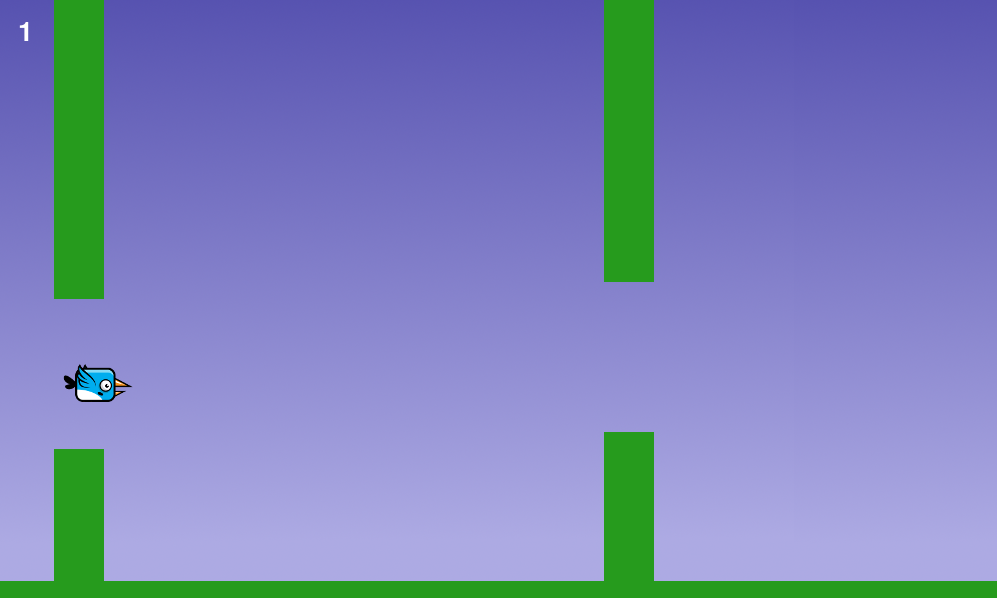
Pressing the SPACE bar gives the bird ‘lift’ against gravity, allowing it to navigate through moving pipes.
Sets of pipes are set equally spaced apart horizontally, and move towards the player slowly each frame of the game. These pipes are stored as two lists of rectangles, top_pipes and bottom_pipes, so that the player can attempt to fly through gaps between the top and bottom pipes. Once a pipe in the top_pipes list reaches the left side of the screen past the player’s position, a score is incremented and the top and corresponding bottom pipes are removed from their respective lists. A new set of pipes is created at the right edge of the screen, creating a continuous challenge for the player. The y-position of the gap between each newly created pair of pipes is decided randomly (between minimum and maximum limits), which is used to calculate the position and height of the new pipes.
The game stops and a ‘Game over’ message appears if the player collides with either a pipe or the ground. The collision detection in the game uses the player.colliderect() method, which checks whether two rectangles overlap. As the player sprite isn’t exactly rectangular, it means that the collision detection isn’t pixel-perfect, and improvements could be made by using a different approach. Changing the values for GRAVITY, PIPE_GAP, PIPE_SPEED, and player.flap_velocity through a process of trial and error will result in a game that has just the right amount of frustration! You could even change these values as the player’s score increases, to add another layer of challenge.
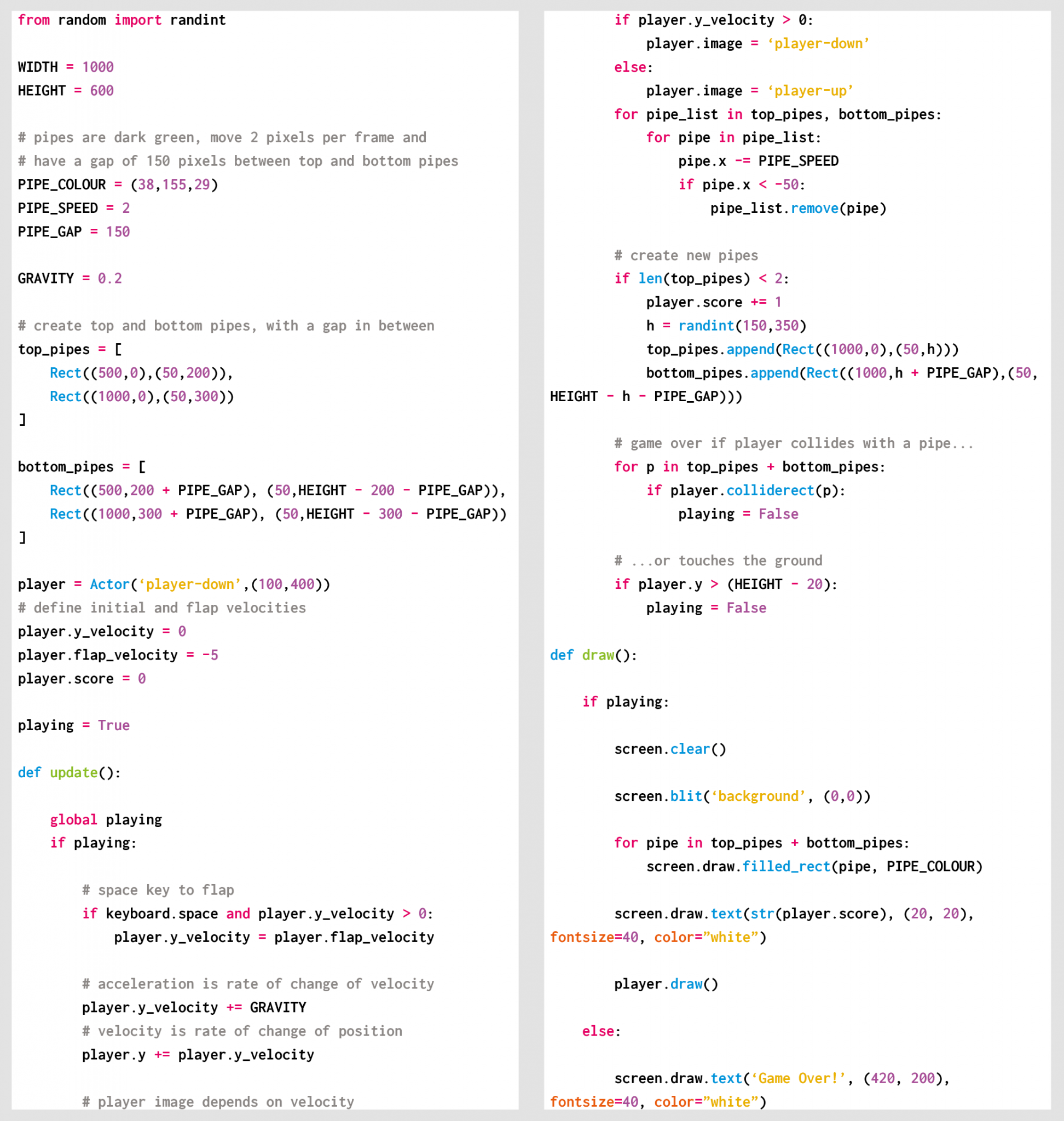
Here’s Rik’s code, which gets an homage to Flappy Bird running in Python. To get it working on your system, you’ll first need to install Pygame Zero. And to download the full code, go here.
If you’d like to read older issues of Wireframe magazine, you can find the complete back catalogue as free PDF downloads.
The latest issue of Wireframe is available in print to buy online from the Raspberry Pi Press store, with older physical issues heavily discounted too. You can also find Wireframe at local newsagents, but we should all be staying home as much as possible right now, so why not get your copy online and save yourself the trip?
Make sure to follow Wireframe on Twitter and Facebook for updates and exclusive offers and giveaways. And subscribe on the Wireframe website to save up to 49% compared to newsstand pricing!
The post Recreate Flappy Bird’s flight mechanic | Wireframe #29 appeared first on Raspberry Pi.
Code the map and movement basics of the innovative marble-rolling arcade game. Mark Vanstone shows you how.
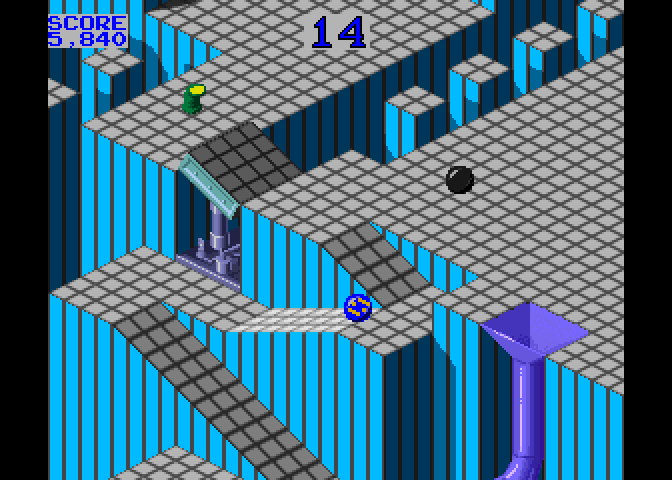
Each of Marble Madness’ six levels got progressively harder to navigate and had to be completed within a time limit.
Hitting arcades in 1984, Atari’s Marble Madness presented a rather different control mechanism than other games of the time. The original arcade cabinet provided players with a trackball controller rather than a conventional joystick, and the aim was to guide a marble through a three-dimensional course in the fastest possible time. This meant that a player could change the angle and speed of the marble as it rolled and avoid various obstacles and baddies.
During development, designer Mark Cerny had to shelve numerous ideas for Marble Madness, since the hardware just wasn’t able to achieve the level of detail and interaction he wanted. The groundbreaking 3D display was one idea that made it through to the finished game: its pre-rendered, ray-traced isometric levels.
Marble Madness was the first game to use Atari’s System 1 upgradeable hardware platform, and also boasted the first use of an FM sound chip produced by Yamaha to create its distinctive stereo music. The game was popular in arcades to start with, but interest appeared to drop off after a few months – something Cerny attributed to the fact that the game didn’t take long to play. Marble Madness’s popularity endured in the home market, though, with ports made for most computers and consoles of the time – although inevitably, most of these didn’t support the original’s trackball controls.
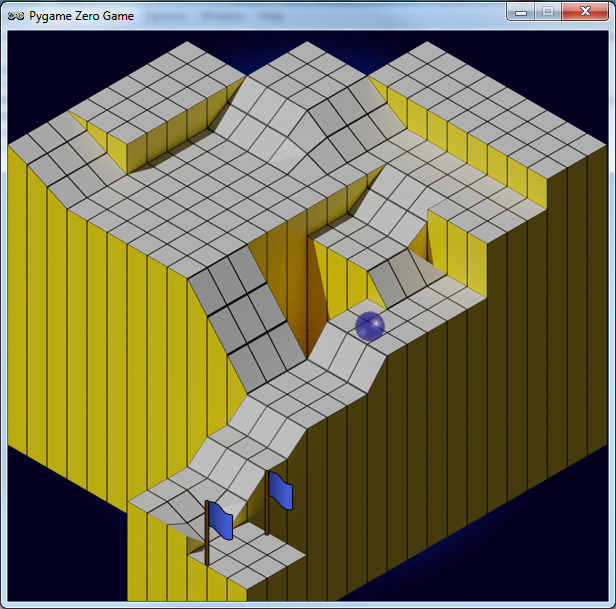
In our sample level, you can control the movement of the marble using the left and right arrow keys.
For our version of Marble Madness, we’re going to use a combination of a rendered background and a heightmap in Pygame Zero, and write some simple physics code to simulate the marble rolling over the terrain’s flats and slopes. We can produce the background graphic using a 3D modelling program such as Blender. The camera needs to be set to Orthographic to get the forced perspective look we’re after. The angle of the camera is also important, in that we need an X rotation of 54.7 degrees and a Y rotation of 45 degrees to get the lines of the terrain correct. The heightmap can be derived from an overhead view of the terrain, but you’ll probably want to draw the heights of the blocks in a drawing package such as GIMP to give you precise colour values on the map.
The ball rolling physics are calculated from the grey-shaded heightmap graphic. We’ve left a debug mode in the code; by changing the debug variable to True, you can see how the marble moves over the terrain from the overhead viewpoint of the heightmap. The player can move the marble left and right with the arrow keys – on a level surface it will gradually slow down if no keys are pressed. If the marble is on a gradient on the heightmap, it will increase speed in the direction of the gradient. If the marble hits a section of black on the heightmap, it falls out of play, and we stop the game.
That takes care of the movement of the marble in two dimensions, but now we have to translate this to the rendered background’s terrain. The way we do this is to translate the Y coordinate of the marble as if the landscape was all at the same level – we multiply it by 0.6 – and then move it down the screen according to the heightmap data, which in this case moves the marble down 1.25 pixels for each shade of colour. We can use an overlay for items the marble always rolls behind, such as the finish flag. And with that, we have the basics of a Marble Madness level.
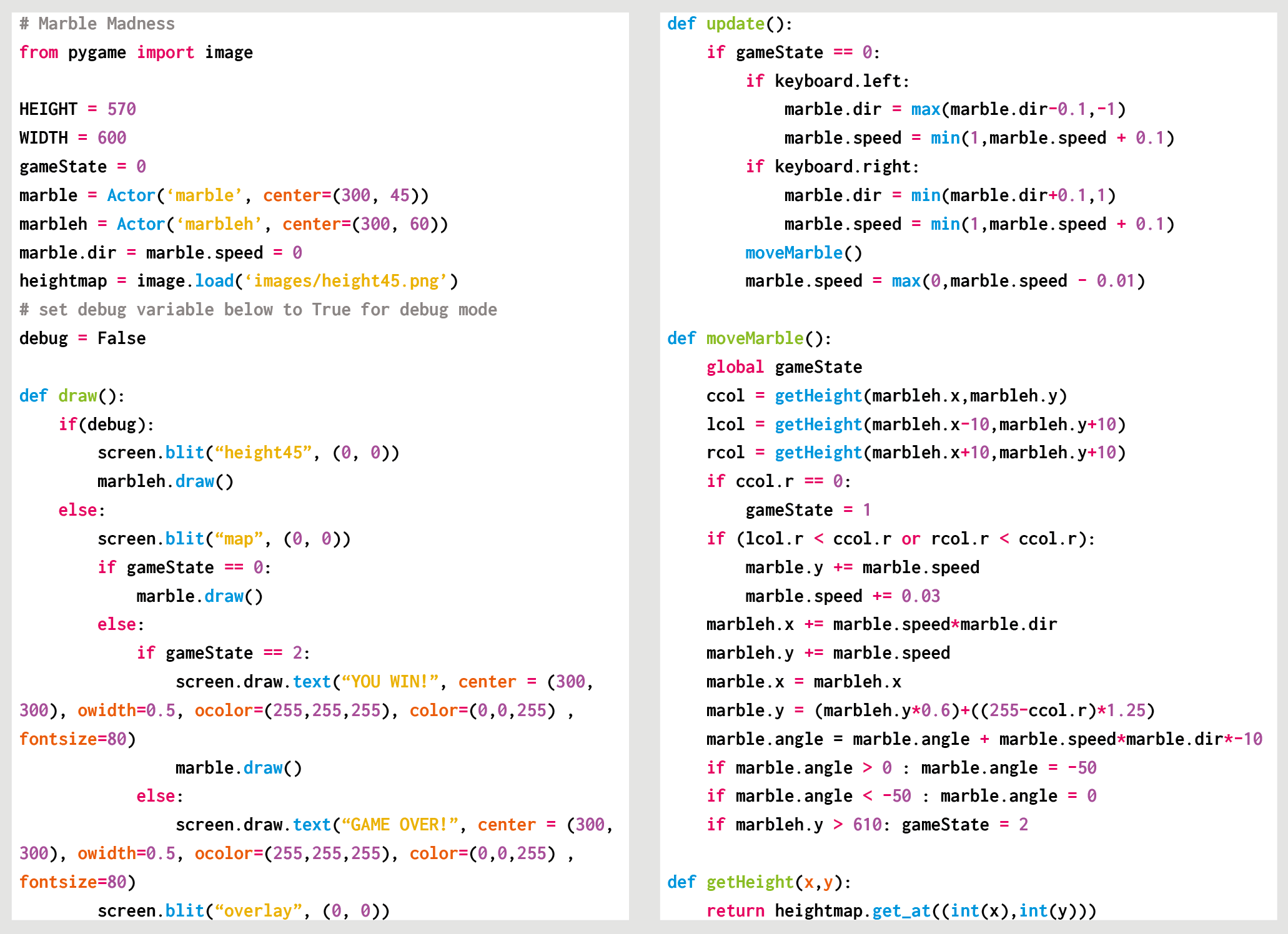
Here’s Mark’s code snippet, which creates a Marble Madness level in Python. To get it working on your system, you’ll need to install Pygame Zero. And to download the full code, go here.
We use the image module from Pygame to sample the colour of the pixel directly under the marble on the heightmap. We also take samples from the left diagonal and the right diagonal to see if there is a change of height. We are only checking for left and right movement, but this sample could be expanded to deal with the two other directions and moving up the gradients, too. Other obstacles and enemies can be added using the same heightmap translations used for the marble, and other overlay objects can be added to the overlay graphic.
You can read more features like this one in Wireframe issue 34, available now at Tesco, WHSmith, all good independent UK newsagents, and the Raspberry Pi Store, Cambridge.
Or you can buy Wireframe directly from Raspberry Pi Press — delivery is available worldwide. And if you’d like a handy digital version of the magazine, you can also download issue 34 for free in PDF format.

Make sure to follow Wireframe on Twitter and Facebook for updates and exclusive offers and giveaways. Subscribe on the Wireframe website to save up to 49% compared to newsstand pricing!
The post Code a homage to Marble Madness | Wireframe #34 appeared first on Raspberry Pi.
Fly through the space fortress in this 3D retro forced scrolling arcade sample. Mark Vanstone has the details
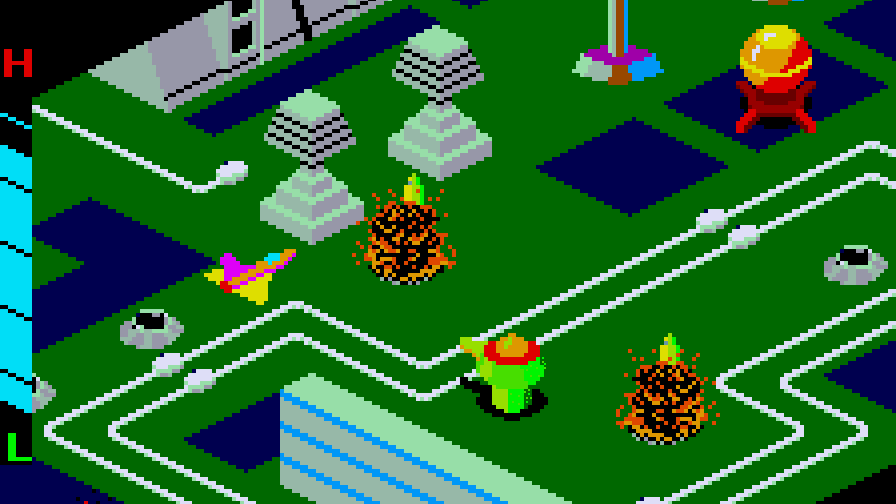
Zaxxon was the first arcade game to use an axonometric viewpoint, which made it look very different from its 2D rivals.
When Zaxxon was first released by Sega in 1982, it was hailed as a breakthrough thanks to its pseudo-3D graphics. This axonometric projection ensured that Zaxxon looked unlike any other shooter around in arcades.
Graphics aside, Zaxxon offered a subtly different twist on other shooting games of the time, like Defender and Scramble; the player flew over either open space or a huge fortress, where they had to avoid obstacles of varying heights. Players could tell how high they were flying with the aid of an altimeter, and also the shadow beneath their ship (shadows were another of Zaxxon’s innovations). The aim of the game was to get to the end of each level without running out of fuel or getting shot down; if the player did this, they’d encounter an area boss called Zaxxon. Points were awarded for destroying gun turrets and fuel silos, and extra lives could be gained as the player progressed through the levels.
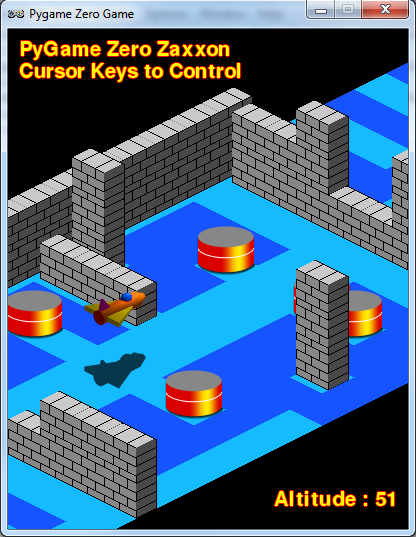
Our Zaxxon homage running in Pygame Zero: fly the spaceship through the fortress walls and obstacles with your cursor keys.
For this code sample, we can borrow some of the techniques used in a previous Source Code article about Ant Attack (see Wireframe issue 15) since it also used an isometric display. Although the way the map display is built up is very similar, we’ll use a JSON file to store the map data. If you’ve not come across JSON before, it’s well worth learning about, as a number of web and mobile apps use it, and it can be read by Python very easily. All we need to do is load the JSON file, and Python automatically puts the data into a Python dictionary object for us to use.
In the sample, there’s a short run of map data 40 squares long with blocks for the floor, some low walls, higher walls, and a handful of fuel silos. To add more block types, just add data to the blocktypes area of the JSON file. The codes used in the map data are the index numbers of the blocktypes, so the first blocktypes is index 0, the next index 1, and so on. Our drawMap() function takes care of rendering the data into visual form and blits blocks from the top right to the bottom left of the screen. When the draw loop gets to where the ship is, it draws first the shadow and then the ship a little higher up the screen, depending on the altitude of the ship. The equation to translate the ship’s screen coordinates to a block position on the map is a bit simplistic, but in this case, it does the job well enough.
Cursor keys guide the movement of the spaceship, which is limited by the width of the map and a height of 85 pixels. There’s some extra code to display the ship if it isn’t on the map – for example, at the start, before it reaches the map area. To make the code snippet into a true Zaxxon clone, you’ll have to add some laser fire and explosions, a fuel gauge, and a scoring system, but this code sample should provide the basis you’ll need to get started.
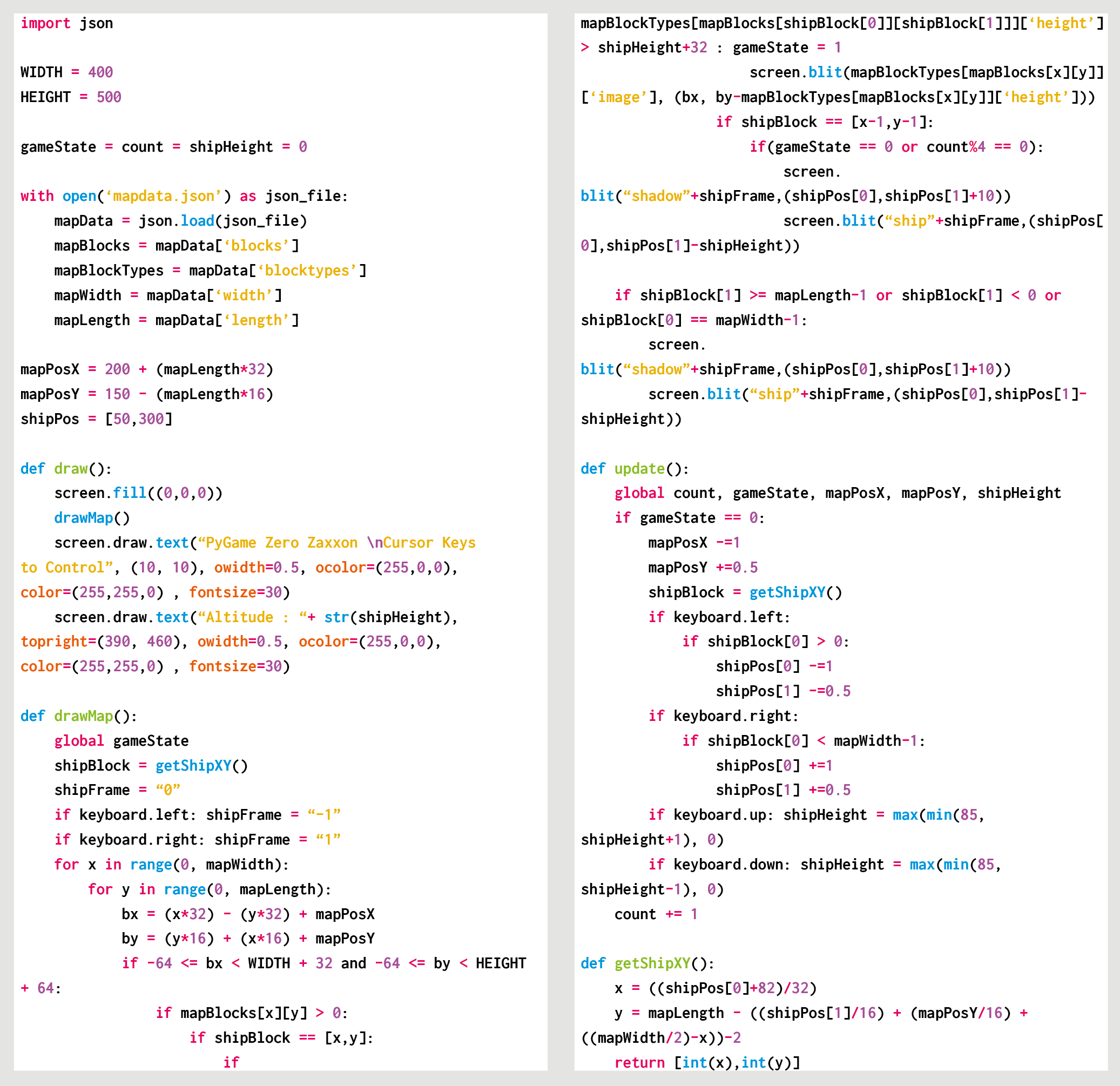
Here’s Mark’s code snippet, which creates a side-scrolling beat-’em-up in Python. To get it working on your system, you’ll need to install Pygame Zero. And to download the full code, go here.
You can read more features like this one in Wireframe issue 33, available now at Tesco, WHSmith, all good independent UK newsagents, and the Raspberry Pi Store, Cambridge.
Or you can buy Wireframe directly from Raspberry Pi Press — delivery is available worldwide. And if you’d like a handy digital version of the magazine, you can also download issue 33 for free in PDF format.
Make sure to follow Wireframe on Twitter and Facebook for updates and exclusive offers and giveaways. Subscribe on the Wireframe website to save up to 49% compared to newsstand pricing!
The post Code a Zaxxon-style axonometric level | Wireframe #33 appeared first on Raspberry Pi.
Punch and kick your way through a rabble of bad dudes in a simple scrolling beat-’em-up. Mark Vanstone shows you how
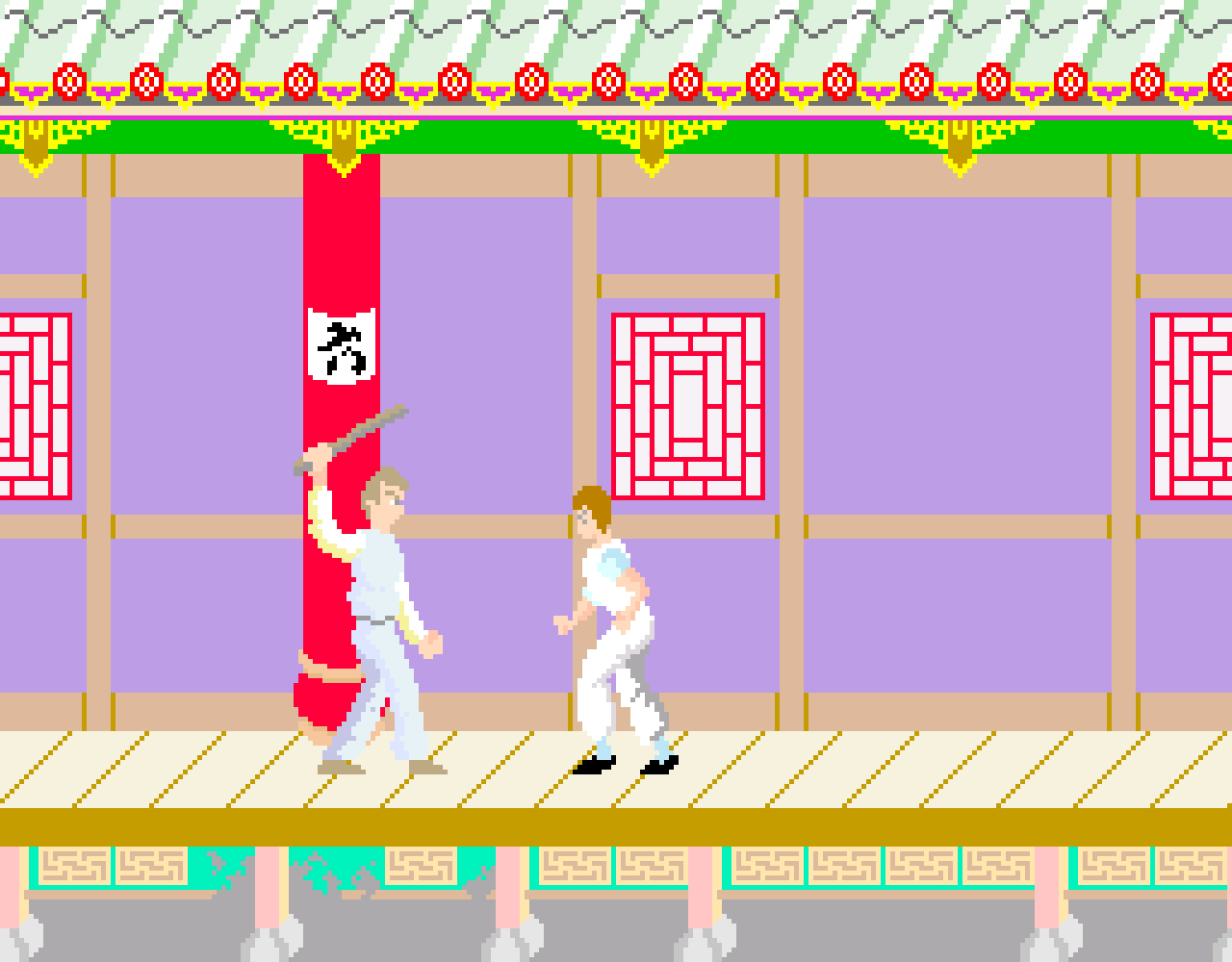
Although released to tie in with Jackie Chan’s Spartan X, Kung-Fu Master was originally inspired by the Bruce Lee film, Game of Death.
Kung-Fu Master hit arcades in 1984. Its side-scrolling action, punching and kicking through an army of knife-throwing goons, helped create the beat-’em-up genre. In fact, its designer, Takashi Nishiyama, would go on to kickstart the Street Fighter series at Capcom, and later start up the Fatal Fury franchise at SNK.
In true eighties arcade style, Kung-Fu Master distils the elements of a chop-socky action film to its essentials. Hero Thomas and his girlfriend are attacked, she’s kidnapped, and Thomas fights his way through successive levels of bad guys to rescue her. The screen scrolls from side to side, and Thomas must use his kicks and punches to get from one side of the level to the other and climb the stairs to the next floor of the building.
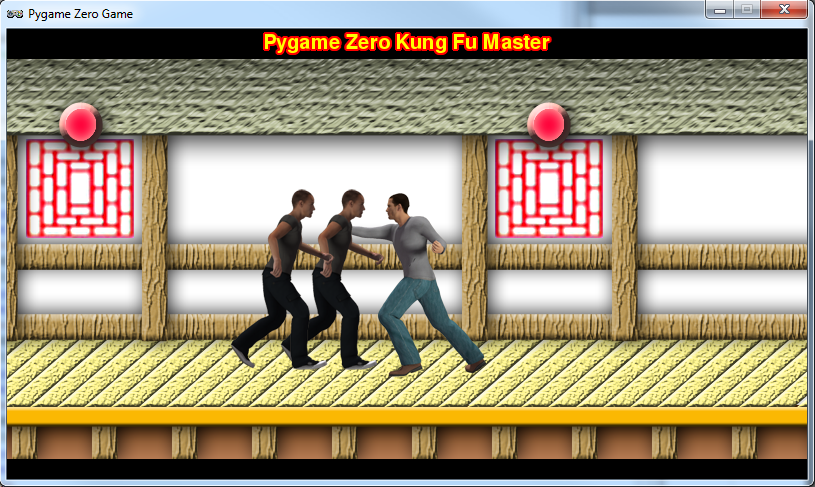
Our Kung-Fu Master homage features punches, kicks, and a host of goons to use them on.
To recreate this classic with Pygame Zero, we’ll need quite a few frames of animation, both for the hero character and the enemies he’ll battle. For a reasonable walk cycle, we’ll need at least six frames in each direction. Any fewer than six won’t look convincing, but more frames can achieve a smoother effect. For this example, I’ve used the 3D package Poser, since it has a handy walk designer which makes generating sequences of animation much easier.
Once we have the animation frames for our characters, including a punch, kick, and any others you want to add, we need a background for the characters to walk along. The image we’re using is 2000×400 pixels, and we start the game by displaying the central part so our hero can walk either way. By detecting arrow key presses, the hero can ‘walk’ one way or the other by moving the background left and right, while cycling through the walk animation frames. Then if we detect a Q key press, we change the action string to kick; if it’s A, it’s punch. Then in our update() function, we use that action to set the Actor’s image to the indicated action frame.
Our enemy Actors will constantly walk towards the centre of the screen, and we can cycle through their walking frames the same way we do with the main hero. To give kicks and punches an effect, we put in collision checks. If the hero strikes while an enemy collides with him, we register a hit. This could be made more precise to require more skill, but once a strike’s registered, we can switch the enemy to a different status that will cause them to fall downwards and off the screen.
This sample is a starting point to demonstrate the basics of the beat-’em-up genre. With the addition of flying daggers, several levels, and a variety of bad guys, you’ll be on your way to creating a Pygame Zero version of this classic game.
Because we’re moving the background when our hero walks left and right, we need to make sure we move our enemies with the background, otherwise they’ll look as though they’re sliding in mid-air – this also applies to any other objects that aren’t part of the background. The number of enemies can be governed in several ways: in our code, we just have a random number deciding if a new enemy will appear during each update, but we could use a predefined pattern for the enemy generation to make it a bit less random, or we use a combination of patterns and random numbers.
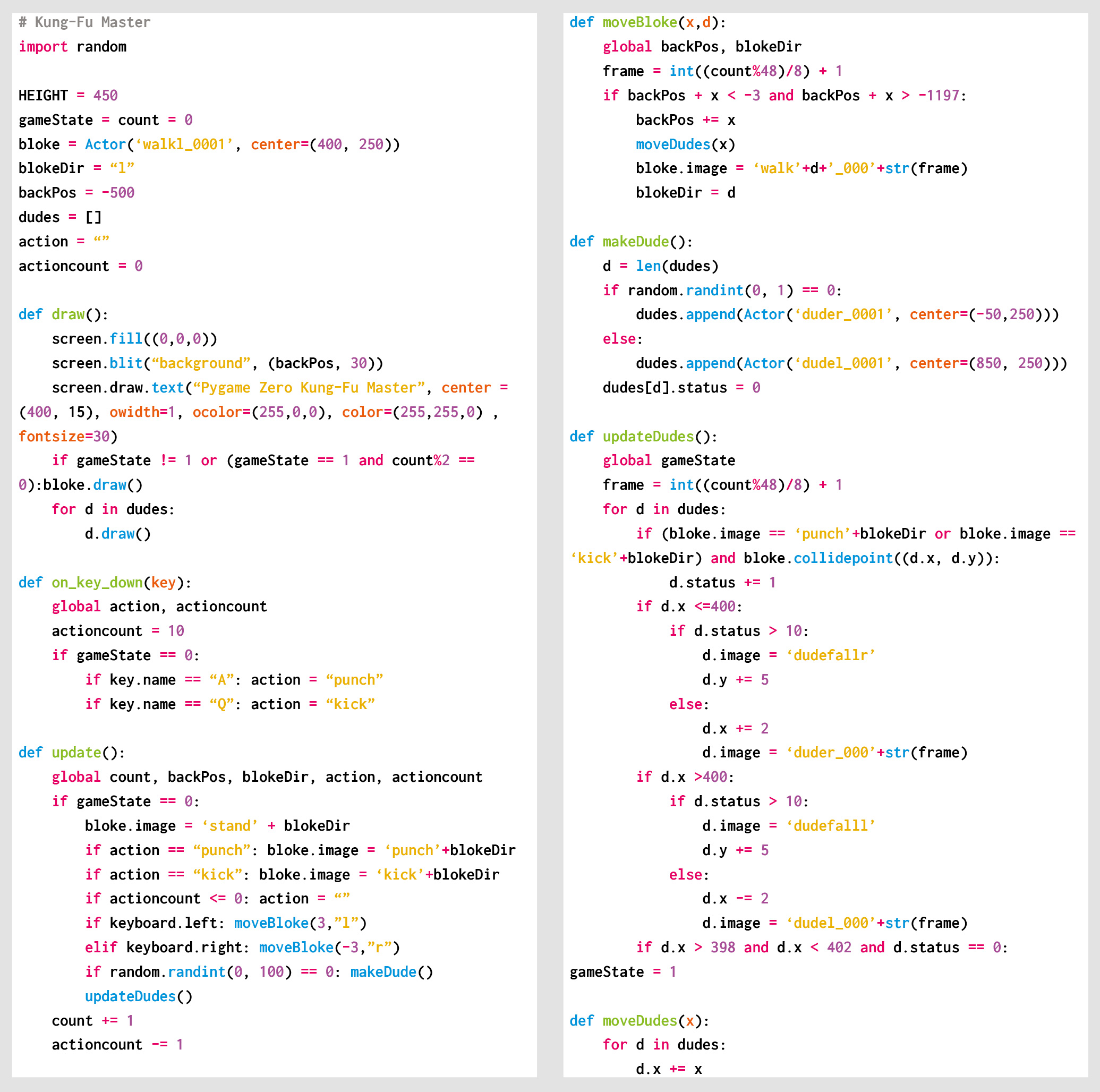
Here’s Mark’s code snippet, which creates a side-scrolling beat-’em-up in Python. To get it working on your system, you’ll need to install Pygame Zero. And to download the full code, go here.
You can read more features like this one in Wireframe issue 32, available now at Tesco, WHSmith, all good independent UK newsagents, and the Raspberry Pi Store, Cambridge.
Or you can buy Wireframe directly from Raspberry Pi Press — delivery is available worldwide. And if you’d like a handy digital version of the magazine, you can also download issue 32 for free in PDF format.
Look how lovely and glowy it is.
Make sure to follow Wireframe on Twitter and Facebook for updates and exclusive offers and giveaways. Subscribe on the Wireframe website to save up to 49% compared to newsstand pricing!
The post Code a Kung-Fu Master style beat-’em-up | Wireframe #32 appeared first on Raspberry Pi.
Raspberry Pi’s own Mac Bowley shows you how to make the beginnings of a top-down driving game inspired by 1983’s Spy Hunter.
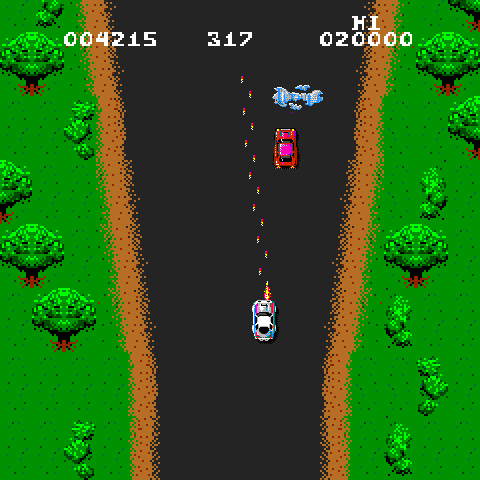
Spy Hunter was one of the very first games with both driving and shooting.
The 1983 arcade classic Spy Hunter put players at the wheel of a fictitious Interceptor vehicle and challenged them to navigate a vertically scrolling road, destroying enemy vehicles.
Here, I’ll show you how you can recreate the game’s scrolling road to use in your own driving games. The road will be created using the Rect class from Pygame, with the road built from stacked rectangles that are each two pixels high.
First, I create two lists; one to hold the pieces of road currently being drawn on screen, and another to hold a queue of pieces that will be added as the road scrolls. To create the scrolling road effect, each of the current pieces of road will need to move down the screen, while a new piece is added to the end of the list at position y = 0.
Pygame can schedule functions, which can then be called at set intervals – meaning I can scroll my road at a set frame rate. The scroll_road function will achieve this. First, I loop over each road piece, and move it down by two pixels. I then remove the first item in the queue list and append it to the end of the road. The Pygame clock is then set to call the function at intervals set by a frame_rate variable: mine is set to 1/60, meaning 60 frames per second.
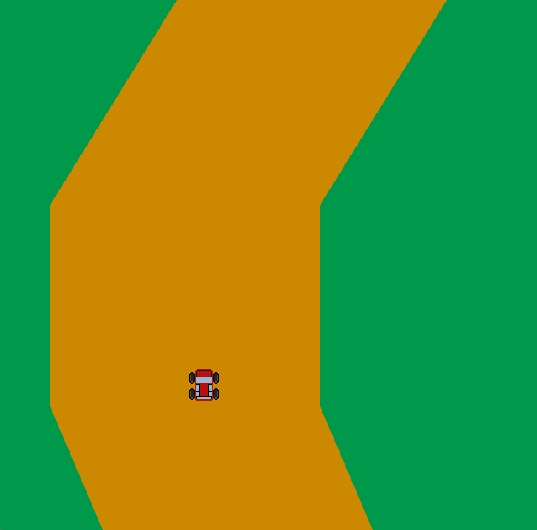
Our code snippet provides a solid basis for your own top-down driving game. All you need now are weapons. And a few other cars.
My road can either turn left or right, a random choice made whenever the queue is populated. Whichever way the road turns, it has to start from the same spot as the last piece in my queue. I can grab the last item in a list using -1 as an index and then store the x position; building from here will make sure my road is continuous. I use a buffer of 50 pixels to keep the road from moving off the edge of my screen – each time a turn is made, I check that the road doesn’t go beyond this point.
I want the turn amount to be random, so I’m also setting a minimum turn of 200 pixels. If this amount takes my car closer than the buffer, I’ll instead set the turn amount so that it takes it up to the buffer but no further. I do this for both directions, as well as setting a modifier to apply to my turn amount (-1 to turn left and 1 to turn right), which will save me duplicating my code. I also want to randomly choose how many pieces will be involved in my turn. Each piece is a step in the scroll, so the more pieces, the longer my turn will take. This will make sure I have a good mix of sharp and elongated turns in my road, keeping the player engaged.
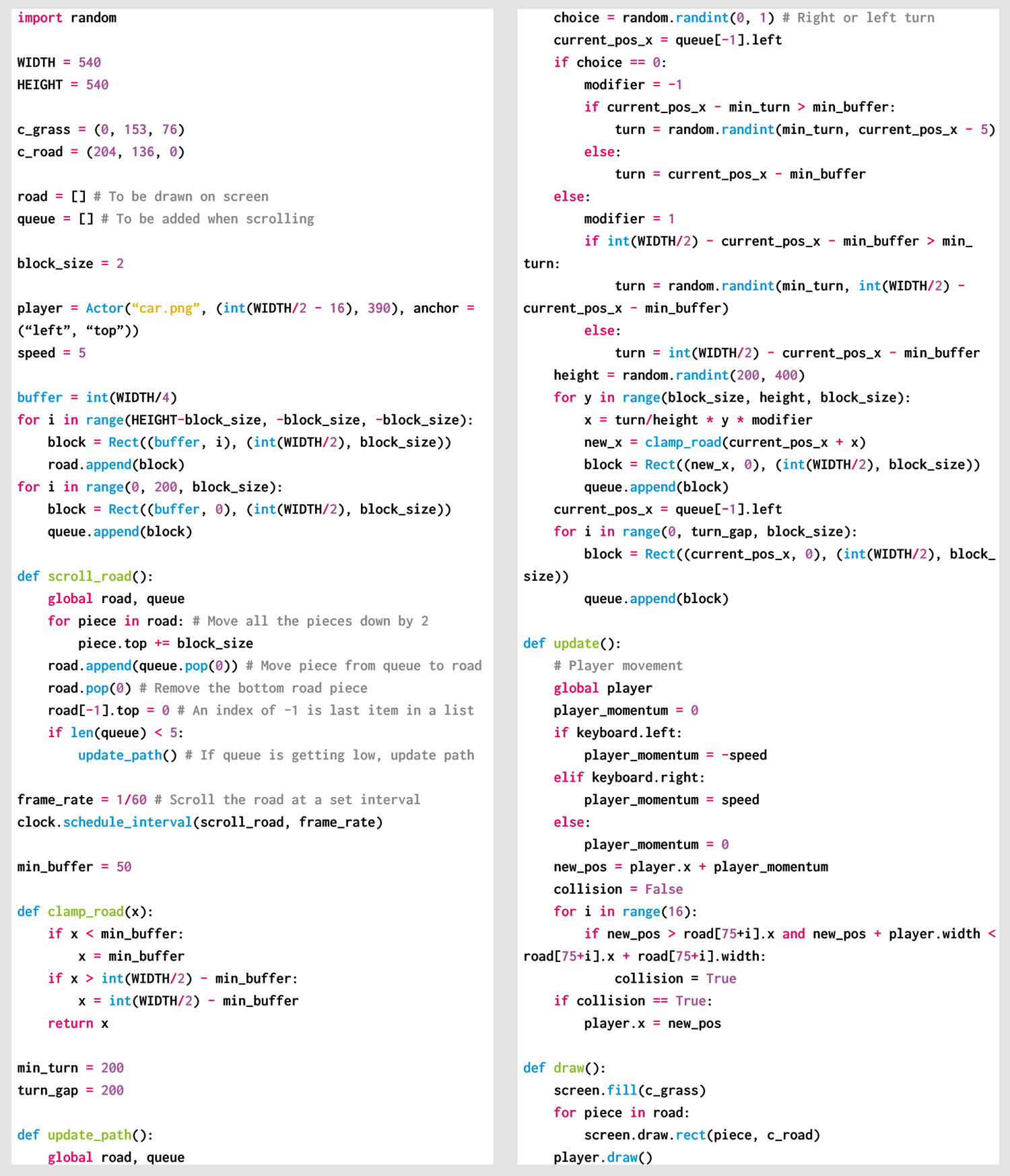
Here’s Mac’s code snippet, which creates a winding road worthy of Spy Hunter in Python. To get it working on your system, you’ll need to install Pygame Zero. And to download the full code, go here.
To make things more exciting, the game can also be speeded up by decreasing the frame_rate variable. You could even gradually increase this over time, making the game feel more frantic the further you get.
Another improvement would be to make the turns more curvy, but make sure you’re comfortable with algebra before you do this!
You can read more features like this one in Wireframe issue 31, available now at Tesco, WHSmith, all good independent UK newsagents, and the Raspberry Pi Store, Cambridge.
Or you can buy Wireframe directly from Raspberry Pi Press — delivery is available worldwide. And if you’d like a handy digital version of the magazine, you can also download issue 31 for free in PDF format.
Make sure to follow Wireframe on Twitter and Facebook for updates and exclusive offers and giveaways. Subscribe on the Wireframe website to save up to 49% compared to newsstand pricing!
The post Make a Spy Hunter-style scrolling road | Wireframe #31 appeared first on Raspberry Pi.
Learn how to code a simple Boulder Dash homage in Python and Pygame. Mark Vanstone shows you how.
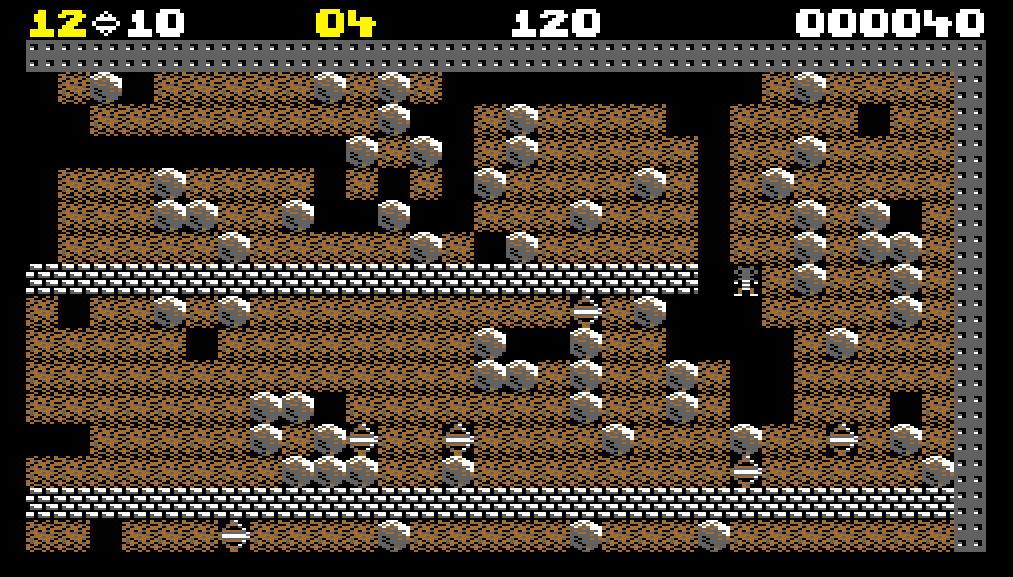
The original Boulder Dash was marked out by some devious level design, which threatened to squash the player at every turn.
Boulder Dash first appeared in 1984 for the Commodore 64, Apple II, and the Atari 400/800. It featured an energetic gem collector called Rockford who, thanks to some rather low-resolution graphics, looked a bit like an alien. His mission was to tunnel his way through a series of caves to find gems while avoiding falling rocks dislodged by his digging. Deadly creatures also inhabited the caves which, if destroyed by dropping rocks on them, turned into gems for Rockford to collect.
The ingenious level designs were what made Boulder Dash so addictive. Gems had to be collected within a time limit to unlock the exit, but some were positioned in places that would need planning to get to, often using the physics of falling boulders to block or clear areas. Of course, the puzzles got increasingly tough as the levels progressed.
Written by Peter Liepa and Chris Gray, Boulder Dash was published by First Star Software, which still puts out new versions of the game to this day. Due to its original success, Boulder Dash was ported to all kinds of platforms, and the years since have seen no fewer than 20 new iterations of Boulder Dash, and a fair few clones, too.
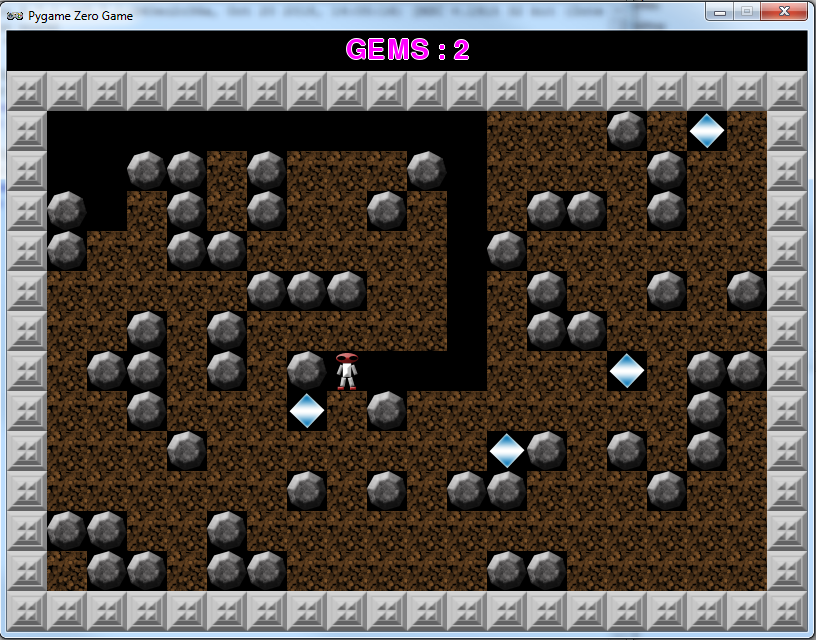
Our homage to Boulder Dash running in Pygame Zero. Dig through the caves to find gems – while avoiding death from above.
We’re going to have a look at the boulder physics aspect of the game, and make a simple level where Rockford can dig out some gems and hopefully not get flattened under an avalanche of rocks. Writing our code in Pygame Zero, we’ll automatically create an 800 by 600-size window to work with. We can make our game screen by defining a two-dimensional list, which, in this case, we will fill with soil squares and randomly position the rocks and gems.
Each location in the list matrix will have a name: either wall for the outside boundary, soil for the diggable stuff, rock for a round, moveable boulder, gem for a collectable item, and finally, rockford to symbolise our hero. We can also define an Actor for Rockford, as this will make things like switching images and tracking other properties easier.
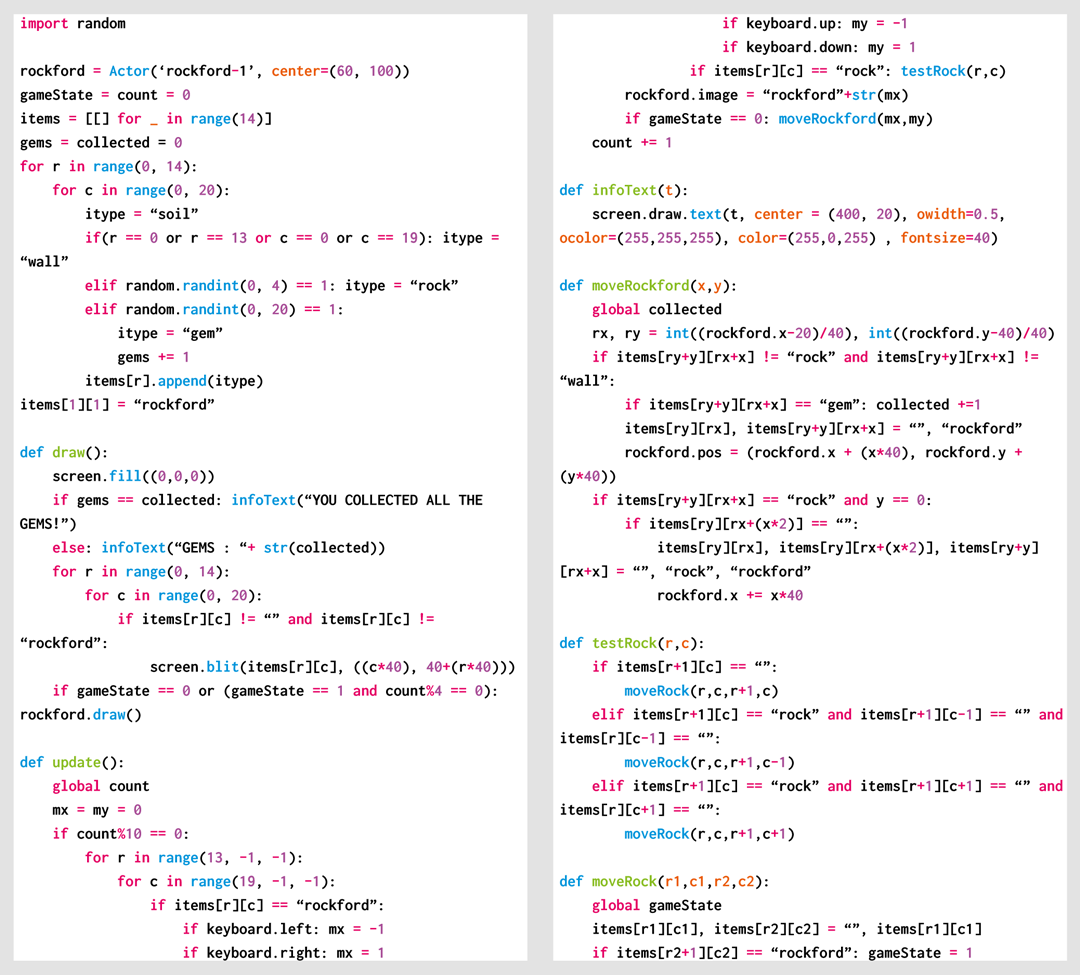
Here’s Mark’s code, which gets an homage to Boulder Dash running in Python. To get it working on your system, you’ll first need to install Pygame Zero. And to download the full code, go here.
Our draw() function is just a nested loop to iterate through the list matrix and blit to the screen whatever is indicated in each square. The Rockford Actor is then drawn over the top. We can also keep a count of how many gems have been collected and provide a congratulatory message if all of them are found. In the update() function, there are only two things we really need to worry about: the first being to check for keypresses from the player and move Rockford accordingly, and the second to check rocks to see if they need to move.
Rockford is quite easy to test for movement, as he can only move onto an empty square – a soil square or a gem square. It’s also possible for him to push a boulder if there’s an empty space on the other side. For the boulders, we need to first test if there’s an empty space below it, and if so, the boulder must move downwards. We also test to see if a boulder is on top of another boulder – if it is, the top boulder can roll off and down onto a space either to the left or the right of the one beneath.
There’s not much to add to this snippet of code to turn it into a playable game of Boulder Dash. See if you can add a timer, some monsters, and, of course, some puzzles for players to solve on each level.
An important thing to notice about the process of scanning through the list matrix to test for boulder movement is that we need to read the list from the bottom upwards; otherwise, because the boulders move downwards, we may end up testing a boulder multiple times if we test from the beginning to the end of the list. Similarly, if we read the list matrix from the top down, we may end up moving a boulder down and then when reading the next row, coming across the same one again, and moving it a second time.
You can read more features like this one in Wireframe issue 30, available now at Tesco, WHSmith, all good independent UK newsagents, and the Raspberry Pi Store, Cambridge.
Or you can buy Wireframe directly from Raspberry Pi Press — delivery is available worldwide. And if you’d like a handy digital version of the magazine, you can also download issue 30 for free in PDF format.
Make sure to follow Wireframe on Twitter and Facebook for updates and exclusive offers and giveaways. Subscribe on the Wireframe website to save up to 49% compared to newsstand pricing!
The post Code a Boulder Dash mining game | Wireframe #30 appeared first on Raspberry Pi.
Do you need to run a script whenever your Raspberry Pi turns on? Here’s Estefannie to explain how to edit crontab to do exactly that.
How to start a script at start-up on a Raspberry Pi // LEARN SOMETHING
Do you want your Raspberry Pi to automatically run your code when it is connected to power? Then you are in the right place. In this new #LEARNSOMETHING video I show you how to make you Raspberry Pi run your script automatically when it is connected to a power source.
While there are many ways of asking your Raspberry Pi to run a script on start-up, crontab -e is definitely one of the easiest.
AND, as Estefannie explains (in part thanks to me bugging asking her to do so), if you create a run folder on your desktop, you can switch out the Python scripts you want to run at start-up whenever you like and will never have to edit crontab again!
Weeeeee!
Now go write some wonderful and inspiring festive scripts while I take a well-earned nap. I just got off a plane yet here I am, writing blog posts for y’all because I love you THAT DARN MUCH!
This is Teddy. Teddy is also in the video.
And don’t forget to like and subscribe for more Estefannie Explains it All goodness!
The post How to run a script at start-up on a Raspberry Pi using crontab appeared first on Raspberry Pi.

 Lateo.net - Flux RSS en pagaille (pour en ajouter : @ moi)