 Connexion


We all know that learning to program, and specifically learning how to debug or fix code, can be frustrating and leave beginners overwhelmed and disheartened. In a recent blog article, our PhD student Lauria at the Raspberry Pi Computing Education Research Centre highlighted the pivotal role that teachers play in shaping students’ attitudes towards debugging. But what about teachers who are coding novices themselves?

In many countries, primary school teachers are holistic educators and often find themselves teaching computing despite having little or no experience in the field. In a recent seminar of our series on computing education for primary-aged children, Luisa Greifenstein told attendees that struggling with debugging and negative attitudes towards programming were among the top ten challenges mentioned by teachers.
Luisa is a researcher at the University of Passau, Germany, and has been working closely with both teacher trainees and experienced primary school teachers in Germany. She’s found that giving feedback to students can be difficult for primary school teachers, and especially for teacher trainees, as programming is still new to them. Luisa’s seminar introduced a tool to help.
To address this issue, the University of Passau has initiated the primary::programming project. One of its flagship tools, LitterBox, offers a unique solution to debugging and is specifically designed for Scratch, a beginners’ programming language widely used in primary schools.
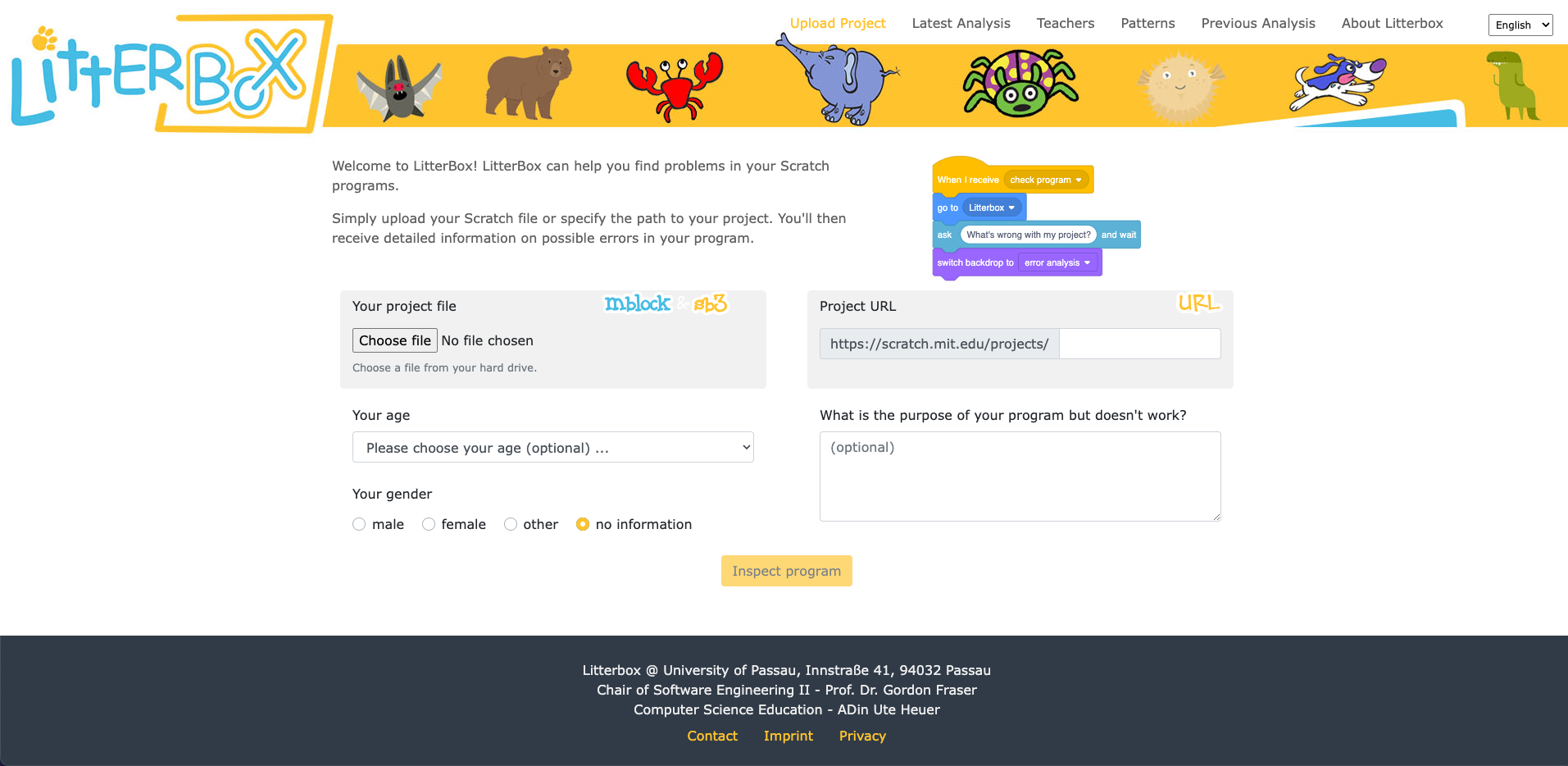
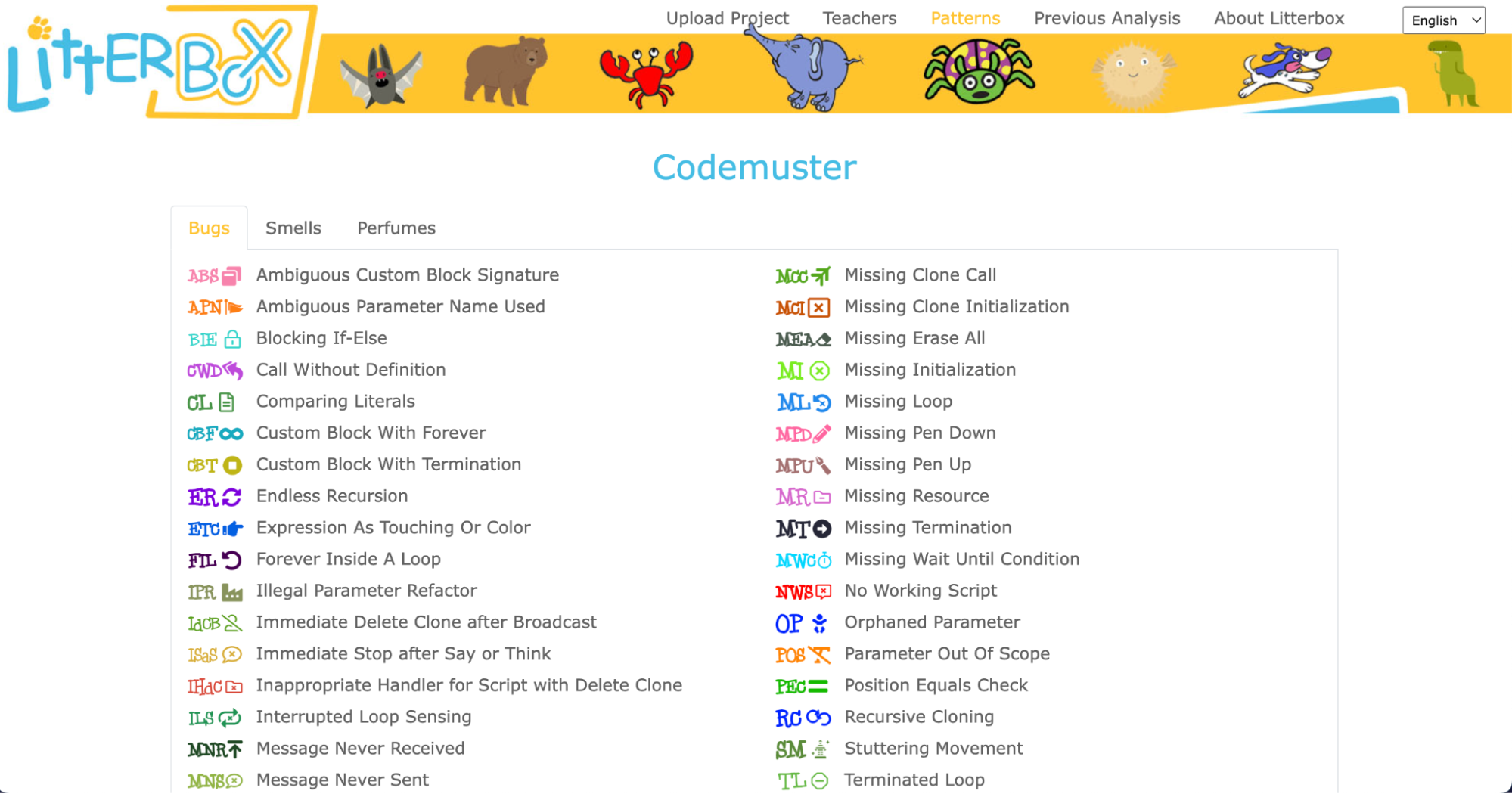
LitterBox serves as a static code debugging tool that transforms code examination into an engaging experience. With a nod to the Scratch cat, the tool visualises the debugging of Scratch code as checking the ‘litterbox’, categorising issues into ‘bugs’ and ‘smells’:
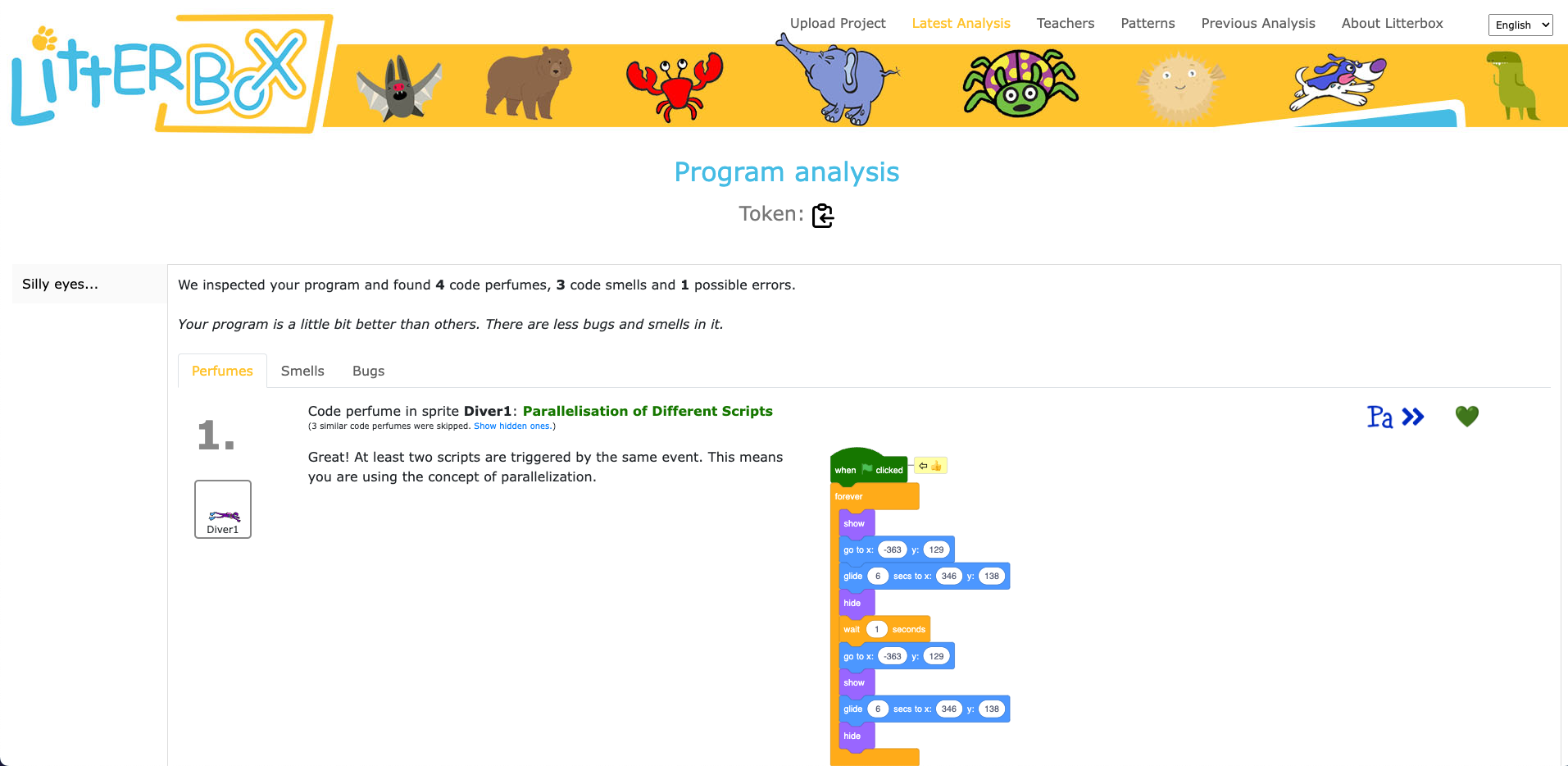
What sets LitterBox apart is that it also rewards correct code by displaying ‘perfumes’. For instance, it will praise correct broadcasting or the use of custom blocks. For every identified problem or achievement, the tool provides short and direct feedback.
Luisa and her team conducted a study to gauge the effectiveness of LitterBox. In the study, teachers were given fictitious student code with bugs and were asked to first debug the code themselves and then explain in a manner appropriate to a student how to do the debugging.
The results were promising: teachers using LitterBox outperformed a control group with no access to the tool. However, the team also found that not all hints proved equally helpful. When hints lacked direct relevance to the code at hand, teachers found them confusing, which highlighted the importance of refining the tool’s feedback mechanisms.
Despite its limitations, LitterBox proved helpful in another important aspect of the teachers’ work: coding task creation. Novice students require structured tasks and help sheets when learning to code, and teachers often invest substantial time in developing these resources. While LitterBox does not guide educators in generating new tasks or adapting them to their students’ needs, in a second study conducted by Luisa’s team, teachers who had access to LitterBox not only received support in debugging their own code but also provided more scaffolding in task instructions they created for their students compared to teachers without LitterBox.
One important realisation that we had in the Q&A phase of Luisa’s seminar was that many different research teams are working on solutions for similar challenges, and that the impact of this research can be maximised by integrating new findings and resources. For instance, what the LitterBox tool cannot offer could be filled by:
As we navigate the evolving landscape of programming education, it’s clear that innovative tools like LitterBox can make a significant difference in the journey of both educators and students. By equipping educators with effective debugging and task creation solutions, we can create a more positive and engaging learning experience for students.
If you’re an educator, consider exploring how such tools can enhance your teaching and empower your students in their coding endeavours.
You can watch the recording of Luisa’s seminar here:
If you’re interested in the latest developments in computing education, join us at one of our free, monthly seminars. In these sessions, researchers from all over the world share their innovative ideas and are eager to discuss them with educators and students. In our December seminar, Anaclara Gerosa (University of Edinburgh) will share her findings about how to design and structure early-years computing activities.
This will be the final seminar in our series about primary computing education. Look out for news about the theme of our 2024 seminar series, which are coming soon.
The post Support for new computing teachers: A tool to find Scratch programming errors appeared first on Raspberry Pi Foundation.
With changes to school and work around the world, many parents and carers still aren’t sure what to expect over the next few weeks. While some children have returned to school, we know that many young people and families are still learning and working at home. We’re providing lots of free extra resources for young people, and we’re offering free support tutorials for parents who want to help their children understand more about the tools they’ll be using on their coding journey.
In our last blog post for parents, we talked to you about Python, which is a widely used text-based programming language, and about Trinket, a free online platform that lets you write and run your code in any web browser.
This week we talk about the importance of resilience and problem solving as we cover debugging — finding and fixing errors in your code.
When your child embarks on a coding project, expect to hear the phrase “It’s not working!” often. It’s really important to recognise that their code might not work on the first (or fourth) go, and that that’s completely OK. Debugging is a key process for young people who are learning how to code, and it helps them to develop resilience and problem solving skills.
Learning Manager Mac shows you tips and tricks for fixing Python code errors to help you build more confidence while you support your children at home.
Fixing errors in Python code
In this video, Learning Manager Mac will show you some tips and tricks for fixing Python code errors (also known as ‘debugging’) to help you build more confi…
If your child is following one of our online coding projects, the instructions are usually very detailed and precise. Encourage your child to read through the instructions thoroughly and see if they can spot a difference between their code and what’s in the instructions. You should find that many errors can be fixed by doing this!
Coding is iterative: programs are written in stages, with debugging during every stage. Errors in code are normal and very common, so mistakes in your child’s programs are to be expected. As a young person begins to develop coding skills, they start learning to problem-solve and persevere despite the errors, which will help them both on and off the computer. And the more they code, the quicker they’ll become at spotting and fixing errors.
Most of the coding problems your child will come across will be due to tiny mistakes, e.g. one letter or a piece of punctuation that needs changing. So during debugging, it’s helpful for both you and your child to frame the problem in this way: “It’s just one small thing, you are so close.” This helps them build resilience and perseverance, because finding one small error is much more achievable than thinking that the whole program is broken and they need to start over.
When your child encounters a problem with their code, encourage them to talk you through their whole problem, without interrupting them or making suggestions. Programmers call this technique ‘rubber duck debugging’: when they encounter a problem with their code, they explain everything their code does to an inanimate object — such as a rubber duck! — to find the detail that’s causing the problem. For your child, you can play the part of the rubber duck and provide a supportive, listening ear!
To keep young people entertained and learning, we’re running a Digital Making at Home series, which is free and accessible to everyone. New code-along videos are released every Monday, with different themes and projects for all levels of experience. We also stream live code-along sessions on Wednesdays at 14:00 BST at rpf.io/home!
Ben Garside is a Learning Manager at the Raspberry Pi Foundation and also a dad to three children aged between 6 and 8. Ben is currently homeschooling and working (and still smiling lots!). In this video, Ben shares his personal experience of trying to find the best way of making this work for his family, with a bit of trial and error and lots of flexibility.
Parent diary: Adapting to life online
Ben Garside is a Learning Manager at the Raspberry Pi Foundation and also a dad to three children aged between 6 and 8. Ben is currently homeschooling and wo…
You’ve got a Raspberry Pi computer at home and aren’t sure how to use it? Then why not sign up to our new free online course to find out all about how to set up your Raspberry Pi, and how to use it for everyday tasks or for learning to code!
We’ve been asking parents what they’d like to see as part of our initiative to support young people and parents. We’ve had some great suggestions so far! If you’d like to share your thoughts, email us at parents@raspberrypi.org.
Sign up now to start receiving free activities suitable to your child’s age and experience level straight to your inbox. And let us know what you as a parent or guardian need help with, and what you’d like more or less of from us.
PS All of our resources are completely free. This is made possible thanks to the generous donations of individuals and organisations. Learn how you can help too!
The post Learn at home #3: building resilience and problem solving skills appeared first on Raspberry Pi.
Isn't it strange that browsing the web you usually access the websites by domain names, however, while developing a Django website, you usually access it through IP address? Wouldn't it be handy to navigate through your local website by domain name too? Let's have a look what possibilities there are to access the local development server by a domain name.
You probably know the following line by heart since the first day of developing with Django and can type it with closed eyes?
(myenv)$ python manage.py runserverWhen you run a management command runserver, it starts a lightweight Django development server which by default listens to HTTP requests on your local machine's port 8000, whereas by default, HTTP websites are running on the 80 and HTTPS websites are running on 443. Enter http://127.0.0.1:8000 in a browser and you can click through your Django project.
Note that this is a local address and it is not accessible from other devices in the network. Other people accessing the same address from their computers will see what is provided by web servers on their own machines, if any web server is running there at all.
Each device in a local network has its own Internet Protocol (IP) address. There are two versions of IP addresses: IPv4, typically formed from 4 decimal numbers separated by dots (e.g. 197.160.2.1), and IPv6, formed from hexadecimal numbers separated by colons (e.g. [fe80::200:f8ff:fe21:67cf]). The IP address can be set automatically and generated dynamically when you connect to the network, or you can set it manually and make it static. For example, the printer in the network will usually have a static address, whereas a mobile phone or tablet will have a dynamically attached IP addresses.
If you want to access a responsive website on your computer from another device in the network, I recommend you to set the IP address manually in the network settings. It is much more convenient to have an address that doesn't change every time you connect to the same network - you can bookmark it or use in different configuration files. Just don't let it clash with the IP addresses of other devices in the network.
Then run the local development server passing IP address 0.0.0.0 and port 8000:
(myenv)$ python manage.py runserver 0.0.0.0:8000The 0.0.0.0 is a special case. It allows you to access the website through any IP address that is assigned to your computer: 0.0.0.0 or 127.0.0.1, or the one that is set in your network settings. To access the website through any of those addresses, you will have to list those IP addresses in your Django setting ALLOWED_HOSTS.
Moreover, this allows you to check the website you are building through your computer's IP address, e.g. http://197.160.2.7:8000, not only from your computer, but from any smartphone, tablet, or another computer in the same local network. Also through the same IP address you can access the website from a virtual machine. For example, by installing Windows in Parallels Desktop on a Mac, you can test how Django websites behave in Opera, Microsoft Edge, or Internet Explorer.
Sometimes you want to address the website you are developing using a unique host name. This is necessary either when you have subdomains which lead to different parts of the website (e.g. http://aidas.example.com should show my profile), or when you need to test social authentication (e.g. using Python Social Auth).
One of the ways to deal with that is configuring a hosts file, which allows to map host names to IP addresses manually. Unfortunately, the hosts file doesn't support wildcard entries, such as <anything>.example.com, so for any new subdomain, you will need to modify the file as a Super User on Unix-based operating systems or as System Administrator on Windows.
A better way is to use a wildcard domain name that points to the IP of local host: 127.0.0.1. You can either set it up yourself at a domain provider, or use one of the available services.
For example, localtest.me by Scott Forsyth allows you to have unlimited wildcard entries pointing to local host. So all of the following domains would show a website at local host:
http://localtest.me:8000
http://myproject.localtest.me:8000
http://aidas.myproject.localtest.me:8000
Whichever domains you need to make work, don't forget to add them to ALLOWED_HOSTS in the Django project settings.
This enables to use authentication at Facebook or payments by PayPal (except the Instant Payment Notification which we'll cover a little later).
Also you can test subdomain resolution. For example, Django context processor might parse the subdomain and add some context variables, or a middleware might parse the subdomain and rewrite the path or redirect to a specific view.
Unfortunately, you can't test the website from an iPhone or iPad, using such address. And setting up your own domain's Address Record (A record) to the static IP of a computer in a local network is too inconvenient.
There is another service - xip.io provided by Basecamp which allows you to use a wild card domain entries pointing to specific IP address.
Supposing that your computer's IP address is 197.160.2.7, all of the following domains would show a website on your computer's local web server:
http://197.160.2.7.xip.io:8000
http://myproject.197.160.2.7.xip.io:8000
http://aidas.myproject.197.160.2.7.xip.io:8000
Add them to ALLOWED_HOSTS in the project settings and you can check the website from any capable device in the local network.
Unless you are using the standard port 80, you will always have to add the port number. Also your website will be shown unsecured under HTTP, not HTTPS, and in some cases you will need to test the Django website under secure conditions, for example, when creating a Facebook canvas app or working with payments.
Sometimes you want to demonstrate your fresh website to other participants at a hackathon. Or you want to share your website temporarily with the interested colleagues or friends. Or you need to test services that use Webhooks - HTTP callbacks, that post data to your server on specific events, like Instant Payment Notification at PayPal or notifications about sent SMS messages at twilio.
One way to do that is to have a remote staging website and to deploy to it very often to test the development results. For that you need a specific domain and server, and probably some automation for deployment. Also you will need to log all activities and edit log files in Terminal - no ability to make use of handy visual PyCharm debugging with breakpoints.
This is quite inconvenient. Luckily, alternatives to this method exist.
Tunnels are systems making your local host open to the public Internet. Tunnels have a frontend - that's the server by which the website will be accessed, and backend - that's your own development machine. By creating a tunnel, you open access through a firewall from a frontend server to local servers running on specified ports.
The best known open source tunnelling systems are ngrok.com, localtunnel.me, and pagekite.net. Let's have a look at each of them.
Although it is not under active development now - the last commit was more than a year ago - ngrok is the most popular one. At the time of writing, it has 10573 GitHub stars. The tool was coded in the go programming language.
The ngrok is a freemium service giving you one persistent session and one randomly generated subdomain for free, but if you want to customize the setup or even install it on your own servers, you have to pay an annual fee.
To start a tunnel for a local Django project, you would type the following in the Terminal:
$ ngrok http 8000Then anybody on the Internet could access your http://127.0.0.1:8000 entering something like https://92832de0.ngrok.io in their browser's address bar.
The default ngrok configuration would also start a special website running at http://localhost:4040 that would show the details of the traffic to and from your Django website.
If you are a paying customer and want to have a custom subdomain for your website, you can start the tunnel typing this in the Terminal:
$ ngrok http -subdomain=myproject 8000This would create a domain like https://myproject.ngrok.io that would show the content of the Django project on your local host.
Using Canonical Name Records (CNAME records) in DNS configuration, it is also possible to create tunnels within ngrok under custom domain names like https://dev.example.com, and even wildcard entries like https://<anything>.dev.example.com.
To restrict access only to specific users, you can also use the Basic authentication with the following command:
$ ngrok http -auth="username:password" 8000This service was created overnight at a hackathon and then published and maintained as it proved to be a useful tool. Localtunnel.me doesn't require any user account, and it creates a temporary access to your localhost under a randomly generated subdomain like https://nkfmosjsgh.localtunnel.me or a custom subdomain like https://myproject.localtunnel.me if it is available. When you close the tunnel, the address is not saved for you for future usage.
Localtunnel is free and open source. If you want or need, you can install the frontend part on your own server, so called "on premise".
To start a tunnel you would normally type the following in the Terminal:
$ lt --port 8000If you need a custom domain, you can also type this instead:
$ lt --port 8000 --subdomain myprojectLocaltunnel is meant to be relatively simple for quick temporary access. Therefore, CNAME configuration and wildcard subdomains are not possible.
Still this project is under active development. It was programmed in Node JS and by the time of writing it received 4832 GitHub Stars.
Pagekite is open source, python based, pay-what-you-want solution. Comparing to the previous projects, it has only 368 GitHub Stars, but is also worth giving a try.
You can start a tunnel with Pagekite, by entering a command with your private user's domain name in the Terminal:
$ pagekite.py 8000 myuser.pagekite.meThis will open a secure access to your local Django project from https://myuser.pagekite.me.
For each project you can then have a separate project's address, like https://myproject-myuser.pagekite.me which can be created starting the tunnel like this:
$ pagekite.py 8000 myproject-myuser.pagekite.meWith Pagekite you can have custom domains like https://dev.example.com for your tunnel using CNAME setting in the domain configuration. It's possible to expose non-web services, for example SSH or Minecraft server, too.
The Basic authentication is available using a command like this:
$ pagekite.py 8000 myproject-myuser.pagekite.me +password/username=passwordIf you want to use tunnelling with your Django project, you will have to do a couple of modifications here and there:
Change the URL configuration to show static and media files even in non DEBUG mode:
# urls.py
# ...
import re
from django.views.static import serve

if settings.STATIC_URL.startswith("/"):
    urlpatterns += [
        url(
            r'^{STATIC_URL}(?P<path>.*)$'.format(STATIC_URL=re.escape(settings.STATIC_URL.lstrip('/'))),
            serve,
            # {'document_root': settings.STATIC_ROOT},
        ),
    ]
if settings.MEDIA_URL.startswith("/"):
    urlpatterns += [
        url(
            r'^{MEDIA_URL}(?P<path>.*)$'.format(MEDIA_URL=re.escape(settings.MEDIA_URL.lstrip('/'))),
            serve,
            {'document_root': settings.MEDIA_ROOT},
        ),
    ]
If you want the static files to get recognized from various apps automatically, omit the {'document_root': settings.STATIC_ROOT}. Otherwise you will have to run collectstatic management command every time you change a CSS, JavaScript, or styling image file.
Have separate settings for the exposed access.
# settings.local_exposed
from .local import *
DEBUG = False
ALLOWED_HOSTS = [...]  # enter the domains of your tunnel's frontend
SECURE_PROXY_SSL_HEADER = ('HTTP_X_FORWARDED_PROTO', 'https')
To use those settings run the following in your virtual environment:
(myenv)$ python manage.py runserver --settings=settings.local_exposed --insecureHere the --insecure directive forces automatic static file recognition from different places in your project even in non DEBUG mode. Leave it out, if you are serving the static files collected by collectstatic command.
This list of security recommendations is by no means complete. Use tunnelling at your own risk.
Do you see any other security issues about using tunnelling with Django development server? Then please share your thoughts in the comments.
When you are developing a responsive website with Django and need to check how it works on a mobile device, you can run the development server with 0.0.0.0:8000 and access it on your Wifi network through the IP address of your computer, or you can use xip.io to analogically check it by a domain name.
When you need to check subdomain resolution, you can use the hosts file, configure your private subdomain pointing directly to your local IP, or use localtest.me, xip.io, or one of the tunnelling services.
When you want to debug Webhooks in order to get notified about executed payments, received messages, or completed serverless processes, you can use ngrok.com, localtunnel.me, pagekite.net or some other tunnelling service. Or of course you can set a staging website with logging, but that makes a lot of hassle debugging.
Perhaps you know some other interesting solutions how to deal with domains and local development server. If you do, don't hesitate to share your tips in the comments.
Cover photo by Michael D Beckwith
My favorite editor for Python projects is PyCharm. Besides editing code, it allows you to inspect the database, work with Git repositories, run management commands, execute bash commands and Python scripts, and debug code just in the same window. In this article, I will show you how to set breakpoints and debug Django management commands visually in PyCharm.
Django management commands are scripts that can be executed on your Django project to do something with the project database, media files, or code. Django itself comes with a bunch of commands like: migrate, runserver, collectstatic, makemessages, and clearsessions. Management commands can be executed like this:
(myproject_env)$ python manage.py clearsessionsIf you want to create a custom management command in your project, you can find how to do that in the official Django documentation. Also you can find some practical examples in the Chapter 9, Data Import and Export of the Web Development with Django Cookbook - Second Edition.
In this example, I won't create any new management command, but will debug the clearsessions command that is coming from Django and is located at django/contrib/sessions/management/commands/clearsessions.py.
First of all, let's click on "Edit Configurations..." in the top toolbar just before the Run button (with the Play icon). In the opened dialog box "Run/Debug Configurations" click on the "Add New Configuration" button (with the Plus icon) and choose "Python".
Let's fill in the configuration with these values:
| Name: | Clear Outdated Sessions |
| Script: | /Users/me/DjangoProjects/myproject_env/project/myproject/manage.py |
| Script paramethers: | clearsessions --traceback --verbosity=2 |
| Python interpreter: | Python 2.7.6 virtualenv at ~/DjangoProjects/myproject_env |
| Working directory: | /Users/me/DjangoProjects/myproject_env/project/myproject/ |
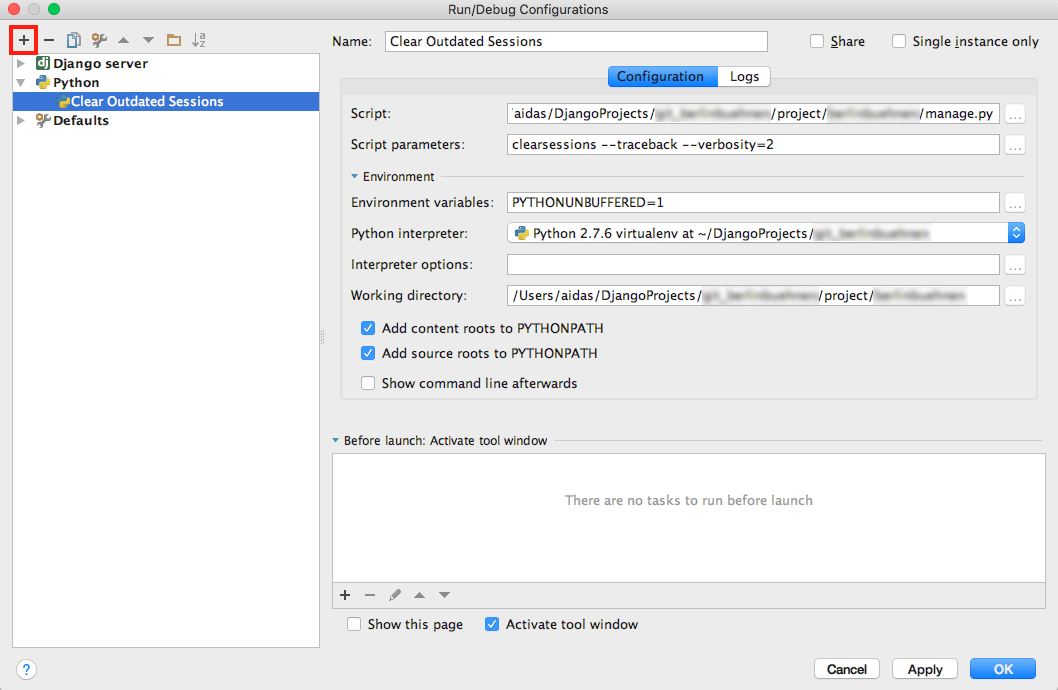
Then open the file with the definition of the management command django/contrib/sessions/management/commands/clearsessions.py. Click on the left padding of the editor to add a breakpoint (marked with a red circle) where the script should stop executing for inspection.
Normally to run this script, you could click on the Run button (with the Play icon). But as we want to debug the script, we will click on the Debug button (with the Bug icon) in the toolbar.
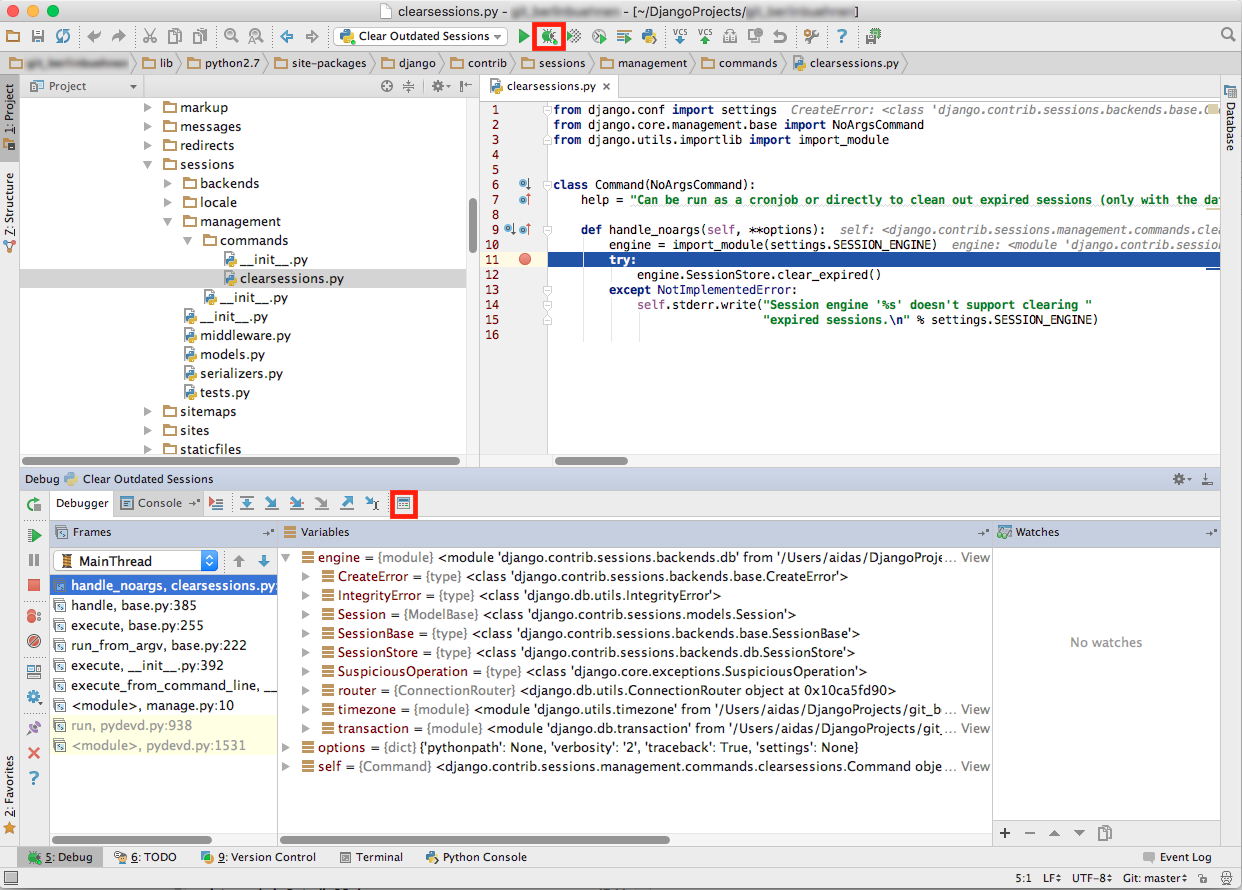
The script will start executing and will stop temporarily at the breakpoint you made. You will be able to inspect all local variables in the debug panel that is opened at the bottom of your window by default.
You can navigate through code execution with the arrow buttons "Step Over", "Step Into", etc. To evaluate local or global variables or values, click on the "Evaluate Expression" button (with the Calculator icon) and enter some Python code.
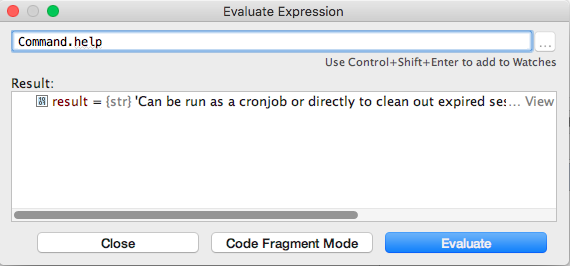
Click on the "Resume Program" button (with the Fast Play icon) to continue execution of the script, when you are ready.
Analogously, you can debug your models, views, forms, or middlewares by running a development server ("Django server") in debug mode.
Cover photo by Jill Heyer


 Lateo.net - Flux RSS en pagaille (pour en ajouter : @ moi)