 Connexion


YouTube is rolling out GIF comments for videos and Shorts. Learn how they work, who has access, and what the update means for viewers and businesses.
The post YouTube Rolls Out GIF Comments: What Viewers Can Use So Far appeared first on TechRepublic.
Musk pledges affordable Starlink in India ahead of Jio Platforms’ IPO, but prices remain unknown. Here’s what business buyers should know about costs.
The post Musk Pledges Affordable Starlink in India Ahead of Jio Platforms IPO appeared first on TechRepublic.
Google is restoring Blogger sites wrongly flagged for malware after hundreds of publishers reported locked or unavailable blogs and false-positive alerts.
The post Google Begins Restoring Blogger Sites After False Malware Alerts appeared first on TechRepublic.
Threads has passed 500 million monthly active users as Meta expands Communities and rolls out Your Algo feed controls in the US, UK, Canada, Australia, and New Zealand.
The post Meta’s Threads Hits 500 Million Users, Adds New Personalization Tools appeared first on TechRepublic.
Formura Smart Form Builder uses AI to build forms, add logic, and track data, and it's $497 off (89%).
The post The $59 AI Tool Turning Forms Into Smart Workflows appeared first on TechRepublic.
The best ERP vendors are SAP S/4HANA for large enterprises, Oracle Fusion Cloud ERP for large data volumes, Microsoft Dynamics 365 for Windows users, Epicor Kinetic for SMBs, and Deltek Costpoint for government contractors.
The post Top ERP Software Vendors in 2026 appeared first on TechRepublic.

I like django-crispy-forms. You can use it for stylish uniform HTML forms with Bootstrap, TailwindCSS, or even your custom template pack. But when it comes to custom widgets and dynamic form handling, it was always a challenge. Recently I discovered htmx. It's a JavaScript framework that handles Ajax communication based on custom HTML attributes. In this article, I will explore how you can use django-crispy-forms with htmx to provide a form with server-side validation in a modal dialog.
For this experiment, I will be using these PyPI packages:
Also, I will use the CDN versions of Bootstrap5 and htmx.
I decided to add some crispy style to the login form by extending Django's authentication form and attaching a crispy helper to it.
from django.contrib.auth.forms import AuthenticationForm
from crispy_forms.helper import FormHelper
from crispy_forms.layout import Layout
from crispy_bootstrap5 import bootstrap5


class LoginForm(AuthenticationForm):
    def __init__(self, *args, **kwargs):
        super().__init__(*args, **kwargs)

        self.helper = FormHelper()
        self.helper.form_tag = False
        self.helper.include_media = False
        self.helper.layout = Layout(
            bootstrap5.FloatingField("username", autocomplete="username"),
            bootstrap5.FloatingField("password", autocomplete="current-password"),
        )
Here I set form_tag to False to skip the <form> tag from the rendered form elements because I want to customize it in the templates. And I set include_media to False because I want to manually handle the media inclusion, as you will see later, instead of automatically including them in the form.
I will have two views:
from django.shortcuts import render, redirect
from django.contrib.auth import login as auth_login, logout as auth_logout
from django_htmx.http import HttpResponseClientRefresh
from .forms import LoginForm


def home(request):
    if request.user.is_authenticated:
        return render(request, "dashboard.html")
    return render(request, "home.html", context)


def login(request):
    if request.method == "POST":
        form = LoginForm(request=request, data=request.POST, prefix="login")
        template_name = "login_form.html"
        if form.is_valid():
            user = form.get_user()
            auth_login(request, user)
            return HttpResponseClientRefresh()
    else:
        form = LoginForm(request=request, prefix="login")
        template_name = "login_dialog.html"
    context = {"form": form}
    return render(request, template_name, context)
The home view just returns different templates based on whether the user is logged in or not.
The login view handles a login form and renders different templates based on whether the view was accessed by GET or POST method. If the login succeeds, a special HttpResponseClientRefresh response is returned, which tells htmx to refresh the page from where the login form was loaded and submitted. It's an empty response with the HX-Refresh: true header.
Then I plug those two views into my urls.py rules.
At the end of the base.html template, I include htmx from CDN and my custom dialog.js:
<script src="https://unpkg.com/htmx.org@1.8.2" integrity="sha384-+8ISc/waZcRdXCLxVgbsLzay31nCdyZXQxnsUy++HJzJliTzxKWr0m1cIEMyUzQu" crossorigin="anonymous"></script>
<script src="{% static 'js/dialog.js' %}"></script>
In the home.html template, I add a button which will open the dialog:
<button
    data-hx-get="{% url 'login' %}"
    data-hx-target="main"
    data-hx-swap="beforeend"
    type="button"
    class="btn btn-primary"
>Log in</button>
Note that htmx allows either hx-* syntax or data-hx-* for its HTML attributes and I prefer the latter because data-* attributes make a valid HTML document.
In the snippet above, I tell htmx to load the login page on the button click and insert it before the end of the <main> HTML tag.
Let's have a look at my dialog.js file:
function init_widgets_for_htmx_element(target) {
    // init other widgets

    // init modal dialogs
    if (target.tagName === 'DIALOG') {
        target.showModal();
        htmx.on('.close-dialog', 'click', function(event) {
            var dialog = htmx.find('dialog[open]');
            dialog.close();
            htmx.remove(dialog);
        });
    }
}

htmx.onLoad(init_widgets_for_htmx_element);
Here, when a page loads or a htmx inserts a snippet, the init_widgets_for_htmx_element function will be called with the <body> or the inserted element as the target. One can use this function to initialize widgets, such as rich text fields, autocompletes, tabs, custom frontend validators, etc. Also, I use this function to open the loaded modal dialogs and add event handlers to close them.
Now the login_dialog.html template looks like this (I just stripped the styling markup):
<dialog id="htmx-dialog">
    <h1>Login</h1>
    <button type="button" class="close-dialog btn-close" aria-label="Close"></button>
    {% include "login_form.html" %}
    <button type="submit" form="htmx-dialog-form">Log in</button>
</dialog>
And the login_form.html looks like this:
<form
    id="htmx-dialog-form"
    novalidate
    data-hx-post="{% url 'login' %}"
    data-hx-swap="outerHTML"
>
    {% load crispy_forms_tags %}
    {% crispy form %}
</form>
The htmx attributes tell htmx to submit the form data to the login view by Ajax and replace the <form> HTML tag with the response received. That is used for form validation. If the response has the HX-Refresh: true header, as mentioned before, then the home page is refreshed.
Here is what the result looks like:
If you noticed before, we excluded the media from the form. Otherwise, the home page would load the media of its own forms (for example, a search form) and the media of the dialog forms. And that would cause double executions of shared scripts, for example, the ones for autocompletes and rich text fields.
You can nicely combine media from different forms by concatenating the media instances. This way, each CSS and Javascript file is included just once.
As the login form isn't part of the home page but instead included on demand, I need to have its media in the home view or any other view where the login button is shown.
Here comes this custom context processor for help:
def login_dialog(request):
    from .forms import LoginForm

    if not request.user.is_authenticated:
        form = LoginForm(request=request)
        if hasattr(request, "combined_media"):
            request.combined_media += form.media
        else:
            request.combined_media = form.media
    return {}
It checks for any request.combined_media and attaches the form media from the login form.
Lastly, I attach this context processor to the template settings and render the value of combined media before </body>:
{{ request.combined_media }}Get the code to play with from Github. As you can see, htmx makes Ajax communications pretty straightforward, even when it's about dynamically loading and reloading parts of the content or initializing custom widgets.
Cover photo by Pixabay
This is a guest post by Serhii Kushchenko, Python/Django developer and data analyst. He is skillful in SQL, Python, Django, RESTful APIs, statistics, and machine learning.
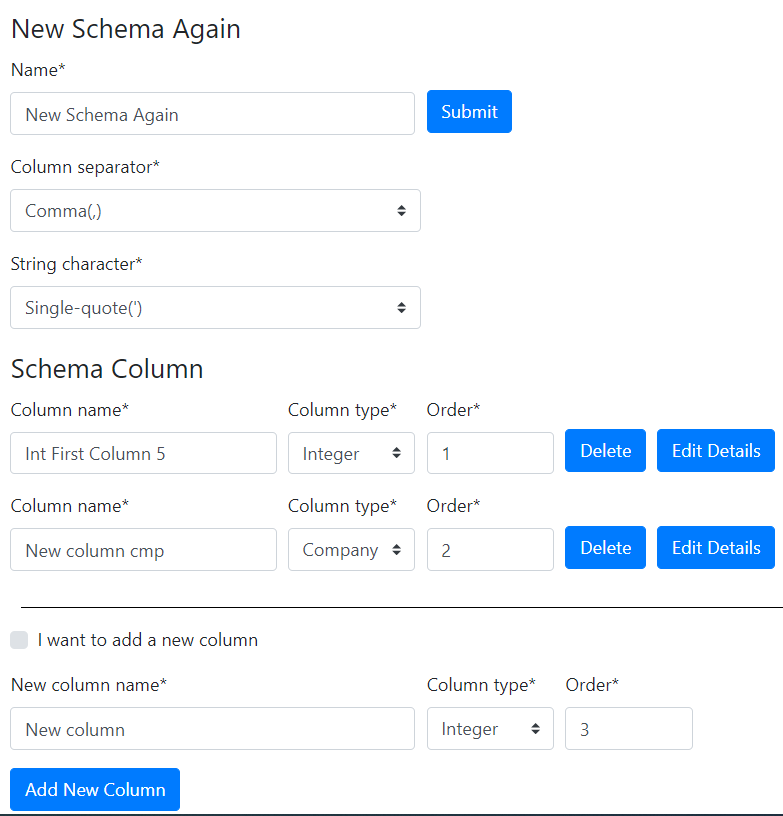
This post aims to demonstrate the creation and processing of the large and complex form in Django using django-crispy-forms. The form contains several buttons that require executing different actions during the processing phase. Also, in the form, the number of rows and columns is not static but varies depending on some conditions. In our case, the set of rows and columns changes depending on the number of instances (columns) associated with the main object (data schema) in a many-to-one relationship.
The django-crispy-forms documentation includes a page Updating layouts on the go. That page is quite helpful. However, it does not contain any detailed example of a working project. IMHO such an example is much needed. I hope my project serves as a helpful addition to the official Django Crispy Forms documentation. Feel free to copy-paste the pieces of code that you find applicable.
Please see the full codebase here. It is ready for Heroku deployment.
Suppose we have a database with information about people: name, surname, phone numbers, place of work, companies owned, etc. The task is not to process the data but to work with meta-information about that data.
Different users may need to extract varying information from the database. These users do not want to write and run SQL queries. They demand some simple and more visual solutions. The assignment is to make it possible for users to create the data schemas visually. In other words, to develop such a form and make it fully functioning.
Using their schemas, users will be able to CRUD data in the database. However, these operations are beyond the scope of the current project.
Different columns can have their specific parameters. For example, integer columns have lower and upper bounds. It is necessary to develop functionality for editing those parameters for all types of columns. For that editing, forms are used that arise after clicking the "Edit details" button on the main form.
Moreover, we have to develop a form "Create new schema" and a page with a list of all available schemas.
Described below:
The task described above can be better solved using JavaScript together with Django forms. It would reduce the number of requests to the server and increase the speed of the application. So the user experience would improve. However, the project aimed to create an advanced example of working with Django Crispy Forms.
Here you can learn the following tricks:
According to the task, the number of columns in the schemas can be different. The users add new columns and delete existing columns. Also, they can change the type and order of columns. The columns and schemas have a many-to-one relationship that is described using the Foreign Key in Django models.
The picture shows that every schema has its name, 'Column separator' field, and 'String character' field. Also, it would be nice to save the date of the last schema modification. The following code from schemas\models.py file is pretty simple.
INTEGER_CH = "IntegerColumn"
FULLNAME_CH = "FullNameColumn"
JOB_CH = "JobColumn"
PHONE_CH = "PhoneColumn"
COMPANY_CH = "CompanyColumn"
COLUMN_TYPE_CHOICES = [
    (INTEGER_CH, "Integer"),
    (FULLNAME_CH, "Full Name"),
    (JOB_CH, "Job"),
    (PHONE_CH, "Phone"),
    (COMPANY_CH, "Company"),
]

DOUBLE_QUOTE = '"'
SINGLE_QUOTE = "'"
STRING_CHARACTER_CHOICES = [
    (DOUBLE_QUOTE, 'Double-quote(")'),
    (SINGLE_QUOTE, "Single-quote(')"),
]

COMMA = ","
SEMICOLON = ";"
COLUMN_SEPARATOR_CHOICES = [(COMMA, "Comma(,)"), (SEMICOLON, "Semicolon(;)")]


class DataSchemas(models.Model):

    name = models.CharField(max_length=100)
    column_separator = models.CharField(
        max_length=1,
        choices=COLUMN_SEPARATOR_CHOICES,
        default=COMMA,
    )
    string_character = models.CharField(
        max_length=1,
        choices=STRING_CHARACTER_CHOICES,
        default=DOUBLE_QUOTE,
    )
    modif_date = models.DateField(auto_now=True)

    def get_absolute_url(self):
        return reverse("schema_add_update", args=[str(self.id)])
Each column has a name, type, and order. All of these fields are in the base SchemaColumn(models.Model) class. This class cannot be abstract because in such a case, the code schema.schemacolumn_set.all() would not work.
Columns of type integer, first and last name, job, company, and phone number are implemented as classes derived from the base class SchemaColumn.
class SchemaColumn(models.Model):
    name = models.CharField(max_length=100)
    schema = models.ForeignKey(DataSchemas, on_delete=models.CASCADE)
    order = models.PositiveIntegerField()

    class Meta:
        unique_together = [["schema", "name"], ["schema", "order"]]

    def save(self, *args, **kwargs):
        self.validate_unique()
        super(SchemaColumn, self).save(*args, **kwargs)


class IntegerColumn(SchemaColumn):
    range_low = models.IntegerField(blank=True, null=True, default=-20)
    range_high = models.IntegerField(blank=True, null=True, default=40)


class FullNameColumn(SchemaColumn):
    first_name = models.CharField(max_length=10, blank=True, null=True)
    last_name = models.CharField(max_length=15, blank=True, null=True)


class JobColumn(SchemaColumn):
    job_name = models.CharField(max_length=100, blank=True, null=True)


class CompanyColumn(SchemaColumn):
    company_name = models.CharField(max_length=100, blank=True, null=True)


class PhoneColumn(SchemaColumn):
    phone_regex = RegexValidator(
        regex=r"^\+?1?\d{9,15}$",
        message="Phone number must be entered in the format: '+999999999'. Up to 15 digits allowed.",
    )
    phone_number = models.CharField(
        validators=[phone_regex], max_length=17, blank=True, null=True
) # validators should be a listThe schema editing form is quite complex. We do not use the Django built-in ModelForm class here because it is not flexible enough. Our class DataSchemaForm is a derivative of the forms.Form class. Of course, django-crispy-forms was very helpful and even essential.
from crispy_forms.layout import (
    Layout,
    Submit,
    Row,
    Column,
    Fieldset,
    Field,
    Hidden,
    ButtonHolder,
    HTML,
)
The type of column in the form depends on the class of the column. How to determine that class? The problems can arise if we use the built-in isinstance() function for derived classes such as our various column types. The following code demonstrates how the subclass check was implemented in the forms.py file when generating the form.
INTEGER_CH = "IntegerColumn"
FULLNAME_CH = "FullNameColumn"
JOB_CH = "JobColumn"
PHONE_CH = "PhoneColumn"
COMPANY_CH = "CompanyColumn"
COLUMN_TYPE_CHOICES = [
    (INTEGER_CH, "Integer"),
    (FULLNAME_CH, "Full Name"),
    (JOB_CH, "Job"),
    (PHONE_CH, "Phone"),
    (COMPANY_CH, "Company"),
]

subclasses = [
    str(subclass).split(".")[-1][:-2].lower()
    for subclass in SchemaColumn.__subclasses__()
]

# yes, somewhat redundant
column_type_switcher = {
    "integercolumn": INTEGER_CH,
    "fullnamecolumn": FULLNAME_CH,
    "jobcolumn": JOB_CH,
    "companycolumn": COMPANY_CH,
    "phonecolumn": PHONE_CH,
}

column_type_field_name = "col_type_%s" % (column.pk,)
self.fields[column_type_field_name] = forms.ChoiceField(
    label="Column type", choices=COLUMN_TYPE_CHOICES
)
for subclass in subclasses:
    if hasattr(column, subclass):
        self.fields[column_type_field_name].initial = [
            column_type_switcher.get(subclass)
        ]
        break
The function that generates the schema editing form may get the primary key of the existing schema. If such a key is not available, then the function creates a new schema and its first column. After that, the user can change the parameters of the schema, as well as add new columns.
if schema_pk:
    schema = DataSchemas.objects.get(pk=schema_pk)
else:
    # no existing schema primary key passed from the caller,
    # so create new schema and its first column
    # with default parameters
    schema = DataSchemas.objects.create(name="New Schema")
    int1 = IntegerColumn.objects.create(
        name="First Column",
        schema=schema,
        order=1,
        range_low=-20,
        range_high=40,
    )

self.fields["name"].initial = schema.name
self.fields["column_separator"].initial = schema.column_separator
self.fields["string_character"].initial = schema.string_character
In addition to the schema editing form, the application also contains a list of all created schemas.

There is nothing special about that page, so I will not describe it in detail here. Pleas see the full code and templates at https://github.com/s-kust/django-advanced-forms.
The picture shows that the schema editing form contains several types of buttons:
We need to determine which button the user pressed and perform the required action.
During the form creation, the required action is encoded in the names of all the buttons. Also, the column primary key or schema primary key is encoded there. For example, delete_btn = 'delete_col_%s' % (column.pk,) or submit_form_btn = 'submit_form_%s' % (schema.pk,).
The name of the button can be found in the request.POST data only if the user has pressed that button. The following code from the views.py file searches for the button name in the request.POST data and calls the required function. A well-known method is used to implement the Python analog of switch-case statement.
btn_functions = {
    "add_new_col": process_btn_add_column,
    "delete_col": process_btn_delete_column,
    "edit_col": process_btn_edit_column_details,
    "submit_form": process_btn_submit_form,
    "save_column_chng": process_btn_save_chng_column,
}
btn_pressed = None

# source of key.startswith idea - https://stackoverflow.com/questions/13101853/select-post-get-parameters-with-regular-expression
for key in request.POST:
    if key.startswith("delete_col_"):
        btn_pressed = "delete_col"
    if key.startswith("edit_col_"):
        btn_pressed = "edit_col"
    if key.startswith("add_column_btn_"):
        btn_pressed = "add_new_col"
    if key.startswith("submit_form_"):
        btn_pressed = "submit_form"
    if key.startswith("save_column_chng_btn_"):
        btn_pressed = "save_column_chng"

    if btn_pressed is not None:
        func_to_call = self.btn_functions.get(btn_pressed)
        self.pk, form = func_to_call(self, key, form_data=request.POST)
breakDifferent types of columns have their specific parameters. For example, integer columns have lower and upper bounds. Phone columns have the phone number field that requires validation before saving. The number of different types of columns can increase over time.
How to handle the Edit Details button click? The straightforward solution is to make individual ModelForm classes for each type of column. However, it would violate the DRY principle. Perhaps, in this case, the use of metaprogramming is justified.
def get_general_column_form(self, model_class, column_pk):
    class ColumnFormGeneral(ModelForm):
        def __init__(self, *args, **kwargs):
           super(ColumnFormGeneral, self).__init__(*args, **kwargs)
           self.helper = FormHelper(self)
           save_chng_btn = "save_column_chng_btn_%s" % (column_pk,)
           self.helper.layout.append(Submit(save_chng_btn, "Save changes"))

        class Meta:
           model = model_class
           exclude = ["schema", "order"]

   return ColumnFormGeneral
First, the type of column is determined using its primary key. After that, the get_general_column_form function is called. It returns the customized ModelForm class. Next, an instance of that class is created and used.
column = get_object_or_404(SchemaColumn, pk=column_pk)
for subclass in self.subclasses:
    if hasattr(column, subclass):
        column_model = apps.get_model("schemas", subclass)
        column = get_object_or_404(column_model, pk=column_pk)
        form_class = self.get_general_column_form(column_model, column_pk)
        form = form_class(
            initial=model_to_dict(
                column, fields=[field.name for field in column._meta.fields]
            )
        )
breakThe user may change the type of one or several columns. If it happens, it means that the class of these columns has changed. Here, it is not enough to change the value of some attribute of the object. We have to delete the old object and create a new object belonging to the new class instead. How do we handle it:
form.is_valid() method explicitly.request.POST type. If these types differ, the old column is deleted, and a new one is created instead.# elem is a 'Submit Form' button that the user pressed.
# schema primary key is encoded in its name
# first, let's decode it
self.pk = [int(s) for s in elem.split("_") if s.isdigit()][0]
# form_data is request.POST
form = DataSchemaForm(form_data, schema_pk=self.pk)
if form.is_valid():
schema = get_object_or_404(DataSchemas, pk=self.pk)
schema.name = form.cleaned_data["name"]
schema.column_separator = form.cleaned_data["column_separator"]
schema.string_character = form.cleaned_data["string_character"]
schema.save()
# the following code is in the save_schema_columns(self, schema, form) function
schema_columns = schema.schemacolumn_set.all()
for column in schema_columns:
column_name_field_name = "col_name_%s" % (column.pk,)
column_order_field_name = "col_order_%s" % (column.pk,)
column_type_field_name = "col_type_%s" % (column.pk,)
type_form = form.cleaned_data[column_type_field_name]
type_changed = False
for subclass in self.subclasses:
if hasattr(column, subclass):
type_db = self.column_type_switcher.get(subclass)
if type_db != type_form:
new_class = globals()[type_form]
new_column = new_class()
new_column.name = form.cleaned_data[column_name_field_name]
new_column.order = form.cleaned_data[column_order_field_name]
new_column.schema = schema
column.delete()
new_column.save()
type_changed = True
break
if not type_changed:
column.name = form.cleaned_data[column_name_field_name]
column.order = form.cleaned_data[column_order_field_name]
column.save()I hope this post serves as a helpful addition to the official Django Crispy Forms documentation. Feel free to copy-paste the pieces of code that you find applicable. Also, write comments and share your experience of using Django Crispy Forms.
Cover photo by Juan Pablo Malo.
HTML5 comes with a bunch of new types for the input fields that are rendered as rich native widgets. Browsers even restrict invalid values and validate the input immediately. Let's explore how we could make use of them in Django forms.
We will be using an Exhibition model with models.DateField, models.TimeField, and models.DateTimeField:
# exhibitions/models.py
from django.db import models
from django.utils.translation import gettext_lazy as _

class Exhibition(models.Model):
    title = models.CharField(_("Title"), max_length=200)
    start = models.DateField(_("Start"))
    end = models.DateField(_("End"), blank=True, null=True)
    opening = models.TimeField(_("Opening every day"))
    closing = models.TimeField(_("Closing every day"))
    vernissage = models.DateTimeField(_("Vernissage"), blank=True, null=True)
    finissage = models.DateTimeField(_("Finissage"), blank=True, null=True)

    class Meta:
        verbose_name = _("Exhibition")
        verbose_name_plural = _("Exhibitions")

    def __str__(self):
        return self.title
Here is a quick model form for the Exhibition model:
# exhibitions/forms.py
from django import forms
from .models import Exhibition

class ExhibitionForm(forms.ModelForm):
    class Meta:
        model = Exhibition
        fields = "__all__"
If we now open a Django shell and create an instance of the model form with some initial values, then print the form as HTML to the console, we will notice, that all date and time fields are rendered as <input type="text" /> and the values for the dates are in a local format, not the ISO standard YYYY-MM-DD:
(venv)$ python manage.py shell
>>> from exhibitions.forms import ExhibitionForm
>>> from datetime import datetime, date, time
>>> form = ExhibitionForm(initial={
...     "start": date(2020, 1, 1),
...     "end": date(2020, 3, 31),
...     "opening": time(11, 0),
...     "closing": time(20, 0),
...     "vernissage": datetime(2019, 12, 27, 19, 0),
...     "finissage": datetime(2020, 4, 1, 19, 0),
>>> })
>>> print(form.as_p())
<p><label for="id_title">Title:</label> <input type="text" name="title" maxlength="200" required id="id_title"></p>
<p><label for="id_start">Start:</label> <input type="text" name="start" value="01.01.2020" required id="id_start"></p>
<p><label for="id_end">End:</label> <input type="text" name="end" value="31.03.2020" id="id_end"></p>
<p><label for="id_opening">Opening every day:</label> <input type="text" name="opening" value="11:00:00" required id="id_opening"></p>
<p><label for="id_closing">Closing every day:</label> <input type="text" name="closing" value="20:00:00" required id="id_closing"></p>
<p><label for="id_vernissage">Vernissage:</label> <input type="text" name="vernissage" value="27.12.2019 19:00:00" id="id_vernissage"></p>
<p><label for="id_finissage">Finissage:</label> <input type="text" name="finissage" value="01.04.2020 19:00:00" id="id_finissage"></p>
Let's modify the model form and customize the date and time inputs. We will extend and use forms.DateInput, forms.TimeInput, and forms.DateTimeInput widgets. We want to show date inputs as <input type="date" />, time inputs as <input type="time" />, and date-time inputs as <input type="datetime-local" />. In addition, the format for the dates should be based on ISO standard.
# exhibitions/forms.py
from django import forms
from .models import Exhibition


class DateInput(forms.DateInput):
    input_type = "date"

    def __init__(self, **kwargs):
        kwargs["format"] = "%Y-%m-%d"
        super().__init__(**kwargs)


class TimeInput(forms.TimeInput):
    input_type = "time"


class DateTimeInput(forms.DateTimeInput):
    input_type = "datetime-local"

    def __init__(self, **kwargs):
        kwargs["format"] = "%Y-%m-%dT%H:%M"
        super().__init__(**kwargs)


class ExhibitionForm(forms.ModelForm):
    class Meta:
        model = Exhibition
        fields = "__all__"

    def __init__(self, *args, **kwargs):
        super().__init__(*args, **kwargs)
        self.fields["start"].widget = DateInput()
        self.fields["end"].widget = DateInput()
        self.fields["opening"].widget = TimeInput()
        self.fields["closing"].widget = TimeInput()
        self.fields["vernissage"].widget = DateTimeInput()
        self.fields["vernissage"].input_formats = ["%Y-%m-%dT%H:%M", "%Y-%m-%d %H:%M"]
        self.fields["finissage"].widget = DateTimeInput()
        self.fields["finissage"].input_formats = ["%Y-%m-%dT%H:%M", "%Y-%m-%d %H:%M"]
Let's see now in the Django shell if that worked as expected:
(venv)$ python manage.py shell
>>> from exhibitions.forms import ExhibitionForm
>>> from datetime import datetime, date, time
>>> form = ExhibitionForm(initial={
...     "start": date(2020, 1, 1),
...     "end": date(2020, 3, 31),
...     "opening": time(11, 0),
...     "closing": time(20, 0),
...     "vernissage": datetime(2019, 12, 27, 19, 0),
...     "finissage": datetime(2020, 4, 1, 19, 0),
>>> })
>>> print(form.as_p())
<p><label for="id_title">Title:</label> <input type="text" name="title" maxlength="200" required id="id_title"></p>
<p><label for="id_start">Start:</label> <input type="date" name="start" value="2020-01-01" required id="id_start"></p>
<p><label for="id_end">End:</label> <input type="date" name="end" value="2020-03-31" id="id_end"></p>
<p><label for="id_opening">Opening every day:</label> <input type="time" name="opening" value="11:00:00" required id="id_opening"></p>
<p><label for="id_closing">Closing every day:</label> <input type="time" name="closing" value="20:00:00" required id="id_closing"></p>
<p><label for="id_vernissage">Vernissage:</label> <input type="datetime-local" name="vernissage" value="2019-12-27T19:00" id="id_vernissage"></p>
<p><label for="id_finissage">Finissage:</label> <input type="datetime-local" name="finissage" value="2020-04-01T19:00" id="id_finissage"></p>
The same way you can also create widgets for other HTML5 input types: color, email, month, number, range, tel, url, week, and alike.
Happy coding!
Cover photo by Eric Rothermel.
This week the post office delivered a package that made me very satisfied. It was a box with three paper versions of my "Web Development with Django Cookbook - Second Edition". The book was published at the end of January after months of hard, but fulfilling work in the late evenings and at weekends.
The first Django Cookbook was dealing with Django 1.6. Unfortunately, the support for that version is over. So it made sense to write an update for a newer Django version. The second edition was adapted for Django 1.8 which has a long-term support until April 2018 or later. This edition introduces new features added to Django 1.7 and Django 1.8, such as database migrations, QuerySet expressions, or System Check Framework. Most concepts in this new book should also be working with Django 1.9.
My top 5 favourite new recipes are these:
The book is worth reading for any Django developer, but will be best understood by those who already know the basics of web development with Django. You can learn more about the book and buy it at the Packt website or Amazon.
I thank the Packt Publishing very much for long cooperation in the development of this book. I am especially thankful to acquisition editor Nadeem N. Bagban, content development editors Arwa Manasawala and Sumeet Sawant, and technical editor Bharat Patil. Also I am grateful for insightful feedback from the reviewer Jake Kronika.
What 5 recipes do you find the most useful?
The Django forms API have two field types to work with multiple options: ChoiceField and ModelChoiceField.
Both use select input as the default widget and they work in a similar way, except that ModelChoiceField is designed
to handle QuerySets and work with foreign key relationships.
A basic implementation using a ChoiceField would be:
class ExpenseForm(forms.Form):
    CHOICES = (
        (11, 'Credit Card'),
        (12, 'Student Loans'),
        (13, 'Taxes'),
        (21, 'Books'),
        (22, 'Games'),
        (31, 'Groceries'),
        (32, 'Restaurants'),
    )
    amount = forms.DecimalField()
    date = forms.DateField()
category = forms.ChoiceField(choices=CHOICES)You can also organize the choices in groups to generate the <optgroup> tags like this:
class ExpenseForm(forms.Form):
    CHOICES = (
        ('Debt', (
            (11, 'Credit Card'),
            (12, 'Student Loans'),
            (13, 'Taxes'),
        )),
        ('Entertainment', (
            (21, 'Books'),
            (22, 'Games'),
        )),
        ('Everyday', (
            (31, 'Groceries'),
            (32, 'Restaurants'),
        )),
    )
    amount = forms.DecimalField()
    date = forms.DateField()
category = forms.ChoiceField(choices=CHOICES)When you are using a ModelChoiceField unfortunately there is no built-in solution.
Recently I found a nice solution on Django’s ticket tracker, where
someone proposed adding an opt_group argument to the ModelChoiceField.
While the discussion is still ongoing, Simon Charette proposed a really good solution.
Let’s see how we can integrate it in our project.
First consider the following models:
models.py
from django.db import models

class Category(models.Model):
    name = models.CharField(max_length=30)
    parent = models.ForeignKey('Category', on_delete=models.CASCADE, null=True)

    def __str__(self):
        return self.name

class Expense(models.Model):
    amount = models.DecimalField(max_digits=10, decimal_places=2)
    date = models.DateField()
    category = models.ForeignKey(Category, on_delete=models.CASCADE)

    def __str__(self):
        return self.amount
So now our category instead of being a regular choices field it is now a model and the Expense model have a
relationship with it using a foreign key.
If we create a ModelForm using this model, the result will be very similar to our first example.
To simulate a grouped categories you will need the code below. First create a new module named fields.py:
fields.py
from functools import partial
from itertools import groupby
from operator import attrgetter

from django.forms.models import ModelChoiceIterator, ModelChoiceField


class GroupedModelChoiceIterator(ModelChoiceIterator):
    def __init__(self, field, groupby):
        self.groupby = groupby
        super().__init__(field)

    def __iter__(self):
        if self.field.empty_label is not None:
            yield ("", self.field.empty_label)
        queryset = self.queryset
        # Can't use iterator() when queryset uses prefetch_related()
        if not queryset._prefetch_related_lookups:
            queryset = queryset.iterator()
        for group, objs in groupby(queryset, self.groupby):
            yield (group, [self.choice(obj) for obj in objs])


class GroupedModelChoiceField(ModelChoiceField):
    def __init__(self, *args, choices_groupby, **kwargs):
        if isinstance(choices_groupby, str):
            choices_groupby = attrgetter(choices_groupby)
        elif not callable(choices_groupby):
            raise TypeError('choices_groupby must either be a str or a callable accepting a single argument')
        self.iterator = partial(GroupedModelChoiceIterator, groupby=choices_groupby)
        super().__init__(*args, **kwargs)
And here is how you use it in your forms:
forms.py
from django import forms
from .fields import GroupedModelChoiceField
from .models import Category, Expense

class ExpenseForm(forms.ModelForm):
    category = GroupedModelChoiceField(
        queryset=Category.objects.exclude(parent=None),
        choices_groupby='parent'
    )

    class Meta:
        model = Expense
        fields = ('amount', 'date', 'category')
Because in the example above I used a self-referencing relationship I had to add the exclude(parent=None) to hide
the “group categories” from showing up in the select input as a valid option.
You can download the code used in this tutorial from GitHub: github.com/sibtc/django-grouped-choice-field-example
Credits to the solution Simon Charette on Django Ticket Track.
[Django 2.1.3 / Python 3.6.5 / Bootstrap 4.1.3]
In this tutorial we are going to explore some of the Django Crispy Forms features to handle advanced/custom forms rendering. This blog post started as a discussion in our community forum, so I decided to compile the insights and solutions in a blog post to benefit a wider audience.
Table of Contents
Throughout this tutorial we are going to implement the following Bootstrap 4 form using Django APIs:
This was taken from Bootstrap 4 official documentation as an example of how to use form rows.
NOTE!
The examples below refer to a base.html template. Consider the code below:
base.html
<!doctype html>
<html lang="en">
<head>
  <meta charset="utf-8">
  <meta name="viewport" content="width=device-width, initial-scale=1, shrink-to-fit=no">
  <link rel="stylesheet" href="https://stackpath.bootstrapcdn.com/bootstrap/4.1.3/css/bootstrap.min.css" integrity="sha384-MCw98/SFnGE8fJT3GXwEOngsV7Zt27NXFoaoApmYm81iuXoPkFOJwJ8ERdknLPMO" crossorigin="anonymous">
</head>
<body>
  <div class="container">
    {% block content %}
    {% endblock %}
  </div>
</body>
</html>Install it using pip:
pip install django-crispy-formsAdd it to your INSTALLED_APPS and select which styles to use:
settings.py
INSTALLED_APPS = [
    ...

    'crispy_forms',
]

CRISPY_TEMPLATE_PACK = 'bootstrap4'
For detailed instructions about how to install django-crispy-forms, please refer to this tutorial:
How to Use Bootstrap 4 Forms With Django
The Python code required to represent the form above is the following:
from django import forms

STATES = (
    ('', 'Choose...'),
    ('MG', 'Minas Gerais'),
    ('SP', 'Sao Paulo'),
    ('RJ', 'Rio de Janeiro')
)

class AddressForm(forms.Form):
    email = forms.CharField(widget=forms.TextInput(attrs={'placeholder': 'Email'}))
    password = forms.CharField(widget=forms.PasswordInput())
    address_1 = forms.CharField(
        label='Address',
        widget=forms.TextInput(attrs={'placeholder': '1234 Main St'})
    )
    address_2 = forms.CharField(
        widget=forms.TextInput(attrs={'placeholder': 'Apartment, studio, or floor'})
    )
    city = forms.CharField()
    state = forms.ChoiceField(choices=STATES)
    zip_code = forms.CharField(label='Zip')
    check_me_out = forms.BooleanField(required=False)
In this case I’m using a regular Form, but it could also be a ModelForm based on a Django model with similar
fields. The state field and the STATES choices could be either a foreign key or anything else. Here I’m just using
a simple static example with three Brazilian states.
Template:
{% extends 'base.html' %}

{% block content %}
  <form method="post">
    {% csrf_token %}
    <table>{{ form.as_table }}</table>
    <button type="submit">Sign in</button>
  </form>
{% endblock %}
Rendered HTML:
Rendered HTML with validation state:
Same form code as in the example before.
Template:
{% extends 'base.html' %}

{% load crispy_forms_tags %}

{% block content %}
  <form method="post">
    {% csrf_token %}
    {{ form|crispy }}
    <button type="submit" class="btn btn-primary">Sign in</button>
  </form>
{% endblock %}
Rendered HTML:
Rendered HTML with validation state:
Same form code as in the first example.
Template:
{% extends 'base.html' %}

{% load crispy_forms_tags %}

{% block content %}
  <form method="post">
    {% csrf_token %}
    <div class="form-row">
      <div class="form-group col-md-6 mb-0">
        {{ form.email|as_crispy_field }}
      </div>
      <div class="form-group col-md-6 mb-0">
        {{ form.password|as_crispy_field }}
      </div>
    </div>
    {{ form.address_1|as_crispy_field }}
    {{ form.address_2|as_crispy_field }}
    <div class="form-row">
      <div class="form-group col-md-6 mb-0">
        {{ form.city|as_crispy_field }}
      </div>
      <div class="form-group col-md-4 mb-0">
        {{ form.state|as_crispy_field }}
      </div>
      <div class="form-group col-md-2 mb-0">
        {{ form.zip_code|as_crispy_field }}
      </div>
    </div>
    {{ form.check_me_out|as_crispy_field }}
    <button type="submit" class="btn btn-primary">Sign in</button>
  </form>
{% endblock %}
Rendered HTML:
Rendered HTML with validation state:
We could use the crispy forms layout helpers to achieve the same result as above. The implementation is done inside
the form __init__ method:
forms.py
from django import forms
from crispy_forms.helper import FormHelper
from crispy_forms.layout import Layout, Submit, Row, Column

STATES = (
    ('', 'Choose...'),
    ('MG', 'Minas Gerais'),
    ('SP', 'Sao Paulo'),
    ('RJ', 'Rio de Janeiro')
)

class AddressForm(forms.Form):
    email = forms.CharField(widget=forms.TextInput(attrs={'placeholder': 'Email'}))
    password = forms.CharField(widget=forms.PasswordInput())
    address_1 = forms.CharField(
        label='Address',
        widget=forms.TextInput(attrs={'placeholder': '1234 Main St'})
    )
    address_2 = forms.CharField(
        widget=forms.TextInput(attrs={'placeholder': 'Apartment, studio, or floor'})
    )
    city = forms.CharField()
    state = forms.ChoiceField(choices=STATES)
    zip_code = forms.CharField(label='Zip')
    check_me_out = forms.BooleanField(required=False)

    def __init__(self, *args, **kwargs):
        super().__init__(*args, **kwargs)
        self.helper = FormHelper()
        self.helper.layout = Layout(
            Row(
                Column('email', css_class='form-group col-md-6 mb-0'),
                Column('password', css_class='form-group col-md-6 mb-0'),
                css_class='form-row'
            ),
            'address_1',
            'address_2',
            Row(
                Column('city', css_class='form-group col-md-6 mb-0'),
                Column('state', css_class='form-group col-md-4 mb-0'),
                Column('zip_code', css_class='form-group col-md-2 mb-0'),
                css_class='form-row'
            ),
            'check_me_out',
            Submit('submit', 'Sign in')
        )
The template implementation is very minimal:
{% extends 'base.html' %}

{% load crispy_forms_tags %}

{% block content %}
  {% crispy form %}
{% endblock %}
The end result is the same.
Rendered HTML:
Rendered HTML with validation state:
You may also customize the field template and easily reuse throughout your application. Let’s say we want to use the custom Bootstrap 4 checkbox:
From the official documentation, the necessary HTML to output the input above:
<div class="custom-control custom-checkbox">
  <input type="checkbox" class="custom-control-input" id="customCheck1">
  <label class="custom-control-label" for="customCheck1">Check this custom checkbox</label>
</div>
Using the crispy forms API, we can create a new template for this custom field in our “templates” folder:
custom_checkbox.html
{% load crispy_forms_field %}

<div class="form-group">
  <div class="custom-control custom-checkbox">
    {% crispy_field field 'class' 'custom-control-input' %}
    <label class="custom-control-label" for="{{ field.id_for_label }}">{{ field.label }}</label>
  </div>
</div>
Now we can create a new crispy field, either in our forms.py module or in a new Python module named fields.py or something.
forms.py
from crispy_forms.layout import Field

class CustomCheckbox(Field):
    template = 'custom_checkbox.html'
We can use it now in our form definition:
forms.py
class CustomFieldForm(AddressForm):
    def __init__(self, *args, **kwargs):
        super().__init__(*args, **kwargs)
        self.helper = FormHelper()
        self.helper.layout = Layout(
            Row(
                Column('email', css_class='form-group col-md-6 mb-0'),
                Column('password', css_class='form-group col-md-6 mb-0'),
                css_class='form-row'
            ),
            'address_1',
            'address_2',
            Row(
                Column('city', css_class='form-group col-md-6 mb-0'),
                Column('state', css_class='form-group col-md-4 mb-0'),
                Column('zip_code', css_class='form-group col-md-2 mb-0'),
                css_class='form-row'
            ),
            CustomCheckbox('check_me_out'),  # <-- Here
            Submit('submit', 'Sign in')
        )
(PS: the AddressForm was defined here and is the same as in the previous example.)
The end result:
There is much more Django Crispy Forms can do. Hopefully this tutorial gave you some extra insights on how to use the form helpers and layout classes. As always, the official documentation is the best source of information:
Django Crispy Forms layouts docs
Also, the code used in this tutorial is available on GitHub at github.com/sibtc/advanced-crispy-forms-examples.
This is a quick tutorial to get you start with django-crispy-forms and never look back. Crispy-forms is a great application that gives you control over how you render Django forms, without breaking the default behavior. This tutorial is going to be tailored towards Bootstrap 4, but it can also be used with older Bootstrap versions as well as with the Foundation framework.
The main reason why I like to use it on my projects is because you can simply render a Django form using `` and it will be nicely rendered with Bootstrap 4, with very minimal setup. It’s a really life saver.
Install it using pip:
pip install django-crispy-formsAdd it to your INSTALLED_APPS and select which styles to use:
settings.py
INSTALLED_APPS = [
    ...

    'crispy_forms',
]

CRISPY_TEMPLATE_PACK = 'bootstrap4'You can either download the latest Bootstrap 4 version at getbootstrap.com. In that case, go to download page and get the Compiled CSS and JS version.
Or you can use the hosted Bootstrap CDN:
<link rel="stylesheet" href="https://stackpath.bootstrapcdn.com/bootstrap/4.1.3/css/bootstrap.min.css" integrity="sha384-MCw98/SFnGE8fJT3GXwEOngsV7Zt27NXFoaoApmYm81iuXoPkFOJwJ8ERdknLPMO" crossorigin="anonymous">
<script src="https://stackpath.bootstrapcdn.com/bootstrap/4.1.3/js/bootstrap.min.js" integrity="sha384-ChfqqxuZUCnJSK3+MXmPNIyE6ZbWh2IMqE241rYiqJxyMiZ6OW/JmZQ5stwEULTy" crossorigin="anonymous"></script>
For simplicity, I will be using the CDN version. Here is my base.html template that will be referenced in the following examples:
<!doctype html>
<html lang="en">
  <head>
    <meta charset="utf-8">
    <meta name="viewport" content="width=device-width, initial-scale=1, shrink-to-fit=no">
    <link rel="stylesheet" href="https://stackpath.bootstrapcdn.com/bootstrap/4.1.3/css/bootstrap.min.css" integrity="sha384-MCw98/SFnGE8fJT3GXwEOngsV7Zt27NXFoaoApmYm81iuXoPkFOJwJ8ERdknLPMO" crossorigin="anonymous">
    <title>Django People</title>
  </head>
  <body>
    <div class="container">
      <div class="row justify-content-center">
        <div class="col-8">
          <h1 class="mt-2">Django People</h1>
          <hr class="mt-0 mb-4">
          {% block content %}
          {% endblock %}
        </div>
      </div>
    </div>
  </body>
</html>
I only added the CSS file because we won’t be using any JavaScript feature.
Suppose we have a model named Person as follows:
models.py
from django.db import models

class Person(models.Model):
    name = models.CharField(max_length=130)
    email = models.EmailField(blank=True)
    job_title = models.CharField(max_length=30, blank=True)
    bio = models.TextField(blank=True)
Let’s say we wanted to create a view to add new Person objects. In that case we could use the built-in CreateView:
views.py
from django.views.generic import CreateView
from .models import Person

class PersonCreateView(CreateView):
    model = Person
    fields = ('name', 'email', 'job_title', 'bio')
Without any further change, Django will try to use a template named people/person_form.html. In that case “people”
is the name of my Django app:
people/person_form.html
{% extends 'base.html' %}

{% block content %}
  <form method="post">
    {% csrf_token %}
    {{ form }}
    <button type="submit" class="btn btn-success">Save person</button>
  </form>
{% endblock %}
This is a very basic form rendering, and as it is, Django will render it like this, with no style, just plain form fields:
To render the same form using Bootstrap 4 CSS classes you can do the following:
people/person_form.html
{% extends 'base.html' %}

{% load crispy_forms_tags %}

{% block content %}
  <form method="post" novalidate>
    {% csrf_token %}
    {{ form|crispy }}
    <button type="submit" class="btn btn-success">Save person</button>
  </form>
{% endblock %}
Now the result, much better:
There are some cases where you may want more freedom to render your fields. You can do so by rendering the fields
manually and using the as_crispy_field template filter:
{% extends 'base.html' %}

{% load crispy_forms_tags %}

**people/person_form.html**

{% block content %}
  <form method="post" novalidate>
    {% csrf_token %}
    <div class="row">
      <div class="col-6">
        {{ form.name|as_crispy_field }}
      </div>
      <div class="col-6">
        {{ form.email|as_crispy_field }}
      </div>
    </div>
    {{ form.job_title|as_crispy_field }}
    {{ form.bio|as_crispy_field }}
    <button type="submit" class="btn btn-success">Save person</button>
  </form>
{% endblock %}
And the result is something like the screen shot below:
The django-crispy-forms app have a special class named FormHelper to make your life easier and to give you complete
control over how you want to render your forms.
Here is an example of an update view:
forms.py
from django import forms
from crispy_forms.helper import FormHelper
from crispy_forms.layout import Submit
from people.models import Person

class PersonForm(forms.ModelForm):
    class Meta:
        model = Person
        fields = ('name', 'email', 'job_title', 'bio')

    def __init__(self, *args, **kwargs):
        super().__init__(*args, **kwargs)
        self.helper = FormHelper()
        self.helper.form_method = 'post'
        self.helper.add_input(Submit('submit', 'Save person'))
The job is done inside the __init__() method. The rest is just a regular Django model form. Here I’m defining that
this form should handle the request using the POST method and the form should have an submit button with label
“Save person”.
Now our view, just regular Django code:
views.py
from django.views.generic import UpdateView
from people.models import Person
from people.forms import PersonForm

class PersonUpdateView(UpdateView):
    model = Person
    form_class = PersonForm
    template_name = 'people/person_update_form.html'
Then in our template:
people/person_update_form.html
{% extends 'base.html' %}

{% load crispy_forms_tags %}

{% block content %}
  {% crispy form %}
{% endblock %}
Here we can simply call the {% crispy %} template tag and pass our form instance as parameter.
And that’s all you need to render the form:
That’s pretty much it for the basics. Honestly that’s about all that I use. Usually I don’t even go for the
FormHelper objects. But there are much more about it. If you are interested, you can check their official
documentation: django-crispy-forms.readthedocs.io.
If you are not sure about where you should create a certain file, or want to explore the sample project I created for this tutorial, you can grab the source code on GitHub at github.com/sibtc/bootstrap-forms-example.


 Lateo.net - Flux RSS en pagaille (pour en ajouter : @ moi)