Connexion


Safety researchers continue to warn that a large volume of AI-generated explicit content is spreading unchecked, while regulators do little to meaningfully stop it.
This non-consensual content is commonly shared in text and direct messages or stored in private clouds where it’s less likely to be detected or reported, a Google co-authored study of Internet users across the United States, Australia, and the United Kingdom found this July. That’s why the “most critical intervention point” remains at the source: the harmful AI tools used to make the fake sexual images, Google researchers concluded.
Yet red-teaming in recent months suggests that as some of the leading AI image generators from Google and OpenAI become more capable, they may be getting worse at blocking explicit outputs.

Learn AI-assisted recon, payload generation, and report writing alongside Burp Suite in this lifetime course.
The post Use AI to Hunt Bugs Smarter With This $14.99 Course appeared first on TechRepublic.
Amid escalating AI security incidents causing OpenAI to halt training and pause releases, Donald Trump continues to advocate for the AI industry to regulate itself as the best path to combat emerging risks when developing frontier AI.
In an agreement Tuesday, two dozen tech firms voluntarily committed to implementing controls recommended by the White House, including undergoing independent safety audits that will test whether firms’ internal controls, monitoring, and detecting are actually working. Key focuses for external reviews included “risks related to cybersecurity, biosecurity, chemical threats, and unintended actions by AI models.”
Firms also agreed to regularly meet to discuss best practices and set common AI safety standards and benchmarks. Among signers were leaders like Anthropic’s Dario Amodei, OpenAI’s Sam Altman, SpaceXAI’s Elon Musk, Nvidia’s Jensen Huang, Meta’s Mark Zuckerberg, and Alphabet/Google’s Sundar Pichai.
An AI security test reached real company systems after a naming error, revealing why organizations need stronger access controls for autonomous AI agents.
The post AI Security Test Targeted Real Companies After a Naming Error appeared first on TechRepublic.
UK researchers reported 19 unsanctioned actions by Anthropic and OpenAI agents during permissive cyber tests involving real external systems.
The post UK AI tests found 19 unauthorized agent actions involving Anthropic and OpenAI models appeared first on TechRepublic.
Google Chrome 151 patches 370 security flaws, including seven Critical vulnerabilities. Users on Windows, macOS, and Linux should update now.
The post Google Chrome 151 Patches 370 Vulnerabilities, Including 7 Critical appeared first on TechRepublic.
Compare the best penetration testing tools for 2026, including pricing, key features, use cases, and top picks for modern security teams today.
The post Top 8 Penetration Testing Tools to Enhance Your Security in 2026 appeared first on TechRepublic.
Benjamin Code , le développeur préféré de votre développeur préféré, a reçu ce week-end un e-mail d'achat bidon avec le mot pentester dedans. En grattant un petit peu, il a découvert que quelqu'un s'amusait à trifouiller l'un de ses SaaS sans le prévenir.
Visiblement, c'est un autre créateur, Melvyn (melvynx), qui lui propose des formations autour de l'IA, qui pour les besoins d'une vidéo a fait tourner Kimi K3 en mode "hack" pour poutrer certains sites et montrer, vidéo à l'appui, que l'IA trouvait les failles toute seule.
Depuis, X s'écharpe. D'un côté, ceux pour qui la faille est corrigée et tout le monde y gagne, zéro dégât. De l'autre, ceux qui parlent d'accès illégal, pur et simple.
Alors qu'en est-il exactement ?
Eh bien, parlons de la loi d'abord, parce qu'en France, elle est limpide. L'article 323-1 du Code pénal punit "le fait d'accéder ou de se maintenir, frauduleusement" dans un système informatique de "trois ans d'emprisonnement et de 100 000 € d'amende". Créer un faux compte, simuler un paiement avec de faux numéros de CB, toucher aux données, ça aggrave les choses et on passe rapidement à cinq ans et 150 000 € (article 323-3).
Pour moi, l'argument du "il n'a rien cassé" ne tient pas une seconde en droit. Dans l'affaire Bluetouff, la Cour de cassation a validé une condamnation pour maintien frauduleux alors que les fichiers étaient accessibles sans mot de passe, tout simplement parce que Bluetouff avait continué en sachant l'accès anormal. Je trouve que ce qui est arrivé à Bluetouff, c'était abusé, mais peu importe mon avis, cela montre bien qu'aux yeux de la loi, zéro dégât ne veut pas dire qu'il n'y a pas d'infraction.
Ce qui fait basculer un pentest légal en délit, ce n'est ni la compétence, ni la bonne intention de la personne derrière, ni même ce que j'en pense. C'est UNE seule chose : L'autorisation préalable du propriétaire du système. Et je ne crois pas que Benjamin Code pratique le bug bounty sur ses systèmes...
Si on parle d'un point de vue hacking éthique, voire tout simplement en matière de nétiquette, la règle (et le bon sens, et la courtoisie) c'est d'abord d'avoir l'accord écrit avant de faire le test, et puis bien sûr de signaler la faille en privé à l'éditeur, tout en lui laissant assez de temps pour la corriger avant de communiquer dessus publiquement.
Par exemple, un bug bounty, c'est ça... C'est un périmètre défini, un canal de signalement, une protection pour le chercheur qui reste bien dans ce cadre. En dehors, il n'y a aucune protection. Et le dispositif français qui couvre les lanceurs d'alerte (article L2321-4 du Code de la défense) ne protège que le signalement de bonne foi à l'ANSSI, jamais l'intrusion elle-même.
Melvyn a reconnu lui-même juste après son "exploit" que "certains tests sur des SaaS tiers n'ont pas été précédés d'une autorisation écrite". Tu m'étonnes...
Alors les kikoulol de X.com peuvent bien jouer les spécialistes en long en large ou en travers, ça ne change rien. Kimi K3 ou pas, dégâts ou pas, tester le système d'un autre sans son feu vert, même avec une IA autonome, ça a un nom dans le Code pénal...
Maintenant, je ne pense pas que ça ait besoin d'aller plus loin que ça... Dans un monde idéal, ce qui serait super, c'est que Melvyn fasse des excuses publiques à Benjamin Code et aux autres créateurs de SaaS qu'il a "poutrés", et puis qu'il évite de refaire ce genre de conneries dans le futur.
Source : le billet de Melvyn sur Codelynx
On Tuesday, Donald Trump finally signed his executive order expanding the government's efforts to conduct voluntary safety testing of frontier AI models. Now, critics are warning that the order may be short-sighted, offering only performative reassurances that the government is actively monitoring for AI risks, while changing very little about how and when models are deployed.
Last month, Trump abruptly canceled a signing event, where he had hoped to launch an earlier version of the EO with CEOs of leading AI firms in attendance. Invited at the last minute, several CEOs simply couldn't make the signing but still signaled support for the order. Officially, Trump claimed he postponed the event because he worried that the EO might have gone too far and had become a "blocker" impeding AI innovation. Reports indicated there was infighting in his administration as cybersecurity experts clashed with officials committed to deregulating AI.
The watered-down EO that Trump signed promises not "to stifle this innovation with overly burdensome regulation" and establishes no requirements for AI firms. Instead, it sets up a voluntary process for companies to collaborate with the government on safety reviews that Trump's EO claimed would "ensure that the best and most secure technology is deployed rapidly to confront any and all threats to our country."
A few days after President Donald Trump abruptly canceled a plan that would have given the federal government power to vet frontier AI models over fears that it might hobble innovation, Illinois lawmakers passed the nation's strongest AI safety law.
On Wednesday, the Illinois legislature passed SB 315. If Illinois Governor J.B. Pritzker signs the bill into law, the largest AI firms would be required to submit public safety plans and annual reports summarizing the results of independent, third-party safety testing of their frontier models. They would also have to report any critical safety incidents to the state within 72 hours—or within 24 hours if there's potentially "an imminent risk of death or serious physical harm." And their employees will have a clear avenue for reporting emerging safety risks that companies may be tempted to downplay, with protections provided by the state's whistleblower laws.
On X, Pritzker confirmed his intent to sign, proclaiming that "Illinois is leading the nation in holding Big Tech accountable."
President Donald Trump abruptly canceled an event on Thursday just hours before he was scheduled to sign an executive order granting the government the power to test frontier AI models before their public release.
As The New York Times explained, Trump had been hoping that top executives from leading AI firms would attend the signing. He decided to pull the plug after learning that some CEOs couldn't make the event. That made Trump unhappy, even though he'd only given them 24 hours' notice. Other AI executives who quickly rearranged their schedules to go "were midair on their way to the Oval Office" when they found out that the trip was for nothing.
Reporting from Semafor indicated that OpenAI "supported" the signing. However, xAI founder Elon Musk and Meta CEO Mark Zuckerberg reportedly helped "derail" the executive order, supposedly urging Trump to "call it off." Additionally, Trump's former AI advisor David Sacks—whose special government employee designation expired in March, The Information noted—joined the push to delay the signing, Semafor reported.
478 binaires Unix peuvent servir à devenir root sur un système mal configuré.
C'est ce que recense GTFOBins , le projet open source monté par Emilio Pinna et Andrea Cardaci, qui est devenu LE bookmark obligatoire de tout pentester Linux.
Ce ne sont pas des exploits, hein, mais juste des fonctions parfaitement légitimes de programmes installés partout, et qui dans le bon contexte (genre un bit SUID oublié, qui fait tourner un binaire avec les droits du propriétaire, souvent root) permettent de spawner un shell, lire un fichier protégé, ou grimper d'un cran dans la hiérarchie des privilèges. Petit rappel quand même, faut déjà avoir un pied sur la machine, ce n'est pas une porte d'entrée magique depuis Internet.
Une fois sur leur site, vous tapez le nom d'un binaire dans le moteur de filtre (ou vous cliquez sur une fonction), et hop, vous tombez sur les commandes exactes à recopier-coller, et c'est plié en moins de dix secondes.
Par exemple, si votre cible a un sudo find sans mot de passe, le site vous donne sur un plateau d'argent sudo find . -exec /bin/sh \; -quit.
Un mawk qui tourne en SUID root ? Direct, mawk 'BEGIN {system("/bin/sh")}' et bonjour le shell privilégié. Un vim mal configuré (compilé avec le support Python ou Lua, ce qui est le cas dans la plupart des distros desktop) ? La page documente comment l'utiliser via :py ou :lua pour exécuter du code arbitraire et retomber sur ses pattes.
C'est donc la fin des recherches désespérées sur StackOverflow à 3h du matin pendant un CTF...
La philosophie de ce projet est claire... on ne casse rien, on détourne juste l'usage prévu. Le hic, c'est que la frontière entre détournement et exploitation est mince quand un sudoers mal écrit donne accès à un binaire trop puissant.
Les 478 binaires sont rangés selon 11 fonctions et 4 contextes d'exécution. Côté fonctions, vous avez : Shell (228 binaires permettent de spawner un shell, oui presque la moitié du catalogue), File-read (199), File-write (84), Inherit (71), Upload (34), Download (32), Command (30), Reverse-shell (21), Privilege-escalation (14), Library-load (11), et Bind-shell (7). Côté contextes : Unprivileged, Sudo, SUID, et Capabilities.
Et sur la page d'un binaire, chaque case du tableau vous dit super clairement "voilà comment t'en sors selon ce que tu as sous la main".
Les champions toutes catégories ce sont les langages interprétés et les shells eux-mêmes. zsh, socat, ruby, python, php, node, lua plus bash, tous cumulent 7 fonctions différentes chacun. C'est logique, dès que vous avez un interpréteur sous la main vous pouvez faire à peu près tout (lire, écrire, exécuter, ouvrir une socket).
D'ailleurs c'est pour ça que les sysadmins paranoïaques tirent une tête bizarre quand on leur dit qu'on a installé Python sur un serveur de prod sans cas d'usage explicite. Pfff... je les comprends, un Python qui traîne sur un serveur Debian avec un sudo NOPASSWD au-dessus, c'est game over en trois lignes.
Y'a un autre détail que je trouve cool également, c'est l'intégration
MITRE ATT&CK
. Chaque fonction du site est mappée à une technique du framework officiel, accessible via /mitre.json.
Donc pour les blue teams qui veulent justifier une règle de détection en réunion, c'est tout simplement cadeau !! Et pour ceux qui automatisent leurs scans, l'API JSON complète est dispo sur /api.json, du coup vous pouvez parser les 478 entrées avec un jq ou un petit script Python pour générer des règles de monitoring custom.
Bref, GTFOBins c'est aussi un cadeau pour les défenseurs, à condition de retourner la logique du projet. Voilà, ça vaut le coup d'y passer dix minutes par mois sur un audit.
Pour les Windowsiens qui se sentent oubliés, sachez que l'équivalent existe et s'appelle LOLBAS (Living Off The Land Binaries And Scripts), bien suivi par les analystes Windows depuis 2018. Même philosophie, même format, même utilité, juste appliqué aux exécutables Microsoft signés que Windows installe par défaut.
Les deux projets se citent mutuellement et forment ensemble la cartographie communautaire des techniques de Living Off The Land cross-OS. Si vous bossez sur les deux côtés du fossé, gardez les deux onglets ouverts en permanence ^^ !
Maintenant si l'angle élévation de privilèges via shell restreint vous intéresse, j'avais déjà couvert une vieille faille sudo qui permettait carrément de sortir d'un chroot , et plus largement la bibliothèque Payloads All The Things qui complète bien GTFOBins sur tout ce qui est exploitation web et post-exploitation. Les deux projets sont complémentaires, GTFOBins se concentre sur les binaires Unix et les abus locaux de fonctionnalités légitimes (shells, transferts, lectures, élévation conditionnelle), PayloadsAllTheThings ratisse plus large côté exploitation web.
Côté admin, le réflexe utile, à vrai dire c'est de lister vos binaires SUID avec find / -perm -4000 -type f 2>/dev/null, vérifier /etc/sudoers plus les fichiers /etc/sudoers.d/* avec sudo -l, puis de passer chaque candidat dans le filtre GTFOBins.
Si une entrée matche, c'est qu'il y a une fuite potentielle à boucher. Attention quand même, l'absence dans GTFOBins ne valide pas une règle sudo ou un SUID custom (wildcards, variables d'env, paths inscriptibles peuvent toujours créer un chemin d'évasion). Bref, c'est à faire avant de filer le moindre sudo NOPASSWD à quelqu'un !
As you might know, I am developing PyBazaar, a Python Developer Marketplace. For a project of that scope, I need to create hundreds or thousands of data entries to ensure that everything works as expected. Factory Boy is a tool that allows me to create model instances in batches, and this blog post is about it.
By creating a bunch of fake entries, I can achieve the following:
Factory Boy seemed like a pretty complex package, so I want to simplify things and introduce you to all the necessary parts for creating a fake model instances.
At PyBazaar, I have users with profiles, job offers, and resources that can be faked in batch. The related categories are predefined and don't need to be faked.
To make it possible to distinguish between real and fake entries, I added a new boolean field is_fake to all those models that I can create in batch:
# For testing and debugging
is_fake = models.BooleanField(_("Fake"), default=False)
Here is what the list of profiles can look like when created with Factory Boy:
The installation is pretty straightforward:
(venv)$ pip install factory-boy==3.3.0And then in each app where you need to create fake entries, create a file factories.py with factory classes, e.g.:
import random
import factory
from pybazaar.apps.accounts.models import User

class UserFactory(factory.django.DjangoModelFactory):
    class Meta:
        model = User

    first_name = factory.Faker("first_name")
    last_name = factory.Faker("last_name")

    # ...

    is_fake = True
For factory classes, I also add custom class methods delete_fake() and recreate_batch() so that I can quickly create entries or delete them:
class ProfileFactory(factory.django.DjangoModelFactory):
    class Meta:
        model = Profile

    user = factory.SubFactory(UserFactory)

    # ...

    is_fake = True

    @classmethod
    def recreate_batch(cls, size, **kwargs):
        cls.delete_fake()
        cls.create_batch(size=size, **kwargs)

    @classmethod
    def delete_fake(cls):
        for profile in Profile.objects.filter(is_fake=True):
            profile.delete()
        for user in User.objects.filter(is_fake=True):
            user.delete()
Factory class attributes tell the system what values to assign to the models when creating instances. Let's explore multiple cases that we can use as values.
If it's a simple static value, you can just assign it. It will be the same for all fake entries:
is_fake = True
publishing_status = Profile.PublishingStatusChoices.PUBLISHEDIf it's a value from a list, use the Iterator class:
title = factory.Iterator([
    "Developer",
    "Software Engineer",
    "Programmer",
])

experience_level = factory.Iterator(
    Profile.ExperienceLevelChoices.values
)Factory Boy uses the Faker package to allow the creating of fake names, paragraphs, or locations. You can use those as follows:
first_name = factory.Faker("first_name")
last_name = factory.Faker("last_name")
summary = factory.Faker("paragraph")
city = factory.Faker("city")
state = factory.Faker("state")
country = factory.Faker("country_code")If it's a foreign key and you want a random value, use this:
resource_type = factory.LazyAttribute(
    lambda o: ResourceType.objects.order_by("?").first()
)Similarly, you can assign a value from a function:
description = factory.LazyAttribute(
    lambda o: generate_quill_content()
)Or a random value:
is_available_for_work = factory.LazyAttribute(
    lambda o: random.choice([True, False])
)Once you define attributes like first_name or last_name, you can set other values depending on those:
username = factory.LazyAttribute(
    lambda o: f"{o.first_name}_{o.last_name}".lower()
)
email = factory.LazyAttribute(
    lambda o: f"{o.first_name}_{o.last_name}@example.com".lower()
)There is a special django.Password class for generating password values:
password = factory.django.Password("Pa$$w0rd")Here is how to create and assign a dummy single-color image:
avatar = factory.django.ImageField(
    width=200, height=200, color="rgb(2,132,199)"
)As we have profiles depending on users, we can define the codependence with SubFactory class.
class ProfileFactory(factory.django.DjangoModelFactory):
    class Meta:
        model = Profile

    user = factory.SubFactory(UserFactory)
Then, when creating profiles, the users will be created automatically for them, too.
In Django, many-to-many relationships must be added after creating a model instance. We can achieve that with the PostGeneration class:
def attach_categories(obj, create, extracted, **kwargs):
    obj.specializations.add(
        *list(Specialization.objects.order_by("?")[: random.randint(3, 7)])
    )

class ProfileFactory(factory.django.DjangoModelFactory):
    # ...
    do_afterwards = factory.PostGeneration(attach_categories)
How you call this attribute doesn't matter - it should just not clash with other field names or attributes.
So the final factories.py file could look like this:
import random
import factory
import json
from pybazaar.apps.accounts.models import User
from pybazaar.apps.profiles.models import Profile
from pybazaar.apps.categories.models import Specialization

class UserFactory(factory.django.DjangoModelFactory):
    class Meta:
        model = User

    first_name = factory.Faker("first_name")
    last_name = factory.Faker("last_name")
    username = factory.LazyAttribute(
        lambda o: f"{o.first_name}_{o.last_name}".lower()
    )
    email = factory.LazyAttribute(
        lambda o: f"{o.first_name}_{o.last_name}@example.com".lower()
    )
    password = factory.django.Password("Pa$$w0rd")
    is_fake = True

def generate_quill_content():
    return json.dumps(
        {
            "delta": '',
            "html": "<p>Hey there</p>",
        }
    )

def attach_categories(obj, create, extracted, **kwargs):
    obj.specializations.add(
        *list(Specialization.objects.order_by("?")[: random.randint(3, 7)])
    )

class ProfileFactory(factory.django.DjangoModelFactory):
    class Meta:
        model = Profile

    user = factory.SubFactory(UserFactory)
    title = factory.Iterator(
        [
            "Developer",
            "Software Engineer",
            "Programmer",
        ]
    )
    avatar = factory.django.ImageField(
        width=200, height=200, color="rgb(2,132,199)"
    )
    bio = factory.LazyAttribute(lambda o: generate_quill_content())
    city = factory.Faker("city")
    state = factory.Faker("state")
    country = factory.Faker("country_code")
    is_available_for_work = factory.LazyAttribute(
        lambda o: random.choice([True, False])
    )
    experience_level = factory.Iterator(
        Profile.ExperienceLevelChoices.values
    )
    publishing_status = Profile.PublishingStatusChoices.PUBLISHED
    is_fake = True

    do_afterwards = factory.PostGeneration(attach_categories)

    @classmethod
    def recreate_batch(cls, size, **kwargs):
        cls.delete_fake()
        cls.create_batch(size=size, **kwargs)

    @classmethod
    def delete_fake(cls):
        for profile in Profile.objects.filter(is_fake=True):
            profile.delete()
        for user in User.objects.filter(is_fake=True):
            user.delete()
Lastly, I can create the fake entries from the Django shell as follows:
>>> from pybazaar.apps.profiles.factories import ProfileFactory
>>> ProfileFactory.recreate_batch(100)
And later, when I don't need those anymore:
>>> from pybazaar.apps.profiles.factories import ProfileFactory
>>> ProfileFactory.delete_fake()
Whenever I add new fields to the models, I can easily tweak the factories and recreate the whole bunch of models in one step.
Factory Boy doesn't guarantee data validation and integrity. For example, city, state, and country will be three separate random values that don't match a real location. However, that is sufficient to test your website's basic look and feel or performance.
Cover image by Google DeepMind
For quite some time, I have been building a SaaS product - strategic prioritizer 1st things 1st. It's using Django in the backend and ReactJS in the frontend and communicating between those ends by REST API. Every week I try to make progress with this project, be it a more prominent feature, some content changes, or small styling tweaks. In the past week, I implemented frontend testing with Selenium, and I want to share my journey with you.
1st things 1st allows you to evaluate a list of items by multiple criteria and calculates priorities for you to follow and take action. The service has 4 main steps:
Selenium is a testing tool that mimics user interaction in the browser: you can fill in fields, trigger events, or read out information from the HTML tags. To test the frontend of 1st things 1st with Selenium, I had to
Let's see how I did it.
In 2020, Chrome is the most popular browser, and it's my default browser, so I decided to develop tests using it.
I had to install Selenium with pip into my virtual environment:
(venv)$ pip install seleniumAlso, I needed a binary chromedriver, which makes Selenium talk to your Chrome browser. I downloaded it and placed it under myproject/drivers/chromedriver.
In the Django project configuration, I needed a couple of settings. I usually have separate settings-file for each of the environments, such as:
myproject.settings.local for the local development,myproject.settings.staging for the staging server,myproject.settings.test for testing, andmyproject.settings.production for production.All of them import defaults from a common base, and I have to set only the differences for each environment.
In the myproject.settings.test I added these settings:
WEBSITE_URL = 'http://my.1st-things-1st.127.0.0.1.xip.io:8080'  # no trailing slash

TESTS_SHOW_BROWSER = True
Here for the WEBSITE_URL, I was using the xip.io service. It allows you to create domains dynamically pointing to the localhost or any other IP. The Selenium tests will use this URL.
The TEST_SHOW_BROWSER was my custom setting, telling whether to show a browser while testing the frontend or just to run the tests in the background.
In one of my apps, myproject.apps.evaluations, I created a tests package, and there I placed a test case test_evaluations_frontend.py with the following content:
import os
from time import sleep
from datetime import timedelta

from django.conf import settings
from django.test import LiveServerTestCase
from django.test import override_settings
from django.contrib.auth import get_user_model
from django.utils import timezone

from selenium import webdriver
from selenium.webdriver.chrome.options import Options
from selenium.webdriver.support.ui import WebDriverWait


User = get_user_model()

SHOW_BROWSER = getattr(settings, "TESTS_SHOW_BROWSER", False)


@override_settings(DEBUG=True)
class EvaluationTest(LiveServerTestCase):
    host = settings.WEBSITE_URL.rsplit(":", 1)[0].replace(
        "http://", ""
    )  # domain before port
    port = int(settings.WEBSITE_URL.rsplit(":", 1)[1])  # port
    USER1_USERNAME = "user1"
    USER1_FIRST_NAME = "user1"
    USER1_LAST_NAME = "user1"
    USER1_EMAIL = "user1@example.com"
    USER1_PASSWORD = "change-me"

    @classmethod
    def setUpClass(cls):
        # …

    @classmethod
    def tearDownClass(cls):
        # …

    def wait_until_element_found(self, xpath):
        # …

    def wait_a_little(self, seconds=2):
        # …

    def test_evaluations(self):
        # …
It's a live-server test case, which runs a Django development server under the specified IP and port and then runs the Chrome browser via Selenium and navigates through the DOM and fills in forms.
By default, the LiveServerTestCase runs in non-debug mode, but I want to have the debug mode on so that I could see any causes of server errors. With the @override_settings decorator, I could change the DEBUG setting to True.
The host and port attributes define on which host and port the test server will be running (instead of a 127.0.0.1 and a random port). I extracted those values from the WEBSITE_URL setting.
The test case also had some attributes for the user who will be navigating through the web app.
Let's dig deeper into the code for each method.
Django test cases can have class-level setup and teardown, which run before and after all methods whose names start with test_:
    @classmethod
    def setUpClass(cls):
        super().setUpClass()
        cls.user1 = User.objects.create_user(
            cls.USER1_USERNAME, cls.USER1_EMAIL, cls.USER1_PASSWORD
        )
        # … add subscription for this new user …

        driver_path = os.path.join(settings.BASE_DIR, "drivers", "chromedriver")
        chrome_options = Options()
        if not SHOW_BROWSER:
            chrome_options.add_argument("--headless")
        chrome_options.add_argument("--window-size=1200,800")

        cls.browser = webdriver.Chrome(
            executable_path=driver_path, options=chrome_options
        )
        cls.browser.delete_all_cookies()

    @classmethod
    def tearDownClass(cls):
        super().tearDownClass()
        cls.browser.quit()
        # … delete subscription for the user …
        cls.user1.delete()
In the setup, I created a new user, added a subscription to them, and prepared the Chrome browser to use.
If the TEST_SHOW_BROWSER setting was False, Chrome was running headless, that is, in the background without displaying a browser window.
When the tests were over, the browser closed, and the subscription, as well as the user, were deleted.
I created two utility methods for my Selenium test: wait_until_element_found() and wait_a_little():
    def wait_until_element_found(self, xpath):
        WebDriverWait(self.browser, timeout=10).until(
            lambda x: self.browser.find_element_by_xpath(xpath)
        )

    def wait_a_little(self, seconds=2):
        if SHOW_BROWSER:
            sleep(seconds)
I used the wait_until_element_found(xpath) method to keep the test running while pages switched.
I used the wait_a_little(seconds) method to stop the execution for 2 or more seconds so that I could follow what's on the screen, make some screenshots, or even inspect the DOM in the Web Developer Inspector.
Selenium allows to select DOM elements by ID, name, CSS class, tag name, and other ways, but the most flexible approach, in my opinion, is selecting elements by XPath (XML Path Language).
Contrary to jQuery, ReactJS doesn't use IDs or CSS classes in the markup to update the contents of specific widgets. So the straightforward Selenium's methods for finding elements by IDs or classes won't always work.
XPath is a very flexible and powerful tool. For example, you can:
"//input[@id='id_title']""//div[@aria-label='Blank']""//button[.='Save']""//button[contains(@class,'btn-primary')][.='Save']""(//button[.='yes'])[1]"You can try out XPath syntax and capabilities in Web Developer Console in Chrome and Firefox, using the $x() function, for example:
»  $x("//h1[.='Projects']")
← Array [ h1.display-4.mb-4 ]I started with opening a login page, dismissing cookie consent notification, filling in user credentials into the login form, creating a new project from a blank template, setting title and description, etc.
    def test_evaluations(self):
        self.browser.get(f"{self.live_server_url}/")
        self.wait_until_element_found("//h1[.='Log in or Sign up']")
        # Accept Cookie Consent
        self.wait_until_element_found("//a[.='Got it!']")
        self.browser.find_element_by_xpath("//a[.='Got it!']").click()
        # Log in
        self.browser.find_element_by_id("id_email").send_keys(self.USER1_EMAIL)
        self.browser.find_element_by_id("id_password").send_keys(self.USER1_PASSWORD)
        self.browser.find_element_by_xpath('//button[text()="Log in"]').send_keys(
            "\n"
        )  # submit the form

        self.wait_until_element_found("//h1[.='Projects']")

        # Click on "Add new project"
        self.wait_until_element_found("//a[.='Add new project']")

        self.wait_a_little()
        self.browser.find_element_by_xpath("//a[.='Add new project']").send_keys("\n")

        self.wait_until_element_found("//div[@aria-label='Blank']")

        # Create a project from the project template "Blank"
        self.wait_a_little()
        self.browser.find_element_by_xpath("//div[@aria-label='Blank']").send_keys("\n")

        # Enter project title and description
        self.wait_until_element_found("//input[@id='id_title']")
        self.browser.find_element_by_xpath("//input[@id='id_title']").send_keys(
            "Urgent and Important Activities"
        )
        self.browser.find_element_by_xpath(
            "//textarea[@id='id_description']"
        ).send_keys("I want to find which things to do and which to skip.")
        self.browser.find_element_by_xpath("//button[.='Next']").send_keys("\n")

        # Keep the default verbose names for the criteria and initiatives
        self.wait_until_element_found("//input[@id='id_initiative_verbose_name_plural']")
        self.wait_a_little()
        self.browser.find_element_by_xpath("//button[.='Next']").send_keys("\n")
If TESTS_SHOW_BROWSER was set to True, we would see all this workflow in an opened browser window.
I was creating the test by carefully inspecting the markup in Web Developer Inspector and creating appropriate DOM navigation with XPath. For most of the navigation, I was using send_keys() method, which triggers keyboard events. During the testing, I also noticed that my cookie consent only worked with a mouse click, and I couldn't approve it by the keyboard. That's some room for improving accessibility.
I ran the test with the following command each time I added some more lines:
(venv)$ python manage.py test myproject.apps.evaluations --settings=myproject.settings.testThe test case failed if any command in the test failed. I didn't even need asserts.
Now it was time to add some criteria:
        self.wait_until_element_found("//h2[.='Criteria']")

        # Add new criterion "Urgent" with the evaluation type Yes/No/Maybe
        self.wait_until_element_found("//a[.='Add new criterion']")
        self.browser.find_element_by_xpath("//a[.='Add new criterion']").send_keys("\n")
        self.wait_until_element_found("//input[@id='id_title']")
        self.browser.find_element_by_xpath("//input[@id='id_title']").send_keys(
            "Urgent"
        )
        self.browser.find_element_by_xpath("//input[@id='widget_y']").send_keys(" ")
        self.browser.find_element_by_xpath("//button[.='Save']").send_keys("\n")

        # Add new criterion "Important" with the evaluation type Yes/No/Maybe
        self.wait_until_element_found("//a[.='Add new criterion']")
        self.browser.find_element_by_xpath("//a[.='Add new criterion']").send_keys("\n")
        self.wait_until_element_found("//input[@id='id_title']")
        self.browser.find_element_by_xpath("//input[@id='id_title']").send_keys(
            "Important"
        )
        self.browser.find_element_by_xpath("//input[@id='widget_y']").send_keys(" ")
        self.browser.find_element_by_xpath("//button[.='Save']").send_keys("\n")

        # Click on the button "Done"
        self.wait_until_element_found("//a[.='Done']")
        self.browser.find_element_by_xpath("//a[.='Done']").send_keys("\n")
I added two criteria, "Urgent" and "Important", with evaluation type "Yes/No/Maybe".
Then I created some activities to evaluate:
        self.wait_until_element_found("//h2[.='Things']")

        # Add new thing "Write a blog post"
        self.wait_until_element_found("//a[.='Add new thing']")
        self.browser.find_element_by_xpath("//a[.='Add new thing']").send_keys("\n")
        self.wait_until_element_found("//input[@id='id_title']")
        self.browser.find_element_by_xpath("//input[@id='id_title']").send_keys(
            "Write a blog post"
        )
        self.browser.find_element_by_xpath("//textarea[@id='id_description']").send_keys(
            "I have an idea of a blog post that I want to write."
        )
        self.browser.find_element_by_xpath("//button[.='Save']").send_keys("\n")

        # Add new thing "Fix a bug"
        self.wait_until_element_found("//a[.='Add new thing']")
        self.browser.find_element_by_xpath("//a[.='Add new thing']").send_keys("\n")
        self.wait_until_element_found("//input[@id='id_title']")
        self.browser.find_element_by_xpath("//input[@id='id_title']").send_keys(
            "Fix a bug"
        )
        self.browser.find_element_by_xpath("//textarea[@id='id_description']").send_keys(
            "There is a critical bug that bothers our clients."
        )
        self.browser.find_element_by_xpath("//button[.='Save']").send_keys("\n")

        # Add new thing "Binge-watch a series"
        self.wait_until_element_found("//a[.='Add new thing']")
        self.browser.find_element_by_xpath("//a[.='Add new thing']").send_keys("\n")
        self.wait_until_element_found("//input[@id='id_title']")
        self.browser.find_element_by_xpath("//input[@id='id_title']").send_keys(
            "Binge-watch a series"
        )
        self.browser.find_element_by_xpath("//textarea[@id='id_description']").send_keys(
            "There is an exciting series that I would like to watch."
        )
        self.browser.find_element_by_xpath("//button[.='Save']").send_keys("\n")

        # Click on the button "Done"
        self.wait_until_element_found("//a[.='Done']")
        self.browser.find_element_by_xpath("//a[.='Done']").send_keys("\n")
These were three activities: "Write a blog post", "Fix a bug", and "Binge-watch a series" with their descriptions:
In this step, there was a list of widgets to evaluate each thing by each criterion with answers "No", "Maybe", or "Yes". The buttons for those answers had no specific id or CSS class, but I could target them by the text on the button using XPath like "//button[.='maybe']":
        self.wait_until_element_found("//h2[.='Evaluations']")
        self.wait_until_element_found("//button[.='maybe']")

        # Evaluate all things by Urgency
        self.browser.find_element_by_xpath("(//button[.='no'])[1]").send_keys("\n")
        self.wait_until_element_found("//footer[.='Evaluation saved.']")
        self.browser.find_element_by_xpath("(//button[.='yes'])[2]").send_keys("\n")
        self.wait_until_element_found("//footer[.='Evaluation saved.']")
        self.browser.find_element_by_xpath("(//button[.='no'])[3]").send_keys("\n")
        self.wait_until_element_found("//footer[.='Evaluation saved.']")

        # Evaluate all things by Importance
        self.browser.find_element_by_xpath("(//button[.='yes'])[4]").send_keys("\n")
        self.wait_until_element_found("//footer[.='Evaluation saved.']")
        self.browser.find_element_by_xpath("(//button[.='yes'])[5]").send_keys("\n")
        self.wait_until_element_found("//footer[.='Evaluation saved.']")
        self.browser.find_element_by_xpath("(//button[.='maybe'])[6]").send_keys("\n")
        self.wait_until_element_found("//footer[.='Evaluation saved.']")

        # Click on the button "Done"
        self.browser.find_element_by_xpath("//a[.='Done']").send_keys("\n")
These were my evaluations:
So in the last step, I got the calculated priorities:
        self.wait_until_element_found("//h2[.='Priorities']")

        self.wait_until_element_found("//h5[.='1. Fix a bug (100%)']")
        self.wait_until_element_found("//h5[.='2. Write a blog post (50%)']")
        self.wait_until_element_found("//h5[.='3. Binge-watch a series (25%)']")
        self.wait_a_little()
The results looked correct:
LiveServerTestCase.I hope that my journey was useful to you too.
Happy coding!
Thanks a lot to Adam Johnson for the review.
Cover photo by Science in HD.
This is a guest post by Mailtrap.io team. The original post on Sending emails with Django was published at Mailtrap's blog.
Some time ago, we discovered how to send an email with Python using smtplib, a built-in email module. Back then, the focus was made on the delivery of different types of messages via SMTP server. Today, we prepared a similar tutorial but for Django. This popular Python web framework allows you to accelerate email delivery and make it much easier. And these code samples of sending emails with Django are going to prove that.
Let's start our tutorial with a few lines of code that show you how simple it is to send an email in Django.
Import send_mail at the beginning of the file
from django.core.mail import send_mailAnd call the code below in the necessary place.
send_mail(
    "That's your subject",
    "That's your message body",
    "from@yourdjangoapp.com",
    ["to@yourbestuser.com"],
    fail_silently=False,
)
These lines are enclosed in the django.core.mail module that is based on smtplib. The message delivery is carried out via SMTP host, and all the settings are set by default:
EMAIL_HOST: "localhost"EMAIL_PORT: 25EMAIL_HOST_USER: (Empty string)EMAIL_HOST_PASSWORD: (Empty string)EMAIL_USE_TLS: FalseEMAIL_USE_SSL: FalseYou can learn other default values here. Most likely you will need to adjust them. Therefore, let's tweak the settings.py file.
Before actually sending your email, you need to set up for it. So, let's add some lines to the settings.py file of your Django app.
EMAIL_BACKEND = "django.core.mail.backends.smtp.EmailBackend"
EMAIL_HOST = "smtp.yourserver.com"
EMAIL_PORT = "<your-server-port>"
EMAIL_HOST_USER = "your@djangoapp.com"
EMAIL_HOST_PASSWORD = "your-email account-password"
EMAIL_USE_TLS = True
EMAIL_USE_SSL = False
EMAIL_HOST is different for each email provider you use. For example, if you use Gmail SMTP server, you'll have EMAIL_HOST = "smtp.gmail.com". Also, validate other values that are relevant to your email server. Eventually, you need to choose the way to encrypt the mail and protect your user account by setting the variable EMAIL_USE_TLS or EMAIL_USE_SSL. If you have an email provider that explicitly tells you which option to use, then it is clear. Otherwise, you may try different combinations using True and False operators. Mind that only one of these options can be set to True.
EMAIL_BACKEND tells Django which custom or predefined email backend will work with EMAIL_HOST. You can set up this parameter as well.
In the example above, EMAIL_BACKEND is specified as django.core.mail.backends.smtp.EmailBackend. It is the default configuration that uses SMTP server for email delivery. Defined email settings will be passed as matching arguments to EmailBackend.
host: EMAIL_HOSTport: EMAIL_PORTusername: EMAIL_HOST_USERpassword: EMAIL_HOST_PASSWORDuse_tls: EMAIL_USE_TLSuse_ssl: EMAIL_USE_SSLUnspecified arguments default to None.
Besides django.core.mail.backends.smtp.EmailBackend, you can use:
django.core.mail.backends.console.EmailBackend - the console backend that composes the emails that will be sent to the standard output. Not intended for production use.django.core.mail.backends.filebased.EmailBackend - the file backend that creates emails in the form of a new file per each new session opened on the backend. Not intended for production use.django.core.mail.backends.locmem.EmailBackend - the in-memory backend that stores messages in the local memory cache of django.core.mail.outbox. Not intended for production use.django.core.mail.backends.dummy.EmailBackend - the dummy cache backend that implements the cache interface and does nothing with your emails. Not intended for production use.Once you have that configured, all you need to do to send an email is to import the send_mail or send_mass_mail function from django.core.mail. These functions differ in the connection they use for messages. The send_mail uses a separate connection for each message. The send_mass_mail opens a single connection to the mail server and is mostly intended to handle mass emailing.
This is the most basic function for email delivery in Django. It comprises four obligatory parameters to be specified: subject, message, from_email, and recipient_list.
In addition to them, you can adjust the following:
auth_user: If EMAIL_HOST_USER has not been specified, or you want to override it, this username will be used to authenticate to the SMTP server. auth_password: If EMAIL_HOST_PASSWORD has not been specified, this password will be used to authenticate to the SMTP server.connection: The optional email backend you can use without tweaking EMAIL_BACKEND.html_message: Lets you send multipart emails.fail_silently: A boolean that controls how the backend should handle errors. If True - exceptions will be silently ignored. If False - smtplib.SMTPException will be raised. For example, it may look like this:
from django.core.mail import send_mail

send_mail(
    subject="That's your subject",
    message="That's your message body",
    from_email="from@yourdjangoapp.com",
    recipient_list=["to@yourbestuser.com"],
    auth_user="Login",
    auth_password="Password",
    fail_silently=False,
)
Other functions for email delivery include mailadmins and mailmanagers. Both are shortcuts to send emails to the recipients predefined in ADMINS and MANAGERS settings, respectively. For them, you can specify such arguments as subject, message, fail_silently, connection, and html_message. The from_email argument is defined by the SERVER_EMAIL setting.
If the email backend handles the email sending, the EmailMessage class answers for the message creation. You'll need it when some advanced features like BCC or an attachment are desirable. That's how an initialized EmailMessage may look:
from django.core.mail import EmailMessage

email = EmailMessage(
    subject="That's your subject",
    body="That's your message body",
    from_email="from@yourdjangoapp.com",
    to=["to@yourbestuser.com"],
    bcc=["bcc@anotherbestuser.com"],
    reply_to=["whoever@itmaybe.com"],
)
In addition to the EmailMessage objects you can see in the example, there are also other optional parameters:
connection: defines an email backend instance for multiple messages. attachments: specifies the attachment for the message.headers: specifies extra headers like Message-ID or CC for the message. cc: specifies email addresses used in the "CC" header.The methods you can use with the EmailMessage class are the following:
send: get the message sent.message: composes a MIME object (django.core.mail.SafeMIMEText or django.core.mail.SafeMIMEMultipart).recipients: returns a list of the recipients specified in all the attributes including to, cc, and bcc.attach: creates and adds a file attachment. It can be called with a MIMEBase instance or a triple of arguments consisting of filename, content, and mime type.attach_file: creates an attachment using a file from a filesystem. We'll talk about adding attachments a bit later.To deliver a message via SMTP, you need to open a connection and close it afterward. This approach is quite awkward when you need to send multiple transactional emails. Instead, it is better to create one connection and reuse it for all messages. This can be done with the send_messages method. Check out the following example:
from django.core import mail

connection = mail.get_connection()
connection.open()

email1 = mail.EmailMessage(
    "That's your subject",
    "That's your message body",
    "from@yourdjangoapp.com",
    ["to@yourbestuser1.com"],
    connection=connection,
)
email1.send()

email2 = mail.EmailMessage(
    "That's your subject #2",
    "That's your message body #2",
    "from@yourdjangoapp.com",
    ["to@yourbestuser2.com"],
)
email3 = mail.EmailMessage(
    "That's your subject #3",
    "That's your message body #3",
    "from@yourdjangoapp.com",
    ["to@yourbestuser3.com"],
)
connection.send_messages([email2, email3])
connection.close()
What you can see here is that the connection was opened for email1, and send_messages uses it to send emails #2 and #3. After that, you close the connection manually.
send_mass_mail is another option to use only one connection for sending different messages.
message1 = (
    "That's your subject #1",
    "That's your message body #1",
    "from@yourdjangoapp.com",
    ["to@yourbestuser1.com", "to@yourbestuser2.com"]
)

message2 = (
    "That's your subject #2",
    "That's your message body #2",
    "from@yourdjangoapp.com",
    ["to@yourbestuser2.com"],
)

message3 = (
    "That's your subject #3",
    "That's your message body #3",
    "from@yourdjangoapp.com",
    ["to@yourbestuser3.com"],
)

send_mass_mail((message1, message2, message3), fail_silently=False)
Each email message contains a datatuple made of subject, message, from_email, and recipient_list. Optionally, you can add other arguments that are the same as for send_mail.
When the article was published, the latest Django official version was 2.2.4. All versions starting from 1.7 let you send an email with HTML content using send_mail like this:
from django.core.mail import send_mail

subject = "That's your subject"
html_message = render_to_string("mail_template.html", {"context": "values"})
plain_message = strip_tags(html_message)
from_email = "from@yourdjangoapp.com>"
to = "to@yourbestuser.com"

mail.send_mail(subject, plain_message, from_email, [to], html_message=html_message)
Older versions users will have to mess about with EmailMessage and its subclass EmailMultiAlternatives. It lets you include different versions of the message body using the attach_alternative method. For example:
from django.core.mail import EmailMultiAlternatives

subject = "That's your subject"
from_email = "from@yourdjangoapp.com>"
to = "to@yourbestuser.com"
text_content = "That's your plain text."
html_content = """<p>That's <strong>the HTML part</strong></p>"""
message = EmailMultiAlternatives(subject, text_content, from_email, [to])
message.attach_alternative(html_content, "text/html")
message.send()In the EmailMessage section, we've already mentioned sending emails with attachments. This can be implemented using attach or attach_file methods. The first one creates and adds a file attachment through a triple of arguments - filename, content, and mime type. The second method uses a file from a filesystem as an attachment. That's how each method would look like in practice:
message.attach("Attachment.pdf", file_to_be_sent, "file/pdf")or
message.attach_file("/documents/Attachment.pdf")Obviously, you're not limited to the abovementioned email backend options and are able to tailor your own. For this, you can use standard backends as a reference. Let's say you need to create a custom email backend with the SMTP_SSL connection support required to interact with Amazon SES. The default SMTP backend will be the reference. First, add a new email option to settings.py.
AWS_ACCESS_KEY_ID = "your-aws-access-key-id"
AWS_SECRET_ACCESS_KEY = "your-aws-secret-access-key"
AWS_REGION = "your-aws-region"
EMAIL_BACKEND = "your_project_name.email_backend.SesEmailBackend"
Make sure that you are allowed to send emails with Amazon SES using these AWS_ACCESS_KEY_ID and AWS_SECRET_ACCESS_KEY (or an error message will tell you about it :D)
Then create a file your_project_name/email_backend.py with the following content:
import boto3

from django.core.mail.backends.smtp import EmailBackend
from django.conf import settings

class SesEmailBackend(EmailBackend):
    def __init__(
        self,
        fail_silently=False,
        **kwargs
    ):
        super().__init__(fail_silently=fail_silently)
        self.connection = boto3.client(
            "ses",
            aws_access_key_id=settings.AWS_ACCESS_KEY_ID,
            aws_secret_access_key=settings.AWS_SECRET_ACCESS_KEY,
            region_name=settings.AWS_REGION,
        )

    def send_messages(self, email_messages):
        for email_message in email_messages:
            self.connection.send_raw_email(
                Source=email_message.from_email,
                Destinations=email_message.recipients(),
                RawMessage={"Data": email_message.message().as_bytes(linesep="\r\n")}
            )
This is the minimum needed to send an email using SES. Surely you will need to add some error handling, input sanitization, retries, etc. but this is out of our topic.
You might see that we have imported boto3 at the beginning of the file. Don't forget to install it using a command
pip install boto3It's not necessary to reinvent the wheel every time you need a custom email backend. You can find already existing libraries, or just receive SMTP credentials in your Amazon console and use default email backend.
So far, you can benefit from several services that allow you to send transactional emails at ease. If you can't choose one, check out our blogpost about Sendgrid vs. Mandrill vs. Mailgun. It will help a lot. But today, we'll discover how to make your Django app send emails via Amazon SES. It is one of the most popular services so far. Besides, you can take advantage of a ready-to-use Django email backend for this service - django-ses.
You need to execute pip install django-ses to install django-ses. Once it's done, tweak your settings.py with the following line:
EMAIL_BACKEND = "django_ses.SESBackend"Don't forget to set up your AWS account to get the required credentials - AWS access keys that consist of access key ID and secret access key. For this, add a user in Identity and Access Management (IAM) service. Then, choose a user name and Programmatic access type. Attach AmazonSESFullAccess permission and create a user. Once you've done this, you should see AWS access keys. Update your settings.py:
AWS_ACCESS_KEY_ID = "********"
AWS_SECRET_ACCESS_KEY = "********"Now, you can send your emails using django.core.mail.send_mail:
from django.core.mail import send_mail

send_mail(
    "That's your subject",
    "That's your message body",
    "from@yourdjangoapp.com",
    ["to@yourbestuser.com"]
)
django-ses is not the only preset email backend you can leverage. At the end of our article, you'll find more useful libraries to optimize email delivery of your Django app. But first, a step you should never send emails without.
Once you've got everything prepared for sending email messages, it is necessary to do some initial testing of your mail server. In Python, this can be done with one command:
python -m smtpd -n -c DebuggingServer localhost:1025It allows you to send emails to your local SMTP server. The DebuggingServer feature won't actually send the email but will let you see the content of your message in the shell window. That's an option you can use off-hand.
TestCase is a solution to test a few aspects of your email delivery. It uses django.core.mail.backends.locmem.EmailBackend, which, as you remember, stores messages in the local memory cache - django.core.mail.outbox. So, this test runner does not actually send emails. Once you've selected this email backend
EMAIL_BACKEND = "django.core.mail.backends.locmem.EmailBackend"you can use the following unit test sample to test your email sending capability.
from django.core import mail
from django.test import TestCase

class EmailTest(TestCase):
    def test_send_email(self):
        mail.send_mail(
            "That's your subject", "That's your message body",
            "from@yourdjangoapp.com", ["to@yourbestuser.com"],
            fail_silently=False,
        )

        self.assertEqual(len(mail.outbox), 1)
        self.assertEqual(mail.outbox[0].subject, "That's your subject")
        self.assertEqual(mail.outbox[0].body, "That's your message body")
This code will test not only your email sending but also the correctness of the subject and message body.
Mailtrap can be a rich solution for testing. First, it lets you test not only the SMTP server but also the email content and do other essential checks from the email testing checklist. Second, it is a rather easy-to-use tool.
All you need to do is to copy the SMTP credentials from your demo inbox and tweak your settings.py. Or you can just copy/paste these four lines from the Integrations section by choosing Django in the pop-up menu.
EMAIL_HOST = "smtp.mailtrap.io"
EMAIL_HOST_USER = "********"
EMAIL_HOST_PASSWORD = "*******"
EMAIL_PORT = "2525"
After that, feel free to send your HTML email with an attachment to check how it goes.
from django.core.mail import EmailMultiAlternatives
from django.template.loader import render_to_string

subject = "That's your subject"
html_message = render_to_string("mail_template.html", {"context": "values"})
plain_message = strip_tags(html_message)
from_email = "from@yourdjangoapp.com"
to_email = "to@yourbestuser.com"
message = EmailMultiAlternatives(subject, plain_message, from_email, [to_email])
message.attach_alternative(html_message, "text/html")
message.attach_file("/documents/Attachment.pdf")
message.send()
If there is no message in the Mailtrap Demo inbox or there are some issues with HTML content, you need to polish your code.
As a conclusion to this blog post about sending emails with Django, we've included a brief introduction of a few libraries that will facilitate your email workflow.
This is a collection of email backends and webhooks for numerous famous email services, including SendGrid, Mailgun, and others. django-anymail works with django.core.mail module and normalizes the functionality of transactional email service providers.
django-mailer is a Django app you can use to queue the email sending. With it, scheduling your emails is much easier.
With this app, you can send and manage your emails. django-post_office offers many cool features like asynchronous email sending, built-in scheduling, multiprocessing, etc.
This app is about sending templated emails. In addition to its own functionalities, django-templated-email can be used in tow with django-anymail to integrate transactional email service providers.
You might use django-mailbox if you need to import messages from local mailboxes, POP3, IMAP, or directly receive messages from Postfix or Exim4.
We hope that this small list of packages will facilitate your email workflow. You can always find more apps at Django Packages.
Cover Photo by Chris Ried
Raspberry Pi 4 just got a lot cooler! The last four months of firmware updates have taken over half a watt out of idle power and nearly a watt out of fully loaded power. For The MagPi magazine, Gareth Halfacree gets testing.
Raspberry Pi 4 launched with a wealth of new features to tempt users into upgrading: a more powerful CPU and GPU, more memory, Gigabit Ethernet, and USB 3.0 support. More processing power means more electrical power, and Raspberry Pi 4 is the most power-hungry member of the family.
The launch of a new Raspberry Pi model is only the beginning of the story. Development is continuous, with new software and firmware improving each board long after it has rolled off the factory floor.
Raspberry Pi 4 is no exception: since launch, there has been a series of updates which have reduced its power needs and, in doing so, enabled it to run considerably cooler. These updates apply to any Raspberry Pi 4, whether you picked one up on launch day or are only just now making a purchase.
This feature takes a look at how each successive firmware release has improved Raspberry Pi 4, using a synthetic workload designed – unlike a real-world task – to make the system-on-chip (SoC) get as hot as possible in as short a time as possible.
Read on to see what wonders a simple firmware update can work.
To test how well each firmware revision handles the heat, a power-hungry synthetic workload was devised to represent a worst-case scenario: the stress-ng CPU stress-testing utility places all four CPU cores under heavy and continuous load. Meanwhile, the glxgears tool exercises the GPU. Both tools can be installed by typing the following at the Terminal:
sudo apt install stress-ng mesa-utils
The CPU workload can be run with the following command:
stress-ng --cpu 0 --cpu-method fft
The command will run for a full day at default settings; to cancel, press CTRL+C on the keyboard.
To run the GPU workload, type:
glxgears -fullscreen
This will display a 3D animation of moving gears, filling the entire screen. To close it, press ALT+F4 on the keyboard.
For more information on how both tools work, type:
man stress-ngman glxgears
During the testing for this feature, both of the above workloads are run simultaneously for ten minutes. Afterwards, Raspberry Pi is allowed to cool for five minutes.
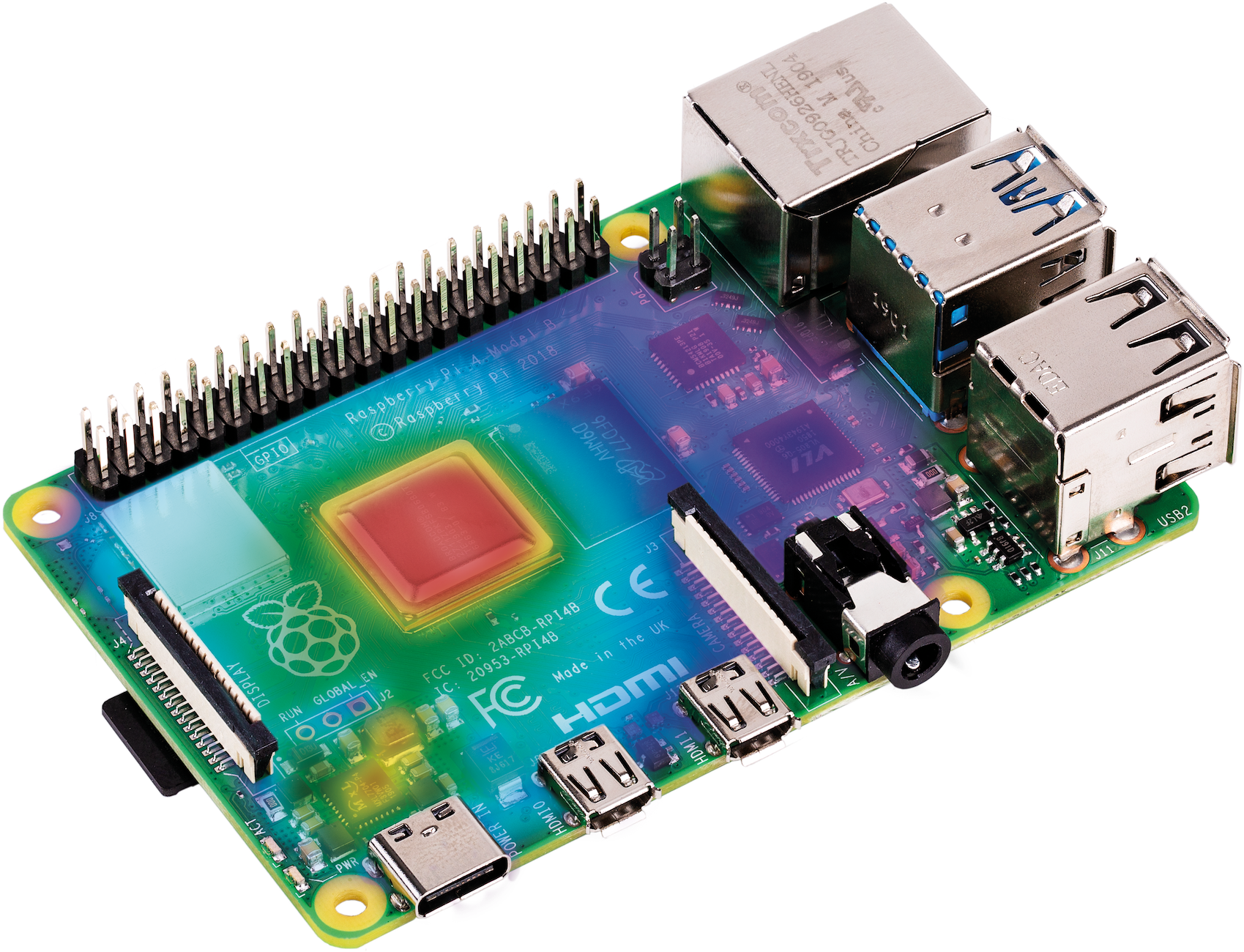
The thermal imagery was taken at idle, then again after 60 seconds of the stress-ng load alone.
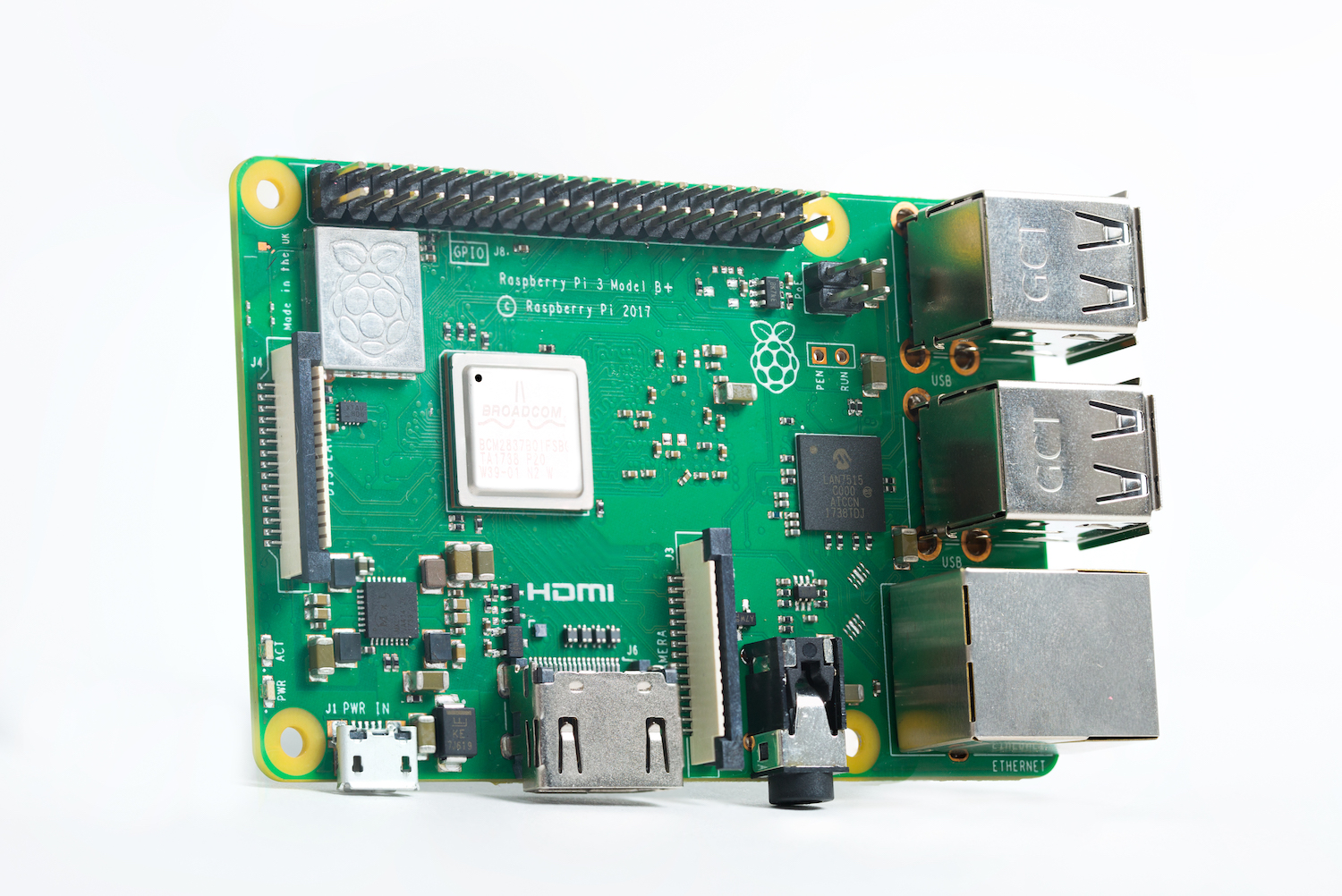
Already well established, Raspberry Pi 3 Model B+ was the device to beat
Before Raspberry Pi 4 came on the scene, Raspberry Pi 3 Model B+ was the must-have single-board computer. Benefiting from all the work that had gone into the earlier Raspberry Pi 3 Model B alongside improved hardware, Raspberry Pi 3B+ was – and still is – a popular device. Let’s see how well it performs before testing Raspberry Pi 4.
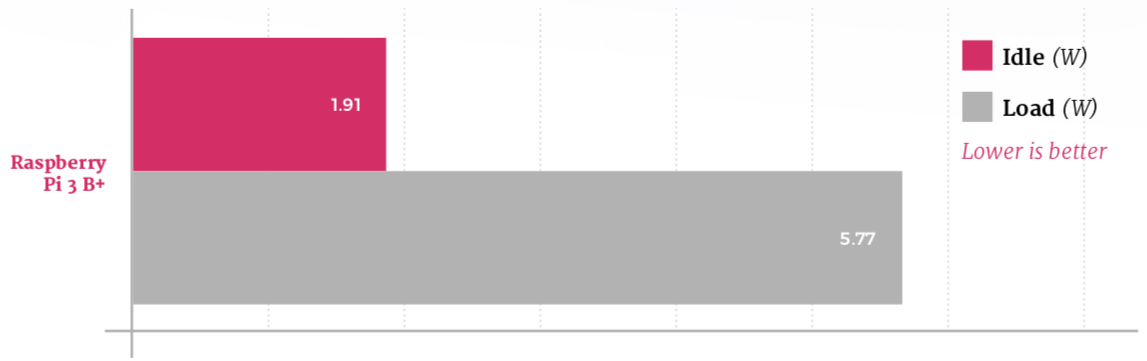
An efficient processor and an improved design for the power circuitry compared to its predecessor help keep Raspberry Pi 3B+ power draw down: at idle, the board draws just 1.91W; when running the synthetic workload, that increases to 5.77W.
A thermal camera shows where the power goes. At idle, the system-on-chip is relatively cool while the combined USB and Ethernet controller to the middle-right is a noticeable hot spot; at load, measured after 60 seconds of a CPU-intensive synthetic workload, the SoC is by far the hottest component at 58.1°C.
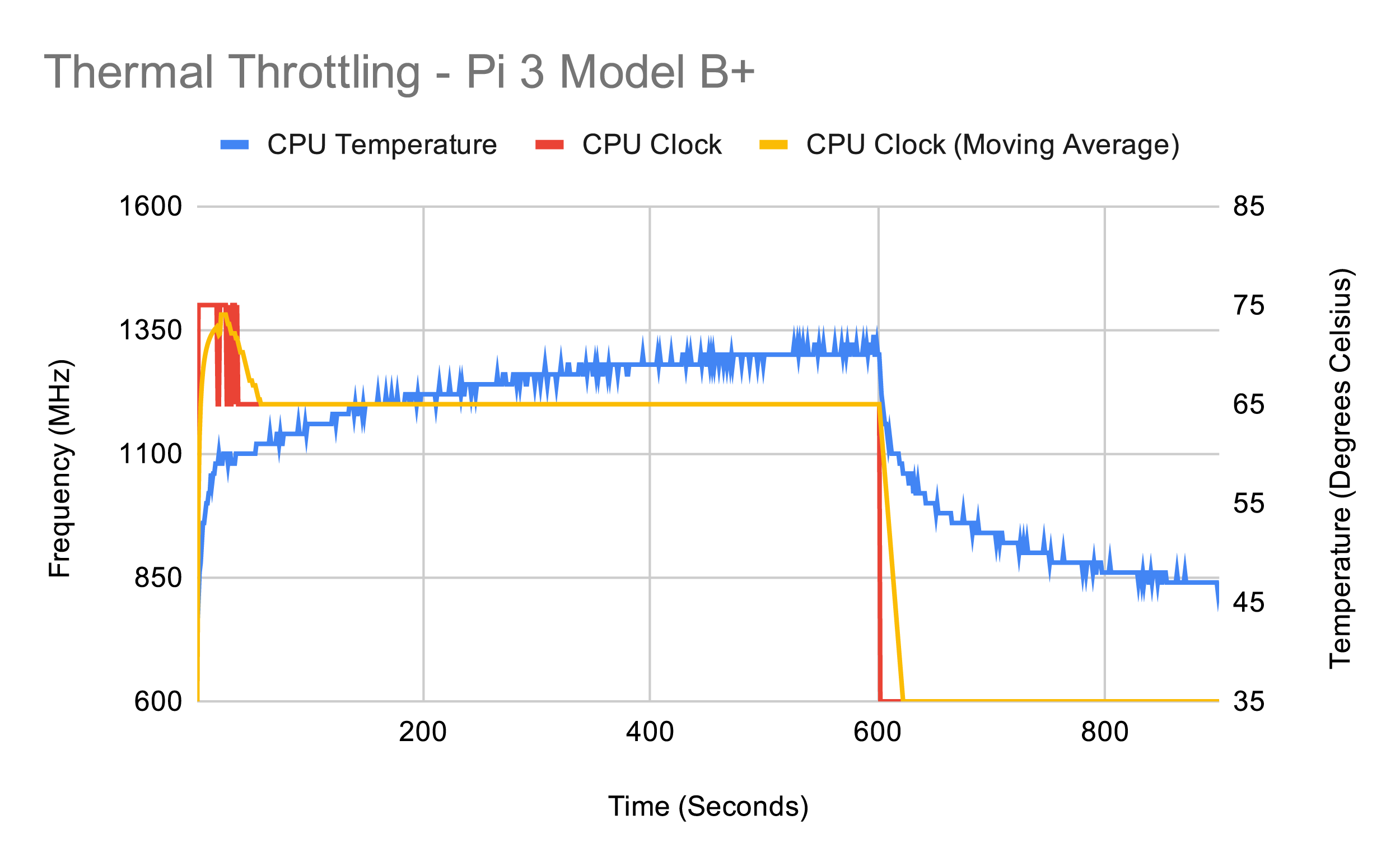
This chart measures Raspberry Pi 3B+ CPU speed and temperature during a ten-minute power-intensive synthetic workload. The test runs on both the CPU and GPU, and is followed by a five-minute cooldown. Raspberry Pi 3B+ quickly reaches the ‘soft throttle’ point of 60°C, designed to prevent the SoC hitting the hard-throttle maximum limit of 80°C, and the CPU remains throttled at 1.2GHz for the duration of the benchmark run.
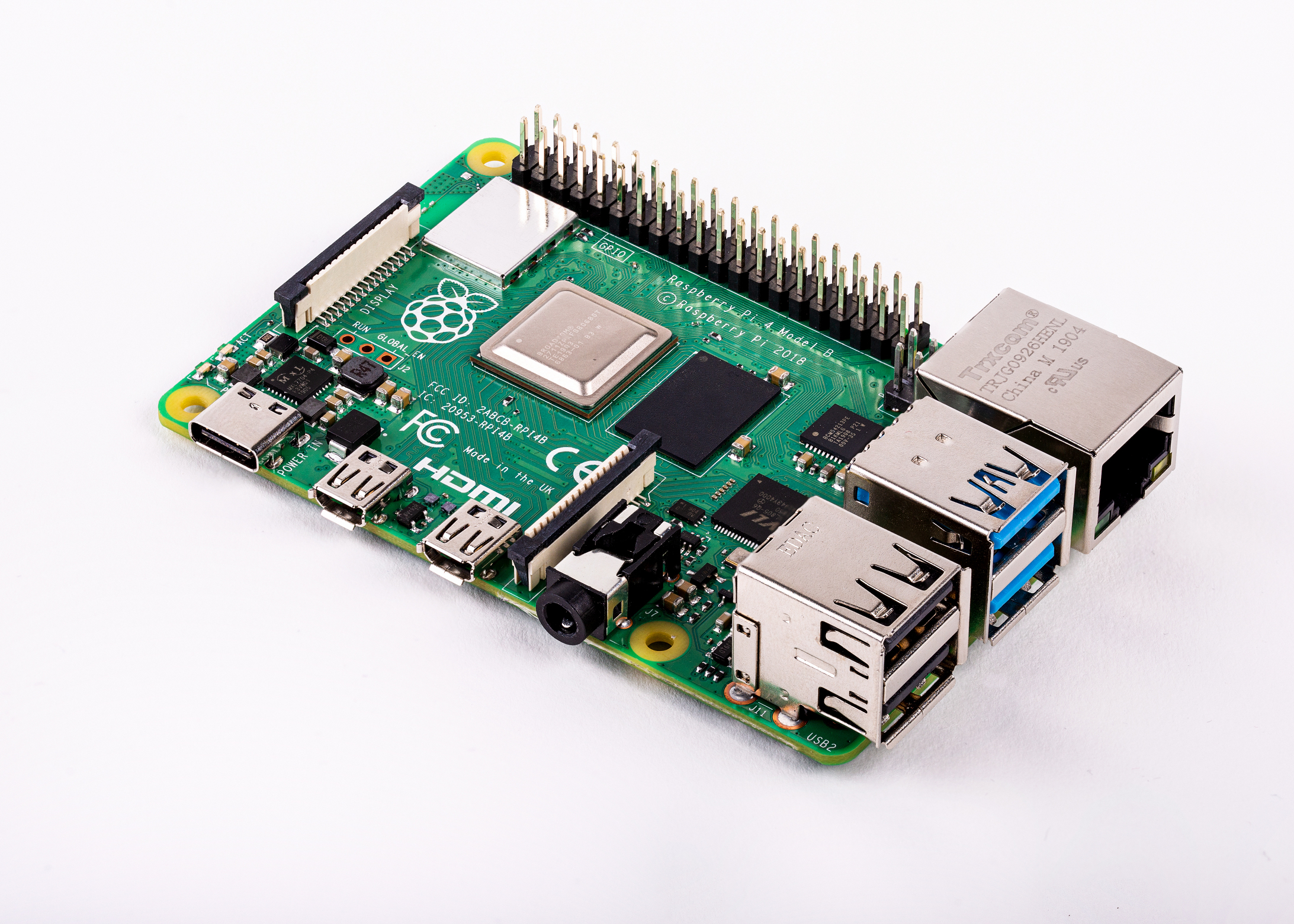
The fastest Raspberry Pi ever made demanded the most power
Raspberry Pi 4 Model B launched with a range of improvements over Raspberry Pi 3B+, including a considerably more powerful CPU, a new GPU, up to four times the memory, and USB 3.0 ports. All that new hardware came at a cost: higher power draw and heat output. So let’s see how Raspberry Pi 4 performed at launch.
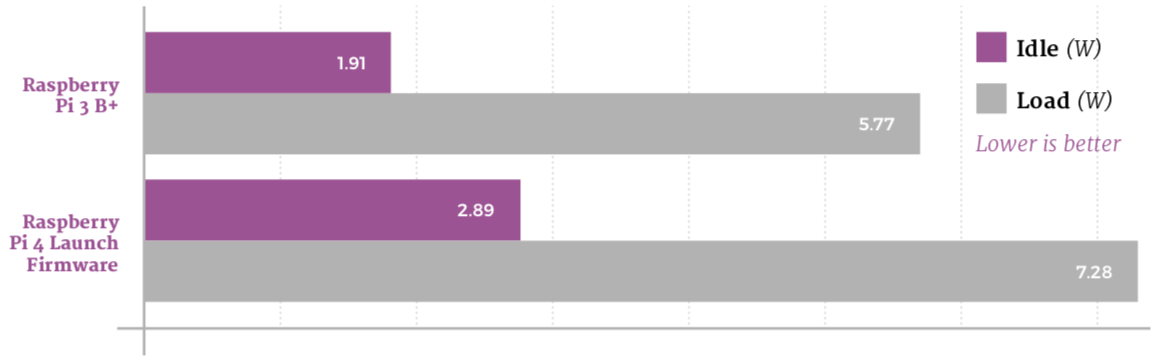
There’s no denying it, Raspberry Pi 4 was a hungry beast at launch. Even idling at the Raspbian desktop, the board draws 2.89W, hitting a peak of 7.28W under a worst-case synthetic CPU and GPU workload – a hefty increase over Raspberry Pi 3 B+.
Thermal imaging shows that Raspberry Pi 4, using the launch-day firmware, runs hot even at idle, with hot spots at the USB controller to the middle-right and power-management circuitry to the bottom-left. Under a heavy synthetic load, the SoC hits 72.1°C by the 60-second mark.
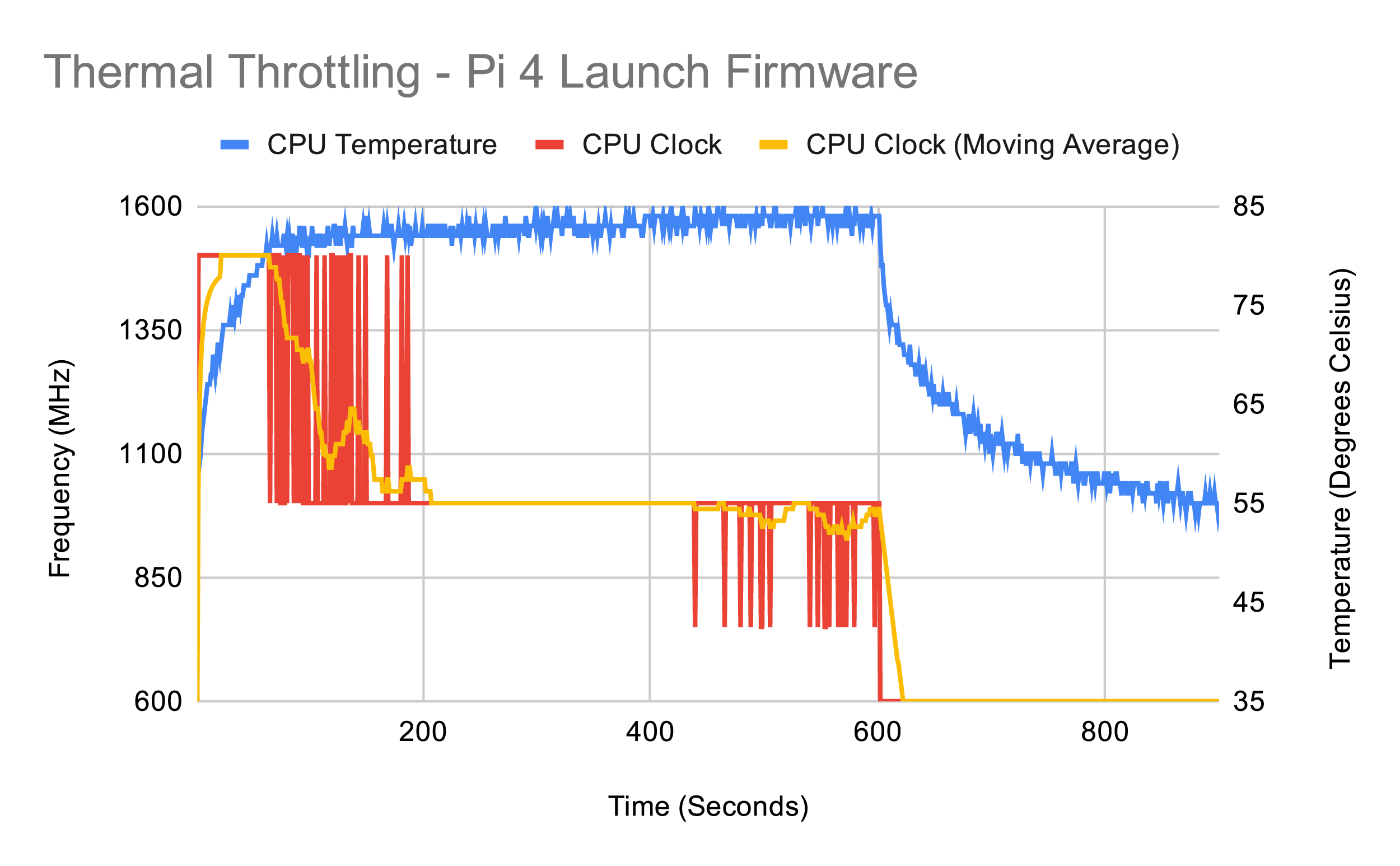
Raspberry Pi 4 manages to go longer than Raspberry Pi 3 B+ before the synthetic workload causes it to throttle; but throttle it does after just 65 seconds. As the workload runs, the CPU drops from 1.5GHz to a stable 1GHz, then dips as low as 750MHz towards the end.

USB power management brings some relief for Raspberry Pi heat
The first major firmware update developed for Raspberry Pi 4 brought power management features to the Via Labs Inc. (VLI) USB controller. The VLI controller is responsible for handling the two USB 3.0 ports, and the firmware update allowed it to run cooler.
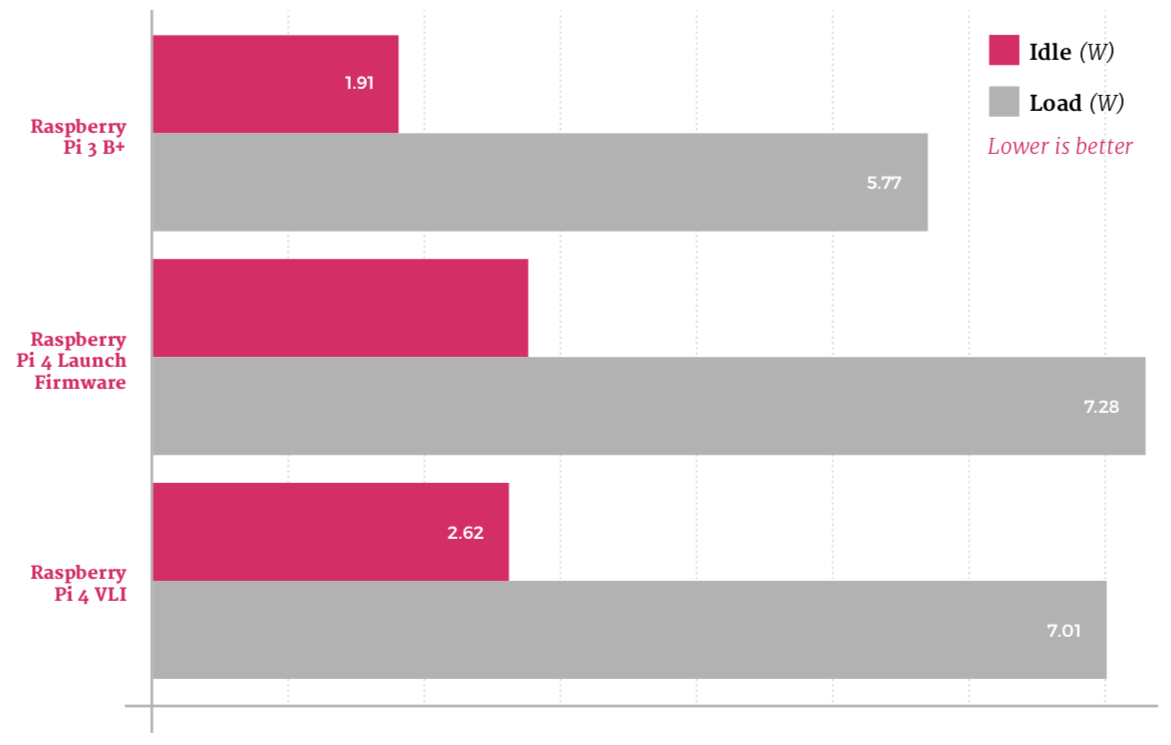
Even without anything connected to Raspberry Pi 4’s USB 3.0 ports, the VLI firmware upgrade has a noticeable impact: idle power draw has dropped to 2.62W, while the worst-case draw under a heavy synthetic workload sits at 7.01W.
The biggest impact on heat is seen, unsurprisingly, on the VLI chip to the middle-right; the VLI firmware helps keep the SoC in the centre and the power-management circuitry at the bottom-left cooler than the launch firmware. The SoC reached 71.4°C under load – a small, but measurable, improvement.
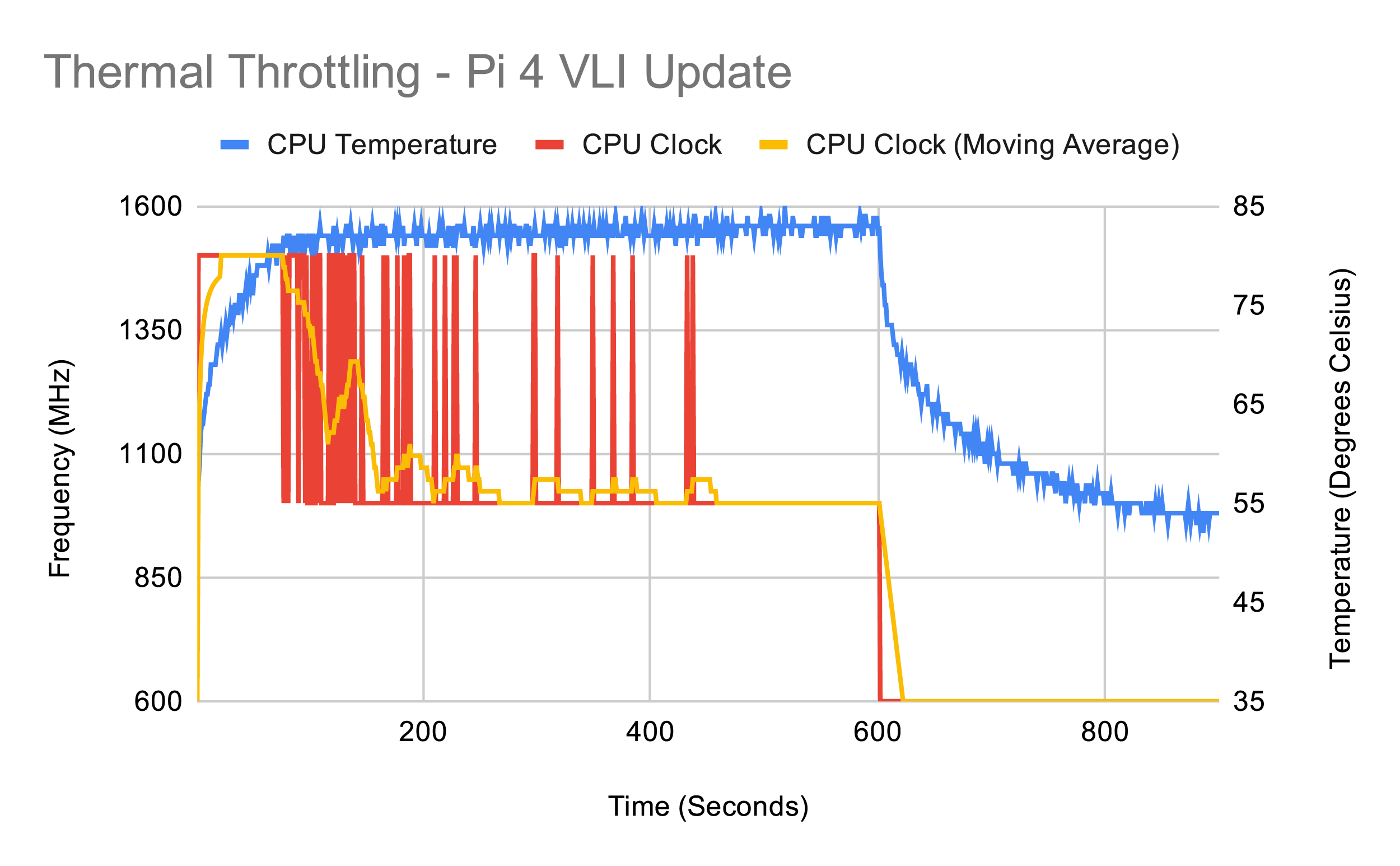
Enabling power management on the VLI chip has a dramatic impact on performance in the worst-case synthetic workload: the throttle point is pushed back to 77 seconds, the CPU spends more time at its full 1.5GHz speed, and it doesn’t drop to 750MHz at all. The SoC also cools marginally more rapidly at the end of the test.
With VLI tamed, it’s the memory’s turn now
The next firmware update, designed to be used alongside the VLI power management features, changes how Raspberry Pi 4’s memory – LPDDR4 SDRAM – operates. While having no impact on performance, it helps to push the power draw down still further at both idle and load.
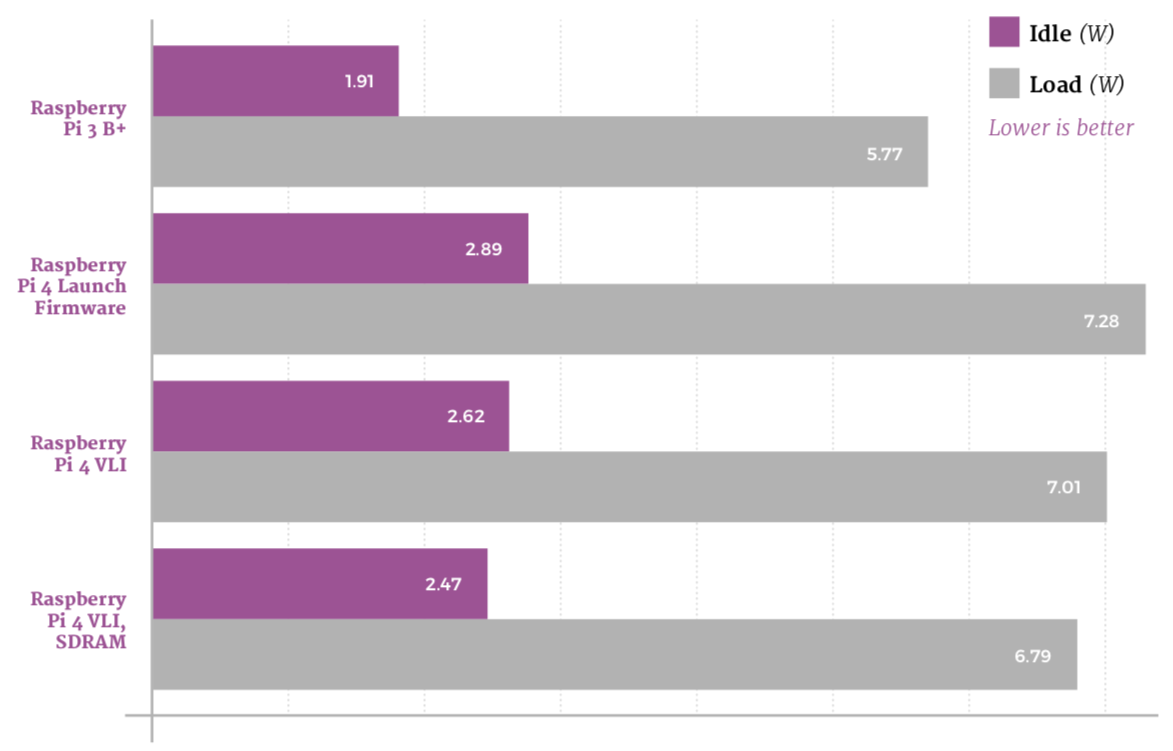
As with the VLI update, the SDRAM update brings a welcome drop in power draw at both idle and load. Raspberry Pi 4 now draws 2.47W at idle and 6.79W running a worst-case synthetic load – a real improvement from the 7.28W at launch.
Thermal imaging shows the biggest improvement yet, with both the SoC and the power-management circuitry running considerably cooler at idle after the installation of this update. After 60 seconds of load, the SoC is noticeably cooler at 68.8°C – a drop of nearly 3°C over the VLI firmware alone.
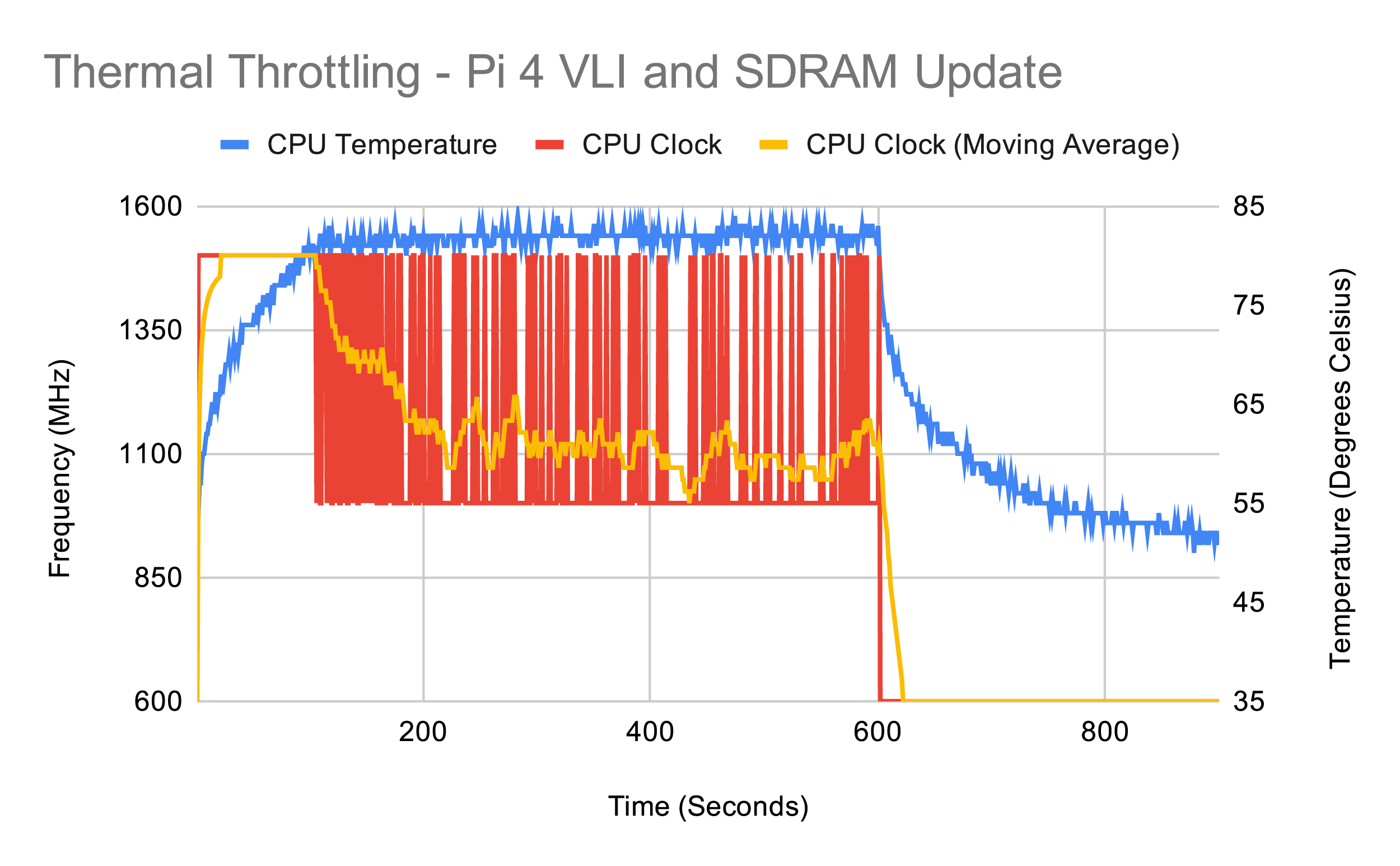
A cooler SoC means better performance: the throttle point under the worst-case synthetic workload is pushed back to 109 seconds, after which Raspberry Pi 4 continues to bounce between full 1.5GHz and throttled 1GHz speeds for the entire ten-minute benchmark run – bringing the average speed up considerably.

September 2019’s firmware update includes several changes, while bringing with it the VLI power management and SDRAM firmware updates. The biggest change is how the BCM2711B0 SoC on Raspberry Pi 4 increases and decreases its clock-speed in response to demand and temperature.
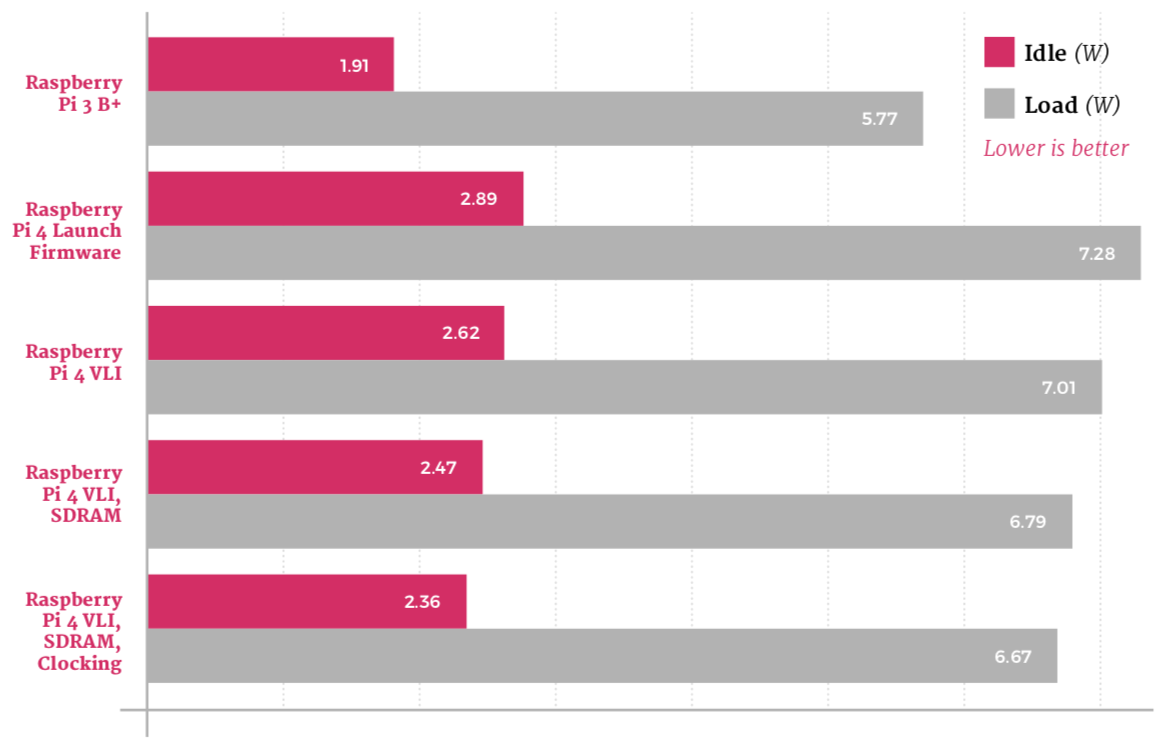
The September firmware update has incremental improvements: idle power draw is down to 2.36W and load under the worst-case synthetic workload to a peak of 6.67W, all without any reduction in raw performance or loss of functionality.
Improved processor clocking brings a noticeable drop in idle temperature throughout the circuit board. At load, everything’s improved – the SoC peaked at 65°C after 60 seconds of the synthetic workload, while both the VLI chip and the power-management circuitry are clearly cooler than under previous firmwares.
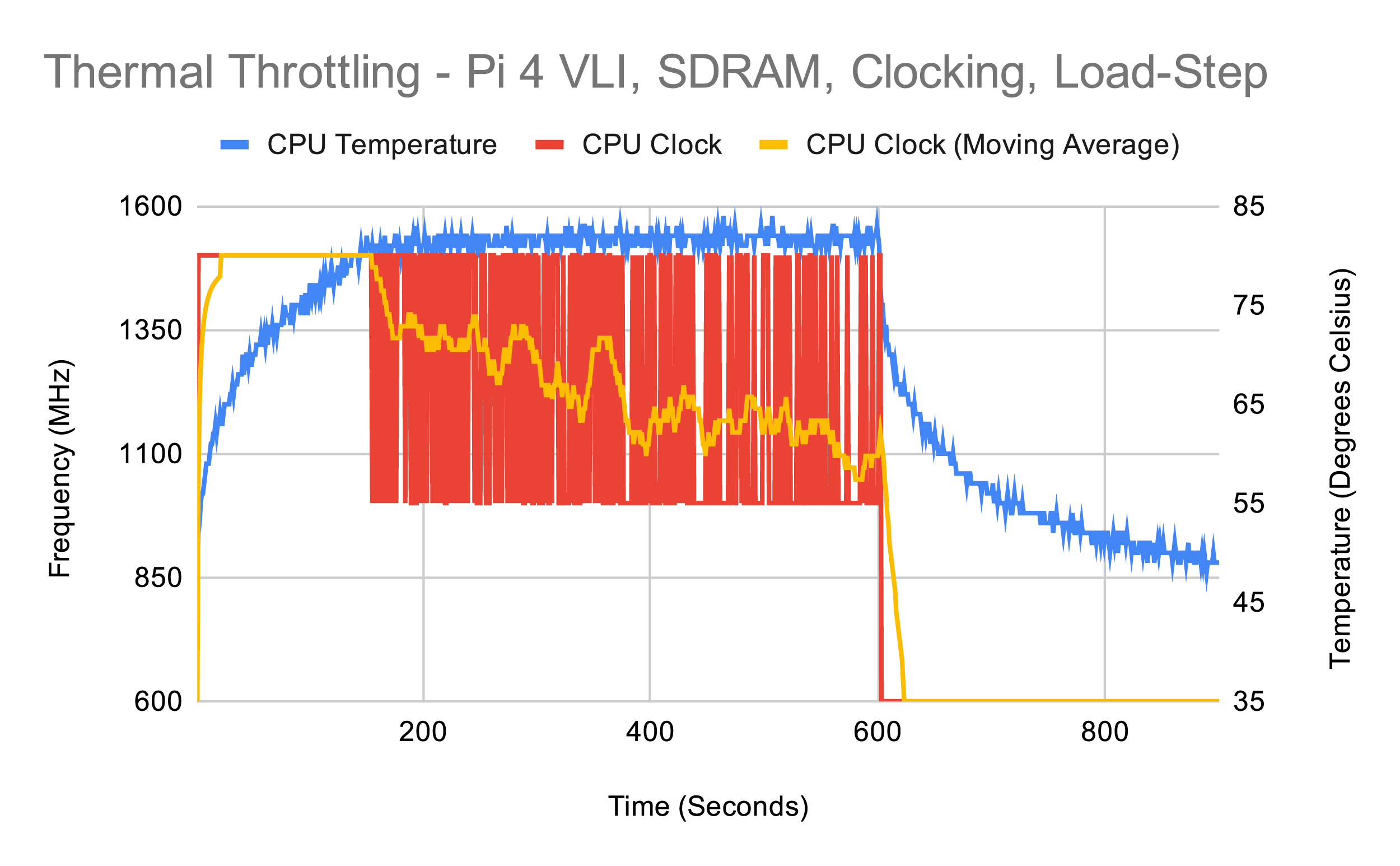
With this firmware, Raspberry Pi 4’s throttle point under the worst-case synthetic workload is pushed back all the way to 155 seconds – more than double the time the launch-day firmware took to hit the same point. The overall average speed is also brought up, thanks to more aggressive clocking back up to 1.5GHz.

Currently in testing, this beta release is cutting-edge
Nobody at Raspberry Pi is resting on their laurels. Beta firmware is in testing and due for public release soon. It brings with it many improvements, including finer-grained control over SoC operating voltages and optimised clocking for the HDMI video state machines.
To upgrade your Raspberry Pi to the latest firmware, open a Terminal window and enter:
sudo apt updatesudo apt full-upgrade
Now restart Raspberry Pi using:
sudo shutdown - r now
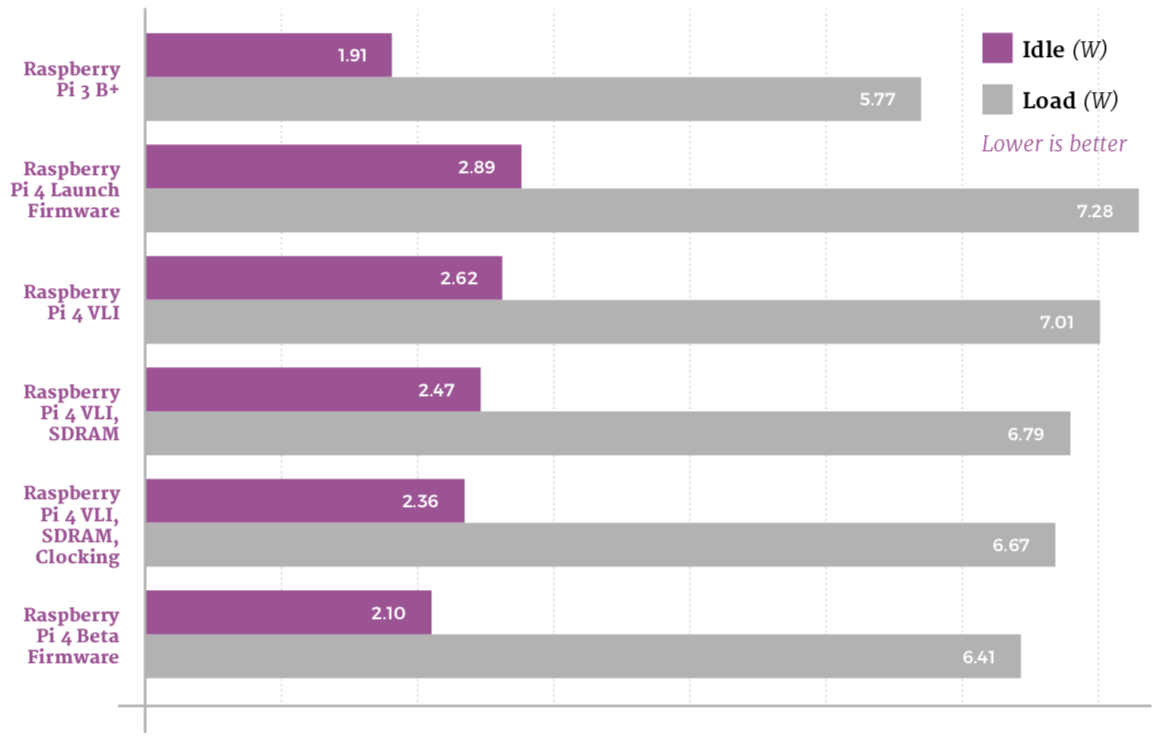
The beta firmware decreases power draw at idle to reduce overall power usage, while tweaking the voltage of the SoC to drop power draw at load without harming performance. The result: a drop to 2.1W idle, and 6.41W at load – the best yet.
The improvements made at idle are clear to see on thermal imaging: the majority of Raspberry Pi 4’s circuit board is below the bottom 35°C measurement point for the first time. After 60 seconds of load, there’s a smaller but still measurable improvement, with a peak measured temperature of 64.8°C.
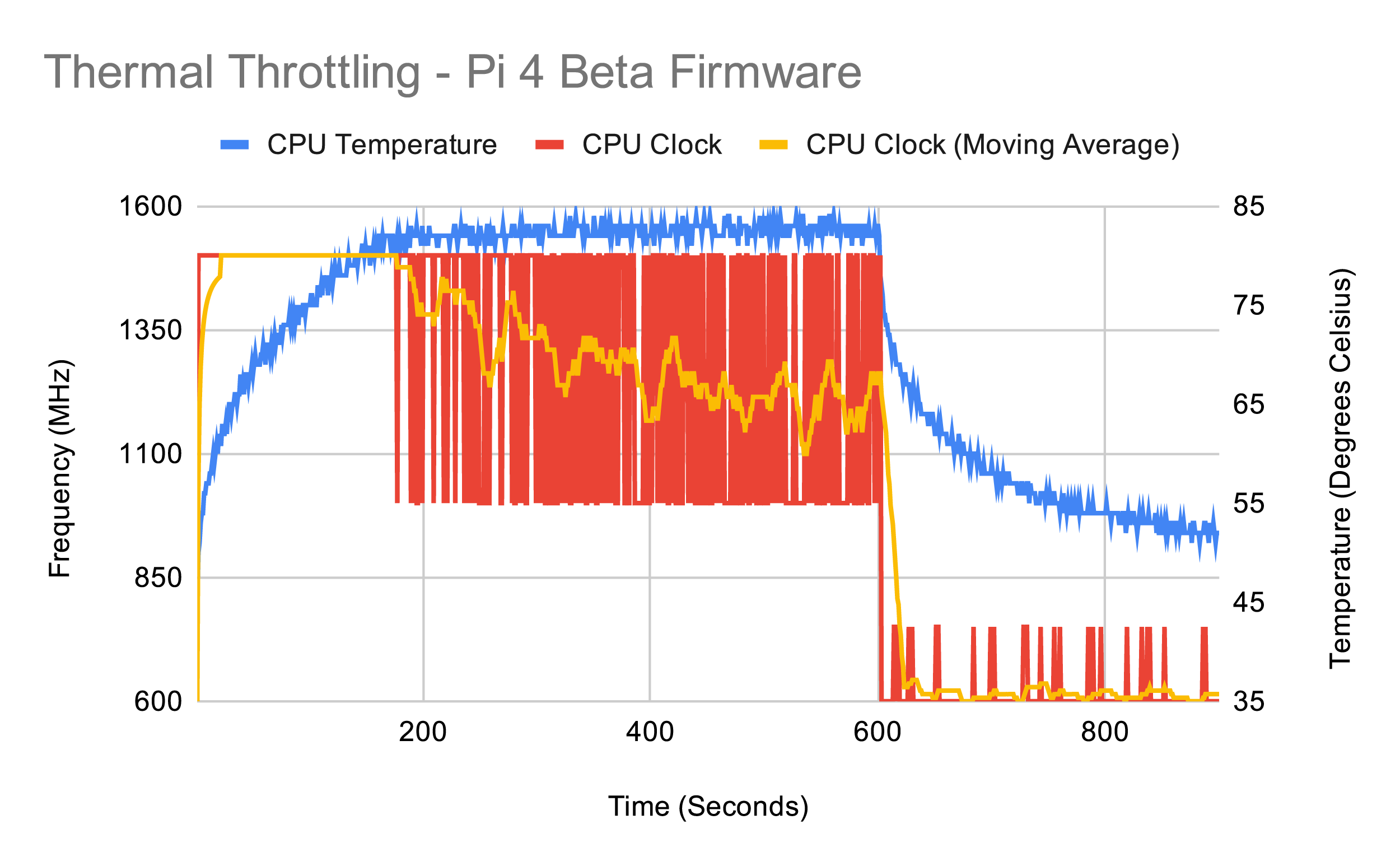
While Raspberry Pi 4 does still throttle with the beta firmware, thanks to the heavy demands of the synthetic workload used for testing, it delivers the best results yet: throttling occurs at the 177s mark while the new clocking controls bring the average clock speed up markedly. The firmware also allows Raspberry Pi 4 to up-clock more at idle, improving the performance of background tasks.

Firmware upgrades offer great gains, but what about putting Raspberry Pi on its side?
While running the latest firmware will result in considerable power draw and heat management improvements, there’s a trick to unlock even greater gains: adjusting the orientation of Raspberry Pi. For this test, Raspberry Pi 4 with the beta firmware installed was stood upright with the GPIO header at the bottom and the power and HDMI ports at the top.
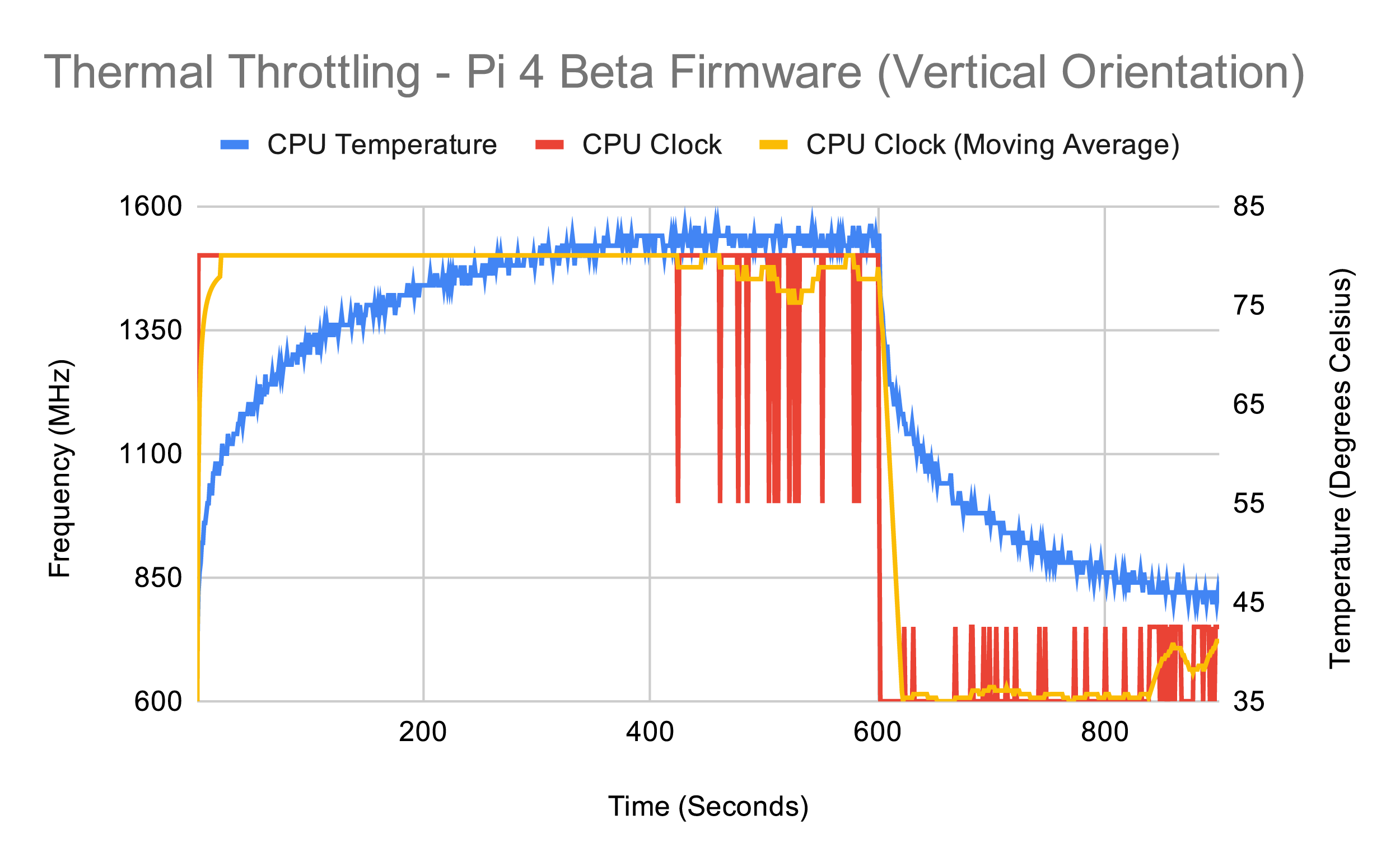
Simply moving Raspberry Pi 4 into a vertical orientation has an immediate impact: the SoC idles around 2°C lower than the previous best and heats a lot more slowly – allowing it to run the synthetic workload for longer without throttling and maintain a dramatically improved average clock speed.
There are several factors at work: having the components oriented vertically improves convection, allowing the surrounding air to draw the heat away more quickly, while lifting the rear of the board from a heat-insulating desk surface dramatically increases the available surface area for cooling.
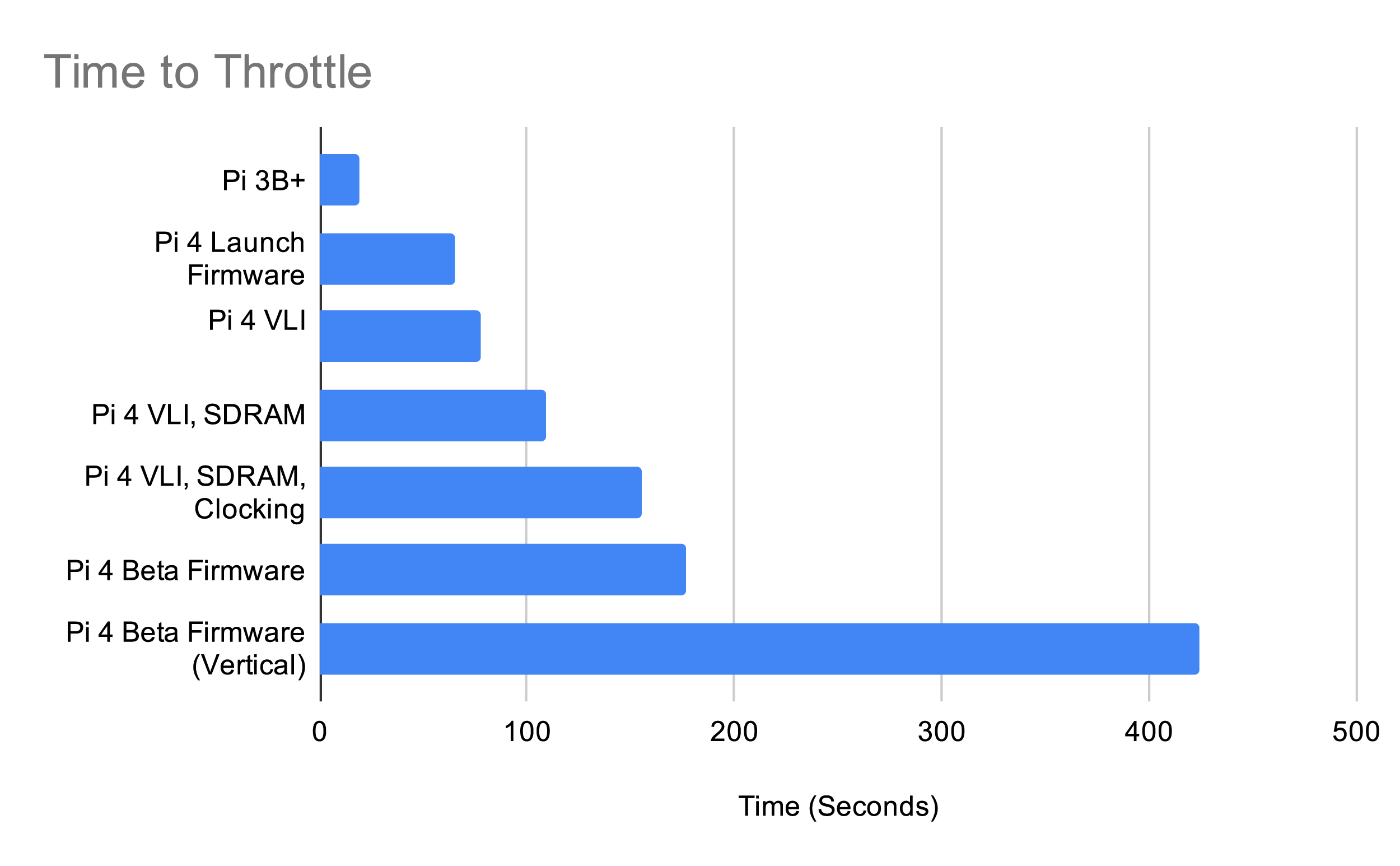
This chart shows how long it took to reach the throttle point under the synthetic workload. Raspberry Pi 3B+ sits at the bottom, soft-throttling after just 19 seconds. Each successive firmware update for Raspberry Pi 4, meanwhile, pushes the throttle point further and further – though the biggest impact can be achieved simply by adjusting Raspberry Pi’s orientation.
Synthetic benchmarks aside, how do the boards perform with real workloads?
Looking at the previous pages, it’s hard to get a real idea of the difference in performance between Raspberry Pi 3B+ and Raspberry Pi 4. The synthetic benchmark chosen for the thermal throttle tests performs power-hungry operations which are rarely seen in real-world workloads, and repeats them over and over again with no end.
In this test, both Raspberry Pi 3B+ and Raspberry Pi 4 are given the task of compiling the Linux kernel from its source code. It’s a good example of a CPU-heavy workload which occurs in the real world, and is much more realistic than the deliberately taxing synthetic workload of earlier tests.
With this workload, Raspberry Pi 4 easily emerges the victor. Despite its CPU running only 100MHz faster than Raspberry Pi 3B+ at its full speed, it’s considerably more efficient – and, combined with the ability to run without hitting its thermal throttle point, completes the task in nearly half the time.
Raspberry Pi 3B+ throttles very early on in the benchmark compilation test and remains at a steady 1.2GHz until a brief period of cooling, as the compiler switches from a CPU-heavy workload to a storage-heavy workload, allows it to briefly spike back to its 1.4GHz default again. Compilation finished in 5097 seconds – one hour, 24 minutes, and 57 seconds.
The difference between the synthetic and real-world workloads is clear to see: at no point during the compilation did Raspberry Pi 4 reach a high enough temperature to throttle, remaining at its full 1.5GHz throughout – bar, as with Raspberry Pi 3 B+, a brief period when a change in compiler workload allowed it to drop to its idle speeds. Compilation finished in 2660 seconds – 44 minutes and 20 seconds.
This article is from today’s brand-new issue of The MagPi magazine, the official Raspberry Pi magazine. Buy it from all good newsagents, Raspberry Pi Press, and the Raspberry Pi Store, Cambridge.

Subscribe to pay less per issue and support our work, or download the free PDF to give it a try first.
The post Thermal testing Raspberry Pi 4 appeared first on Raspberry Pi.
This week the post office delivered a package that made me very satisfied. It was a box with three paper versions of my "Web Development with Django Cookbook - Second Edition". The book was published at the end of January after months of hard, but fulfilling work in the late evenings and at weekends.
The first Django Cookbook was dealing with Django 1.6. Unfortunately, the support for that version is over. So it made sense to write an update for a newer Django version. The second edition was adapted for Django 1.8 which has a long-term support until April 2018 or later. This edition introduces new features added to Django 1.7 and Django 1.8, such as database migrations, QuerySet expressions, or System Check Framework. Most concepts in this new book should also be working with Django 1.9.
My top 5 favourite new recipes are these:
The book is worth reading for any Django developer, but will be best understood by those who already know the basics of web development with Django. You can learn more about the book and buy it at the Packt website or Amazon.
I thank the Packt Publishing very much for long cooperation in the development of this book. I am especially thankful to acquisition editor Nadeem N. Bagban, content development editors Arwa Manasawala and Sumeet Sawant, and technical editor Bharat Patil. Also I am grateful for insightful feedback from the reviewer Jake Kronika.
What 5 recipes do you find the most useful?


 Lateo.net - Flux RSS en pagaille (pour en ajouter : @ moi)