 Connexion


In this post we’re going to study the third-grade algorithm to compute the product of two numbers, and we’re going to compare it with a much more efficient algorithm: The Karatsuba multiplication algorithm.
Did you know that these two algorithms are the ones used in the built in Python multiplication?
We will talk about the Order of both algorithms and give you Python implementations of both of them.
Maybe you’re thinking, why is she writing now about algorithms? Some time ago, I took the course Algorithms: Design and Analysis, Part 1&2, by Tim Roughgarden, and it was a lot of fun.
Now I’m taking the course again, but I’m spending more time to review the algorithms and play with them. I really encourage you to take the course if you have some time. But first, read this post 
This is the outline:
Let’s start!
First, we’re going to review the third grade algorithm, which all of you already know
Let’s start with these two numbers: 5678 x 1234. In order to compute their product you start with 4*5678, represented as:
  (2)(3)(3)
   5  6  7  8
x  1  2  3 |4|
-------------
2  2  7  1  2
Let’s count the number of operations performed in this step:
– If n is the number of digits of the first number, there are n products and at most n sums (carried numbers).
– So in total, you need 2n operations.
If we continue with the product, we have to repeat n times the same operation (where we assume that n is also the number of digits of the second number):
         5  6  7  8
      x  1  2  3  4
      -------------
      2  2  7  1  2
   1  7  0  3  4
1  1  3  5  6
5  6  7  8
which gives a total of 2n2 operations.
Finally, you need to sum all these numbers,
            5  6  7  8
         x  1  2  3  4
         -------------
         2  2  7  1  2
      1  7  0  3  4
   1  1  3  5  6
+  5  6  7  8
----------------------
   7  0  0  6  6  5  2
which takes around n2 operations more.
So in total, the number of operations is ~3n2, which means that it’s quadratic with the input (proportional to n2).
One point I would like to mention about this algorithm is that it’s complete: no matter what x and y you start with, if you perform correctly the algorithm, the algorithm terminates and finds the correct solution.
Here I give you an example of an implementation of the third grade algorithm, where I have included a Counter for the sum and product operations:
# third_grade_algorithm.py

def counted(fn):
    # Counter Decorator
    def wrapper(*args, **kwargs):
        if "" in args or " " in args:
            return "".join(map(lambda s: s.strip(), args))
        wrapper.called += 1
        return fn(*args, **kwargs)
    wrapper.called = 0
    wrapper.__name__ = fn.__name__
    return wrapper


@counted
def prod(x, y):
    # x, y are strings --> returns a string of x*y
    return str(eval("%s * %s" % (x, y)))


@counted
def suma(x, y):
    # x, y are strings --> returns a string of x+y
    return str(eval("%s + %s" % (x, y)))


def one_to_n_product(d, x):
    """d is a single digit, x is n-digit --> returns a string of d*x
    """
    result = ""
    carry = "0"
    for i, digit in enumerate(reversed(x)):
        r = suma(prod(d, digit), carry)
        carry, digit = r[:-1], r[-1]
        result = digit + result
    return carry + result


def sum_middle_products(middle_products):
    # middle_products is a list of strings --> returns a string
    max_length = max([len(md) for md in middle_products])
    for i, md in enumerate(middle_products):
        middle_products[i] = " " * (max_length - len(md)) + md
    carry = "0"
    result = ""
    for i in range(1, max_length + 1):
        row = [carry] + [md[-i] for md in middle_products]
        r = reduce(suma, row)
        carry, digit = r[:-1], r[-1]
        result = digit + result
    return carry + result


def algorithm(x, y):
    # x, y are integers --> returns an integer, x*y
    x, y = str(x), str(y)
    middle_products = []
    for i, digit in enumerate(reversed(y)):
        middle_products.append(one_to_n_product(digit, x) + " " * i)
    return int(sum_middle_products(middle_products))
Using that algorithm, if you run
$ python -i third_grade_algorithm.py
where (third_grade_algorithm.py is the name of the file), you will run the previous code and terminate with the Python console open. This way you can call your algorithm function and try:
>>> algorithm(6885, 1600)
1101600
>>> print("Suma was called %i times" % suma.called)
Suma was called 20 times
>>> print("Prod was called %i times" % prod.called)
Prod was called 16 times
So it took 20 + 16 = 36 operations to compute the product of these two numbers.
Once we have this code, we can average the number of operations used in the product of n-digit numbers:
def random_prod(n):
    suma.called = 0
    prod.called = 0
    x = randint(pow(10, n - 1), pow(10, n))
    y = randint(pow(10, n - 1), pow(10, n))
    algorithm(str(x), str(y))
    return suma.called + prod.called


def average():
    ntimes = 200
    nmax = 10
    result = []
    for n in range(nmax):
        avg = sum([random_prod(n + 1) for i in range(ntimes)]) / float(ntimes)
        result.append([n + 1, avg])
    return result
In the following figure, we plot the result of the previous experiment when ntimes = 200 samples and nmax = 10 digits:
We can see that these points fit the curve f(n) = 2.7 n2.
Note that 2.7 < 3, the proportionality factor we deduced before. This is because we were assuming the worst case scenario, whereas the average product takes into account random numbers.
But can we do better? Is there an algorithm that performs the product of two numbers quicker?
The answer is yes, and in the following section we will study one of them: The Karatsuba Algorithm.
Let’s first explain this algorithm through an example:
Imagine you want to compute again the product of these two numbers:
x = 5678
y = 1234
In order to do so, we will first decompose them in a singular way:
x = 5678
a = 56; b = 78
--> x = 100 * a + b
and the same for y:
y = 1234
c = 12; d = 34
--> y = 100 * c + d
If we want to know the product x * y:
xy = (100 * a + b)(100 * c + d) = 100^2 * ac + 100 * (ad + bc) + bd
Where we can calculate the following 3 parts separately:
A = ac
B = ad + bc
C = bd
However, we need two compute two products for the B term. Let’s see how we can compute only one product to reduce calculations
If we expand the product:
D = (a+b) * (c+d) = ac + ad + bc + bd
we see than the right hand side of the equation contains all A,B and C terms.
In particular, if we isolate B = ad + bc, we get:
B = D - ac - bd = D - A - C
Great! Now we only need three smaller products in order to compute x * y:
xy = 100^2 A + 100(D - A - C) + C
A = ac
B = (a+b)(c+d)
C = bd
Let’s put some numbers into the previous expressions:
xy = 100^2 * A + 100 * (D - A - C) + C
A = ac = 56 * 12 = 672
C = bd = 78 * 34 = 2652
D = (a+b)(c+d) = (56 + 78)(12 + 34) = 134 * 46 = 6164

xy = 100^2 * 672 + 100 * (6164 - 672 - 2652) + 2652
   = 6720000 + 284000 + 2652
   = 7006652
Yes! the result of 1234 * 5678 = 7006652!
In the next section, we’ll see the pseudo code for the Karatsuba Algorithm and we’re going to translate it into Python code.
In general though, we don’t have 4-digit numbers but n-digit numbers. In that case, the decomposition to be made is:
x = n-digit number
m = n/2 if n is even
m = (n+1)/2 if n is odd

a = 10^m * x1 + x2
--> x1 = First (n-m) digits of x
--> x2 = Last m digits of x
which is slightly different if n is even or odd.
In pseudocode, the Karatsuba Algorithm is:
procedure karatsuba(x, y)
  /* Base Case */
  if (x < 10) or (y < 10)
    return x*y
  /* calculates the number of digits of the numbers */
  m = max(size_base10(x), size_base10(y))
  m2 = m/2
  /* split the digit sequences about the middle */
  a, b = split_at(x, m2)
  c, d = split_at(y, m2)
  /* 3 products of numbers with half the size */
  A = karatsuba(a, c)
  C = karatsuba(b, d)
  D = karatsuba(a+b, c+d)
  return A*10^(2*m2) + (D-A-C)*10^(m2) + C
And the order of this algorithm Ο(nlog23) ≈ Ο(n1.585) is (more info).
Let’s write now the Python code
def karatsuba(x, y):
    # Base case
    if x < 10 or y < 10:
        return x * y
    # Calculate the number of digits of the numbers
    sx, sy = str(x), str(y)
    m2 = max(len(sx), len(sy)) / 2
    # Split the digit sequences about the middle
    ix, iy = len(sx) - m2, len(sy) - m2
    a, b = int(sx[:ix]), int(sx[ix:])
    c, d = int(sy[:iy]), int(sy[iy:])
    # 3 products of numbers with half the size
    A = karatsuba(a, c)
    C = karatsuba(b, d)
    D = karatsuba(a + b, c + d)
    return A * 10**(2 * m2) + (D - A - C) * 10**m2 + C

assert(karatsuba(1234, 5678) == 7006652)
Which is much simpler than the third-grade algorithm right?
Moreover, if we can compare the number of calculations of this algorithm with respect to the third-grade one:
where the red line is the Karatsuba algorithm, and the blue lines the 3rd grade one (see above).
Finally, I want to write here one of the quotes mentioned in the Algorithms course, which might encourage you to find a better solution
The post 3rd-grade & Karatsuba multiplication Algorithms appeared first on Marina Mele's site.
In this post we’ll talk about the Atom editor which is, as they say, A hackable text editor for the 21st Century.
It’s a really nice, open source and modern editor, with a broad community that provides different and new packages and functionalities. Have you tried it yet?
Here, you’ll learn how to install it and how to configure it to write Python code. Let’s start!
First, download Atom from the official webpage.
Once installed, if you have a Mac or Windows, you’ll have two commands available: atom and apm. The first one is for opening the Atom editor, and the second one for installing Atom packages. We’ll see an example of both in the following.
Let’s start by creating a Python file with:
$ atom myfile.py
This will open the file in Atom, and you’ll see the containing folder with all its contents on the left sidebar.
In the new file, if you type de, you’ll see that it suggests if you want to create a new function. This is because Atom has detected that the file extension is a Python extension.
If you type the Tab key, you’ll see a template for a new function:
Note that you have the fname highlighted. This is because you can now type the name of your function and it will replace fname. Let’s name our function product.
Next, if you hit the Tab key again, the arguments of the function, arg, will be now selected. Just write x, y, as we need two different arguments for our function.
Finally, hit the Tab key again to select the body of our function, pass, and replace it for our code. The end function should be something like:
def product(x,y):
    return x * y
Also notice the blue circle next to the file name. This means that there are unsaved changes in your current file. You can save it just typing the usual cmd+c (or ctrl+c in windows).
Linter is an Atom package that provides a top level API so that there is a unification among all the linter atom plugins. This means that all the extra packages that you install, that highlight your code (for example to detect errors) will use a unified method.
To install it, just type:
$ apm install linter
Next, we’re going to install a Python Linter package, to help us detect errors in our Python code.
This package is called linter-flake8 and it’s an interface to flake8. To install it, you need to run:
$ pip install flake8
$ pip install flake8-docstrings
$ apm install linter-flake8
You must restart Atom to see the changes. For example, if we add the folling line of code in our file:
y = product(a, b)
without specifying what a or b are, we’ll see the following in our Atom screen:
If you open Atom and you find an error that says
The linter binary flake8 cannot be found
You will need to open the Atom init script (Atom –> Open your Init Script) and write the following:
process.env.PATH = ['/usr/local/bin/', process.env.PATH].join(':')
Restart Atom the apply these changes. It should work now
Moreover, there are Linters for other languages like HTML, CSS or Javascript. You can find a list here.
Here I’ll show you how you can configure Atom to follow PEP8, the official Python styling guide.
First, open the Atom –> Preferences window.
1. Use spaces instead of tabs.
Scroll down the Settings panel until you see the Soft Tabs option. Make sure it’s checked. This setting will convert tabs into spaces automatically.
2. Set the tab length to 4 spaces
A little below the Soft Tab setting, you”ll see the Tab Length. Set it to 4 spaces.
3. Automatic PEP8 validation.
If you installed the linter-flake8 package discussed in the previous section, you already have automatic PEP8 validation
In the same Preferences panel, you can see the Keybindings menu on the left. There, you’ll find a list of all the default keybindings active in your Atom editor.
However, by default, Atom confirms an autocomplete suggestion with both the Tab and Enter keys. But I only want to use the Tab key.
In order to disable Enter as an autocomplete confirm key, we need to go to the Keybindings menu where you’ll see a link that says your keymap file. Click on that link to open the keymap.cson file.
There, you need to write:
# Disable Enter key for confirming an autocomplete suggestion
'atom-text-editor:not(mini).autocomplete-active':
  'enter': 'editor:newline'
Save the file and you’ll see the changes immediately. No need to restart Atom
Project manager: a package for saving your projects.
Atom Django: Django support for Atom
Minimap: Displays a small map of the current file on the right side of your document (like Sublime Text by default).
Do you use other Packages? Write a comment below about them!
The post Install and Configure the Atom Editor for Python appeared first on Marina Mele's site.
Imagine what would you do if you could automate all the repetitive and boring activities you perform using internet, like checking every day the first results of Google for a given keyword, or download a bunch of files from different websites.
In this post you’ll learn to use Selenium with Python, a Web Scraping tool that simulates a user surfing the Internet. For example, you can use it to automatically look for Google queries and read the results, log in to your social accounts, simulate a user to test your web application, and anything you find in your daily live that it’s repetitive. The possibilities are infinite!
*All the code in this post has been tested with Python 2.7 and Python 3.4.
Selenium is a python package that can be installed via pip. I recommend that you install it in a virtual environment (using virtualenv and virtualenvwrapper).
Learn how to create one here, for Python 2.7 and for Python 3. It’s really useful, once you start using them you won’t stop!
Remember that to create the environment in Python 2.7, just type:
$ mkvirtualenv selenium_env
and in Python 3:
$ mkvirtualenv --python=/usr/local/bin/python3 selenium_env
where you should use your own Python 3 path.
Note: if you don’t want to use a virtual environment, you can still install the packages directly on you computer.
To install selenium, you just need to type:
$ pip install selenium
In this post we are going to initialize a Firefox driver — you can install it by visiting their website. However, if you want to work with Chrome or IE, you can find more information here.
Once you have Selenium and Firefox installed, create a python file, selenium_script.py. We are going to initialize a browser using Selenium:
import time
from selenium import webdriver

driver = webdriver.Firefox()
time.sleep(5)
driver.quit()
This just initializes a Firefox instance, waits for 5 seconds, and closes it.
Well, that was not very useful…
How about if we go to Google and search for something?
Let’s make a script that loads the main Google search page and makes a query to look for “Selenium”:
import time
from selenium import webdriver
from selenium.webdriver.common.by import By
from selenium.webdriver.support.ui import WebDriverWait
from selenium.webdriver.support import expected_conditions as EC
from selenium.common.exceptions import TimeoutException


def init_driver():
    driver = webdriver.Firefox()
    driver.wait = WebDriverWait(driver, 5)
    return driver


def lookup(driver, query):
    driver.get("http://www.google.com")
    try:
        box = driver.wait.until(EC.presence_of_element_located(
            (By.NAME, "q")))
        button = driver.wait.until(EC.element_to_be_clickable(
            (By.NAME, "btnK")))
        box.send_keys(query)
        button.click()
    except TimeoutException:
        print("Box or Button not found in google.com")


if __name__ == "__main__":
    driver = init_driver()
    lookup(driver, "Selenium")
    time.sleep(5)
    driver.quit()
In the previous code:
Finally, run your code with:
$ python selenium_script.py
Did it work? If you got an ElementNotVisibleException , keep reading!
Google search has recently changed so that initially, Google shows this page:

and when you start writing your query, the search button moves into the upper part of the screen.

Well, actually it doesn’t move. The old button becomes invisible and the new one visible (and thus the exception when you click the old one: it’s not visible to click!).
We can update the lookup function in our code so that it catches this exception:
from selenium.common.exceptions import ElementNotVisibleException

def lookup(driver, query):
    driver.get("http://www.google.com")
    try:
        box = driver.wait.until(EC.presence_of_element_located(
            (By.NAME, "q")))
        button = driver.wait.until(EC.element_to_be_clickable(
            (By.NAME, "btnK")))
        box.send_keys(query)
        try:
            button.click()
        except ElementNotVisibleException:
            button = driver.wait.until(EC.visibility_of_element_located(
                (By.NAME, "btnG")))
            button.click()
    except TimeoutException:
        print("Box or Button not found in google.com")
To sum up, I’ve created a table with the main methods used here.
Note: it’s not a python file — don’t try to run/import it
# INITIALIZE DRIVER
from selenium import webdriver
from selenium.webdriver.support.ui import WebDriverWait

driver = webdriver.Firefox()
driver.wait = WebDriverWait(driver, 5)


# WAIT FOR ELEMENTS
from selenium.webdriver.common.by import By
from selenium.webdriver.support import expected_conditions as EC

element = driver.wait.until(
    EC.presence_of_element_located(
    EC.element_to_be_clickable(
    EC.visibility_of_element_located(
        (By.NAME, "name")
        (By.ID, "id")
        (By.LINK_TEXT, "link text")
        (By.PARTIAL_LINK_TEXT, "partial link text")
        (By.TAG_NAME, "tag name")
        (By.CLASS_NAME, "class name")
        (By.CSS_SELECTOR, "css selector")
        (By.XPATH, "xpath")
    )
)


# CATCH EXCEPTIONS
from selenium.common.exceptions import
    TimeoutException
    ElementNotVisibleException
That’s all! Hope it was useful!
Don’t forget to share it with your friends!
The post Selenium Tutorial: Web Scraping with Selenium and Python appeared first on Marina Mele's site.
When running a complex Python program that takes quite a long time to execute, you might want to improve its execution time. But how?
First of all, you need the tools to detect the bottlenecks of your code, i.e. which parts take longer to execute. This way, you can concentrate in speeding these parts first.
And also, you should also control the memory and CPU usage, as it can point you towards new portions of code that could be improved.
Therefore, in this post I’ll comment on 7 different Python tools that give you some insight about the execution time of your functions and the Memory and CPU usage.
The simpler way to time a function is to define a decorator that measures the elapsed time in running the function, and prints the result:
import time
from functools import wraps


def fn_timer(function):
    @wraps(function)
    def function_timer(*args, **kwargs):
        t0 = time.time()
        result = function(*args, **kwargs)
        t1 = time.time()
        print ("Total time running %s: %s seconds" %
               (function.func_name, str(t1-t0))
               )
        return result
    return function_timer
Then, you have to add this decorator before the function you want to measure, like
@fn_timer
def myfunction(...):
    ...
For example, let’s measure how long it takes to sort an array of 2000000 random numbers:
@fn_timer
def random_sort(n):
    return sorted([random.random() for i in range(n)])


if __name__ == "__main__":
 random_sort(2000000)
If you run your script, you should see something like
Total time running random_sort: 1.41124916077 seconds
Anther option is to use the timeit module, which gives you an average time measure.
To run it, execute the following command in your terminal:
$ python -m timeit -n 4 -r 5 -s "import timing_functions" "timing_functions.random_sort(2000000)"
where timing_functions is the name of your script.
At the end of the output, you should see something like:
4 loops, best of 5: 2.08 sec per loop
indicating that of 4 times running the test (-n 4), and averaging 5 repetitions on each test (-r 5), the best test result was of 2.08 seconds.
If you don’t specify the number of tests or repetitions, it defaults to 10 loops and 5 repetitions.
However, both the decorator and the timeit module are based on Python. This is why the unix time utility may be useful, as it is an external Python measure.
To run the time utility type:
$ time -p python timing_functions.py
which gives the output:
Total time running random_sort: 1.3931210041 seconds
real         1.49
user         1.40
sys          0.08
The first line comes from the decorator we defined, and the other three:
Note: as defined in wikipedia, the kernel is a computer program that manages input/output requests from software, and translates them into data processing instructions for the central processing unit (CPU) and other electronic components of a computer.
Therefore, the difference between the real time and the sum of user+sys may indicate the time spent waiting for input/output or that the system is busy running other external tasks.
If you want to know how much time is spent on each function and method, and how many times each of them is called, you can use the cProfile module:
$ python -m cProfile -s cumulative timing_functions.py
Now you’ll see a detailed description of how many times each function in your code is called, and it will be sorted by the cumulative time spent on each one (thanks to the -s cumulative option).
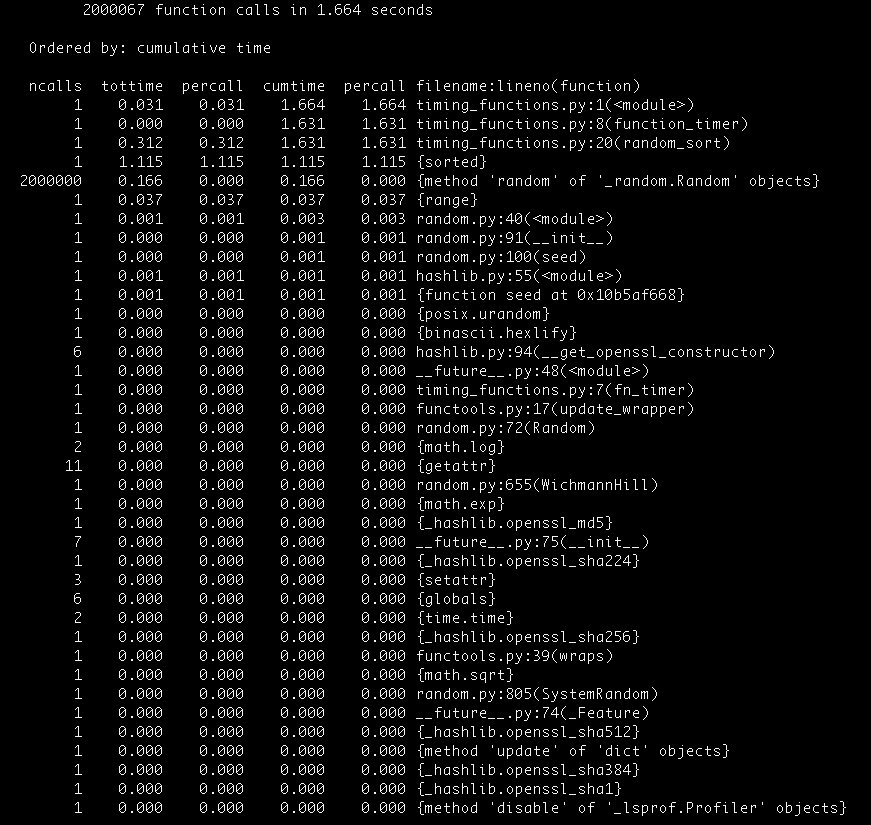
You’ll see that the total amount of time spent on running your script is higher than before. This is the penalty we pay for measuring the time each function takes to execute.
The line_profiler module gives you information about the CPU time spent on each line in your code.
This module has to be installed first, with
$ pip install line_profiler
Next, you need to specify which functions you want to evaluate using the @profile decorator (you don’t need to import it in your file):
@profile
def random_sort2(n):
    l = [random.random() for i in range(n)]
    l.sort()
    return l

if __name__ == "__main__":
    random_sort2(2000000)
Finally, you can obtain a line by line description of the random_sort2 function by typing:
$ kernprof -l -v timing_functions.py
where the -l flag indicates line-by-line and the -v flag indicates verbose output. With this method, we see that the array construction takes about 44% of the computation time, whereas the sort() method takes the remaining 56%.
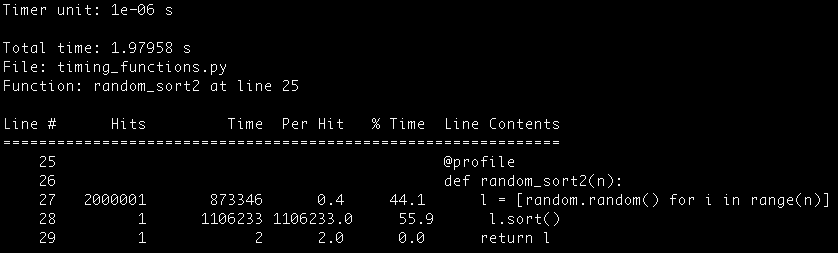
You will also see that due to the time measurements, the script might take longer to execute.
The memory_profiler module is used to measure memory usage in your code, on a line-by-line basis. However, it can make your code to run much more slower.
Install it with
$ pip install memory_profiler
Also, it is recommended to install the psutil package, so that the memory_profile runs faster:
$ pip install psutil
In a similar way as the line_profiler, use the @profile decorator to mark which functions to track. Next, type:
$ python -m memory_profiler timing_functions.py
yes, the previous script takes longer than the 1 or 2 seconds that took before. And if you didn’t install the psutil package, maybe you’re still waiting for the results!
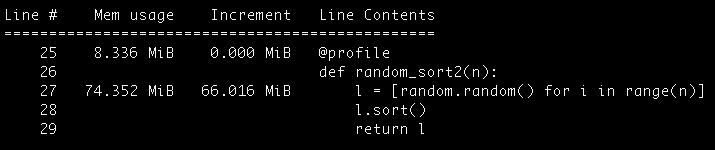
Looking at the output, note that the memory usage is expressed in terms of MiB, which stand for mebibyte (1MiB = 1.05MB).
Finally, with this package you’ll be able to track how many objects of each type (str, tuple, dict, etc) are created at each stage in your code.
Install it with
$ pip install guppy
Next, add it in your code as:
from guppy import hpy


def random_sort3(n):
    hp = hpy()
    print "Heap at the beginning of the function\n", hp.heap()
    l = [random.random() for i in range(n)]
    l.sort()
    print "Heap at the end of the function\n", hp.heap()
    return l


if __name__ == "__main__":
    random_sort3(2000000)
And run your code with:
$ python timing_functions.py
You’ll see something like the following output:
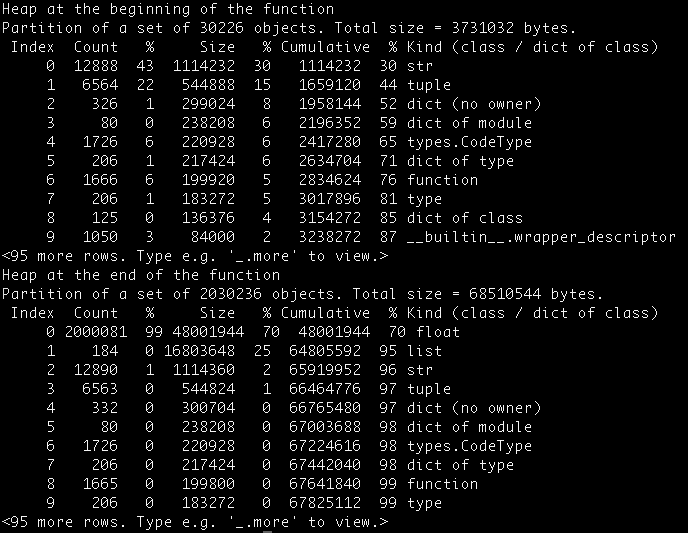
By placing the heap at different places in your code, you can study the object creation and deletion in the script flow.
If you want to learn more about speeding your Python code, I recommend you the book High Performance Python: Practical Performant Programming for Humans, september 2014.
Hope it was useful!
Don’t forget to share it with your friends!
The post 7 tips to Time Python scripts and control Memory & CPU usage appeared first on Marina Mele's site.
Do you want to share a Python script to a friend that doesn’t have Python installed? In this post you’ll learn how
With the py2app package you can compile a Python script and create a portable Mac application. If you’re using windows, you can check py2exe.
First of all, we need to install the py2app python package. If you have a virtual environment, activate it now
$ pip install -U py2app
Next, we need to create a setup.py file for our project. In your working directory (the one that contains your Python script), type:
$ py2applet --make-setup MyApplication.py
This will create the file setup.py, which is responsible to tell setuptools how to build your application.
If you edit this file, you should see something like:
"""
This is a setup.py script generated by py2applet

Usage:
    python setup.py py2app
"""

from setuptools import setup

APP = ['MyApplication.py']
DATA_FILES = []
OPTIONS = {'argv_emulation': True}

setup(
    app=APP,
    data_files=DATA_FILES,
    options={'py2app': OPTIONS},
    setup_requires=['py2app'],
)
You should put the name of your starting python script (the one your run to start) in the APP variable.
APP = ['application_name.py']
Also, if your application uses some data files, like a json or a txt file, you should include it in DATA_FILES. For example:
DATA_FILES = ['myfile.json', 'myfile.txt']
Now, we will compile our project in Alias mode. This instructs py2app to build an application that uses the source data files in-place. Note that this means that the application will not be portable to other machines (we’ll do that next!).
$ python setup.py py2app -A
You will have two new folders inside your working directory: build and dist. The first one is used for building your app (you don’t have to touch it) and the second one contains your application bundle.
From the working directory, you can run your app using:
$ ./dist/application_name.app/Contents/MacOS/application_name
or you can find your application in Finder and open it from there (you’ll find it in dist/application_name).
Once your application is running, we are ready to create the stand alone version. First remove the build and dist folders with:
$ rm -rf build dist
and next, build your application:
$ python setup.py py2app
During the building process, I encounter some problems with the ModuleGraph package (remember that this package is installed at the same time as py2app).
If you get one of the following errors:
AttributeError: 'ModuleGraph' object has no attribute 'scan_code'
AttributeError: 'ModuleGraph' object has no attribute 'load_module'
Edit the file where this error ocured (for me, it was inside the virtual environment folder, named myenv), at:
myenv/lib/python2.7/site-packages/py2app/recipes/virtualenv.py
Look for the functions scan_code or load_module and add it an underscore before them, _scan_code and _load_module. Build again your application, it should work now
Next, try to run your app, and see if it works.
If you get errors with external packages, like certificates with httplib2 or requests, missing files in selenium webdriver, or import errors that normally work, you’ll have to fully include these packages in your application. Edit again the setup.py file and add the package that raised the error:
OPTIONS = {
    'argv_emulation': True,
    'packages': ['httplib2', 'requests', 'selenium']
    }
After saving the file, remove again the build and dist directories, build your application and try to run it. Maybe another package failed? Try to include it in the setup file and start over.
However, not all the errors you get will be solved like this, sorry…!
Once you’re application runs correctly, and you’re happy with the results, you can share it by copying the application bundle dist/application_name.
That’s all! Hope it was useful!
And please, don’t forget to share it with your friends, they might find it useful too
The post From a Python script to a portable Mac application with py2app appeared first on Marina Mele's site.
In this post you will learn to create a Python script that allows users to enter its Google Analytics account and get information from there.
In order to do that, we will create a Project in the Google Developers Console and authorize it to use the Analytics API.
Next, we will use the Oauth 2.0 protocol to allow users to connect to their Analytics account through our Project.
And finally, we will retrieve the number of sessions of our view, segmented by traffic source.
Let’s start!
Go to the Google Developers Console and login with your account.
Click on Create Project and write your Project name and choose (if you want) your project ID.
Next, on your new project menu, go to APIs & auth –> Credentials. Here, in the Oauth section, click on Create new Client ID.
In this case, as we are creating a script that will run on our computer, we will choose Installed application as the application type, and Other as the installed application type.

Finally, click on Create Client ID.
You will see, next to the OAuth section, the credentials for your project, which contain your Client ID, the Client Secret, and the redirect URIS. Click on Download JSON to download them, and save the file as client_secrets.json.
From here, go to APIs & auth –> Consent screen and personalize the message that your users will see when requesting access to their accounts.
Next, we need to activate the Goolge Analytics API in your Project. Go to APIs & auth –> APIs and look for the Analytics API. You just need to activate it by clicking at the OFF button on the right.
Ok! now that we have our Project created we can move on to our Python script!
In order to use the Analytics API with Python, we will use the Google API Python Client library. You can install it in your working environment using pip (how? learn to install Python, virtualenv and virtualenvwrapper to work with virtual environments).
$ pip install python-gflags
$ pip install -U google-api-python-client
We also install the python-gflags library, which we will use latter in the code.
Next create the file analytics_service_object.py in your working directory (where client_secrets.json is located). This file will create an authorized Analytics Service object, used to interact with the user’s analytics accounts.
import httplib2
from apiclient.discovery import build
from oauth2client.client import flow_from_clientsecrets
from oauth2client.file import Storage
from oauth2client import tools
import argparse

CLIENT_SECRETS = 'client_secrets.json'

# The Flow object to be used if we need to authenticate.
FLOW = flow_from_clientsecrets(
    CLIENT_SECRETS,
    scope='https://www.googleapis.com/auth/analytics.readonly',
    message='%s is missing' % CLIENT_SECRETS
    )

# A file to store the access token
TOKEN_FILE_NAME = 'credentials.dat'


def prepare_credentials():
    parser = argparse.ArgumentParser(parents=[tools.argparser])
    flags = parser.parse_args()
    # Retrieve existing credendials
    storage = Storage(TOKEN_FILE_NAME)
    credentials = storage.get()
    # If no credentials exist, we create new ones
    if credentials is None or credentials.invalid:
        credentials = tools.run_flow(FLOW, storage, flags)
    return credentials


def initialize_service():
    # Creates an http object and authorize it using
    # the function prepare_creadentials()
    http = httplib2.Http()
    credentials = prepare_credentials()
    http = credentials.authorize(http)
    # Build the Analytics Service Object with the authorized http object
    return build('analytics', 'v3', http=http)

if __name__ == '__main__':
    service = initialize_service()
In the previous script:
Now, when you type
$ python analytics_service_object.py
you will see, in a browser window, the consent screen you customized before. This means that your Project is asking your permission to access your Analytics account through the API. After clicking yes, your new credentials will be stored in TOKEN_FILE_NAME so that you won’t have to enter them again (except when the access_token expires).
Once we have an authorized Analytics service object, we can use it to retrieve all the data in the user’s analytics accounts.
For example, to get a list of all the existing accounts of the user, just type:
accounts = service.management().accounts().list().execute()
This will give you a dictionary containing the following keys:
As we will see, this is a common structure when getting data from analytics, even when we ask for properties or views instead of accounts (the returned object has the same keys).
Moreover, the items value is a list of accounts, each of which is in turn a dictionary with keys:
Therefore, you can get a list of your users accounts with:
def get_accounts_ids(service):
    accounts = service.management().accounts().list().execute()
    ids = []
    if accounts.get('items'):
        for account in accounts['items']:
            ids.append(account['id'])
    return ids
You can also see the account ids in the Google Analytics web. You have to go to the Admin tab, and open the top-left drop down menu. There, your different accounts will be displayed, with their id on the right.
But as you may know, each Account can have multiple Properties, each of which has a different tracking code. To obtain a list of the Properties inside the Account with an id of account_id, you can use:
webproperties = service.management().webproperties().list(
    accountId=account_id).execute()
where webproperties is a dictionary with the same keys as accounts, but in which
Again, each web property is a dictionary that contains the keys:
and many more (you can print the webproperties object to see its keys).
You’ll see that the web property id is the tracking code of this property, which you can also obtain in the Google Analytics Admin tab.
But there is another level! Inside each Property there can be multiple views! You can obtain a list of views (or profiles) of each web property with:
profiles = service.management().profiles().list(
    accountId=firstAccountId,
    webPropertyId=firstWebpropertyId).execute()
The profiles dictionary contains the same keys as accounts and webproperties, but with
and each profile has:
Now that we know how to get information about our accounts, properties and views, let’s obtain the number of sessions of a view during a period of time.
Create the file get_sessions.py and write:
from analytics_service_object import initialize_service


def get_sessions(service, profile_id, start_date, end_date):
    ids = "ga:" + profile_id
    metrics = "ga:sessions"
    data = service.data().ga().get(
        ids=ids, start_date=start_date, end_date=end_date, metrics=metrics
        ).execute()
    return data["totalsForAllResults"][metrics]


if __name__ == '__main__':
    service = initialize_service()
    profile_id = "your_profile_id"
    print get_sessions(service, profile_id, "2014-09-01", "2014-09-30")
Note: you have to add your view id in “your_profile_id”, and then, run this script with:
$ python get_sessions.py
Check all the functionalities of the service.data().ga().get() method, and retrieve all the data you want form your view!
Obtaining the number of sessions for each traffic source (i.e. organic, referral, social, direct, email and other) is a little bit trickier. You have to work with filters in order to segment your data.
Here’s a little script that does this, thanks to Michael for the update
from analytics_service_object import initialize_service

def get_source_group(service, profile_id, start_date, end_date):
    ids = "ga:" + profile_id
    metrics = "ga:sessions"
    dimensions = "ga:channelGrouping"
    data = service.data().ga().get(
        ids=ids, start_date=start_date, end_date=end_date, metrics=metrics,
        dimensions=dimensions).execute()
    return dict(
        data["rows"] + [["total", data["totalsForAllResults"][metrics]]])


if __name__ == '__main__':
    service = initialize_service()
    profile_id = "your_profile_id"
    start_date = "2014-09-01"
    end_date = "2014-09-30"
    data = get_source_group(service, profile_id, start_date, end_date)
    for key, value in data.iteritems():
        print key, value
Again, add your view’s id in “your_profile_id”, and change the start_date and end_date to match the time interval you want.
After running this script, you’ll see the desired information in your terminal.
Another solution to get the number of sessions by traffic source, less optimized but instructive, is to use filter instead of dimensions:
from analytics_service_object import initialize_service


not_source_filters = {
    "social": "ga:hasSocialSourceReferral==No",
    "organic": "ga:medium!=organic",
    "direct":  "ga:source!=(direct),ga:medium!=(none);ga:medium!=(not set)",
    "email": "ga:medium!=email",
    "referral": "ga:medium!=referral,ga:hasSocialSourceReferral!=No"
}

source_filters = {
    "social": "ga:hasSocialSourceReferral==Yes",
    "organic": "ga:medium==organic",
    "direct":  "ga:source==(direct);ga:medium==(none),ga:medium==(not set)",
    "email": "ga:medium==email",
    "referral": "ga:medium==referral;ga:hasSocialSourceReferral==No",
    "other": "%s;%s;%s;%s;%s" % (
        not_source_filters["social"], not_source_filters["organic"],
        not_source_filters["direct"], not_source_filters["email"],
        not_source_filters["referral"])
}


def get_source_sessions(service, profile_id, start_date, end_date, source):
    ids = "ga:" + profile_id
    metrics = "ga:sessions"
    filters = source_filters[source]
    data = service.data().ga().get(
        ids=ids, start_date=start_date, end_date=end_date, metrics=metrics,
        filters=filters).execute()
    return data["totalsForAllResults"][metrics]


if __name__ == '__main__':
    service = initialize_service()
    profile_id = "your_profile_id"
    start_date = "2014-09-01"
    end_date = "2014-09-30"
    for source in ["social", "organic", "direct", "email", "referral", "other"]:
        print source, get_source_sessions(
            service, profile_id, start_date, end_date, source)
Again, add your view’s id in “your_profile_id”, and change the start_date and end_date to match the time interval you want.
After running this script, you’ll see the desired information in your terminal.
Some information you may find useful when working with filters:
That’s all for today!
Please, +1 if was useful and share it with your friends! Thaaanks!
The post Use the Google Analytics API with Python appeared first on Marina Mele's site.


 Lateo.net - Flux RSS en pagaille (pour en ajouter : @ moi)