 Connexion


YouTuber Chris Courses takes hydration seriously, but all those minutes spent filling up water bottles take a toll. 15 hours per year, to be exact. Chris regularly uses three differently sized water bottles and wanted to build something to fill them all to their exact measurements.
(Polite readers may like to be warned of a couple of bleeped swears and a rude whiteboard drawing a few minutes into this video.)

The solenoid valve determines when water can and cannot pass through. Mains water comes in through one tube and passes through the water filter, then the solenoid valve releases water via another tube into the bottle.
The Raspberry Pi sends a signal to the solenoid valve telling it to open for a specific amount of time — the length of time it takes to fill a particular water bottle — and to close when that time expires. Chris set this up to start running when he clicks a physical button.
Chris also programmed lights to indicate when the dispenser is turned on. This manual coding proved to be the most time-consuming part of the project.
Chris agreed, so he 3D-printed a beautiful enclosure to house what he dubs the ‘Hydrobot 5000’. It’s a sleek black casing that sits pretty in his kitchen on a wall next to the fridge. It took a fair bit of fridge shuffling and electrical mounting to “sit pretty”, however. This Raspberry Pi-powered creation needed to be connected to a water source, so the tubing had to be snaked from Hydrobot 5000, behind appliances, to the kitchen sink.
Check out those disco lights! Nice work, Chris. Follow Chris on YouTube for loads more coding and dev videos.
The post Raspberry Pi automatically refills your water bottle appeared first on Raspberry Pi.
How to improve upon the standard burglar deterring method of leaving lights switched on? Dennis Mellican turned to Raspberry Pi for a much more effective solution. It actually proved too effective when a neighbour stopped by, but more on that in a bit.
Here you can see Dennis’s system in action scaring off a trespasser:
The burglar deterrent started out as Dennis’s regular home automation system. Not content with the current software offerings, and having worked in DevOps, Dennis decided to create his own solution. Enter Raspberry Pi (well, several of them).
Dennis has multiple Raspberry Pi–powered devices dotted around his home, doing things such as turning on lights, powering up a garden sprinkler, and playing fake dog barks on wireless speakers. All these burglar deterrents work together and are run by a chat bot.
Each Raspberry Pi controls a single automated item in Dennis’s home. All the Raspberry Pis communicate with each other via Slack. Dennis issues commands if he, for example, wants lights to turn on while he is away, but the Raspberry Pis can also talk to each other when a trigger event occurs, such as when a motion sensor is tripped.
Google Chromecast enables ‘dumb’ speakers to be smart. Dennis has such speakers set up inside, close to windows at the front and back of the house, and they play an .mp3 file of a fake dog bark when commanded.
The security cameras Dennis uses in his home setup are a wireless CCTV variety, and the lights are a mix of TP-Link and Lifx smart bulbs.
Here’s all the Python code running Dennis’ entire security system.
Dennis’s smart system has backfired on him a few times. Once a neighbour visited while he was out and thought Dennis was rudely not answering the door, because she saw the lights go on inside, making it appear like he was home. Awkward.
The fake dog barking has also startled the postman and a few joggers — Dennis says it adds to the realism.
The troupe of Raspberry Pis has also scared away an Australian possum (video above). These critters are notorious for making nests in roof cavities, so Dennis dodged another problematic home invasion there.
Dennis is a maker after our own hearts when explaining where he’d like to go next with his anti-burglary build:
“I feel like Kevin McCallister from Home Alone, with these home security ‘traps’. I’m still waiting to catch the Wet Bandits for the sequel to this story. So far only stray cats have been caught by the sprinkler. Perhaps the next adventure of the chat bot is to order pizza and have Gangster ‘Johnny’ complete the transaction when the pizza delivery triggers the sensors.”
Go for it, Dennis!
The post Deter burglars with a Raspberry Pi chatbot appeared first on Raspberry Pi.
Design Engineering student Ben Cobley has created a Raspberry Pi–powered sous-chef that automates the easier pan-cooking tasks so the head chef can focus on culinary creativity.
Ben named his invention OnionBot, as the idea came to him when looking for an automated way to perfectly soften onions in a pan while he got on with the rest of his dish. I have yet to manage to retrieve onions from the pan before they blacken so… *need*.
A Raspberry Pi 4 Model B is the brains of the operation, with a Raspberry Pi Touch Display showing the instructions, and a Raspberry Pi Camera Module keeping an eye on the pan.
Ben’s affordable solution is much better suited to home cooking than the big, expensive robotic arms used in industry. Using our tiny computer also allowed Ben to create something that fits on a kitchen counter.
A thermal sensor array suspended above the stove detects the pan temperature, and the Raspberry Pi Camera Module helps track the cooking progress. A servo motor controls the dial on the induction stove.
No machine learning expertise was required to train an image classifier, running on Raspberry Pi, for Ben’s robotic creation; you’ll see in the video that the classifier is a really simple drag-and-drop affair.
Ben has only taught his sous-chef one pasta dish so far, and we admire his dedication to carbs.
Ben built a control panel for labelling training images in real time and added labels at key recipe milestones while he cooked under the camera’s eye. This process required 500–1000 images per milestone, so Ben made a LOT of pasta while training his robotic sous-chef’s image classifier.
Ben open-sourced this project so you can collaborate to suggest improvements or teach your own robot sous-chef some more dishes. Here’s OnionBot on GitHub.
He also rates this Auto ML system used in the project as a “great tool for makers.”
The post Hire Raspberry Pi as a robot sous-chef in your kitchen appeared first on Raspberry Pi.
In the latest issue of HackSpace Magazine, out now, @MrPJEvans shows you how to add voice commands to your projects with a Raspberry Pi 4 and a microphone.
It’s amazing how we’ve come from everything being keyboard-based to so much voice control in our lives. Siri, Alexa, and Cortana are everywhere and happy to answer questions, play you music, or help automate your household.
For the keen maker, these offerings may not be ideal for augmenting their latest project as they are closed systems. The good news is, with a bit of help from Google, you can add voice recognition to your project and have complete control over what happens. You just need a Raspberry Pi 4, a speaker array, and a Google account to get started.
For a home assistant device, being able to hear you clearly is an essential. Many microphones are either too low-quality for the task, or are unidirectional: they only hear well in one direction. To the rescue comes Seeed’s ReSpeaker, an array of four microphones with some clever digital processing to provide the kind of listening capability normally found on an Amazon Echo device or Google Assistant. It’s also in a convenient HAT form factor, and comes with a ring of twelve RGB LEDs, so you can add visual effects too. Start with a Raspberry Pi OS Lite installation, and follow these instructions to get your ReSpeaker ready for use.
You’ll see later on that we can add the power of Google’s speech-to-text API by streaming audio over the internet. However, we don’t want to be doing that all the time. Snowboy is an offline ‘hotword’ detector. We can have Snowboy running all the time, and when your choice of word is ‘heard’, we switch to Google’s system for accurate processing. Snowboy can only handle a few words, so we only use it for the ‘trigger’ words. It’s not the friendliest of installations so, to get you up and running, we’ve provided step-by-step instructions.
As we’ve just mentioned, we can have a hotword (or trigger word) to activate full speech recognition so we can stay offline. To do this, Snowboy must be trained to understand the word chosen. The code that describes the word (and specifically your pronunciation of it) is called the model. Luckily, this whole process is handled for you at snowboy.kitt.ai, where you can create a model file in a matter of minutes and download it. Just say your choice of words three times, and you’re done. Transfer the model to your Raspberry Pi 4 and place it in your home directory.
After the trigger word is heard, we want Google’s fleet of super-servers to help us transcribe what is being said. To use Google’s speech-to-text API, you will need to create a Google application and give it permissions to use the API. When you create the application, you will be given the opportunity to download ‘credentials’ (a small text file) which will allow your setup to use the Google API. Please note that you will need a billable account for this, although you get one hour of free speech-to-text per month. Full instructions on how to get set up can be found here.
To use Google’s API, we need to install the firm’s speech-to-text SDK for Python so we can stream audio and get the results. On the command line, run the following:pip3 install google-cloud-speech(If you get an error, run sudo apt install python3-pip then try again).
Remember that credentials file? We need to tell the SDK where it is:export GOOGLE_APPLICATION_CREDENTIALS="/home/pi/[FILE_NAME].json"(Don’t forget to replace [FILE_NAME] with the actual name of the JSON file.)
Now download and run this test file. Try saying something and see what happens!
Now we can talk to our Raspberry Pi, it’s time to link the hotword system to the Google transcription service to create our very own virtual assistant. We’ve provided sample code so that you can see these two systems running together. Run it, then say your chosen hotword. Now ask ‘what time is it?’ to get a response. (Don’t forget to connect a speaker to the audio output if you’re not using HDMI.) Now it’s over to you. Try adding code to respond to certain commands such as ‘turn the light on’, or ‘what time is it?’
Each month, HackSpace magazine brings you the best projects, tips, tricks and tutorials from the makersphere. You can get it from the Raspberry Pi Press online store, The Raspberry Pi store in Cambridge, or your local newsagents.
Each issue is free to download from the HackSpace magazine website.
The post Talk to your Raspberry Pi | HackSpace 36 appeared first on Raspberry Pi.
One of our Approved Resellers in the Netherlands, Daniël from Raspberry Store, shared this Raspberry Pi–powered prayer reminder with us. It’s a useful application one of his customers made using a Raspberry Pi purchased from Daniël’s store.
As a Raspberry Pi Official Reseller, I love to see how customers use Raspberry Pi to create innovative products. Spying on bird nests, streaming audio to several locations, using them as a menu in a restaurant, or in a digital signage-solution… just awesome. But a few weeks ago, a customer showed me a new usage of Raspberry Pi: a prayer clock for mosques.
Made by Mawaqit, this is a narrowcasting solution with a Raspberry Pi at its heart and can be used on any browser or smartphone.
This project is simple in hardware terms. You just need Raspberry Pi 3 or Raspberry Pi 4, a TV screen, and a HDMI cable.
If you do not have an internet connection, you’ll also need an RTC clock
With the HDMI cable, Raspberry Pi can broadcast the clock — plus other useful info like the weather, or a reminder to silence your phone — on a wall in the mosque. Awesome! So simple, and yet I have not seen a solution like this before, despite Mawaqit’s application now being used in 51 countries and over 4609 mosques. And, last I checked, it has more than 185,000 active users!
You’ll need to install the pre-configured system image and flash the mawaqit.xz system image onto your Raspberry Pi’s SD card.
There are then two options: connected and offline. If you set yourself up using the connected option, you’ll be able to remotely control the app from your smartphone or any computer and tablet, which will be synchronised across all the screens connected to Raspberry Pi. You can also send messages and announcements. The latest updates from Mawaqit will install automatically.
If you need to choose the offline option and you’re not able to use the internet at your mosque, it’s important to equip your Raspberry Pi with RTC, because Raspberry Pi can’t keep time by itself.
All the software, bits of command line code, and step-by-step guidance you’ll need are available on this web page.
The Mawaqit project is free of charge, and the makers actually prohibit harnessing it for any monetary gain. The makers even created an API for you to create your own extentions — how great is that? So, if you want your own prayer clock for in a mosque, school, or just at home, take a look at Mawaqit.net.
The post Raspberry Pi prayer reminder clock appeared first on Raspberry Pi.
The new Ubuntu Appliance portfolio provides free images to help you turn your Raspberry Pi into an IoT device: just install them to your SD card and you have all the software you need to make a media server, get started with home automation, and more. Canonical’s Rhys Davies is here to tell us all about it.
We are delighted to announce the new Ubuntu Appliance portfolio. Together with NextCloud, AdGuard, Plex, Mosquitto and openHAB, we have created the first in a new class of Ubuntu derivatives. Ubuntu Appliances are software-defined projects that enable users to download everything they need to turn a Raspberry Pi into a device that does one thing – beautifully.
The Ubuntu Appliance mission is to enable you to build your own secure, self-updating, single-purpose devices. Tell us what you want to see next, or let’s talk about turning your project into the next Ubuntu Appliance in Discourse. For now, we are excited to bring these initial appliances to your attention.
Head over to the Ubuntu Appliances website, click the appliance you would like, select download, follow the instructions, and away you go. Once you get to this stage, there are links to tutorials and documentation written by the upstream project themselves, so you can get next steps from the horse’s mouth. If you run into any bother let us know with a new topic and we’ll get on it.
The problem we are trying to solve is to do with the fragmentation in IoT. We want to give publishers and developers a platform to get their software in the hands of their users and into their devices. We work with them to securely bundle the OS, their applications and configurations into a single download that is available for anyone to turn a Raspberry Pi into a dedicated device. You can go to the portfolio and download as many of the appliances as you like and start using them today.
All of this gives a stage and a secure, production-grade base to projects. There are no restrictions on who can make an Ubuntu Appliance; all you need is an application that runs on a Raspberry Pi or another certified board, and to let us know what you’ve got so we can help you over the line. If you need more information, head to our community page where you’ll find the rules and the exact steps to become featured as an Ubuntu Appliance.
All that’s left to say is to try them out. All five of the initial appliances work on Raspberry Pi, so if you have one, you can get started. And if you don’t have one – maybe your Raspberry Pi is still in the post – then you can also ‘try before you Pi’: install the appliance in a virtual machine and see what you think.
The list of appliances is already growing. This launch marks the first five appliances, but we are already working with developers on the next wave and are looking for more. Start with these ones and go to our discourse to tell us what you think.
Thanks for having me, Raspberry Pi <3
The post Build an IoT device with Ubuntu Appliance and Raspberry Pi appeared first on Raspberry Pi.
Tired of losing vegetable crops to frequent summertime hail storms, Nick Rogness decided to build something to protect them. And the result is brilliant!
Digital Garden with hail protection
Tired of getting your garden destroyed by hail storms? I was, so I did something about it…maker style!
“I live in a part of the country where hail and severe weather are commonplace during the summer months,” Nick explains in his Hackster tutorial. “I was getting frustrated every year when my wife’s garden was get demolished by the nightly hail storms losing our entire haul of vegetable goodies!”
Nick drew up plans for a solution to his hail problem, incorporating liner actuators bolted to a 12ft × 12ft frame that surrounds the vegetable patch. When a storm is on the horizon, the actuators pull a heavy-duty tarp over the garden.
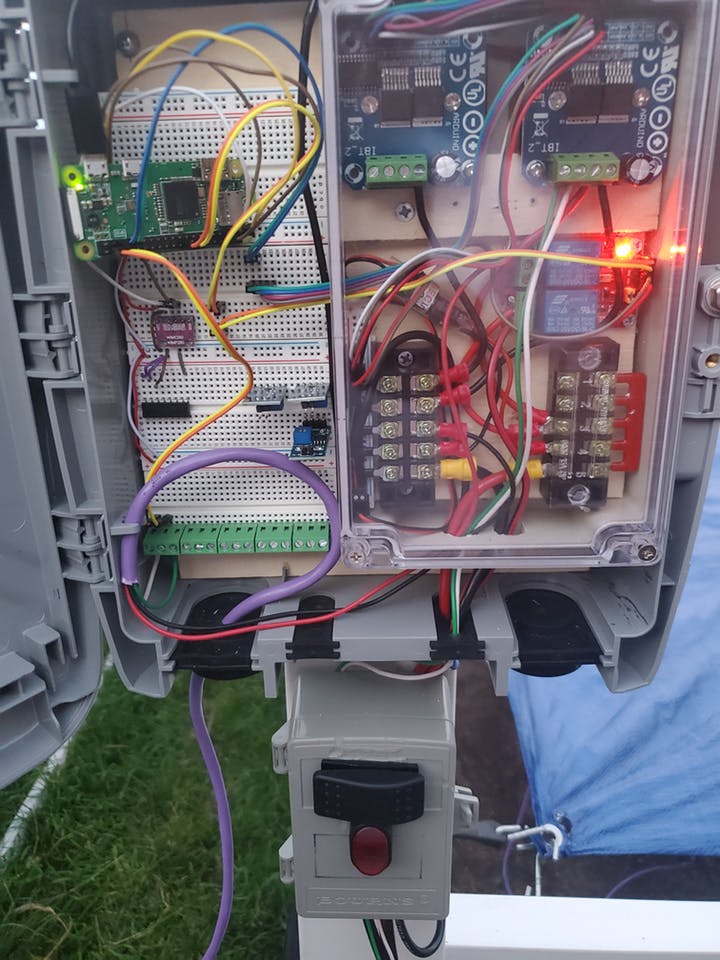
Nick connected two motor controllers to a Raspberry Pi Zero W. The Raspberry Pi then controls the actuators to pull the tarp, either when a manual rocker switch is flipped or when it’s told to do so via weather-controlled software.
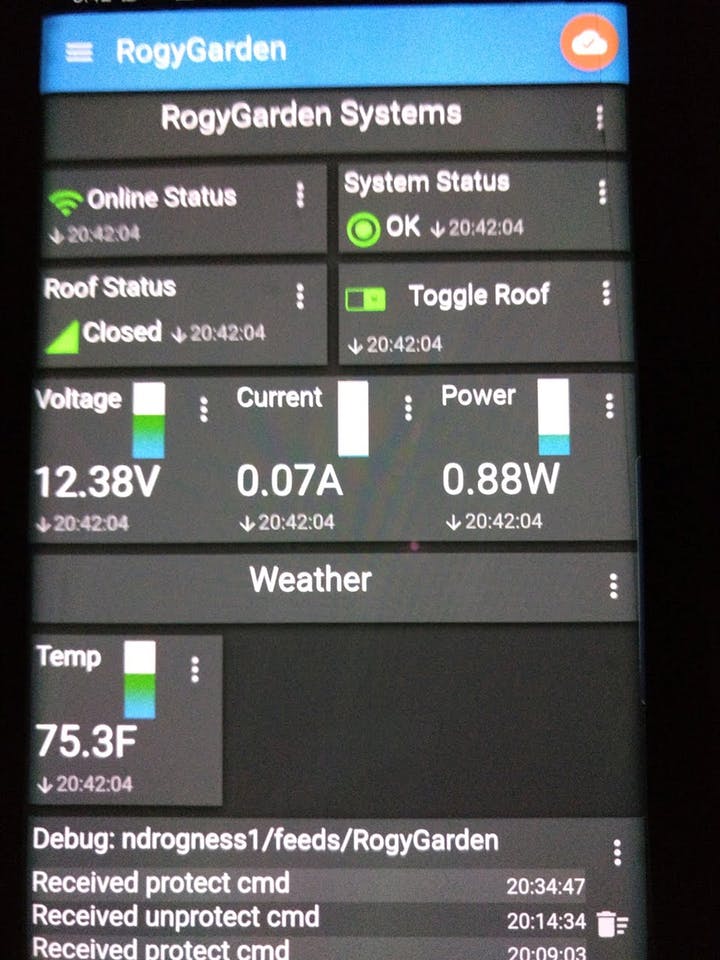
“Software control of the garden was accomplished by using a Raspberry Pi and MQTT to communicate via Adafruit IO to reach the mobile app on my phone,” Nick explains. The whole build is powered by a 12V Marine deep-cycle battery that’s charged using a solar panel.
You can view the full tutorial on Hackster, including the code for the project.
The post Protect your veggies from hail with a Raspberry Pi Zero W appeared first on Raspberry Pi.
Ummm…YES PLEASE!
Cheeseborg: The Grilled Cheese Robot!
More cool stuff at http://www.tabb.me and http://www.evankhill.com Cheeseborg has one purpose: to create the best grilled cheese it possibly can! Cheeseborg is fully automated, voice activated, and easy to move. With Google Assistant SDK integration, Cheeseborg can even be used as a part of your smart home.
Sometimes we’ll see a project online and find ourselves hoping and praying that it uses a Raspberry Pi, just so we have a reason to share it with you all.
That’s how it was when I saw Cheeseborg, the grilled cheese robot, earlier this week. “Please, please, please…” I prayed to the robot gods, as I chowed down on a grilled cheese at my desk (true story), and, by the grace of all that is good in this world, my plea was answered.
Cheeseborg uses both an Arduino Mega and a Raspberry Pi 3 in its quest to be the best ever automated chef in the world. The Arduino handles the mechanics, while our deliciously green wonder board runs the Google Assistant SDK, allowing you to make grilled cheese via voice command.
Saying “Google, make me a grilled cheese” will set in motion a series of events leading to the production of a perfectly pressed sammie, ideal for soup dunking or solo snacking.
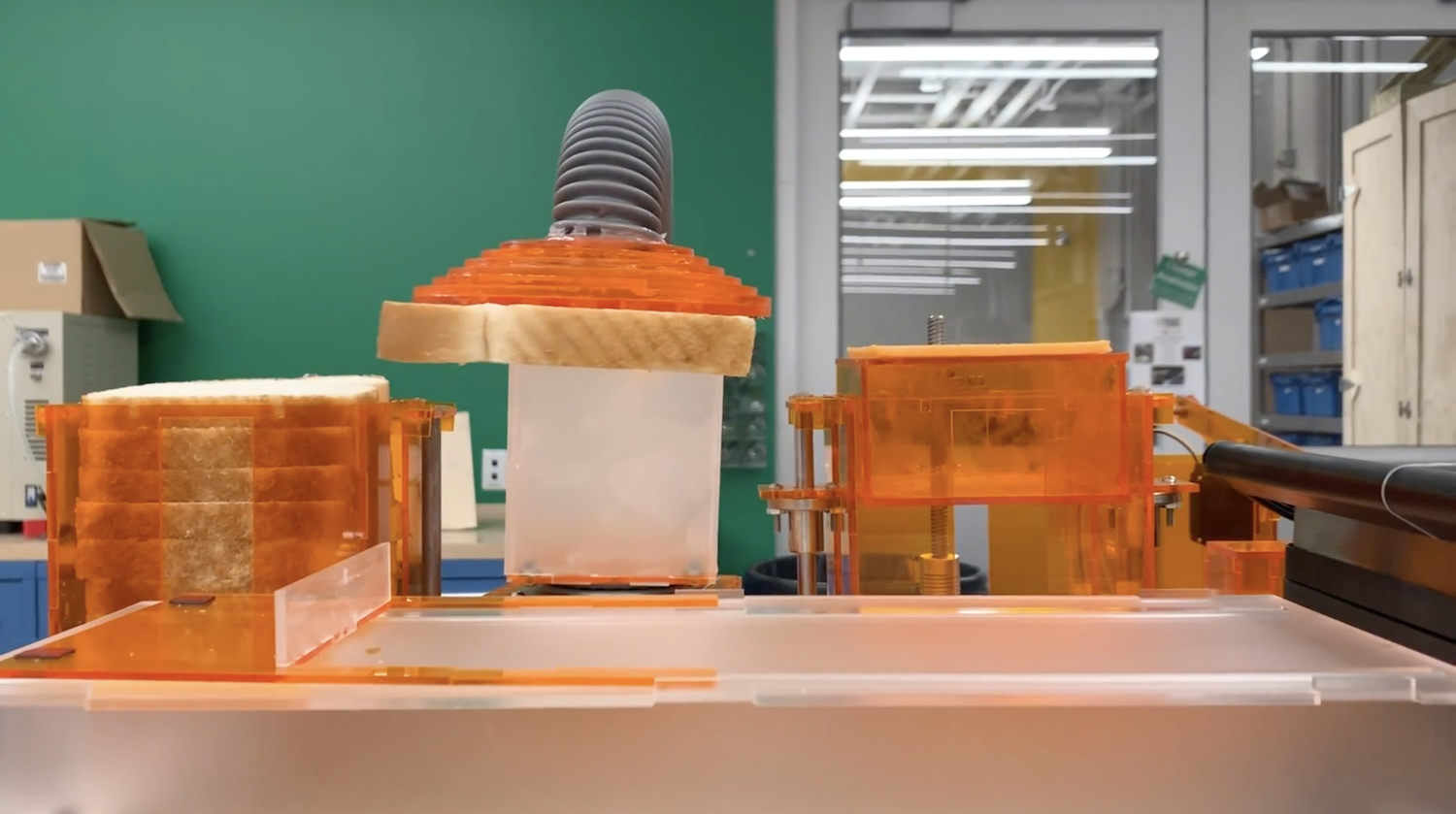
The robot uses a vacuum lifter to pick up a slice of bread, dropping it onto an acrylic tray before repeating the process with a slice of cheese and then a second slice of bread. Then the whole thing is pushed into a panini press that has been liberally coated in butter spray (not shown for video aesthetics), and the sandwich is toasted, producing delicious ooey-gooey numminess out the other side.

Pareidolia much?
Here at Raspberry Pi, we give the Cheeseborg five slices out of five, and look forward to one day meeting Cheeseborg for real, so we can try out its scrummy wares.
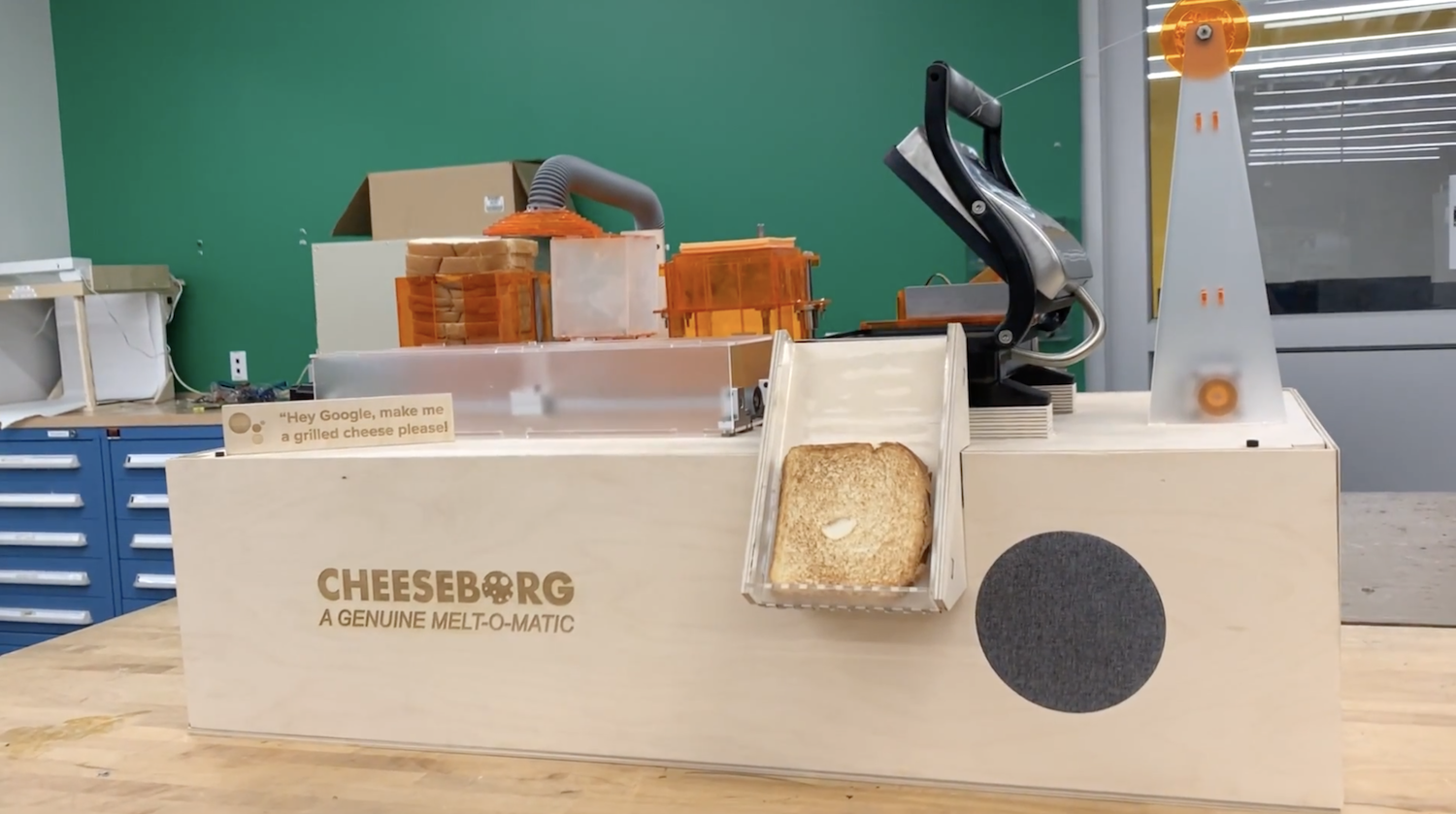
ooooey-gooey numminess
You can find out more about Cheeseborg here.
Yes, there’s a difference: but which do you prefer? What makes them different? And what’s your favourite filling for this crispy, cheesy delight?
The post The grilled cheese-making robot of your dreams appeared first on Raspberry Pi.


 Lateo.net - Flux RSS en pagaille (pour en ajouter : @ moi)