 Connexion


We’ve seen a few innovative album art displays using Raspberry Pi, from LEGO minifigures playing their own music to this NFC-powered record player.
Maker Kyle Johnson was looking for a fun project combining Raspberry Pi and Adafruit’s LED matrix, and has created the latest cool album art display to grace our blog.

The maker turned to PowerShell – a cross-platform task automation solution – to create a script (available on GitHub) that tells the Raspberry Pi which album is playing, and sends it the album artwork for display on the LED matrix.
Raspberry Pi runs a flaschen-taschen server to display the album artwork. The PowerShell script runs a ‘send image’ command every time the album art updates. Then the Raspberry Pi switches the display to reflect what is now playing. In the demo video, the maker runs this from iTunes, but says that any compatible music player (ie: Spotify) will work too.
The maker’s original reddit post shares a step-by-step guide to follow on the software side of things. And they detail the terminal code you’ll need to run on the Raspberry Pi to get your LED Matrix displaying the correct image.
They also suggest checking out Adafruit’s setup guides for the RGB Matrix Bonnet for Raspberry Pi and for the LED Matrix itself.
The post Raspberry Pi displays album art on LED matrix appeared first on Raspberry Pi.
The new Raspberry Pi Pico is very different from a traditional Raspberry Pi. Pico is a microcontroller, rather than a microcomputer. Unlike a Raspberry Pi it’s a platform you develop for, not a platform you develop on.
But you still have choices if you want to develop for Pico, because there is both a C/C++ SDK and an official MicroPython port. Beyond that there are other options opening up, with a port of CircuitPython from Adafruit and the prospect of Arduino support, or even a Rust port.
Here I’m going to talk about how to get started with the C/C++ SDK, which lets you develop for Raspberry Pi Pico from your laptop or Raspberry Pi.
I’m going to assume you’re using a Raspberry Pi; after all, why wouldn’t you want to do that? But if you want to develop for Pico from your Windows or Mac laptop, you’ll find full instructions on how to do that in our Getting Started guide.
When you’re writing software for hardware, the first program that gets run in a new programming environment is typically turning an LED on, off, and then on again. Learning how to blink an LED gets you halfway to anywhere. We’re going to go ahead and blink the onboard LED on Pico, which is connected to pin 25 of the RP2040 chip.
We’ve tried to make getting started with Raspberry Pi Pico as easy as possible. In fact, we’ve provided some pre-built binaries that you can just drag and drop onto your Raspberry Pi Pico to make sure everything is working even before you start writing your own code.
Go to the Getting Started page and click on the “Getting started with C/C++” tab, then the “Download UF2 file” button in the “Blink an LED” box.
A file called blink.uf2 will be downloaded to your computer. Go grab your Raspberry Pi Pico board and a micro USB cable. Plug the cable into your Raspberry Pi or laptop, then press and hold the BOOTSEL button on your Pico while you plug the other end of the micro USB cable into the board. Then release the button after the board is plugged in.
A disk volume called RPI-RP2 should pop up on your desktop. Double-click to open it, and then drag and drop the UF2 file into it. The volume will automatically unmount and the light on your board should start blinking.
Congratulations! You’ve just put code onto your Raspberry Pi Pico for the first time. Now we’ve made sure that we can successfully get a program onto the board, let’s take a step back and look at how we’d write that program in the first place.
Somewhat unsurprisingly, we’ve gone to a lot of trouble to make installing the tools you’ll need to develop for Pico as easy as possible on a Raspberry Pi. We’re hoping to make things easier still in the future, but you should be able to install everything you need by running a setup script.
However, before we do anything, the first thing you’ll need to do is make sure your operating system is up to date.
$ sudo apt update
$ sudo apt full-upgrade
Once that’s complete you can grab the setup script directly from Github, and run it at the command line.
$ wget -O pico_setup.sh https://rptl.io/pico-setup-script
$ chmod +x pico_setup.sh
$ ./pico_setup.sh
The script will do a lot of things behind the scenes to configure your Raspberry Pi for development, including installing the C/C++ command line toolchain and Visual Studio Code. Once it has run, you will need to reboot your Raspberry Pi.
$ sudo rebootThe script has been tested and is known to work from a clean, up-to-date installation of Raspberry Pi OS. However, full instructions, along with instructions for manual installation of the toolchain if you prefer to do that, can be found in the “Getting Started” guide.
Once your Raspberry Pi has rebooted we can get started writing code.
There is a large amount of example code for Pico, and one of the things that the setup script will have done is to download the examples and build both the Blink and “Hello World” examples to verify that your toolchain is working.
But we’re going to go ahead and write our own.
We’re going to be working in the ~/pico directory created by the setup script, and the first thing we need to do is to create a directory to house our project.
$ cd pico
$ ls -la
total 59284
drwxr-xr-x  9 pi pi     4096 Jan 28 10:26 .
drwxr-xr-x 19 pi pi     4096 Jan 28 10:29 ..
drwxr-xr-x 12 pi pi     4096 Jan 28 10:24 openocd
drwxr-xr-x 28 pi pi     4096 Jan 28 10:20 pico-examples
drwxr-xr-x  7 pi pi     4096 Jan 28 10:20 pico-extras
drwxr-xr-x 10 pi pi     4096 Jan 28 10:20 pico-playground
drwxr-xr-x  5 pi pi     4096 Jan 28 10:21 picoprobe
drwxr-xr-x 10 pi pi     4096 Jan 28 10:19 pico-sdk
drwxr-xr-x  7 pi pi     4096 Jan 28 10:22 picotool
-rw-r--r--  1 pi pi 60667760 Dec 16 16:36 vscode.deb
$ mkdir blink
$ cd blink
Now open up your favourite editor and create a file called blink.c in the blink directory.
#include "pico/stdlib.h"
#include "pico/binary_info.h"

const uint LED_PIN = 25;

int main() {

    bi_decl(bi_program_description("First Blink"));
    bi_decl(bi_1pin_with_name(LED_PIN, "On-board LED"));

    gpio_init(LED_PIN);
    gpio_set_dir(LED_PIN, GPIO_OUT);
    while (1) {
        gpio_put(LED_PIN, 0);
        sleep_ms(250);
        gpio_put(LED_PIN, 1);
        sleep_ms(1000);
    }
}
Create a CMakeLists.txt file too.
cmake_minimum_required(VERSION 3.12)

include(pico_sdk_import.cmake)

project(blink)

pico_sdk_init()

add_executable(blink
    blink.c
)

pico_add_extra_outputs(blink)

target_link_libraries(blink pico_stdlib)
Then copy the pico_sdk_import.cmake file from the external folder in your pico-sdk installation to your test project folder.
$ cp ../pico-sdk/external/pico_sdk_import.cmake .You should now have something that looks like this:
$ ls -la
total 20
drwxr-xr-x  2 pi pi 4096 Jan 28 11:32 .
drwxr-xr-x 10 pi pi 4096 Jan 28 11:01 ..
-rw-r--r--  1 pi pi  398 Jan 28 11:06 blink.c
-rw-r--r--  1 pi pi  211 Jan 28 11:32 CMakeLists.txt
-rw-r--r--  1 pi pi 2721 Jan 28 11:32 pico_sdk_import.cmake
$
We are ready to build our project using CMake.
$ mkdir build
$ cd build
$ export PICO_SDK_PATH=../../pico-sdk
$ cmake ..
$ make
If all goes well you should see a whole bunch of messages flash past in your Terminal window and a number of files will be generated in the build/ directory, including one called blink.uf2.
Just as we did before with the UF2 file we downloaded from the Getting Started page, we can now drag and drop this file on to our Pico.
Unplug the cable from your Pico, then press and hold the BOOTSEL button on your Pico and plug it back in. Then release the button after the board is plugged in.
blink.uf2 binary can be dragged and dropped on to our PicoThe RPI-RP2 disk volume should pop up on your desktop again. Double-click to open it, then open a file viewer in the pico/blink/build/ directory and drag and drop the UF2 file you’ll find there on to the RPI-RP2 volume. It will automatically unmount, and the light on your board should start blinking. But this time it will blink a little bit differently from before.
Try playing around with the sleep_ms( ) lines in our code to vary how much time there is between blinks. You could even take a peek at one of the examples, which shows you how to blink the onboard LED in Morse code.
One way to convince yourself that the program running on your Pico is the one we just built is to use something called picotool. Picotool is a command line utility installed by the setup script that is a Swiss Army knife for all things Pico.
Go ahead and unplug your Pico from your Raspberry Pi, press and hold the BOOTSEL button, and plug it back in. Then run picotool.
$ sudo picotool info -a
Program Information
 name:          blink
 description:   First Blink
 binary start:  0x10000000
 binary end:    0x10003344

Fixed Pin Information
 25:  On-board LED

Build Information
 sdk version:       1.0.0
 pico_board:        pico
 build date:        Jan 28 2021
 build attributes:  Release

Device Information
 flash size:   2048K
 ROM version:  1
$
You’ll see lots of information about the program currently on your Pico. Then if you want to start it blinking again, just unplug and replug Pico to leave BOOTSEL mode and start your program running once more.
Picotool can do a lot more than this, and you’ll find more information about it in Appendix B of the “Getting Started” guide.
So far we’ve been building our Pico projects from the command line, but the setup script also installed and configured Visual Studio Code, and we can build the exact same CMake-based project in the Visual Studio Code environment. You can open it as below:
$ cd ~/pico
$ export PICO_SDK_PATH=/home/pi/pico/pico-sdk
$ code
Chapter 6 of the Getting Started guide has full details of how to load and compile a Pico project inside Visual Studio Code. If you’re used to Visual Studio Code, you might be able to make your way from here without much extra help, as the setup script has done most of the heavy lifting for you in configuring the IDE.
What’s left is to open the pico/blink folder and allow the CMake Tools extension to configure the project. After selecting arm-none-eabi as your compiler, just hit the “Build’ button in the blue bottom bar.
While we recommend and support Visual Studio Code as the development environment of choice for developing for Pico — it works cross-platform under Linux, Windows, and macOS and has good plugin support for debugging — you can also take a look at Chapter 9 of the Getting Started guide. There we talk about how to use both Eclipse and CLion to develop for Pico, and if you’re more used to those environments you should be able to get up and running in either without much trouble.
If you’ve got this far, you’ve built and deployed your very first C program to your Raspberry Pi Pico. Well done! The next step is probably going to be saying “Hello World!” over serial back to your Raspberry Pi.
From here, you probably want to sit down and read the Getting Started guide I’ve mentioned throughout the article, especially if you want to make use of SWD debugging, which is discussed at length in the guide. Beyond that I’d point you to the book on the C/C++ SDK which has the API-level documentation, as well as a high-level discussion of the design of the SDK.
Support for developing for Pico can be found on the Raspberry Pi forums. There is also an (unofficial) Discord server where a lot of people active in the new community seem to be hanging out. Feedback on the documentation should be posted as an Issue to the pico-feedback repository on Github, or directly to the relevant repository it concerns.
All of the documentation, along with lots of other help and links, can be found on the same Getting Started page from which we grabbed our original UF2 file.
If you lose track of where that is in the future, you can always find it from your Pico: to access the page, just press and hold the BOOTSEL button on your Pico, plug it into your laptop or Raspberry Pi, then release the button. Go ahead and open the RPI-RP2 volume, and then click on the INDEX.HTM file.
That will always take you to the Getting Started page.
The post How to blink an LED with Raspberry Pi Pico in C appeared first on Raspberry Pi.
Picture the scene: you have a Raspberry Pi configured to run on your network, you power it up headless (without a monitor), and now you need to know which IP address it was assigned.
Matthias came up with this solution, which makes your Raspberry Pi blink its IP address, because he used a Raspberry Pi Zero W headless for most of his projects and got bored with having to look it up with his DHCP server or hunt for it by pinging different IP addresses.
A script runs when you start your Raspberry Pi and indicates which IP address is assigned to it by blinking it out on the device’s LED. The script comprises about 100 lines of Python, and you can get it on GitHub.
The power/status LED on the edge of the Raspberry Pi blinks numbers in a Roman numeral-like scheme. You can tell which number it’s blinking based on the length of the blink and the gaps between each blink, rather than, for example, having to count nine blinks for a number nine.
Short, fast blinks represent the numbers one to four, depending on how many short, fast blinks you see. A gap between short, fast blinks means the LED is about to blink the next digit of the IP address, and a longer blink represents the number five. So reading the combination of short and long blinks will give you your device’s IP address.
You can see this in action at this exact point in the video. You’ll see the LED blink fast once, then leave a gap, blink fast once again, then leave a gap, then blink fast twice. That means the device’s IP address ends in 112.
Luckily, you usually only need to know the last three numbers of the IP address (the last octet), as the previous octets will almost always be the same for all other computers on the LAN.
The script blinks out the last octet ten times, to give you plenty of chances to read it. Then it returns the LED to its default functionality.
On a Raspberry Pi Zero W, the script uses the green status/power LED, and on other Raspberry Pis it uses the green LED next to the red power LED.
Once you get the hang of the Morse code-like blinking style, this is a really nice quick solution to find your device’s IP address and get on with your project.
The post What the blink is my IP address? appeared first on Raspberry Pi.
We found this project at TeCoEd and we loved the combination of an OLED display housed inside a retro Argus slide viewer. It uses a Raspberry Pi 3 with Python and OpenCV to pull out single frames from a video and write them to the display in real time.
TeCoEd names this creation the Raspberry Pi Retro Player, or RPRP, or – rather neatly – RP squared. The Argus viewer, he tells us, was a charity-shop find that cost just 50p. It sat collecting dust for a few years until he came across an OLED setup guide on hackster.io, which inspired the birth of the RPRP.
At the heart of the project is a Raspberry Pi 3 which is running a Python program that uses the OpenCV computer vision library. The code takes a video clip and breaks it down into individual frames. Then it resizes each frame and converts it to black and white, before writing it to the OLED display. The viewer sees the video play in pleasingly retro monochrome on the slide viewer.
TeCoEd ran into some frustrating problems with the OLED display, which, he discovered, uses the SH1106 driver, rather than the standard SH1306 driver that the Adafruit CircuitPython library expects. Many OLED displays use the SH1306 driver, but it turns out that cheaper displays like the one in this project use the SH1106. He has made a video to spare other makers this particular throw-it-all-in-the-bin moment.
If you’d like to try this build for yourself, here’s all the code and setup advice on GitHub.
TeCoEd is, as ever, our favourite kind of maker – the sharing kind! He has collated everything you’ll need to get to grips with OpenCV, connecting the SH1106 OLED screen over I2C, and more. He’s even told us where we can buy the OLED board.
The post Raspberry Pi retro player appeared first on Raspberry Pi.
If you don’t want to be tied to a video screen during home workouts, Llum Acosta, Samreen Islam, and Alfred Gonzalez shared this great Raspberry Pi–powered alternative on hackster.io: their voice-activated project announces each move of your workout routine and how long you need to do it for.
This LED-lit, compact solution means you don’t need to squeeze yourself in front of a TV or crane to see what your video instructor is doing next. Instead you can be out in the garden or at a local park and complete your own, personalised workout on your own terms.
The makers shared these setup guides to get MATRIX working with your Raspberry Pi. Our tiny computer doesn’t have a built-in microphone, so here’s where the two need to work together.
Once that’s set up, ensure you enable SSH on your Raspberry Pi.
The three sweet Hackster angels shared a four-step guide to running the software of your own customisable workout routine buddy in their original post. Happy hacking!
Follow the steps below in order for Rhasspy to work on your Raspberry Pi.
Access Rhasspy’s web interface by opening a browser and navigating to http://YOUR_PI_IP_HERE:12101. Then click on the Sentences tab. All intents and sentences are defined here.
By default, there are a few example sentences in the text box. Remove the default intents and add the following:
[Workout]start [my] workoutOnce created, click on Save Sentences and wait for Rhasspy to finish training.
Here, Workout is an intent. You can change the wording to anything that works for you as long as you keep [Workout] the same, because this intent name will be used in the code.
Install git on your Raspberry Pi.
sudo apt install gitDownload the repository.
git clone https://github.com/matrix-io/rhasspy-workout-timerNavigate to the folder and install the project dependencies.
cd rhasspy-workout-timernpm installRun the program.
node index.jsTo change the workout to your desired routine, head into the project folder and open workout.txt. There, you’ll see:
jumping jacks 12,plank 15, test 14To make your own workout routine, type an exercise name followed by the number of seconds to do it for. Repeat that for each exercise you want to do, separating each combo using a comma.
Whenever you want to use the Rhasspy Assistant, run the file and say “Start my workout” (or whatever it is you have it set to).
And now you’re all done — happy working out. Make sure to visit the makers’ original post on hackster.io and give it a like.
The post Raspberry Pi calls out your custom workout routine appeared first on Raspberry Pi.
Learn how to use an LED with Raspberry Pi in our latest How to use video on YouTube.
HOW TO USE an LED with Raspberry Pi
Subscribe to our YouTube channel: http://rpf.io/ytsub Help us reach a wider audience by translating our video content: http://rpf.io/yttranslate Buy a Raspberry Pi from one of our Approved Resellers: http://rpf.io/ytproducts Find out more about the #RaspberryPi Foundation: Raspberry Pi http://rpf.io/ytrpi Code Club UK http://rpf.io/ytccuk Code Club International http://rpf.io/ytcci CoderDojo http://rpf.io/ytcd Check out our free online training courses: http://rpf.io/ytfl Find your local Raspberry Jam event: http://rpf.io/ytjam Work through our free online projects: http://rpf.io/ytprojects Do you have a question about your Raspberry Pi?
LEDs (light-emitting diodes) are incredibly useful in digital making projects. You can use one to indicate whether a script is running or when an action can take place, or as decoration, and for so much more besides.
Blinking an LED with the help of Raspberry Pi has become a rite of passage for new digital makers: it’s the physical equivalent of the ‘hello world’ program! Therefore, it’s the first thing that the participants in our Picademy training, and many young people in physical computing sessions at coding clubs in our networks, learn how to do.
Follow the steps in our latest How to use video to learn how to control an LED with your Raspberry Pi, and go get making.
You can find the How to use YouTube playlist here, and you can subscribe to our channel and never miss a video!
And, while you’re in a subscribe-y mood, also subscribe to the Raspberry Pi Press YouTube channel, the home of all content from The MagPi, HackSpace magazine, WireFrame, Custom PC, and more.
The post How to use an LED with Raspberry Pi appeared first on Raspberry Pi.
Check out Super Make Something’s awesome NeoPixel LED mirror: a 576 RGB LED display that converts images via the Raspberry Pi Camera Module and Raspberry Pi 3B+ into a pixelated light show.
Neopixel LED Mirror (Python, Raspberry Pi, Arduino, 3D Printing, Laser Cutting!) DIY How To
Time to pull out all the stops for the biggest Super Make Something project to date! Using 3D printing, laser cutting, a Raspberry Pi, computer vision, Python, and nearly 600 Neopixel LEDs, I build a low resolution LED mirror that displays your reflection on a massive 3 foot by 3 foot grid made from an array of 24 by 24 RGB LEDs!
If you’re into cool uses of tech, you may be aware of Daniel Rozin, the creative artist building mechanical mirrors out of wooden panels, trash, and…penguins, to name but a few of his wonderful builds.

Yup, this is a mechanical mirror made of toy penguins.
Inspired by Daniel Rozin’s work, Alex, the person behind Super Make Something, put an RGB LED spin on the concept, producing this stunning mirror that thoroughly impressed visitors at Cleveland Maker Faire last month.
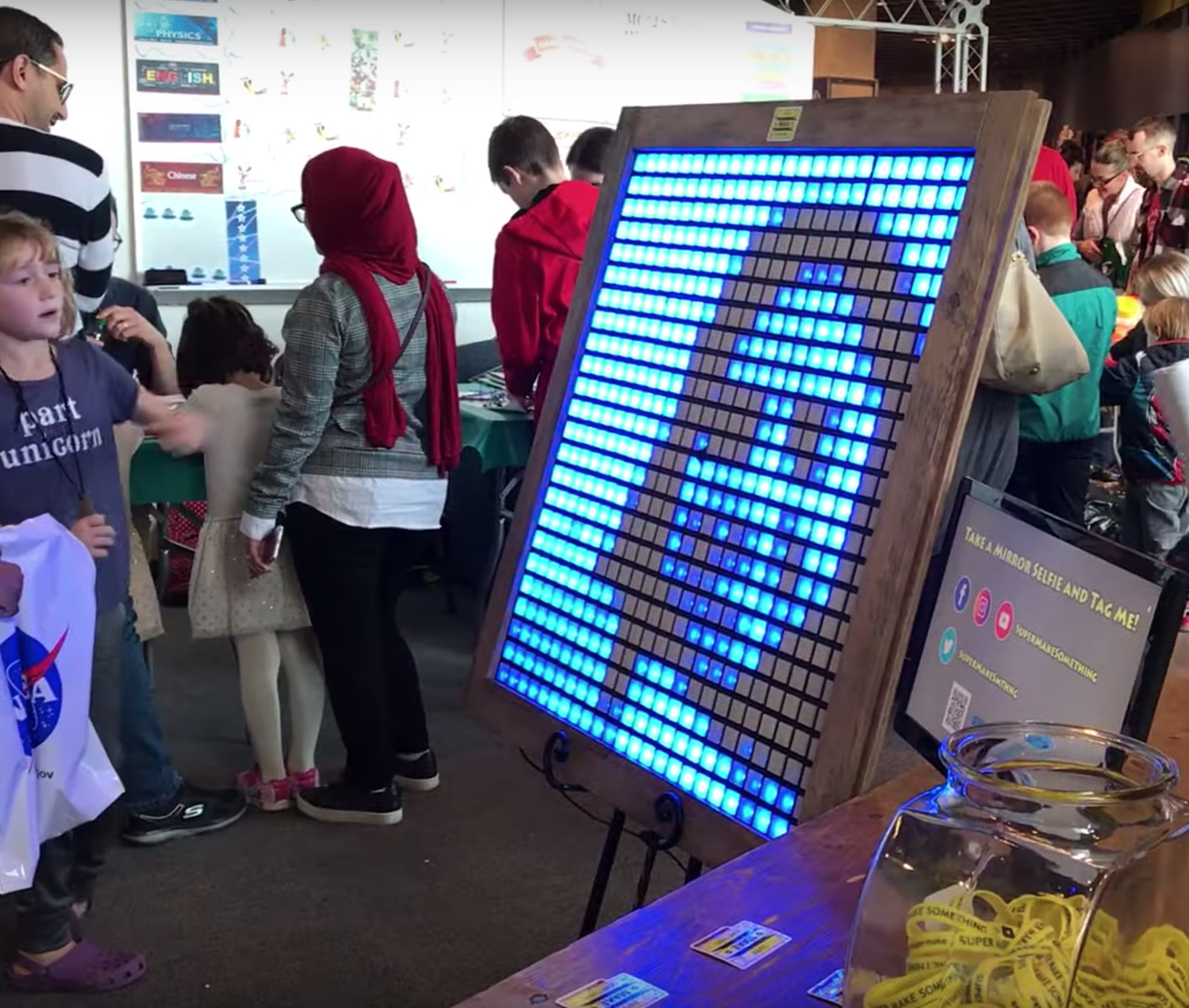
“Inspired by Danny Rozin’s mechanical mirrors, this 3 foot by 3 foot mirror is powered by a Raspberry Pi, and uses Python and OpenCV computer vision libraries to process captured images in real time to light up 576 individual RGB LEDs!” Alex explains on Instagram. “Also onboard are nearly 600 3D-printed squares to diffuse the light from each NeoPixel, as well as 16 laser-cut panels to hold everything in place!”
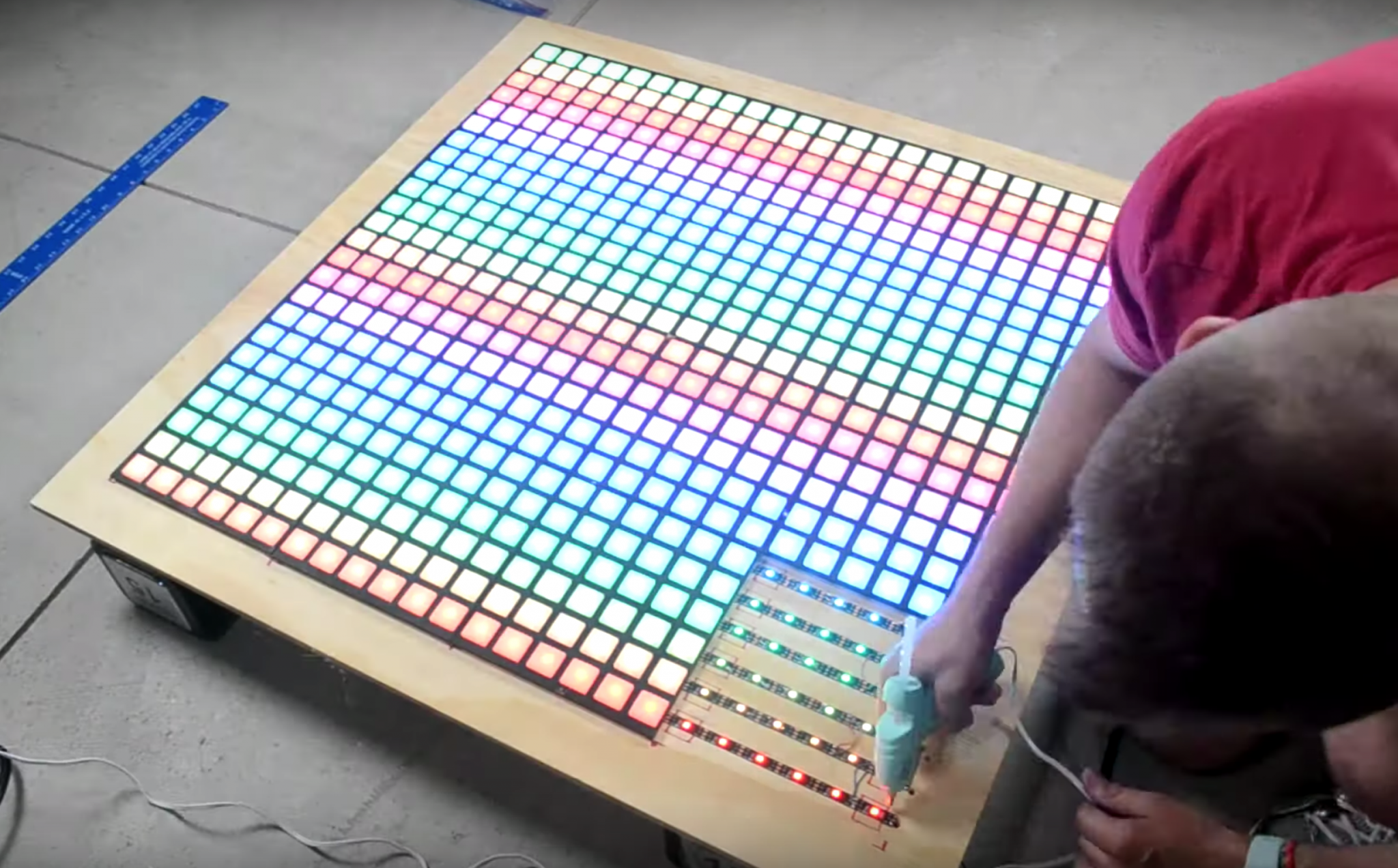
The video above gives a brilliantly detailed explanation of how Alex made the, so we highly recommend giving it a watch if you’re feeling inspired to make your own.
Seriously, we really want to make one of these for Raspberry Pi Towers!
As always, be sure to subscribe to Super Make Something on YouTube and leave a comment on the video if, like us, you love the project. Most online makers are producing content such as this with very little return on their investment, so every like and subscriber really does make a difference.
The post Really, really awesome Raspberry Pi NeoPixel LED mirror appeared first on Raspberry Pi.


 Lateo.net - Flux RSS en pagaille (pour en ajouter : @ moi)