 Connexion


Thousands of learners worldwide take their first steps into text-based programming using the Python programming language. Python is not only beginner-friendly, but is also used extensively in industry.

In 2015, Python developer Daniel Pope, who has a keen interest in education, noticed that beginners often have great ideas for creating projects but struggle because the software libraries they need to use are aimed at more confident programmers. To address this, he created Pygame Zero — a simplified version of the popular PyGame software. Since then, various developers have expanded the range of ‘zero’ libraries for Python.
The Raspberry Pi Foundation has a long history of supporting Python zero libraries. GPIO Zero was launched back in 2015, followed by guizero and then picozero. The goal of all ‘zero’ libraries is the same: to help beginner programmers create amazing projects using simple, understandable code, supported by useful documentation.
The Picamera2 library is a powerful tool for advanced users, but beginners — such as Astro Pi: Mission Space Lab programme participants — would benefit from a zero library to allow them to use the Raspberry Pi Camera module.
The Code Club Projects and Youth Programmes teams at the Raspberry Pi Foundation have joined forces to create picamzero: a new library that makes it simple for beginners to use the Raspberry Pi Camera board.
As with the other ‘zero’ libraries, it’s straightforward to get started. You can install picamzero by typing two commands in your Raspberry Pi’s terminal:
sudo apt update
sudo apt install python3-picamzero
Once it’s installed, setting up your program to communicate with your camera is easy:
from picamzero import Camera
cam = Camera()
You can ask picamzero to take a time-lapse sequence and make a video of your images using a single line of code.
cam.capture_sequence("mysequence.jpg", make_video=True)
Picamzero also makes it easy to add text and image overlays to your images.
We’ve written beginner-friendly documentation for the new library so that you can explore what you can create using just a few lines of code. We’ve also updated our resources so that you can start making exciting projects using picamzero straight away:
We hope you enjoy using picamzero. Please get in touch if you have any feedback or suggestions. Happy coding!
The post Introducing picamzero: Simplifying Raspberry Pi Camera projects for beginners appeared first on Raspberry Pi Foundation.
About three weeks ago, a small team from the Raspberry Pi Foundation braved high temperatures and expensive coffees (and a scarcity of tea) to spend time with educators at the CSTA Annual Conference in Las Vegas.
With thousands of attendees from across the US and beyond participating in engaging workshops, thought-provoking talks, and visiting the fantastic expo hall, the CSTA conference was an excellent opportunity for us to connect with and learn from educators.
Our hope for the conference week was to meet and learn from as many different educators as possible, and we weren’t disappointed. We spoke with a wide variety of teachers, school administrators, and thought leaders about the progress, successes, and challenges of delivering successful computer science (CS) programs in the US (more on this soon). We connected and reconnected with so many educators at our stand, gave away loads of stickers… and we even gave away a Raspberry Pi Pico to one lucky winner each day.
As well as learning from hundreds of educators throughout the week, we shared some of the ways in which the Foundation supports teachers to deliver effective CS education. Our team was on hand to answer questions about our wide range of free learning materials and programs to support educators and young people alike. We focused on sharing our projects site and all of the ways educators can use the site’s unique projects pathways in their classrooms. And of course we talked to educators about Code Club. It was awesome to hear from club leaders about the work their students accomplished, and many educators were eager to start a new club at their schools!
Back in 2022 at the last in-person CSTA conference, we had donated a copy of our first special edition of Hello World magazine, The Big Book of Computing Pedagogy, for every attendee. This time around, we donated copies of our follow-up special edition, The Big Book of Computing Content. Where the first Big Book focuses on how to teach computing, the second Big Book delves deep into what we teach as the subject of computing, laying it out in 11 content strands.
One of the things that makes CSTA conferences so special is the fantastic range of talks, workshops, and other sessions running at and around the conference. We took the opportunity to share some of our work in flash talks and two full-length sessions.
One of the sessions was led by one of our Senior Learning Managers, Ben Garside, who gave a talk to a packed room on what we’ve learned from developing AI education resources for Experience AI. Ben shared insights we’ve gathered over the last two years and talked about the design principles behind the Experience AI resources.
Being in the room for Ben’s talk, I was struck by two key takeaways:
Our second session was led by Diane Dowling, another Senior Learning Manager at the Foundation. She shared some of the development work behind Ada Computer Science, our free platform providing educators and learners with a vast set of questions and content to help understand CS.
Recently, we’ve been experimenting with the use of a large language model (LLM) on Ada to provide assessment feedback on long-form questions. This led to a great conversation between Diane and the audience about the practicalities, risks, and implications of such feature.
We had a fantastic time with the educators in Vegas and are grateful to CSTA and their sponsors for the opportunity to meet and learn from so many different people. We’ll be sharing some of what we learned from the educators we spoke to in a future blog post, so watch this space.
The post CSTA 2024: What happened in Las Vegas appeared first on Raspberry Pi Foundation.
Clem from element14 found a discarded Super 8 camera and wanted to channel his inner filmmaking hipster, but he didn’t want to spend tons of money on analogue film, so he digitised the camera with Raspberry Pi.
Clem recreated an original Super 8 cartridge and packed it with tiny hardware to do the job of the 8mm analogue film digitally. Doing it this way also means you can just drop the new cartridge into any Super 8 camera and use it as a digital device. It also means you don’t need to cut up any part of your gorgeous retro device in the process.
You can download the files for the 3D-printed case and buttons from the original project post.
Getting the Raspberry Pi camera lens lined up perfectly with the original lens was the hardest part of this build. But using our tiny camera meant that the lens could be placed at exactly the right angle, because it doesn’t have to be fixed to the PCB.
Super 8 cartridges are pretty small, so the super compact Raspberry Pi 3A+ was just the right size for this project, especially as Clem needed wireless connectivity. He had to get the power supply, Raspberry Pi brain, camera, and all the wires into a tight space.
Clem wanted to be able to walk around and use the Super 8 as originally intended, so an external screen with a keyboard and a mouse wouldn’t have worked to control the device. Instead, he rigged up some buttons and an LED to the Raspberry Pi’s GPIO ports. He explains it all from this point in the build video.
We love that the final output looks just like the kind of films the original camera would have captured back in the day.
The post Super 8 camera goes digital with Raspberry Pi appeared first on Raspberry Pi.
It’s the worst feeling in the world: waking up and realising you forgot to put your electric car on charge overnight. What do you do now? Dig a bike out of the shed? Wait four hours until there’s enough juice in the battery to get you where you need to be? Neither option works if you’re running late. If only there were a way to automate the process, so that when you park up, the charger find its way to the charging port on its own. That would make life so much easier.
Of course, this is all conjecture, because I drive a car made in the same year I started university. Not even the windows go up and down automatically. But I can dream, and I still love this automatic Tesla charger built with Raspberry Pi.
Back in 2015 Tesla released a video of their own prototype which can automatically charge their cars. But things have gone quiet, and nothing seems to be coming to market any time soon – nothing directly from Tesla, anyway. And while we like the slightly odd snake-charmer vibes the Tesla prototype gives off, we really like Pat’s commitment to spending hours tinkering in order to automate a 20-second manual job. It’s how we do things around here.
Electric vehicle enthusiast Andrew Erickson has been keeping up with the prototype’s whereabouts, and discussed it on YouTube in 2020.
Tired of waiting on Tesla, Pat took matters into his own hands and developed a home-made solution with Raspberry Pi 4. Our tiny computer is the “brains of everything”, and is mounted to a carriage on Pat’s garage wall.
There’s a big servo at the end of the carriage, which rotates the charging arm out when it’s needed. And an ultrasonic distance sensor ensures none of the home-made apparatus hits the car.
A Raspberry Pi Camera Module takes photos and sends them back to a machine learning model (Pat used TensorFlow Lite) running on his Raspberry Pi 4. This is how the charging arm finds its way to the port. You can watch the model in action from this point in the build video.
Top stuff, Pat. Now I just need to acquire a Tesla from somewhere so I can build one for my own garage. Wait, I don’t have a garage either…
The post Charge your Tesla automatically with Raspberry Pi appeared first on Raspberry Pi.
Has your fitness suffered during locked down? Have you been able to keep up diligently with your usual running routine? Maybe you found it easy to recreate you regular gym classes in your lounge with YouTube coaches. Or maybe, like a lot of us, you’ve not felt able to do very much at all, and needed a really big push to keep moving.
Maker James Wong took to Raspberry Pi to develop something that would hold him accountable for his daily HIIT workouts, and hopefully keep his workouts on track while alone in lockdown.
HIIT is the best kind of exercise, in that it doesn’t last long and it’s effective. You do short bursts of high-intensity physical movement between short, regular rest periods. HIIT stands for High Intensity Interval Training.
James was attracted to HIIT during lockdown as it didn’t require any gym visits or expensive exercise equipment. He had access to endless online training sessions, but felt he needed that extra level of accountability to make sure he kept up with his at-home fitness regime. Hence, HIIT Pi.
HIIT Pi is a web app that uses machine learning on Raspberry Pi to help track your workout in real time. Users can interact with the app via any web browser running on the same local network as the Raspberry Pi, be that on a laptop, tablet, or smartphone.
HIIT Pi is simple in that it only does two things:
So, essentially, you’ve got a digital personal trainer in the room monitoring your movements and letting you know whether they’re up to standard and whether you’re likely to achieve your fitness goals.
James calls HIIT Pi an “electronic referee”, and we agree that if we had one of those in the room while muddling through a Yoga With Adriene session on YouTube, we would try a LOT harder.
A Raspberry Pi camera module streams raw image data from the sensor roughly at 30 frames per second. James devised a custom recording stream handler that works off this pose estimation model and takes frames from the video stream, spitting out pose confidence scores using pre-set keypoint position coordinates.
James’s original project post details the inner workings. You can also grab the code needed to create your own at-home Raspberry Pi personal trainer.
Get in touch with James here.
The post HIIT Pi makes Raspberry Pi your home workout buddy appeared first on Raspberry Pi.
Our friends over at RealVNC are having a whale of a time with Raspberry Pi, so they decided to write this guest blog for us. Here’s what they had to say about what their VNC Connect software can do, and how Raspberry Pi can be integrated into industry. Plus, hear about a real-life commercial example.
RealVNC’s VNC Connect is a secure way for you to control your Raspberry Pi from anywhere, as if you were sat in front of it. This is particularly useful for Raspberry Pis which are running ‘headless’ without monitor connected. The desktop can instead be presented in the VNC Connect Viewer app on, say, a wirelessly-connected iPad, from which you have full graphical control of the Raspberry Pi. The two devices do not even have to be on the same local network, so you can take remote control over the Internet. Which is great for roaming robots.
You can read more about RealVNC for Raspberry Pi here. It’s free to get started for non-commercial use.
RealVNC have seen an increase in the use of Raspberry Pi in business, not just at home and in education. Raspberry Pi, combined with VNC Connect, is helping businesses both to charge for a service that they couldn’t previously provide, and to improve/automate a service they already offer.
For example, Raspberry Pi is a useful, as well as a cost effective, “edge device” in complex hardware environments that require monitoring – a real IoT use case! Add VNC Connect, and the businesses which perform these hardware installations can provide monitoring and support services on a subscription basis to customers, building repeat revenue and adding value.
With VNC Connect being offered at an affordable price (less than the price of a cup of coffee per month for a single device), it doesn’t take these businesses long to make a healthy return.
Centurion Solar provides monitoring software for home solar panels. Each installation is hooked up via USB to a Raspberry Pi-powered monitoring system, and access is provided both to the customer and to Centurion Solar, who run a paid monitoring and support service.
Having every new system leave the factory pre-installed with VNC Connect allows Centurion Solar to provide assistance quickly and easily for customers, no matter where they are, or how tech-savvy they are (or aren’t).
The software is currently being used in over 15,000 systems across 27 countries, with more new users every week.
“We’ve gone from being in limp mode to overdrive in one easy step, using RealVNC as the driving force to get us there.”
Johan Booysen, Founder at Centurion Solar
You can read more here.
There are many more industry sectors which could be considering Raspberry Pi as a lightweight and convenient monitoring/edge compute solution, just like Centurion Solar do. For example:
The possibilities are only limited by imagination, and the folks down the road at RealVNC are happy to discuss how using Raspberry Pi in your environment could be transformative. You can reach us here.
From the engineers to the CEO, we’re all Raspberry Pi enthusiasts who love nothing more than sharing our experience and solving problems (our CEO, Adam, even publishes a popular bare-metal Raspberry Pi operating system tutorial on Github).
The post Building a business with VNC Connect on Raspberry Pi appeared first on Raspberry Pi.
Machine learning can sound daunting even for experienced Raspberry Pi hobbyists, but Microsoft and Adafruit Industries are determined to make it easier for everyone to have a go. Microsoft’s Lobe tool takes the stress out of training machine learning models, and Adafruit have developed an entire kit around their BrainCraft HAT, featuring Raspberry Pi 4 and a Raspberry Pi Camera, to get your own machine learning project off to a flying start.
Adafruit’s BrainCraft HAT fits on top of Raspberry Pi 4 and makes it really easy to connect hardware and debug machine learning projects. The 240 x 240 colour display screen also lets you see what the camera sees. Two microphones allow for audio input, and access to the GPIO means you can connect things likes relays and servos, depending on your project.
Microsoft Lobe is a free tool for creating and training machine learning models that you can deploy almost anywhere. The hardest part of machine learning is arguably creating and training a new model, so this tool is a great way for newbies to get stuck in, as well as being a fantastic time-saver for people who have more experience.
Get started with one of three easy, medium, and hard tutorials featured on the lobe-adafruit-kit GitHub.
Lady Ada demonstrated Bakery: a machine learning model that uses an Adafruit BrainCraft HAT, a Raspberry Pi camera, and Microsoft Lobe. Watch how easy it is to train a new machine learning model in Microsoft Lobe from this point in the Microsoft Build Keynote video.
Bakery identifies different baked goods based on images taken by the Raspberry Pi camera, then automatically identifies and prices them, in the absence of barcodes or price tags. You can’t stick a price tag on a croissant. There’d be flakes everywhere.
Running this project on Raspberry Pi means that Lady Ada was able to hook up lots of other useful tools. In addition to the Raspberry Pi camera and the HAT, she is using:
All of this running on Raspberry Pi, and made super easy with Microsoft Lobe and Adafruit’s BrainCraft HAT. Adafruit’s Microsoft Machine Learning Kit for Lobe contains everything you need to get started.
And finally, watch Microsoft CTO Kevin Scott introduce Limor Fried, aka Lady Ada, owner of Adafruit Industries. Lady Ada joins remotely from the Adafruit factory in Manhattan, NY, to show how the BrainCraft HAT and Lobe work to make machine learning accessible.
The post Machine Learning made easy with Raspberry Pi, Adafruit and Microsoft appeared first on Raspberry Pi.
Summer is fast approaching – and that’s the perfect excuse to get building. Whether you want to spy on your local wildlife, upgrade your vegetable patch, or feed your fish when you’re off on a weekend break, Raspberry Pi and a handful of add-ons make a great starting point. The latest issue of The MagPi is packed with some of the most inspirational projects to be found. They include a smart tide monitor, which will tell you when’s the best time to hit the beach, and a clever Heater Meter that can keep an eye on your barbecue while you get on with the prep in the kitchen.
If you’re heading out for any kind of water-based activity (and that includes sitting on the beach), it helps to know whether the tide is in or out and which way it’s heading. Sam Baker’s neat e-ink tide and weather tracker uses Raspberry Pi Zero and an enormous (7.5 in) e-ink display to track the motion of the ocean and upcoming weather conditions, so you don’t arrive at the beach to find the sand submerged.
The return of summer means an addition to your weekly to-do list: mowing the lawn. But not if you build a PiMowBot smart lawn-mower robot. This uses any Raspberry Pi to control an autonomous lawnmower that navigates your garden using GPS and offers optional remote control, so you can keep the lawn trimmed from the comfort of a garden chair.
The hardware, comprising the chassis, cutterbar and so on, is solar-powered and can be 3D-printed, while the software is a €19.99 download. The OBJ (Wavefront OBJect) file patterns for the various parts you’ll need to print are a £29.46 download from Cults3d. You’ll need to buy several components to put it together, as it also relies on a number of sensors, including – aside from the GPS receiver – a temperature and humidity sensor, compass module, and Camera Module.
Although you do need to invest in quite a few parts for the PiMowBot, and spend time assembling them, the project still manages to undercut (sorry!) commercial alternatives, for which prices start at around £500, by a considerable margin.
One thing that’s certain to put a dampener on a summer get-together is barbecued food that’s charred on the outside and raw in the middle. Fortunately, a lot of makers have set themselves the task of solving this problem – which they’ve done with aplomb. Tempiture pairs Raspberry Pi with a breadboard, food probe, and a handful of resistors to produce a wireless grilling thermometer which sends readings to the web. As a barbecue can take hours to get to cooking temperature, this lets you keep an eye on its progress while you’re prepping food in the kitchen.
It’s not your only option, either. PitmasterPi performs a very similar job, taking regular readings to populate a real-time dashboard, and optionally sending emails or texts at crucial moments.
HeaterMeter pairs Raspberry Pi with an Adruino microcontroller, thermal probe, and fan to maintain perfect temperatures, with support for web streaming, graphing, and alerts. What’s particularly appealing about HeaterMeter is that you can choose different starting points for your project, depending on how confident you are. If you’re a dab hand at soldering and reading a circuit diagram, start from scratch with a kit; but if you’re just craving a burger, skip all that and opt for a fully assembled board instead.
One of the best things about summer is the return of a host of migratory birds that desert us in the colder months. And, while foxes and badgers will have been with us throughout the winter, hedgehogs will have been hibernating between late autumn and early spring. Many of these animals are timid, so spotting them requires that you get up early, stay up late, or set up a trail camera which uses motion detection to capture an image when they pass.
This has been a popular use for Raspberry Pi for years, but there are so many ways to go about it, you might be wondering which are the best options. You can pick up all the parts you need to build your own trail camera – aside from the power supply – from The Pi Hut for £110, or the case on its own for £40 if you have most of the other required components knocking around from old projects.
We’ve shared just a few of our favourite summer project ideas here. For the full list, head to page 72 of the latest issue of The MagPi.
You can grab the brand-new issue right now online from the Raspberry Pi Press store, or via our app on Android or iOS. You can also pick it up from supermarkets and newsagents. There’s also a free PDF you can download.
The post Get outside with these Raspberry Pi summer projects appeared first on Raspberry Pi.
SleePi is a real-time sleepiness detection and alert system developed especially for Raspberry Pi and our Raspberry Pi Camera Module 2 NoIR.
Driver drowsiness detection was the original application for this project, and Raspberry Pi was chosen for it because it’s small enough to not obstruct a driver’s view and can be powered from a vehicle’s 12 V socket or a USB port.
Our Raspberry Pi NoIR Camera has no infrared filter and can therefore detect infrared light. It was chosen for this project to help with driver visibility by infrared illumination in low light, because night time is when people are more likely to become drowsy.
Firstly, you should absolutely never drive tired. The UK’s Driver and Vehicle Licensing Agency says that, by law, after every 5 hours 30 minutes of driving you must take a break of at least 30 minutes.
We’re sharing this project because we like the software behind this sleepiness detector, which can tell when your eyes narrow and alert you before you nod off. A safer application of this invention could be for exam cramming season when you don’t want to fall asleep before reading that final chapter of your revision guide. Or perhaps for the sleepier among us who need extra help staying awake for the New Year’s Eve countdown. We cannot miss another one of those. But we get SO sleepy.
The camera tracks the position of the eyes and uses something called the Eye Aspect Ratio (EAR) to detect blinks. When squinting or blinking is observed, Raspberry Pi thinks you’re getting sleepy. When sleepiness is detected, a loud alarm sounds via the Raspberry Pi’s AUX port, connected to the car’s speaker system. The alarm carries on sounding until the camera detects that the user’s eyes are completely open again.
Sai Sathvik is a dreamboat of a maker and left detailed instructions to help you build your own SleePi.
Are you a New Year’s Eve napper? Or a classroom snoozer? What do you need a SleePi for? Comment below telling us why you need this doziness detector.
The post SleePi sounds alarm when Raspberry Pi detects sleepiness appeared first on Raspberry Pi.
You can always rely on Ryder’s YouTube channel to be full of weird and wonderful makes. This latest offering aims to boost dopamine levels with dog spotting. Looking at dogs makes you happier, right? But you can’t spend all day looking out of the window waiting for a dog to pass, right? Well, a Raspberry Pi Camera Module and machine learning can do the dog spotting for you.
Ryder’s Raspberry Pi and camera sit on a tripod pointing out of a window looking over a street. Live video of the street is taken by the camera and fed through a machine learning model. Ryder chose the YOLO v3 object detection model, which can already recognise around 80 different things — from dogs to humans, and even umbrellas.
But how would Ryder know that his Raspberry Pi had detected a dog? They’re so sneaky — they work in silence. A megaphone and some text-to-speech software make sure that Ryder is alerted in time to run to the window and see the passing dog. The megaphone announces: “Attention! There is a cute dog outside.”
Ryder wanted to share the love and show his appreciation to the owners of cute dogs, so he added a feature for when he is out of the house. With the megaphone poking out of a window, the Raspberry Pi does its dog-detecting as usual, but instead of alerting Ryder, it announces: “I like your dog” when a canine is walked past.
Also, we’d like to learn more about this ‘Heather’ who apparently once scaled a six-foot fence to pet a dog and for whom Ryder built this. Ryder, spill the story in the comments!
The post Raspberry Pi dog detector (and dopamine booster) appeared first on Raspberry Pi.
It has been a cold winter for Tom Shaffner, and since he is working from home and leaving the heating on all day, he decided it was finally time to see where his house’s insulation could be improved.
His first thought was to get a thermal IR (infrared) camera, but he found the price hasn’t yet come down as much as he’d hoped. They range from several thousand dollars down to a few hundred, with a $50 option just to rent one from a hardware store for 24 hours.
When he saw the $50 option, he realised he could just buy the $60 (£54) MLX90640 Thermal Camera from Pimoroni and attach it to a Raspberry Pi. Tom used a Raspberry Pi 4 for this project. Problem affordably solved.
Once Tom’s hardware arrived, he took advantage of the opportunity to combine elements of several other projects that had caught his eye into a single, consolidated Python library that can be downloaded via pip and run both locally and as a web server. Tom thanks Валерий Курышев, Joshua Hrisko, and Adrian Rosebrock for their work, on which this solution was partly based.
Tom has also published everything on GitHub for further open source development by any enterprising individuals who are interested in taking this even further.
The big question, though, was whether the image quality would be good enough to be of real use. A few years back, the best cheap thermal IR camera had only an 8×8 resolution – not great. The magic of the MLX90640 Thermal Camera is that for the same price the resolution jumps to 24×32, giving each frame 768 different temperature readings.
Add a bit of interpolation and image enlargement and the end result gets the job done nicely. Stream the video over your local wireless network, and you can hold the camera in one hand and your phone in the other to use as a screen.
Bonus: If you leave the web server running when you’re finished thermal imaging, you’ve got yourself an affordable infrared security camera.
Documentation on the setup, installation, and results are all available on Tom’s GitHub, along with more pictures of what you can expect.
And you can connect with Tom on LinkedIn if you’d like to learn more about this “technically savvy mathematical modeller”.
The post Raspberry Pi thermal camera appeared first on Raspberry Pi.
Raspberry Pi is at the heart of this AI–powered, automated sorting machine that is capable of recognising and sorting any LEGO brick.
And its maker Daniel West believes it to be the first of its kind in the world!
This mega-machine was two years in the making and is a LEGO creation itself, built from over 10,000 LEGO bricks.
It can sort any LEGO brick you place in its input bucket into one of 18 output buckets, at the rate of one brick every two seconds.
While Daniel was inspired by previous LEGO sorters, his creation is a huge step up from them: it can recognise absolutely every LEGO brick ever created, even bricks it has never seen before. Hence the ‘universal’ in the name ‘universal LEGO sorting machine’.
The artificial intelligence algorithm behind the LEGO sorting is a convolutional neural network, the go-to for image classification.
What makes Daniel’s project a ‘world first’ is that he trained his classifier using 3D model images of LEGO bricks, which is how the machine can classify absolutely any LEGO brick it’s faced with, even if it has never seen it in real life before.
Daniel has made a whole extra video (above) explaining how the AI in this project works. He shouts out all the open source software he used to run the Raspberry Pi Camera Module and access 3D training images etc. at this point in the video.
Daniel needed the input bucket to carefully pick out a single LEGO brick from the mass he chucks in at once.
This is achieved with a primary and secondary belt slowly pushing parts onto a vibration plate. The vibration plate uses a super fast LEGO motor to shake the bricks around so they aren’t sitting on top of each other when they reach the scanner.
A Raspberry Pi Camera Module captures video of each brick, which Raspberry Pi 3 Model B+ then processes and wirelessly sends to a more powerful computer able to run the neural network that classifies the parts.
The classification decision is then sent back to the sorting machine so it can spit the brick, using a series of servo-controlled gates, into the right output bucket.
Daniel is such a boss maker that he wrote not one, but two further reading articles for those of you who want to deep-dive into this mega LEGO creation:
The post Raspberry Pi LEGO sorter appeared first on Raspberry Pi.
Sam Battle aka LOOK MUM NO COMPUTER couldn’t resist splashing out on a clear Macintosh case for a new project in his ‘Cosmo’ series of builds, which inject new life into retro hardware.
This time around, a Raspberry Pi, running facial recognition software, and one of our Camera Modules enable Furby-style eyes to track movement, detect faces, and follow you around the room.
He loves a good Furby does Sam. Has a whole YouTube playlist dedicated to projects featuring them. Seriously.
Our favourite bit of the video is when Sam meets Raspberry Pi for the first time, boots it up, and says:
“Wait, I didn’t know it was a computer. It’s an actual computer computer. What?!”
The eyes are ping pong balls cut in half so you can fit a Raspberry Pi Camera Module inside them. (Don’t forget to make a hole in the ‘pupil’ so the lens can peek through).
The Raspberry Pi and display screen are neatly mounted on the side of the Macintosh so they’re easily accessible should you need to make any changes.
All the hacked, repurposed junky bits sit inside or are mounted on swish 3D-printed parts.
Add some joke shop chatterbox teeth, and you’ve got what looks like the innards of a Furby staring at you. See below for a harrowing snapshot of Zach’s ‘Furlexa’ project, featured on our blog last year. We still see it when we sleep.
It wasn’t enough for Furby-mad Sam to have created a Furby look-a-like face-tracking robot, he needed to go further. Inside the clear Macintosh case, you can see a de-furred Furby skeleton atop a 3D-printed plinth, with redundant ribbon cables flowing from its eyes into the back of the face-tracking robot face, thus making it appear as though the Furby is the brains behind this creepy creation that is following your every move.
Eventually, Sam’s Raspberry Pi–powered creation will be on display at the Museum of Everything Else, so you can go visit it and play with all the “obsolete and experimental technology” housed there. The museum is funded by the Look Mum No Computer Patreon page.
The post These Furby-‘controlled’ Raspberry Pi-powered eyes follow you appeared first on Raspberry Pi.
It’s hard to comprehend how far machine learning has come in the past few years. You can now use a sub-£50 computer to reliably recognise someone’s face with surprising accuracy.
Although this kind of computing power is normally out of reach of microcontrollers, adding a Raspberry Pi computer to your project with the new High Quality Camera opens up a range of possibilities. From simple alerting applications (‘Mum’s arrived home!’), to dynamically adjusting settings based on the person using the project, there’s a lot of fun to be had.
Here’s a beginner’s guide to getting face recognition up and running.
1. Prepare your Raspberry Pi
For face recognition to work well, we’re going to need some horsepower, so we recommend a minimum of Raspberry Pi 3B+, ideally a Raspberry Pi 4. The extra memory will make all the difference. To keep as much resource as possible available for our project, we’ve gone for a Raspberry Pi OS Lite installation with no desktop.
Make sure you’re on the network, have set a new password, enabled SSH if you need to, and updated everything with sudo apt -y update && sudo apt -y full-upgrade. Finally, go into settings by running sudo raspi-config and enable the camera in ‘Interfacing Options’.
2. Attach the camera
This project will work well with the original Raspberry Pi Camera, but the new official HQ Camera will give you much better results. Be sure to connect the camera to your Raspberry Pi 4 with the power off. Connect the ribbon cable as instructed in hsmag.cc/HQCameraGetStarted. Once installed, boot up your Raspberry Pi 4 and test the camera is working. From the command line, run the following:raspivid -o test.h264 -t 10000
This will record ten seconds of video to your microSD card. If you have an HDMI cable plugged in, you’ll see what the camera can see in real-time. Take some time to make sure the focus is correct before proceeding.
3. Install dependencies
The facial recognition library we are using is one that has been maintained for many years by Adam Geitgey. It contains many examples, including Python 3 bindings to make it really simple to build your own facial recognition applications. What is not so easy is the number of dependencies that need to be installed first. There are way too many to list here, and you probably won’t want to type them out, so head over to hsmag.cc/FacialRec so that you can cut and paste the commands. This step will take a while to complete on a Raspberry Pi 4, and significantly longer on a Model 3 or earlier.
3. Install the libraries
Now that we have everything in place, we can install Adam’s applications and Python bindings with a simple, single command:sudo pip3 install face_recognition
Once installed, there are some examples we can download to try everything out.cdIn this repository is a range of examples showing the different ways the software can be used, including live video recognition. Feel free to explore and remix.
git clone --single-branch https://github.com/ageitgey/face_recognition.git
5. Example images
The examples come with a training image of Barack Obama. To run the example:cd ./face_recognition/examples
python3 facerec_on_raspberry_pi.py
On your smartphone, find an image of Obama using your favourite search engine and point it at the camera. Providing focus and light are good you will see:
“I see someone named Barack Obama!”
If you see a message saying it can’t recognise the face, then try a different image or try to improve the lighting if you can. Also, check the focus for the camera and make sure the distance between the image and camera is correct.
6. Training time
The final step is to start recognising your own faces. Create a directory and, in it, place some good-quality passport-style photos of yourself or those you want to recognise. You can then edit the facerec_on_raspberry_pi.py script to use those files instead. You’ve now got a robust prototype of face recognition. This is just the beginning. These libraries can also identify ‘generic’ faces, meaning it can detect whether a person is there or not, and identify features such as the eyes, nose, and mouth. There’s a world of possibilities available, starting with these simple scripts. Have fun!
Each month, HackSpace magazine brings you the best projects, tips, tricks and tutorials from the makersphere. You can get it from the Raspberry Pi Press online store, The Raspberry Pi store in Cambridge, or your local newsagents.
Each issue is free to download from the HackSpace magazine website.
The post Add face recognition with Raspberry Pi | Hackspace 38 appeared first on Raspberry Pi.
Maker Jen Fox took to hackster.io to share a Raspberry Pi–powered trash classifier that tells you whether the trash in your hand is recyclable, compostable, or just straight-up garbage.
Jen reckons this project is beginner-friendly, as you don’t need any code to train the machine learning model, just a little to load it on Raspberry Pi. It’s also a pretty affordable build, costing less than $70 including a Raspberry Pi 4.
The code-free machine learning model is created using Lobe, a desktop tool that automatically trains a custom image classifier based on what objects you’ve shown it.
Basically, you upload a tonne of photos and tell Lobe what object each of them shows. Jen told the empty classification model which photos were of compostable waste, which were of recyclable and items, and which were of garbage or bio-hazardous waste. Of course, as Jen says, “the more photos you have, the more accurate your model is.”
As promised, you only need a little bit of code to load the image classifier onto your Raspberry Pi. The Raspberry Pi Camera Module acts as the image classifier’s “eyes” so Raspberry Pi can find out what kind of trash you hold up for it.
The push button and LEDs are wired up to the Raspberry Pi GPIO pins, and they work together with the camera and light up according to what the image classifier “sees”.
You’ll want to create a snazzy case so your trash classifier looks good mounted on the wall. Kate cut holes in a cardboard box to make sure that the camera could “see” out, the user can see the LEDs, and the push button is accessible. Remember to leave room for Raspberry Pi’s power supply to plug in.
Jen has tonnes of other projects on her Hackster profile — check out the micro:bit Magic Wand.
The post Classify your trash with Raspberry Pi appeared first on Raspberry Pi.
Ruth and Shawn from YouTube channel Kids Invent Stuff picked a cool idea by 9-year-old Nathan, who drew a Foam-Firing Spy Camera, to recreate in real life.
The trick with spy devices is to make sure they look as much like the object they’re hidden inside as possible. Where Raspberry Pi comes in is making sure the foam camera can be used as a real photo-taking camera too, to throw the baddies off the scent if they start fiddling with your spyware.
The foam-firing bit of Nathan’s invention was relatively simple to recreate – a modified chef’s squirty cream dispenser, hidden inside a camera-shaped box, gets the job done.
Ruth and Shawn drew a load of 3D-printed panels to mount on the box frame in the image above. One of those cool coffee cups that look like massive camera lenses hides the squirty cream dispenser and gives this build an authentic camera look.
The infrared LED is mounted next to the camera module and switches on when it gets dark, giving you night vision.
The Raspberry Pi computer and its power bank are crammed inside the box-shaped part, with the camera module and infrared LED mounted to peek out of custom-made holes in one of the 3D-printed panels on the front of the box frame.
The foam-firing chef’s thingy is hidden inside the big fake lens, and it’s wedged inside so that when you lift the big fake lens, the lever on the chef’s squirty thing is depressed and foam fires out of a tube near to where the camera lens and infrared LED peek out on the front panel of the build.
Baddies don’t stand a chance!
The post Defeat evil with a Raspberry Pi foam-firing spy camera appeared first on Raspberry Pi.
Design Engineering student Ben Cobley has created a Raspberry Pi–powered sous-chef that automates the easier pan-cooking tasks so the head chef can focus on culinary creativity.
Ben named his invention OnionBot, as the idea came to him when looking for an automated way to perfectly soften onions in a pan while he got on with the rest of his dish. I have yet to manage to retrieve onions from the pan before they blacken so… *need*.
A Raspberry Pi 4 Model B is the brains of the operation, with a Raspberry Pi Touch Display showing the instructions, and a Raspberry Pi Camera Module keeping an eye on the pan.
Ben’s affordable solution is much better suited to home cooking than the big, expensive robotic arms used in industry. Using our tiny computer also allowed Ben to create something that fits on a kitchen counter.
A thermal sensor array suspended above the stove detects the pan temperature, and the Raspberry Pi Camera Module helps track the cooking progress. A servo motor controls the dial on the induction stove.
No machine learning expertise was required to train an image classifier, running on Raspberry Pi, for Ben’s robotic creation; you’ll see in the video that the classifier is a really simple drag-and-drop affair.
Ben has only taught his sous-chef one pasta dish so far, and we admire his dedication to carbs.
Ben built a control panel for labelling training images in real time and added labels at key recipe milestones while he cooked under the camera’s eye. This process required 500–1000 images per milestone, so Ben made a LOT of pasta while training his robotic sous-chef’s image classifier.
Ben open-sourced this project so you can collaborate to suggest improvements or teach your own robot sous-chef some more dishes. Here’s OnionBot on GitHub.
He also rates this Auto ML system used in the project as a “great tool for makers.”
The post Hire Raspberry Pi as a robot sous-chef in your kitchen appeared first on Raspberry Pi.
DJ from the element14 community shows you how to build a red-lensed security camera in the style of Portal 2 using the Raspberry Pi High Quality Camera.
Portal 2 is a puzzle platform game developed by Valve — a “puzzle game masquerading as a first-person shooter”, according to Forbes.
DJ was pleased to learn that you don’t need to write any code to make your own security camera, you can just use a package called motionEyeOS. All you have to do is download the motionEyeOS image, pop the flashed SD card into your Raspberry Pi, and you’re pretty much good to go.
You’ll find that the default resolution is 640×480, so it will show up as a tiny window on your monitor of choice, but that can be amended.
While this build is very simple electronically, the 20-part 3D-printed shell is beautiful. A Raspberry Pi is positioned on a purpose-built platform in the middle of the shell, connected to the Raspberry Pi High Quality Camera, which sits at the front of that shell, peeking out.
The 5V power supply is routed through the main shell into the base, which mounts the build to the wall. In order to keep the Raspberry Pi cool, DJ made some vent holes in the lens of the shell. The red LED is routed out of the side and sits on the outside body of the shell.
This build is also screwless: the halves of the shell have what look like screw holes along the edges, but they are actually 3mm neodymium magnets, so assembly and repair is super easy as everything just pops on and off.
You can find all the files you need to recreate this build, or you can ask DJ a question, at element14.com/presents.
The post Raspberry Pi High Quality security camera appeared first on Raspberry Pi.
Adrian Hanft is our favourite kind of maker: weird. He’s also the guy who invented the Lego camera, 16 years ago. This time, he spent more than a year creating what he describes as “one of the strangest cameras you may ever hear about.”
OK, here’s why it’s weird: it takes photos with a Raspberry Pi High Quality Camera through a ‘lens’ of tiny drinking straws packed together. 23,248 straws, to be exact, are inside the wooden box-shaped bit of the machine above. The camera itself sits at the slim end of the black and white part. The Raspberry Pi, power bank, and controller all sit on top of the wooden box full of straws.
Here’s what an image of Yoda looks like, photographed through that many straws:
The concept isn’t as easy as it may look. As you can see from the images below, if you hold up a load of straws, you can only see the light through a few of them. Adrian turned to older technology for a solution, taking a viewfinder from an old camera which had ground glass (which ‘collects’ light) on the surface.
Even though Adrian was completely new to both Raspberry Pi and Python, it only took him a week of evenings and weekends to code the software needed to control the Raspberry Pi High Quality Camera.
An original Nintendo controller runs the show and connects to the Raspberry Pi with a USB adapter. The buttons are mapped to the functions of Adrian’s software.
In his original post, Adrian explains what all the buttons on the controller do in order to create images:
“The Start button launches a preview of what the camera is seeing. The A button takes a picture. The Up and Down buttons increase or decrease the exposure time by 1 second. The Select button launches a gallery of photos so I can see the last photo I took. The Right and Left buttons cycle between photos in the gallery. I am saving the B button for something else in the future. Maybe I will use it for uploading to Dropbox, I haven’t decided yet.”
A mobile phone serves as a wireless display so he can keep an eye on what’s going on. The phone communicates with the Raspberry Pi connected to the camera via a VPN app.
Follow Adrian on Instagram to keep up with all the photography captured using the final camera, as well as the prototypes that came before it.
The post Raspberry Pi High Quality Camera takes photos through thousands of straws appeared first on Raspberry Pi.
High-school student Eleanor Sigrest successfully crowdfunded her way onto a zero-G flight to test her latest Raspberry Pi-powered project. NASA Goddard engineers peer reviewed Eleanor’s experimental design, which detects unwanted movement (or ‘slosh’) in spacecraft fluid tanks.
The apparatus features an accelerometer to precisely determine the moment of zero gravity, along with 13 Raspberry Pis and 12 Raspberry Pi cameras to capture the slosh movement.
The Broadcom Foundation shared a pretty interesting minute-by-minute report on Eleanor’s first hyperbolic flight and how she got everything working. But, in a nutshell…
You don’t want the fluid in your space shuttle tanks sloshing around too much. It’s a mission-ending problem. Slosh occurs on take-off and also in microgravity during manoeuvres, so Eleanor devised this novel approach to managing it in place of the costly, heavy subsystems currently used on board space craft.
Eleanor wanted to prove that the fluid inside tanks treated with superhydrophobic and superhydrophilic coatings settled quicker than in uncoated tanks. And she was right: settling times were reduced by 73% in some cases.
A continuation of this experiment is due to go up on Blue Origin’s New Shepard rocket – and yes, a patent is already pending.
At just 13 years old, Eleanor won the Samueli Prize at the 2016 Broadcom MASTERS for her mastery of STEM principles and team leadership during a rigorous week-long competition. High praise came from Paula Golden, President of Broadcom Foundation, who said: “Eleanor is the epitome of a young woman scientist and engineer. She combines insatiable curiosity with courage: two traits that are essential for a leader in these fields.”
That week-long experience also included a Raspberry Pi Challenge, and Eleanor explained: “During the Raspberry Pi Challenge, I learned that sometimes the simplest solutions are the best. I also learned it’s important to try everyone’s ideas because you never know which one might work the best. Sometimes it’s a compromise of different ideas, or a compromise between complicated and simple. The most important thing is to consider them all.”
Get this girl to Mars already.
The post 13 Raspberry Pis slosh-test space shuttle tanks in zero gravity appeared first on Raspberry Pi.
24h Sunrise/Sunset is a digital art installation that displays a live sunset and sunrise happening somewhere in the world with the use of CCTV.
Artist Dries Depoorter wanted to prove that “CCTV cameras can show something beautiful”, and turned to Raspberry Pi to power this global project.
The arresting visuals are beamed to viewers using two Raspberry Pi 3B+ computers and an Arduino Nano Every that stream internet protocol (IP) cameras with the use of command line media player OMXPlayer.
The two Raspberry Pis communicate with each other using the MQTT protocol — a standard messaging protocol for the Internet of Things (IoT) that’s ideal for connecting remote devices with a small code footprint and minimal network bandwidth.
One of the Raspberry Pis checks at which location in the world a sunrise or sunset is happening and streams the closest CCTV camera.
The big screens are connected with the I2C protocol to the Arduino, and the Arduino is connected serial with the second Raspberry Pi. Dries also made a custom printed circuit board (PCB) so the build looks cleaner.
All that hardware is powered by an industrial power supply, just because Dries liked the style of it.
Everything is written in Python 3, and Dries harnessed the Python 3 libraries BeautifulSoup, Sun, Geopy, and Pytz to calculate sunrise and sunset times at specific locations. Google Firebase databases in the cloud help with admin by way of saving timestamps and the IP addresses of the cameras.
And, lastly, Dries requested a shoutout for his favourite local Raspberry Pi shop Gotron in Ghent.
If you’d like to check out more of Dries’ work, you can find him online here or on Instagram.
The post Global sunrise/sunset Raspberry Pi art installation appeared first on Raspberry Pi.
Earlier this year, we released the Raspberry Pi High Quality Camera, a brand-new 12.3 megapixel camera that allows you to use C- and CS-mount lenses with Raspberry Pi boards.
How do we know you love it? Because the internet is now full of really awesome 3D-printable cases and add-ons our community has created in order to use their High Quality Camera out and about…or for Octoprint…or home security…or SPACE PHOTOGRAPHY, WHAT?!
We thought it would be fun to show you some of 3D designs we’ve seen pop up on sites like Thingiverse and MyMiniFactory, so that anyone with access to a 3D printer can build their own camera too!
Shout out to our friends at Adafruit for this really neat, retro-looking camera case designed by the Ruiz Brothers. The brown filament used for the casing is so reminiscent of the leather bodies of SLRs from my beloved 1980s childhood that I can’t help but be drawn to it. And, with snap-fit parts throughout, you can modify this case model as you see fit. Not bad. Not bad at all.
While the Raspberry Pi High Quality Camera is suitable for C- and CS-mount lenses out of the box, this doesn’t mean you’re limited to only these sizes! There’s a plethora of C- and CS-mount adapters available on the market, and you can also 3D print your own adapter.
Thingiverse user UltiArjan has done exactly that and designed this adapter for using Nikon lenses with the High Quality Camera. Precision is key here to get a snug thread, so you may have to fiddle with your printer settings to get the right fit.
And, for the Canon users out there, here’s Zimbo1’s adapter for Canon EF lenses!
If you’re not interested in a full-body camera case and just need something to attach A to B, this minimal adapter for the Raspberry Pi Zero will be right up your street.
Designer ed7coyne put this model together in order to use Raspberry Pi Zero as a webcam, and according to Cura on my laptop, should only take about 2 hours to print at 0.1 with supports. In fact, since I’ve got Cura open already…
Not a working one, of course, but if you’re building something around the High Quality Camera and want to make sure everything fits without putting the device in jeopardy, you could always print a replica for prototyping!
Thingiverse user tmomas produced this scale replica of the Raspberry Pi High Quality Camera with the help of reference photos and technical drawings, and a quick search online will uncover similar designs for replicas of other Raspberry Pi products you might want to use while building a prototype
We made this video for HackSpace magazine earlier this year, and it’s a really hand resource if you’re new to the 3D printing game.
…I wasn’t lying when I said I was going to print ed7coyne’s minimal adapter.
The post 3D-printable cases for the Raspberry Pi High Quality Camera appeared first on Raspberry Pi.
It’s been a long lockdown for one of our favourite makers, Pi & Chips. Like most of us (probably), they have turned their hand to training small animals that wander into their garden to pass the time — in this case, pigeons. I myself enjoy raising my glass to the squirrel that runs along my back fence every evening at 7pm.
Of course, Pi & Chips has taken this one step further and created a food dispenser including motion-activated camera with a Raspberry Pi 3B+ to test the intelligence of these garden critters and capture their efforts live.
Looking into the cognitive behaviour of birds (and finding the brilliantly titled paper Maladaptive gambling by pigeons), Pi & Chips discovered that pigeons can, with practice, recognise objects including buttons and then make the mental leap to realise that touching these buttons actually results in something happening. So they set about building a project to see this in action.
Enter the ‘SmartFrank 3000’, named after the bossiest bird to grace Pi & Chips’s shed roof over the summer.
The build itself is a simple combo of a switch and dispenser. But it quickly became apparent that any old servo wasn’t going to be up to the job — it couldn’t move fast enough to open and close a hatch quickly or strongly enough.
Running a few tests with a stepper motor confirmed that this was the perfect choice, as it could move quickly enough, and was strong enough to hold back a fair weight of seed when not in operation.
A 3D-printed flap for the stepper was also fashioned, plus a nozzle that fits over the neck of a two-litre drinks bottle, and some laser-cut pieces to make a frame to hold it all together.
Now for the switch that Frank the pigeon was going to have to touch if it wanted any bird seed. Pi & Chips came up with this design made from 3mm ply and some sponge as the spring.
They soldered some wires to a spring clip from an old photo frame and added a bolt and two nuts. The second nut allowed very fine adjustment of the distance to make sure the switch could be triggered by as light a touch as possible.
Behind the scenes there’s a Raspberry Pi 3B+ running the show, together with a motor controller board for the stepper motor. This board runs from its own battery pack, as it needs 12V power and is therefore too heavy for Raspberry Pi to handle directly. A Raspberry Pi Camera Module has also been added and runs this motion detection script to start recording whenever a likely bird candidate steps up to the plate for dinner. Hopefully, we can soon get some footage of Frank the pigeon learning and earning!
The post Teaching pigeons with Raspberry Pi appeared first on Raspberry Pi.
When taking photos, most of us simply like to press the shutter button on our cameras and phones so that a viewable image is produced almost instantaneously, usually encoded in the well-known JPEG format. However, there are some applications where a little more control over the production of that JPEG is desirable. For instance, you may want more or less de-noising, or you may feel that the colours are not being rendered quite right.
This is where raw (sometimes RAW) files come in. A raw image in this context is a direct capture of the pixels output from the image sensor, with no additional processing. Normally this is in a relatively standard format known as a Bayer image, named after Bryce Bayer who pioneered the technique back in 1974 while working for Kodak. The idea is not to let the on-board hardware ISP (Image Signal Processor) turn the raw Bayer image into a viewable picture, but instead to do it offline with an additional piece of software, often referred to as a raw converter.
The raw image is sometimes likened to the old photographic negative, and whilst many camera vendors use their own proprietary formats, the most portable form of raw file is the Digital Negative (or DNG) format, defined by Adobe in 2004. The question at hand is how to obtain DNG files from Raspberry Pi, in such a way that we can process them using our favourite raw converters.
Many readers will be familiar with the raspistill application, which captures JPEG images from the attached camera. raspistill includes the -r option, which appends all the raw image data to the end of the JPEG file. JPEG viewers will still display the file as normal but ignore the (many megabytes of) raw data tacked on the end. Such a “JPEG+RAW” file can be captured using the terminal command:
raspistill -r -o image.jpgUnfortunately this JPEG+RAW format is merely what comes out of the camera stack and is not supported by any raw converters. So to make use of it we will have to convert it into a DNG file.
This Python utility converts the Raspberry Pi’s native JPEG+RAW files into DNGs. PyDNG can be installed from github.com/schoolpost/PyDNG, where more complete instructions are available. In brief, we need to perform the following steps:
git clone https://github.com/schoolpost/PyDNG
cd PyDNG
pip3 install src/.  # note that PyDNG requires Python3
PyDNG can be used as part of larger Python scripts, or it can be run stand-alone. Continuing the raspistill example from before, we can enter in a terminal window:
python3 examples/utility.py image.jpgThe resulting DNG file can be processed by a variety of raw converters. Some are free (such as RawTherapee or dcraw, though the latter is no longer officially developed or supported), and there are many well-known proprietary options (Adobe Camera Raw or Lightroom, for instance). Perhaps users will post in the comments any that they feel have given them good results.
Now, one of the bugbears of processing Raspberry Pi raw files up to this point has been the problem of getting sensible colours. Previously, the images have been rendered with a sickly green cast, simply because no colour balancing is being done and green is normally the most sensitive colour channel. In fact it’s even worse than this, as the RGB values in the raw image merely reflect the sensitivity of the sensor’s photo-sites to different wavelengths, and do not a priori have more than a general correlation with the colours as perceived by our own eyes. This is where we need white balancing and colour matrices.
Correct white balance multipliers are required if neutral parts of the scene are to look, well, neutral. We can use raspistill‘s guesstimate of them, found in the JPEG+RAW file (or you can measure your own on a neutral part of the scene, like a grey card). Matrices and look-up tables are then required to convert colour from ‘camera’ space to the final colour space of choice, mostly sRGB or Adobe RGB.
My thanks go to forum contributors Jack Hogan for measuring these colour matrices, and to Csaba Nagy for implementing them in the PyDNG tool. The results speak for themselves.
Previous attempts at raw conversion are on the left; the results using the updated PyDNG are on the right.
For those familiar with DNG files, we include links to DCP (DNG Camera Profile) files (warning: binary format). You can try different ones out in raw converters, and we would encourage users to experiment, to perhaps create their own, and to share their results!
Note, however, that these files come with a few caveats. Specifically:
So there remains room for improvement. Nevertheless, results across a number of modules have shown these parameters to be a significant step forward.
My thanks again to Jack Hogan for performing the colour matrix calibration with DCamProf, and to Csaba Nagy for adding these new features to PyDNG.
The post Processing raw image files from a Raspberry Pi High Quality Camera appeared first on Raspberry Pi.
One of our favourite makers, Pi & Chips (AKA David Pride), wanted to see if they could trigger a DSLR camera to take pictures by using motion detection with OpenCV on Raspberry Pi.
You could certainly do this with a Raspberry Pi High Quality Camera, but David wanted to try with his swanky new Lumix camera. As well as a Raspberry Pi and whichever camera you’re using, you’ll also need a remote control. David sourced a cheap one from Amazon, since he knew full well he was going to be… breaking it a bit.
When it came to the “breaking” part, David explains: “I was hoping to be able to just re-solder some connectors to the button but it was a dual function button depending on depth of press. I therefore got a set of probes out and traced which pins on the chip were responsible for the actual shutter release and then *carefully* managed to add two fine wires.”
Next, David added Dupont cables to the ends of the wires to allow access to the breadboard, holding the cables in place with a blob of hot glue. Then a very simple circuit using an NPN transistor to switch via GPIO gave remote control of the camera from Python.
David then added OpenCV to the mix, using this tutorial on PyImageSearch. He took the basic motion detection script and added a tiny hack to trigger the GPIO when motion was detected.
He needed to add a delay to the start of the script so he could position stuff, or himself, in front of the camera with time to spare. Got to think of those angles.
David concludes: “The camera was set to fully manual and to a really nice fast shutter speed. There is almost no delay at all between motion being detected and the Lumix actually taking pictures, I was really surprised how instantaneous it was.”
Take a look at some more of David’s projects over at Pi & Chips.
The post DSLR motion detection with Raspberry Pi and OpenCV appeared first on Raspberry Pi.
8 Bits and a Byte created this automatic bubble machine, which is powered and controlled by a Raspberry Pi and can be switched on via the internet by fans of robots and/or bubbles.
They chose a froggy-shaped bubble machine, but you can repurpose whichever type you desire; it’s just easier to adapt a model running on two AA batteries.
Before the refurb, 8 Bits and a Byte’s battery-powered bubble machine was controlled by a manual switch, which turned the motor on and off inside the frog. If you wanted to watch the motor make the frog burp out bubbles, you needed to flick this switch yourself.
After dissecting their plastic amphibian friend, 8 Bits and a Byte hooked up its motor to Raspberry Pi using a relay module. They point to this useful walkthrough for help with connecting a relay module to Raspberry Pi’s GPIO pins.
Now the motor inside the frog can be turned on and off with the power of code. And you can become controller of bubbles by logging in here and commanding the Raspberry Pi to switch on.
To let the internet’s bubble fans see the fruits of their one-click labour, 8 Bits and a Byte set up a Raspberry Pi Camera Module and connected their build to robot streaming platform remo.tv.
The only remaining question is: what’s the best bubble soap recipe?
The post Auto-blow bubbles with a Raspberry Pi-powered froggy appeared first on Raspberry Pi.
One of our Approved Resellers in the Netherlands, Daniël from Raspberry Store, shared this Raspberry Pi–powered prayer reminder with us. It’s a useful application one of his customers made using a Raspberry Pi purchased from Daniël’s store.
As a Raspberry Pi Official Reseller, I love to see how customers use Raspberry Pi to create innovative products. Spying on bird nests, streaming audio to several locations, using them as a menu in a restaurant, or in a digital signage-solution… just awesome. But a few weeks ago, a customer showed me a new usage of Raspberry Pi: a prayer clock for mosques.
Made by Mawaqit, this is a narrowcasting solution with a Raspberry Pi at its heart and can be used on any browser or smartphone.
This project is simple in hardware terms. You just need Raspberry Pi 3 or Raspberry Pi 4, a TV screen, and a HDMI cable.
If you do not have an internet connection, you’ll also need an RTC clock
With the HDMI cable, Raspberry Pi can broadcast the clock — plus other useful info like the weather, or a reminder to silence your phone — on a wall in the mosque. Awesome! So simple, and yet I have not seen a solution like this before, despite Mawaqit’s application now being used in 51 countries and over 4609 mosques. And, last I checked, it has more than 185,000 active users!
You’ll need to install the pre-configured system image and flash the mawaqit.xz system image onto your Raspberry Pi’s SD card.
There are then two options: connected and offline. If you set yourself up using the connected option, you’ll be able to remotely control the app from your smartphone or any computer and tablet, which will be synchronised across all the screens connected to Raspberry Pi. You can also send messages and announcements. The latest updates from Mawaqit will install automatically.
If you need to choose the offline option and you’re not able to use the internet at your mosque, it’s important to equip your Raspberry Pi with RTC, because Raspberry Pi can’t keep time by itself.
All the software, bits of command line code, and step-by-step guidance you’ll need are available on this web page.
The Mawaqit project is free of charge, and the makers actually prohibit harnessing it for any monetary gain. The makers even created an API for you to create your own extentions — how great is that? So, if you want your own prayer clock for in a mosque, school, or just at home, take a look at Mawaqit.net.
The post Raspberry Pi prayer reminder clock appeared first on Raspberry Pi.
Shot on a Raspberry Pi Camera Module, this stop-motion sequence is made up of 180 photos that took two hours to shoot and another hour to process.
The trick lies in the Camera Module enabling you to change the alpha transparency of the overlay image, which is the previous frame. It’s all explained in the official documentation, but basically, the Camera Module’s preview permits multiple layers to be rendered simultaneously: text, image, etc. Being able to change the transparency from the command line means this maker could see how the next frame (or the object) should be aligned. In 2D animation, this process is called ‘onion skinning’.
So why the Raspberry Pi Camera Module? Redditor /DIY_Maxwell aka Yuksel Temiz explains: “I make stop-motion animations as a hobby, using either my SLR or phone with a remote shutter. In most cases I didn’t need precision, but some animations like this are very challenging because I need to know the exact position of my object (the boat in this case) in each frame. The Raspberry Pi camera was great because I could overlay the previously captured frame into the live preview, and I could quickly change the transparency of the overlay to see how precise the location and how smooth the motion.”
You can easily make simple, linear stop-motion videos by just capturing your 3D printer while it’s doing its thing. Yuksel created a bolting horse (above) in that way. The boat sequence was more complicated though, because it rotates, and because pieces had to be added and removed.
The official docs are really comprehensive and span basic to advanced skill levels. Yuksel even walks you through getting started with the installation of Raspberry Pi OS.
We’ve seen Yuksel’s handiwork before, and this new project was made in part by modifying the code from the open-source microscope (above) they made using Raspberry Pi and LEGO. They’re now planning to make a nice GUI and share the project as an open-source stop-motion animation tool.
The post Go sailing with this stop-motion 3D-printed boat appeared first on Raspberry Pi.
We’ve all been able to check on our kitties’ outdoor activities for a while now, thanks to motion-activated cameras. And the internet’s favourite cat flap even live-tweets when it senses paws through the door.
“Did you already make dinner? I stopped on the way home to pick this up for you.”
But what’s eluded us “owners” of felines up until now is the ability to stop our furry companions from bringing home mauled presents we neither want nor asked for.
Now this Raspberry Pi–powered machine learning build, shared by reddit user u/eee_bume, can help us out: at its heart, there’s a convolutional neural network cascade that detects whether a cat is trying to enter a cat flap with something in its maw. (No word from the creators on how many half-consumed rodents the makers had to dispose of while training the machine learning model.)
The neural network first detects the whole cat in an image; then it hones in on the cat’s maw. Image classification is performed to detect whether there is anything in or around the maw. If the network thinks the cat is trying to smuggle caught contraband into the house, it’s a “no” from this virtual door bouncer.
The system runs on Raspberry Pi 4 with an infrared camera at an average detection rate of around 1 FPS. The PC-Val value, representing the certainty of the prey classification => prey/no_prey certainty threshold, is 0.5.
The infrared camera setup, powered by Raspberry Pi
This project formed Nicolas Baumann’s and Michael Ganz’s spring semester thesis at the Swiss Federal Institute of Technology. One of the problems they ran into while trying to train their device is that cats are only expected to enter the cat flap carrying prey 3% of the time, which leads to a largely imbalanced classification problem. It would have taken a loooong time if they had just waited for Nicolas and Michael’s pets to bring home enough decomposing gifts.
The cutest mugshots you ever did see
To get around this, they custom-built a scalable image data gathering network to simplify and maximise the collection of training data. It features multiple distributed Camera Nodes (CN), a centralised main archive, and a custom labeling tool. As a result of the data gathering network, 40GB of training data have been amassed.
The makers also took the time to train their neural network to classify different types of prey. So far, it recognises mice, lizards, slow-worms, and birds.
“Come ooooon, it’s not even a *whole* mouse, let me in!”
It’s still being tweaked, but at the moment the machine learning model correctly detects when a cat has prey in its mouth 93% of the time. But it still falsely accuses kitties 28% of the time. We’ll leave it to you to decide whether your feline companion will stand for that kind of false positive rate, or whether it’s more than your job’s worth.
The post Deep learning cat prey detector appeared first on Raspberry Pi.
Wow, DIY-Maxwell, wow. This reddit user got their hands on one of our new Raspberry Pi High Quality Cameras and decided to upgrade their homemade microscope with it. The brains of the thing are also provided by a Raspberry Pi.
Here’s what a penny looks like under this powerful microscope:
Check out this video from the original reddit post to see the microscope in action.
Click image to enlarge
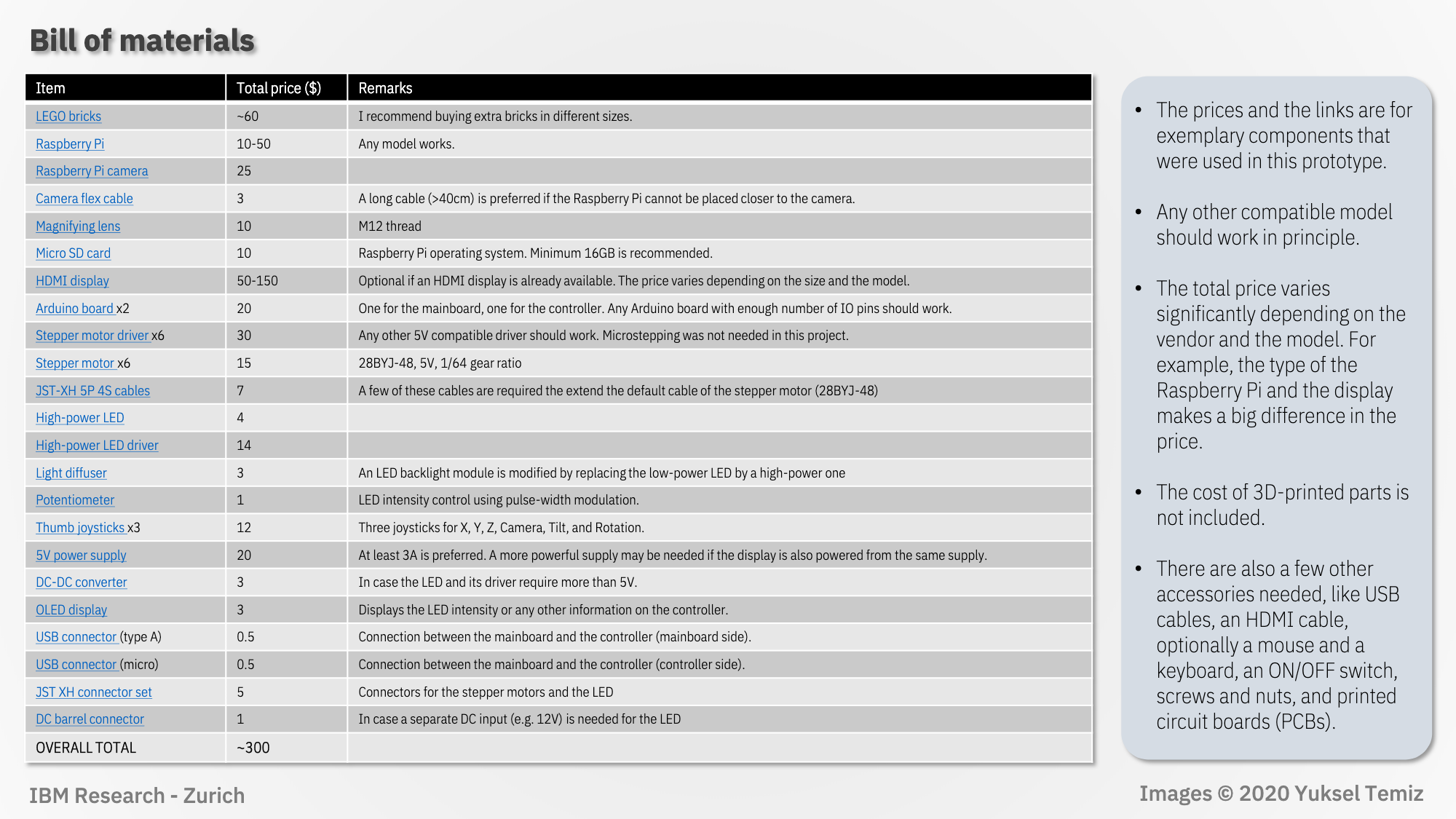
The user has put together very detailed, image-led build instructions walking you through how to create the linear actuators, camera setup, rotary stage, illumination, title mechanism, and electronics.
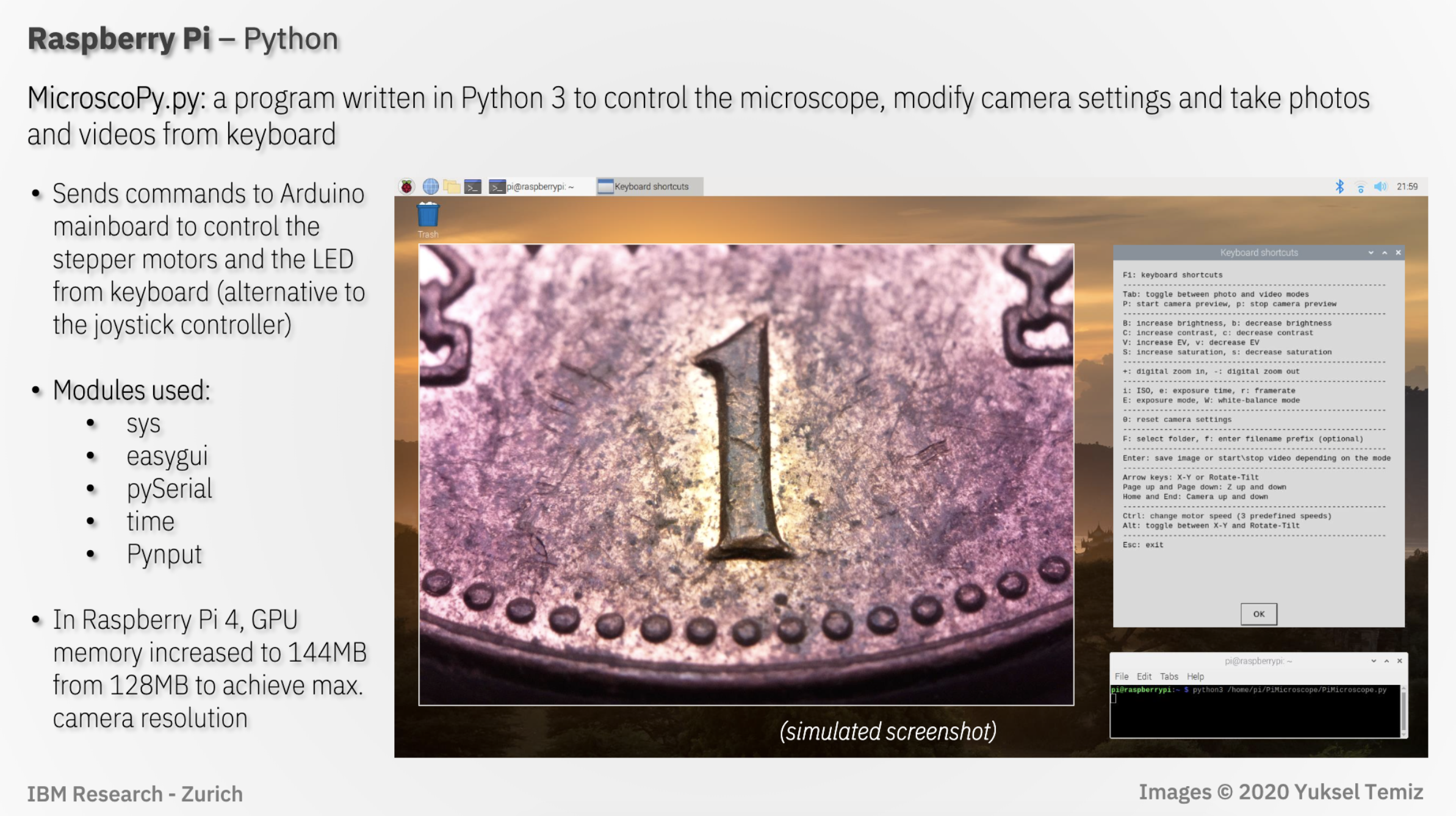
The project uses a program written in Python 3 (MicroscoPy.py) to control the microscope, modify camera settings, and take photos and videos controlled by keyboard input.
Click image to enlarge
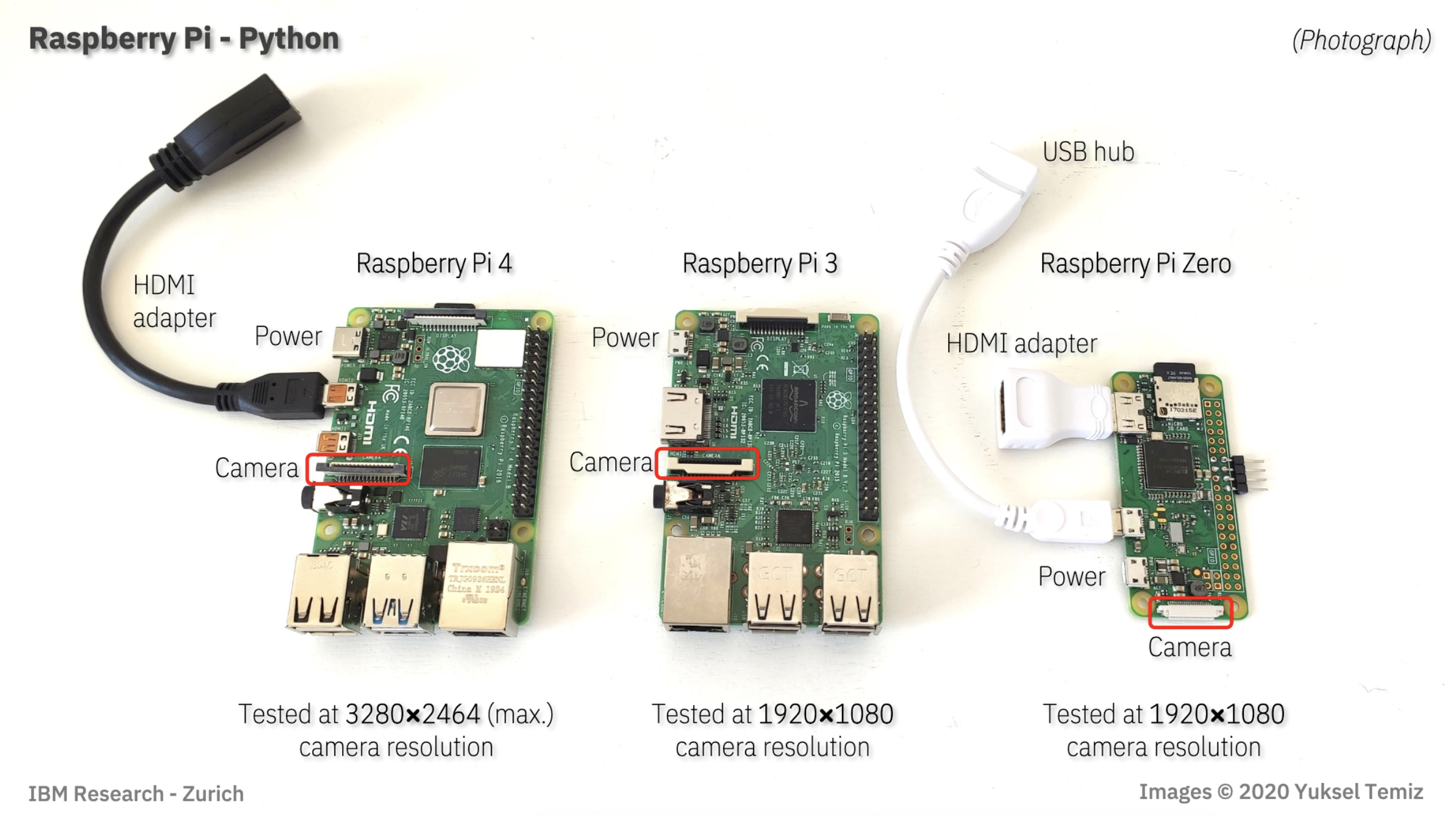
Here is a quick visual to show you the exact ports you need for this project on whatever Raspberry Pi you have:
Click image to enlarge
In the comments of the original reddit post, DIY_Maxwell explains that $10 objective lens used in the project limited the Raspberry Pi High Quality Camera’s performance. They predict you can expect even better images with a heavier investment in the lens.
The project is the result of a team at IBM Research–Europe, in Zurich, who develop microfluidic technologies for medical applications, needing to provide high-quality photos and videos of their microfluidic chips.
In a blog for IEEE Spectrum, IBM team member Yuksel Temiz explains: “Taking a photo of a microfluidic chip is not easy. The chips are typically too big to fit into the field of view of a standard microscope, but they have fine features that cannot be resolved using a regular camera. Uniform illumination is also critical because the chips are often made of highly reflective or transparent materials. Looking at publications from other research groups, it’s obvious that this is a common challenge. With this motivation, I devoted some of my free time to designing a multipurpose and compact lab instrument that can take macro photos from almost any angle.”
Here’s the full story about how the Raspberry Pi-powered creation came to be.
And for some extra-credit homework, you can check out this document comparing the performance of the microscope using our Raspberry Pi Camera Module v2 and the High Quality Camera. The key takeaway for those wishing to upgrade their old projects with the newer camera is to remember that it’s heavier and 50% bigger, so you’ll need to tweak your housing to fit it in.
The post Raspberry Pi High Quality Camera powers up homemade microscope appeared first on Raspberry Pi.
Keeping an eye on bee life cycles is a brilliant example of how Raspberry Pi sensors help us understand the world around us.
The setup featuring an Arduino, RF receiver, USB cable and Raspberry Pi
Getting to design and build things for a living sounds like a dream job, especially if it also involves Raspberry Pi and wildlife. Glyn Hudson has always enjoyed making things and set up a company manufacturing open-source energy monitoring tools shortly after graduating from university. With access to several hives at his keen apiarist parents’ garden in Snowdonia, Glyn set up BeeMonitor using some of the tools he used at work to track the beehives’ inhabitants.
Glyn checking the original BeeMonitor setup
“The aim of the project was to put together a system to monitor the health of a bee colony by monitoring the temperature and humidity inside and outside the hive over multiple years,” explains Glyn. “Bees need all the help and love they can get at the moment and without them pollinating our plants, weíd struggle to grow crops. They maintain a 34∞C core brood temperature (± 0.5∞C) even when the ambient temperature drops below freezing. Maintaining this temperature when a brood is present is a key indicator of colony health.”
BeeMonitor has been tracking the hives’ population since 2012 and is one of the earliest examples of a Raspberry Pi project. Glyn built most of the parts for BeeMonitor himself. Open-source software developed for the OpenEnergyMonitor project provides a data-logging and graphing platform that can be viewed online.
BeeMonitor complete with solar panel to power it. The Snowdonia bees produce 12 to 15 kg of honey per year
The hives were too far from the house for WiFi to reach, so Glyn used a low-power RF sensor connected to an Arduino which was placed inside the hive to take readings. These were received by a Raspberry Pi connected to the internet.
Diagram showing what information BeeMonitor is trying to establish
At first, there was both a DS18B20 temperature sensor and a DHT22 humidity sensor inside the beehive, along with the Arduino (setup info can be found here). Data from these was saved to an SD card, the obvious drawback being that this didn’t display real-time data readings. In his initial setup, Glyn also had to extract and analyse the CSV data himself. “This was very time-consuming but did result in some interesting data,” he says.
Almost as soon as BeeMonitor was running successfully, Glyn realised he wanted to make the data live on the internet. This would enable him to view live beehive data from anywhere and also allow other people to engage in the data.
“This is when Raspberry Pi came into its own,” he says. He also decided to drop the DHT22 humidity sensor. “It used a lot of power and the bees didn’t like it – they kept covering the sensor in wax! Oddly, the bees don’t seem to mind the DS218B20 temperature sensor, presumably since it’s a round metal object compared to the plastic grille of the DHT22,” notes Glyn.
Unlike the humidity sensor, the bees don’t seem to mind the temperature probe
The system has been running for eight years with minimal intervention and is powered by an old car battery and a small solar PV panel. Running costs are negligible: “Raspberry Pi is perfect for getting projects like this up and running quickly and reliably using very little power,” says Glyn. He chose it because of the community behind the hardware. “That was one of Raspberry Pi’s greatest assets and what attracted me to the platform, as well as the competitive price point!” The whole setup cost him about £50.
Glyn tells us we could set up a basic monitor using Raspberry Pi, a DS28B20 temperature sensor, a battery pack, and a solar panel.
The post Monitoring bees with a Raspberry Pi and BeeMonitor appeared first on Raspberry Pi.
Since we released the first Raspberry Pi camera module back in 2013, users have been clamouring for better access to the internals of the camera system, and even to be able to attach camera sensors of their own to the Raspberry Pi board. Today we’re releasing our first version of a new open source camera stack which makes these wishes a reality.
(Note: in what follows, you may wish to refer to the glossary at the end of this post.)
We’ve had the building blocks for connecting other sensors and providing lower-level access to the image processing for a while, but Linux has been missing a convenient way for applications to take advantage of this. In late 2018 a group of Linux developers started a project called libcamera to address that. We’ve been working with them since then, and we’re pleased now to announce a camera stack that operates within this new framework.
Here’s how our work fits into the libcamera project.
We’ve supplied a Pipeline Handler that glues together our drivers and control algorithms, and presents them to libcamera with the API it expects.
Here’s a little more on what this has entailed.
V4L2 (Video for Linux 2) is the Linux kernel driver framework for devices that manipulate images and video. It provides a standardised mechanism for passing video buffers to, and/or receiving them from, different hardware devices. Whilst it has proved somewhat awkward as a means of driving entire complex camera systems, it can nonetheless provide the basis of the hardware drivers that libcamera needs to use.
Consequently, we’ve upgraded both the version 1 (Omnivision OV5647) and version 2 (Sony IMX219) camera drivers so that they feature a variety of modes and resolutions, operating in the standard V4L2 manner. Support for the new Raspberry Pi High Quality Camera (using the Sony IMX477) will be following shortly. The Broadcom Unicam driver – also V4L2‑based – has been enhanced too, signalling the start of each camera frame to the camera stack.
Finally, dumping raw camera frames (in Bayer format) into memory is of limited value, so the V4L2 Broadcom ISP driver provides all the controls needed to turn raw images into beautiful pictures!
Of course, being able to configure Broadcom’s ISP doesn’t help you to know what parameters to supply. For this reason, Raspberry Pi has developed from scratch its own suite of ISP control algorithms (sometimes referred to generically as 3A Algorithms), and these are made available to our users as well. Some of the most well known control algorithms include:
But there are many others too, such as ALSC (Auto Lens Shading Correction, which corrects vignetting and colour variation across an image), and control for noise, sharpness, contrast, and all other aspects of image processing. Here’s how they work together.
The control algorithms all receive statistics information from the ISP, and cooperate in filling in metadata for each image passing through the pipeline. At the end, the metadata is used to update control parameters in both the image sensor and the ISP.
Previously these functions were proprietary and closed source, and ran on the Broadcom GPU. Now, the GPU just shovels pixels through the ISP hardware block and notifies us when it’s done; practically all the configuration is computed and supplied from open source Raspberry Pi code on the ARM processor. A shim layer still exists on the GPU, and turns Raspberry Pi’s own image processing configuration into the proprietary functions of the Broadcom SoC.
To help you configure Raspberry Pi’s control algorithms correctly for a new camera, we include a Camera Tuning Tool. Or if you’d rather do your own thing, it’s easy to modify the supplied algorithms, or indeed to replace them entirely with your own.
Whilst ISP vendors are in some cases contributing open source V4L2 drivers, the reality is that all ISPs are very different. Advertising these differences through kernel APIs is fine – but it creates an almighty headache for anyone trying to write a portable camera application. Fortunately, this is exactly the problem that libcamera solves.
We provide all the pieces for Raspberry Pi-based libcamera systems to work simply “out of the box”. libcamera remains a work in progress, but we look forward to continuing to help this effort, and to contributing an open and accessible development platform that is available to everyone.
So far as we know, there are no similar camera systems where large parts, including at least the control (3A) algorithms and possibly driver code, are not closed and proprietary. Indeed, for anyone wishing to customise a camera system – perhaps with their own choice of sensor – or to develop their own algorithms, there would seem to be very few options – unless perhaps you happen to be an extremely large corporation.
In this respect, the new Raspberry Pi Open Source Camera System is providing something distinctly novel. For some users and applications, we expect its accessible and non-secretive nature may even prove quite game-changing.
The new open source camera system does not replace any existing camera functionality, and for the foreseeable future the two will continue to co-exist. In due course we expect to provide additional libcamera-based versions of raspistill, raspivid and PiCamera – so stay tuned!
If you want to learn more about the libcamera project, please visit https://libcamera.org.
To try libcamera for yourself with a Raspberry Pi, please follow the instructions in our online documentation, where you’ll also find the full Raspberry Pi Camera Algorithm and Tuning Guide.
If you’d like to know more, and can’t find an answer in our documentation, please go to the Camera Board forum. We’ll be sure to keep our eyes open there to pick up any of your questions.
Thanks to Naushir Patuck and Dave Stevenson for doing all the really tricky bits (lots of V4L2-wrangling).
Thanks also to the libcamera team (Laurent Pinchart, Kieran Bingham, Jacopo Mondi and Niklas Söderlund) for all their help in making this project possible.
3A, 3A Algorithms: refers to AEC/AGC (Auto Exposure Control/Auto Gain Control), AWB (Auto White Balance) and AF (Auto Focus) algorithms, but may implicitly cover other ISP control algorithms. Note that Raspberry Pi does not implement AF (Auto Focus), as none of our supported camera modules requires it
AEC: Auto Exposure Control
AF: Auto Focus
AGC: Auto Gain Control
ALSC: Auto Lens Shading Correction, which corrects vignetting and colour variations across an image. These are normally caused by the type of lens being used and can vary in different lighting conditions
AWB: Auto White Balance
Bayer: an image format where each pixel has only one colour component (one of R, G or B), creating a sort of “colour mosaic”. All the missing colour values must subsequently be interpolated. This is a raw image format meaning that no noise, sharpness, gamma, or any other processing has yet been applied to the image
CSI-2: Camera Serial Interface (version) 2. This is the interface format between a camera sensor and Raspberry Pi
GPU: Graphics Processing Unit. But in this case it refers specifically to the multimedia coprocessor on the Broadcom SoC. This multimedia processor is proprietary and closed source, and cannot directly be programmed by Raspberry Pi users
ISP: Image Signal Processor. A hardware block that turns raw (Bayer) camera images into full colour images (either RGB or YUV)
Raw: see Bayer
SoC: System on Chip. The Broadcom processor at the heart of all Raspberry Pis
Unicam: the CSI-2 receiver on the Broadcom SoC on the Raspberry Pi. Unicam receives pixels being streamed out by the image sensor
V4L2: Video for Linux 2. The Linux kernel driver framework for devices that process video images. This includes image sensors, CSI-2 receivers, and ISPs
The post An open source camera stack for Raspberry Pi using libcamera appeared first on Raspberry Pi.
To coincide with yesterday’s launch of the Raspberry Pi High Quality Camera, Raspberry Pi Press has created a new Official Camera Guide to help you get started and inspire your future projects.

Connecting a High Quality Camera turns your Raspberry Pi into a powerful digital camera. This 132-page book tells you everything you need to know to set up the camera, attach a lens, and start capturing high-resolution photos and video footage.
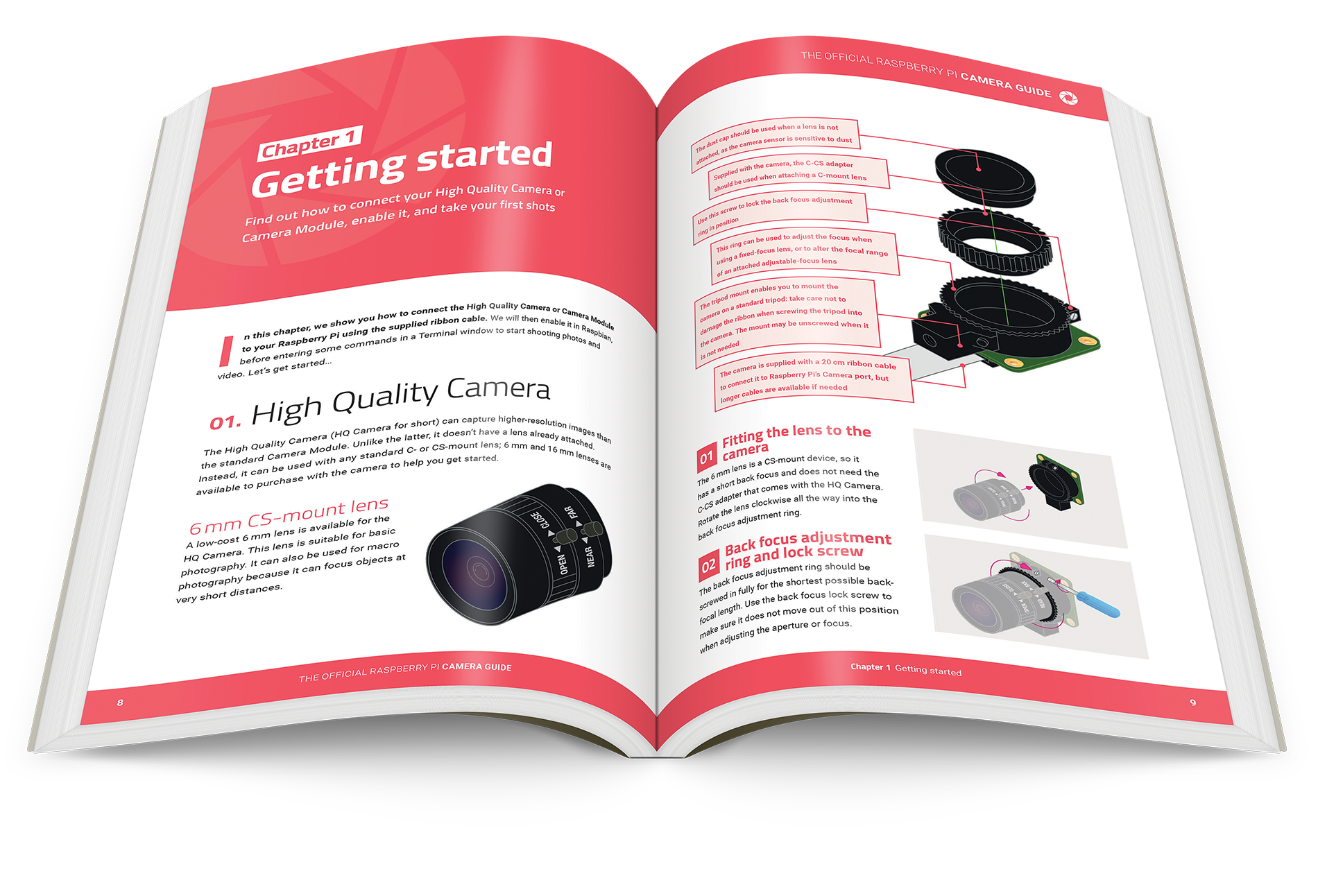
The book tells you everything you need to know in order to use the camera by issuing commands in a terminal window or via SSH. It also demonstrates how to control the camera with Python using the excellent picamera library.
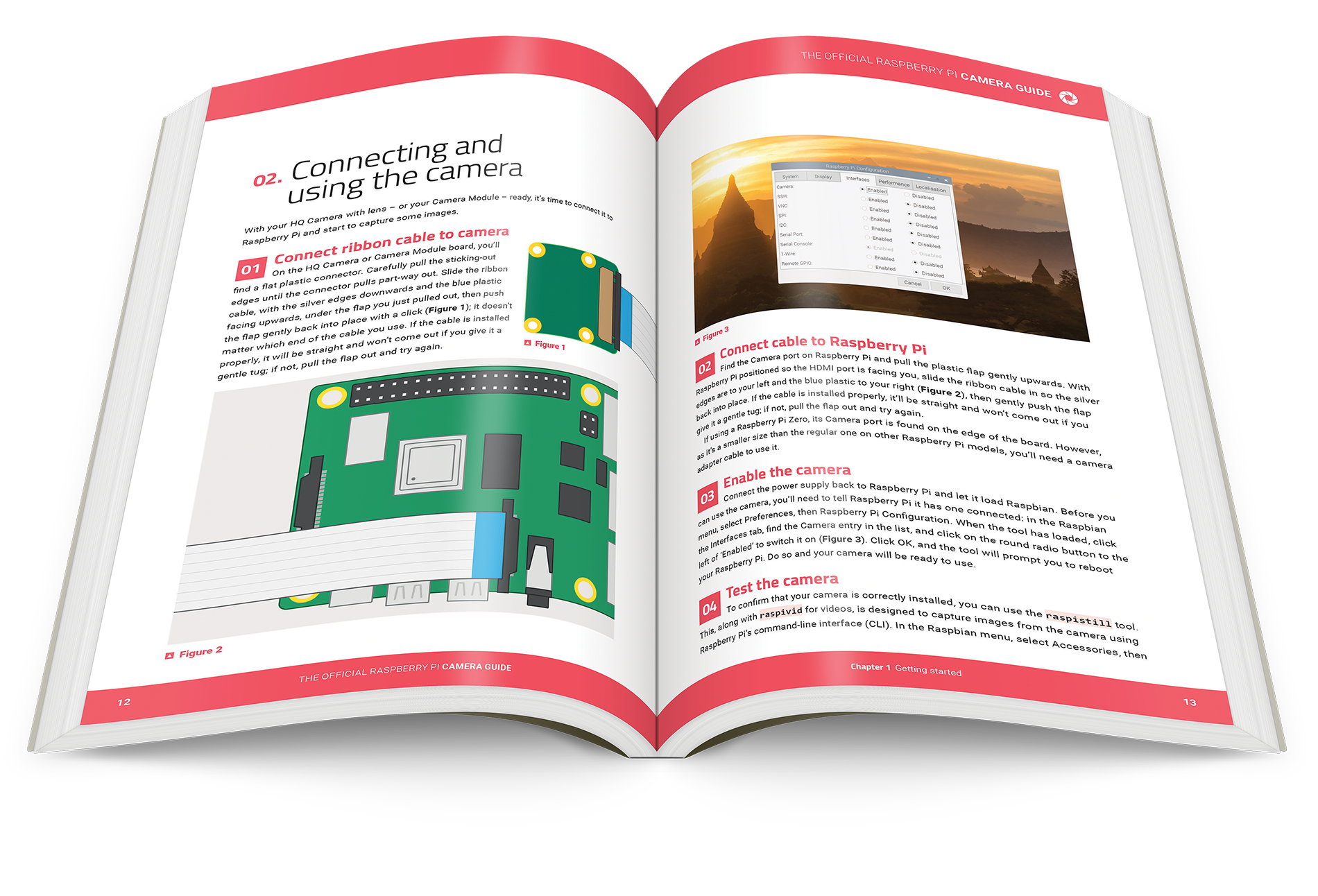
You’ll discover the many image modes and effects available – our favourite is ‘posterise’.
Once you’ve got the basics down, you can start using your camera for a variety of exciting Raspberry Pi projects showcased across the book’s 17 packed chapters. Want to make a camera trap to monitor the wildlife in your garden? Build a smart door with a video doorbell? Try out high-speed and time-lapse photography? Or even find out which car is parked in your driveway using automatic number-plate recognition? The book has all this covered, and a whole lot more.
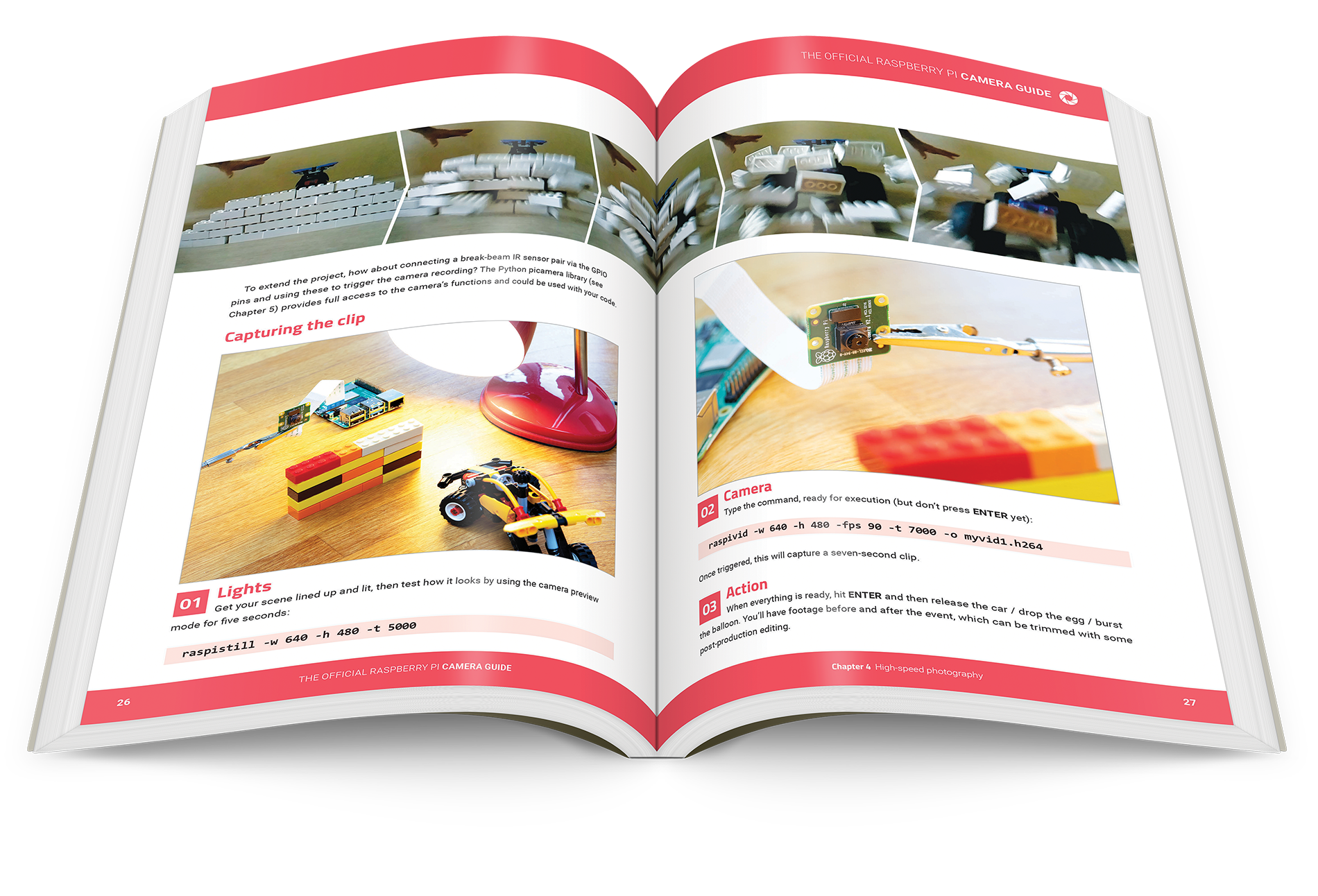
Don’t have a High Quality Camera yet? No problem. All the commands in the book are exactly the same for the standard Raspberry Pi Camera Module, so you can also use this model with the help of our Official Camera Guide.
The Official Raspberry Pi Camera Guide is available now from the Raspberry Pi Press online store for £10. And, as always, we have also released the book as a free PDF. But the physical book feels so good to hold and looks so handsome on your bookshelf, we don’t think you’ll regret getting your hands on the print edition.
Whichever format you choose, have fun shooting amazing photos and videos with the new High Quality Camera. And do share what you capture with us on social media using #ShotOnRaspberryPi.
The post New book: The Official Raspberry Pi Camera Guide appeared first on Raspberry Pi.
We’re pleased to announce a new member of the Raspberry Pi camera family: the 12.3-megapixel High Quality Camera, available today for just $50, alongside a range of interchangeable lenses starting at $25.
NEW Raspberry Pi High Quality Camera
12.3 megapixel Sony IMX477 sensor, 7.9mm diagonal image size, and back-illuminated sensor architecture, with adjustable back focus and support for C- and CS-…
It’s really rather good, as you can see from this shot of Cambridge’s finest bit of perpendicular architecture.

At 69 years, King’s College Chapel took only slightly longer to finish than the High Quality Camera.
And this similarly pleasing bit of chip architecture.
Ready for your closeup.
There has always been a big overlap between Raspberry Pi hackers and camera hackers. Even back in 2012, people (okay, substantially Dave Hunt) were finding interesting ways to squeeze more functionality out of DSLR cameras using their Raspberry Pi computers.
Dave’s water droplet photography. Still, beautiful.
In 2013, we launched our first camera board, built around the OmniVision OV5647 5‑megapixel sensor, followed rapidly by the original Pi NoIR board, with infrared sensitivity and a little magic square of blue plastic. Before long, people were attaching them to telescopes and using them to monitor plant health from drones (using the aforementioned little square of plastic).

We like the Moon.
Sadly, OV5647 went end-of-life in 2015, and the 5-megapixel camera has the distinction of being one of only three products (along with the original Raspberry Pi 1 and the official WiFi dongle) that we’ve ever discontinued. Its replacement, built around the 8-megapixel Sony IMX219 sensor, launched in April 2016; it has found a home in all sorts of cool projects, from line-followers to cucumber sorters, ever since. Going through our sales figures while writing this post, we were amazed to discover we’ve sold over 1.7 million of these to date.
Versatile though they are, there are limitations to mobile phone-type fixed-focus modules. The sensors themselves are relatively small, which translates into a lower signal-to-noise ratio and poorer low-light performance; and of course there is no option to replace the lens assembly with a more expensive one, or one with different optical properties. These are the shortcomings that the High Quality Camera is designed to address.
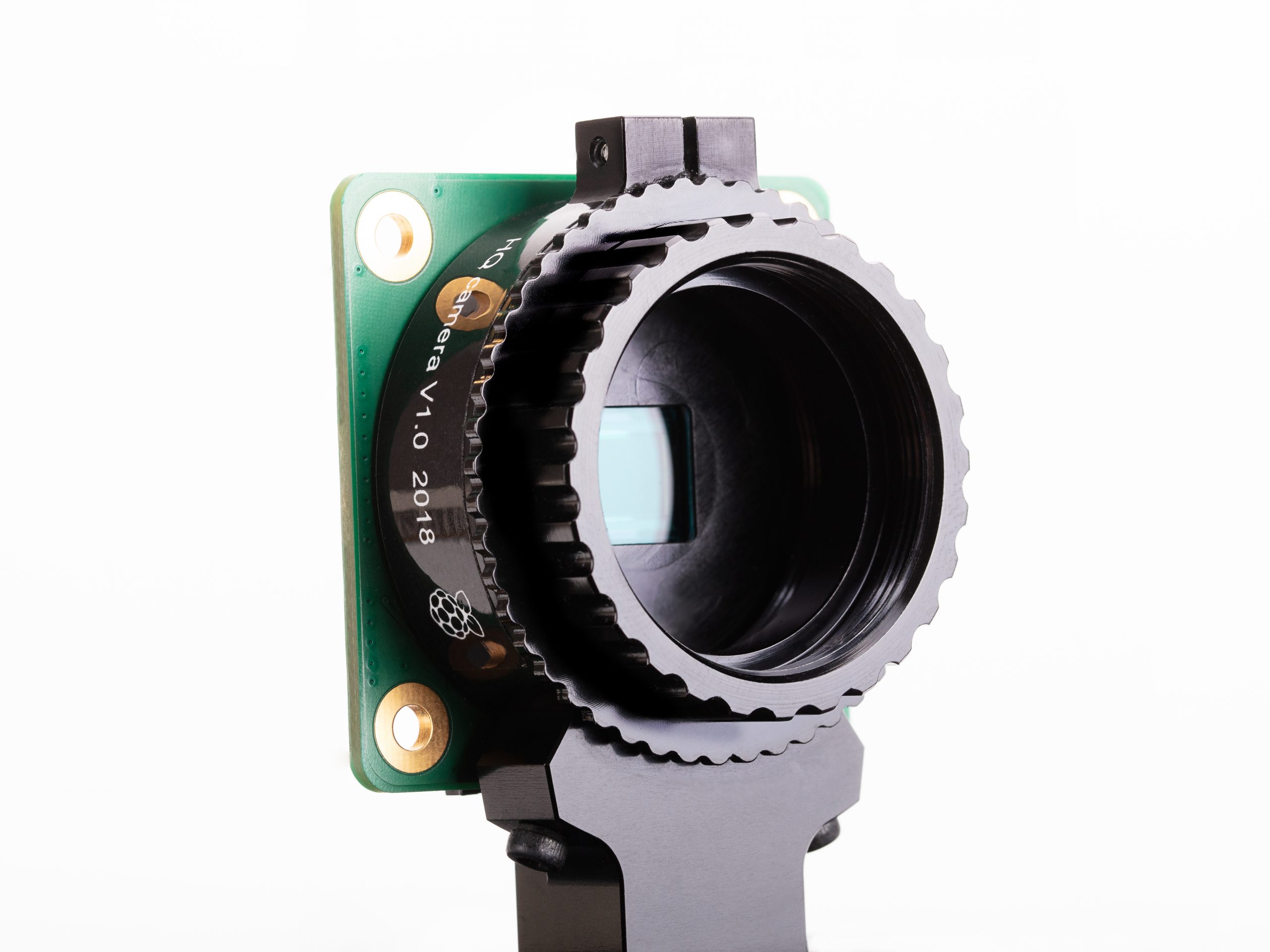
Raspberry Pi High Quality Camera, without a lens attached
Features include:
HOW TO use the Raspberry Pi High Quality Camera
12.3 megapixel Sony IMX477 sensor, 7.9mm diagonal sensor size, and back-illuminated sensor architecture, with adjustable back focus and support for C- and CS…
We expect that over time people will use quite a wide variety of lenses, but for starters our Approved Resellers will be offering a couple of options: a 6 mm CS‑mount lens at $25, and a very shiny 16 mm C-mount lens priced at $50.
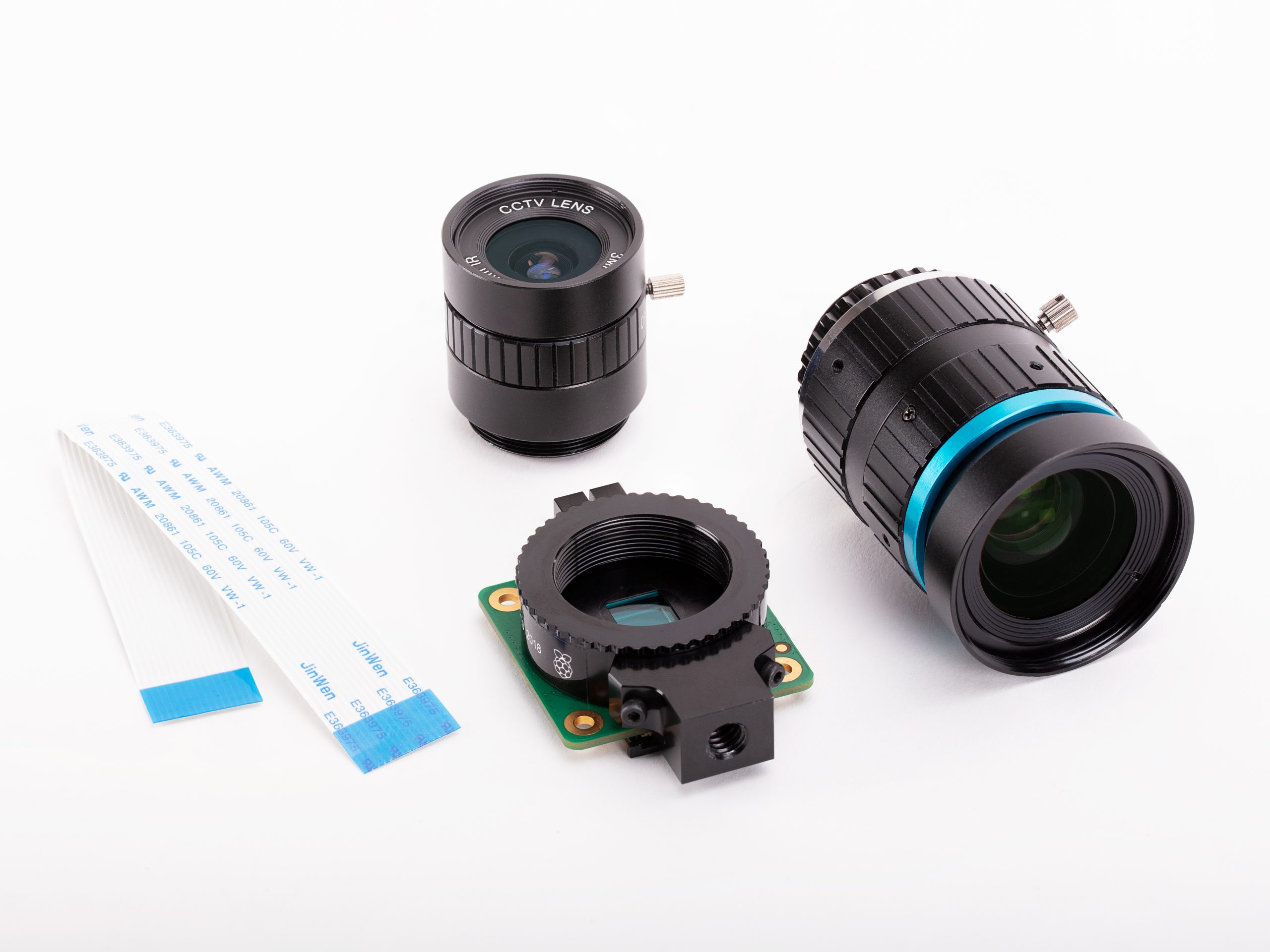
Our launch-day lens selection.
Also out today is our new Official Raspberry Pi Camera Guide, covering both the familiar Raspberry Pi Camera Module and the new Raspberry Pi High Quality Camera.
We’ll never not be in love with Jack’s amazing design work.
Our new guide, published by Raspberry Pi Press, walks you through setting up and using your camera with your Raspberry Pi computer. You’ll also learn how to use filters and effects to enhance your photos and videos, and how to set up creative projects such as stop-motion animation stations, wildlife cameras, smart doorbells, and much more.
Aardman ain’t got nothing on you.
You can purchase the book in print today from the Raspberry Pi Press store for £10, or download the PDF for free from The MagPi magazine website.
As with every product we build, the High Quality Camera has taught us interesting new things, in this case about producing precision-machined aluminium components at scale (and to think we thought injection moulding was hard!). Getting this right has been something of a labour of love for me over the past three years, designing the hardware and getting it to production. Naush Patuck tuned the VideoCore IV ISP for this sensor; David Plowman helped with lens evaluation; Phil King produced the book; Austin Su provided manufacturing support.
We’d like to acknowledge Phil Holden at Sony in San Jose, the manufacturing team at Sony UK Tec in Pencoed for their camera test and assembly expertise, and Shenzhen O-HN Optoelectronic for solving our precision engineering challenges.
Which Raspberry Pi models support the High Quality Camera?
The High Quality Camera is compatible with almost all Raspberry Pi models, from the original Raspberry Pi 1 Model B onward. Some very early Raspberry Pi Zero boards from the start of 2016 lack a camera connector, and other Zero users will need the same adapter FPC that is used with Camera Module v2.
What about Camera Module v2?
The regular and infrared versions of Camera Module v2 will still be available. The High Quality Camera does not supersede it. Instead, it provides a different tradeoff between price, performance, and size.
What lenses can I use with the High Quality Camera?
You can use C- and CS-mount lenses out of the box (C-mount lenses use the included C-CS adapter). Third-party adapters are available from a wide variety of lens standards to CS-mount, so it is possible to connect any lens that meets the back‑focus requirements.
We’re looking forward to seeing the oldest and/or weirdest lenses anyone can get working, but here’s one for starters, courtesy of Fiacre.
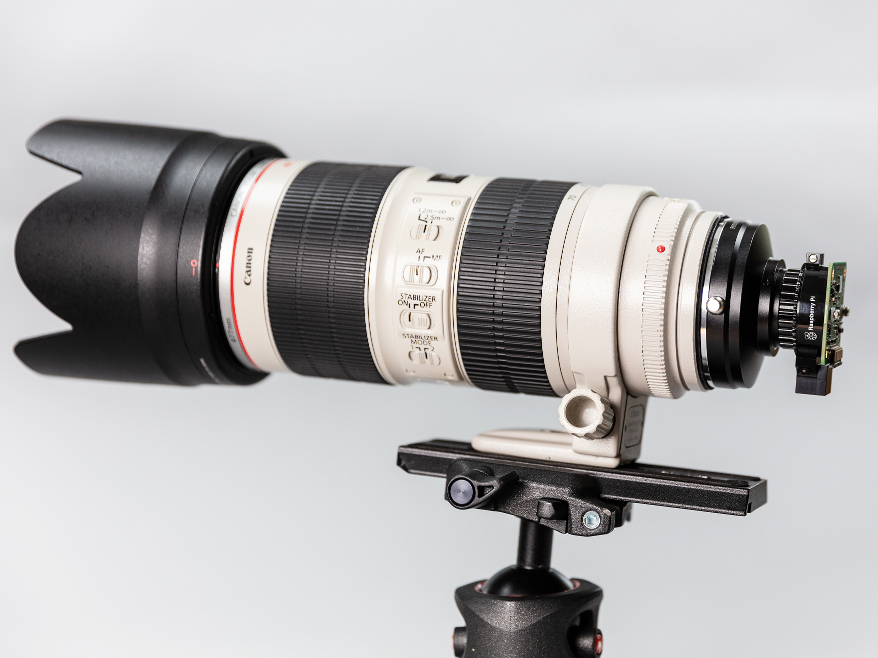
Do not try this at home. Or do: fine either way.
The post New product: Raspberry Pi High Quality Camera on sale now at $50 appeared first on Raspberry Pi.
Using deeper learning as a framework for transformative educational experiences, Brent Richardson outlines the case for a pedagogical approach that challenges students using a Raspberry Pi. From the latest issue of Hello World magazine — out today!
A benefit of completing school and entering the workforce is being able to kiss standardised tests goodbye. That is, if you don’t count those occasional ‘prove you watched the webinar’ quizzes some supervisors require.
In the real world, assessments often happen on the fly and are based on each employee’s ability to successfully complete tasks and solve problems. It is often obvious to an employer when their staff members are unprepared.
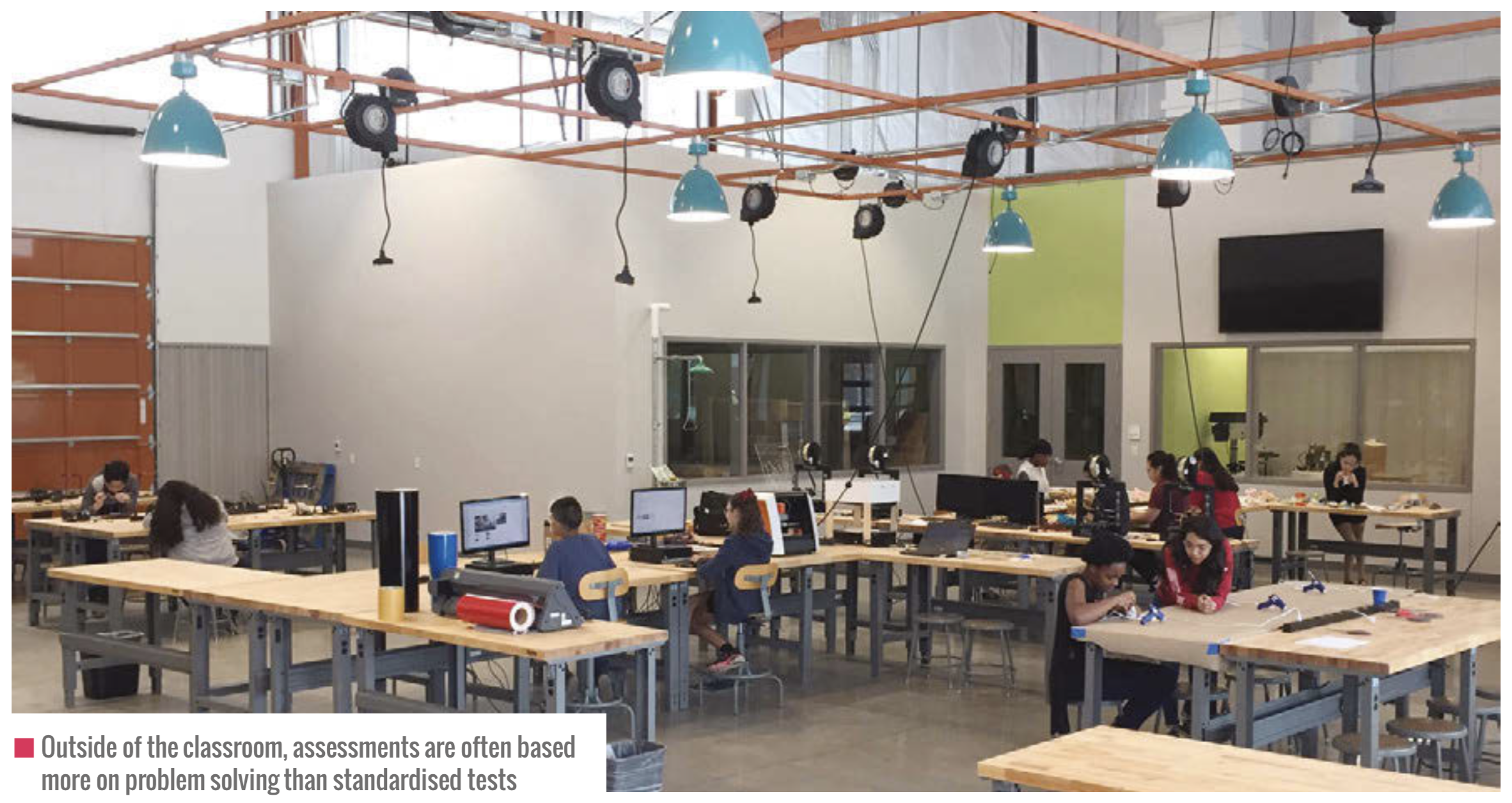
Formal education continues to focus on accountability tools that measure base-level proficiencies instead of more complex skills like problem-solving and communication.
One of the main reasons the U.S. education system is criticised for its reliance on standardised tests is that this method of assessing a student’s comprehension of a subject can hinder their ability to transfer knowledge from an existing situation to a new situation. The effect leaves students ill-prepared for higher education and the workforce.
A study conducted by the National Association of Colleges and Employers found a significant gap between how students felt about their abilities and their employer’s observations. In seven out of eight categories, students rated their skills much higher than their prospective employers had.
Some people believe that this gap continues to widen because teaching within the confines of a standardised test encourages teachers to narrow their instruction. The focus becomes preparing students with a limited scope of learning that is beneficial for testing.
With this approach to learning, it is possible that students can excel at test-taking and still struggle with applying knowledge in new ways. Educators need to have the support to not only prepare students for tests but also to develop ways that will help their students connect to the material in a meaningful manner.
In an effort to boost the U.S. education system’s ability to increase the knowledge and skills of students, many private corporations and nonprofits directly support public education. In 2010, the Hewlett Foundation went so far as to develop a framework called ‘deeper learning’ to help guide its education partners in preparing learners for success.
Deeper learning focuses on six key competencies:
This framework ensures that learners are active participants in their education. Students are immersed in a challenging curriculum that requires them to seek out and acquire new information, apply what they have learned, and build upon that to create new knowledge.
While deeper learning experiences are important for all students, research shows that schools that engage students from low-income families and students of colour in deeper learning have stronger academic outcomes, better attendance and behaviour, and lower dropout rates. This results in higher graduation rates, and higher rates
of college attendance and perseverance than comparison schools serving similar students. This pedagogical approach is one we strive to embed in all our work at Fab Lab Houston.
The importance of deeper learning was undeniable when a group of students I worked with in Houston built a solar-powered time-lapse camera. Through this collaborative project, we quickly found ourselves moving beyond classroom pedagogy to a ‘hero’s journey’ — where students’ learning paths echo a centuries-old narrative arc in which a protagonist goes on an adventure, makes new friends, encounters roadblocks, overcomes adversity, and returns home a changed person.
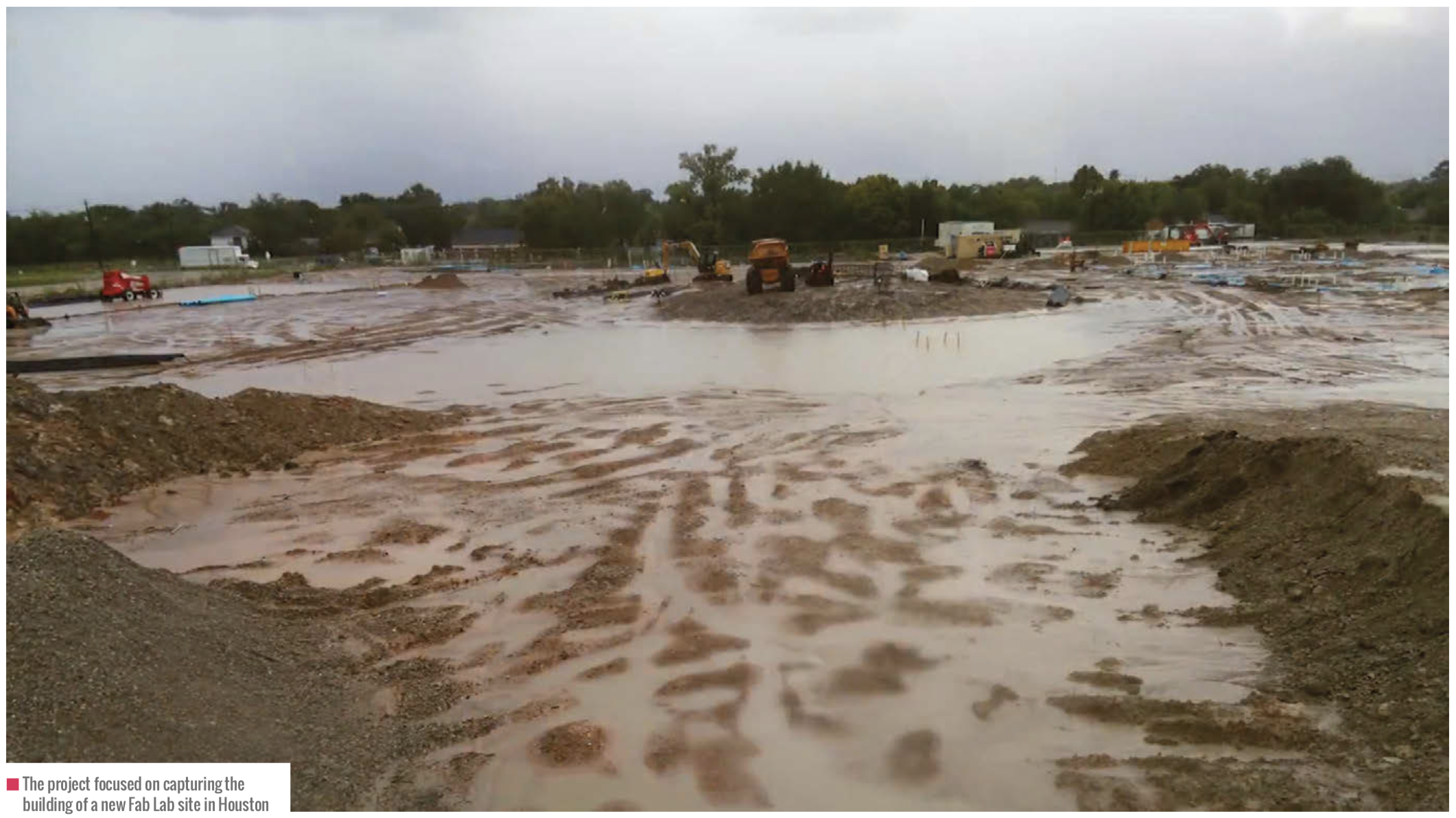
In this spirit, we challenged the students with a simple objective: ‘Make a device to document the construction of Fab Lab Houston’. In just one sentence, participants understood enough to know where the finish line was without being told exactly how to get there. This shift in approach pushed students to ask questions as they attempted to understand constraints and potential approaches.
Students shared ideas ranging from drone video to photography robots. Together everyone began to break down these big ideas into smaller parts and better define the project we would tackle together. To my surprise, even the students that typically refused to do most things were excited to poke holes in unrealistic ideas. It was decided, among other things, that drones would be too expensive, robots might not be waterproof, and time was always a concern.
The decision was made to move forward with the stationary time-lapse camera, because although the students didn’t know how to accomplish all the aspects of the project, they could at least understand the project enough to break it down into doable parts and develop a ballpark budget. Students formed three teams and picked one aspect of the project to tackle. The three subgroups focused on taking photos and converting them to video, developing a remote power solution, and building weatherproof housing.
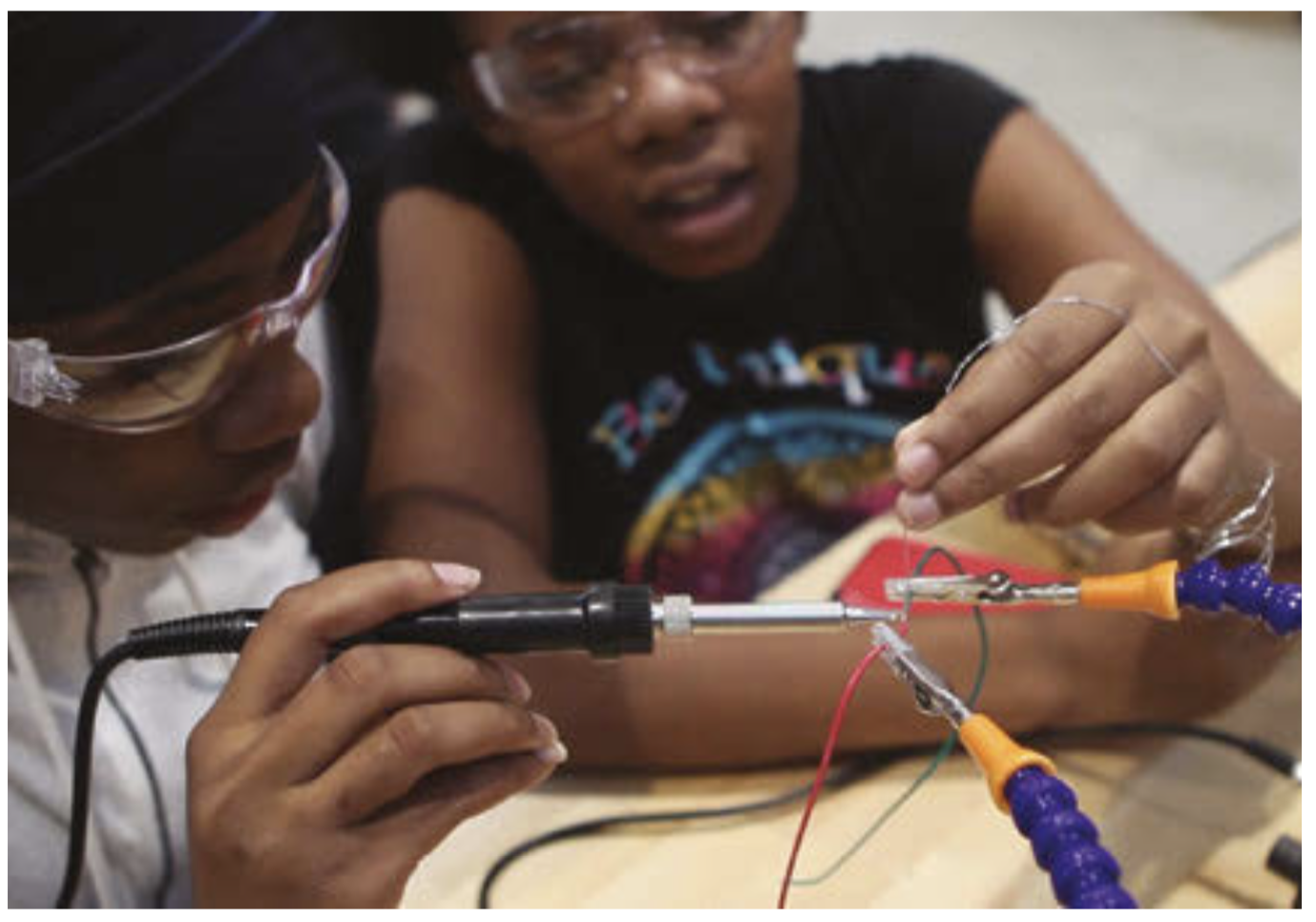
A group of students found sample code for Raspberry Pi that could be repurposed to take photos and store them sequentially on a USB drive. After quick success, a few ambitious learners started working to automate the image post-processing into video. Eventually, after attempting multiple ways to program the computer to dynamically turn images into video, one team member discovered a new approach: since the photos were stored with a sequential numbering system, thousands of photos could be loaded into Adobe Premiere Pro straight off the USB with the ‘Automate to Sequence’ tool in Premiere.
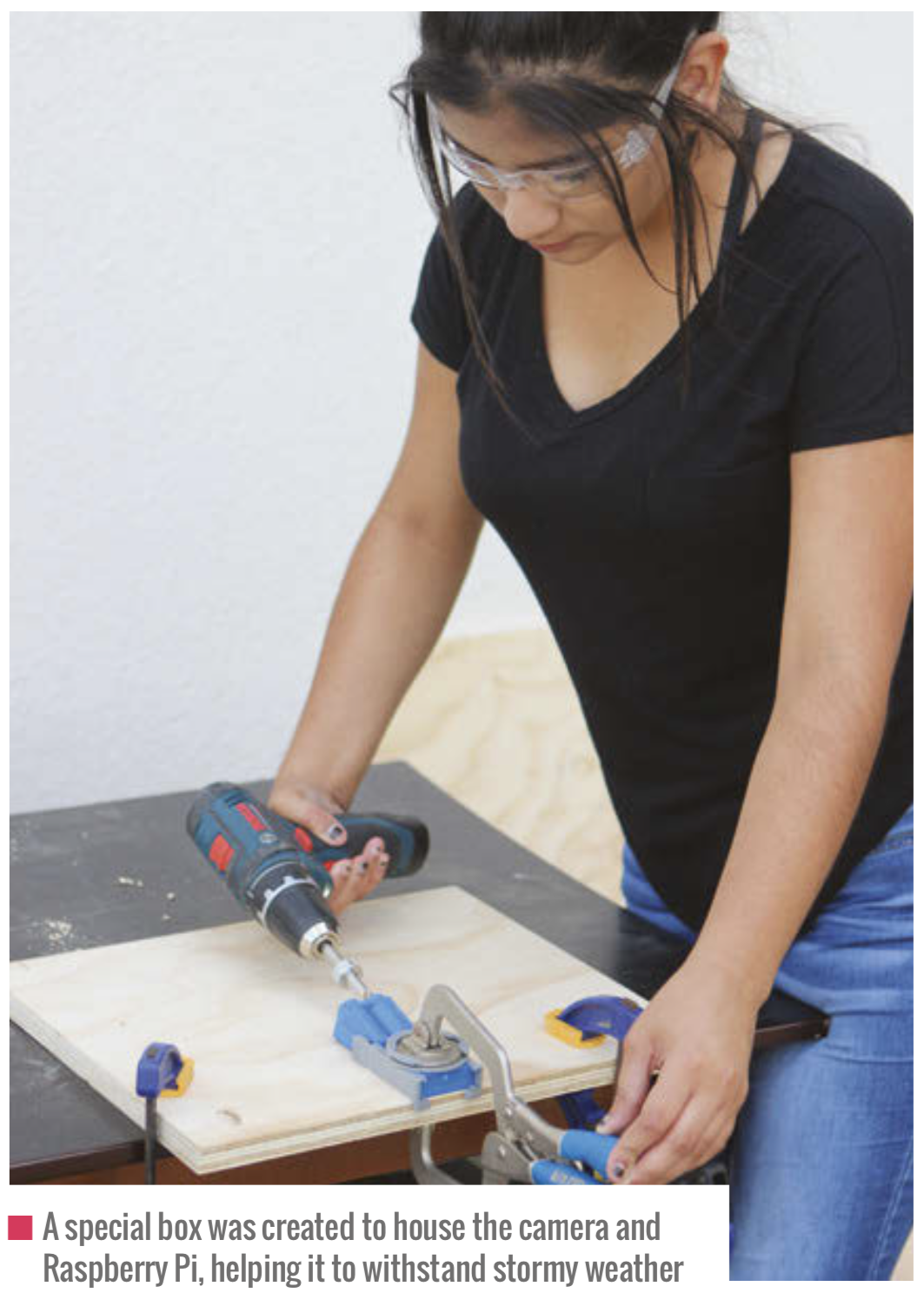
A great deal of time was spent measuring power consumption and calculating solar panel and battery size. Since the project would be placed on a pole in the middle of a construction site for six months, the students were challenged with making their solar-powered time-lapse camera as efficient as possible.
Waking the device after it was put into sleep mode proved to be more difficult than anticipated, so a hardware solution was tested. The Raspberry Pi computer was programmed to boot up when receiving power, take a picture, and then shut itself down. With the Raspberry Pi safely shut down, a timer relay cut power for ten minutes before returning power and starting the cycle again.
Finally, a waterproof container had to be built to house the electronics and battery. To avoid overcomplicating the process, the group sourced a plastic weatherproof ammunition storage box to modify. Students operated a 3D printer to create custom parts for the box.
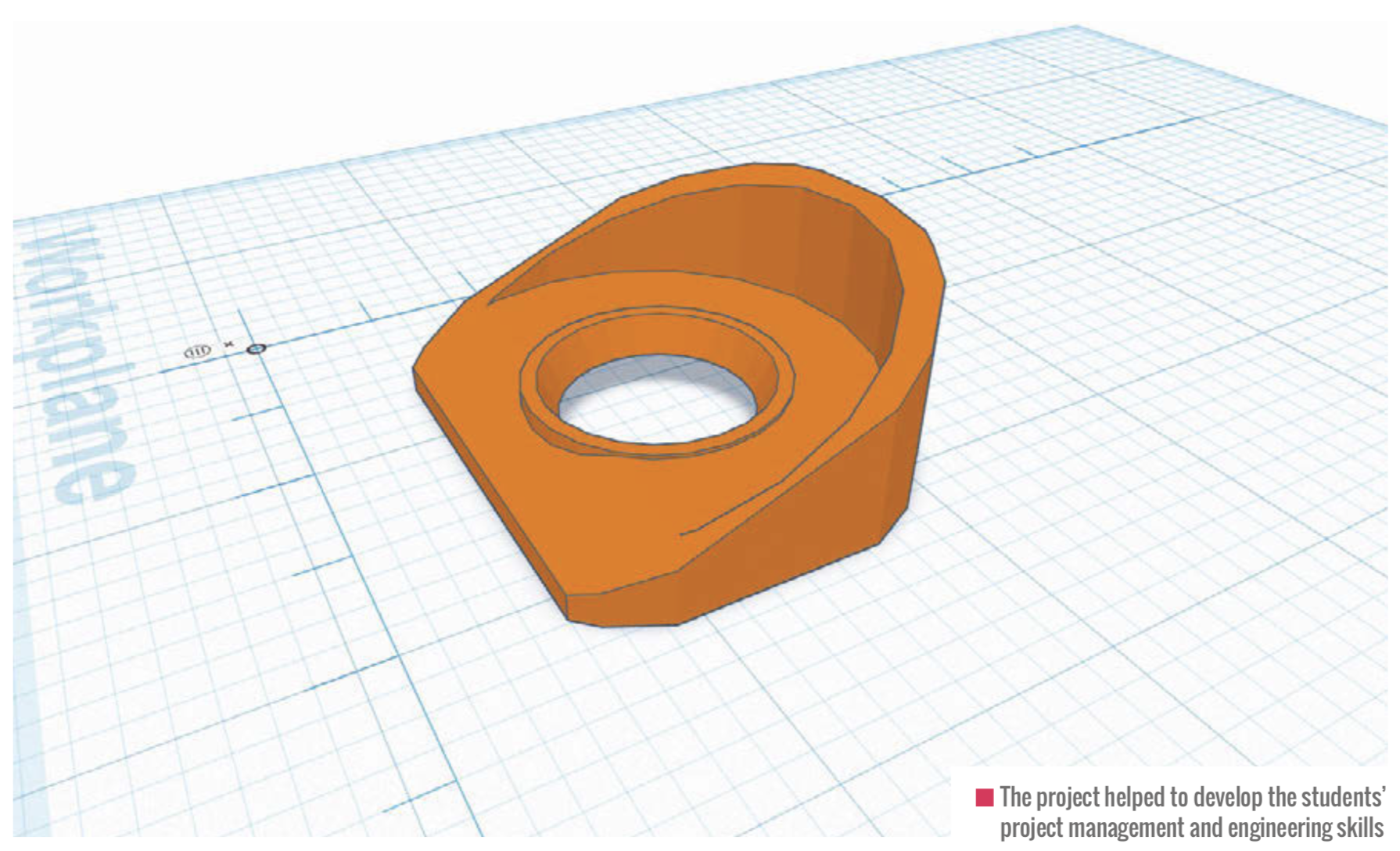
After cutting a hole for the camera, a small piece of glass was attached to a 3D-printed hood, ensuring no water entered the box. On the rear of the box, they printed a part to hold and seal the cable from the solar panel where it entered the box. It only took a few sessions before the group produced a functioning prototype. The project was then placed outside for a day to test the capability of the device.
The test appeared successful when the students checked the USB drive. The drive was full of high-quality images captured every ten minutes. When the drive was connected back to Raspberry Pi, a student noticed that all the parts inside the case moved. The high temperature on the day of the test had melted the glue used to attach everything. This unexpected problem challenged students to research a better alternative and reattach the pieces.
Once the students felt confident in their device’s functionality, it was handed over to the construction crew, who installed the camera on a twenty-foot pole. The installation went smoothly and the students anxiously waited to see the results.
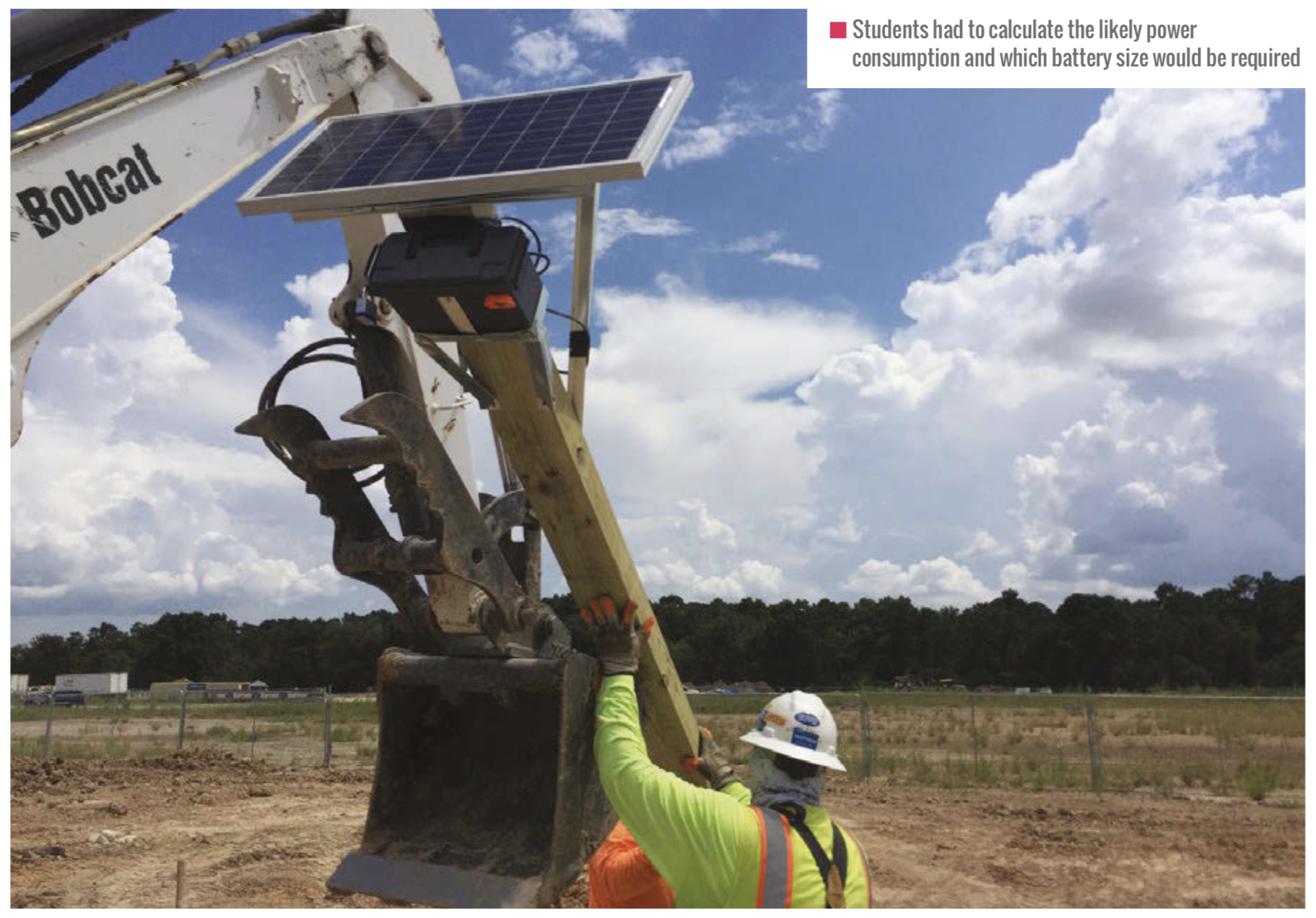
Less than a week after the camera went up, Houston was hit hard with the rains brought on by hurricane Harvey. The group was nervous to see whether the project they had constructed would survive. However, when they saw that their camera had survived and was working, they felt a great sense of pride.
They recognised that it was the collaborative effort of the group to problem-solve possible challenges that allowed their camera to not only survive but to capture a spectacular series of photos showing the impact of the hurricane in the location it was placed.
BakerRipleyTimeLapse2
This is “BakerRipleyTimeLapse2” by Brent Richardson on Vimeo, the home for high quality videos and the people who love them.
Overcoming many hiccups throughout the project was a great illustration of how the students learned how to learn and
to develop an academic mindset; a setback that at the beginning of the project might have seemed insurmountable was laughable in the end.
Throughout my experience as a classroom teacher, a museum educator, and now a director of a digital makerspace, I’ve seen countless students struggle to understand the relevance of learning, and this has led me to develop a strong desire to expand the use of deeper learning.
Sometimes it feels like a risk to facilitate learning rather than impart knowledge, but seeing a student’s development into a changed person, ready to help someone else learn, makes it worth the effort. Let’s challenge ourselves as educators to help students acquire knowledge and use it.
Issue 12 of Hello World is available now as a FREE PDF download. UK-based educators can also subscribe to receive Hello World directly to their door in all its shiny printed goodness. Visit the Hello World website for more information.

The post Using Raspberry Pi for deeper learning in education appeared first on Raspberry Pi.
The Edwards Lab at the University of Reading has developed a flexible, low-cost, open source lab robot for capturing images of microbiology samples with a Raspberry Pi camera module. It’s called POLIR, for Raspberry Pi camera Open-source Laboratory Imaging Robot. Here’s a timelapse video of them assembling it.
The robot is useful for all kinds of microbiology imaging, but at the moment the lab is using it to measure antimicrobial resistance in bacteria. They’re doing this by detecting the colour change in a dye called resazurin, which changes from blue to pink in the presence of metabolically active cells: if bacteria incubated with antibiotics grow, their metabolic activity causes the dye to turn pink. However, if the antibiotics stop or impede the growth of the bacteria, their lower levels of metabolic activity will cause less colour change, or none at all. In the photo below, the colourful microtitre plate holds bacterial samples with and without resistance to the antibiotics against which they’re being tested.
POLIR, an open source 3D printer-based Raspberry Pi lab imaging robot
The researchers adapted existing open source 3D printer designs and used v-slot aluminium extrusion (this stuff) with custom 3D-printed joints to make a frame. Instead of a printer extrusion head, a Raspberry Pi and camera module are mounted on the frame. An Arduino running open-source Repetier software controls x-y-z stepper motors to adjust the position of the computer and camera.
Front and top views of POLIR
Open-source OctoPrint software controls the camera position by supplying scripts from the Raspberry Pi to the Arduino. OctoPrint also allows remote access and control, which gives researchers flexibility in when they run experiments and check progress. Images are acquired using a Python script configured with the appropriate settings (eg image exposure), and are stored on the Raspberry Pi’s SD card. From there, they can be accessed via FTP.
Off-the-shelf lab automation systems are extremely expensive and remain out of the reach of most research groups. POLIR cost just £600.
The system has a number of advantages over higher-cost off-the-shelf imaging systems. One is its flexibility: the robot can image a range of sample formats, including agar plates like those in the video above, microtitre plates like the one in the first photograph, and microfluidic “lab-on-a-comb” devices. A comb looks much like a small, narrow rectangle of clear plastic with striations running down its length; each striation is a microcapillary with capacity for a 1μl sample, and each comb has ten microcapillaries. These microfluidic devices let scientists run experiments on a large number of samples at once, while using a minimum of space on a lab bench, in an incubator, or in an imaging robot like POLIR.
POLIR accommodates 2160 individual capillaries and a 96 well plate, with room to spare
For lab-on-a-comb images, POLIR gives the Reading team four times the spatial resolution they get with a static camera. The moveable Raspberry Pi camera with a short focus yields images with 6 pixels per capillary, compared to 1.5 pixels per capillary using a $700 static Canon camera with a macro lens.
Because POLIR is automated, it brings higher temporal resolution within reach, too. A non-automated system, by contrast, can only be used for timelapse imaging if a researcher repeatedly intervenes at fixed time intervals. Capturing kinetic data with timelapse imaging is valuable because it can be significant if different samples reach the same endpoint but at different rates, and because some dyes can give a transient signal that would be missed by an endpoint measurement alone.
Dr Alexander Edwards of the University of Reading comments:
We built the robot with a simple purpose, to make antimicrobial resistance testing more robust without resorting to expensive and highly specialised lab equipment […] The beauty of the POLIR kit is that it’s based on open source designs and we have likewise published our own designs and modifications, allowing everyone and anyone to benefit from the original design and the modifications in other contexts. We believe that open source hardware is a game changer that will revolutionise microbiological and other life science lab work by increasing data production whilst reducing hands-on labour time in the lab.
You can find POLIR on GitLab here. You can also read more, and browse more figures, in the team’s open-access paper, Exploiting open source 3D printer architecture for laboratory robotics to automate high-throughput time-lapse imaging for analytical microbiology.
The post Raspberry Pi vs antibiotic resistance: microbiology imaging with open source hardware appeared first on Raspberry Pi.
You really don’t need anything too fancy to build this Raspberry Pi laser scanner, and that’s why we think it’s pretty wonderful.
Rasperry Pi 3D Laser Scanner
Cornell University: ECE 5725 Michael Xiao and Thomas Scavella
The ingredients you’ll need to build the laser scanner are:
To complete the build, access to a 3D printer and laser cutter would come in handy. If you don’t have access to such tools, we trust you to think of an alternative housing for the scanner. You’re a maker, you’re imaginative — it’s what you do.
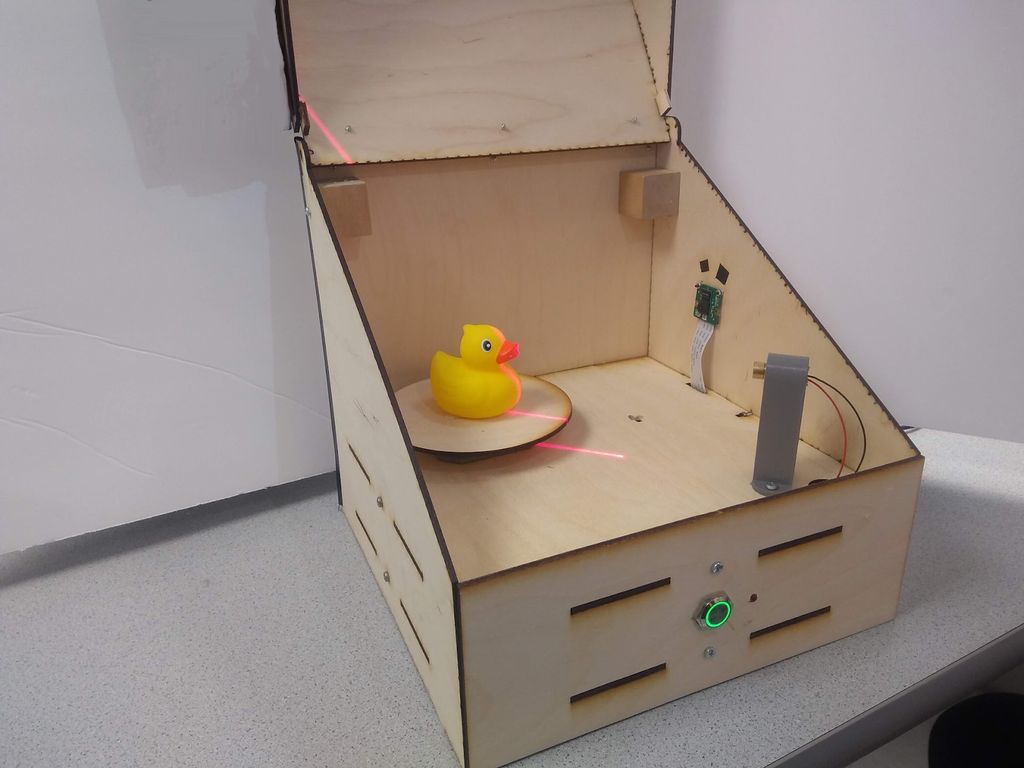
The line laser projects a line an object, highlighting a slice of it. The Raspberry Pi Camera Module captures this slice, recording the shape of the laser line on the object’s surface. Then the stepper motor rotates the object. When the object has completed a full rotation and the camera has taken an image of every slice, the Raspberry Pi processes all the images to create one virtual 3D object.
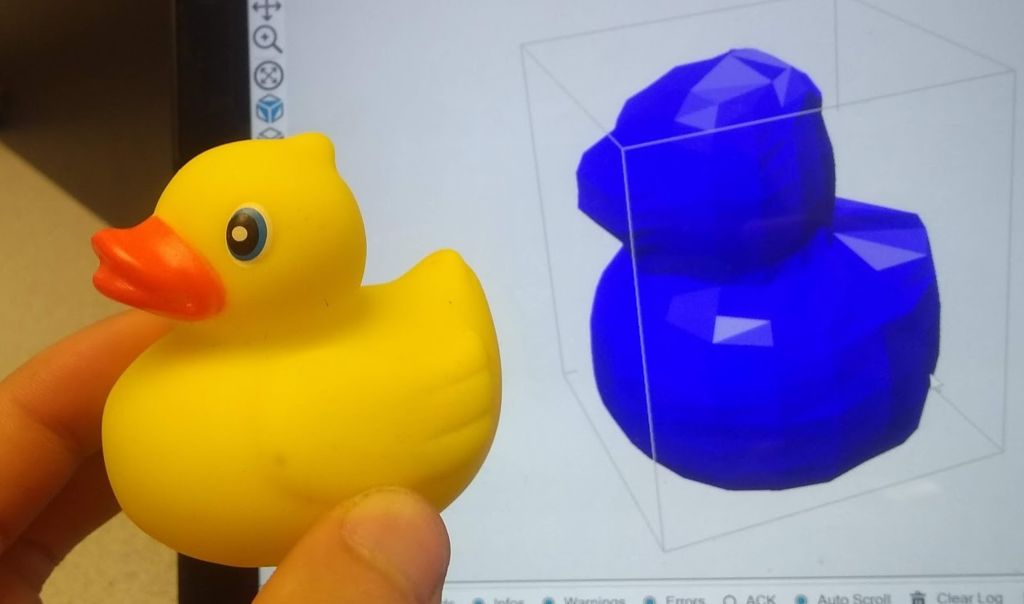
Instructables user mfx2 has written a wonderful tutorial for the project, which also includes all files needed to build and program your own version.
The post Build a Raspberry Pi laser scanner appeared first on Raspberry Pi.
If you own a 3D printer, you’ll likely have at least heard of OctoPrint, created by Gina Häußge and maintained by her and Guy Sheffer! OctoPrint has the potential to transform your 3D printing workflow for the better, and it’s very easy to set up. This guide will take you through the setup process step by step, and give you some handy tips along the way.

Before we start finding out how to install OctoPrint, let’s look at why you might want to. OctoPrint is a piece of open-source software that allows us to add WiFi functionality to any 3D printer with a USB port (which is pretty much all of them). More specifically, you’ll be able to drop files from your computer onto your printer, start/stop prints, monitor your printer via a live video feed, control the motors, control the temperature, and more, all from your web browser. Of course, with great power comes great responsibility — 3D printers have parts that are hot enough to cause fires, so make sure you have a safe setup, which may include not letting it run unsupervised.
• Raspberry Pi 3 (or newer)
• MicroSD card
• Raspberry Pi power adapter
• USB cable (the connector type will depend on your printer)
• Webcam/Raspberry Pi Camera Module (optional)
• 3D-printed camera mount (optional)
Before we get started, it is not recommended that anything less than a Raspberry Pi 3 is used for this project. There have been reports of limited success using OctoPrint on a Raspberry Pi Zero W, but only if you have no intention of using a camera to monitor your prints. If you want to try this with a Pi Zero or an older Raspberry Pi, you may experience unexpected print failures.
Firstly, you will need to download the latest version of OctoPi from the OctoPrint website. OctoPi (created by Guy Sheffer) is a Raspbian distribution that comes with OctoPrint, video streaming software, and CuraEngine for slicing models on your Raspberry Pi. When this has finished downloading, unzip the file and put the resulting IMG file somewhere handy.
Next, we need to flash this image onto our microSD card. We recommend using Etcher to do this, due to its minimal UI and ease of use; plus it’s also available to use on both Windows and Mac. Get it here: balena.io/etcher. When Etcher is installed and running, you’ll see the UI displayed. Simply click the Select Image button and find the IMG file you unzipped earlier. Next, put your microSD card into your computer and select it in the middle column of the Etcher interface.
Finally, click on Flash!, and while the image is being burned onto the card, get your WiFi router details, as you’ll need them for the next step.
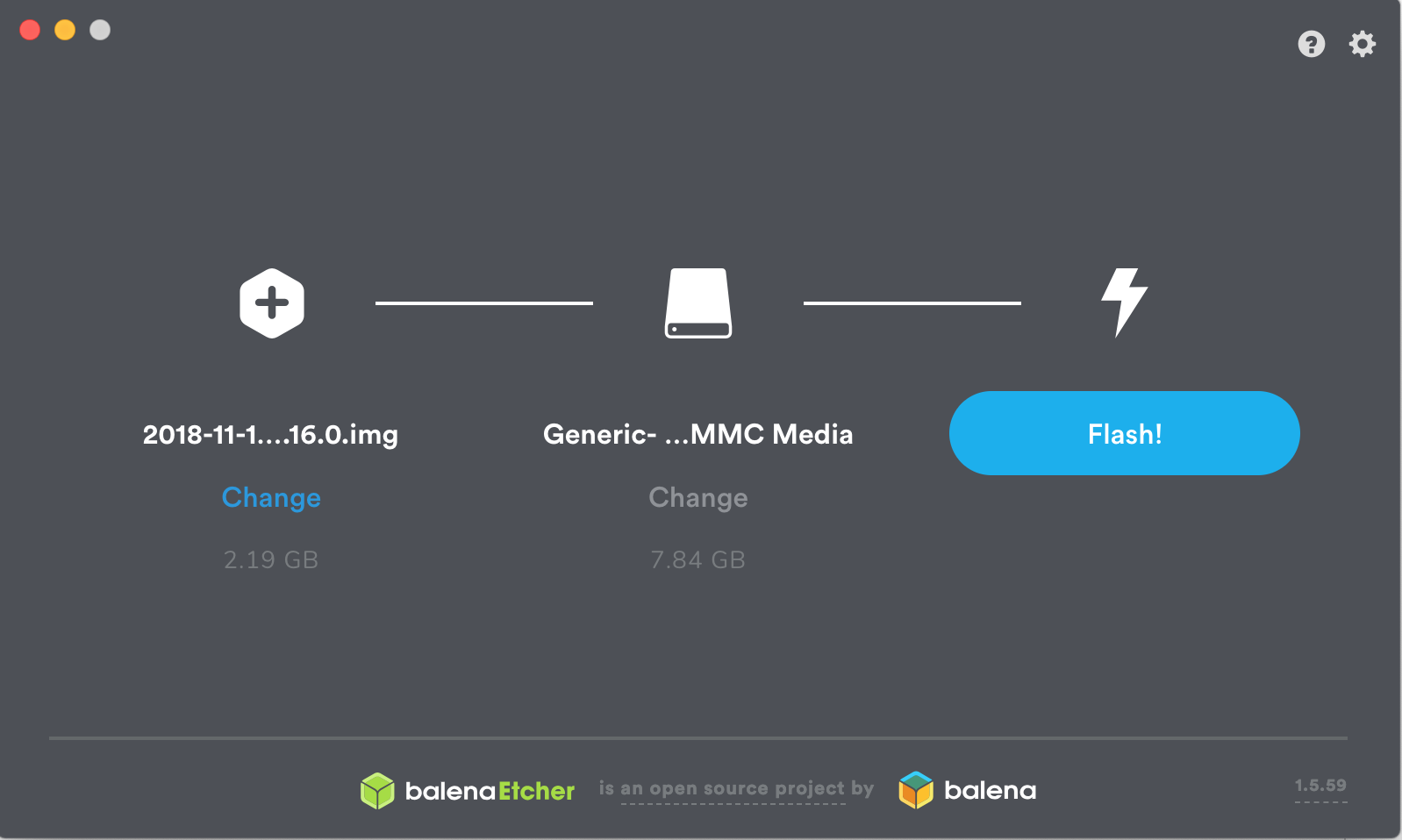
Now that you have your operating system, you’ll want to add your WiFi details so that the Raspberry Pi can automatically connect to your network after it’s booted. To do this, remove the microSD card from your computer (Etcher will have ‘ejected’ the card after it has finished burning the image onto it) and then plug it back in again. Navigate to the microSD card on your computer — it should now be called boot — and open the file called octopi-wpa-supplicant.txt. Editing this file using WordPad or TextEdit can cause formatting issues; we recommend using Notepad++ to update this file, but there are instructions within the file itself to mitigate formatting issues if you do choose to use another text editor. Find the section that begins ## WPA/WPA2 secured and remove the hash signs from the four lines below this one to uncomment them. Finally, replace the SSID value and the PSK value with the name and password for your WiFi network, respectively (keeping the quotation marks). See the example below for how this should look.
Further down in the file, there is a section for what country you are in. If you are using OctoPrint in the UK, leave this as is (by default, the UK is selected). However, if you wish to change this, simply comment the UK line again by adding a # before it, and uncomment whichever country you are setting up OctoPrint in. The example below shows how the file will look if you are setting this up for use in the US:
# Uncomment the country your Pi is in to activate Wifi in RaspberryPi 3 B+ and above
# For full list see: https://en.wikipedia.org/ wiki/ISO_3166-1_alpha-2
#country=GB # United Kingdom
#country=CA # Canada
#country=DE # Germany
#country=FR # France
country=US # United States
When the changes have been made, save the file and then eject/unmount and remove the microSD card from your computer and put it into your Raspberry Pi. Plug the power supply in, and go and make a cup of tea while it boots up for the first time (this may take around ten minutes). Make sure the Raspberry Pi is running as expected (i.e. check that the green status LED is flashing intermittently). If you’re using macOS, visit octopi.local in your browser of choice. If you’re using Windows, you can find OctoPrint by clicking on the Network tab in the sidebar. It should be called OctoPrint instance on octopi – double-clicking on this will open the OctoPrint dashboard in your browser.
If you see the screen shown above, then congratulations! You have set up OctoPrint.
Not seeing that OctoPrint splash screen? Fear not, you are not the first. While a full list of issues is beyond the scope of this article, common issues include: double-checking your WiFi details are entered correctly in the octopi-wpa-supplicant.txt file, ensuring your Raspberry Pi is working correctly (plug the Raspberry Pi into a monitor and watch what happens during boot), or your Raspberry Pi may be out of range of your WiFi router. There’s a detailed list of troubleshooting suggestions on the OctoPrint website.
We now have the opportunity to set up OctoPrint for our printer using the handy wizard. Most of this is very straightforward — setting up a password, signing up to send anonymous usage stats, etc. — but there are a few sections which require a little more thought.
We recommend enabling the connectivity check and the plug-ins blacklist to help keep things nice and stable. If you plan on using OctoPrint as your slicer as well as a monitoring tool, then you can use this step to import a Cura profile. However, we recommend skipping this step as it’s much quicker (and you can use a slicer of your choice) to slice the model on your computer, and then send the finished G-code over.
Finally, we need to put in our printer details. Above, we’ve included some of the specs of the Creality Ender-3 as an example. If you can’t find the exact details of your printer, a quick web search should show what you need for this section.
The General tab can have anything in it, it’s just an identifier for your own use. Print bed & build volume should be easy to find out — if not, you can measure your print bed and find out the position of the origin by looking at your Cura printer profile. Leave Axes as default; for the Hotend and extruder section, defaults are almost certainly fine here (unless you’ve changed your nozzle; 0.4 is the default diameter for most consumer printers).
Now that you’re set up with OctoPrint, you’re ready to start printing. Turn off your Raspberry Pi, then plug it into your 3D printer. After it has booted up, open OctoPrint again in your browser and take your newly WiFi-enabled printer for a spin by clicking the Connect button. After it has connected, you’ll be able to set the hot end and bed temperature, then watch as the real-time readings are updated.
In the Control tab, we can see the camera stream (if you’re using one) and the motor controls, as well as commands to home the axes. There’s a G-code file viewer to look through a cross-section of the currently loaded model, and a terminal to send custom G-code commands to your printer. The last tab is for making time-lapses; however, there is a plug-in available to help with this process.
Undoubtedly the easiest way to set up video monitoring of your prints is to use the official Raspberry Pi Camera Module. There are dozens of awesome mounts on Thingiverse for a Raspberry Pi Camera Module, to allow you to get the best angle of your models as they print. There are also some awesome OctoPrint-themed Raspberry Pi cases to house your new printer brains. While it isn’t officially supported by OctoPrint, you can use a USB webcam instead if you have one handy, or just want some very high-quality video streams. The OctoPrint wiki has a crowdsourced list of webcams known to work, as well as a link for the extra steps needed to get the webcam working correctly.
As mentioned earlier, our recommended way of printing a model using OctoPrint is to first use your slicer as you would if you were creating a file to save to a microSD card. Once you have the file, save it somewhere handy on your computer, and open the OctoPrint interface. In the bottom left of the screen, you will see the Upload File button — click this and upload the G-code you wish to print.
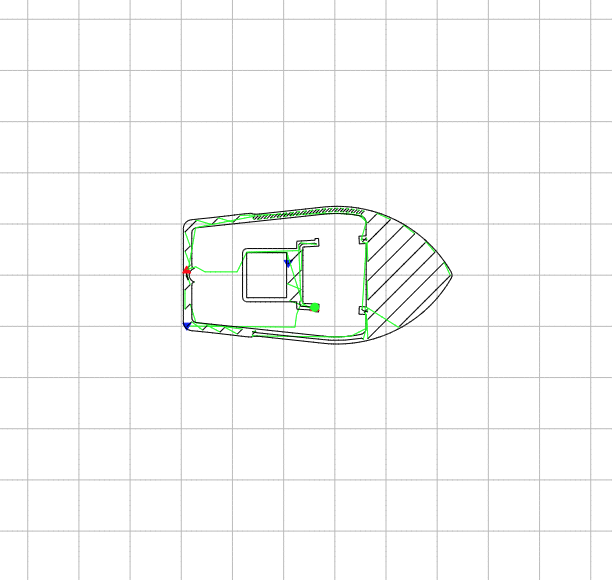
You’ll see the file/print details appear, including information on how long it’ll take for the object to print. Before you kick things off, check out the G-code Viewer tab on the right. You can not only scroll through the layers of the object, but, using the slider at the bottom, you can see the exact pattern the 3D printer will use to ‘draw’ each layer. Now click Print and watch your printer jump into action!
OctoPrint has scores of community-created plug-ins, but our favourite, Octolapse, makes beautiful hypnotic time-lapses. What makes them so special is that the plug-in alters the G-code of whatever object you are printing so that once each layer has finished, the extruder moves away from the print to let the camera take an unobstructed shot of the model. The result is an object that seems to grow out of the build plate as if by magic. You’ll not find a finer example of it than here.
Satisfying 3D Prints TimeLapse episode 7 (Prusa I3 Mk3 octopi)
3D Printing timelapses of models printed on the Prusa i3 MK3! Here’s another compilation of my recent timelapses. I got some shots that i think came out really great and i hope you enjoy them! as always if you want to see some of these timelapses before they come out or want to catch some behind the scenes action check out my instagram!
OctoPrint was created and is maintained by Gina Häußge (@foosel) and Guy Sheffer (@GuySoft)! A big thank you to both of them for putting in many, many volunteer hours to provide the world with an amazing piece of free, open-source software.
Head over to the OctoPrint website to find out how you can support OctoPrint’s continued existence.
This tutorial comes fresh from the pages of HackSpace magazine issue 26 and was written by Glenn Horan. Thanks, Glenn.
To get your copy of HackSpace magazine issue 26, visit your local newsagent, the Raspberry Pi Store, Cambridge, or the Raspberry Pi Press online store.
Fans of HackSpace magazine will also score themselves a rather delightful Adafruit Circuit Playground Express with a 12-month subscription. Sweet!
The post How to set up OctoPrint on your Raspberry Pi appeared first on Raspberry Pi.
You might have a baby/dog/hamster that you want to keep an eye on when you’re not there. We understand: they’re lovely, especially hamsters. Here’s how HackSpace magazine contributor Dr Andrew Lewis built a Raspberry Pi baby cam to watch over his small creatures…
When a project is going to be used in the home, it pays to take a little bit of extra time on appearance
You can get wireless baby monitors that have a whole range of great features for making sure your little ones are safe, sound, and sleeping happily, but they come with a hefty price tag.
In this article, you’ll find out how to make a Raspberry Pi-powered streaming camera, and combine it with a built-in I2C sensor pack that monitors temperature, pressure, and humidity. You’ll also see how you can use the GPIO pins on Raspberry Pi to turn an LED night light on and off using a web interface.
The hardware for this project is quite simple, and involves minimal soldering, but the first thing you need to do is to install Raspbian onto a microSD card for your Raspberry Pi. If you’re planning on doing a headless install, you’ll also need to enable SSH by creating an empty file called SSH on the root of the Raspbian install, and a file with your wireless LAN details called wpa_supplicant.conf.
You can download the code for this as well as the 3D-printable files from our GitHub. You’ll need to transfer the code to the Raspberry Pi. Next, connect the camera, the BME280 board, and the LEDs to the Raspberry Pi, as shown in the circuit diagram.
The BME280 module uses the I2C connection on pins 3 and 5 of the GPIO, taking power from pins 1 and 9. The LEDs connect directly to pins 19 and 20, and the camera cable fits into the camera connector.
Insert the microSD card into the Raspberry Pi and boot up. If everything is working OK, you should be able to see the IP address for your device listed on your hub or router, and you should be able to connect to it via SSH. If you don’t see the Raspberry Pi listed, check your wireless connection details and make sure your adapter is supplying enough power. It’s worth taking the time to assign your Raspberry Pi with a static IP address on your network, so it can’t change its IP address unexpectedly.
Use the raspi-config application to enable the camera interface and the I2C interface. If you’re planning on modifying the code yourself, we recommend enabling VNC access as well, because it will make editing and debugging the code once the device is put together much easier. All that remains on the software side is to update APT, download the babycam.py script, install any dependencies with PIP, and set the script to run automatically. The main dependencies for the babycam.py script are the RPi.bme280 module, Flask, PyAudio, picamera, and NumPy. Chances are that these are already installed on your system by default, with the exception of RPi.bme280, which can be installed by typing sudo pip3 install RPi.bme280 from the terminal. Once all of the dependencies are present, load up the script and give it a test run, and point your web browser at port 8000 on the Raspberry Pi. You should see a webpage with a camera image, controls for the LED lights, and a read-out of the temperature, pressure, and humidity of the room.
Finishing a 3D print by applying a thin layer of car body filler and sanding back will give a much smoother surface. This isn’t always necessary, but if your filament is damp or your nozzle is worn, it can make a model look much better when it’s painted
The easiest way to get the babycam.py script to run on boot is to add a line to the rc.local file. Assuming that the babycam.py file is located in your home directory, you should add the line python3 /home/pi/babycam.py to the rc.local file, just before the line that reads exit 0. It’s very important that you include the ampersand at the end of the line, otherwise the Python script will not be run in a separate process, the rc.local file will never complete, and your Raspberry Pi will never boot.
With the software and hardware working, you can start putting the case together. You might need to scale the 3D models to suit the tin can you have before you print them out, so measure your tin before you click Print. You’ll also want to remove any inner lip from the top of the can using a can opener, and make a small hole in the side of the can near the bottom for the USB power cable. Next, make a hole in the bottom of the can for the LED cables to pass through.
If you want to add more than a couple of LEDs (or want to use brighter LEDs), you should connect your LEDs to the power input, and use a transistor on the GPIO to trigger them
If you haven’t already done so, solder appropriate leads to your LEDs, and don’t forget to put a 330 Ω resistor in-line on the positive side. The neck of the camera is supported by two lengths of aluminium armature wire. Push the wire up through each of the printed neck pieces, and use a clean soldering iron to weld the pieces together in the middle. Push the neck into the printed top section, and weld into place with a soldering iron from underneath. Be careful not to block the narrow slot with plastic, as this is where the camera cable passes up through the neck and into the camera.
You need to mount the BME280 so that the sensor is exposed to the air in the room. Do this by drilling a small hole in the 3D-printed top piece and hot gluing the sensor into position. If you’re going to use the optional microphone, you can add an extra hole and glue the mic into place in the same way. A short USB port extender will give you enough cable to plug the USB microphone into the socket on your Raspberry Pi
Paint the tin can and the 3D-printed parts. We found that spray blackboard paint gives a good effect on 3D-printed parts, and PlastiKote stone effect paint made the tin can look a little more tactile than a flat colour. Once the paint is dry, pass the camera cable up through the slot in the neck, and then apply the heat-shrink tubing to cover the neck with a small gap at the top and bottom. Connect the camera to the top of the cable, and push the front piece on to hold it into place. Glue shouldn’t be necessary, but a little hot glue might help if the front parts don’t hold together well.
Push the power cable through the hole in the case, and secure it with a knot and some hot glue. Leave enough cable free to easily remove the top section from the can in future without stressing the wires.
If you’re having trouble getting the armature wire through the 3D-printed parts, try using a drill to help twist the wire through
Glue the bottom section onto the can with hot glue, and hot-glue the LEDs into place on the bottom, feeding the cable up through the hole and into the GPIO header. This is a good time to hot-glue a weight into the bottom of the can to improve its stability. I used an old weight from some kitchen scales, but any small weight should be fine. Finally, fix the Raspberry Pi into place on the top piece by either drilling or gluing, then reconnect the rest of the cables, and push the 3D-printed top section into the tin can. If the top section is too loose, you can add a little bit of hot glue to hold things together once you know everything is working.
With the right type of paint, even old tin cans make a good-looking enclosure
for a project
That should be all of the steps complete. Plug in the USB and check the camera from a web browser. The babycam.py script includes video, sensors, and light control. If you are using the optional USB microphone, you can expand the functionality of the app to include audio streaming, use cry detection to activate the LEDs (don’t make the LEDs too stimulating or you’ll never get a night’s sleep again), or maybe even add a Bluetooth speaker and integrate a home assistant.
HackSpace magazine is out now, available in print from your local newsagent, the Raspberry Pi Store in Cambridge, and online from Raspberry Pi Press.
If you love HackSpace magazine as much as we do, why not have a look at the subscription offers available, including the 12-month deal that comes with a free Adafruit Circuit Playground!
And, as always, you can download the free PDF here.
The post Raspberry Pi 3 baby monitor | Hackspace magazine #26 appeared first on Raspberry Pi.
Check out Super Make Something’s awesome NeoPixel LED mirror: a 576 RGB LED display that converts images via the Raspberry Pi Camera Module and Raspberry Pi 3B+ into a pixelated light show.
Neopixel LED Mirror (Python, Raspberry Pi, Arduino, 3D Printing, Laser Cutting!) DIY How To
Time to pull out all the stops for the biggest Super Make Something project to date! Using 3D printing, laser cutting, a Raspberry Pi, computer vision, Python, and nearly 600 Neopixel LEDs, I build a low resolution LED mirror that displays your reflection on a massive 3 foot by 3 foot grid made from an array of 24 by 24 RGB LEDs!
If you’re into cool uses of tech, you may be aware of Daniel Rozin, the creative artist building mechanical mirrors out of wooden panels, trash, and…penguins, to name but a few of his wonderful builds.
Yup, this is a mechanical mirror made of toy penguins.
Inspired by Daniel Rozin’s work, Alex, the person behind Super Make Something, put an RGB LED spin on the concept, producing this stunning mirror that thoroughly impressed visitors at Cleveland Maker Faire last month.
“Inspired by Danny Rozin’s mechanical mirrors, this 3 foot by 3 foot mirror is powered by a Raspberry Pi, and uses Python and OpenCV computer vision libraries to process captured images in real time to light up 576 individual RGB LEDs!” Alex explains on Instagram. “Also onboard are nearly 600 3D-printed squares to diffuse the light from each NeoPixel, as well as 16 laser-cut panels to hold everything in place!”
The video above gives a brilliantly detailed explanation of how Alex made the, so we highly recommend giving it a watch if you’re feeling inspired to make your own.
Seriously, we really want to make one of these for Raspberry Pi Towers!
As always, be sure to subscribe to Super Make Something on YouTube and leave a comment on the video if, like us, you love the project. Most online makers are producing content such as this with very little return on their investment, so every like and subscriber really does make a difference.
The post Really, really awesome Raspberry Pi NeoPixel LED mirror appeared first on Raspberry Pi.
Last week, lots and lots of you shared your Raspberry Pi builds with us on social media using the hashtag #IUseMyRaspberryPiFor. Jay Wainwright from Liverpool noticed the conversation and got in touch to tell us about The Nest Box, which uses Raspberry Pi to bring impressively high-quality images and video from British bird boxes to your Facebook feed.
Jay runs a small network of livestreaming nest box cameras, with three currently sited and another three in the pipeline; excitingly, the new ones will include a kestrel box and a barn owl box! During the spring, all the cameras stream live to The Nest Box’s Facebook page, which has steadily built a solid following of several thousand wildlife fans.
The Nest Box’s setup uses a Raspberry Pi and Camera Module, along with a Raspberry Pi PoE HAT to provide both power and internet connectivity, so there’s only one cable connection to weatherproof. There’s also a custom HAT that Jay has designed to control LED lights and to govern the Raspberry Pi Camera Module’s IR filter, ensuring high-quality images both during the day and at night. To top it all off, he has written some Python code to record visitors to the nest boxes and go into live streaming mode whenever the action is happening.
As we can see from this nest box design for swifts, shown on the project’s crowdfunding profile, plenty of thought has evidently been put into the design of the boxes so that they provide tempting quarters for their feathered occupants while also accommodating all the electronic components.
Follow The Nest Box on Facebook to add British birds into your social media mix — whatever you’ve got now, I’ll bet all tomorrow’s coffees that it’ll be an improvement. And if you’re using Raspberry Pi for a wildlife project, or you’ve got plans along those lines, let us know in the comments.
The post The Nest Box: DIY Springwatch with Raspberry Pi appeared first on Raspberry Pi.
These Raspberry Pis take hourly photographs of snails in plastic container habitats, sharing them to the Snail Habitat website.
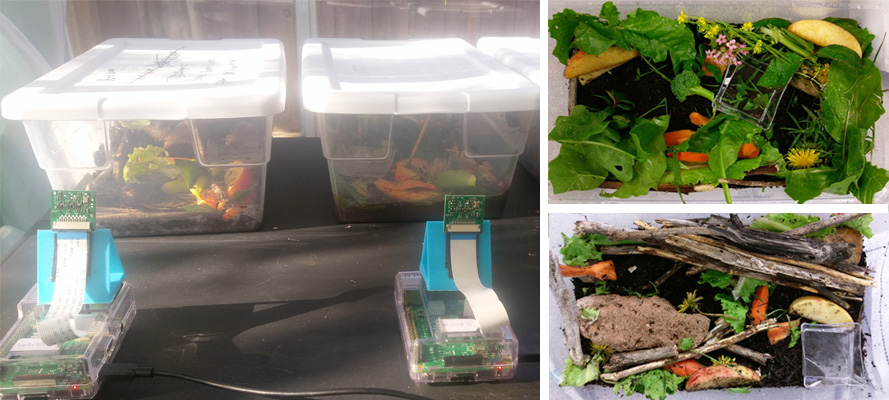
While some might find them kind of icky, I am in love with snails (less so with their homeless cousin, the slug), so this snail habitat project from Mrs Nation’s class is right up my alley.
This project was done in a classroom with 22 students. We broke the kids out into groups and created 5 snail habitats. It would be a great project to do school-wide too, where you create 1 snail habitat per class. This would allow the entire school to get involved and monitor each other’s habitats.
Each snail habitat in Mrs Nation’s class is monitored by a Raspberry Pi and camera module, and Misty Lackie has written specific code to take a photo every hour, uploading the image to the dedicated Snail Habitat website. This allows the class to check in on their mollusc friends without disturbing their environment.
“I would love to see others habitats,” Misty states on the project’s GitHub repo, “so if you create one, please share it and I would be happy to publish it on snailhabitat.com.”

The post Raspberry Pi snail habitats for Mrs Nation’s class appeared first on Raspberry Pi.
When we invited Estefannie Explains It All to present at Coolest Projects International, she decided to make something cool with a Raspberry Pi to bring along. But being Estefannie, she didn’t just make something a little bit cool. She went ahead and made Raspberry Pi Zero-powered Jurassic Park goggles, or, as she calls them, the world’s first globally triggered, mass broadcasting, photon-emitting and -collecting head unit.
Make your own Jurassic Park goggles using a Raspberry Pi // MAKE SOMETHING
Is it heavy? Yes. But these goggles are not expensive. Follow along as I make the classic Jurassic Park Goggles from scratch!! The 3D Models: https://www.thingiverse.com/thing:3732889 My code: https://github.com/estefanniegg/estefannieExplainsItAll/blob/master/makes/JurassicGoggles/jurassic_park.py Thank you Coolest Projects for bringing me over to speak in Ireland!! https://coolestprojects.org/ Thank you Polymaker for sending me the Polysher and the PolySmooth filament!!!!
Estefannie’s starting point was the set of excellent 3D models of the iconic goggles that Jurassicpaul has kindly made available on Thingiverse. There followed several 3D printing attempts and lots of sanding, sanding, sanding, spray painting, and sanding, then some more printing with special Polymaker filament that can be ethanol polished.
Estefannie soldered rings of addressable LEDs and created custom models for 3D-printable pieces to fit both them and the goggles. She added a Raspberry Pi Zero, some more LEDs and buttons, an adjustable headgear part from a welding mask, and – importantly – four circles of green acetate. After quite a lot of gluing, soldering, and wiring, she ended up with an entirely magnificent set of goggles.
Here, they’re modelled magnificently by Raspberry Pi videographer Brian. I think you’ll agree he cuts quite a dash.
Estefannie wrote a Python script to interact with Twitter, take photos, and provide information about the goggles’ current status via the LED rings. When Estefannie powers up the Raspberry Pi, it runs a script on startup and connects to her phone’s wireless hotspot. A red LED on the front of the goggles indicates that the script is up and running.
Once it’s running, pressing a button at the back of the head unit makes the Raspberry Pi search Twitter for mentions of @JurassicPi. The LEDs light up green while it searches, just like you remember from the film. If Estefannie’s script finds a mention, the LEDs flash white and the Raspberry Pi camera module takes a photo. Then they light up blue while the script tweets the photo.
All the code is available on Estefannie’s GitHub. I love this project – I love the super clear, simple user experience provided by the LED rings, and there’s something I really appealing about the asynchronous Twitter interaction, where you mention @JurassicPi and then get an image later, the next time googles are next turned on.
If you read the beginning of this post and thought, “wait, what’s Coolest Projects?” then be sure to watch to the end of Estefannie’s video to catch her excellentCoolest Projects mini vlog. And then sign up for updates about Coolest Projects events near you, so you can join in next year, or help a team of young people to join in.
The post Estefannie’s Jurassic Park goggles appeared first on Raspberry Pi.
Plant scientists and agronomists use growth chambers to provide consistent growing conditions for the plants they study. This reduces confounding variables – inconsistent temperature or light levels, for example – that could render the results of their experiments less meaningful. To make sure that conditions really are consistent both within and between growth chambers, which minimises experimental bias and ensures that experiments are reproducible, it’s helpful to monitor and record environmental variables in the chambers.
Arabidopsis thaliana in a growth chamber on the International Space Station. Many experimental plants are less well monitored than these ones.
(“Arabidopsis thaliana plants […]” by Rawpixel Ltd (original by NASA) / CC BY 2.0)
In a recent paper in Applications in Plant Sciences, Brandin Grindstaff and colleagues at the universities of Missouri and Arizona describe how they developed Growth Monitor pi, or GMpi: an affordable growth chamber monitor that provides wider functionality than other devices. As well as sensing growth conditions, it sends the gathered data to cloud storage, captures images, and generates alerts to inform scientists when conditions drift outside of an acceptable range.
Appl Plant Sci. 2019 Aug; 7(8): e11280. Figure 1, © 2019 Grindstaff et al. / CC BY 4.0
The authors emphasise – and we heartily agree – that you don’t need expertise with software and computing to build, use, and adapt a system like this. They’ve written a detailed protocol and made available all the necessary software for any researcher to build GMpi, and they note that commercial solutions with similar functionality range in price from $10,000 to $1,000,000 – something of an incentive to give the DIY approach a go.
GMpi uses a Raspberry Pi Model 3B+, to which are connected temperature-humidity and light sensors from our friends at Adafruit, as well as a Raspberry Pi Camera Module.
Appl Plant Sci. 2019 Aug; 7(8): e11280. Figure 2, © 2019 Grindstaff et al. / CC BY 4.0
The team used open-source app Rclone to upload sensor data to a cloud service, choosing Google Drive since it’s available for free. To alert users when growing conditions fall outside of a set range, they use the incoming webhooks app to generate notifications in a Slack channel. Sensor operation, data gathering, and remote monitoring are supported by a combination of software that’s available for free from the open-source community and software the authors developed themselves. Their package GMPi_Pack is available on GitHub.
Appl Plant Sci. 2019 Aug; 7(8): e11280. Figure 3, © 2019 Grindstaff et al. / CC BY 4.0
With a bill of materials amounting to something in the region of $200, GMpi is another excellent example of affordable, accessible, customisable open labware that’s available to researchers and students. If you want to find out how to build GMpi for your lab, or just for your greenhouse, Affordable remote monitoring of plant growth in facilities using Raspberry Pi computers by Brandin et al. is available on PubMed Central, and it includes appendices with clear and detailed set-up instructions for the whole system.
The post Growth Monitor pi: an open monitoring system for plant science appeared first on Raspberry Pi.
Low-cost open labware is a good thing in the world, and I was particularly pleased when micropalaeontologist Martin Tetard got in touch about the Raspberry Pi-based microscope he is developing. The project is called microscoPI (what else?), and it can capture, process, and store images and image analysis results. Martin is engaged in climate research: he uses microscopy to study tiny fossil remains, from which he gleans information about the environmental conditions that prevailed in the far-distant past.
microscoPI: a microcomputer-assisted microscope
microscoPI a project that aims to design a multipurpose, open-source and inexpensive micro-computer-assisted microscope (Raspberry PI 3). This microscope can automatically take images, process them, and save them altogether with the results of image analyses on a flash drive. It it multipurpose as it can be used on various kinds of images (e.g.
Martin repurposed an old microscope with a Z-axis adjustable stage for accurate focusing, and sourced an inexpensive X/Y movable stage to allow more accurate horizontal positioning of samples under the camera. He emptied the head of the scope to install a Raspberry Pi Camera Module, and he uses an M12 lens adapter to attach lenses suitable for single-specimen close-ups or for imaging several specimens at once. A Raspberry Pi 3B sits above the head of the microscope, and a 3.5-inch TFT touchscreen mounted on top of the Raspberry Pi allows the user to check images as they are captured and processed.
The Raspberry Pi runs our free operating system, Raspbian, and free image-processing software ImageJ. Martin and his colleagues use a number of plugins, some developed themselves and some by others, to support the specific requirements of their research. With this software, microscoPI can capture and analyse microfossil images automatically: it can count particles, including tiny specimens that are touching, analyse their shape and size, and save images and results before prompting the user for the name of the next sample.
microscoPI is compact – less than 30cm in height – and it’s powered by a battery bank secured under the base of the microscope, so it’s easily portable. The entire build comes in at under 160 Euros. You can find out more, and get in touch with Martin, on the microscoPI website.
The post A low-cost, open-source, computer-assisted microscope appeared first on Raspberry Pi.
We want to improve the way we support companies that design with Raspberry Pi computers, and we need your help to do it.
Raspberry Pi’s success is thanks to the community that exists around it. When we launched Raspberry Pi 4, our most powerful computer yet, we gave our community the chance to ask our engineers all about the new product.
Now we’d like to turn the tables and ask you some questions as we work to improve the support we offer to people and organisations that design using Raspberry Pi.
If you have experience of designing products or industrial solutions that use Raspberry Pi, we would love to hear from you.
Raspberry Pi has been used to power products from Compute Module-based industrial controllers made by Kunbus…
…to Raspberry Pi-based washing machines with Raspberry Pi touchscreen displays from Marathon.
Organisations are increasingly using various kinds of Raspberry Pi computer to power products and solutions, and we want to do more to support designers.
If you have experience as a design consultancy that uses Raspberry Pi computers in products, or if you have used a designer to build a product that includes a Raspberry Pi, we would love to talk to you about it. You will help shape what we offer in the future, and make designing products with Raspberry Pi simple, quick, and powerful.
If you use Raspberry Pi in products or in industrial solutions, I want to talk to you. Please fill in this form with a few details of your experience so we can talk more.
The post Help us make it easier for you to design products with Raspberry Pi appeared first on Raspberry Pi.
Wanting to break from the standard practice of updating old analogue cameras with digital technology, Alan Wang decided to retrofit a broken vintage camera flash with a Raspberry Pi Zero W to produce a video-capturing action cam.
Raspberry Pi Zero Flash Cam Video Test
Full story of this project: https://www.hackster.io/alankrantas/raspberry-pi-zero-flash-cam-359875
By hacking a somewhat gnarly hole into the body of the broken flash unit, Alan fit in the Raspberry Pi Zero W and Camera Module, along with a few other components. He powers the whole unit via a USB power bank.
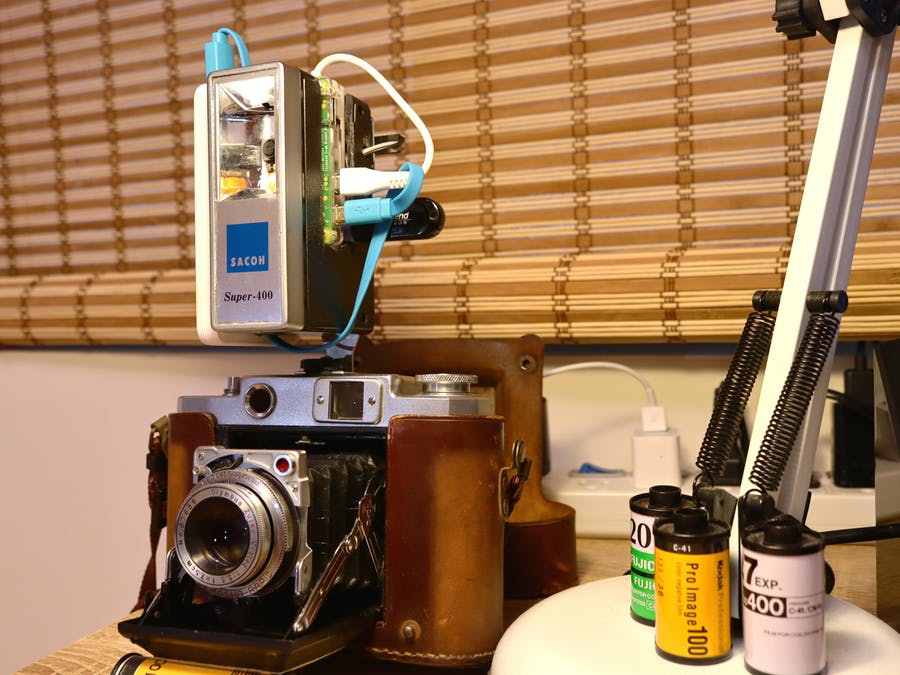
At every touch of the onboard touchpad, the retrofit camera films 12 seconds of footage and saves it as an MP4 file on the onboard SD card or an optional USB flash drive.
While the project didn’t technically bring the flash unit back to life — as the flash function is still broken — it’s a nice example of upcycling old tech, and it looks pretty sweet. Plus, you can attach it to your existing film camera to produce some cool side-by-side comparison imagery, as seen in the setup above.
For a full breakdown of the build, including the code needed to run the camera, check out the project’s Hackster.io page.
The post Retrofit a vintage camera flash with a Raspberry Pi Camera Module appeared first on Raspberry Pi.
Take your Raspberry Pi outside for some fun outdoor making with The MagPi magazine’s summer projects feature, available to read now. Right now. Right this second. Go read it…but read the rest of this blog post first. Thanks. #analytics

Sure, there may be a few obstacles in your way whenever you try to complete a digital making project outside. Poor WiFi connections are always a problem, the sun will most certainly glare off your screen, and don’t even get me started on the lack of power supplies. But that’s where The MagPi magazine comes in, providing you with every tip and trick you need to move your making into the fresh air of the great outdoors.
Visit The MagPi magazine’s website, where you’ll be able to download the PDF for free, saving money, time, and trees! Woohoo!
The post Raspberry Pi summer projects with The MagPi magazine appeared first on Raspberry Pi.
A Raspberry Pi Zero W, Pimoroni HyperPixel screen, and Raspberry Pi IR Camera Module are all you need to build this homemade night vision camera.
How to build a night vision camera
How to build a night vision camera, video showing the process and problems that I came across when building this camera
Built into the body of an old camera flash, Dan’s Raspberry Pi night vision camera is a homage to a childhood spent sneaking around the levels of Splinter Cell. Says Dan:
The iconic image from the game is the night vision goggles that Sam Fisher wears. I have always been fascinated by the idea that you can see in the dark and this formed the foundation of my idea to build a portable hand-held night vision piece of equipment.
The camera, running on Raspbian, boasts several handy functions, including touchscreen controls courtesy of the Pimoroni HyperPixel, realtime video and image capture, and a viewing distance of two to five metres.
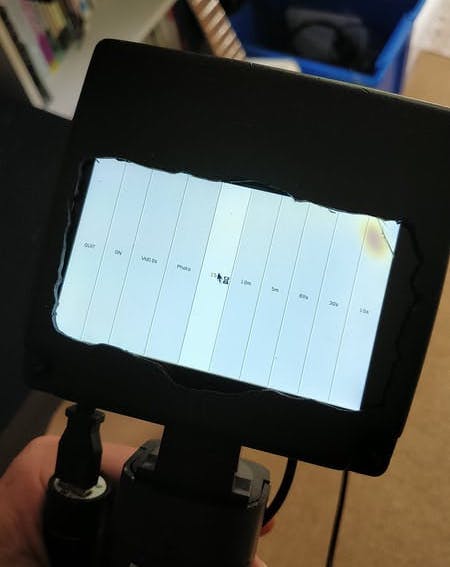
Embracing the FAIL (First Attempt In Learning) principle, Dan goes into detail about the issues he had to overcome while building the camera, which is another reason why we really enjoyed this project. It’s okay to fail when trying your hand at digital making, because you learn from your mistakes! Dan’s explanations of the struggles he faced and how he overcame them are .
For a full rundown of the project and tips on building your own, check out its Hackster.io page.
The post Build your own Raspberry Pi night vision camera appeared first on Raspberry Pi.
Having just sat and watched this gorgeous time lapse of a Finnish lake, we thought it would be nice to finish off the working week with a collection of lovely Raspberry Pi Camera Module time lapses.
Summer time lapse over a Finnish lake.
Time lapse over a Finnish lake from July 2019. Shot with a DIY all-weather HDR time-lapse camera built from ZWO ASI 224MC and Raspberry Pi 3. The camera was built to function as an all-sky camera for recording the night sky year round but since in July the stars were not visible in Finland I decided to test it aimed horizontally over a lake and was positively surprised about the results.
Time-lapse over a Finnish lake from July 2019. Shot with a DIY all-weather HDR time-lapse camera built from ZWO ASI 224MC and Raspberry Pi 3.
Cress Seeds Growing Raspberry Pi Time Lapse Video
Filmed over 6 days using a Raspberry Pi Zero W and Raspberry Pi Camera. Once photo taken every 5 minutes and then played back at 24 fps. I removed the night time photos and then the images were stitched together using the ‘Stop Motion’ app on an iPhone.
Filmed over 6 days using a Raspberry Pi Zero W and Raspberry Pi Camera. Once photo taken every 5 minutes and then played back at 24 fps.
Salad Growth | Timelapse | Raspberry Pi Camera | PiMeetsPlants
Timelapse about salad growth. Period of Picture Making: 03-04 to 02-05-2016 Camera has shot 2087 pictures in a distance of 20 minutes. Camera: Raspberry Pi Camera Module Music: Valesco – Stay With Me: http://soundcloud.com/valesco_official/stay-with-me Valesco on Soundcloud: http://soundcloud.com/valesco_official My Links: Website: https://pimeetsplants.com Twitter: https://twitter.com/PiMeetsPlants Google+: https://plus.google.com/+Pimeetsplants
I think I have a thing for time-lapse videos of plant growth. They’re just so friggin’ cool!
Skyline Timelapse: Day to Night l SainSmart FOV160° Raspberry Pi Camera
More info : https://www.sainsmart.com/products/wide-angle-fov160-5-megapixel-camera-module-for-raspberry-pi FOLLOW US Twitter: https://twitter.com/Sain_Smart Facebook: https://www.facebook.com/SainSmart/ Instagram: https://www.instagram.com/sainsmart/
PHYSARUM MACHINE
Summer Project 2018 – Computational Arts MA, Goldsmiths University London. Time-lapse footage of Physarum Polycephalum captured with Raspberry Pi and IR camera, slit-scan program in Open Frameworks.
Summer Project 2018 – Computational Arts MA, Goldsmiths University London. Time-lapse footage of Physarum Polycephalum captured with Raspberry Pi and IR camera, slit-scan program in Open Frameworks.
Setting up the Raspberry Pi Shop, Cambridge
Given that we had access to a bunch of Raspberry Pis, we thought that we should use some of them to get some timelapse footage of the shop being set up. Read more about the Raspberry Pi shop on our blog: http://rpf.io/ytstoreblog
We couldn’t help ourselves. When the time came to set up the Raspberry Pi retail store in Cambridge, we just had to install a time-lapse camera in the corner.
While this time lapse wasn’t taken with a Raspberry Pi Camera Module, the slider moving the camera was controlled using Raspberry Pi. That counts, right?
The Burren
The Burren is a karst landscape region in north-west Co. Clare in Ireland. It is one of the largest karst regions in Europe. I have been photographing The Burren over the last 5 years, and recently got into time lapse photography. The Burren was an obvious place for me to do this first video.
The Burren is a karst landscape region in north-west Co. Clare in Ireland. It is one of the largest karst regions in Europe. I have been photographing The Burren over the last 5 years, and recently got into time-lapse photography. The Burren was an obvious place for me to do this first video.
Want to set up your own Raspberry Pi time-lapse camera? Our handy guide shows you how.
Do you have a time-lapse video you’d like to share with us? Then please post your link in the comments below.
The post Rather lovely Raspberry Pi time lapses appeared first on Raspberry Pi.


 Lateo.net - Flux RSS en pagaille (pour en ajouter : @ moi)