 Connexion


Imagine this scenario:
Alex, a teenaged learner, reads a homework assignment, ponders a little, and then opens an AI chatbot. A quick prompt produces a structured, well-written answer within seconds. Alex pastes the text into a document, tweaks a few words, and submits the work.
For many young people, this is becoming the norm.
Recent reports show that, in countries including the US and UK, over half of all teens use AI tools for homework, and 1 in 10 says they do most or all of their homework with chatbots. “I use it every day,” stated one 17-year-old student in a recent study (Pew Research, 2026), and went on to say how she relies on chatbots for everything from homework to life decisions. In another study, a teenager openly admitted to using AI to cheat on assignments, essays, and book reports (Harvard GSE, 2024).
This raises an important question: when AI technology does the work, what happens to the learning?
Researchers are increasingly concerned that such uncritical use of AI tools may lead to cognitive offloading, where learners outsource their thinking, and the weakening of higher-order thinking skills in young people, such as problem-solving, critical thinking and creativity.
To address these concerns, the Raspberry Pi Foundation and Google DeepMind have teamed up to create a new unit of research-informed lessons on large language models (LLMs) as part of Experience AI. Rather than focusing simply on how to use AI tools, the new unit helps learners understand how LLMs work, evaluate their outputs, and use them strategically to support their own learning.
The unit, designed for 13- to 16-year-old learners, supports a learning-focused approach, drawing on metacognition, critical thinking, feedback literacy, and learning-centered prompt engineering. The five lessons in it support young people’s cognitive development, strengthen their metacognitive skills, and bolster their ability to strategically use LLMs for their learning. They draw on extensive research within Google DeepMind’s Learning team on how to scaffold around AI use to preserve ‘productive struggle’ and learner agency.

The new ‘Using LLMs strategically for learning’ unit is grounded in learning science research, including feedback literacy. Feedback literacy refers to the skill of actively interpreting, judging and using information when learning, instead of passively receiving information.
In the unit, learners explore three types of information, also called ‘feedback types’:
Learners discover that deep learning requires a blend of all three feedback types. They also analyse LLM outputs and discover that LLMs default to providing the answer, usually in a ‘tell’ format.
To help learners strategically use LLMs for their learning, they are provided with prompting strategies that elicit LLM outputs in ‘guide’ and ‘challenge’ formats. This helps learners engage more deeply with their own learning and develop higher-order thinking skills.
To help young people strategically use LLMs for their learning, the lessons include learning-centred, platform-agnostic prompting techniques. These include strategies borrowed from research papers on the most effective prompting frameworks. To make sure that the prompting strategies in the lessons remain effective over time and can be translated into different languages when we expand the resources, we did not use acronyms, unlike most popular prompting frameworks.
There are several industry reports highlighting the future-proof skills in the age of AI, such as problem solving, communication, critical thinking, collaboration and creativity skills. In the ‘Large language models’ unit, learners reflect on which skills they want to build and consider how their use of LLMs can support or hinder their development, helping them make responsible and intentional choices about using LLMs in ways that build their long-term capabilities rather than replace them.
There are also activities in the lesson resources that help learners understand the long-term impacts of cognitive offloading and uncritical LLM use on the development of their future skills. The resources encourage learners to stay actively engaged in their learning and be reflective of their LLM use when learning.
Many young people (Pew Research, 2026) use LLMs as search engines, believing that LLMs produce outputs that are always accurate. To address that misconception, the lessons include activities that question where the training data comes from, and how accurate those sources of data are.
For example, when young people discover that a portion of data that LLMs are trained on come from social media platforms like Reddit and Facebook, they are encouraged to question the quality and factuality of these sources through classroom-wide discussions. Through discussions and thinking exercises, learners are also encouraged to question whose voices, languages, cultures and perspectives are (and are not) represented in these AI models.
As AI tools become more integrated in young people’s lives, many learners, like Alex, are tempted to turn to AI tools for quick answers, convenience, and support.
The ‘Using LLMs strategically for learning’ unit equips young people with the skills to use LLMs effectively, critically and strategically, in ways that are most helpful to their learning. Through research-informed lessons, they explore how LLMs are created, why their outputs are not always accurate and how to evaluate AI-generated responses.
Just as importantly, learners are encouraged to reflect on their own use of AI: when using an LLM supports their learning, when it does not, and how they can remain in control of their thinking, learning and skills development.
With these resources, young people like Alex are not discouraged from using LLMs, but encouraged to pause, rewrite their prompts in ways that are more helpful to their learning, evaluate the outputs they receive, and stay actively involved in their own thinking.
As we prepare young people for a future we do not yet know, the most important skill we can teach them is how to keep thinking. Who does the thinking, gets the learning.
The unit is available on the Experience AI website.
We would like to thank all the educators across South Africa, Nigeria, Kenya, the United Kingdom, India and beyond who piloted these resources and shared their thoughtful feedback. Their contributions helped shape and strengthen the unit. We are also grateful to Google DeepMind for their continued support in the development of this unit.
The post Encouraging learners to think first, prompt second: Using large language models to learn appeared first on Raspberry Pi Foundation.
As computing technologies continue to rapidly evolve in today’s digital world, computing education is becoming increasingly essential. Arto Hellas and Juho Leinonen, researchers at Aalto University in Finland, are exploring how innovative teaching methods can equip students with the computing skills they need to stay ahead. In particular, they are looking at how generative AI tools can enhance university-level computing education.
In our monthly seminar in September, Arto and Juho presented their research on using AI tools to provide personalised learning experiences and automated feedback to help requests, as well as their findings on teaching students how to write effective prompts for generative AI systems. While their research focuses primarily on undergraduate students — given that they teach such students — many of their findings have potential relevance for primary and secondary (K-12) computing education.
Generative AI consists of algorithms that can generate new content, such as text, code, and images, based on the input received. Ever since large language models (LLMs) such as ChatGPT and Copilot became widely available, there has been a great deal of attention on how to use this technology in computing education.
Arto and Juho described generative AI as one of the fastest-moving topics they had ever worked on, and explained that they were trying to see past the hype and find meaningful uses of LLMs in their computing courses. They presented three studies in which they used generative AI tools with students in ways that aimed to improve the learning experience.
An important strand of computing education research investigates how to engage students by personalising programming problems based on their interests. The first study in Arto and Juho’s research took place within an online programming course for adult students. It involved developing a tool that used GPT-4 (the latest version of ChatGPT available at that time) to generate exercises with personalised aspects. Students could select a theme (e.g. sports, music, video games), a topic (e.g. a specific word or name), and a difficulty level for each exercise.
Arto, Juho, and their students evaluated the personalised exercises that were generated. Arto and Juho used a rubric to evaluate the quality of the exercises and found that they were clear and had the themes and topics that had been requested. Students’ feedback indicated that they found the personalised exercises engaging and useful, and preferred these over randomly generated exercises.
Arto and Juho also evaluated the personalisation and found that exercises were often only shallowly personalised, however. In shallow personalisations, the personalised content was added in only one sentence, whereas in deep personalisations, the personalised content was present throughout the whole problem statement. It should be noted that in the examples taken from the seminar below, the terms ‘shallow’ and ‘deep’ were not being used to make a judgement on the worthiness of the topic itself, but were rather describing whether the personalisation was somewhat tokenistic or more meaningful within the exercise.
The findings suggest that this personalised approach may be particularly effective on large university courses, where instructors might struggle to give one-on-one attention to every student. The findings further suggest that generative AI tools can be used to personalise educational content and help ensure that students remain engaged.
How might all this translate to K-12 settings? Learners in primary and secondary schools often have a wide range of prior knowledge, lived experiences, and abilities. Personalised programming tasks could help diverse groups of learners engage with computing, and give educators a deeper understanding of the themes and topics that are interesting for learners.
Another key aspect of Alto and Juho’s work is exploring how LLMs can be used to generate responses to students’ requests for help. They conducted a study using an online platform containing programming exercises for students. Every time a student struggled with a particular exercise, they could submit a help request, which went into a queue for a teacher to review, comment on, and return to the student.
The study aimed to investigate whether an LLM could effectively respond to these help requests and reduce the teachers’ workloads. An important principle was that the LLM should guide the student towards the correct answer rather than provide it.
The study used GPT-3.5, which was the newest version at the time. The results found that the LLM was able to analyse and detect logical and syntactical errors in code, but concerningly, the responses from the LLM also addressed some non-existent problems! This is an example of hallucination, where the LLM outputs something false that does not reflect the real data that was inputted into it.
The finding that LLMs often generated both helpful and unhelpful problem-solving strategies suggests that this is not a technology to rely on in the classroom just yet. Arto and Juho intend to track the effectiveness of LLMs as newer versions are released, and explained that GPT-4 seems to detect errors more accurately, but there is no systematic analysis of this yet.
In primary and secondary computing classes, young learners often face similar challenges to those encountered by university students — for example, the struggle to write error-free code and debug programs. LLMs seemingly have a lot of potential to support young learners in overcoming such challenges, while also being valuable educational tools for teachers without strong computing backgrounds. Instant feedback is critical for young learners who are still developing their computational thinking skills — LLMs can provide such feedback, and could be especially useful for teachers who may lack the resources to give individualised attention to every learner. Again though, further research into LLM-based feedback systems is needed before they can be implemented en-masse in classroom settings in the future.
Finally, Arto and Juho presented a study where they introduced the idea of ‘Prompt Problems’: programming exercises where students learn how to write effective prompts for AI code generators using a tool called Promptly. In a Prompt Problem exercise, students are presented with a visual representation of a problem that illustrates how input values will be transformed to an output. Their task is to devise a prompt (input) that will guide an LLM to generate the code (output) required to solve the problem. Prompt-generated code is evaluated automatically by the Promptly tool, helping students to refine the prompt until it produces code that solves the problem.
Feedback from students suggested that using Prompt Problems was a good way for them to gain experience of using new programming concepts and develop their computational thinking skills. However, students were frustrated that bugs in the code had to be fixed by amending the prompt — it was not possible to edit the code directly.
How these findings relate to K-12 computing education is still to be explored, but they indicate that Prompt Problems with text-based programming languages could be valuable exercises for older pupils with a solid grasp of foundational programming concepts.
At the end of the presentation, Arto and Juho summarised their work and hypothesised that as society develops more and more AI tools, computing classrooms may lose some of their community aspects. They posed a very important question for all attendees to consider: “How can we foster an active community of learners in the generative AI era?”
In our breakout groups and the subsequent whole-group discussion, we began to think about the role of community. Some points raised highlighted the importance of working together to accurately identify and define problems, and sharing ideas about which prompts would work best to accurately solve the problems.
As AI technology continues to evolve, its role in education will likely expand. There was general agreement in the question and answer session that keeping a sense of community at the heart of computing classrooms will be important.
The Raspberry Pi Computing Education Research Centre and Faculty of Education at the University of Cambridge have recently published a teacher guide on the use of generative AI tools in education. The guide provides practical guidance for educators who are considering using generative AI tools in their teaching.
In our current seminar series, we are exploring how to teach programming with and without AI technology. Join us at our next seminar on Tuesday, 12 November at 17:00–18:30 GMT to hear Nicholas Gardella (University of Virginia) discuss the effects of using tools like GitHub Copilot on the motivation, workload, emotion, and self-efficacy of novice programmers. To sign up and take part in the seminar, click the button below — we’ll then send you information about joining. We hope to see you there.
The schedule of our upcoming seminars is online. You can catch up on past seminars on our previous seminars and recordings page.
The post Using generative AI to teach computing: Insights from research appeared first on Raspberry Pi Foundation.
Thousands of learners worldwide take their first steps into text-based programming using the Python programming language. Python is not only beginner-friendly, but is also used extensively in industry.
In 2015, Python developer Daniel Pope, who has a keen interest in education, noticed that beginners often have great ideas for creating projects but struggle because the software libraries they need to use are aimed at more confident programmers. To address this, he created Pygame Zero — a simplified version of the popular PyGame software. Since then, various developers have expanded the range of ‘zero’ libraries for Python.
The Raspberry Pi Foundation has a long history of supporting Python zero libraries. GPIO Zero was launched back in 2015, followed by guizero and then picozero. The goal of all ‘zero’ libraries is the same: to help beginner programmers create amazing projects using simple, understandable code, supported by useful documentation.
The Picamera2 library is a powerful tool for advanced users, but beginners — such as Astro Pi: Mission Space Lab programme participants — would benefit from a zero library to allow them to use the Raspberry Pi Camera module.
The Code Club Projects and Youth Programmes teams at the Raspberry Pi Foundation have joined forces to create picamzero: a new library that makes it simple for beginners to use the Raspberry Pi Camera board.
As with the other ‘zero’ libraries, it’s straightforward to get started. You can install picamzero by typing two commands in your Raspberry Pi’s terminal:
sudo apt update
sudo apt install python3-picamzero
Once it’s installed, setting up your program to communicate with your camera is easy:
from picamzero import Camera
cam = Camera()
You can ask picamzero to take a time-lapse sequence and make a video of your images using a single line of code.
cam.capture_sequence("mysequence.jpg", make_video=True)
Picamzero also makes it easy to add text and image overlays to your images.
We’ve written beginner-friendly documentation for the new library so that you can explore what you can create using just a few lines of code. We’ve also updated our resources so that you can start making exciting projects using picamzero straight away:
We hope you enjoy using picamzero. Please get in touch if you have any feedback or suggestions. Happy coding!
The post Introducing picamzero: Simplifying Raspberry Pi Camera projects for beginners appeared first on Raspberry Pi Foundation.
At the Raspberry Pi Foundation, we believe everyone belongs in computer science, and that it is a much more varied field than is commonly assumed. One of the ways we want to promote inclusivity and highlight the variety of skills and interests needed in computer science is through our ‘I belong’ campaign. We do this because the tech sector lacks diversity. Similarly, in schools, there is underrepresentation of students in computing along the axes of gender, ethnicity, and economic situation. (See how researchers describe data from England, and data from the USA.)
The ‘I belong’ campaign is part of our work on Isaac Computer Science, our free online learning platform for GCSE and A level students (ages 14 to 18) and their teachers, funded by the Department for Education. The campaign celebrates young computer scientists and how they came to love the subject, what their career journey has been so far, and what their thoughts are about inclusivity and belonging in their chosen field.
These people are role models who demonstrate that everyone belongs in computer science, and that everyone can bring their interests and skills to bear in the field. In this way, we want to show young people that they can do much more with computing than they might think, and to inspire them to consider how computing could be part of their own life and career path.
Salome is studying Computer Science with Digital Technology Solutions at the University of Leeds and doing a degree apprenticeship with PricewaterhouseCoopers (PwC).
“I was quite lucky, as growing up I saw a lot about women in STEM which inspired me to take this path. I think to improve the online community, we need to keep challenging stereotypes and getting more and more people to join, thereby improving the diversity. This way, a larger number of people can have role models and identify themselves with someone currently there.”
“Another thing is the assumption that computer science is just coding and not a wide and diverse field. I still have to explain to my friends what computer science involves and can become, and then they will say, ‘Wow, that’s really interesting, I didn’t know that.'”
Devyani is a third-year degree apprentice at Cisco.
“It was at A level where I developed my programming skills, and it was more practical rather than theoretical. I managed to complete a programming project where I utilised PHP, JavaScript, and phpMyAdmin (which is a database). It was after this that I started looking around and applying for degree apprenticeships. I thought that university wasn’t for me, because I wanted a more practical and hands-on approach, as I learn better that way.”
“At the moment, I’m currently doing a product owner role, which is where I hope to graduate into. It’s a mix between both a business role and a technical role. I have to stay up to speed with the current technologies we are using and developing for our clients and customers, but also I have to understand business needs and ensure that the team is able to develop and deliver on time to meet those needs.”
Omar is a Mexican palaeontologist who uses computer science to study dinosaur bones.
“I try to bring aspects that are very well developed in computer science and apply them in palaeontology. For instance, when digitising the vertebrae, I use a lot of information theory. I also use a lot of data science and integrity to make sure that what we have captured is comparable with what other people have found.”
“What drove me to computers was the fact you are always learning. That’s what keeps me interested in science: that I can keep growing, learn from others, and I can teach people. That’s the other thing that makes me feel like I belong, which is when I am able to communicate the things I know to someone else and I can see the face of the other person when they start to grasp a theory.”
Tasnima is a computer science graduate from Queen Mary University of London, and is currently working as a software engineer at Credit Suisse.
“During the pandemic, one of the good things to come out of it is that I could work from home, and that means working with people all over the world, bringing together every race, religion, gender, etc. Even though we are all very different, the one thing we all have in common is that we’re passionate about technology and computer science. Another thing is being able to work in technology in the real world. It has allowed me to work in an environment that is highly collaborative. I always feel like you’re involved from the get-go.”
“I think we need to also break the image that computer science is all about coding. I’ve had friends that have stayed away from any tech jobs because they think that they don’t want to code, but there’s so many other roles within technology and jobs that actually require no coding whatsoever.”
Aleena is a software engineer who works at a health tech startup in London and is also studying for a master’s degree in AI ethics at the University of Cambridge.
“I do quite a lot of different things as an engineer. It’s not just coding, which is part of it but it is a relatively small percentage, compared to a lot of other things. […] There’s a lot of collaborative time and I would say a quarter or third of the week is me by myself writing code. The other time is spent collaborating and working with other people and making sure that we’re all aligned on what we are working on.”
“I think it’s actually a very diverse field of tech to work in, once you actually end up in the industry. When studying STEM subjects at a college or university level it is often not very diverse. The industry is the opposite. A lot of people come from self-taught or bootcamp backgrounds, there’s a lot of ways to get into tech and software engineering, and I really like that aspect of it. Computer science isn’t the only way to go about it.”
Alice is a final-year undergraduate student of Computer Science with Artificial Intelligence at the University of Brighton. She is also the winner of the Global Challenges COVID-19 Research Scholarship offered by Santander Universities.
“[W]e need to advertise computer science as more than just a room full of computers, and to advertise computer sciences as highly collaborative. It’s very creative. If you’re on a team of developers, there’s a lot of communication involved.”
“There’s something about computer science that I think is so special: the fact that it is a skill anybody can learn, regardless of who they are. With the right idea, anybody can build anything.”
Help us spread the message that everyone belongs in computer science: share this blog with schools, teachers, STEM clubs, parents, and young people you want to inspire.
Whether you’re studying or teaching computer science GCSE or A levels in the UK (or thinking about doing so!), or you’re a teacher or student in another part of the world, Isaac Computer Science is here to help you achieve your computer science goals. Our high-quality learning platform is free to use and open to all. As a student, you can register to keep track of your progress. As a teacher, you can sign up to guide your students’ learning.
And for younger learners, we have lots of fun project guides to try out coding and creating with digital technologies.
The post I belong in computer science appeared first on Raspberry Pi.
A portable, affordable Raspberry Pi-powered blood analyser is helping to “establish a robust healthcare ecosystem” in remote parts of India. Samples can be tested in just 30 seconds, and the cost and size of the parts make it an attractive solution for rural and resource-strapped areas.
It is the work of researchers Sangeeta Palekar and Jayu Kalambe from the Department of Electronics Engineering at Shri Ramdeobaba College of Engineering and Management.
Regular blood tests are vital in the tracking and elimination of many diseases, but there is a huge time and monetary cost currently tied to this type of laboratory work.
The researchers’s device measures light absorbance through a blood sample, a common type of analysis, and they harnessed the processing capability of Raspberry Pi 4 Model B to analyse the absorbance data. Their Raspberry Pi-powered solution was found to perform on a par with the kind of expensive lab-based blood test typically used.
Sangeeta and Jayu’s analyser is not only cheaper to build and maintain than the lab-based version, it also does the job better. Using the lab-based method means that samples from patients in rural areas must be sent away for analysis, with results communicated back to patients at a much later date. In contrast, Sangeeta and Jayu’s device can process blood samples there and then. All you need is an electricity source. Patients get their results immediately, and there is no need to transport delicate samples across rural terrain.
Incorporating an IoT element into their design, which would allow for remote monitoring, is the next step for the researchers. They also intend to develop their invention to allow it to carry out different types of blood analyses.
The full research paper is behind a paywall, but the abstract does a great job succinctly explaining all the science. Sangeeta herself also explains a lot of the magic behind her creation in this interview with IEEE Spectrum.
The post 30-second blood analysis with Raspberry Pi appeared first on Raspberry Pi.
In the latest issue of Custom PC magazine, Gareth Halfacree reviews Oratek’s TOFU, a carrier printed circuit board for Raspberry Pi Compute Module 4.
The launch of the Raspberry Pi Compute Module 4 family (reviewed in Issue 209) last year sparked an entirely unsurprising explosion of interest in designing carrier boards. This was aided in no small part by the Raspberry Pi Foundation’s decision to release its own in-house carrier board design under a permissive licence from which others could springboard with their own creations.
Oratek doesn’t hide its inspiration. ‘Inspired by the official CM4IO board,’ chief executive Aurélien Essig openly admits, ‘it is intended for industrial applications. With user-friendly additions, it may also be used by enthusiasts looking for a compact yet complete solution to interface the many inputs and outputs of the single-board computer.’
The board is undeniably compact, although it bulks out when paired with the optional 3D-printed Switchblade Enclosure designed by Studio Raphaël Lutz. The reason for the name is that there are hinged lids on the top and bottom, which swing out for easy access, locking into place with small magnets when closed.
At least, that’s the theory. In practice, the magnets are a little weak; there’s also no way to fasten the lid shut beyond overtightening the screw in the corner. Otherwise, it’s a well-designed enclosure with top and bottom ventilation. Sadly, that’s not enough to prevent a Compute Module 4 from hitting its thermal throttle point under sustained heavy load, so you’ll need to budget for a third-party heatsink or fan accessory.
The Tofu board itself is well thought out, and finished in an attractive black. Two high-density connectors accept a Raspberry Pi Compute Module 4 board – or one of the increasing number of pin-compatible alternatives on the market, although you’ll need to provide your own mounting bolts.
The 90 x 90mm board then breaks out as many features of the computer-on-module as possible. The right side houses a Gigabit Ethernet port with Power-over-Ethernet (PoE) support if you add a Raspberry Pi PoE HAT or PoE+ HAT, two USB 2 Type-A ports, along with barrel-jack and 3.5mm terminal-block power inputs. These accept any input from 7.5V to 28V, which is brought out to an internal header for accessories that need more power than is available on the 40-pin general-purpose input/output (GPIO) port.
Meanwhile, the bottom has 22-pin connectors for Camera Serial Interface (CSI) and Display Serial Interface (DSI) peripherals, a full-sized HDMI port and an additional USB 2 port. These ports aren’t available outside the Switchblade Case by default, although a quick snap of the already-measured capped-off holes fixes that.
The left side includes a micro-SD slot for Compute Module 4 variants without on-board eMMC storage, plus a micro-SIM slot – hinting at another feature that becomes visible once the board is flipped. There’s also a USB Type-C port, which can be used for programming or as an On-The-Go (OTG) port. Oddly, there’s no cut-out at all for this in the Switchblade Case; if you want one, you’ll need to take a drill and file to it.
Turning over the board reveals the micro-SIM slot’s purpose. The Compute Module 4’s PCI-E lane is brought out to an M.2 B-Key slot, providing a connection for additional hardware including 3G/4G modems. For storage, you can use an optional adaptor board to convert it to M-Key for Non-Volatile Memory Express (NVMe) devices, with a spacer fitted for 2230, 2242, 2260, or 2280 form factor drives.
That’s not as flexible as it sounds, unfortunately. The spacer is soldered in place and needs to be chosen at the time of ordering. If you want to switch to a different-sized drive, you’ll need another adaptor.
There’s one other design point that makes the Tofu stand out: the inclusion of a user-replaceable fuse, a Littelfuse Nano 2 3.5A unit that was originally designed for automotive projects.
While it’s primarily there for protection, it also enables you to cut off the on-board power supply when the board is driven through PoE. With the fuse in place, there’s clearly audible coil whine, which can be silenced by carefully popping the fuse out of its holder. Just remember to put it back in if you stop using PoE.
The biggest problem is price. At 99 CHF (around £78 ex VAT) you’ll be into triple figures by the time you’ve picked up a suitable power supply and Compute Module 4 board. The M.2 M-Key adaptor adds a further 19 CHF (around £15 ex VAT), and the Switchblade Case is another 35 CHF (around £28 ex VAT). If you have access to a 3D printer, you can opt to print the latter yourself, but you’ll still pay 8 CHF (around £6 ex VAT) for access to the files.
The Tofu is available to order now from oratek.com. Compatible Raspberry Pi Compute Module 4 boards can be found at the usual stockists.
You can read more features like this one in Custom PC issue 217, available directly from Raspberry Pi Press — we deliver worldwide.
And if you’d like a handy digital version of the magazine, you can also download issue 217 for free in PDF format.
The post TOFU for Raspberry Pi Compute Module 4 appeared first on Raspberry Pi.
Inspired by NASA’s attempt to launch a helicopter on Mars, one maker made an Earth-bound one of her own. And she tells Rosie Hattersley all about it in the latest issue of The MagPi Magazine, out now.
Like millions of us, in April Avra Saslow watched with bated breath as NASA’s Perseverance rover touched down on the surface of Mars.
Like most of us, Avra knew all about the other ground-breaking feat being trialled alongside Perseverance: a helicopter launch called Ingenuity, that was to be the first flight on another planet – “a fairly lofty goal”, says Avra, since “the atmosphere on Mars is 60 times less dense than Earth’s.”
With experience of Raspberry Pi-based creations, Avra was keen to emulate Ingenuity back here on earth.
NASA chose to use open-source products and use commercially available parts for its helicopter build. It just so happened that Avra had recently begun working at SparkFun, a Colorado-based reseller that sells the very same Garmin LIDAR-Lite v3 laser altimeter that NASA’s helicopter is based on. “It’s a compact optical distance measurement sensor that gives the helicopter ‘eyes’ to see how far it hovers above ground,” Avra explains.
NASA posted the Ingenuity helicopter’s open-source autonomous space-flight software, written specifically for use with Raspberry Pi, on GitHub. Avra took all this as a sign she “just had to experiment with the same technology they sent to Mars.”
Her plan was to see whether she could get GPS and lidar working within NASA’s framework, “and then take the sensors up on a drone and see how it all performed in the air.” Helpfully, NASA’s GitHub post included a detailed F Prime tutorial based around Raspberry Pi. Avra says understanding and using F Prime (F´) was the hardest part of her Epigone drone project. “It’s a beast to take on from an electronics enthusiast standpoint,” she says. Even so, she emphatically encourages others to explore F´ and the opportunity to make use of NASA’s code.
The Epigone Drone is built around Raspberry Pi 4 Model B; Garmin’s LIDAR-Lite v4, which connects to a Qwiic breakout board and has a laser rather than an LED; a battery pack; and a DJI Mini 2 drone borrowed from a videographer colleague. Having seen how small the drone was, Avra realised 3D-printing an enclosure case would make everything far too heavy. As it was, positioning the Epigone onto its host drone was challenging enough: the drone’s rotors passed worryingly close to the project’s Raspberry Pi, even when precisely positioned in the centre of the drone’s back. The drone has its own sensors to allow for controlled navigation, which meant Avra’s design had to diverge from NASA’s and have its lidar ‘eyes’ on its side rather than underneath.
Although her version piggybacks on an existing drone, Avra was amazed when her Epigone creation took flight:
“I honestly thought [it] would be too heavy to achieve lift, but what do ya know, it flew! It went up maybe 30 ft and we were able to check the sensors by moving it close and far from the SparkFun HQ [where she works].”
While the drone’s battery depleted in “a matter of minutes” due to its additional load, the Epigone worked well and could be deployed to map small areas of land such as elevation changes in a garden, Avra suggests.
You can grab the brand-new issue right now from the Raspberry Pi Press store, or via our app on Android or iOS. You can also pick it up from supermarkets and newsagents. There’s also a free PDF you can download.
The post ‘Epigone drone’ pays homage to NASA’s Mars Helicopter | The MagPi #107 appeared first on Raspberry Pi.
We have a special blog today from one of our own design engineers, Simon Martin. He’s the designer of Raspberry Pi 400 and our High Quality Camera and spends his free time tinkering with electronic music.
Simon has wanted to make his own electronic musical instrument with Raspberry Pi for some time. He designed a circuit board for the project a year ago, but it lay around in a drawer in his desk while he finished Raspberry Pi 400. Finally, the winter months gave him the incentive to get it working.
Simon: The Synth6581 device doesn’t look much like an electronic musical instrument, but just like circuit boards stacked on top of a Raspberry Pi 4. You have to plug a musical keyboard into a USB port and a pair of speakers into the audio jack on the bottom board to make it work.
The code is written almost entirely in Python, with a little bit of C to speed up the communications to the chips. I designed and laid out the circuit boards, which were ordered online. The first six boards cost only £20, but the components were another £100. I spent more than a day soldering the components on the boards by hand. It took much more time to check every chip and connection worked, a common problem with hand-soldering new boards.
And Synth6581 is no ordinary sounding musical instrument. It’s based on the music chip inside a vintage computer: the Commodore 64. The microchips are almost forty years old and they have a quirky sound that kids in the 1980s loved and parents hated. By the way, did you know that the Commodore 64 was the inspiration for Raspberry Pi 400?
I was one of many hobby programmers in the 1980s that used to attempt to program Commodore 64s. Much like people today dabble with programming on Raspberry Pi 400s, kids and adults were dabbling with the BASIC programming language on their Commodore 64s back then. Nowadays, Raspberry Pis have video, graphics, and audio readily available, but back in the 1980s, the hardware registers had to be ‘poked’ one by one into the console window. You had to get quite technical just to get the computer to make a musical sound. Those sounds came from the MOS6581 or ‘SID’ chip. It had such a famous sound character that it formed the basis of the chiptune music genre, and people are still writing music on Commodore 64s today.
By borrowing a few chips from broken Commodore 64s, including one or two lying around Raspberry Pi Towers, I made those 1980s ping noises into a polyphonic synthesiser controlled in Python on Raspberry Pi. The registers in the SID chips are simply being ‘poked’ by Raspberry Pi instead of Commodore 64. I also reverse-engineered the music from old games and made the sound effects and instruments work across the keyboard.
This device is unique: only one of these will ever be built, so please don’t wait for a launch date. There were over 10 million chips manufactured for Commodore 64, but production of the chips ended nearly 30 years ago. The Commodore 64s and spare parts for them are still in high demand, which is pushing up second hand prices. Nonetheless, the code and schematics are available online on GitHub, and I invite other Raspberry Pi users to use them to make musical instruments out of other games consoles. I reckon Sega Megadrive has a lot of potential for a Raspberry Pi port…
For more video demos of this instrument, head to my YouTube channel.
The post Commodore 64 + Raspberry Pi 4 = Synth6581 appeared first on Raspberry Pi.
Imagine walking through a doorway, and your entrance music begins playing. You’re a pro wrestler, or perhaps a character in a 1940’s hardboiled crime drama? Or the Queen, who no doubt gets to hear the national anthem on a regular basis.
Ty and Gig Builds have a tonne of cool Raspberry Pi projects on their YouTube channel, but we especially liked this one. Why? Because it’s the perfect device to welcome everyone to Raspberry Pi Towers each day. At least, once the time comes to leave our home offices and head back to Pi Towers.
A Python script running on a Raspberry Pi continuously searches for nearby Bluetooth devices in a ‘known’ list. It uses the Bluetooth MAC address of each detected phone in range to determine which entrance music its owner wants. All ‘known’ device owners have already nominated a chosen track, which is stored on the Raspberry Pi, and when it recognises one from its list, the Raspberry Pi plays the owner’s chosen audio file.
Raspberry Pi uses the Bluez stack to communicate over Bluetooth, it’s this service that lets the Raspberry Pi talk to your phone. Ty admits this was the fiddliest part of the build, but he explains it all very clearly, step-by-step, from this point in the video. A sound card, connected via USB, lets Raspberry Pi output audio through a big speaker. But you could also make the sound play through an HDMI TV.
Wanna walk into the house with your own entrance music playing? Here’s the github repo with everything you’ll need. A Raspberry Pi 4 powers this project, but any of our boards with Bluetooth support would work.
You’re also going to need a separate sound card and here’s the one used in this build.
Some suggestions from the soon-to-return to Raspberry Pi Towers team:
Comment with your entrance tune of choice.
The post How to play entrance music on your Raspberry Pi appeared first on Raspberry Pi.
The Orient Express. The Flying Scotsman. Ivor the Engine. All juggernauts of the rail community, but none powered by our microcontroller and all, thus, inferior in our eyes. Raspberry Pi Pico has been used in cooler and more interesting ways every day since its launch in January this year, but this is the first time we’ve seen it powering a miniature railway. KushagraK7 shared this compact application on Instructables, and we ended up down a rabbit hole of model trains enthusiasm.
KushagraK7’s Raspberry Pi Pico controls the track voltage to control the speed of the train using pulse-width modulation (PWM). PWM is a method of reducing the average power delivered by an electrical signal. A motor driver powers the locomotive itself.
This particular setup is designed to make the train start off slowly then speed up gradually each time it travels over a sensored segment of the track — that is, a segment equipped with an infrared sensor to detect whether a train is there. A therapeutic loop of the speeding-up process plays from this point in KushagraK7’s YouTube video.
Once the train reaches its top speed, it slows down again, coming to a complete halt after it passes the sensored track section once more. The train stops for a set amount of time, then starts up again. Fast, faster, slow, stop. Fast, faster, slow, stop. And on and on and on again. All without any human interaction needed – you can just watch. Super satisfying.
KushagraK7 has created an illustrated step-by-step tutorial for other miniature railway enthusiasts to follow, including when you should tidy up your wires, plus ideas to tinker with the code to adjust speed and stopping patterns.
Point us to your Raspberry Pi-powered model railway projects in the comments. Choo choooooooo.
The post Raspberry Pi Pico-controlled model railroad appeared first on Raspberry Pi.
SleePi is a real-time sleepiness detection and alert system developed especially for Raspberry Pi and our Raspberry Pi Camera Module 2 NoIR.
Driver drowsiness detection was the original application for this project, and Raspberry Pi was chosen for it because it’s small enough to not obstruct a driver’s view and can be powered from a vehicle’s 12 V socket or a USB port.
Our Raspberry Pi NoIR Camera has no infrared filter and can therefore detect infrared light. It was chosen for this project to help with driver visibility by infrared illumination in low light, because night time is when people are more likely to become drowsy.
Firstly, you should absolutely never drive tired. The UK’s Driver and Vehicle Licensing Agency says that, by law, after every 5 hours 30 minutes of driving you must take a break of at least 30 minutes.
We’re sharing this project because we like the software behind this sleepiness detector, which can tell when your eyes narrow and alert you before you nod off. A safer application of this invention could be for exam cramming season when you don’t want to fall asleep before reading that final chapter of your revision guide. Or perhaps for the sleepier among us who need extra help staying awake for the New Year’s Eve countdown. We cannot miss another one of those. But we get SO sleepy.
The camera tracks the position of the eyes and uses something called the Eye Aspect Ratio (EAR) to detect blinks. When squinting or blinking is observed, Raspberry Pi thinks you’re getting sleepy. When sleepiness is detected, a loud alarm sounds via the Raspberry Pi’s AUX port, connected to the car’s speaker system. The alarm carries on sounding until the camera detects that the user’s eyes are completely open again.
Sai Sathvik is a dreamboat of a maker and left detailed instructions to help you build your own SleePi.
Are you a New Year’s Eve napper? Or a classroom snoozer? What do you need a SleePi for? Comment below telling us why you need this doziness detector.
The post SleePi sounds alarm when Raspberry Pi detects sleepiness appeared first on Raspberry Pi.
If you liked the look of yesterday’s Raspberry Pi Roon Endpoint Music Streamer but thought: “Hey, you know what would be great? If it had a touchscreen,” then look no further. Home Theater Fanatics has built something using the same RoPieee software, but with the added feature of a screen, for those who need one.
The build cost for this is a little higher than the $150 estimate to recreate yesterday’s project, given the inclusion of a fancier Digital Audio Decoder and the touchscreen itself.
The brilliant Home Theater Fanatics show you how to put all of this together from this point in the build video, before moving on to the software install. They take care to go through all of the basics of the hardware in case you’re not familiar with things like ribbon cables or fans. It’s a really nice bird’s-eye view walkthrough, so beginners aren’t likely to have any problems following along.
Same as yesterday’s build:
At this point in the build video, Home Theater Fanatics go through the three steps you need to take to get the RoPieee and Roon software sorted out, then connect the DAC. Again, it’s a really clear, comprehensive on-screen walkthrough that beginners can be comfortable with.
Aside from being able to see the attributed artwork for the music you’re currently listening to, this touchscreen solution provides easy song switching during home workouts. It’s also a much snazzier-looking tabletop alternative to a plugged-in phone spouting a Spotify playlist.
The post Raspberry Pi touchscreen music streamer appeared first on Raspberry Pi.
Our friend Mike Perez at Audio Arkitekts is back to show you how to build PiFi, a Raspberry Pi-powered Roon Endpoint Music Streamer. The whole build costs around $150, which is pretty good going for such a sleek-looking Roon-ready end product.
Roon is a platform for all the music in your home, and Roon Core (which works with this build) manages all your music files and streaming content. The idea behind Roon is to bring all your music together, so you don’t have to worry about where it’s stored, what format it’s in, or where you stream it from. You can start a free trial if you’re not already a user.
Fix the HiFiBerry DAC2 Pro into the top of the case with the line output and headphone outputs poking out. A Raspberry Pi 4 Model B is the brains of the operation, and slots nicely onto the HiFiBerry. The HiFiBerry HAT is compatible with all Raspberry Pi models with a 40-pin GPIO connector and just clicks right onto the GPIO pins. It is also directly powered by the Raspberry Pi so, no additional power supply needed.
Next, secure the bottom half of the case, making sure all the Raspberry Pi ports line up with the case’s ready-made holes. Mike did the whole thing by hand with just a little help from a screwdriver right at the end.
Download the latest RoPieee image onto your SD card to make it a Roon Ready End Point, then slot it back into your Raspberry Pi. Now you have a good-looking, affordable audio output ready to connect to your Roon Core.
And that’s it. See – told you it was easy. Don’t forget, Audio Arkitekts’ YouTube channel is a must-follow for all audiophiles.
The post How to build a Raspberry Pi Roon Endpoint Music Streamer appeared first on Raspberry Pi.
When we heard that James Dawson had rescued a load of well-worn Raspberry Pi 1 Model B and Model A computers from eBay, refurbished them, and sold them on, we felt warm and fuzzy knowing that some of our oldest devices would be finding new homes.
But the feels really hit when we learned that James is donating the money from those resales to us for our Learn at Home campaign, where we get Raspberry Pis into the hands of UK young people who need them the most.
We decided to learn a little more about the guy behind this generous idea.
I’m a 25-year-old guy from Newcastle Upon Tyne. I’ve always been into computers and started weekend work experience in a computer repair shop, which turned into an apprenticeship and then a full-time job, giving me a basic knowledge of board-level repairs and hardware diagnostics.
Around the time the first Raspberry Pi (the Model B) came out in 2012, the company I worked for took on a large client in their business IT support division that ran Linux based servers. I immediately purchased a Raspberry Pi and set about learning my way around the Linux terminal and picked it up pretty quickly.
I ended up supporting the aforementioned Linux-based servers for several years before moving on. Seven years later I’m a Senior Linux System Administrator / Platform engineer for a multinational company, and I’m not sure I’d be in this position if it wasn’t for Raspberry Pi!
This isn’t something I had planned to do, it just happened! I was looking for some Raspberry Pi accessories on eBay one night, when I came across a box of 200+ broken Raspberry Pis. I had to have them and save them from becoming e-waste, but I didn’t have a plan for them, or even know if they were in a fixable state.
Once I found out the condition and performed some diagnostics, I realised that well over half of them were repairable. Using a cheap 3.5″ TFT Raspberry Pi display and a hacky bash script, I created a diagnostic tool that tested the USB ports, Ethernet port, and display output.
The technical side of the repairs are detailed in a five-part (so far) blog. Get started on Part 1.
I initially decided to see if I could donate the refurbished units to schools or maker spaces, but it turns out donating seven-year-old hardware is harder than it sounds!
Thankfully, there are still a lot of people out there who are interested in early Raspberry Pi models, so I decided to sell them and donate the money. The Raspberry Pi Foundation, specifically their Learn at Home campaign, stood out to me.
The first batch I repaired sold out in two days. That raised £400, which has already been donated. I hope to raise around £800 in total, and the next batch will be listed for sale soon.
Keep up with James’s tech projects on his blog, or follow him on Twitter.
His latest refurbished batch of Raspberry Pi Model A computers is for sale on eBay, as well as a ton of Raspberry Pi Model B units.
Since last summer, we’ve been distributing free Raspberry Pi computers to young people in the UK who don’t have access to a computer at home to do their schoolwork. The £800 that James is raising will allow us to give four disadvantaged young people free Raspberry Pi computer kits and ongoing support so they can continue learning while at home during the pandemic.
Find out how you can donate to our Learn at Home campaign to help solve this urgent issue.
The post Raspberry Pi 1 Model B units brought back to life for charity appeared first on Raspberry Pi.
Sam Battle aka LOOK MUM NO COMPUTER couldn’t resist splashing out on a clear Macintosh case for a new project in his ‘Cosmo’ series of builds, which inject new life into retro hardware.
This time around, a Raspberry Pi, running facial recognition software, and one of our Camera Modules enable Furby-style eyes to track movement, detect faces, and follow you around the room.
He loves a good Furby does Sam. Has a whole YouTube playlist dedicated to projects featuring them. Seriously.
Our favourite bit of the video is when Sam meets Raspberry Pi for the first time, boots it up, and says:
“Wait, I didn’t know it was a computer. It’s an actual computer computer. What?!”
The eyes are ping pong balls cut in half so you can fit a Raspberry Pi Camera Module inside them. (Don’t forget to make a hole in the ‘pupil’ so the lens can peek through).
The Raspberry Pi and display screen are neatly mounted on the side of the Macintosh so they’re easily accessible should you need to make any changes.
All the hacked, repurposed junky bits sit inside or are mounted on swish 3D-printed parts.
Add some joke shop chatterbox teeth, and you’ve got what looks like the innards of a Furby staring at you. See below for a harrowing snapshot of Zach’s ‘Furlexa’ project, featured on our blog last year. We still see it when we sleep.
It wasn’t enough for Furby-mad Sam to have created a Furby look-a-like face-tracking robot, he needed to go further. Inside the clear Macintosh case, you can see a de-furred Furby skeleton atop a 3D-printed plinth, with redundant ribbon cables flowing from its eyes into the back of the face-tracking robot face, thus making it appear as though the Furby is the brains behind this creepy creation that is following your every move.
Eventually, Sam’s Raspberry Pi–powered creation will be on display at the Museum of Everything Else, so you can go visit it and play with all the “obsolete and experimental technology” housed there. The museum is funded by the Look Mum No Computer Patreon page.
The post These Furby-‘controlled’ Raspberry Pi-powered eyes follow you appeared first on Raspberry Pi.
We love seeing how quickly our community of makers responds when we drop a new product, and one of the fastest off the starting block when we released the new Raspberry Pi Compute Module 4 last week was YouTuber Jeff Geerling.
We made him keep it a secret until launch day after we snuck one to him early so we could see what one of YouTube’s chief advocates for our Compute Module line thought of our newest baby.
So how does our newest board compare to its predecessor, Compute Module 3+? In Jeff’s first video (above) he reviews some of Compute Module 4’s new features, and he has gone into tons more detail in this blog post.
Jeff also took to live stream for a Q&A (above) covering some of the most asked questions about Compute Module 4, and sharing some more features he missed in his initial review video.
His next video (above) is pretty cool. Jeff explains:
“Everyone knows you can overclock the Pi 4. But what happens when you overclock a Compute Module 4? The results surprised me!”
Jeff Geerling
And again, there’s tons more detail on temperature measurement, storage performance, and more on Jeff’s blog.
Top job, Jeff. We have our eyes on your channel for more videos on Compute Module 4, coming soon.
If you like what you see on his YouTube channel, you can also sponsor Jeff on GitHub, or support his work via Patreon.
The post YouTuber Jeff Geerling reviews Raspberry Pi Compute Module 4 appeared first on Raspberry Pi.
In the latest issue of HackSpace Magazine, out now, @MrPJEvans shows you how to add voice commands to your projects with a Raspberry Pi 4 and a microphone.
It’s amazing how we’ve come from everything being keyboard-based to so much voice control in our lives. Siri, Alexa, and Cortana are everywhere and happy to answer questions, play you music, or help automate your household.
For the keen maker, these offerings may not be ideal for augmenting their latest project as they are closed systems. The good news is, with a bit of help from Google, you can add voice recognition to your project and have complete control over what happens. You just need a Raspberry Pi 4, a speaker array, and a Google account to get started.
For a home assistant device, being able to hear you clearly is an essential. Many microphones are either too low-quality for the task, or are unidirectional: they only hear well in one direction. To the rescue comes Seeed’s ReSpeaker, an array of four microphones with some clever digital processing to provide the kind of listening capability normally found on an Amazon Echo device or Google Assistant. It’s also in a convenient HAT form factor, and comes with a ring of twelve RGB LEDs, so you can add visual effects too. Start with a Raspberry Pi OS Lite installation, and follow these instructions to get your ReSpeaker ready for use.
You’ll see later on that we can add the power of Google’s speech-to-text API by streaming audio over the internet. However, we don’t want to be doing that all the time. Snowboy is an offline ‘hotword’ detector. We can have Snowboy running all the time, and when your choice of word is ‘heard’, we switch to Google’s system for accurate processing. Snowboy can only handle a few words, so we only use it for the ‘trigger’ words. It’s not the friendliest of installations so, to get you up and running, we’ve provided step-by-step instructions.
As we’ve just mentioned, we can have a hotword (or trigger word) to activate full speech recognition so we can stay offline. To do this, Snowboy must be trained to understand the word chosen. The code that describes the word (and specifically your pronunciation of it) is called the model. Luckily, this whole process is handled for you at snowboy.kitt.ai, where you can create a model file in a matter of minutes and download it. Just say your choice of words three times, and you’re done. Transfer the model to your Raspberry Pi 4 and place it in your home directory.
After the trigger word is heard, we want Google’s fleet of super-servers to help us transcribe what is being said. To use Google’s speech-to-text API, you will need to create a Google application and give it permissions to use the API. When you create the application, you will be given the opportunity to download ‘credentials’ (a small text file) which will allow your setup to use the Google API. Please note that you will need a billable account for this, although you get one hour of free speech-to-text per month. Full instructions on how to get set up can be found here.
To use Google’s API, we need to install the firm’s speech-to-text SDK for Python so we can stream audio and get the results. On the command line, run the following:pip3 install google-cloud-speech(If you get an error, run sudo apt install python3-pip then try again).
Remember that credentials file? We need to tell the SDK where it is:export GOOGLE_APPLICATION_CREDENTIALS="/home/pi/[FILE_NAME].json"(Don’t forget to replace [FILE_NAME] with the actual name of the JSON file.)
Now download and run this test file. Try saying something and see what happens!
Now we can talk to our Raspberry Pi, it’s time to link the hotword system to the Google transcription service to create our very own virtual assistant. We’ve provided sample code so that you can see these two systems running together. Run it, then say your chosen hotword. Now ask ‘what time is it?’ to get a response. (Don’t forget to connect a speaker to the audio output if you’re not using HDMI.) Now it’s over to you. Try adding code to respond to certain commands such as ‘turn the light on’, or ‘what time is it?’
Each month, HackSpace magazine brings you the best projects, tips, tricks and tutorials from the makersphere. You can get it from the Raspberry Pi Press online store, The Raspberry Pi store in Cambridge, or your local newsagents.
Each issue is free to download from the HackSpace magazine website.
The post Talk to your Raspberry Pi | HackSpace 36 appeared first on Raspberry Pi.
Raspberry Pi Compute Module 4 designer Dominic Plunkett was kind enough to let us sit him down for a talk with Eben, before writing up his experience of bringing our latest board to life for today’s blog post. Enjoy.
When I joined Raspberry Pi, James, Eben and Gordon already had some ideas on the features they would like to see on the new Compute Module 4, and it was down to me to take these ideas and turn them into a product. Many people think design is a nice linear process: ideas, schematics, PCB, and then final product. In the real world the design process isn’t like this, and to get the best designs I often try something and iterate around the design loop to get the best possible solution within the constraints.
Previous Compute Modules were all in a 200-pin SODIMM form factor, but two important considerations pushed us to think about moving to a different form factor: the need to expose useful interfaces of the BCM2711 that are not present in earlier SoCs, and the desire to add extra components, which meant we needed to route tracks differently to make space on the PCB for the additional parts.
We knew we wanted to get the extra features of the BCM2711 out to the connector so that users could make use of them in their products. High-speed interfaces like PCIe and HDMI are so fast coming out of the BCM2711 that they need special IO pins that can’t also support GPIO: if we were to change the functionality of a GPIO pin to one of the new high-speed signals, this would break backwards compatibility.
We could consider adding some sort of multiplexer to swap between old and new functionality, but this would cost space on the PCB, as well as reducing the integrity of the fast signals. This consideration alone drives the design to a new pinout. We could have tried to use one of the SODIMM connectors with extra pins; while this would give a board with similar dimensions to the existing Compute Modules, it too would break compatibility.
We also wanted to add extra items to the PCB, so PCB space to put the additional parts was an important consideration. If you look carefully at a Compute Module 3 you can see a lot of tracks carrying signals from one side of the SoC to the pins on the edge connector. These tracks take up valuable PCB space, preventing components being fitted there. We could add extra PCB layers to move these tracks from an outer layer to an inner layer, but these extra layers add to the cost of the product.
This was one of the main drivers in changing to having two connectors on different edges of the board: doing so saves having to route tracks all the way across the PCB. So we arrived at a design that incorporated a rough split of which signals were going to end up on each of the connectors. The exact order of the signals wasn’t yet defined.
We experimented with trial PCB layouts for the Compute Module 4 and the CM4 IO Board to see how easy it would be to route the signals; even at this stage, the final size of the CM4 hadn’t been fixed. Over time, and after juggling parts around the PCB, I came to a sensible compromise. There were lots of things to consider, including the fact that the taller components had to go on the top side of the PCB.
The pinout was constantly being adjusted to an ordering that was a good compromise for both the CM4 and the IO Board. The IO Board layout was a really important consideration: after we made the first prototype boards, we decided to change the pinout slightly to make PCB layout on the IO Board even easier for the end user.
When the prototype Compute Module 4 IO Boards arrived back from manufacture, the connectors hadn’t arrived in time to be assembled by machine, so I fitted them by hand in the lab. Pro tip: if you have to fit connectors by hand, take your time to ensure they are lined up correctly, and use lots of flux to help the solder flow into the joints. Sometimes people use very small soldering iron tips thinking it will help; in fact, one of the goals of soldering is to get heat into the joint, and if the tip is too small it will be difficult to heat the solder joint sufficiently to make a good connection.
Whilst it was easy to add some headline features like a second HDMI port, other useful features don’t grab as much attention. One example is that we have simplified the powering requirements. Previous Compute Modules required multiple PSUs to power a board, and the power-up sequence had to be exactly correct. Compute Module 4 simply requires a single +5V PSU.
In fact, the simplest possible base board for Compute Module 4 just requires a +5V supply and one of the connectors and nothing else. You would need a CM4 variant with eMMC and wireless connectivity; you can boot the module with the eMMC, wireless connectivity gives you networking, and Bluetooth connectivity gives you access to IO devices. If you do add extra IO devices the CM4 also can provide a +3.3V supply to power those devices, avoiding the need for an external power supply.
We have seen some customers experience issues with adding wireless interfaces to previous Compute Modules, so a really important requirement was to provide the option of wireless support. We wanted to be as flexible as possible, so we have added support for an external antenna. Because radio certification can be a very hard and expensive process, we have a pre-certified external antenna kit that can be supplied with Compute Module 4. This should greatly simplify product certification for end products, although engineering designers should check to make certain of meeting all local requirements.
This is probably the most exciting new interface to come to Compute Module 4. On the existing Raspberry Pi 4, this interface is used internally to add the XHCI controller which provides the USB 3 ports. By providing the PCIe externally, we are giving end users the choice of how they would like to use this interface. Many applications don’t need USB 3 performance, so the end user can make use of it in other ways — for NVMe drives, to take one example.
In order to have wired Ethernet connectivity with previous Compute Modules, you needed to add an external USB-to-Ethernet interface. This adds complexity to the IO board, and one of the aims of the new Compute Module 4 is to make interfacing to it simple. With this in mind, we added a physical Ethernet interface to CM4, and we also took the opportunity to add support for IEEE1588 to this. As a result, adding Gigabit wired networking to CM4 requires only the addition of a magjack; no extra silicon is needed. Because this is a true Gigabit interface, it is also faster than the USB-to-Ethernet interfaces that previous Compute Modules use.
Early on in the process, we decided that we were going to open-source the design files for the Compute Module 4 IO Board. We used our big expensive CAD system for Compute Module 4 itself, and while we could have decided to do the design for the IO Board in the big CAD system too and then port it across to KiCAD, it’s easy to introduce issues in the porting process.
So, instead, we used KiCAD for the IO Board from the start, and the design files that come out of KiCAD are the same ones that we use in manufacture. During development I had both CAD systems running at the same time on the computer.
We have made some big changes to our new Compute Module 4 range, and these should make integration much simpler for our customers. Many interfaces now just need a connector and power, and the new form factor should enable people to design more compact and more powerful products. I look forward to seeing what our customers create over the next few years with Compute Module 4.
The new Raspberry Pi Compute Module 4 is available from our network of Approved Resellers. Head over to the Compute Module 4 product page and select your preferred variant to find your nearest reseller.
Can’t find a reseller near you? No worries. Many of our Approved Resellers ship internationally, so try a few other locations.
The post Designing the Raspberry Pi Compute Module 4 appeared first on Raspberry Pi.
It’s become a tradition that we follow each Raspberry Pi model with a system-on-module variant based on the same core silicon. Raspberry Pi 1 gave rise to the original Compute Module in 2014; Raspberry Pi 3 and 3+ were followed by Compute Module 3 and 3+ in 2017 and 2019 respectively. Only Raspberry Pi 2, our shortest-lived flagship product at just thirteen months, escaped the Compute Module treatment.
It’s been sixteen months since we unleashed Raspberry Pi 4 on the world, and today we’re announcing the launch of Compute Module 4, starting from $25.
Over half of the seven million Raspberry Pi units we sell each year go into industrial and commercial applications, from digital signage to thin clients to process automation. Many of these applications use the familiar single-board Raspberry Pi, but for users who want a more compact or custom form factor, or on-board eMMC storage, Compute Module products provide a simple way to move from a Raspberry Pi-based prototype to volume production.
Built on the same 64-bit quad-core BCM2711 application processor as Raspberry Pi 4, our Compute Module 4 delivers a step change in performance over its predecessors: faster CPU cores, better multimedia, more interfacing capabilities, and, for the first time, a choice of RAM densities and a wireless connectivity option.
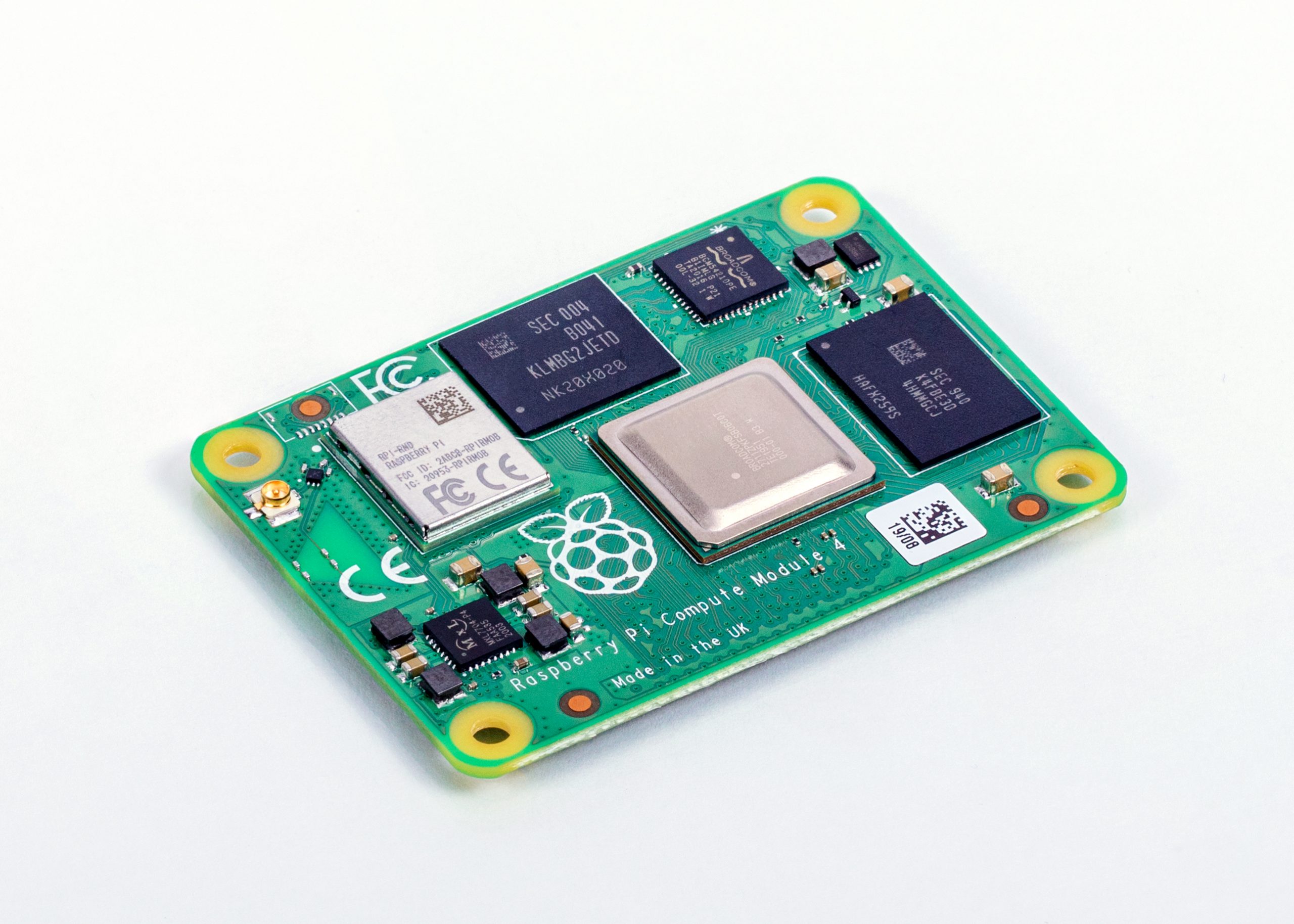
You can find detailed specs here, but let’s run through the highlights:
Compute Module 4 introduces a brand new form factor, and a compatibility break with earlier Compute Modules. Where previous modules adopted the JEDEC DDR2 SODIMM mechanical standard, with I/O signals on an edge connector, we now bring I/O signals to two high-density perpendicular connectors (one for power and low-speed interfaces, and one for high-speed interfaces).
This significantly reduces the overall footprint of the module on its carrier board, letting you achieve smaller form factors for your products.
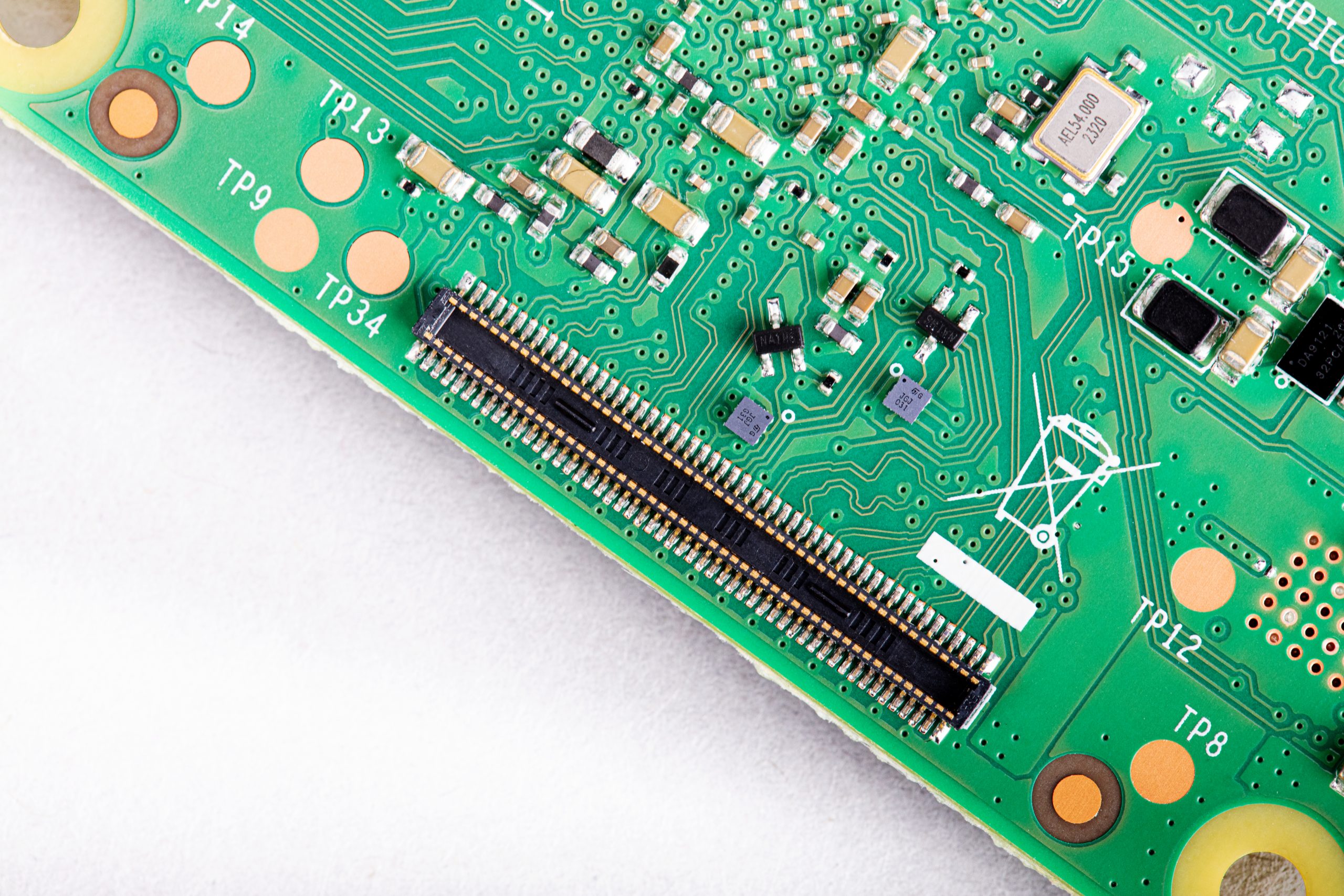
With four RAM options, four Flash options, and optional wireless connectivity, we have a total of 32 variants, with prices ranging from $25 (for the 1GB RAM, Lite, no wireless variant) to $90 (for the 8GB RAM, 32GB Flash, wireless variant).
We’re very pleased that the four variants with 1GB RAM and no wireless keep the same price points ($25, $30, $35, and $40) as their Compute Module 3+ equivalents: once again, we’ve managed to pack a lot more performance into the platform without increasing the price.
You can find the full price list in the Compute Module 4 product brief.
To help you get started with Compute Module 4, we are also launching an updated IO Board. Like the IO boards for earlier Compute Module products, this breaks out all the interfaces from the Compute Module to standard connectors, providing a ready-made development platform and a starting point for your own designs.
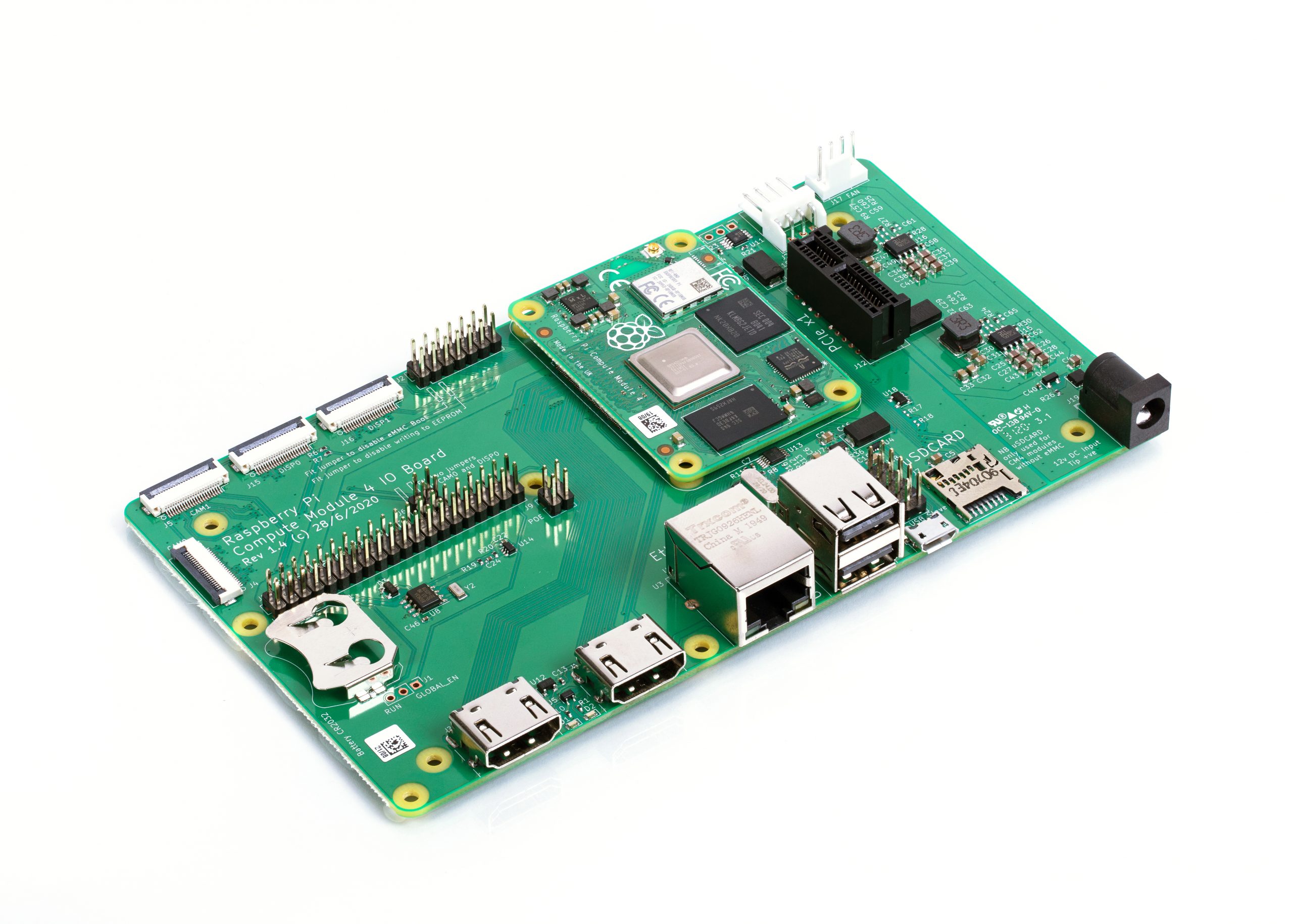
The IO board provides:
CAD for the IO board is available in KiCad format. You may recall that a few years ago we made a donation to support improvements to KiCad’s differential pair routing and track length control features; now you can use this feature-rich, open-source PCB layout package to design your own Compute Module carrier board.
In addition to serving as a development platform and reference design, we expect the IO board to be a finished product in its own right: if you require a Raspberry Pi that supports a wider range of input voltages, has all its major connectors in a single plane, or allows you to attach your own PCI Express devices, then Compute Module 4 with the IO Board does what you need.
We’ve set the price of the bare IO board at just $35, so a complete package including a Compute Module starts from $60.
We expect that most users of wireless Compute Module variants will be happy with the on-board PCB antenna. However, in some circumstances – for example, where the product is in a metal case, or where it is not possible to provide the necessary ground plane cut-out under the module – an external antenna will be required. The Compute Module 4 Antenna Kit comprises a whip antenna, with a bulkhead screw fixture and U.FL connector to attach to the socket on the module.
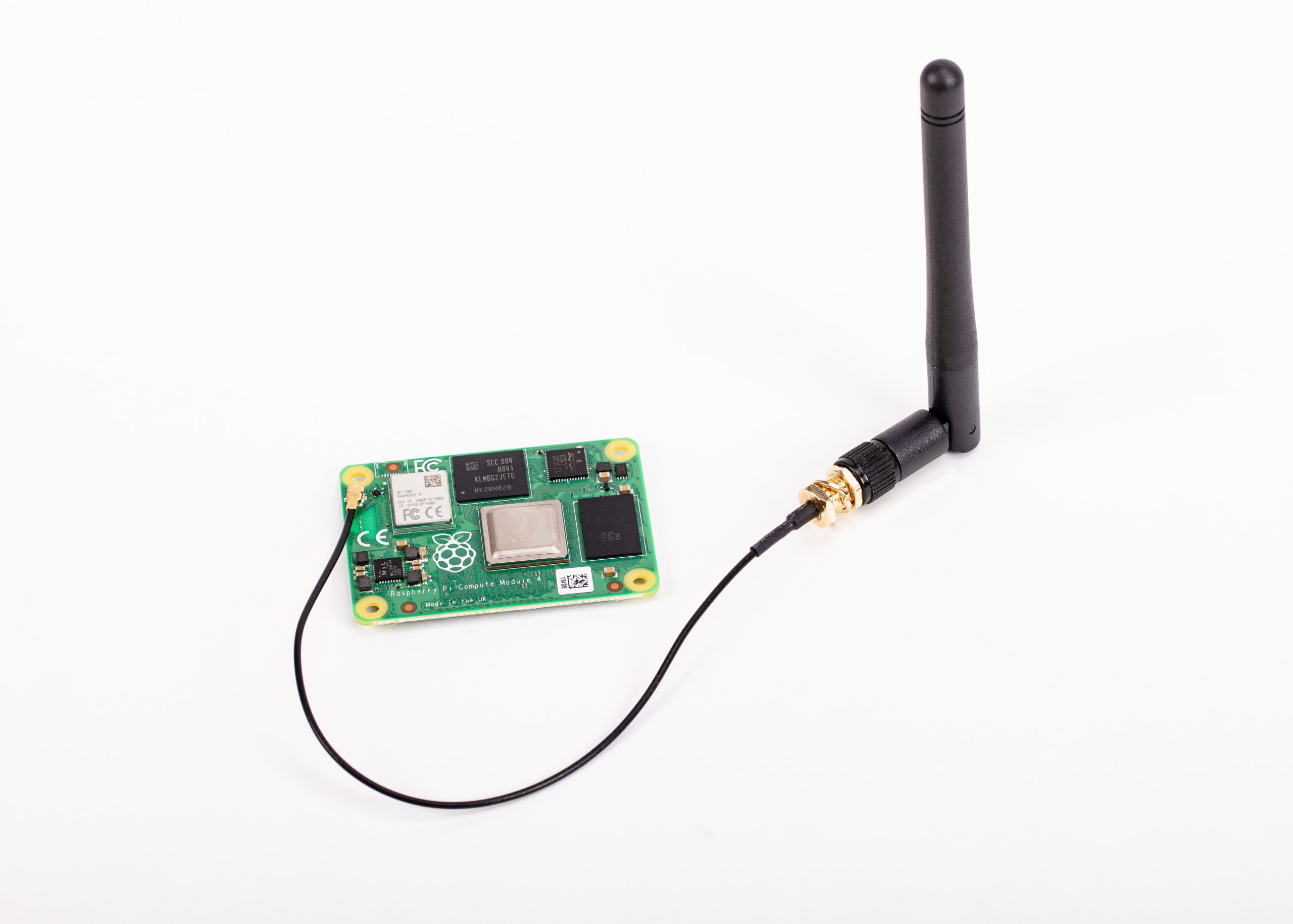
When using ether the Antenna Kit or the on-board antenna, you can take advantage of our modular certification to reduce the conformance testing costs for your finished product. And remember, the Raspberry Pi Integrator Programme is there to help you get your Compute Module-based product to market.
This is our best Compute Module yet. It’s also our first product designed by Dominic Plunkett, who joined us almost exactly a year ago.
I sat down with Dominic last week to discuss Compute Module 4 in greater detail, and you can find the video of our conversation here. Dominic will also be sharing more technical detail in the blog tomorrow.
In the meantime, check out the Compute Module 4 page for the datasheet and other details, and start thinking about what you’ll build with Compute Module 4.
The post Raspberry Pi Compute Module 4 on sale now from $25 appeared first on Raspberry Pi.
Welcome to October, the month in which spiderwebs become decor and anything vaguely gruesome is considered ‘seasonal’. Such as bats. Bats are in fact cute, furry creatures, but as they are part of the ‘Halloweeny animal’ canon, I have a perfect excuse to sing their praises.
Tegwyn Twmffat was tasked with doing a bat survey on a derelict building, and they took to DesignSpark to share their Raspberry Pi–powered solution.
UK law protects nesting birds and roosting bats, so before you go knocking buildings down, you need a professional to check that no critters will be harmed in the process.
The problem with bats, compared to birds, is they are much harder to spot and have a tendency to hang out in tiny wall cavities. Enter this big ultrasonic microphone.
After the building was declared safely empty of bats, Tegwyn decided to keep hold of the expensive microphone (the metal tube in the image above) and have a crack at developing their own auto-classification system to detect which type of bats are about.
The ultrasonic mic picks up the audio data using an STM M0 processor and streams it to Raspberry Pi via USB. Raspberry Pi runs Alsa driver software and uses the bash language to receive the data.
It turns out there are no publicly available audio records of bats, so Tegwyn took to their own back garden and found 6 species to record. And with the help of a few other bat enthusiasts, they cobbled together an audio dataset of 9 of the 17 bat species found in the UK!
Tegwyn’s original post about their project features a 12-step walkthrough, as well as all the code and commands you’ll need to build your own system. And here’s the GitHub repository, where you can check for updates.
The post Ultrasonically detect bats with Raspberry Pi appeared first on Raspberry Pi.
8 Bits and a Byte created this voice-controllable, interactive, storytelling device, hidden inside a 1960s radio for extra aesthetic wonderfulness.
A Raspberry Pi 3B works with an AIY HAT, a microphone, and the device’s original speaker to run chatbot and speech-to-text artificial intelligence.
This creature is a Bajazzo TS made by Telefunken some time during the 1960s in West Germany, and this detail inspired the espionage-themed story that 8 Bits and a Byte retrofitted it to tell. Users are intelligence agents whose task is to find the evil Dr Donogood.
The device works like one of those ‘choose your own adventure’ books, asking you a series of questions and offering you several options. The story unfolds according to the options you choose, and leads you to a choice of endings.
8 Bits and a Byte designed a decision tree to provide a tight story frame, so users can’t go off on question-asking tangents.
When you see the ‘choose your own adventure’ frame set out like this, you can see how easy it is to create something that feels interactive, but really only needs to understand the difference between a few phrases: ‘laser pointer’; ‘lockpick’; ‘drink’; take bribe’, and ‘refuse bribe’.
Google Dialogflow is a free natural language understanding platform that makes it easy to design a conversational user interface, which is long-speak for ‘chatbot’.
There are a few steps between the user talking to the radio, and the radio figuring out how to respond. The speech-to-text and chatbot software need to work in tandem. For this project, the data flow runs like so:
1: The microphone detects that someone is speaking and records the audio.
2-3: Google AI (the Speech-To-Text box) processes the audio and extracts the words the user spoke as text.
4-5: The chatbot (Google Dialogflow) receives this text and matches it with the correct response, which is sent back to the Raspberry Pi.
6-7: Some more artificial intelligence uses this text to generate artificial speech.
8: This audio is played to the user via the speaker.
The post Raspberry Pi turns retro radio into interactive storyteller appeared first on Raspberry Pi.
Nandu Vadakkath was inspired by a line-following robot built (literally) entirely from salvage materials that could wait patiently and purchase beer for its maker in Tamil Nadu, India. So he set about making his own, but with the goal of making it capable of slightly more sophisticated tasks.
Nandu had ambitious plans for his robot: navigation, speech and listening, recognition, and much more were on the list of things he wanted it to do. And in order to make it do everything he wanted, he incorporated a lot of software, including:
So how did Nandu go about trying to make the robot do some of the things on his wishlist?
The engine uses spaCy to analyse sentences, classify all the elements it identifies, and store all this information in a MySQL database. When the robot encounters a sentence with a series of possible corresponding actions, it weighs them to see what the most likely context is, based on sentences it has previously encountered.
The robot has been trained to follow Nandu around but it can get to know other people too. When it meets a new person, it takes a series of photos and processes them in the background, so it learns to remember them.
Nandu didn’t like the thought of a basic robotic voice, so he searched high and low until he came across the MBROLA UK English voice. Have a listen in the videos above!
The robot has an excellent group photo function: it looks for a person, calculates the distance between the top of their head and the top of the frame, then tilts the camera until this distance is about 60 pixels. This is a lot more effort than some human photographers put into getting all of everyone’s heads into the frame.
Nandu has created a YouTube channel for his robot companion, so be sure to keep up with its progress!
The post Nandu’s lockdown Raspberry Pi robot project appeared first on Raspberry Pi.
The Edwards Lab at the University of Reading has developed a flexible, low-cost, open source lab robot for capturing images of microbiology samples with a Raspberry Pi camera module. It’s called POLIR, for Raspberry Pi camera Open-source Laboratory Imaging Robot. Here’s a timelapse video of them assembling it.
The robot is useful for all kinds of microbiology imaging, but at the moment the lab is using it to measure antimicrobial resistance in bacteria. They’re doing this by detecting the colour change in a dye called resazurin, which changes from blue to pink in the presence of metabolically active cells: if bacteria incubated with antibiotics grow, their metabolic activity causes the dye to turn pink. However, if the antibiotics stop or impede the growth of the bacteria, their lower levels of metabolic activity will cause less colour change, or none at all. In the photo below, the colourful microtitre plate holds bacterial samples with and without resistance to the antibiotics against which they’re being tested.
POLIR, an open source 3D printer-based Raspberry Pi lab imaging robot
The researchers adapted existing open source 3D printer designs and used v-slot aluminium extrusion (this stuff) with custom 3D-printed joints to make a frame. Instead of a printer extrusion head, a Raspberry Pi and camera module are mounted on the frame. An Arduino running open-source Repetier software controls x-y-z stepper motors to adjust the position of the computer and camera.
Front and top views of POLIR
Open-source OctoPrint software controls the camera position by supplying scripts from the Raspberry Pi to the Arduino. OctoPrint also allows remote access and control, which gives researchers flexibility in when they run experiments and check progress. Images are acquired using a Python script configured with the appropriate settings (eg image exposure), and are stored on the Raspberry Pi’s SD card. From there, they can be accessed via FTP.
Off-the-shelf lab automation systems are extremely expensive and remain out of the reach of most research groups. POLIR cost just £600.
The system has a number of advantages over higher-cost off-the-shelf imaging systems. One is its flexibility: the robot can image a range of sample formats, including agar plates like those in the video above, microtitre plates like the one in the first photograph, and microfluidic “lab-on-a-comb” devices. A comb looks much like a small, narrow rectangle of clear plastic with striations running down its length; each striation is a microcapillary with capacity for a 1μl sample, and each comb has ten microcapillaries. These microfluidic devices let scientists run experiments on a large number of samples at once, while using a minimum of space on a lab bench, in an incubator, or in an imaging robot like POLIR.
POLIR accommodates 2160 individual capillaries and a 96 well plate, with room to spare
For lab-on-a-comb images, POLIR gives the Reading team four times the spatial resolution they get with a static camera. The moveable Raspberry Pi camera with a short focus yields images with 6 pixels per capillary, compared to 1.5 pixels per capillary using a $700 static Canon camera with a macro lens.
Because POLIR is automated, it brings higher temporal resolution within reach, too. A non-automated system, by contrast, can only be used for timelapse imaging if a researcher repeatedly intervenes at fixed time intervals. Capturing kinetic data with timelapse imaging is valuable because it can be significant if different samples reach the same endpoint but at different rates, and because some dyes can give a transient signal that would be missed by an endpoint measurement alone.
Dr Alexander Edwards of the University of Reading comments:
We built the robot with a simple purpose, to make antimicrobial resistance testing more robust without resorting to expensive and highly specialised lab equipment […] The beauty of the POLIR kit is that it’s based on open source designs and we have likewise published our own designs and modifications, allowing everyone and anyone to benefit from the original design and the modifications in other contexts. We believe that open source hardware is a game changer that will revolutionise microbiological and other life science lab work by increasing data production whilst reducing hands-on labour time in the lab.
You can find POLIR on GitLab here. You can also read more, and browse more figures, in the team’s open-access paper, Exploiting open source 3D printer architecture for laboratory robotics to automate high-throughput time-lapse imaging for analytical microbiology.
The post Raspberry Pi vs antibiotic resistance: microbiology imaging with open source hardware appeared first on Raspberry Pi.
You really don’t need anything too fancy to build this Raspberry Pi laser scanner, and that’s why we think it’s pretty wonderful.
Rasperry Pi 3D Laser Scanner
Cornell University: ECE 5725 Michael Xiao and Thomas Scavella
The ingredients you’ll need to build the laser scanner are:
To complete the build, access to a 3D printer and laser cutter would come in handy. If you don’t have access to such tools, we trust you to think of an alternative housing for the scanner. You’re a maker, you’re imaginative — it’s what you do.
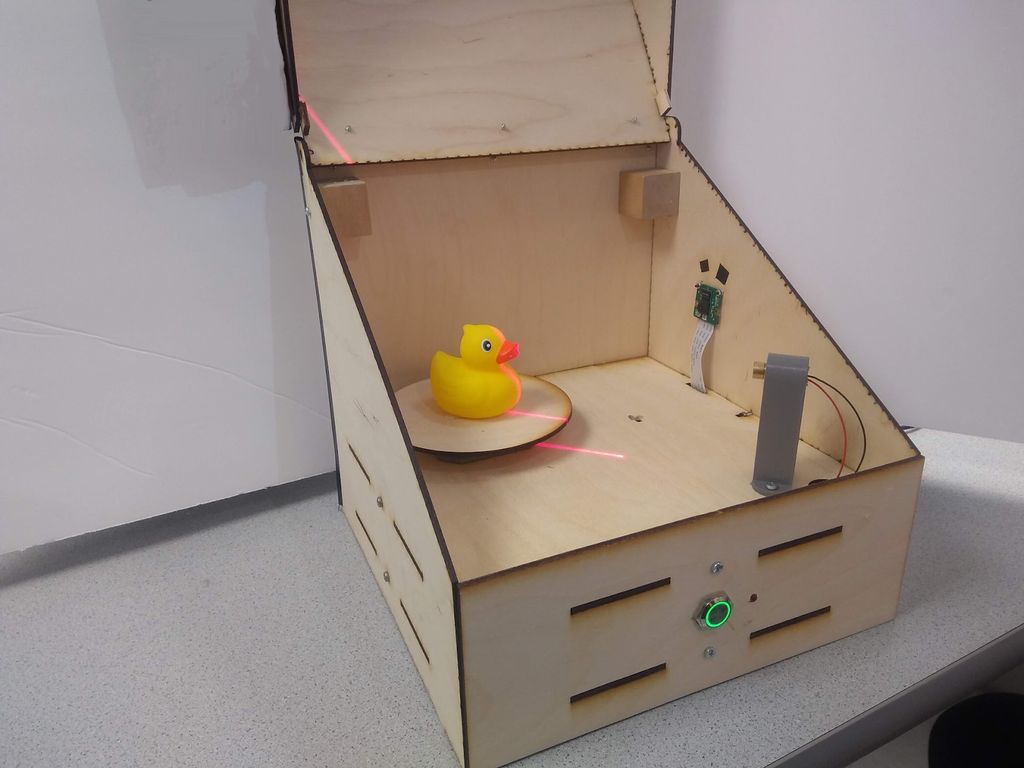
The line laser projects a line an object, highlighting a slice of it. The Raspberry Pi Camera Module captures this slice, recording the shape of the laser line on the object’s surface. Then the stepper motor rotates the object. When the object has completed a full rotation and the camera has taken an image of every slice, the Raspberry Pi processes all the images to create one virtual 3D object.
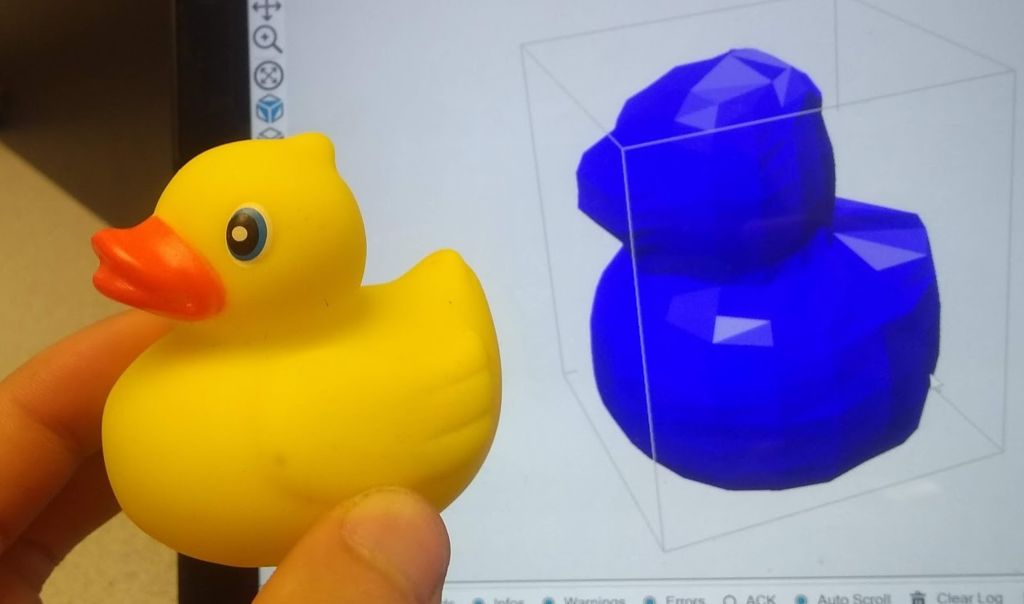
Instructables user mfx2 has written a wonderful tutorial for the project, which also includes all files needed to build and program your own version.
The post Build a Raspberry Pi laser scanner appeared first on Raspberry Pi.
If you own a 3D printer, you’ll likely have at least heard of OctoPrint, created by Gina Häußge and maintained by her and Guy Sheffer! OctoPrint has the potential to transform your 3D printing workflow for the better, and it’s very easy to set up. This guide will take you through the setup process step by step, and give you some handy tips along the way.

Before we start finding out how to install OctoPrint, let’s look at why you might want to. OctoPrint is a piece of open-source software that allows us to add WiFi functionality to any 3D printer with a USB port (which is pretty much all of them). More specifically, you’ll be able to drop files from your computer onto your printer, start/stop prints, monitor your printer via a live video feed, control the motors, control the temperature, and more, all from your web browser. Of course, with great power comes great responsibility — 3D printers have parts that are hot enough to cause fires, so make sure you have a safe setup, which may include not letting it run unsupervised.
• Raspberry Pi 3 (or newer)
• MicroSD card
• Raspberry Pi power adapter
• USB cable (the connector type will depend on your printer)
• Webcam/Raspberry Pi Camera Module (optional)
• 3D-printed camera mount (optional)
Before we get started, it is not recommended that anything less than a Raspberry Pi 3 is used for this project. There have been reports of limited success using OctoPrint on a Raspberry Pi Zero W, but only if you have no intention of using a camera to monitor your prints. If you want to try this with a Pi Zero or an older Raspberry Pi, you may experience unexpected print failures.
Firstly, you will need to download the latest version of OctoPi from the OctoPrint website. OctoPi (created by Guy Sheffer) is a Raspbian distribution that comes with OctoPrint, video streaming software, and CuraEngine for slicing models on your Raspberry Pi. When this has finished downloading, unzip the file and put the resulting IMG file somewhere handy.
Next, we need to flash this image onto our microSD card. We recommend using Etcher to do this, due to its minimal UI and ease of use; plus it’s also available to use on both Windows and Mac. Get it here: balena.io/etcher. When Etcher is installed and running, you’ll see the UI displayed. Simply click the Select Image button and find the IMG file you unzipped earlier. Next, put your microSD card into your computer and select it in the middle column of the Etcher interface.
Finally, click on Flash!, and while the image is being burned onto the card, get your WiFi router details, as you’ll need them for the next step.
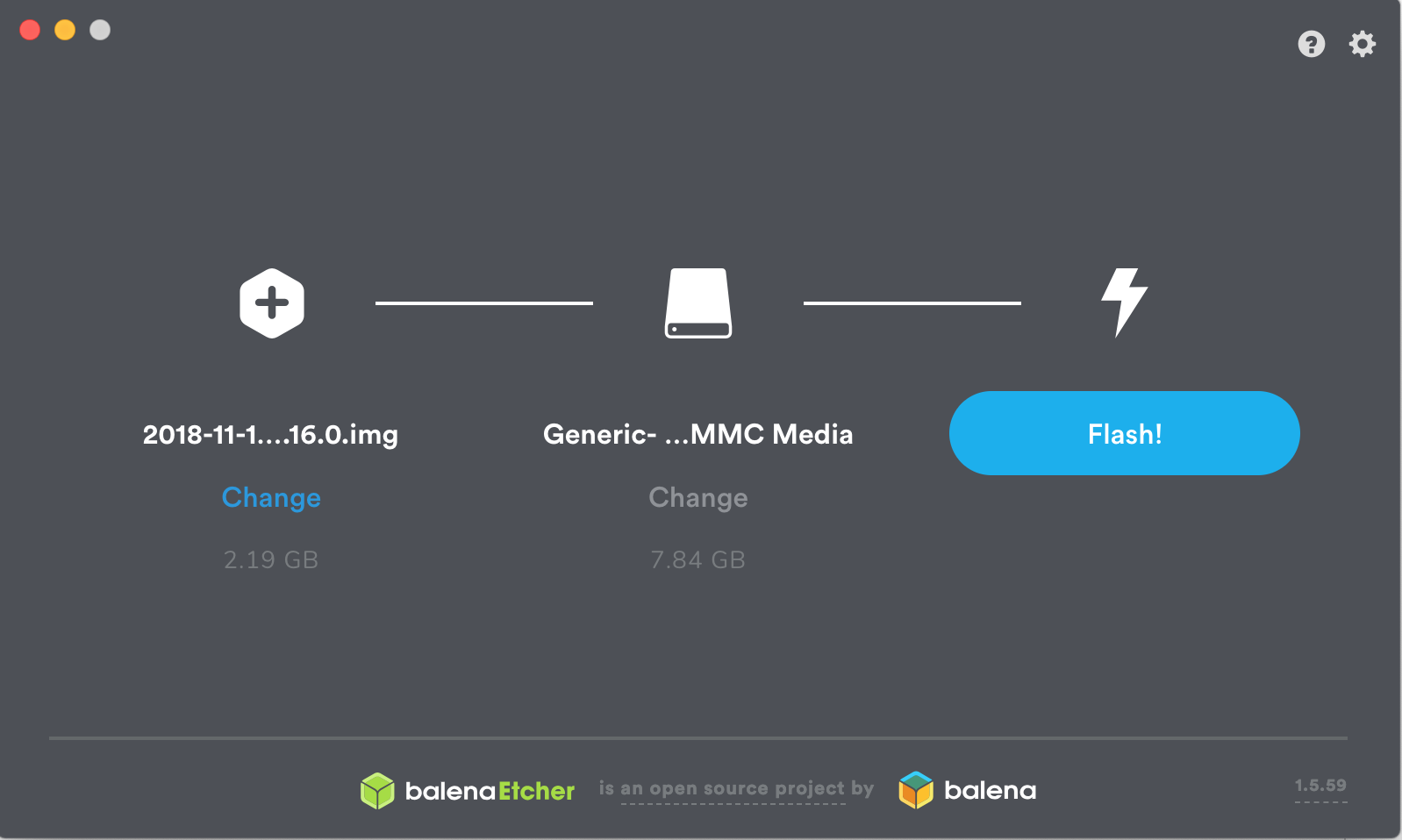
Now that you have your operating system, you’ll want to add your WiFi details so that the Raspberry Pi can automatically connect to your network after it’s booted. To do this, remove the microSD card from your computer (Etcher will have ‘ejected’ the card after it has finished burning the image onto it) and then plug it back in again. Navigate to the microSD card on your computer — it should now be called boot — and open the file called octopi-wpa-supplicant.txt. Editing this file using WordPad or TextEdit can cause formatting issues; we recommend using Notepad++ to update this file, but there are instructions within the file itself to mitigate formatting issues if you do choose to use another text editor. Find the section that begins ## WPA/WPA2 secured and remove the hash signs from the four lines below this one to uncomment them. Finally, replace the SSID value and the PSK value with the name and password for your WiFi network, respectively (keeping the quotation marks). See the example below for how this should look.
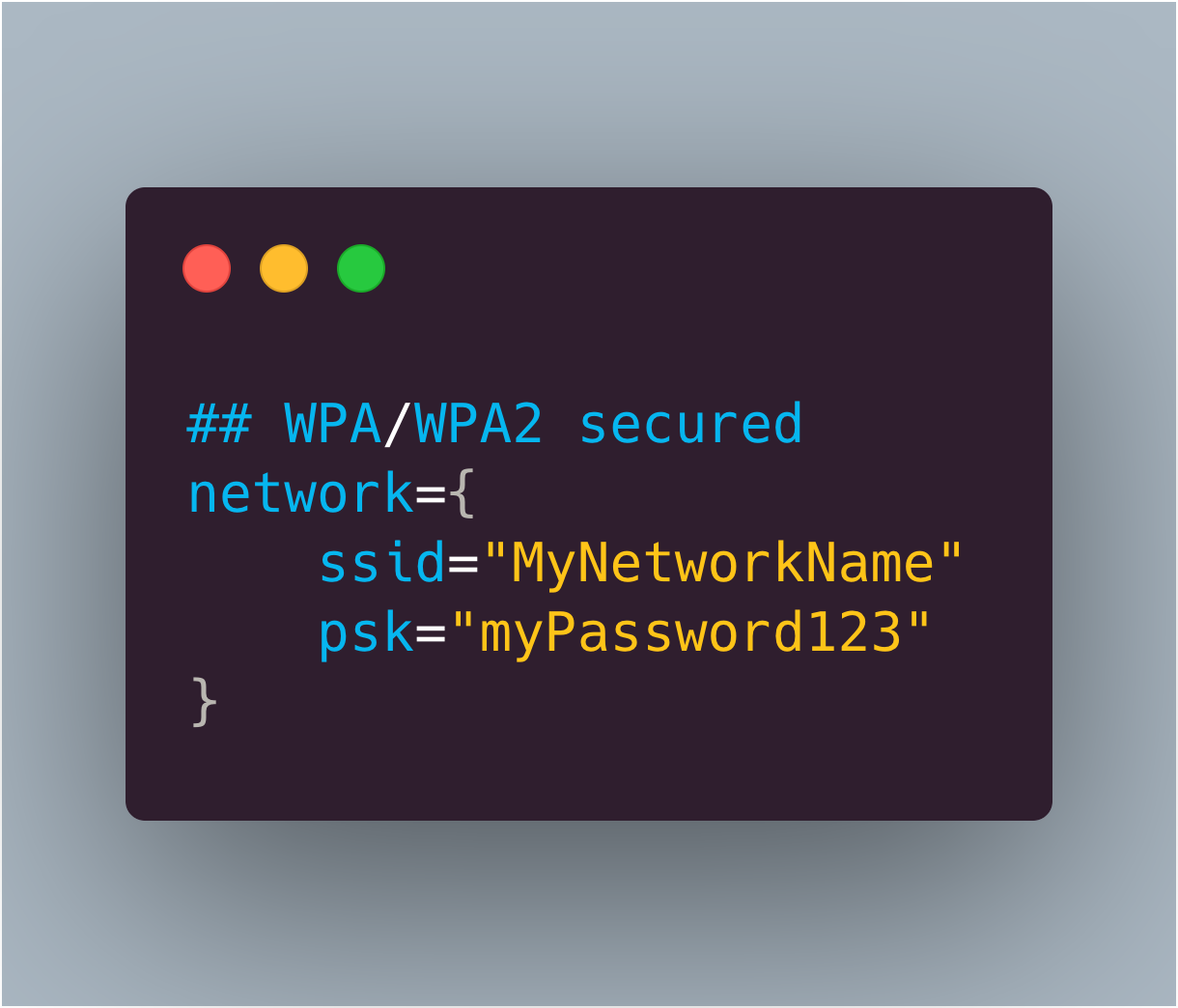
Further down in the file, there is a section for what country you are in. If you are using OctoPrint in the UK, leave this as is (by default, the UK is selected). However, if you wish to change this, simply comment the UK line again by adding a # before it, and uncomment whichever country you are setting up OctoPrint in. The example below shows how the file will look if you are setting this up for use in the US:
# Uncomment the country your Pi is in to activate Wifi in RaspberryPi 3 B+ and above
# For full list see: https://en.wikipedia.org/ wiki/ISO_3166-1_alpha-2
#country=GB # United Kingdom
#country=CA # Canada
#country=DE # Germany
#country=FR # France
country=US # United States
When the changes have been made, save the file and then eject/unmount and remove the microSD card from your computer and put it into your Raspberry Pi. Plug the power supply in, and go and make a cup of tea while it boots up for the first time (this may take around ten minutes). Make sure the Raspberry Pi is running as expected (i.e. check that the green status LED is flashing intermittently). If you’re using macOS, visit octopi.local in your browser of choice. If you’re using Windows, you can find OctoPrint by clicking on the Network tab in the sidebar. It should be called OctoPrint instance on octopi – double-clicking on this will open the OctoPrint dashboard in your browser.
If you see the screen shown above, then congratulations! You have set up OctoPrint.
Not seeing that OctoPrint splash screen? Fear not, you are not the first. While a full list of issues is beyond the scope of this article, common issues include: double-checking your WiFi details are entered correctly in the octopi-wpa-supplicant.txt file, ensuring your Raspberry Pi is working correctly (plug the Raspberry Pi into a monitor and watch what happens during boot), or your Raspberry Pi may be out of range of your WiFi router. There’s a detailed list of troubleshooting suggestions on the OctoPrint website.
We now have the opportunity to set up OctoPrint for our printer using the handy wizard. Most of this is very straightforward — setting up a password, signing up to send anonymous usage stats, etc. — but there are a few sections which require a little more thought.
We recommend enabling the connectivity check and the plug-ins blacklist to help keep things nice and stable. If you plan on using OctoPrint as your slicer as well as a monitoring tool, then you can use this step to import a Cura profile. However, we recommend skipping this step as it’s much quicker (and you can use a slicer of your choice) to slice the model on your computer, and then send the finished G-code over.
Finally, we need to put in our printer details. Above, we’ve included some of the specs of the Creality Ender-3 as an example. If you can’t find the exact details of your printer, a quick web search should show what you need for this section.
The General tab can have anything in it, it’s just an identifier for your own use. Print bed & build volume should be easy to find out — if not, you can measure your print bed and find out the position of the origin by looking at your Cura printer profile. Leave Axes as default; for the Hotend and extruder section, defaults are almost certainly fine here (unless you’ve changed your nozzle; 0.4 is the default diameter for most consumer printers).
Now that you’re set up with OctoPrint, you’re ready to start printing. Turn off your Raspberry Pi, then plug it into your 3D printer. After it has booted up, open OctoPrint again in your browser and take your newly WiFi-enabled printer for a spin by clicking the Connect button. After it has connected, you’ll be able to set the hot end and bed temperature, then watch as the real-time readings are updated.
In the Control tab, we can see the camera stream (if you’re using one) and the motor controls, as well as commands to home the axes. There’s a G-code file viewer to look through a cross-section of the currently loaded model, and a terminal to send custom G-code commands to your printer. The last tab is for making time-lapses; however, there is a plug-in available to help with this process.
Undoubtedly the easiest way to set up video monitoring of your prints is to use the official Raspberry Pi Camera Module. There are dozens of awesome mounts on Thingiverse for a Raspberry Pi Camera Module, to allow you to get the best angle of your models as they print. There are also some awesome OctoPrint-themed Raspberry Pi cases to house your new printer brains. While it isn’t officially supported by OctoPrint, you can use a USB webcam instead if you have one handy, or just want some very high-quality video streams. The OctoPrint wiki has a crowdsourced list of webcams known to work, as well as a link for the extra steps needed to get the webcam working correctly.
As mentioned earlier, our recommended way of printing a model using OctoPrint is to first use your slicer as you would if you were creating a file to save to a microSD card. Once you have the file, save it somewhere handy on your computer, and open the OctoPrint interface. In the bottom left of the screen, you will see the Upload File button — click this and upload the G-code you wish to print.
You’ll see the file/print details appear, including information on how long it’ll take for the object to print. Before you kick things off, check out the G-code Viewer tab on the right. You can not only scroll through the layers of the object, but, using the slider at the bottom, you can see the exact pattern the 3D printer will use to ‘draw’ each layer. Now click Print and watch your printer jump into action!
OctoPrint has scores of community-created plug-ins, but our favourite, Octolapse, makes beautiful hypnotic time-lapses. What makes them so special is that the plug-in alters the G-code of whatever object you are printing so that once each layer has finished, the extruder moves away from the print to let the camera take an unobstructed shot of the model. The result is an object that seems to grow out of the build plate as if by magic. You’ll not find a finer example of it than here.
Satisfying 3D Prints TimeLapse episode 7 (Prusa I3 Mk3 octopi)
3D Printing timelapses of models printed on the Prusa i3 MK3! Here’s another compilation of my recent timelapses. I got some shots that i think came out really great and i hope you enjoy them! as always if you want to see some of these timelapses before they come out or want to catch some behind the scenes action check out my instagram!
OctoPrint was created and is maintained by Gina Häußge (@foosel) and Guy Sheffer (@GuySoft)! A big thank you to both of them for putting in many, many volunteer hours to provide the world with an amazing piece of free, open-source software.
Head over to the OctoPrint website to find out how you can support OctoPrint’s continued existence.
This tutorial comes fresh from the pages of HackSpace magazine issue 26 and was written by Glenn Horan. Thanks, Glenn.
To get your copy of HackSpace magazine issue 26, visit your local newsagent, the Raspberry Pi Store, Cambridge, or the Raspberry Pi Press online store.
Fans of HackSpace magazine will also score themselves a rather delightful Adafruit Circuit Playground Express with a 12-month subscription. Sweet!
The post How to set up OctoPrint on your Raspberry Pi appeared first on Raspberry Pi.
Check out Super Make Something’s awesome NeoPixel LED mirror: a 576 RGB LED display that converts images via the Raspberry Pi Camera Module and Raspberry Pi 3B+ into a pixelated light show.
Neopixel LED Mirror (Python, Raspberry Pi, Arduino, 3D Printing, Laser Cutting!) DIY How To
Time to pull out all the stops for the biggest Super Make Something project to date! Using 3D printing, laser cutting, a Raspberry Pi, computer vision, Python, and nearly 600 Neopixel LEDs, I build a low resolution LED mirror that displays your reflection on a massive 3 foot by 3 foot grid made from an array of 24 by 24 RGB LEDs!
If you’re into cool uses of tech, you may be aware of Daniel Rozin, the creative artist building mechanical mirrors out of wooden panels, trash, and…penguins, to name but a few of his wonderful builds.
Yup, this is a mechanical mirror made of toy penguins.
Inspired by Daniel Rozin’s work, Alex, the person behind Super Make Something, put an RGB LED spin on the concept, producing this stunning mirror that thoroughly impressed visitors at Cleveland Maker Faire last month.
“Inspired by Danny Rozin’s mechanical mirrors, this 3 foot by 3 foot mirror is powered by a Raspberry Pi, and uses Python and OpenCV computer vision libraries to process captured images in real time to light up 576 individual RGB LEDs!” Alex explains on Instagram. “Also onboard are nearly 600 3D-printed squares to diffuse the light from each NeoPixel, as well as 16 laser-cut panels to hold everything in place!”
The video above gives a brilliantly detailed explanation of how Alex made the, so we highly recommend giving it a watch if you’re feeling inspired to make your own.
Seriously, we really want to make one of these for Raspberry Pi Towers!
As always, be sure to subscribe to Super Make Something on YouTube and leave a comment on the video if, like us, you love the project. Most online makers are producing content such as this with very little return on their investment, so every like and subscriber really does make a difference.
The post Really, really awesome Raspberry Pi NeoPixel LED mirror appeared first on Raspberry Pi.
Last week, lots and lots of you shared your Raspberry Pi builds with us on social media using the hashtag #IUseMyRaspberryPiFor. Jay Wainwright from Liverpool noticed the conversation and got in touch to tell us about The Nest Box, which uses Raspberry Pi to bring impressively high-quality images and video from British bird boxes to your Facebook feed.
Jay runs a small network of livestreaming nest box cameras, with three currently sited and another three in the pipeline; excitingly, the new ones will include a kestrel box and a barn owl box! During the spring, all the cameras stream live to The Nest Box’s Facebook page, which has steadily built a solid following of several thousand wildlife fans.
The Nest Box’s setup uses a Raspberry Pi and Camera Module, along with a Raspberry Pi PoE HAT to provide both power and internet connectivity, so there’s only one cable connection to weatherproof. There’s also a custom HAT that Jay has designed to control LED lights and to govern the Raspberry Pi Camera Module’s IR filter, ensuring high-quality images both during the day and at night. To top it all off, he has written some Python code to record visitors to the nest boxes and go into live streaming mode whenever the action is happening.
As we can see from this nest box design for swifts, shown on the project’s crowdfunding profile, plenty of thought has evidently been put into the design of the boxes so that they provide tempting quarters for their feathered occupants while also accommodating all the electronic components.
Follow The Nest Box on Facebook to add British birds into your social media mix — whatever you’ve got now, I’ll bet all tomorrow’s coffees that it’ll be an improvement. And if you’re using Raspberry Pi for a wildlife project, or you’ve got plans along those lines, let us know in the comments.
The post The Nest Box: DIY Springwatch with Raspberry Pi appeared first on Raspberry Pi.
Technology should be for everyone, but it has to be built by everyone to be for everyone. At Raspberry Pi, we work to empower everyone to become a tech creator and shape our collective digital future, and we hope that our work will help to increase the tech sector’s diversity.
Today, part of our team is attending WeAreTheCity’s WeAreTechWomen conference to spread the word about our free programming courses and encourage more women to share their digital skills with the next generation.
I asked Carrie Anne Philbin, our Director of Educator Support, and Vanessa Vallely OBE, Managing Director at WeAreTheCity, about their thoughts on how we can make the tech sector more diverse, and what part role models, education, and professional development play in this.
Vanessa, WeAreTheCity helps organisations foster a strong female workforce, and provides opportunities for women to network and develop their skills. Why do you think it’s important for women and people from minority backgrounds to support each other in the professional world?
Vanessa Vallely: I believe it is important for everyone to support each other. It is important that we work as a collective and collaborate, as at the end of the day we are all trying to achieve the same goal. 17% women in tech [in the UK] is not enough.
“We want more women in tech, and we want them to represent all aspects of society.” – Vanessa Vallely OBE
We cannot be what we cannot see, therefore asking women who are already working in tech to stand up and own their role model status is a great start.
What can individuals do to address the lack of diversity in the tech sector?
Carrie Anne Philbin: Firstly, let’s recognise that we need the tech sector to be more representative of the population of the world. It’s problematic to have a small subsection of society be the controllers of a growing digital world.
Then, we need to be the change we want to see in the industry. Let’s try different avenues and then let’s be open about our challenges and successes.
VV: I believe every woman in the tech sector is a role model to future generations. There are a number of things individuals can do, for example go back to their schools and tell their tech stories, or contribute/write blogs. This doesn’t just raise their profile, it puts their story out there for others to aspire to. I think this is really important, especially if the individual is from a background where role models are less visible. There are lots of different organisations and networks that facilitate individuals getting involved in their school or early career initiatives which has made it easier to get involved and give back.
CAP: As a woman in the computing field, I think it is important that I hold the door open for other women coming through in my wake, and that I highlight where I can, great work by others.
Ever since I realised that my skills and knowledge in computing were useful and allowed me to be creative in a whole new way, I’ve championed computer science as a subject that everyone should experience. Once you’ve created your first computer program or built your first network, you’ll never want to stop.
Carrie Anne, how does your coding session at WATC’s WeAreTechWomen conference today tie into this?
CAP: At the Raspberry Pi Foundation, I spend a lot of time thinking about how to teach computing well, and about how young people can have great learning experiences so they can become the makers and creators of tomorrow.
“Technology is not a mystery, nor is it hard to learn. I want to dispel this myth for everyone regardless of gender, ethnicity, or economic status.” – Carrie Anne Philbin
During my session at WeAreTechWomen, I hope to support attendees to write their first creative python program, based on a project I wrote for Code Club to create a virtual pet. It is my hope that the session will be the spark of inspiration that gets more women and men from diverse backgrounds excited about being creators of technology.
You’ve built a career in tech education as a teacher, YouTuber, and Director at Raspberry Pi. How can beginners get comfortable creating with tech?
CAP: There isn’t anything magical about technology, and once you know this, you can start to explore with confidence, much like our ancestors when they learned that the earth was round and not flat.
“Phrases like ‘I’m not good with technology’ or ‘It’s all too complicated for me’ are reassuring to say in a society where the accepted view is that maths and science are hard, and where this view is reinforced by our media. But it is OK to be a beginner, it is OK to learn something new, and it is OK to play, explore, fail, and succeed on the journey.” – Carrie Anne Philbin
However you like to learn, be it on your own or with others, there is a way that suits you! I’ve always been quite project-minded: I have ideas about things I want to make, and then go and see if I can. This is how I stumbled across the Raspberry Pi in 2012 — it seemed like an accessible and cheap way to make my automation dreams come true. It also wasn’t too bad at randomly generating poems.
Aside from teacher-led instruction or independent exploration, another way is to learn with others in a relaxed and informal setting. If you’re a young person, then clubs like Code Club and CoderDojo are perfect. If you’re an adult, then attending a Raspberry Jam or conferences like WeAreTechWomen can provide a supportive environment.
“By being kinder to ourselves and seeing ourselves as life-long learners, it is easier to overcome insecurity and build confidence.” – Carrie Anne Philbin
A great way to approach new learning is at your own pace, and thanks to technology, we have access to online training courses with great videos, exercises, and discussion — many of these are completely free and let you connect with a community of learners as well.
How do you think educating the next generation about computing will change the makeup of the tech sector?
CAP: We’re in an exciting phase for computing education. The world has woken up to the importance of equipping our young people with the knowledge and skills for an ever increasing digital landscape. This means computer science is gaining more prominence in school curricula and giving all children the opportunity to discover the subject.
“Education can be democratising, and I expect to see the makeup of the tech sector reflect this movement in the next five to twenty years.” – Carrie Anne Philbin
Unlike physics or music, computing is still a relatively young field, so we need to do more research into what is encouraging and what isn’t, particularly when we work with young people in schools or clubs.
We’re still learning how to teach computing, and particularly programming, well to encourage greater diversity, so it’s great to see such a vast Gender Balance in Computing research project underway as part of the National Centre for Computing Education here in England. It’s not too late for schools in England to get involved in this project either…
The post “17% women in tech is not enough” appeared first on Raspberry Pi.
These Raspberry Pis take hourly photographs of snails in plastic container habitats, sharing them to the Snail Habitat website.
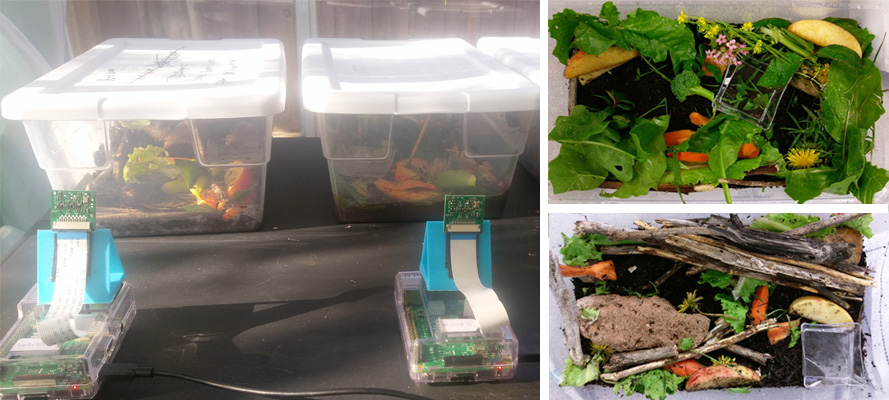
While some might find them kind of icky, I am in love with snails (less so with their homeless cousin, the slug), so this snail habitat project from Mrs Nation’s class is right up my alley.
This project was done in a classroom with 22 students. We broke the kids out into groups and created 5 snail habitats. It would be a great project to do school-wide too, where you create 1 snail habitat per class. This would allow the entire school to get involved and monitor each other’s habitats.
Each snail habitat in Mrs Nation’s class is monitored by a Raspberry Pi and camera module, and Misty Lackie has written specific code to take a photo every hour, uploading the image to the dedicated Snail Habitat website. This allows the class to check in on their mollusc friends without disturbing their environment.
“I would love to see others habitats,” Misty states on the project’s GitHub repo, “so if you create one, please share it and I would be happy to publish it on snailhabitat.com.”

The post Raspberry Pi snail habitats for Mrs Nation’s class appeared first on Raspberry Pi.
Reddit was alive with the sound of retro gaming this weekend.
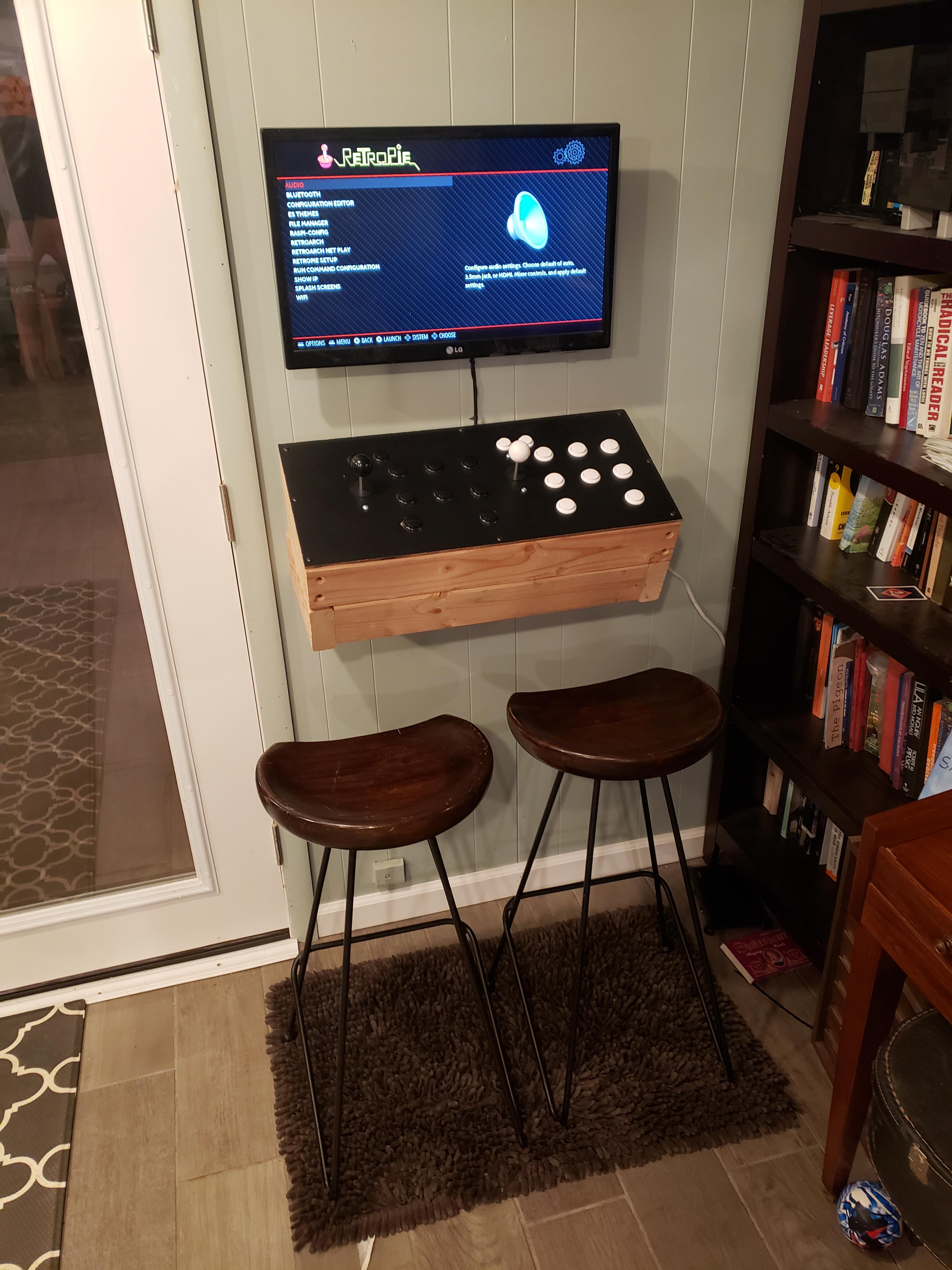
First out to bat is this lovely minimalist, wall-mounted design built by u/sturnus-vulgaris, who states:
I had planned on making a bar top arcade, but after I built the control panel, I kind of liked the simplicity. I mounted a frame of standard 2×4s cut with a miter saw. Might trim out in black eventually (I have several panels I already purchased), but I do like the look of wood.
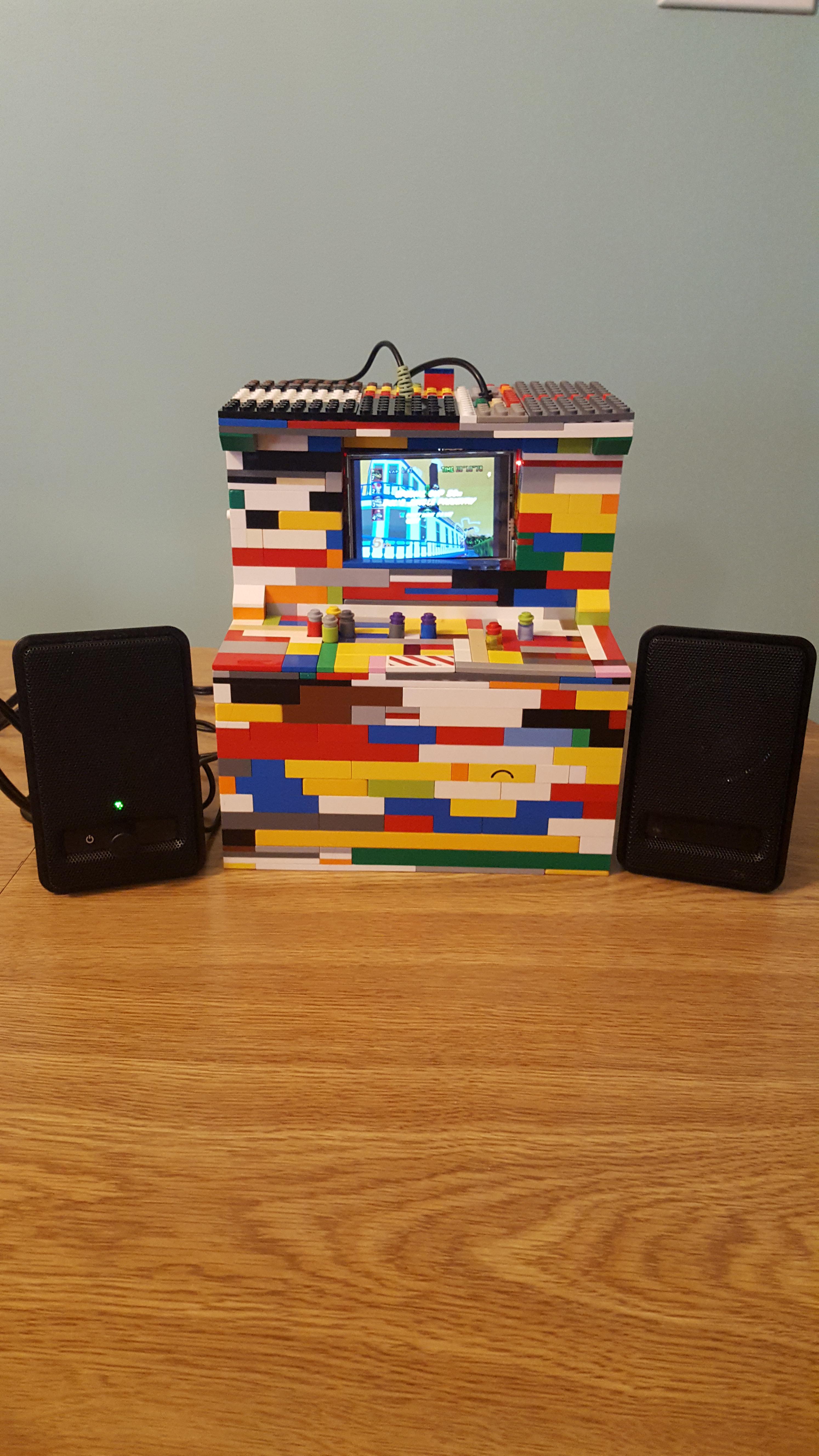
Next up, a build with Lego bricks, because who doesn’t love Lego bricks?
Just completed my mini arcade cabinet that consists of approximately 1,000 [Lego bricks], a Raspberry Pi, a SNES style controller, Amazon Basics computer speakers, and a 3.5″ HDMI display.
u/RealMagicman03 shared the build here, so be sure to give them an upvote and leave a comment if, like us, you love Raspberry Pi projects that involve Lego bricks.
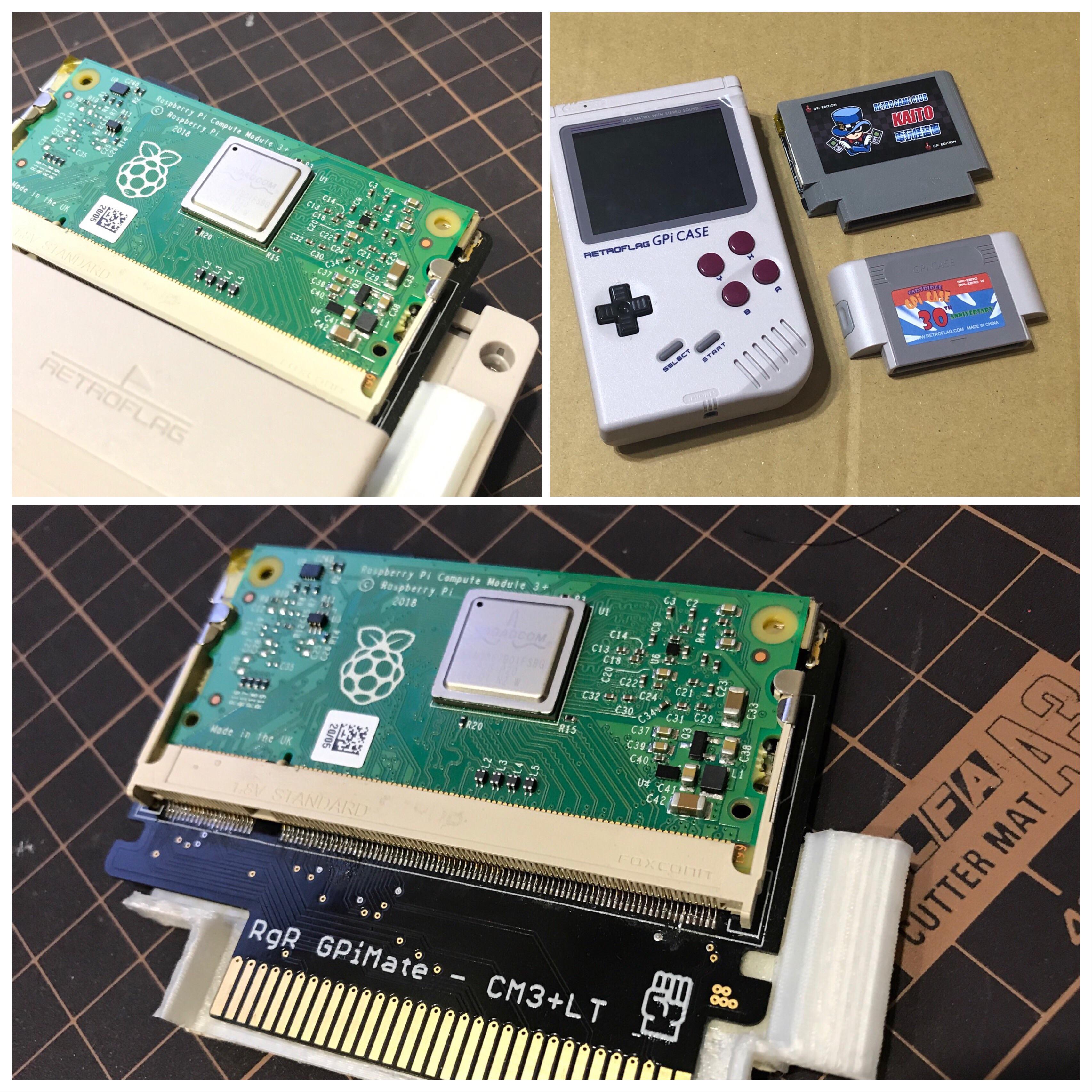
And lastly, this wonderful use of the Raspberry Pi Compute Module 3+, proving yet again how versatile the form factor can be.
CM3+Lite cartridge for GPi case. I made this cartridge for fun at first, and it works as all I expected. Now I can play more games l like on this lovely portable stuff. And CM3+ is as powerful as RPi3B+, I really like it.
Creator u/martinx72 goes into far more detail in their post, so be sure to check it out.
What other projects did you see this weekend? Share your links with us in the comments below.
The post Raspberry Pi retro gaming on Reddit appeared first on Raspberry Pi.
When we invited Estefannie Explains It All to present at Coolest Projects International, she decided to make something cool with a Raspberry Pi to bring along. But being Estefannie, she didn’t just make something a little bit cool. She went ahead and made Raspberry Pi Zero-powered Jurassic Park goggles, or, as she calls them, the world’s first globally triggered, mass broadcasting, photon-emitting and -collecting head unit.
Make your own Jurassic Park goggles using a Raspberry Pi // MAKE SOMETHING
Is it heavy? Yes. But these goggles are not expensive. Follow along as I make the classic Jurassic Park Goggles from scratch!! The 3D Models: https://www.thingiverse.com/thing:3732889 My code: https://github.com/estefanniegg/estefannieExplainsItAll/blob/master/makes/JurassicGoggles/jurassic_park.py Thank you Coolest Projects for bringing me over to speak in Ireland!! https://coolestprojects.org/ Thank you Polymaker for sending me the Polysher and the PolySmooth filament!!!!
Estefannie’s starting point was the set of excellent 3D models of the iconic goggles that Jurassicpaul has kindly made available on Thingiverse. There followed several 3D printing attempts and lots of sanding, sanding, sanding, spray painting, and sanding, then some more printing with special Polymaker filament that can be ethanol polished.
Estefannie soldered rings of addressable LEDs and created custom models for 3D-printable pieces to fit both them and the goggles. She added a Raspberry Pi Zero, some more LEDs and buttons, an adjustable headgear part from a welding mask, and – importantly – four circles of green acetate. After quite a lot of gluing, soldering, and wiring, she ended up with an entirely magnificent set of goggles.
Here, they’re modelled magnificently by Raspberry Pi videographer Brian. I think you’ll agree he cuts quite a dash.
Estefannie wrote a Python script to interact with Twitter, take photos, and provide information about the goggles’ current status via the LED rings. When Estefannie powers up the Raspberry Pi, it runs a script on startup and connects to her phone’s wireless hotspot. A red LED on the front of the goggles indicates that the script is up and running.
Once it’s running, pressing a button at the back of the head unit makes the Raspberry Pi search Twitter for mentions of @JurassicPi. The LEDs light up green while it searches, just like you remember from the film. If Estefannie’s script finds a mention, the LEDs flash white and the Raspberry Pi camera module takes a photo. Then they light up blue while the script tweets the photo.
All the code is available on Estefannie’s GitHub. I love this project – I love the super clear, simple user experience provided by the LED rings, and there’s something I really appealing about the asynchronous Twitter interaction, where you mention @JurassicPi and then get an image later, the next time googles are next turned on.
If you read the beginning of this post and thought, “wait, what’s Coolest Projects?” then be sure to watch to the end of Estefannie’s video to catch her excellentCoolest Projects mini vlog. And then sign up for updates about Coolest Projects events near you, so you can join in next year, or help a team of young people to join in.
The post Estefannie’s Jurassic Park goggles appeared first on Raspberry Pi.
Plant scientists and agronomists use growth chambers to provide consistent growing conditions for the plants they study. This reduces confounding variables – inconsistent temperature or light levels, for example – that could render the results of their experiments less meaningful. To make sure that conditions really are consistent both within and between growth chambers, which minimises experimental bias and ensures that experiments are reproducible, it’s helpful to monitor and record environmental variables in the chambers.
Arabidopsis thaliana in a growth chamber on the International Space Station. Many experimental plants are less well monitored than these ones.
(“Arabidopsis thaliana plants […]” by Rawpixel Ltd (original by NASA) / CC BY 2.0)
In a recent paper in Applications in Plant Sciences, Brandin Grindstaff and colleagues at the universities of Missouri and Arizona describe how they developed Growth Monitor pi, or GMpi: an affordable growth chamber monitor that provides wider functionality than other devices. As well as sensing growth conditions, it sends the gathered data to cloud storage, captures images, and generates alerts to inform scientists when conditions drift outside of an acceptable range.
Appl Plant Sci. 2019 Aug; 7(8): e11280. Figure 1, © 2019 Grindstaff et al. / CC BY 4.0
The authors emphasise – and we heartily agree – that you don’t need expertise with software and computing to build, use, and adapt a system like this. They’ve written a detailed protocol and made available all the necessary software for any researcher to build GMpi, and they note that commercial solutions with similar functionality range in price from $10,000 to $1,000,000 – something of an incentive to give the DIY approach a go.
GMpi uses a Raspberry Pi Model 3B+, to which are connected temperature-humidity and light sensors from our friends at Adafruit, as well as a Raspberry Pi Camera Module.
Appl Plant Sci. 2019 Aug; 7(8): e11280. Figure 2, © 2019 Grindstaff et al. / CC BY 4.0
The team used open-source app Rclone to upload sensor data to a cloud service, choosing Google Drive since it’s available for free. To alert users when growing conditions fall outside of a set range, they use the incoming webhooks app to generate notifications in a Slack channel. Sensor operation, data gathering, and remote monitoring are supported by a combination of software that’s available for free from the open-source community and software the authors developed themselves. Their package GMPi_Pack is available on GitHub.
Appl Plant Sci. 2019 Aug; 7(8): e11280. Figure 3, © 2019 Grindstaff et al. / CC BY 4.0
With a bill of materials amounting to something in the region of $200, GMpi is another excellent example of affordable, accessible, customisable open labware that’s available to researchers and students. If you want to find out how to build GMpi for your lab, or just for your greenhouse, Affordable remote monitoring of plant growth in facilities using Raspberry Pi computers by Brandin et al. is available on PubMed Central, and it includes appendices with clear and detailed set-up instructions for the whole system.
The post Growth Monitor pi: an open monitoring system for plant science appeared first on Raspberry Pi.
Low-cost open labware is a good thing in the world, and I was particularly pleased when micropalaeontologist Martin Tetard got in touch about the Raspberry Pi-based microscope he is developing. The project is called microscoPI (what else?), and it can capture, process, and store images and image analysis results. Martin is engaged in climate research: he uses microscopy to study tiny fossil remains, from which he gleans information about the environmental conditions that prevailed in the far-distant past.
microscoPI: a microcomputer-assisted microscope
microscoPI a project that aims to design a multipurpose, open-source and inexpensive micro-computer-assisted microscope (Raspberry PI 3). This microscope can automatically take images, process them, and save them altogether with the results of image analyses on a flash drive. It it multipurpose as it can be used on various kinds of images (e.g.
Martin repurposed an old microscope with a Z-axis adjustable stage for accurate focusing, and sourced an inexpensive X/Y movable stage to allow more accurate horizontal positioning of samples under the camera. He emptied the head of the scope to install a Raspberry Pi Camera Module, and he uses an M12 lens adapter to attach lenses suitable for single-specimen close-ups or for imaging several specimens at once. A Raspberry Pi 3B sits above the head of the microscope, and a 3.5-inch TFT touchscreen mounted on top of the Raspberry Pi allows the user to check images as they are captured and processed.
The Raspberry Pi runs our free operating system, Raspbian, and free image-processing software ImageJ. Martin and his colleagues use a number of plugins, some developed themselves and some by others, to support the specific requirements of their research. With this software, microscoPI can capture and analyse microfossil images automatically: it can count particles, including tiny specimens that are touching, analyse their shape and size, and save images and results before prompting the user for the name of the next sample.
microscoPI is compact – less than 30cm in height – and it’s powered by a battery bank secured under the base of the microscope, so it’s easily portable. The entire build comes in at under 160 Euros. You can find out more, and get in touch with Martin, on the microscoPI website.
The post A low-cost, open-source, computer-assisted microscope appeared first on Raspberry Pi.
Wanting to break from the standard practice of updating old analogue cameras with digital technology, Alan Wang decided to retrofit a broken vintage camera flash with a Raspberry Pi Zero W to produce a video-capturing action cam.
Raspberry Pi Zero Flash Cam Video Test
Full story of this project: https://www.hackster.io/alankrantas/raspberry-pi-zero-flash-cam-359875
By hacking a somewhat gnarly hole into the body of the broken flash unit, Alan fit in the Raspberry Pi Zero W and Camera Module, along with a few other components. He powers the whole unit via a USB power bank.
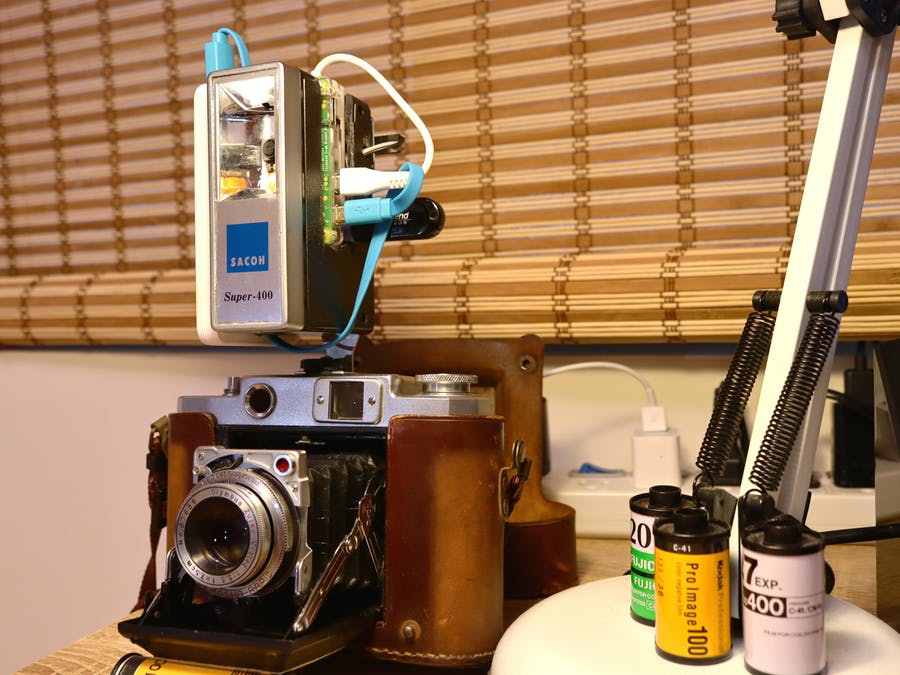
At every touch of the onboard touchpad, the retrofit camera films 12 seconds of footage and saves it as an MP4 file on the onboard SD card or an optional USB flash drive.
While the project didn’t technically bring the flash unit back to life — as the flash function is still broken — it’s a nice example of upcycling old tech, and it looks pretty sweet. Plus, you can attach it to your existing film camera to produce some cool side-by-side comparison imagery, as seen in the setup above.
For a full breakdown of the build, including the code needed to run the camera, check out the project’s Hackster.io page.
The post Retrofit a vintage camera flash with a Raspberry Pi Camera Module appeared first on Raspberry Pi.
A Raspberry Pi Zero W, Pimoroni HyperPixel screen, and Raspberry Pi IR Camera Module are all you need to build this homemade night vision camera.
How to build a night vision camera
How to build a night vision camera, video showing the process and problems that I came across when building this camera
Built into the body of an old camera flash, Dan’s Raspberry Pi night vision camera is a homage to a childhood spent sneaking around the levels of Splinter Cell. Says Dan:
The iconic image from the game is the night vision goggles that Sam Fisher wears. I have always been fascinated by the idea that you can see in the dark and this formed the foundation of my idea to build a portable hand-held night vision piece of equipment.
The camera, running on Raspbian, boasts several handy functions, including touchscreen controls courtesy of the Pimoroni HyperPixel, realtime video and image capture, and a viewing distance of two to five metres.
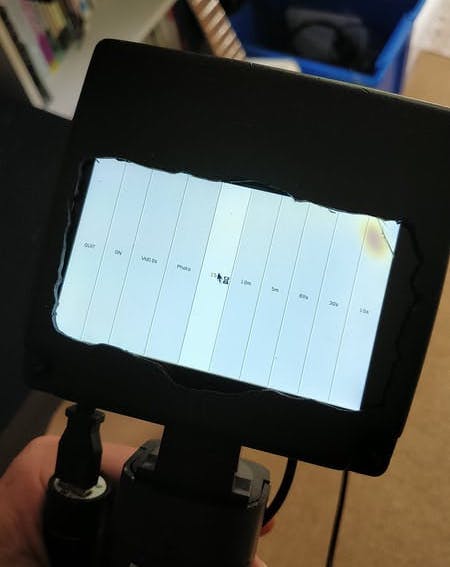
Embracing the FAIL (First Attempt In Learning) principle, Dan goes into detail about the issues he had to overcome while building the camera, which is another reason why we really enjoyed this project. It’s okay to fail when trying your hand at digital making, because you learn from your mistakes! Dan’s explanations of the struggles he faced and how he overcame them are .
For a full rundown of the project and tips on building your own, check out its Hackster.io page.
The post Build your own Raspberry Pi night vision camera appeared first on Raspberry Pi.
All across the UK, you’ll find train departure boards on station platforms that look like this:
They’ve looked this way for as long as I can remember (before they were digital dot-matrix displays, they were made from those flappy bits of plastic with letters of the alphabet and numbers printed on them, which whirled round like a Rolodex; they still look very similar). If you’re a frequent train traveller in the UK, you probably have a weird emotional response to seeing one of these. Mine is largely one of panic about being late.
Some people have a more…benign relationship with trains than I do, like Chris Crocker-White, who has adapted a build tweeted by Chris Hutchinson to make a miniature departure board for his desk. Here’s the tweet that started it all:
Chris Hutchinson on Twitter
Pretty hyped about my most recent @Raspberry_Pi project – a realistic, real-time, train departure board I’ve open sourced the software over at: https://t.co/vGQzagsSpi Next step: find a case and make it a permanent fixture! https://t.co/HEXgzdH8TS
Chris C-W’s build is similar, but has a couple of very neat upgrades, including some back-end software work (his build runs in Docker on balenaCloud, to make configuration easier), and some work on the display, which he’s tweaked to use 1:1 pixel mapping of the fonts and avoid any scaling, so the tiny board looks more like the dot-matrix LED displays you’ll see when you visit the station. You can see the difference in the image below:
Chris seems to be using his board as a piece of desktop furniture, where it looks terrific, but model train or narrow-gauge enthusiasts should be all over this project too; it’s a lovely way to inject some realism into a miniature setup. You can find a very complete guide to making your own here.
Now, if you’ll excuse me, I have a train to catch.
The post Real-time train station departure board appeared first on Raspberry Pi.
Having just sat and watched this gorgeous time lapse of a Finnish lake, we thought it would be nice to finish off the working week with a collection of lovely Raspberry Pi Camera Module time lapses.
Summer time lapse over a Finnish lake.
Time lapse over a Finnish lake from July 2019. Shot with a DIY all-weather HDR time-lapse camera built from ZWO ASI 224MC and Raspberry Pi 3. The camera was built to function as an all-sky camera for recording the night sky year round but since in July the stars were not visible in Finland I decided to test it aimed horizontally over a lake and was positively surprised about the results.
Time-lapse over a Finnish lake from July 2019. Shot with a DIY all-weather HDR time-lapse camera built from ZWO ASI 224MC and Raspberry Pi 3.
Cress Seeds Growing Raspberry Pi Time Lapse Video
Filmed over 6 days using a Raspberry Pi Zero W and Raspberry Pi Camera. Once photo taken every 5 minutes and then played back at 24 fps. I removed the night time photos and then the images were stitched together using the ‘Stop Motion’ app on an iPhone.
Filmed over 6 days using a Raspberry Pi Zero W and Raspberry Pi Camera. Once photo taken every 5 minutes and then played back at 24 fps.
Salad Growth | Timelapse | Raspberry Pi Camera | PiMeetsPlants
Timelapse about salad growth. Period of Picture Making: 03-04 to 02-05-2016 Camera has shot 2087 pictures in a distance of 20 minutes. Camera: Raspberry Pi Camera Module Music: Valesco – Stay With Me: http://soundcloud.com/valesco_official/stay-with-me Valesco on Soundcloud: http://soundcloud.com/valesco_official My Links: Website: https://pimeetsplants.com Twitter: https://twitter.com/PiMeetsPlants Google+: https://plus.google.com/+Pimeetsplants
I think I have a thing for time-lapse videos of plant growth. They’re just so friggin’ cool!
Skyline Timelapse: Day to Night l SainSmart FOV160° Raspberry Pi Camera
More info : https://www.sainsmart.com/products/wide-angle-fov160-5-megapixel-camera-module-for-raspberry-pi FOLLOW US Twitter: https://twitter.com/Sain_Smart Facebook: https://www.facebook.com/SainSmart/ Instagram: https://www.instagram.com/sainsmart/
PHYSARUM MACHINE
Summer Project 2018 – Computational Arts MA, Goldsmiths University London. Time-lapse footage of Physarum Polycephalum captured with Raspberry Pi and IR camera, slit-scan program in Open Frameworks.
Summer Project 2018 – Computational Arts MA, Goldsmiths University London. Time-lapse footage of Physarum Polycephalum captured with Raspberry Pi and IR camera, slit-scan program in Open Frameworks.
Setting up the Raspberry Pi Shop, Cambridge
Given that we had access to a bunch of Raspberry Pis, we thought that we should use some of them to get some timelapse footage of the shop being set up. Read more about the Raspberry Pi shop on our blog: http://rpf.io/ytstoreblog
We couldn’t help ourselves. When the time came to set up the Raspberry Pi retail store in Cambridge, we just had to install a time-lapse camera in the corner.
While this time lapse wasn’t taken with a Raspberry Pi Camera Module, the slider moving the camera was controlled using Raspberry Pi. That counts, right?
The Burren
The Burren is a karst landscape region in north-west Co. Clare in Ireland. It is one of the largest karst regions in Europe. I have been photographing The Burren over the last 5 years, and recently got into time lapse photography. The Burren was an obvious place for me to do this first video.
The Burren is a karst landscape region in north-west Co. Clare in Ireland. It is one of the largest karst regions in Europe. I have been photographing The Burren over the last 5 years, and recently got into time-lapse photography. The Burren was an obvious place for me to do this first video.
Want to set up your own Raspberry Pi time-lapse camera? Our handy guide shows you how.
Do you have a time-lapse video you’d like to share with us? Then please post your link in the comments below.
The post Rather lovely Raspberry Pi time lapses appeared first on Raspberry Pi.


 Lateo.net - Flux RSS en pagaille (pour en ajouter : @ moi)