 Connexion


If you find yourself working or learning, or simply socialising from home, Raspberry Pi can help with everything from collaborative productivity to video conferencing. Read more in issue #92 of The MagPi, out now.
If you’re using a USB webcam, you can simply insert it into a USB port on Raspberry Pi. If you’re using a Raspberry Pi Camera Module, you’ll need to unpack it, then find the ‘CAMERA’ port on the top of Raspberry Pi – it’s just between the second micro-HDMI port and the 3.5mm AV port. Pinch the shorter sides of the port’s tab with your nails and pull it gently upwards. With Raspberry Pi positioned so the HDMI ports are at the bottom, insert one end of the camera’s ribbon cable into the port so the shiny metal contacts are facing the HDMI port. Hold the cable in place, and gently push the tab back home again.
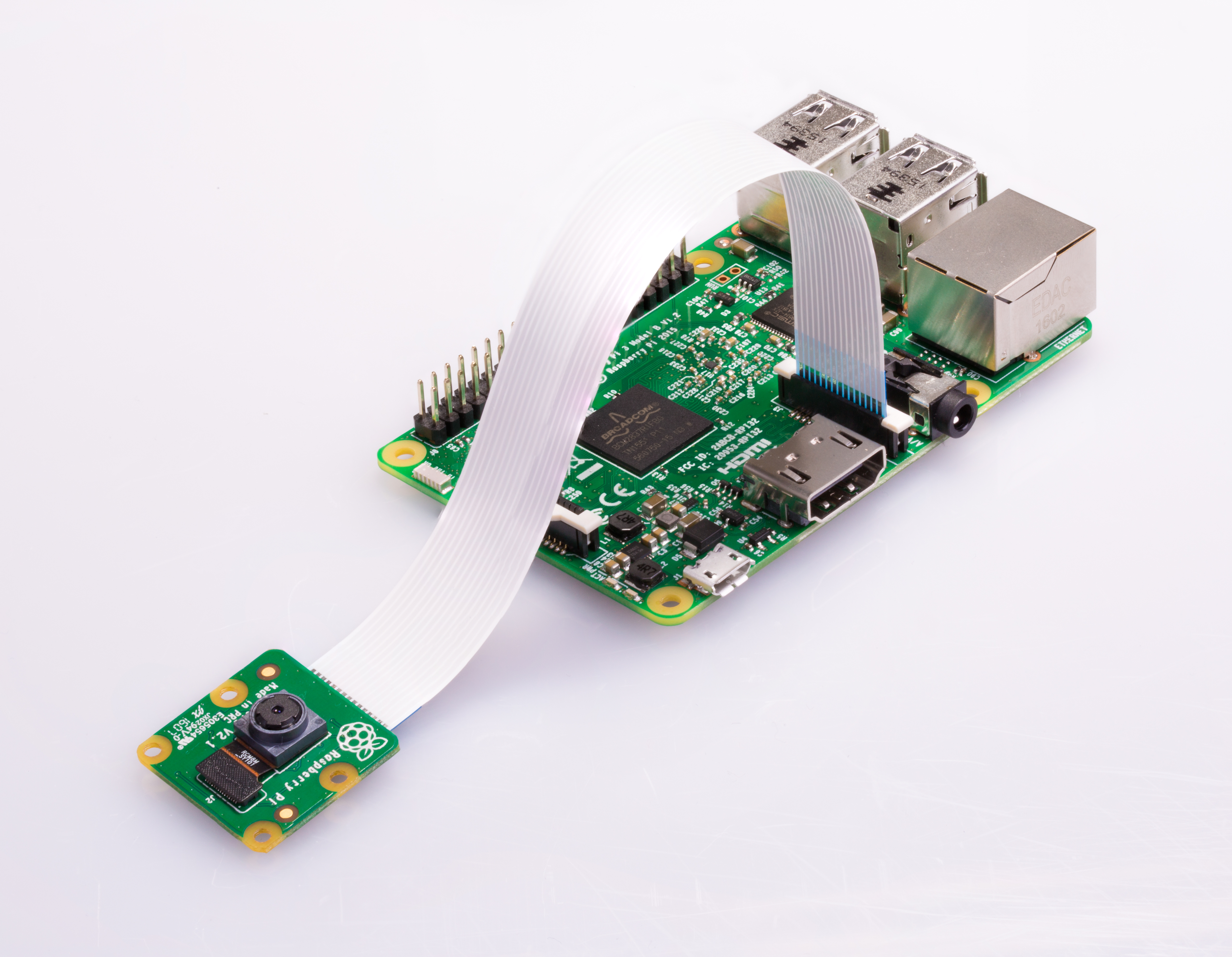
If the Camera Module doesn’t have the ribbon cable connected, repeat the process for the connector on its underside, making sure the contacts are facing downwards towards the module. Finally, remove the blue plastic film from the camera lens.
Before you can use your Raspberry Pi Camera Module, you need to enable it in Raspbian. If you’re using a USB webcam, you can skip this step. Otherwise, click on the raspberry menu icon in Raspbian, choose Preferences, then click on Raspberry Pi Configuration.

When the tool loads, click on the Interfaces tab, then click on the ‘Enabled’ radio button next to Camera. Click OK, and let Raspberry Pi reboot to load your new settings. If you forget this step, Raspberry Pi won’t be able to communicate with the Camera Module.
If you’re using a USB webcam, it may come with a microphone built-in; otherwise, you’ll need to connect a USB headset, a USB microphone and separate speakers, or a USB sound card with analogue microphone and speakers to Raspberry Pi. Plug the webcam into one of Raspberry Pi’s USB 2.0 ports, furthest away from the Ethernet connector and marked with black plastic inners.
Right-click on the speaker icon at the top-right of the Raspbian desktop and choose Audio Inputs. Find your microphone or headset in the list, then click it to set it as the default input. If you’re using your TV or monitor’s speakers, you’re done; if you’re using a headset or separate speakers, right-click on the speaker icon and choose your device from the Audio Outputs menu as well.
Click on the Internet icon next to the raspberry menu to load the Chromium web browser. Click in the address box and type hangouts.google.com. When the page loads, click ‘Sign In’ and enter your Google account details; if you don’t already have a Google account, you can sign up for one free of charge.
When you’ve signed in, click Video Call. You’ll be prompted to allow Google Hangouts to access both your microphone and your camera. Click Allow on the prompt that appears. If you Deny access, nobody in the video chat will be able to see or hear you!
You can invite friends to your video chat by writing their email address in the Invite People box, or copying the link and sending it via another messaging service. They don’t need their own Raspberry Pi to participate – you can use Google Hangouts from a laptop, desktop, smartphone, or tablet. If someone has sent you a link to their video chat, open the message on Raspberry Pi and simply click the link to join automatically.
You can click the microphone or video icons at the bottom of the window to temporarily disable the microphone or camera; click the red handset icon to leave the call. You can click the three dots at the top-right to access more features, including switching the chat to full-screen view and sharing your screen – which will allow guests to see what you’re doing on Raspberry Pi, including any applications or documents you have open.
If your microphone is too quiet, you’ll need to adjust the volume. Click the Terminal icon at the upper-left of the screen, then type alsamixer followed by the ENTER key. This loads an audio mixing tool; when it opens, press F4 to switch to the Capture tab and use the up-arrow and down-arrow keys on the keyboard to increase or decrease the volume. Try small adjustments at first; setting the capture volume too high can cause the audio to ‘clip’, making you harder to hear. When finished, press CTRL+C to exit AlsaMixer, then click the X at the top-right of the Terminal to close it.
Adjust your audio volume settings with the AlsaMixer tool
Just because you’re not shoulder-to-shoulder with colleagues doesn’t mean you can’t collaborate, thanks to these online tools.
Google Docs
Google Docs is a suite of online productivity tools linked to the Google Drive cloud storage platform, all accessible directly from your browser. Open the browser and go to drive.google.com, then sign in with your Google account – or sign up for a new account if you don’t already have one – for 15GB of free storage plus access to the word processor Google Docs, spreadsheet Google Sheets, presentation tool Google Slides, and more. Connect with colleagues and friends to share files or entire folders, and collaborate within documents with simultaneous multi-user editing, comments, and change suggestions.
Designed for business, Slack is a text-based instant messaging tool with support for file transfer, rich text, images, video, and more. Slack allows for easy collaboration in Teams, which are then split into multiple channels or rooms – some for casual conversation, others for more focused discussion. If your colleagues or friends already have a Slack team set up, ask them to send you an invite; if not, you can head to app.slack.com and set one up yourself for free.
Built more for casual use, Discord offers live chat functionality. While the dedicated Discord app includes voice chat support, this is not yet supported on Raspberry Pi – but you can still use text chat by opening the browser, going to discord.com, and choosing the ‘Open Discord in your browser’ option. Choose a username, read and agree to the terms of service, then enter an email address and password to set up your own free Discord server. Alternatively, if you know someone on Discord already, ask them to send you an invitation to access their server.
If you need to send a document, image, or any other type of file to someone who isn’t on Google Drive, you can use Firefox Send – even if you’re not using the Firefox browser. All files transferred via Firefox Send are encrypted, and can be protected with an optional password, and are automatically deleted after a set number of downloads or length of time. Simply open the browser and go to send.firefox.com; you can send files up to 1GB without an account, or sign up for a free Firefox account to increase the limit to 2.5GB.
For programmers, GitHub is a lifesaver. Based around the Git version control system, GitHub lets teams work on a project regardless of distance using repositories of source code and supporting files. Each programmer can have a local copy of the program files, work on them independently, then submit the changes for inclusion in the master copy – complete with the ability to handle conflicting changes. Better still, GitHub offers additional collaboration tools including issue tracking. Open the browser and go to github.com to sign up, or sign in if you have an existing account, and follow the getting started guide on the site.
Find more fantastic projects, tutorials, and reviews in The MagPi #93, out now! You can get The MagPi #93 online at our store, or in print from all good newsagents and supermarkets. You can also access The MagPi magazine via our Android and iOS apps.
Don’t forget our super subscription offers, which include a free gift of a Raspberry Pi Zero W when you subscribe for twelve months.
And, as with all our Raspberry Pi Press publications, you can download the free PDF from our website.
The post How to work from home with Raspberry Pi | The Magpi 93 appeared first on Raspberry Pi.
We’ve made a simpler way to image your microSD card with Raspbian, the official Raspberry Pi operating system, and other operating systems. Introducing our new imaging utility, Raspberry Pi Imager.
For me, one of the most important aspects of the Raspberry Pi experience is trying to make it as easy as possible to get started. To this end, since launching the first Raspberry Pi, we’ve added a GUI to our operating system, a wizard to help you set up your Raspberry Pi the first time you boot it, and lots of books and magazines to get people up and running. We’ve even developed the Raspberry Pi Desktop Kit to put all the things you need (yes, Alex, I know – except for a monitor) into a single box to make it as easy as possible!
Despite all these moves towards more simplicity, when it comes to microSD cards, programming them with your favourite Raspberry Pi operating system has always been a little bit tricky.
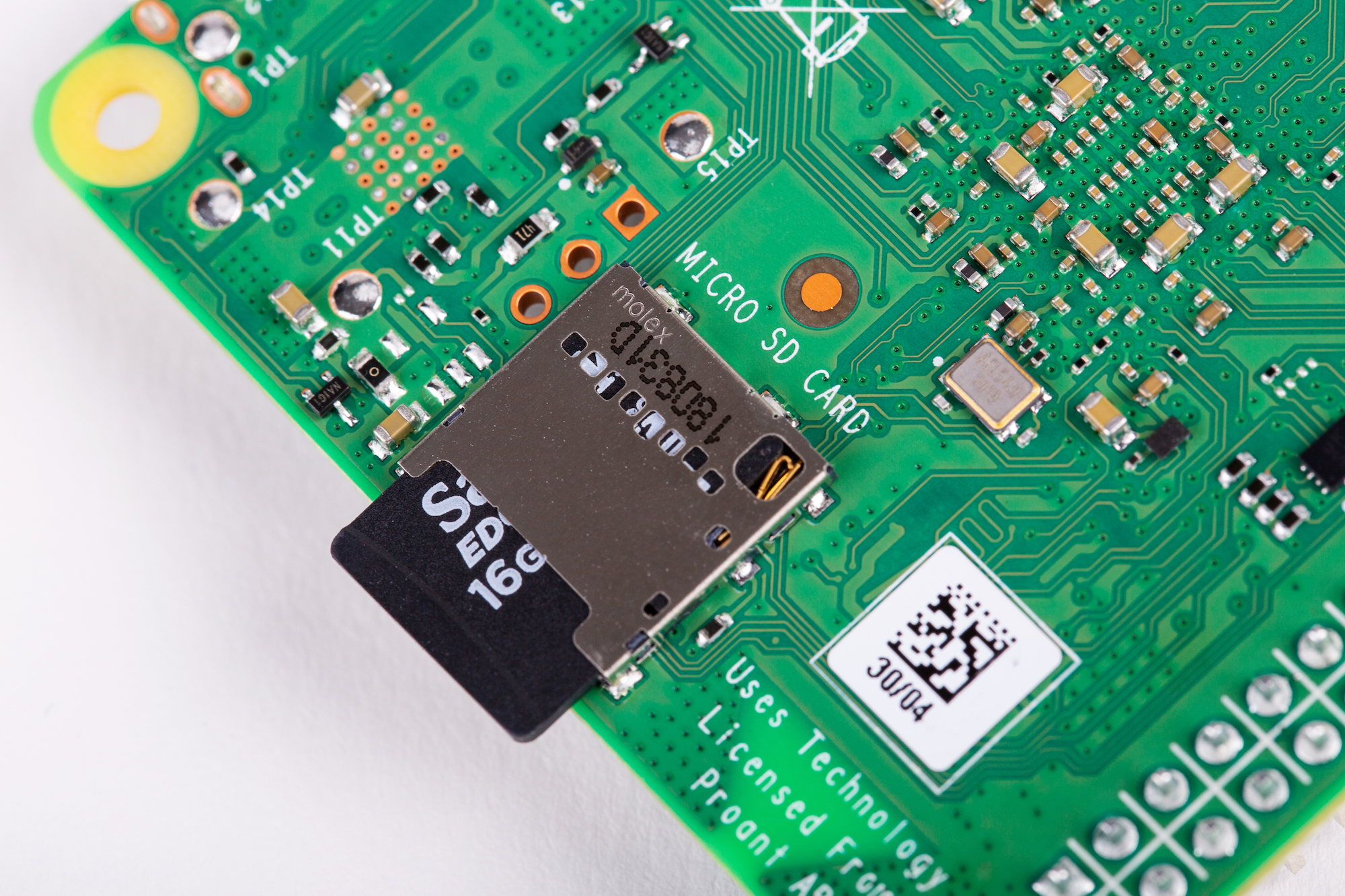
The main problem comes from the differences between the operating systems that people’s main computers are likely to use: Windows, macOS, and Linux all use different methods of accessing the SD card, which doesn’t help matters. And, for some new Raspberry Pi users, understanding where to find the latest up-to-date image and how to get it onto the microSD card can be a bit confusing, unless you’ve had prior experience with image-flashing tools such as Etcher.
For that reason, we’ve always suggested that you should buy a pre-loaded NOOBS SD card from your Raspberry Pi Approved Reseller.
But what if you want to re-image an existing card?
Image Utility
No Description
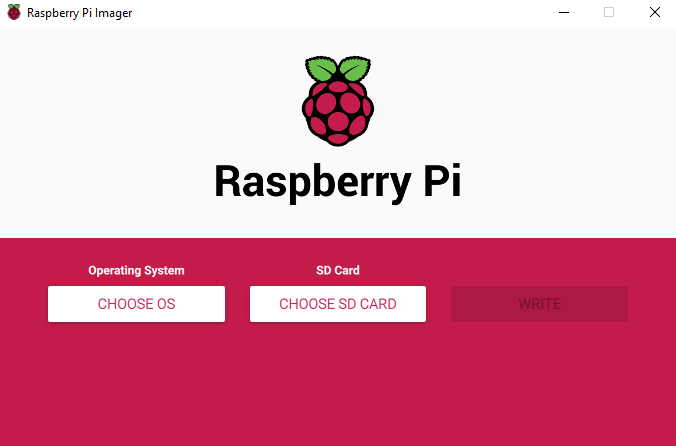
From today, Raspberry Pi users will be able to download and use the new Raspberry Pi Imager, available for Windows, macOS and Ubuntu.
The utility is simple to use and super speedy, thanks to some shortcuts we’ve introduced into the mechanics.
Firstly, Raspberry Pi Imager downloads a .JSON file from our website with a list of all current download options, ensuring you are always installing the most up-to-date version.
Once you’ve selected an operating system from the available options, the utility reads the relevant file directly from our website and writes it straight to the SD card. This speeds up the process quite considerably compared to the standard process of reading it from the website, writing it to a file on your hard drive, and then, as a separate step, reading it back from the hard drive and writing it to the SD card.
During this process, Raspberry Pi Imager also caches the downloaded operating system image – that is to say, it saves a local copy on your computer, so you can program additional SD cards without having to download the file again.
Download the Raspberry Pi Imager from our downloads page today.
Raspberry Pi Imager is fully open source and was originally written as a modification of the PiBakery tool, later modified and finished by Floris Bos (the original writer of the NOOBS tool and the PiServer tool). You can see Floris’ other software, for data centres, here.
The post Introducing Raspberry Pi Imager, our new imaging utility appeared first on Raspberry Pi.


 Lateo.net - Flux RSS en pagaille (pour en ajouter : @ moi)