 Connexion


Why are computing systems at the heart of our computing curriculum design? Senior Learning Manager Sway Grantham from the Foundation team explains in her article from the brand-new issue of Hello World, our free magazine for computing educators, out today.

Whether you plan lessons on a Computing topic, develop curriculum content, or even write curriculum policy, you have to make choices. What are you going to include and what is less of a priority? You have to consider time constraints and access to resources, prior learning and maybe even pupil interests. You probably also have to consider the wider curriculum context. Well, here is my first principle to help you: computing systems should be the foundation of your Computing curriculum.
As a primary teacher, when I first began writing Computing lesson plans for children aged 9 to 10, I started with programming. This was a very visual entry into Computing, and children were excited to create projects that were familiar to them, such as games and animations. However, as my understanding of Computing grew, I realised that something was missing.
My learners could explain what an algorithm is, as well as explaining that a program is ‘a set of instructions that runs on a computer to tell it what to do’. Both of these met the curriculum needs, but I wasn’t convinced that they could link these two concepts together. Could they connect what they were doing on a floor robot to the computing systems around them? Did they understand what a computer was? Well… I asked them to see what they’d say!
According to my class, a computer was:
This very simple question highlighted a wealth of alternate conceptions about programming and computing systems. The other commonality of my learners’ definitions was that they described the computer’s function, as if, in order to define what a computer is, we just need to know what it does. This view of a definition greatly limits learners’ ability to understand what potential computers have beyond personal use.
My learners had two discrete chunks of knowledge: how to program a floor robot, and that laptops were computers. However, without a bridge to connect them, this learning was disjointed. Learners needed to have a concrete, conceptual understanding of ‘what a computer is’ before they could start to comprehend the more abstract role of a program in that system.
Knowledge of computing systems empowers people to take control of technology and not just consume it.
Beyond the experiences of my young learners, we see examples of a lack of understanding about computing systems all the time in society. Many competent users of software are able to regularly complete the tasks that they need, but if one day something doesn’t work, they do not know how to find a solution. Equally, many people enjoy exploring digital making projects, yet if they want to personalise the project, they don’t know what they can or can’t change to do this. Knowledge of computing systems empowers people to take control of technology and not just consume it.
Both of these examples highlight the importance of introducing computing systems as both life skills and as support for developing other areas of computing. More recently, the Raspberry Pi Foundation has been creating 100 hours of curriculum content in partnership with non-profit organisation Amala Education. Through this content we aim to give refugee learners who may never have used technology enough understanding to build a website that encourages social change.
Whilst we know that the material needs to include some foundational knowledge of computing systems, we must first consider the core content that learners must understand to achieve the end goal, such as:
These areas of learning are a great place to start as, undeniably, learners aren’t going to be able to build a website without knowing the process of creating a website, the languages used to create web pages, or the project management skills to see a project from start to finish.
This could be the entirety of the content, but instead, I encourage you to think back to those children who could program but didn’t know on what devices programs could run. We need to connect the core content to that foundational content: how is building a website related to computing systems?
All learning is built on prior knowledge, even if that prior knowledge has been gained through life experience and not formal education. To build a website, we need to know how to type and use a mouse. We need to know what a website is, why people use websites, and what sort of media is found on them. Beyond that, we need to know how the files that we are creating are being shared with other people. We need to understand that a computer can communicate with another computer and what the process is to make that happen. None of this learning is the core content of building a website, but if you tried to build a website without understanding these things, it would be difficult to do.
All learning is built on prior knowledge, even if that prior knowledge has been gained through life experience and not formal education.
As the learners we support together with Amala Education might have no prior experience of using technology, we needed to ensure that enough foundational computing systems content was built into the learning sequence — things such as:
By incorporating this content into the learning sequence, we ensure that learners do not just learn a process for creating a website. They understand the impact of the choices they make when building a website, they have the skills to implement their ideas, and they can connect their understanding to solve any unexpected challenges they find along the way. This more holistic approach should support learners’ knowledge transfer and offer them a much broader range of opportunities.
This more holistic approach should support learners’ knowledge transfer and offer them a much broader range of opportunities.
Whatever your curriculum requires, you will have the core content you need to teach. This could be the requirements of your standardised curriculum, it could be the specific project you’re trying to build, or it could be the aspirations that you have for your students. However, rather than stopping at that part of your learning sequence, take a step back and consider the prior knowledge you’re connecting to. I expect you will find that computing systems is what you need to ensure learners’ new knowledge has a solid foundation.
Computing systems and networks is one of those computer science topics in which misconceptions abound. Hello World issue 20 focuses on how you can support your learners to grasp even the tricky ideas within this topic, giving you practical ideas, activities, and insights from practicing educators. Download your free PDF copy now, and subscribe to never miss an issue.
The post Computing curriculum fundamentals | Hello World #20 appeared first on Raspberry Pi.
Just in time for the holidays, we’ve updated Raspberry Pi Imager to add some new functionality.
You can go to our software page to download and install the new version 1.5 release of Raspberry Pi Imager and use it now.
We haven’t done telemetry in Imager before, and since people tend — rightly — to be concerned about applications gathering data, we want to explain exactly what we are doing and why: we’re logging which operating systems and categories people download, so we can make sure the most popular options are easy enough to find in Raspberry Pi Imager’s menu system.
We don’t record any personal data, such as your IP address; the information we collect allows us to see the number of downloads of each operating system over time, and nothing else. You’ll find more detailed information, including how to opt out of telemetry, in the Raspberry Pi Imager GitHub README.md.
You can see which OSes are most often downloaded too, on our stats page.
As you can see, the default recommended Raspberry Pi OS image is indeed the most downloaded option. The recently released Ubuntu Desktop for Raspberry Pi 4 and Raspberry Pi 400 is the most popular third-party operating system.
The post Raspberry Pi Imager update appeared first on Raspberry Pi.
The new Ubuntu Appliance portfolio provides free images to help you turn your Raspberry Pi into an IoT device: just install them to your SD card and you have all the software you need to make a media server, get started with home automation, and more. Canonical’s Rhys Davies is here to tell us all about it.
We are delighted to announce the new Ubuntu Appliance portfolio. Together with NextCloud, AdGuard, Plex, Mosquitto and openHAB, we have created the first in a new class of Ubuntu derivatives. Ubuntu Appliances are software-defined projects that enable users to download everything they need to turn a Raspberry Pi into a device that does one thing – beautifully.
The Ubuntu Appliance mission is to enable you to build your own secure, self-updating, single-purpose devices. Tell us what you want to see next, or let’s talk about turning your project into the next Ubuntu Appliance in Discourse. For now, we are excited to bring these initial appliances to your attention.
Head over to the Ubuntu Appliances website, click the appliance you would like, select download, follow the instructions, and away you go. Once you get to this stage, there are links to tutorials and documentation written by the upstream project themselves, so you can get next steps from the horse’s mouth. If you run into any bother let us know with a new topic and we’ll get on it.
The problem we are trying to solve is to do with the fragmentation in IoT. We want to give publishers and developers a platform to get their software in the hands of their users and into their devices. We work with them to securely bundle the OS, their applications and configurations into a single download that is available for anyone to turn a Raspberry Pi into a dedicated device. You can go to the portfolio and download as many of the appliances as you like and start using them today.
All of this gives a stage and a secure, production-grade base to projects. There are no restrictions on who can make an Ubuntu Appliance; all you need is an application that runs on a Raspberry Pi or another certified board, and to let us know what you’ve got so we can help you over the line. If you need more information, head to our community page where you’ll find the rules and the exact steps to become featured as an Ubuntu Appliance.
All that’s left to say is to try them out. All five of the initial appliances work on Raspberry Pi, so if you have one, you can get started. And if you don’t have one – maybe your Raspberry Pi is still in the post – then you can also ‘try before you Pi’: install the appliance in a virtual machine and see what you think.
The list of appliances is already growing. This launch marks the first five appliances, but we are already working with developers on the next wave and are looking for more. Start with these ones and go to our discourse to tell us what you think.
Thanks for having me, Raspberry Pi <3
The post Build an IoT device with Ubuntu Appliance and Raspberry Pi appeared first on Raspberry Pi.
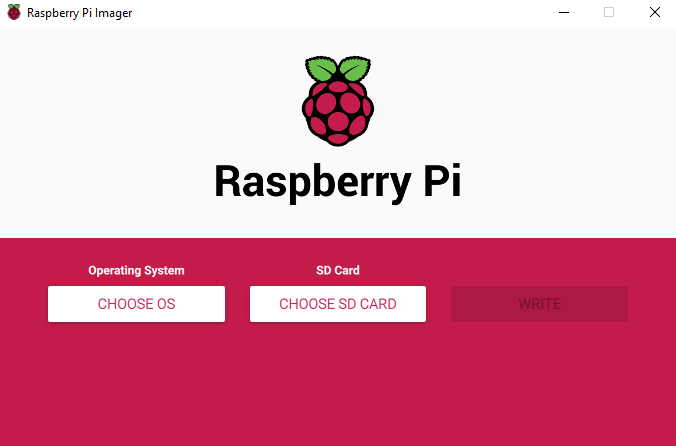
We’ve made a simpler way to image your microSD card with Raspbian, the official Raspberry Pi operating system, and other operating systems. Introducing our new imaging utility, Raspberry Pi Imager.
For me, one of the most important aspects of the Raspberry Pi experience is trying to make it as easy as possible to get started. To this end, since launching the first Raspberry Pi, we’ve added a GUI to our operating system, a wizard to help you set up your Raspberry Pi the first time you boot it, and lots of books and magazines to get people up and running. We’ve even developed the Raspberry Pi Desktop Kit to put all the things you need (yes, Alex, I know – except for a monitor) into a single box to make it as easy as possible!
Despite all these moves towards more simplicity, when it comes to microSD cards, programming them with your favourite Raspberry Pi operating system has always been a little bit tricky.
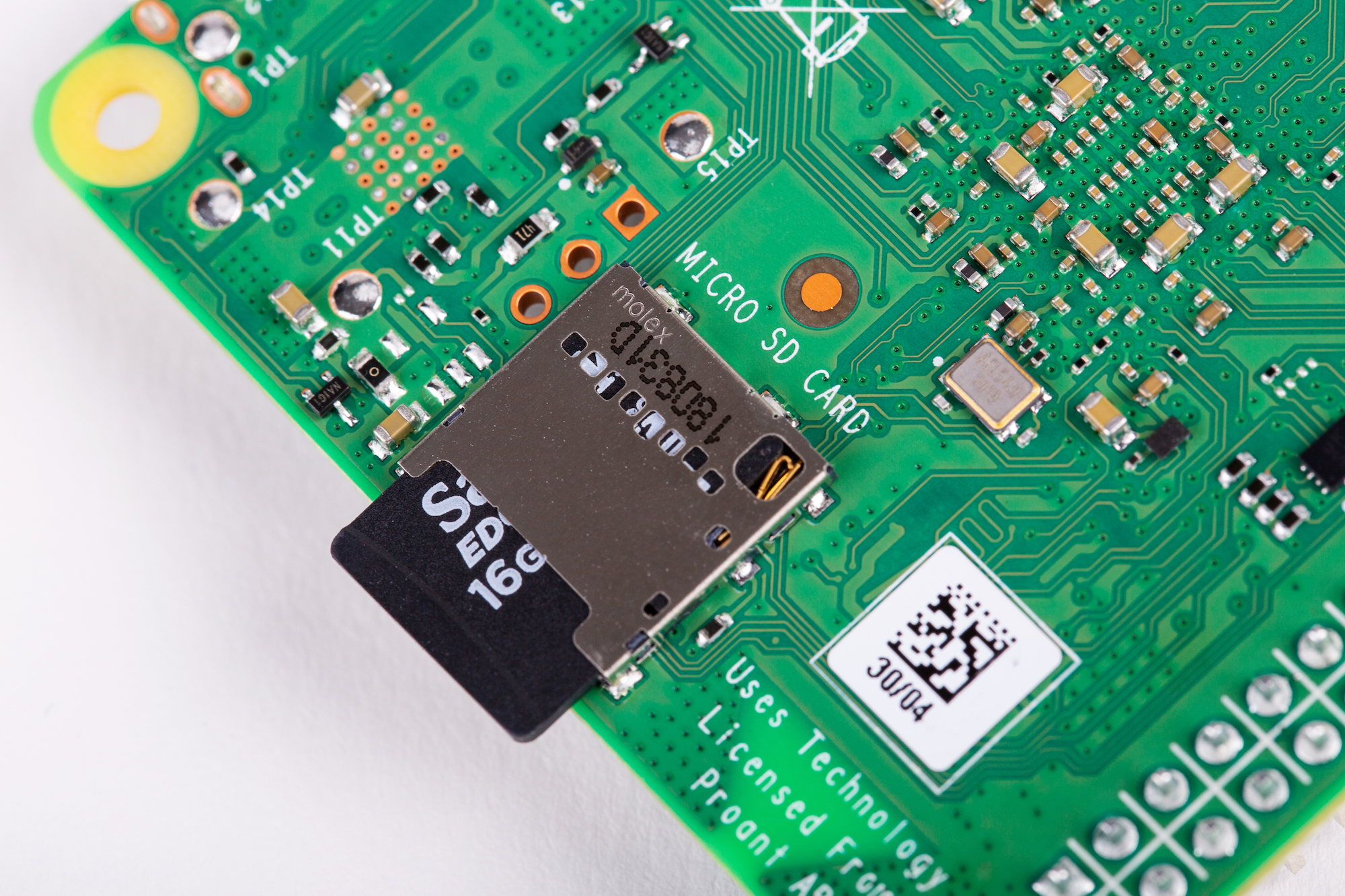
The main problem comes from the differences between the operating systems that people’s main computers are likely to use: Windows, macOS, and Linux all use different methods of accessing the SD card, which doesn’t help matters. And, for some new Raspberry Pi users, understanding where to find the latest up-to-date image and how to get it onto the microSD card can be a bit confusing, unless you’ve had prior experience with image-flashing tools such as Etcher.
For that reason, we’ve always suggested that you should buy a pre-loaded NOOBS SD card from your Raspberry Pi Approved Reseller.
But what if you want to re-image an existing card?
Image Utility
No Description
From today, Raspberry Pi users will be able to download and use the new Raspberry Pi Imager, available for Windows, macOS and Ubuntu.
The utility is simple to use and super speedy, thanks to some shortcuts we’ve introduced into the mechanics.
Firstly, Raspberry Pi Imager downloads a .JSON file from our website with a list of all current download options, ensuring you are always installing the most up-to-date version.
Once you’ve selected an operating system from the available options, the utility reads the relevant file directly from our website and writes it straight to the SD card. This speeds up the process quite considerably compared to the standard process of reading it from the website, writing it to a file on your hard drive, and then, as a separate step, reading it back from the hard drive and writing it to the SD card.
During this process, Raspberry Pi Imager also caches the downloaded operating system image – that is to say, it saves a local copy on your computer, so you can program additional SD cards without having to download the file again.
Download the Raspberry Pi Imager from our downloads page today.
Raspberry Pi Imager is fully open source and was originally written as a modification of the PiBakery tool, later modified and finished by Floris Bos (the original writer of the NOOBS tool and the PiServer tool). You can see Floris’ other software, for data centres, here.
The post Introducing Raspberry Pi Imager, our new imaging utility appeared first on Raspberry Pi.
Since we first launched Raspberry Pi, an SD card (or microSD card) has always been a vital component. Without an SD card to store the operating system, Raspberry Pi is pretty useless*! Over the ensuing eight years, SD cards have become the default removable storage technology, used in cameras, smartphones, games consoles and all sorts of other devices. Prices have plummeted to the point where smaller size cards are practically given away for free, and at the same time storage capacity has increased to the point where you can store a terabyte on your thumbnail.
However, the fact that SD cards are now so commonplace sometimes conceals the fact that not all SD cards are created equal. SD cards have a speed rating – how fast you can read or write data to the card – and as card sizes have increased, so have speed ratings. If you want to store 4K video from your digital camera, it is important not just that the card is big enough to hold it, but also that you can write it to the card fast enough to keep up with the huge amount of data coming out of the camera.
The speed of an SD card will also directly affect how fast your Raspberry Pi runs, in just the same way as the speed of a hard drive affects how fast a conventional desktop computer runs. The faster you can read data from the card, the faster your Raspberry Pi will boot, and the faster programs will load. Equally, write speed will also affect how well any programs which save large quantities of data run – so it’s important to use a good-quality card.
The speed rating of an SD card should be printed either on the card itself or on the packaging.
The 32GB card shown below is Class 4, denoted by the 4 inside the letter C – this indicates that it can write at 4MB/s.
The 64GB card shown below is Class 10, and so can write at 10MB/s. It also shows the logo of UHS (“ultra high speed”) Class 1, the 1 inside the letter U, which corresponds to the same speed.
More recently, speeds have started to be quoted in terms of the intended use of the card, with Class V10 denoting a card intended for video at 10MB/s, for example. But the most recent speed categorisation – and the one most relevant to use in a Raspberry Pi – is the new A (for “application”) speed class. We recommend the use of Class A1 cards (as the one above – see the A1 logo to the right of the Class 10 symbol) in Raspberry Pi – in addition to a write speed of 10MB/s, these support at least 1500 read operations and 500 write operations per second. All the official Raspberry Pi microSD cards we sell meet this specification.
We’ve all heard the stories of people who have bought a large capacity SD card at a too-good-to-be-true price from a dodgy eBay seller, and found that their card labelled as 64GB can only actually hold 2GB of data. But that is at least fairly easy to spot – it’s much harder to work out whether your supposedly fast SD card is actually meeting its specified speed, and unscrupulous manufacturers and sellers often mislabel low quality cards as having unachievable speeds.
Today, as the first part of a new suite of tests which will enable you to perform various diagnostics on your Raspberry Pi hardware, we are releasing a tool which allows you to test your SD card to check that it performs as it should.
To install the new tool, from a terminal do
sudo apt update
sudo apt install agnostics
(“agnostics”? In this case it’s nothing to do with religion! I’ll leave you to work out the pun…)
Once installed, you will find the new application “Raspberry Pi Diagnostics” in the main menu under “Accessories”, and if you launch it, you’ll see a screen like this:
In future, this screen will show a list of the diagnostic tests, and you will be able to select which you want to run using the checkboxes in the right-hand column. But for now, the only test available is SD Card Speed Test; just press “Run Tests” to start it.
One thing to note is that the write performance of SD cards declines over time. A new card is blank and data can be written to what is effectively “empty” memory, which is fast; but as a card fills up, memory needs to be erased before it can be overwritten, and so writes will become slower the more a card is used. The pass / fail criteria in this test assume a new (or at least freshly formatted) card; don’t be alarmed if the write speed test fails when run on the SD card you’ve been using for six months! If you do notice your Raspberry Pi slowing down over time, it may be worth backing up your SD card using the SD Card Copier tool and reformatting it.
The test takes a minute or so to run on a Raspberry Pi 4 (it’ll take longer on older models), and at the end you’ll see a results screen with either (hopefully) PASS or (if you are less fortunate) FAIL. To see the detailed results of the speed test, press “Show Log”, which will open the test log file in a text editor. (The log file is also written to your home directory as rpdiags.txt.)
We are testing against the A1 specification, which requires a sequential write speed of 10MB/s, 500 random write operations per second, and 1500 random read operations per second; we run the test up to three times. (Tests of this nature are liable to errors due to other background operations accessing the SD card while the test is running, which can affect the result – by running the test multiple times we try to reduce the likelihood of a single bad run resulting in a fail.)
If the test result was a pass, great! Your SD card is good enough to provide optimum performance in your Raspberry Pi. If it failed, have a look in the log file – you’ll see something like:
Raspberry Pi Diagnostics - version 0.1
Mon Feb 24 09:44:16 2020

Test : SD Card Speed Test
Run 1
prepare-file;0;0;12161;23
seq-write;0;0;4151;8
rand-4k-write;0;0;3046;761
rand-4k-read;9242;2310;0;0
Sequential write speed 4151 kb/s (target 10000) - FAIL
Note that sequential write speed declines over time as a card is used - your card may require reformatting
Random write speed 761 IOPS (target 500) - PASS
Random read speed 2310 IOPS (target 1500) - PASS
Run 2
prepare-file;0;0;8526;16
...
You can see just how your card compares to the stated targets; if it is pretty close to them, then your card is only just below specification and is probably fine to use. But if you are seeing significantly lower scores than the targets, you might want to consider getting another card.
br>
br>
[*] unless you’re using PXE network or USB mass storage boot modes of course.
The post Raspberry Pi SD Card Speed Test appeared first on Raspberry Pi.


 Lateo.net - Flux RSS en pagaille (pour en ajouter : @ moi)